Position: How Tos - Partition Management - How to Completely Wipe a Hard Drive in Windows 11/10/8/7?

DiskGenius - A free tool to securely erase hard drives, SD cards, SSDs, or USB flash drives, making data unrecoverable.
ô Free DownloadTable of Contents
It's common for most users to sell or give away computers or hard drives when they want to dispose of old devices or upgrade to new ones. You may have already formatted the hard drive or deleted files on it in order to erase sensitive personal data and avoid becoming the victim of identity theft.
However, the fact is that wiping out a hard drive is not as easy as deleting data or formatting a hard disk. Simply deleting files by Shift + Delete or emptying the Recycle Bin does not permanently clear data, as deleted files can easily be recovered by recovery software. Formatting a hard drive does not completely erase data either. Though the operating system cannot see deleted or formatted data and the drive looks empty, hard drive recovery software can easily retrieve lost data from various cases.
If you view tech forums or communities online, you can see lots of users looking for an easy way to clean storage devices, and here is one of them:
"What is the best way to clean the hard drive of my laptop? I'm going to sell it to someone but want to ensure all personal files are securely erased. What I want to do is cleaning hard drive completely and reinstalling Windows 7 (its configuration is suitable for Windows 10). Everything on the hard disk has been backed up to my external hard drive, I'm hoping one of you here can tell me how to clear my PC step by step? I know how to install Windows from CD but have no idea how to safely wipe hard disk. Many thanks!"
Are you one of those who hold the view that deleting a file is similar to erasing it? If yes, you should take a fresh look at this issue. We'll explain reasons in an easier manner.
Hard drive is a kind of storage device which is used to store digital data. Files are stored on the surface of magnetic and rotating platters in hard disk case. Hard disks change the magnetic property of platter surface to 1 or 0 when reading or writing data. Thus all data on hard drive will be finally stored in the form of basic binary data, for example, when system saves data like photos, music, etc. on the hard drive, rows of zeros and ones are recorded on platters.
When a file is deleted, those ones and zeros of that file stay unaffected, because only a pointer indicates that the file is deleted. Therefore, recovering deleted files is available before file data gets overwritten or damaged. What about disk formatting? Formatting works in a similar way, as it does not actually wipe data. Formatting a disk or partition looks like tearing the table of contents without disturbing actual chapters of the book. Recovery software is also able to retrieve lost files from a formatted disk.
You may wonder how disk wiping works since deletion and formatting does not permanently clean hard drive data. Apart from physical damage to hard drives, we can completely remove data with disk wiping technology.
As mentioned above, to completely erase disk data, we should remove those binary data, which means overwriting those zeros and ones with new data. Once the binary data of a file is replaced and overwritten by new data, it cannot be recovered any more. Some professional disk eraser software is able to fill up the disk with zeros or random characters sector by sector, ensuring no data can be recovered from a wiped disk.
Some preparatory work should be done before wiping computer hard drives in order to make sure the disk wiping can be completed without interruption or causing extra issues.
Once everything is ready, you can start erasing either internal hard drives or external disks. The remaining part of this instruction will show you how to wipe a hard drive, external disk, SD card, or flash drive via different ways.
This method wipes a computer by using the reset feature in Windows, which has an option to remove everything on the hard drive. This section takes Windows 10 as an example to explain how to wipe a computer completely. If your computer is running an older version of Windows, you can try steps in Method 2 to erase hard disks. Here are steps to wipe a hard drive in Windows 10:
Step 1. Click "Start" menu and select "Settings" option. On Windows Settings pane click "Update & Security" option.
Step 2. Click "Recovery" option on the left navigation options and then click "Get Started" button under "Reset this PC" section.
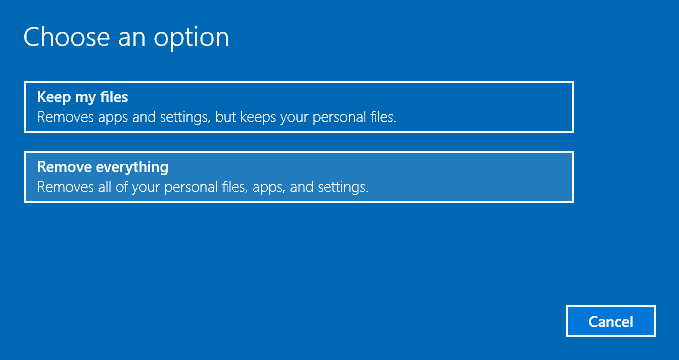
Step 3. Select "Remove everything" option. This will remove all of your personal files, apps, and settings and start over.
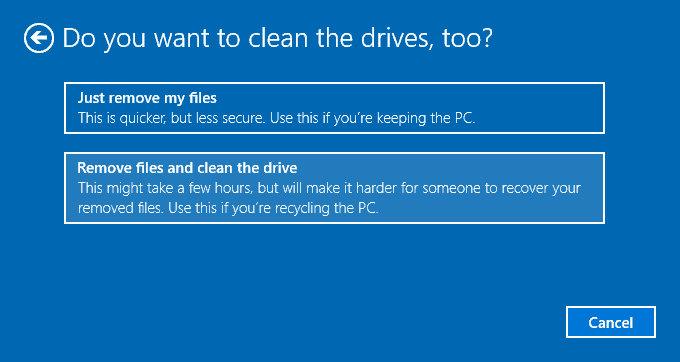
Step 4. Select "Remove files and clean the drive" when you are asked whether to clean the drives too. The cleaning process may take a longer time but it makes sure no one can recover erased files.
Step 5. Click "Next" and "Reset" button on following steps to complete the task.
The secure way to erase data for good is overwriting data and refilling the hard disk using zeros or random data, so that nobody can recover wiped data with hard disk data recovery software. While this may sound complex, nowadays cleaning hard disks is not a complicated work, and you can easily and securely erase disks using free disk wipe software.
DiskGenius is free software for permanent data wiping. With this hard disk eraser, you can wipe all data on a disk by filling it sector by sector, making files unrecoverable. Besides, it is also a free partition manager program which is able to resize, format, clone, or back up partitions, check & repair bad sectors, migrate Windows, etc. Here are features related to disk wiping:
The following content introduces how to erase data in different situations, and you can choose the appropriate case based on your actual demands, for instance, if you want to clear an SD card or other removable devices, Case #1 is the proper solution. If you want to wipe an entire computer, then go to Case #2.
By way of the free disk erasure DiskGenius Free Edition, you can completely wipe hard drives and removable drives via rewriting sectors to 00 or random characters. Thus, files on the hard drive cannot be recovered by any method, ensuring privacy. Follow steps below to wipe your hard drives or USB drives in Windows 11/10/8/7.
Step 1. Connect the removable device to your computer and make sure it can be recognized by Windows.
Step 2. Install and run DiskGenius from your PC, and you can see all local disks and portable devices on the main interface.
Step 3. Select the external hard drive or SD card you want to erase data from, and select "Erase Sectors" option under "Tools" menu.
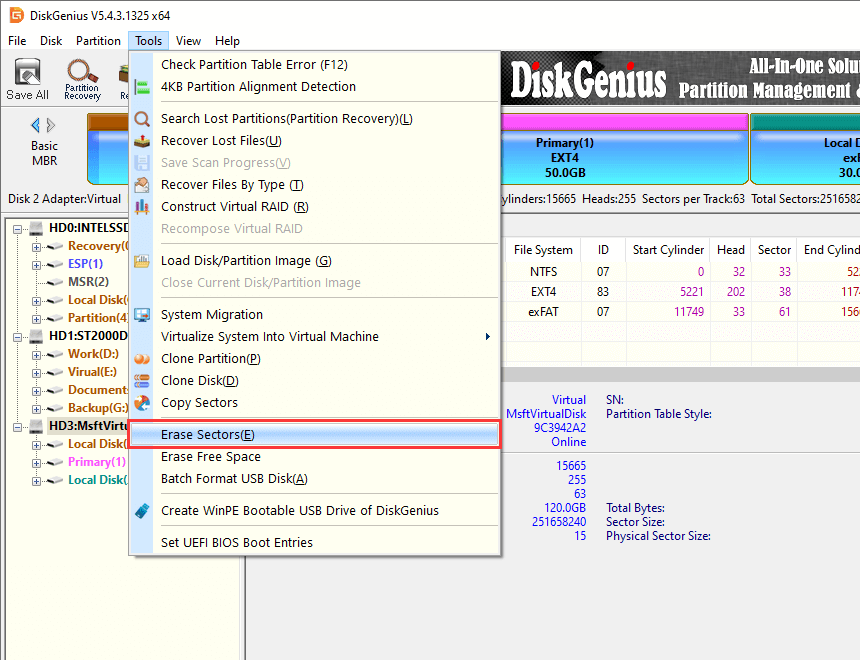
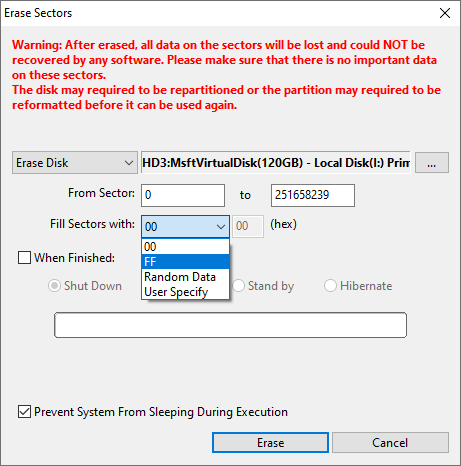
Step 4. Select items to fill disk sectors and click the "Erase" button on the popped-up window.
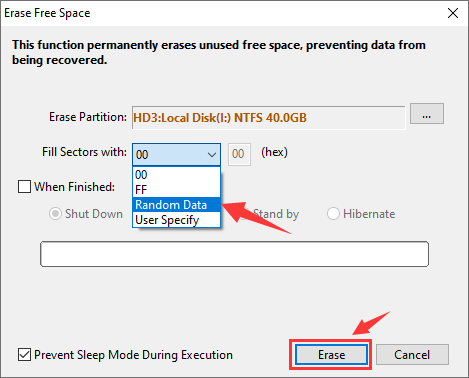
There are four options to fill disk sectors in the drop-down list, i.e. Random Data, 00, FF and User Specify. You can either choose one from "00, FF and Random Data", or specify item to fill disk.
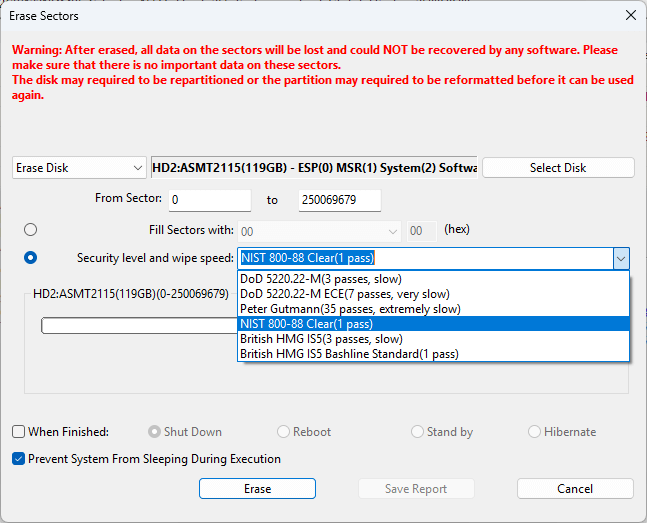
DiskGenius provides multiple secure erase levels such as DoD 5220.22-M, Gutmann, NIST 800-88, and British HMG IS5. You can select the "Security level and wipe speed" option and select an erase level from the dropdown list:
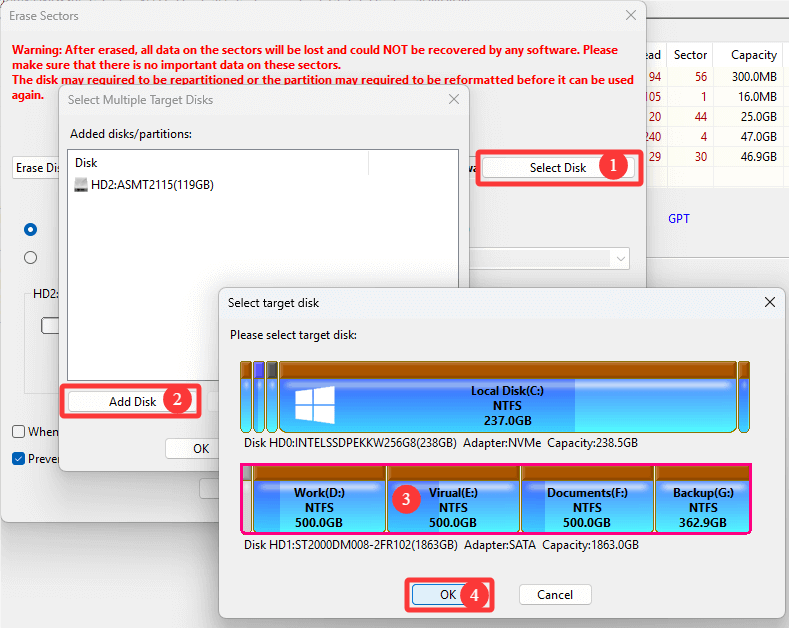
DiskGenius Professional Edition can wipe multiple disks or partitions at the same time. If you want to add more disks to the task: click "Select Disk" - "Add Disk" - select a disk - "OK":
Step 5. DiskGenius asks confirmation for the action, click Erase button to continue.
Since the process wipes data permanently, you should make sure you are erasing correcting disk and important files have been backed up.
Step 6. The disk eraser starts wiping data on selected drive and the process may take long time if the disk has very large capacity.
In this example, you can learn how to wipe a computer's main hard drive where Windows is installed. The operating system does not allow you to erase the operating system while it is running, and we can only wipe non-system partitions. In this situation, we can erase the hard disk in Pre-OS environment, for example Windows PE.
DiskGenius is able to reboot to its WinPE version directly from Windows as well as creating a bootable USB disk with which you can boot computer and run the WinPE version. If you want to create a bootable WinPE USB stick, you can insert your USB flash drive and click Tools menu and select "Create WinPE bootable USB drive of DiskGenius". The following steps show how to reboot a computer to DiskGenius WinPE version directly and then erase the system disk.
Step 1. Launch the free disk wipe tool DiskGenius from your Windows computer.
Step 2. Click menu "File" and choose "Reboot to DiskGenius WinPE Version" option.
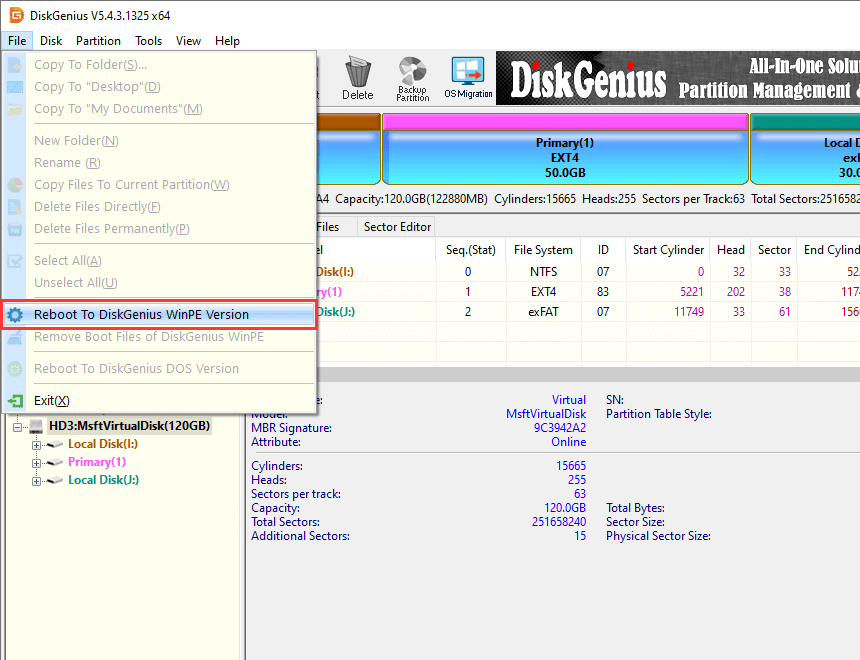
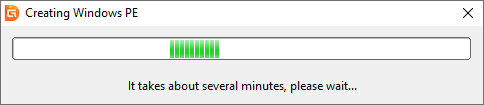
Step 3. It takes about two minutes to create booting information for Windows PE, please wait patiently for it to complete.
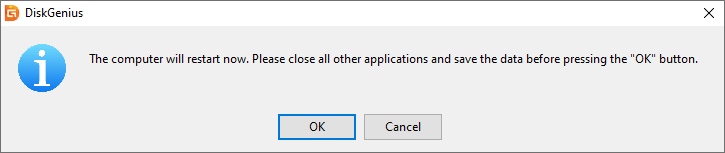
Step 4. Once the application is ready to reboot, it prompts you to restart and backup data. Click "OK" button and computer reboots.
Then the DiskGenius WinPE version is launched, which contains the same features as the its Windows version.
Step 5. Select computer's system hard drive where Windows is installed and click "Erase Sectors" option which can be found under Tools menu.
Step 6. Click Erase button and the software starts wiping the disk.
Note: Once the process finishes, the computer cannot boot to system, as the system has been erased. You need to make a clean Windows installation on the hard disk.
Erasing an entire hard drive takes too much time, and you don't have to do that if you just want to erase certain existing files on the disk. On account that deleting files by emptying Recycle Bin does not wipe data completely, we should do extra operations to make files unrecoverable. Files deleted in this way cannot be recovered by any recovery software or professionals. Let's have a close look at how to wipe files and folders:
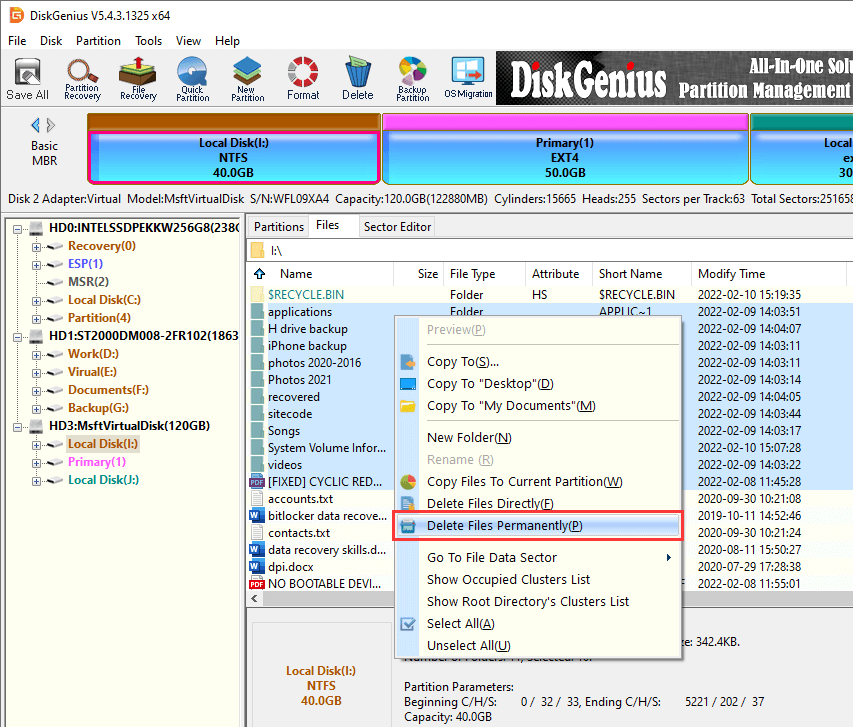
Step 1. Launch DiskGenius again, and locate files you want to permanently delete. Select those files and right-click them to choose "Delete Files Permanently".
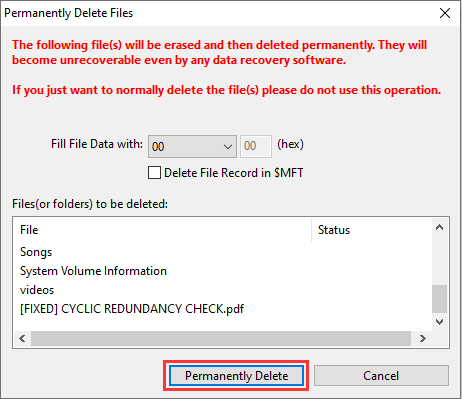
Step 2. Click "Permanently Delete" button on the popped-up window.
In order to completely delete the file, the application will refill hard drive sectors occupied by files during deletion. By default, it overwrites data by filling zeros which can be modified to random data as well. Besides, you should select "Delete Directory Entry" option on FAT partitions (and the option will be "Delete File Record in $MFT" on NTFS partitions).
Step 3. Click "Delete" button to confirm the action to be done.
When selected files get deleted, you can continue to delete other data on your computer.
Erasing free space on a hard drive overwrites lost files, which does not disturb existing files on the disk. This solution applies to those who just want to overwrite lost files. For instance, you've formatted a hard drive and reinstalled operating system, what you need to do is erasing all disk area except the system; or you've deleted sensitive files using Shift + Delete, and want to make sure they are no longer recoverable without affecting existing data.
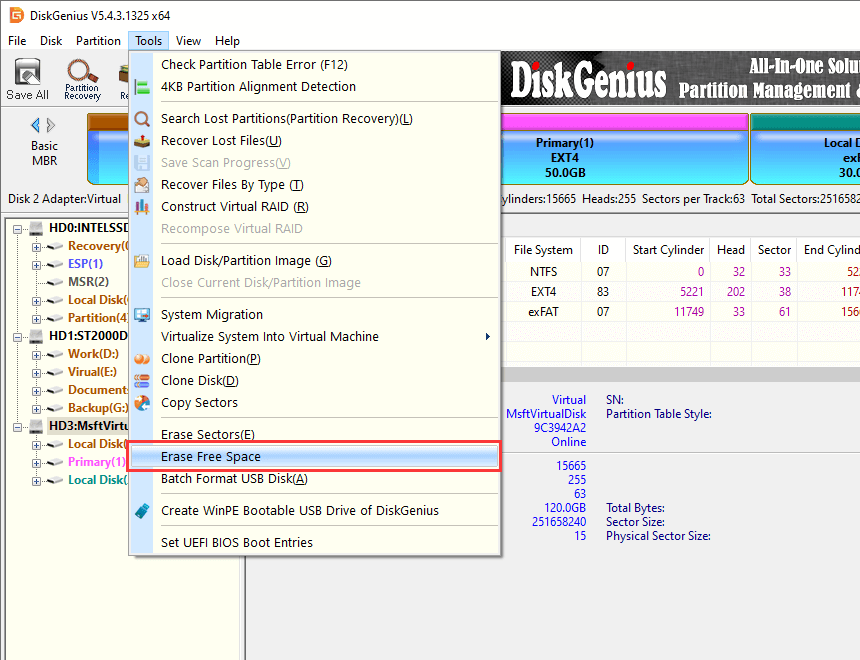
Step 1. Start DiskGenius Free Edition, click "Tools" menu and select "Erase Free Space" item.
This function permanently erases unused free disk space, preventing lost data from being recovered.
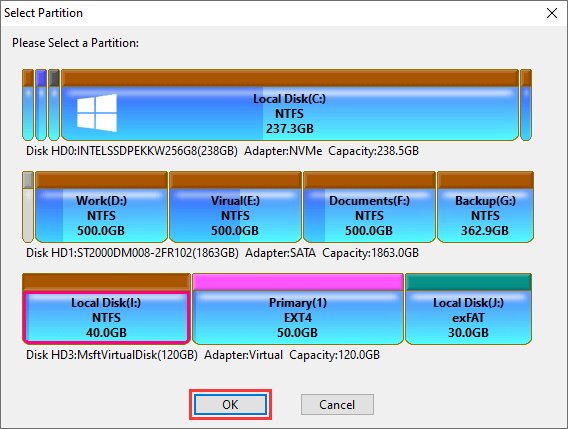
Step 2. Select partition / disk for which you want to erase free space and click "OK" button.
Step 3. Select characters to overwrite disk space and click "Erase" button.
Step 4. The application starts cleaning unused disk space, which takes long time if free space is very large.
Physically destroying a hard drive is also a solution to ensure data is forever unrecoverable. If you are not going to reuse or recycle your hard drive, you can try this solution to clean data.
Step 1. Use a screwdriver to remove all screws on the hard drive case. Then you'll be able to remove enclosure and the main circuit board.
Step 2. Remove platters and heads out of hard drive enclosure, and use a hammer to hit platters. Then repeatedly strike other components.
Step 3. Box up all components and throw them to a garbage can.
This article discusses methods for completely wiping a hard drive, SD card, or removable disk, helping to make sure sensitive data can be erased safely and securely. Files erased by these methods are no longer available for data recovery, so please make sure important files have been backed up to another location before erasing any storage media. If you find this article useful, please share it to help more people. If you have better solutions or any questions about this topic, feel free to contact us.
DiskGenius - A free disk eraser that can permanently wipe a hard drive, SSD, USB flash drive, or SD card sector by sector.
ô Free Download

 Facebook
 YouTube
 X
X