This feature allows you to completely wipe data on any sector of an entire disk or specified partition. Wiped data cannot be recovered by any software. You can specify the fill pattern for overwriting, choose from several industry-recognized wipe algorithms (security levels), and run wipe tasks on multiple disks at the same time.
Important: Wiping sectors is irreversible. Always double-check the target disk/partition and make sure all important data has been backed up before proceeding.
Step 1. In the main interface, select the partition or disk you want to wipe. Then click "Tools – Erase Sectors".
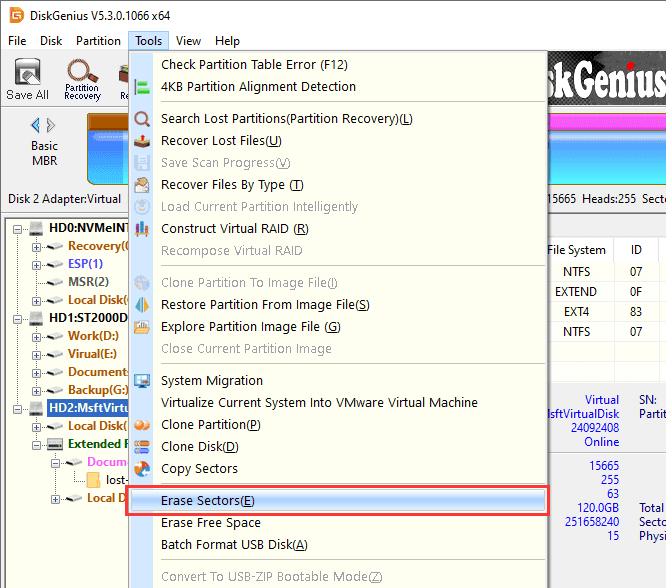
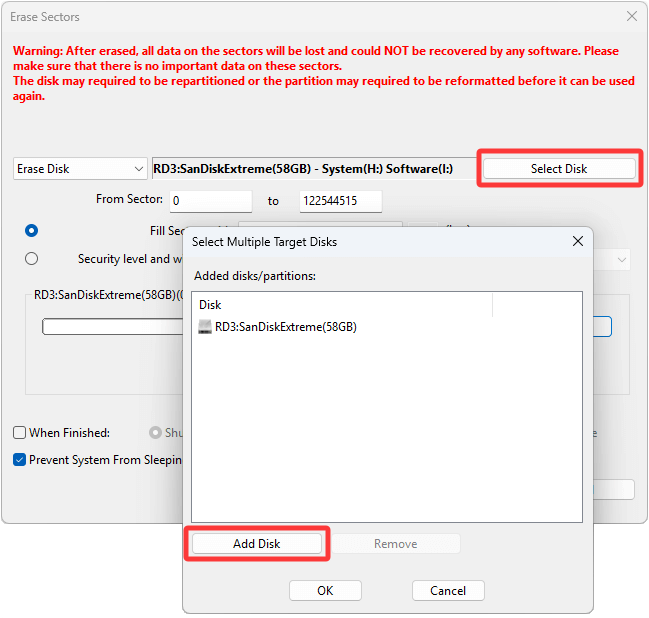
Step 2. The program will display the "Erase Sectors" dialog box.
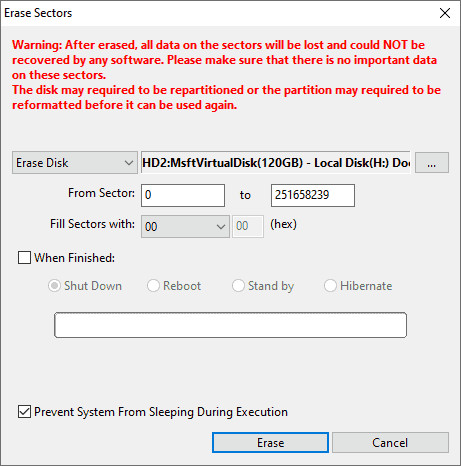
You can configure wiping parameters:
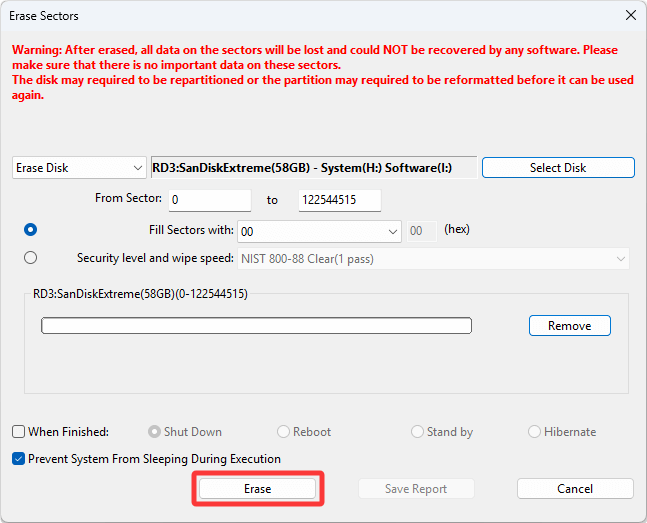
1. In this dialog box, you can change the partition or disk to be wiped and specify the sector range to wipe (if you selected to wipe partition sectors, the sector number refers to the sector number relative to the start of the partition).
2. Wiping methods:
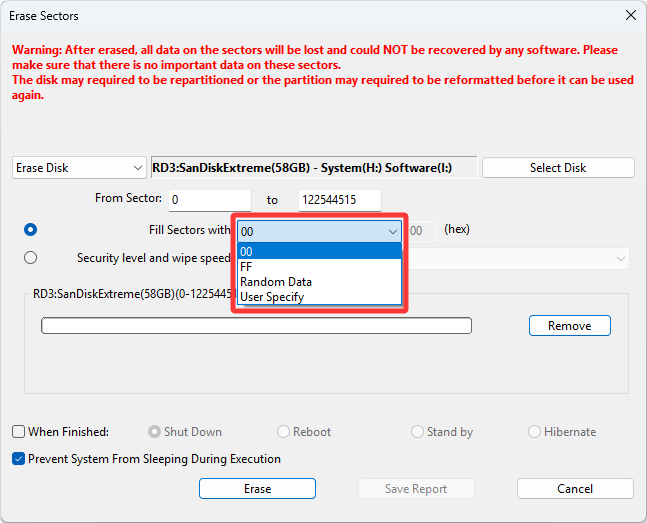
a. Fill Sector With: You can choose a value from the drop-down list, such as, 00, FF, Random Data, or user-defined characters. This method performs a single-pass overwrite using the selected character.
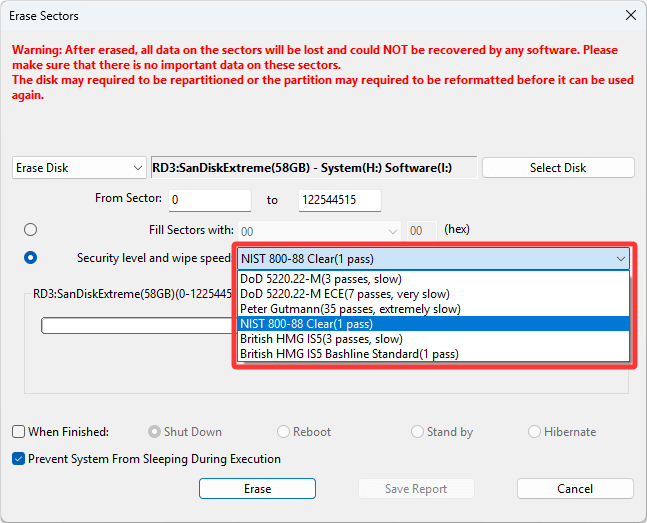
b. Security level and wipe speed: You can choose a predefined wiping standard that performs multiple overwrite passes. Available standards include NIST 800-88, DoD 5220.22-M, Gutmann, HMG IS5, etc. These standards provide higher data security by using different numbers of passes and methods, ensuring data cannot be recovered. Higher security levels require more passes and longer completion times.
3. Add multiple target disks:
DiskGenius supports wiping multiple disks simultaneously. If you need to wipe multiple disks at once, click the "Select Disk" button. The program will display the "Select Multiple Target Disks" dialog box, where you can click the "Add Disk" button.
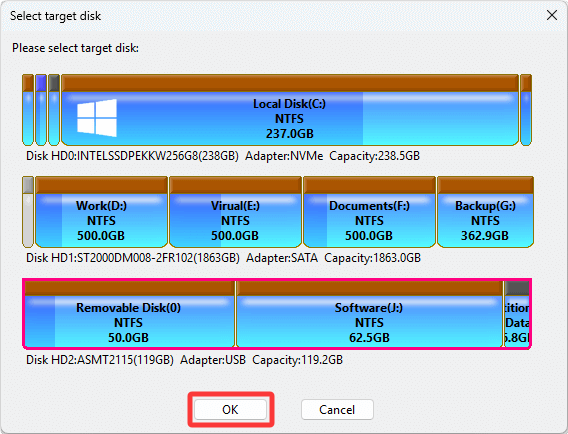
Select the disk you want to add for wiping from the list and click "OK". You can repeat this operation to add multiple disks.
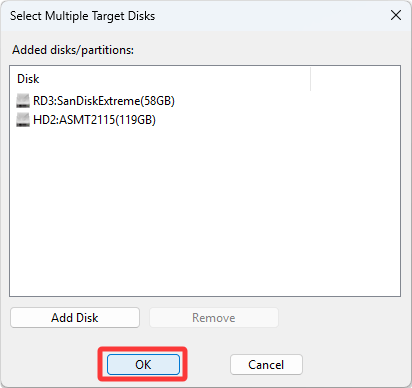
After all disks to be wiped have been added, click the "OK" button to return to the "Erase Sectors" dialog box.
Step 3. After confirming all settings are correct, click "Erase".
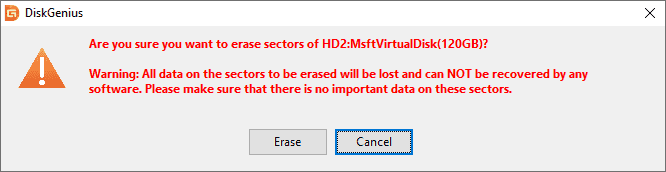
The software will display the following warning message. After wiping, data on the sectors will be permanently lost and cannot be recovered. Please confirm that there is no important data or files in the sectors to be wiped. After confirmation, click the "Erase" button.
The software will display another warning: After this operation, all partitions and files within the specified sector range and related to it will be completely destroyed! Please back up important data first.
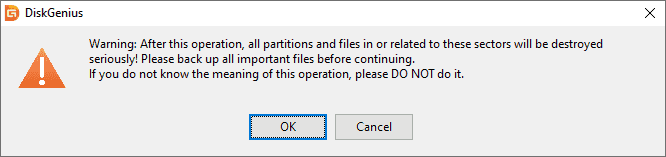
If you fully understand the consequences and have backed up important data, click "OK" to start the wipe process.
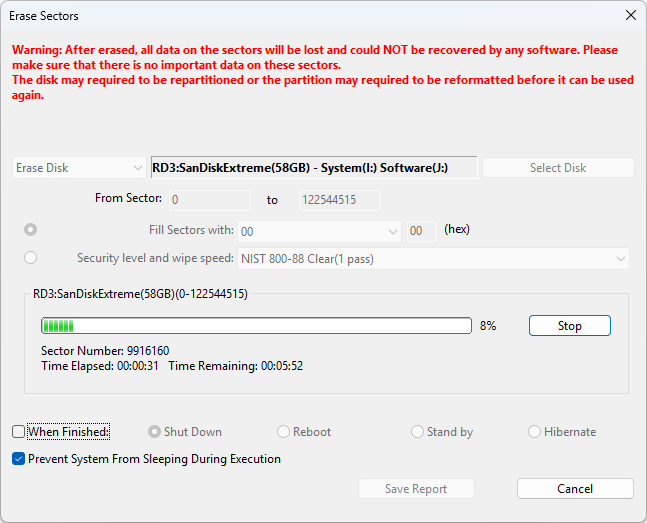
Step 4. When the wipe task finishes, you can click "Complete".
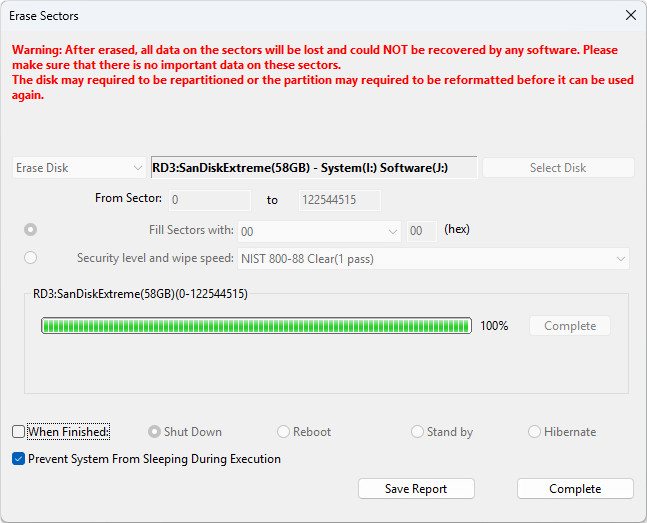
Tip: You can click "Save Report" to export a detailed log of the operation. The report includes wiped disks, sector ranges, wiping method used (such as specific security level standards), completion time, operation result, and other relevant information.
Important Notes:
If you wiped a partition: The partition's file system structure, including the file allocation table and directory entries will be destroyed. You must format the partition before storing new data on it. Formatting recreates the file system to restore normal operations.
If you wiped the entire disk: The wipe process removes the partition table and all existing partitions. The disk will appear as unallocated space. To use the disk again, you need to partition the disk.
The wipe sectors operation permanently deletes data, and wiped data cannot be recovered by any data recovery software. Before performing this operation, please ensure you have backed up all important data and carefully verify that the disk or partition to be wiped is correct to avoid data loss due to operational errors.




 Facebook
 YouTube
 X
X