The Disk Speed Test feature in DiskGenius is designed to evaluate the read and write performance of your storage devices. It offers two testing modes: File Test and Benchmark. This feature supports a wide range of devices, including mechanical hard drives (HDDs), solid-state drives (SSDs), USB portable storage devices and more.
1. In the main interface of DiskGenius, select a partition on the disk you want to test.
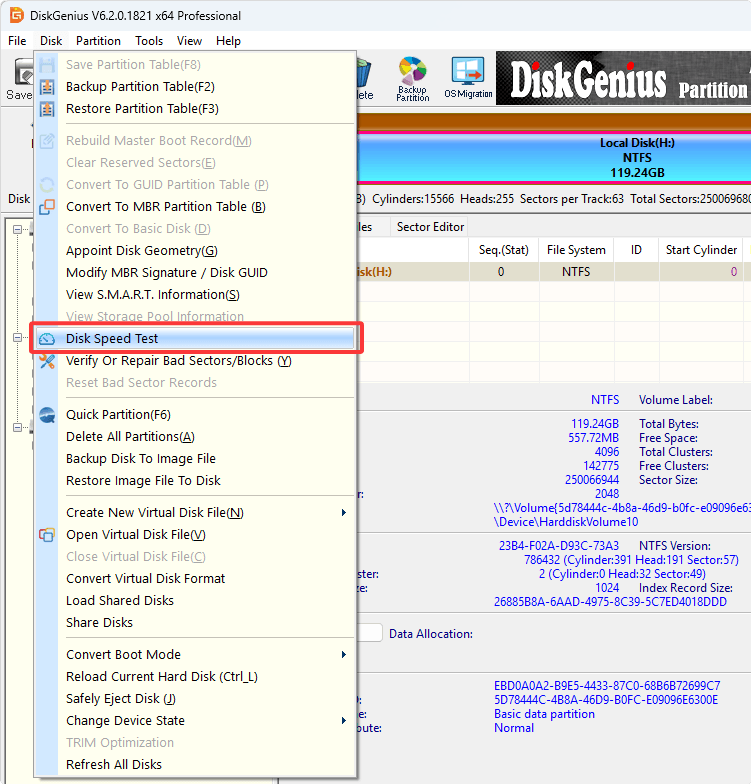
2. Click "Disk" → "Disk Speed Test" from the menu bar.
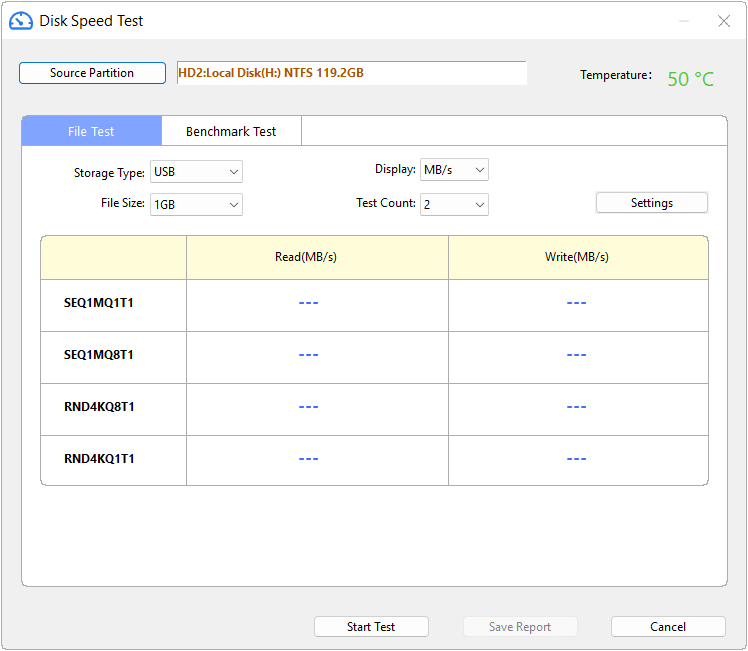
3. The Disk Speed Test window will appear. Choose either File Test or Benchmark Test, configure the test parameters as needed, and then click the "Start Test" button.
Notes:
• If the disk still contains lost data that may need to be recovered (such as deleted or formatted files), do NOT use the Disk Speed Test feature. The test writes data to the disk, which will overwrite lost files and make them unrecoverable.
• Test duration depends on the disk capacity and hardware performance. Large-capacity drives may require a longer testing time.
• For accurate results, close applications that may access the disk in the background, such as antivirus software, cloud sync tools, download managers, and messaging applications. During benchmark testing, avoid unnecessary user interactions such as mouse clicks, window switching.
• Significant fluctuations in the speed graph may indicate bad sectors, unstable firmware behavior, or storage controller issues. It is recommended to further inspect the disk using the "View S.M.A.R.T. Information" and "Verify Or Repair Bad Sectors/Blocks" features in DiskGenius.
• Some USB flash drives and portable hard drives may throttle performance during prolonged stress testing due to thermal protection. Make sure the device has adequate cooling.
File Test
This mode performs read/write tests through the file system. The test results are closer to the theoretical peak performance achievable in real-world usage scenarios such as file copying and running applications.
Parameter Settings:
Storage Type: The software automatically detects the current storage type, such as NVMe SSD, SATA SSD, HDD, or USB storage device. If the detected type is incorrect, you can manually change it.
File Size: Specifies the file size used for testing.
Test Count: Sets how many times the benchmark loop will run.
Display Unit: Defines the unit used to display test results.
MB/s: Decimal standard, 1,000,000 bytes per second
MiB/s: Binary standard, 1,048,576 bytes per second
IOPS: Number of I/O operations per second
The Result Table:
Test results are displayed in a table showing read and write speeds for different workloads.
Terminology:
SEQ: Sequential read/write
RND: Random read/write
Q: Queue Depth
T: Thread count
1M / 128K / 4K: Data block size
Example: "SEQ1MQ1T1" means sequential read/write with a block size of 1 MB, 1 queue, and 1 thread.
Note: Test items such as SEQ1MQ1T1 are not fixed. DiskGenius automatically adjusts these parameters according to the disk type to better match the characteristics of different devices.
Advanced Settings:
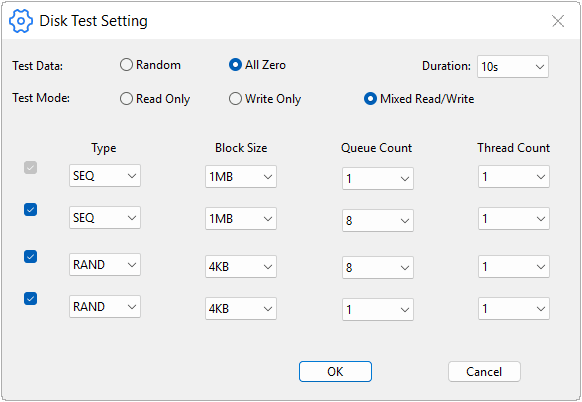
Click the "Settings" button to open the detailed configuration panel for advanced testing scenarios:
Test Data: Supports both "Random" and "All Zero" Data patterns.
Test Mode: Available modes include "Read Only", "Write Only", or "Mixed Read/Write".
Duration: Customizes the duration of each benchmark item, ranging from 5 to 60 seconds.
Custom Workload Model: Four sets of independent test parameters can be configured, including read/write type (random or sequential), block size (4KB - 8MB), queue count (1 - 512), and thread count (1 - 64).
Benchmark Test
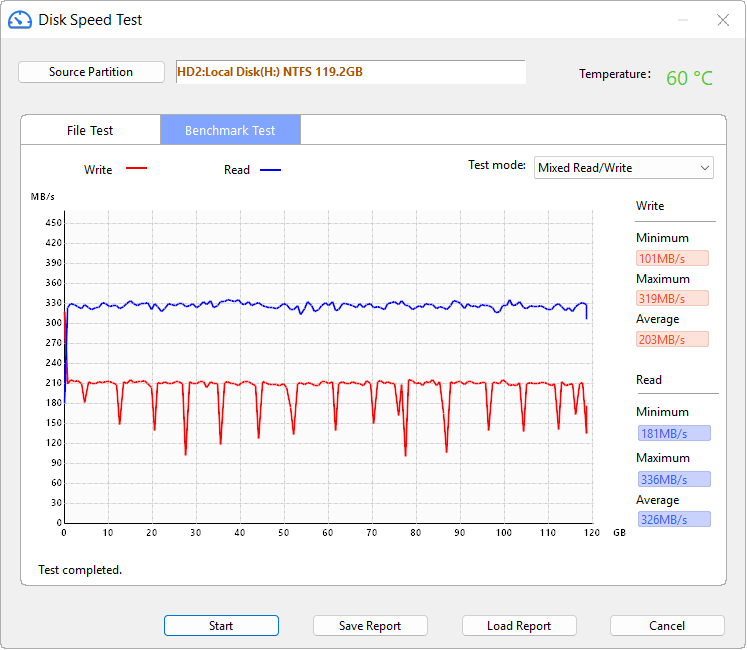
Raw Benchmark directly reads and writes physical sectors on the disk while bypassing the file system cache. It evaluates the raw hardware performance of the disk and generates a real-time speed curve during the test.
Test Mode: Read-only, Write-only or Mixed Read/Write.
Graph Indicators: The red curve represents write speed; the blue curve represents read speed.
Performance Statistics: During testing, the panel on the right side displays the minimum speed, maximum speed, and average speed.




 Facebook
 YouTube
 X
X