The normal startup of a Windows system relies on a complete boot environment, which includes critical components such as boot partitions, boot files, and boot records. If any of these components are damaged, missing, or misconfigured, the system will fail to boot.
The Windows Boot Repair and Conversion feature in DiskGenius lets you:
• Repair Windows boot files
• Switch between UEFI and Legacy BIOS boot modes
• Rebuild or create boot partitions (EFI System Partition or BIOS boot partition)
• Rebuild MBR (Master Boot Record) and PBR (Partition Boot Record) for Legacy mode
• Convert between GPT and MBR partition table formats
This feature supports multi-boot setups, but all selected systems must share the same boot type, either all UEFI or all Legacy.
Supported operating systems: Windows 7, Windows 8/8.1, Windows 10, Windows 11.
How to open this feature: "Tools" → "Windows Boot Repair and Conversion".
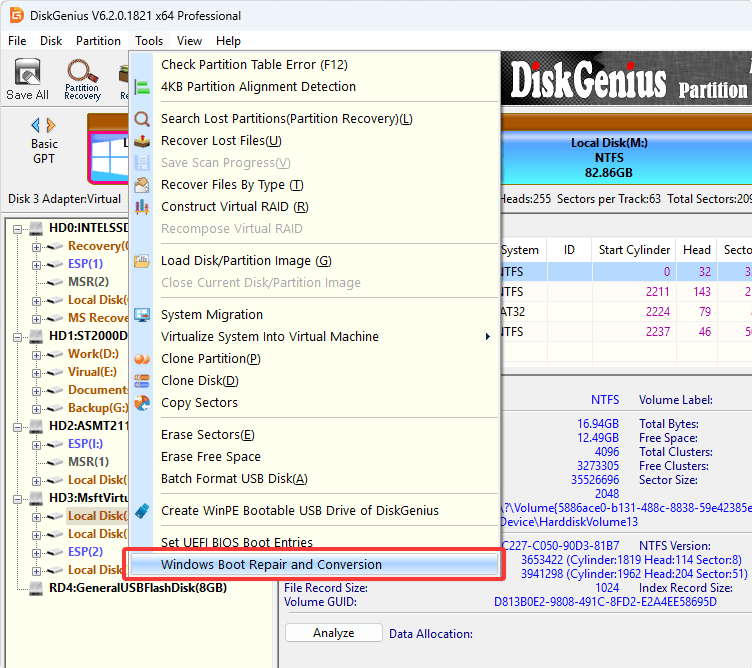
The "Windows Boot Repair and Conversion" dialog box:
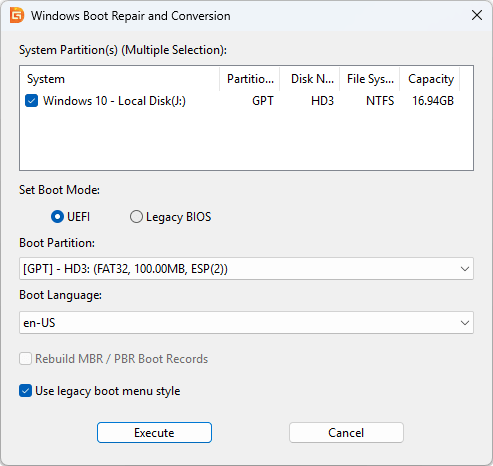
System Partition(s) (Multiple Selection):
This list automatically scans and displays all Windows system partitions available for boot repair and configuration. Each entry shows the partition table type, disk number, file system, and capacity.
Filtering rules:
• To prevent boot file overwriting and potential boot loops, the currently running system partition is automatically excluded and will not appear in the list.
• All selected partitions must use the same boot type. The software does not support configuring a combined dual-boot environment containing both UEFI and Legacy systems on a single disk.
• You can check multiple system partitions simultaneously for a standard boot repair task. However, if a boot mode conversion is involved, only one partition can be selected at a time.
Set Boot Mode:
Two options are available to set the target boot mode:
• UEFI: For newer hardware. Used with GPT partition tables and an EFI System Partition (ESP). Supports features like Secure Boot.
• Legacy BIOS: For older hardware. Used with MBR partition tables. Offers broader hardware compatibility.
You can switch between these two modes. During conversion, DiskGenius will automatically process the partition table style conversion (GPT ↔ MBR) and adjust the boot partitions and boot files accordingly. The conversion follows the standard Windows layout and will not damage existing system files.
Note: Switching the boot mode can only be done on one partition at a time. To switch multiple systems, repeat the operation for each one.
Boot Partition
Select the boot partition for the system via the drop-down menu. Each entry in the list shows the partition's details (partition table type, disk number, file system, capacity, and label). Only one boot partition can be selected per operation.
If the system originally lacks a boot partition or no available partition is detected, you can select "Create Boot Partition", and DiskGenius will automatically create one during execution.
The boot partition of the currently running system is excluded from the list.
Boot Language
Select the language file used for the Windows boot menu and startup recovery interfaces (e.g., en-US for English) via the drop-down box.
This setting only alters the text displayed by the Windows Boot Manager during the startup phase (such as multi-boot selection screens). It will not change the display language of the Windows itself.
Rebuild MBR / PBR Boot Record
This option is only available when the target boot mode is set to "Legacy BIOS". It allows rewriting and repairing the disk's MBR (Master Boot Record) and the active partition's PBR (Partition Boot Record).
Since MBR and PBR are only used in the Legacy BIOS boot process, this option is automatically disabled (grayed out) when UEFI is selected.
Use legacy boot menu style
This checkbox controls what the boot menu looks like when the computer starts.
Checked (Default): Uses the legacy text-based menu (black screen with white text). It only supports keyboard navigation. The benefit is faster response: switching to a non-default OS does not require a second restart.
Unchecked: Uses the modern graphical menu (blue screen with white text). It supports mouse clicking and touch screen input. However, choosing a non-default OS will typically trigger an automatic restart.
Execute / Cancel
Execute: Click to confirm all current configurations and begin the boot repair or conversion process.
Cancel: Discard all changes and close the dialog box without making any modifications.
Notes:
• Operations involving boot mode switching will automatically convert the disk's partition style (GPT ↔ MBR). The conversion follows the standard Windows layout and will not damage existing system files. However, since this is a fundamental change to the disk's partition structure, please back up all important data before proceeding.
• The currently running system partition and its corresponding boot partition cannot be modified directly within the current Windows environment. To repair the boot configuration of the currently running system, boot into a WinPE environment first, then run DiskGenius to perform the repair.
• Some NVMe controllers do not support Legacy BIOS booting. If Windows is installed on an NVMe SSD, verify that your motherboard and storage controller support NVMe boot in Legacy mode before switching from UEFI. Otherwise, the system may not boot after conversion.
• All systems participating in the boot configuration must use the same boot type (all UEFI or all Legacy). Mixed boot types cannot be configured in a single operation.
• Standard boot repairs allow selecting multiple system partitions simultaneously. When switching the boot mode, only one partition can be selected per operation.
• Do not close DiskGenius, shut down, or lose power during the execution. Interrupting the process may result in partition table corruption or data loss.
• After switching the boot mode, enter your motherboard's firmware settings (BIOS/UEFI) and change the Boot Mode to match (UEFI for UEFI, CSM/Legacy for Legacy). Failure to match these settings will result in a boot failure.
• Switching from UEFI to Legacy disables Secure Boot. Switching from Legacy to UEFI may require you to manually re-enable Secure Boot in the firmware settings.


 Facebook
 YouTube
 X
X