
Updated on May. 09, 2026
Position: Resource - Partition Management - How To Format an EFI System Partition as FAT32 In Windows 11/10?
Your computer won't boot. You see a black screen with a cryptic error about missing boot devices, or maybe Windows Setup is refusing to install on your GPT disk. You dig into the problem and keep seeing the same three letters: EFI. More specifically, the EFI System Partition. And someone, somewhere, told you it needs to be FAT32.
They're right. But there's a bit more to it than just hitting "format".
This guide walks you through what the EFI System Partition actually is, why FAT32 matters, and exactly how to format it using several different methods. We'll cover command-line tools, Windows recovery environments, and a dedicated partition manager DiskGenius that makes the process significantly less intimidating if you're not comfortable typing commands into a black window.
Let's start from the ground up.
When you install Windows on a modern computer using UEFI firmware (which is virtually every PC made in the last decade), the installer creates a small partition on your disk. This is the EFI System Partition, or ESP. It's typically between 100 MB and 500 MB. On most Windows installations, it's around 100 MB. Nothing huge.
But size isn't the point. This tiny partition holds your boot loader files, the BCD (Boot Configuration Data), and other firmware-level files that your computer's UEFI needs to find and start your operating system. Without it, your machine has no idea where Windows lives. It's the map, not the destination.
Here's something that confuses a lot of people: you'll never see this partition in File Explorer. Windows deliberately hides it. No drive letter, no visibility. It exists in its own little world, doing its job silently every time you press the power button. You only notice it when something goes wrong.
This isn't a preference or a best practice suggestion. It's a hard requirement.
The UEFI specification (Section 12.3, if you want to look it up) mandates that the System Partition must use a FAT file system. In practice, that means FAT32 for any partition larger than a few hundred megabytes. FAT12 and FAT16 are technically allowed for very small volumes, but you'll almost never encounter them in the wild.
So what happens if the ESP gets reformatted as NTFS? Or exFAT? Or something else entirely? Your UEFI firmware simply won't read it. The boot process fails before it even starts. You get that lovely "No bootable device found" message, and now you're reading this article on your phone.
FAT32 has its limitations (no files over 4 GB, for instance), but none of those matter for boot partition files. They're small. They don't need journaling or encryption at the partition level. FAT32 is universal, simple, and every UEFI implementation on the planet knows how to read it.
📒 Read More: [Fixed] Windows Detected That the EFI System Partition Was Formatted as NTFS
Not every computer user will ever touch their EFI partition. But certain situations make it unavoidable.
The partition got corrupted. This can happen after a power loss during an update, a failed Windows installation, or disk errors. If boot files are damaged or missing, reformatting the ESP and rebuilding boot files is often the cleanest fix.
You're converting from MBR to GPT. Older systems used Legacy BIOS with MBR disks. If you're migrating to UEFI boot mode, you need a properly formatted ESP on a GPT disk. Sometimes the conversion process leaves the ESP in a messy state. Learn How to Create an EFI Partition in Windows 11?
Dual-boot cleanup. Installed Linux alongside Windows and now want to remove it? GRUB, the Linux boot loader, often takes over the ESP. Removing Linux doesn't always clean up the ESP cleanly. Reformatting it and restoring the Windows boot loader is a common solution.
Cloning or migrating your disk. Tools that clone disks don't always handle the ESP correctly. You might end up with a cloned ESP that's the wrong size, has the wrong file system, or contains boot entries pointing to the old disk.
Windows installation errors. Sometimes Windows Setup complains about the existing ESP. Formatting it manually and letting the installer recreate it resolves the issue.
Before You Do Anything: A Word of Caution
This doesn't mean it's dangerous. It means you need to be prepared.
Have one of these ready before you start:
• A Windows installation USB drive (you can create one with Microsoft's Media Creation Tool)
• A Windows recovery drive
• A second working computer, just in case you need to look something up mid-process
Also, back up any important data. Not because formatting the ESP touches your personal files (it doesn't), but because anytime you're working at the partition level, caution is cheap and data recovery is expensive.
If you're not comfortable with command-line tools, or if you just want to see exactly what you're working with before making changes, DiskGenius is a solid option. It's a free partition management tool that can view, format, and manage the ESP directly through a graphical interface. No guesswork about which partition is which.
Here's how to do it.
1. Download DiskGenius from the official website and install it
2. Launch the program. You will get a visual map of all your disks and partitions.
The EFI System Partition is called "ESP". It's small (usually 100 to 260 MB), and may appear as FAT32, RAW, or even unformatted depending on its state.

3. Select on the ESP Partition and click "Format" from the toolbar.
4. Choose FAT32 as the file system in the format dialog. Keep the default cluster size. Click OK.

5. Click Yes to confirm the operation, and the partition will be formatted immediately.

What makes DiskGenius particularly useful here is the visual confirmation. You can see every partition on the disk, their sizes, their file systems, their status. With command-line tools, you're relying on text output and hoping you selected the right partition number. With DiskGenius, you can see it. That peace of mind matters when you're about to erase your boot loader.
For users who prefer command-line tools or don't want to install third-party software, DiskPart gets the job done. It's built into every version of Windows. The trade-off is that there's no visual safety net, so you need to be careful.
1. Open Command Prompt as Administrator. You can search for "cmd" in the Start menu, right-click it, and choose "Run as administrator."
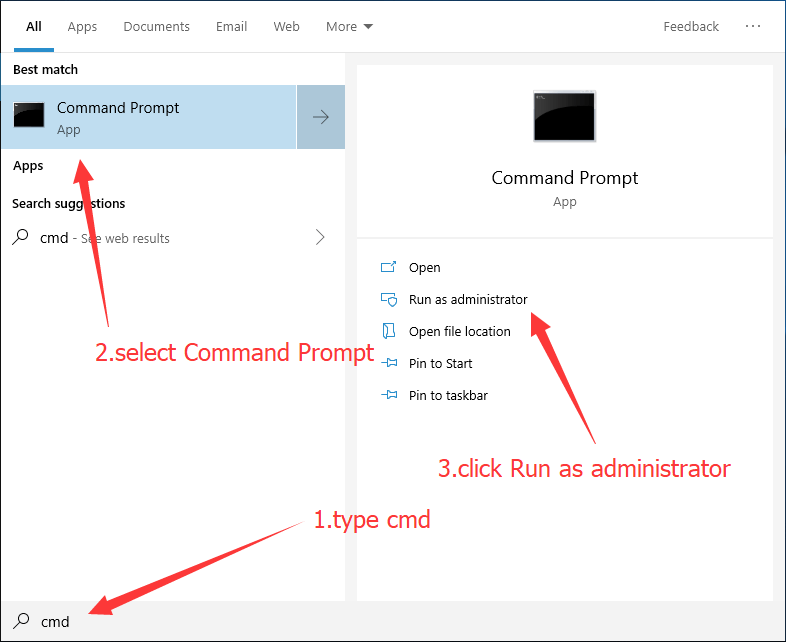
2. Then type the following commands, pressing Enter after each one:
diskpart
list disk
select disk # (select the disk where the ESP partition is on, so you need to replace # with the correct number)
list partition
select partition # (replace # with the number that represents the ESP partition you want to format)
format fs=fat32 quick (The quick flag performs a quick format, which is fine here. A full format on a 100 MB partition is unnecessary.)

After formatting, you may want to assign a temporary drive letter so you can verify the partition is accessible: assign letter=S
This letter disappears after a reboot, which is exactly what you want. The ESP shouldn't have a permanent drive letter.
One downside of DiskPart: if you accidentally select the wrong partition, there's no undo button. Double-check every step. This is where a free disk partitioning tool like DiskGenius earns its keep, honestly. The visual interface removes that ambiguity entirely.
This method is your lifeline when the system won't boot at all.
Boot from your Windows installation USB. On the first screen, instead of clicking "Install now," look for Repair your computer in the bottom-left corner.
Navigate to Troubleshoot - Advanced Options - Command Prompt.
Now you're in a recovery environment with access to DiskPart. The commands are the same as Method 2, but you're working from outside the installed OS. This means the ESP isn't locked by any running processes.
Format the ESP with DiskPart as described above. Then, and this is the critical step, restore the boot files: bcdboot C:\Windows /s S: /f UEFI
Replace C: with the actual drive letter of your Windows installation (it might not be C: in the recovery environment), and S: with the drive letter you assigned to the ESP.
The bcdboot command copies boot files from your Windows installation to the ESP and creates the BCD store. After this, your system should boot normally.
If you'd rather not use the command line even in recovery, you can also try the Startup Repair option under Advanced Options. It sometimes detects the missing boot files and fixes things automatically. Sometimes. It's not the most reliable tool, but it's worth a shot before getting your hands dirty.
"The format option is greyed out."
The ESP may be locked by the running OS. If you are trying to format it from within Windows try boot into recovery mode or use DiskGenius which sometimes can handle locked partitions more gracefully than the native tools. Also DiskGenius allows to boot to its WinPE version from Windows, after which you can carry out the formatting.
"I formatted the ESP and now my PC won't boot."
This is expected. You erased the boot loader. Boot from a Windows USB and run bcdboot to restore boot files. Don't panic. Your data is still there.
"DiskPart says the volume is too big for FAT32."
The volume is too big for FAT32 error would be unusual for an ESP, which should be well under the 32 GB FAT32 limit that Windows imposes. If someone resized the ESP to an absurd size, use DiskGenius to resize it back to a reasonable 100 to 500 MB first, then format. If you don’t want to change the partition size, you can use DiskGenius to format it to FAT32.
"I can't find the EFI partition in DiskPart."
Run list partition after selecting the correct disk. The ESP is usually small (100 to 260 MB) and marked as "System". If it doesn't appear at all, the partition table may be damaged. DiskGenius can often detect and display partitions that DiskPart misses.
Can I format the EFI partition as NTFS?
You can, but you shouldn't. UEFI firmware requires FAT32. An NTFS-formatted ESP will not be recognized by the firmware, and your system won't boot.
What size should the EFI System Partition be?
Windows typically creates it at 100 MB. Some manufacturers use 260 MB or 500 MB. Anything in the 100 to 500 MB range is normal and sufficient.
Is it safe to delete the EFI System Partition entirely?
Delete and format are different things. Formatting keeps the partition in place and erases its contents. Deleting the EFI partition removes the partition entirely, which can cause issues with partition numbering and boot order. If you need to recreate it, format rather than delete, unless you're wiping the whole disk and starting fresh.
Will formatting the ESP delete my personal files?
No. The ESP contains only boot files. Your documents, applications, and Windows installation live on separate partitions. Formatting the ESP won't touch any of them.
Do I need to format the ESP when installing Windows?
Almost never. The Windows installer handles ESP creation and formatting automatically. You'd only need to intervene manually if the existing ESP is corrupted or if you're doing a very specific custom setup.
The EFI System Partition is one of those things that works perfectly fine until it doesn't. When it breaks, understanding what it does and how to fix it saves you from a reinstall or a trip to a repair shop.
Formatting it as FAT32 is straightforward once you know the tools. DiskPart works if you're comfortable with commands. The Windows recovery environment is your backup when nothing else boots. And DiskGenius gives you a visual, lower-risk approach that's especially useful when you're dealing with unfamiliar partition layouts or want to manage multiple disk operations in one place.
Whatever method you choose, the recipe is the same: format as FAT32, restore boot files, reboot. Keep a Windows USB handy, and you'll be fine.

DiskGenius is a one-stop solution to recover lost data, manage partitions, and back up data in Windows.
Download

 Facebook
 YouTube
 X
X