
Updated on Apr. 13, 2026
Position: Resource - Data Recovery - Recover Data from SSD: A Complete Guide to SSD Data Recovery
Losing files from an SSD can be especially stressful because the recovery rules are not always the same as they are for a traditional hard drive. A deleted file on an HDD may remain recoverable for some time, but on an SSD, technologies such as TRIM can reduce the recovery window much faster. That is why SSD data loss needs a careful response. The good news is that recovery is still possible in many situations, including accidental deletion, formatting, RAW partitions, and partition loss.
Files can still be deleted by mistake. Partitions can disappear. A quick format can wipe out access to important data in seconds. Sometimes Windows cannot open the drive and labels it RAW. Sometimes the system crashes, the SSD becomes inaccessible, or the computer restarts after a power issue and something is simply gone.
So, can you recover data from SSD? In many situations, yes. But SSD data recovery is a little different from traditional hard drive recovery, and that difference matters more than most users realize.
This guide explains how SSD data recovery works, when recovery is possible, what can reduce your chances, and what you should do immediately after losing data. It also walks through a practical recovery process and naturally covers how a tool like DiskGenius can help when the SSD is still detectable and the data has not been permanently erased.
Yes, data can often be recovered from an SSD. But not always. That is the honest answer.
Whether recovery works depends on several things: how the files were lost, whether the SSD is still recognized by the computer, whether new data has been written to the drive, and whether the SSD has already processed a TRIM command.
In some cases, the data is still physically there, and recovery software can scan the SSD, locate lost files, rebuild file records, or find a lost partition. In other cases, the situation is much harder. Sometimes the file system is damaged but the underlying data is still recoverable. Sometimes a quick format removes access to files without immediately destroying all of them. Sometimes an SSD looks empty even though a recovery scan can still find a surprising amount of data.
Then there are the bad cases. Severe hardware damage. A completely dead SSD. Data that has already been overwritten. Or TRIM has already done its work and the deleted blocks are no longer recoverable in any meaningful way.
So yes, SSD recovery is possible. Very possible in some scenarios. But it is time-sensitive, and the window can be smaller than people expect.
This is where many articles become vague. Let's not do that.
A traditional hard drive stores data on spinning magnetic platters. When you delete a file from an HDD, the system usually just removes the entries for that file. The data stays on the disk until something else writes over it. That's why it's often possible to recover deleted files from hard drives recover deleted files from hard drives.
An SSD works differently. way. It uses flash memory chips and handles data in a more complex and active way. SSDs are made to be fast and efficient. They use technologies such as wear leveling, garbage collection, and TRIM. These features are excellent for performance and drive longevity, but they can be unfriendly to data recovery.
TRIM is the big one.
When you delete a file on an SSD, or format a partition under certain conditions, the operating system may send a TRIM command to the SSD. That command tells the drive that certain blocks are no longer needed. The SSD can then clear or prepare those blocks for future writes. Once that happens, recovery becomes much more difficult, and sometimes effectively impossible.
That is why an SSD can behave very differently from a hard drive after deletion. On a hard drive, deleted files may sit quietly in place for a while. On an SSD, the system may move faster, clean faster, erase faster. The opportunity to recover the data may shrink quickly.
Wear leveling also adds complexity. SSDs do not always write data to the same physical location in a predictable way. Data may be redistributed across memory cells to extend the life of the drive. From a user perspective, none of this is visible. From a recovery perspective, it can make low-level reconstruction more difficult.
So if you have ever wondered why SSD recovery seems less straightforward than HDD recovery, this is the reason. It is not just about the software. It is about how the storage device itself works.
SSD data loss is not limited to one dramatic failure. It often happens in ordinary ways. Small mistakes, quick actions, one careless click. That is part of what makes it frustrating. Here are some of the most common causes:
Accidental deletion. This is probably the most familiar scenario. A file or folder is deleted by mistake, the Recycle Bin is emptied, and only afterward does the user realize what was lost.
Formatting. A partition may be formatted intentionally or unintentionally. Maybe the wrong drive was selected during setup. Maybe Windows asks to format a drive that looked corrupted. Maybe an external SSD was formatted while trying to fix an access issue. It happens more often than people like to admit.
Lost or deleted partitions. Sometimes the files are still on the SSD, but the partition table is damaged or missing. In these cases, the drive may show as unallocated, or one partition may simply disappear. It looks catastrophic. But sometimes it is a structural issue, not immediate data destruction.
File system corruption. A corrupted file system can make a partition unreadable. Windows may say the drive is not accessible, or it may display the partition as RAW. The files may still exist, but the operating system no longer knows how to interpret the file system correctly.
Operating system failure or reinstall. During a Windows reinstall, partitioning mistakes can lead to data loss. A clean install on the wrong disk can be even worse. Sometimes the system boots, but user files from the previous installation are missing or inaccessible.
Power failure or improper removal. An unexpected shutdown or power interruption can corrupt partition information or damage the file system, especially if the SSD was being written to at the time. External SSDs are also vulnerable when removed without proper ejection.
Malware or virus activity. Malware can delete files, damage partitions, encrypt data, or make a drive inaccessible. Some forms of file disappearance are not hardware issues at all. They begin with malicious software.
Hardware or firmware problems. This is where recovery becomes more serious. If the SSD controller fails, the NAND chips degrade, or the firmware becomes unstable, the drive may disconnect randomly, fail to initialize, or disappear from the system entirely.
This part matters. Maybe more than the software itself.
If you lose data on an SSD, the first few actions can directly affect whether recovery remains possible. People often panic and start clicking around, retrying things, copying files, running repair tools, formatting partitions because Windows suggested it. That instinct is understandable. It is also dangerous.
Here is what you should do.
1. Stop using the SSD immediately
Do not save new files to it. Do not install programs on it. Do not keep working as if nothing happened. Every write operation can reduce your chances of recovery, especially on an SSD.
2. Do not recover files to the same SSD
This is a common mistake. Even if recovery software finds your files, the recovered files should be saved to another drive. Writing recovered data back to the original SSD may overwrite other lost files that have not yet been recovered.
3. Resist the urge to format or repair first
When Windows says a drive needs to be formatted before use, do not rush to format the SSD. When a partition becomes RAW, users often click the first repair option they see. Sometimes that can destroy useful recovery conditions. In many cases, the safer move is to scan the drive first and recover important files before attempting repair.
That is the basic rule. Recover first, fix later.
4. Avoid installing recovery software on the affected drive
If the SSD that lost data is your system drive, and you are trying to recover from it, be cautious. Installing software onto the same drive may write over recoverable space. If possible, connect the SSD to another computer or boot from a different drive before starting the recovery process.
5. Check whether the SSD is still detected
Open BIOS, Windows Disk Management, or a disk utility to see whether the SSD appears at all. This matters. If the SSD is recognized with correct capacity, software recovery may still be worth trying. If it is not detected properly, or shows strange capacity information, the issue may be deeper, and you need to check SSD health status.
If the SSD is still recognized by the system, recovery software may help you retrieve deleted files, scan a formatted partition, or search for lost partitions. DiskGenius is one such tool, and it fits naturally into this process because it supports file recovery, partition recovery, and file preview in one place.
The general recovery workflow looks like this.
Step 1: Connect the SSD to a working computer.
You can connect the SSD directly to a Windows computer if it is not the system drive. You can use a USB adapter or enclosure to install an internal SSD as a secondary drive. Just plug in an external SSD and make sure the system can see it.
If the lost data is on the current system SSD, it is usually safer to stop using that computer as much as possible. In some situations, users connect the SSD to another machine specifically to avoid continued writes from the operating system.
Step 2: Launch DiskGenius and locate the SSD.
Open DiskGenius and look for the affected SSD in the disk list. If the partition still exists, you may see it with its file system and capacity. If the partition is damaged or missing, the disk may show unallocated space, a RAW partition.
Do not worry too much if the drive looks wrong at first glance. That is exactly why scanning exists.
Step 3: Scan the SSD for lost files or partitions.
Choose the appropriate recovery function based on what happened.
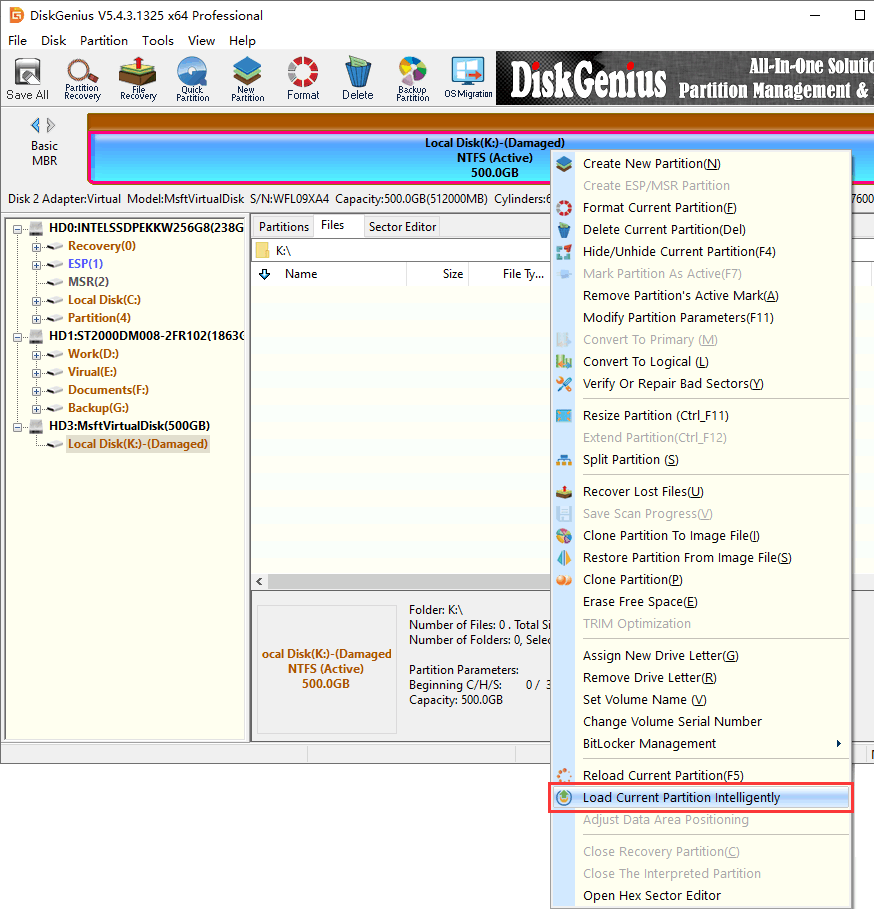
(1) If the SSD became RAW, right-click the inaccessible partition and choose "Load Current Partition Intelligently".
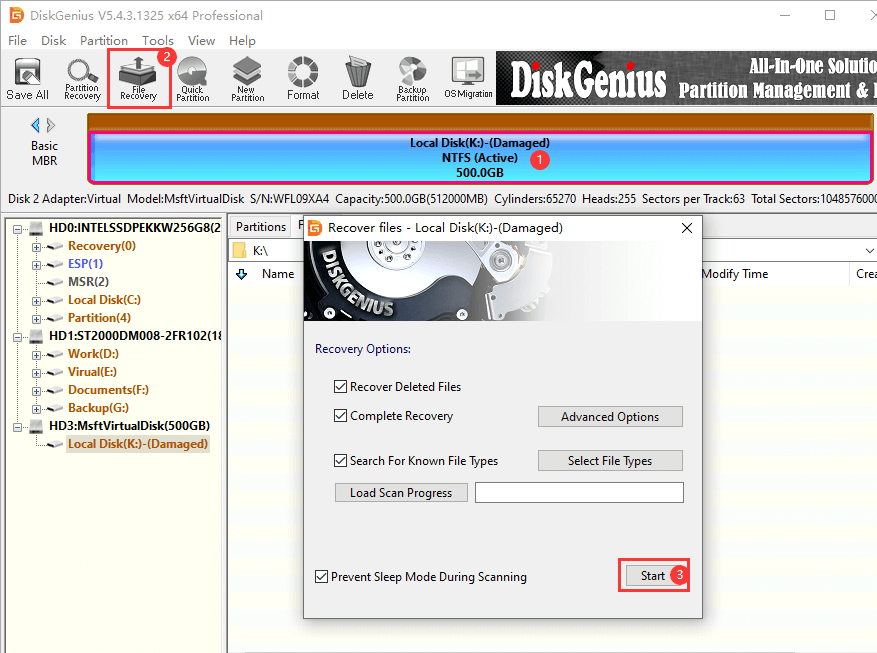
(2) If files were deleted or the partition was formatted, use "File Recovery" to scan the partition.
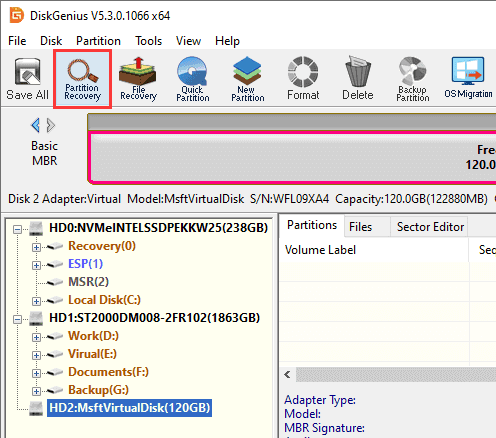
(3) If the partition disappeared, use the "Partition Recovery" feature to scan the SSD and search for lost partitions.
This is often the stage where people realize the situation is better than they feared. A drive that looks empty in Windows may still contain recoverable folders, documents, photos, videos, and other file types in the scan results.
Step 4: Preview recoverable files.
Preview is important. Very important, actually.
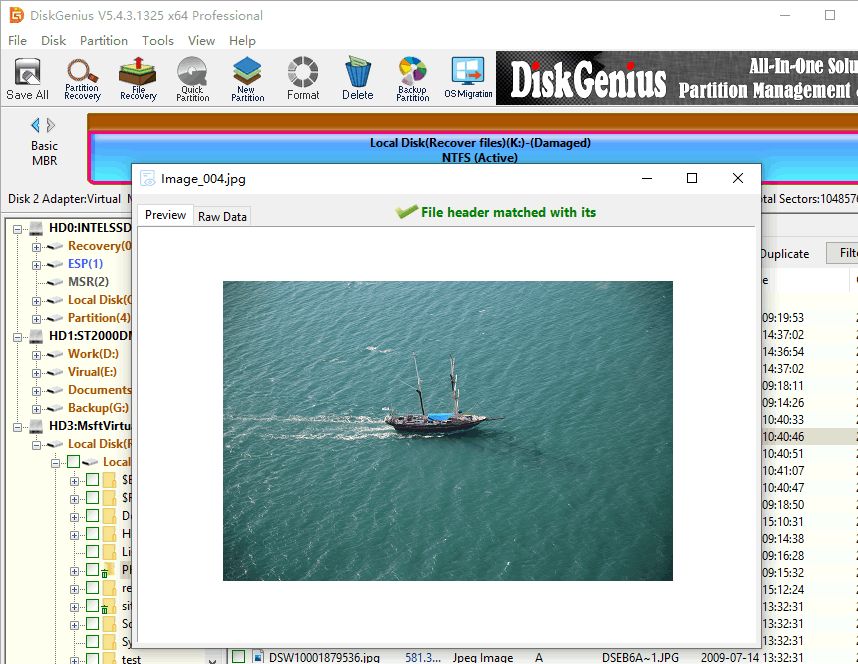
A recovery result list is not enough on its own. Being able to preview files helps confirm whether the recoverable content is valid and intact.
With DiskGenius, you can preview many file types before recovery, which makes the process more efficient and more trustworthy. If a photo opens correctly or a document appears readable in preview, that is a strong sign the file may recover successfully.
This step also helps you prioritize. Recover the most valuable files first.
Step 5: Recover files to another drive.
Once you identify the files you need, recover them to a different storage device. That could be another internal drive, an external hard drive, another SSD, or a large USB drive if the data size permits.
Do not save the recovered files back to the original SSD. It sounds repetitive, but it is worth repeating because it matters.
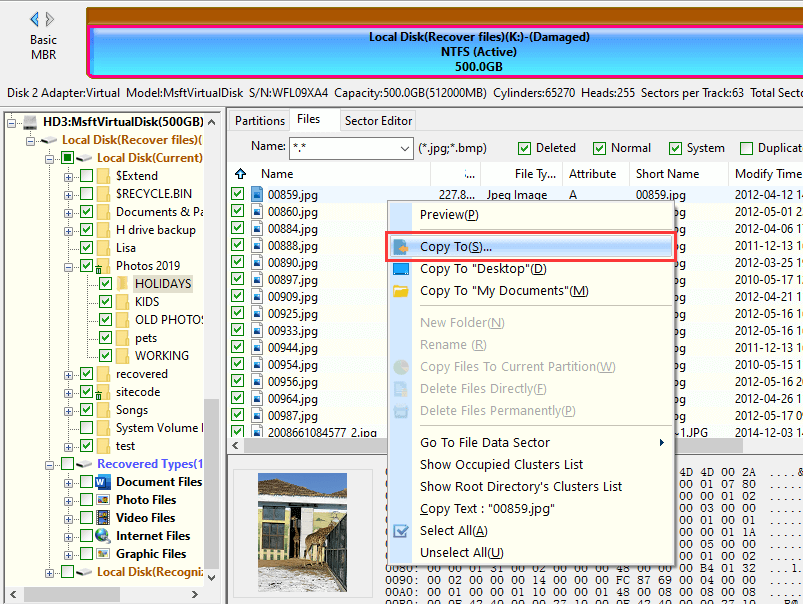
Step 6: Verify the recovered data.
After recovery, open the files and check them. Test documents, images, videos, archives, and other important data. If some files are corrupted or incomplete, you may want to return to the scan results and try recovering alternate versions or additional entries.
Recovery is sometimes messy. Not hopeless. Just messy. Different scan results may contain multiple versions of the same file, and one may work better than another.
Not every recovery attempt succeeds. That is reality, and it is better to say it plainly.
SSD recovery may fail when TRIM has already cleared the relevant blocks. It may fail when the lost data has been overwritten by new files, updates, app installations, or system activity. It may fail when the SSD has serious controller damage or is no longer detected by the motherboard or operating system.
Encryption can also complicate recovery. If the drive or partition was encrypted and the key is unavailable, recovering usable data may be extremely difficult even if raw data still exists somewhere on the device.
There are also unstable drives that disconnect during scanning, freeze the system, or report incorrect capacity. These symptoms often point to hardware or firmware issues rather than simple logical damage.
When that happens, repeated DIY attempts may make things worse. Not always, but sometimes. And sometimes is enough.
A reasonable question. At what point should you stop trying on your own?
DIY recovery with software is usually worth trying when the SSD is still detected, the data loss was caused by deletion, formatting, a RAW partition, or partition loss, and there are no signs of physical failure. In these cases, tools like DiskGenius can often provide a practical, non-destructive first step.
Professional data recovery service is a better option when the SSD is not detected at all, the controller may be damaged, the drive disconnects repeatedly, or the data is extremely important and cannot be risked. That includes business records, irreplaceable family photos, source code, research materials, and similar high-value data.
There is also a middle category. The drive is half-working, half-failing, and every minute feels uncertain. Those are the cases where caution matters most. If the SSD behaves erratically, and the data truly matters, it may be wise to stop early instead of pushing the drive through repeated scans.
Can deleted files be recovered from an SSD?
Yes, deleted files can sometimes be recovered from an SSD, especially if you stop using the drive immediately and scan it before TRIM or overwriting reduces the recovery chance.
Does TRIM make SSD recovery impossible?
Not always immediately, but it can significantly reduce the chances of recovery. Once TRIM has cleared the deleted blocks, the data may no longer be recoverable by normal software methods.
Can I recover data from a formatted SSD?
In many cases, yes. A quick formatted SSD may still contain recoverable data if little or no new data has been written afterward.
Can a dead SSD be recovered?
If the SSD has physical or controller failure and is not detected properly, software recovery may not help. In that situation, professional recovery service is often the better path.
Recovering data from SSD is possible in many real-world situations, but it is not something to take lightly. SSDs are fast, efficient, and excellent for everyday use, yet their internal behavior can make deleted data disappear faster than it would on a traditional hard drive. That is why the first response matters so much.
Stop using the drive. Do not write new data to it. Scan before repairing. Recover important files to another device.
If the SSD is still recognized and the problem is logical rather than physical, a tool like DiskGenius can be a practical way to scan for lost files, locate missing partitions, preview recoverable data, and carry out recovery in a controlled way. If the SSD has serious hardware failure, though, professional help may be the safer choice.
Sometimes recovery is straightforward. Sometimes it is a race against time. Either way, acting carefully gives you the best chance.

DiskGenius is a one-stop solution to recover lost data, manage partitions, and back up data in Windows.
Download

 Facebook
 YouTube
 X
X