
Updated on May. 20, 2026
Position: Resource - Data Recovery - How To Recover Files from a Formatted USB Flash Drive? (2026)
You plug in your USB flash drive, and something is wrong. Maybe Windows pops up a message saying the drive needs to be formatted before you can use it. Maybe you clicked "Format" without thinking. Or maybe you were trying to clean up a different drive and chose the wrong one. Whatever happened, the result is the same: your files are gone.
Take a breath. This isn't necessarily permanent.
In most cases, especially when a quick format was performed, the files on that USB drive can still be recovered. The data doesn't vanish the moment formatting finishes. It sits on the storage chips, waiting to be found, as long as nothing new has been written over it. This guide covers what actually happens during formatting, what you should do right now, and how to get your files back in Windows 11/10.
Before diving into recovery tools and techniques, there's one thing that matters more than anything else: stop using the drive.
Seriously. Don't try to open it. Don't copy a test file onto it. Don't run any repair utilities. Every write operation, no matter how small, reduces the chance that your original files can be recovered. Windows might try to write small system files to the drive automatically when you plug it in, so if the drive is currently connected, eject it safely first.
Here's what to do and what not to do:
Stop using the USB flash drive right now. Don't save anything new to it. Don't install recovery software on it (install the software on your computer's internal drive instead). Don't run chkdsk. Don't try to reformat it thinking you can "undo" the first format. And don't keep plugging and unplugging it. Safely remove it, set it aside, and read the rest of this article first.
The clock is ticking, but if you follow these rules, the odds are still very much in your favor.
When you format a USB flash drive, the operating system doesn't wipe every byte of storage away and make it disappear. What it does is delete the file system's index, the part that tells the OS where each file is and what it's called. "It's like removing the table of contents from a book. The chapters are still there. You just lost the map that tells you where to find them.
The actual file data remains on the drive until something new is written in its place. This is why acting quickly matters so much.
Not all formatting is equal, and the type of format that was performed has a big impact on whether recovery is realistic.
|
Format Type |
Recovery Possibility |
Notes |
|
Quick Format |
Very High |
Only removes file system structures. Your data is almost certainly still there. |
|
Full Format |
Low |
The system scans for bad sectors and writes zeros to parts of the disk, which can overwrite data. |
|
Low-Level Format or Secure Erase |
Not possible |
Data is intentionally and thoroughly overwritten. Recovery is rarely possible. |
Most accidental formats are quick formats. If Windows prompted you to format and you clicked yes without changing any default settings, there's a strong chance it was a quick format. That's good news.
Formatted drives don't always come from a deliberate click. There are several ways people end up in this situation, and recognizing yours can help you understand what recovery options make the most sense.
Accidental formatting. You right-clicked the wrong drive and hit "Format." It happens more often than people admit, especially when multiple USB devices are connected at the same time.
The drive turned RAW. Sometimes the file system gets corrupted to the point where Windows can't recognize it anymore. The USB flash drive shows up as RAW in Disk Management, and Windows asks you to format it before you can access any files.
Windows insists on formatting. You insert the USB drive and immediately get a message: "You need to format the disk before you can use it." If you clicked Format, the existing file system was wiped.
Corrupted file system. Improper ejection, a power cut during a file transfer, or a software crash can damage the file system. The next time you plug in the drive, it may appear empty or demand a format.
Virus or malware damage. Some malware specifically targets removable drives, corrupting file system structures or hiding all files. In severe cases, the damage is significant enough that formatting seems like the only option.
Formatting on a camera or other device. Cameras, game consoles, and media players all have built-in format functions. One wrong menu selection and the card is wiped.
Repartitioning the drive. If you resize, delete or recreate the partitions using disk management tools, you will destroy the data in the existing file system and effectively format the drive.
If you're looking for a no-cost solution to start with, CuteRecovery Free is a solid choice. It's developed by the same team behind DiskGenius and handles the most common data loss situations without asking you to pay anything.
The main appeal is that it's free. It supports formatted drive recovery out of the box. The GUI interface is clean and straightforward, so even if you've never used data recovery software before, you won't feel lost.
It handles FAT32, exFAT, and NTFS file systems, which covers the vast majority of USB flash drives. Photos, videos, documents, spreadsheets, archives... all of these can be recovered. It's also a lightweight download, so you won't be waiting around for a massive installer.
Step 1. Download CuteRecovery Free and install it on your computer's internal hard drive. Never install recovery software on the drive you're trying to recover.
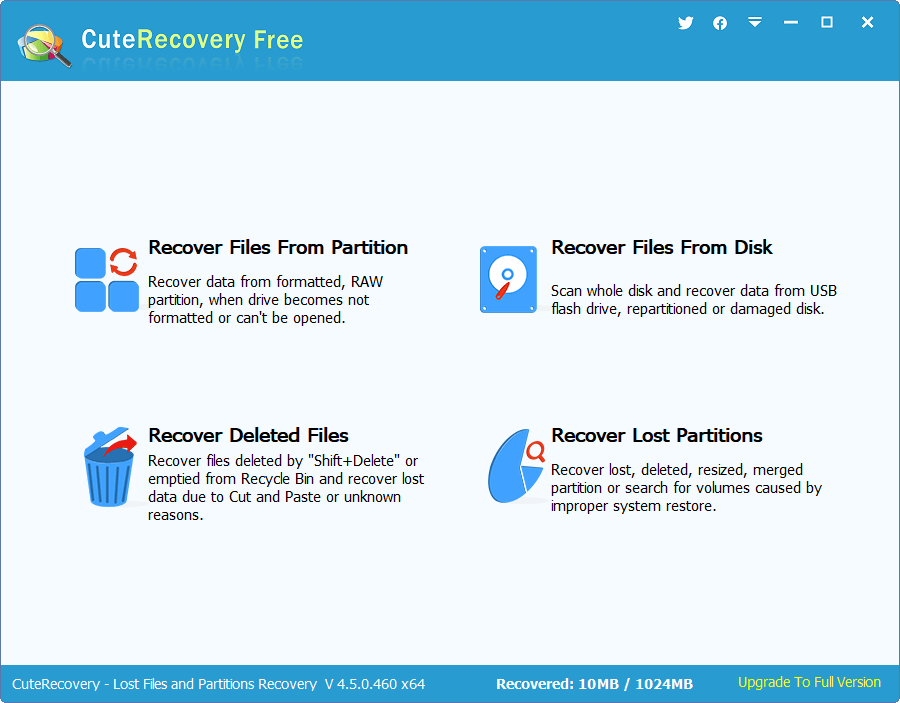
Step 2. Select a recovery mode.
To recover data from a formatted flash drive you can try to use either "Recover Files From Partition" or "Recover Files From Disk".
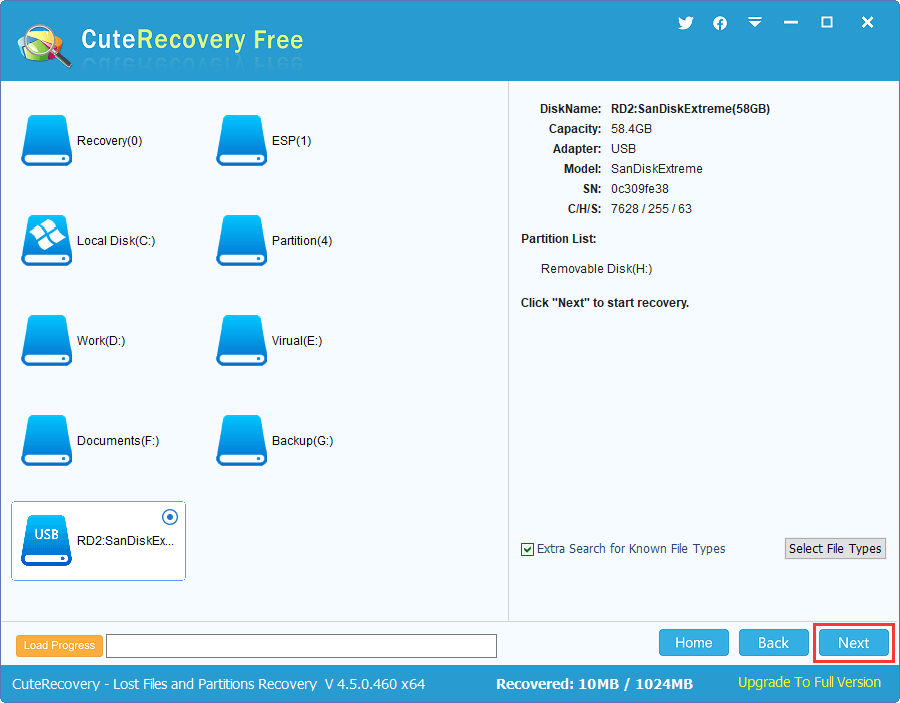
Step 3. Select the formatted drive and "Next" to start the scan
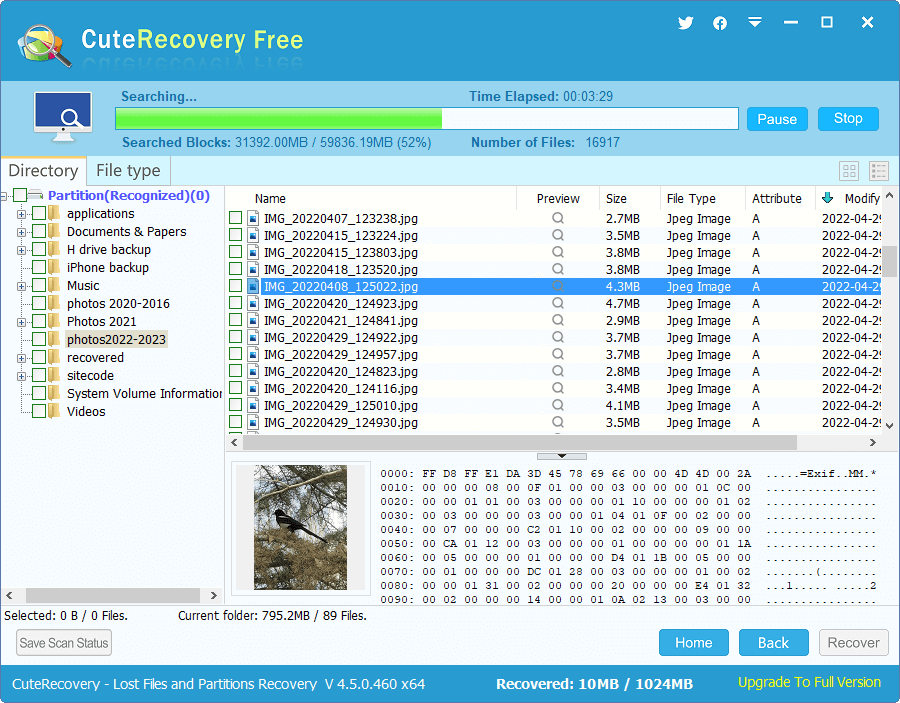
Step 4. Once scanning is finished, browse the results.
Browse the folder structure or search by file type. Preview files to ensure they are intact before recovery.
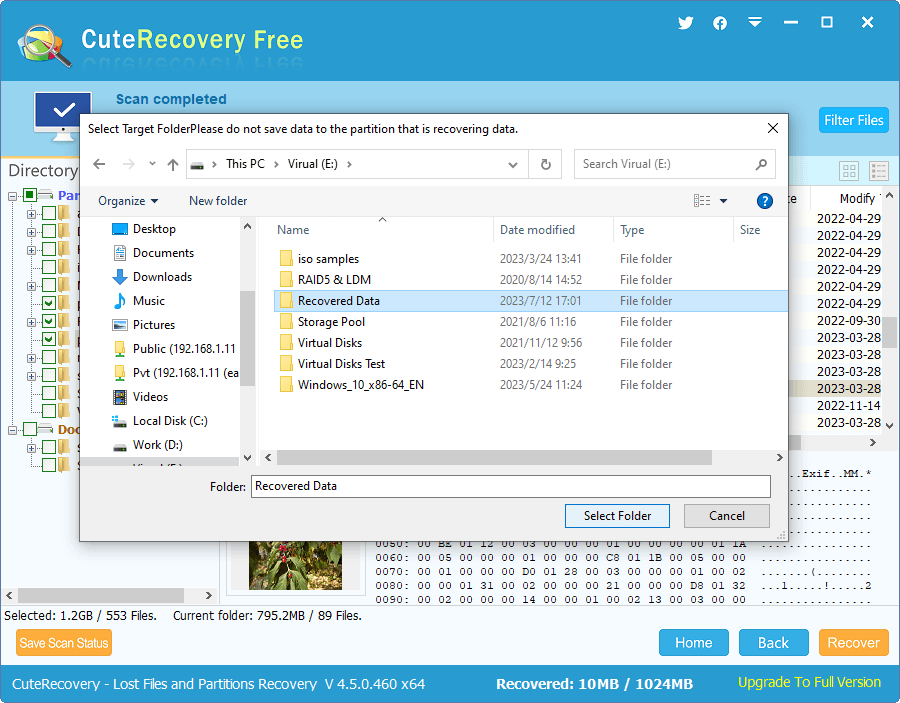
Step 5. Select the files you need and click "Recovery". Then save them to your computer's internal drive or to a different external device. Never save them back to the USB drive you just scanned.
CuteRecovery Free is an excellent starting point for most format recovery situations. But if you run into more complex scenarios, like a severely damaged partition table or a drive that shows up as unallocated space, DiskGenius offers more advanced tools. Let's look at that next.
For cases where you need deeper scanning, more control, or additional disk management features, DiskGenius Professional Edition is the more powerful option.
DiskGenius is not just a simple file recovery. It is a complete disk utility that is capable to retrieve data from formatted, corrupted and RAW partitions, repair partition tables, recover lost partitions, manage disk partitions and much more.
It supports FAT16, FAT32, exFAT, NTFS and even EXT4 file system for USB flash drive recovery. That means it works with drives formatted on Windows, Linux, and some other devices.
It recovers photos, videos, documents, archives, and virtually any other file type. Before you commit to recovering anything, you can preview files directly inside the application to verify they're actually recoverable.
You can start with the free edition and test if it meets your needs. After scanning and preview lost files, you will be sure whether formatted files are recoverable.
Step 1: Plug the formatted USB drive into your computer. Make sure it's recognized by Windows and shows up in DiskGenius.
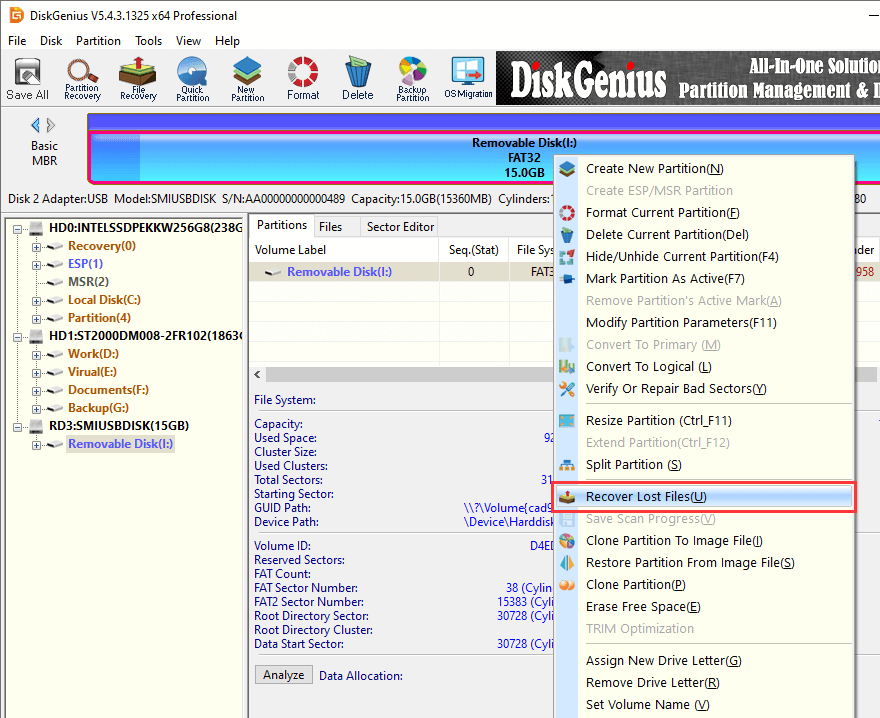
Step 2: Launch DiskGenius, right-click the USB drive partition and select "Recover Lost Files" from the context menu.
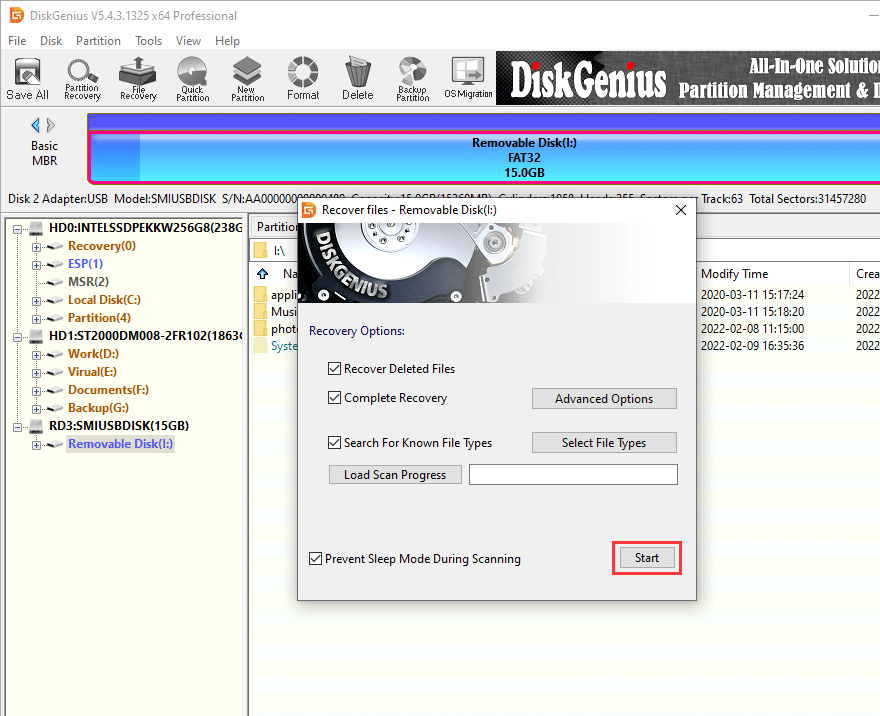
Step 3: Select Scan Options and click "Start".
This step is important. You'll see several checkboxes, and which ones you enable makes a real difference:
"Recover Deleted Files" should be on if there were files deleted from the drive before it was formatted.
"Complete Recovery" searches for remnants of the old file system and tries to reconstruct the original directory structure.
"Search for Known File Types" should always be enabled for USB format recovery. It triggers deep scanning, which finds files even when the file system is completely gone.
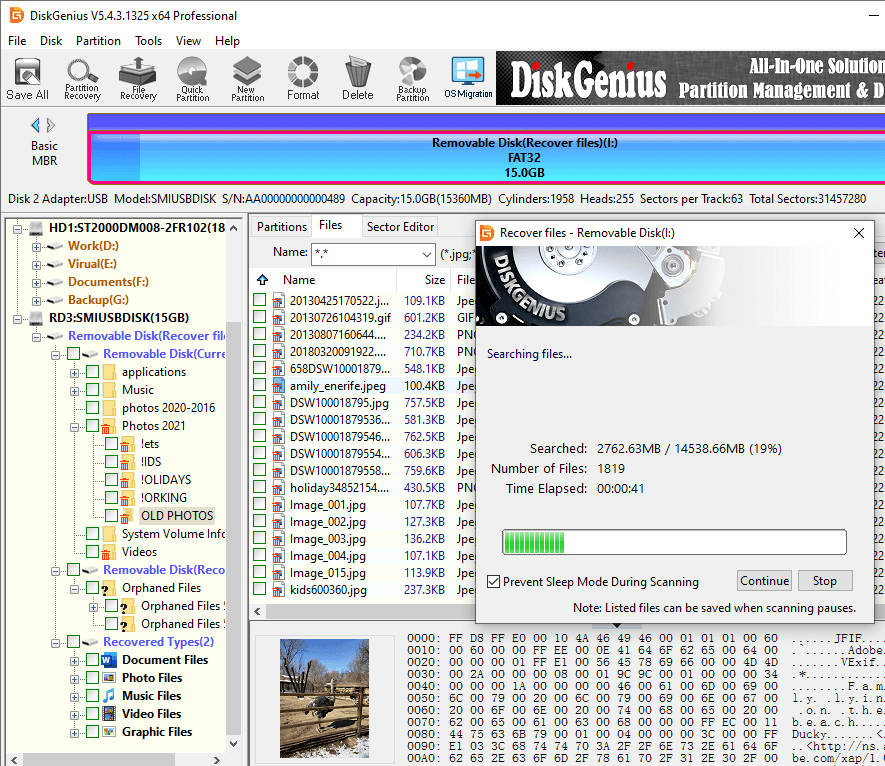
DiskGenius will scan for lost file system entries and simultaneously perform signature analysis across the entire drive. For a typical 16GB USB flash drive, expect this to take somewhere between 5 and 15 minutes. Larger drives and slower USB ports will take longer.
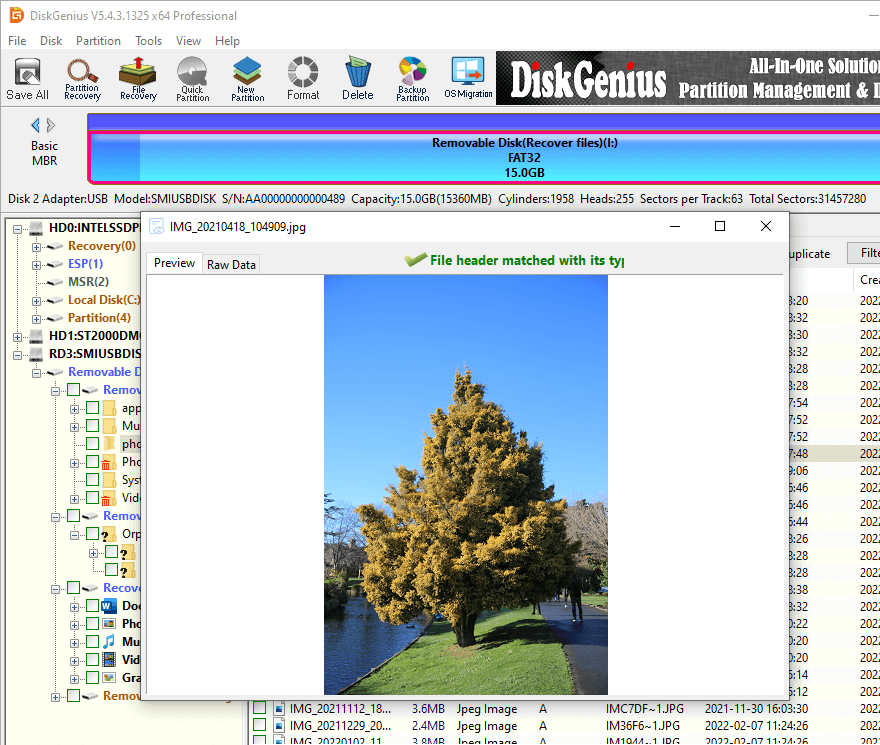
Step 4: Preview Recoverable Files.
When the scan completes, you'll see a tree of found files organized by type and original path. Double-click on any file to preview it. Images, documents, videos, PDFs, and text files all support preview. If a file previews correctly here, it will almost certainly recover without issues.
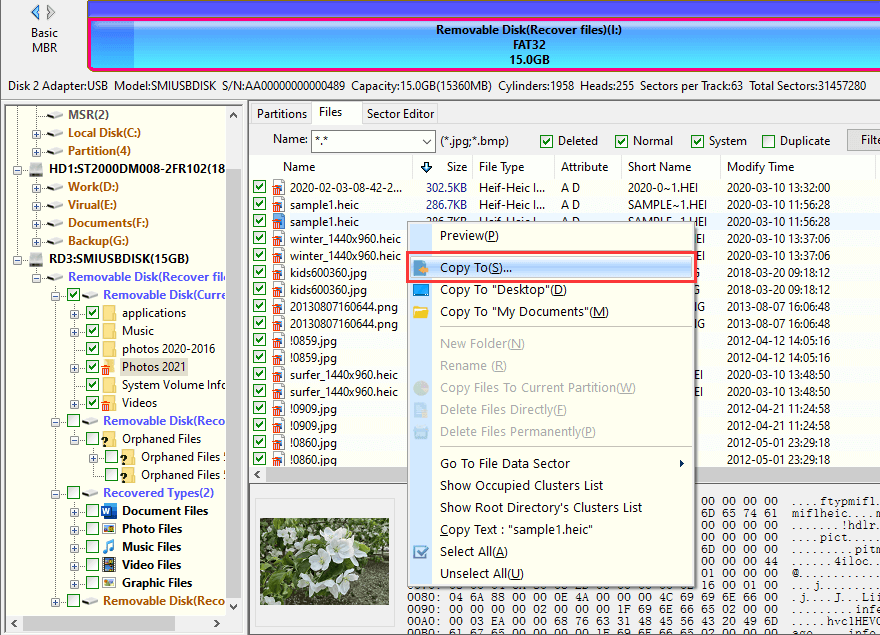
Step 5: Select the files you want to recover and save them to another drive.
You can check individual files or entire folders. Right-click selected data and click "Copy To". After that, you should choose a save location on your computer's internal drive or another external device.
Do not, under any circumstances, save recovered files back to the formatted USB drive. Doing so could overwrite other files you haven't recovered yet.
DiskGenius uses two distinct methods to find your files, and understanding how they work can help you set realistic expectations.
File System Analysis. A quick format leaves remnants of the old file system on the disk. That means, leftovers MFT (Master File Table) entries for NTFS drives. It consists of directory entries and remaining data of the FAT table for FAT32. DiskGenius scans these fragments and builds the original folder structure including file names and directory routes. This is the best result, as everything looks exactly like it did before formatting.
Signature-Based Recovery (Raw File Recovery). When the file system structures are badly damaged or completely overwritten, DiskGenius falls back on a different approach. It reads raw disk sectors and identifies files by their binary headers, also known as magic numbers. Every file type has a unique signature at its beginning. JPEG images start with FF D8 FF. PNG files begin with 89 50 4E 47. DOCX and XLSX files are actually ZIP archives, so they start with 50 4B 03 04. PDF files open with 25 50 44 46. MP4 videos contain an ftyp marker early in the file. By recognizing these patterns, DiskGenius can pull individual files directly from the raw storage, even when no file system information survives at all.
Files recovered through deep scanning (RAW recovery) won't have their original file names; they'll typically be assigned numbered names instead. That said, DiskGenius can automatically rename recovered Office documents based on their content, which makes it much easier to identify and organize those files after recovery.
In practice, DiskGenius runs both methods simultaneously during a scan, which gives you the best possible results.
Before spending time on recovery software, check whether the files exist somewhere else. You'd be surprised how often this turns out to be the answer.
Cloud services like OneDrive, Google Drive, and Dropbox sometimes have copies of synced files even after the original is gone.
Windows File History, if it was enabled, may have local backups. And if you're someone who manually copies important files to a backup drive, now is the time to check that backup.
There are situations where software alone isn't enough. If the USB drive has suffered physical damage (a cracked connector, water exposure, or internal component failure), or if the computer doesn't detect the drive at all, you're probably looking at professional help.
Data recovery services typically charge a few hundred dollars depending on the severity of the damage and the turnaround time you need. It's not cheap, but for irreplaceable data, it's sometimes the only option left.
If you've been searching online for solutions before arriving at this article, you've probably seen forum posts and blog articles recommending Windows Command Prompt as a fix. The two commands that come up most often are chkdsk F: /f and F:\> attrib -h -r -s /s /d *.*.
Let's talk about whether these actually work.
chkdsk F: /f is a file system repair tool. It checks the integrity of the file system and fixes logical errors it finds. The problem is that after formatting, there's essentially no file system left to repair. Running chkdsk on a formatted drive will almost always return an error because the tool can't find a valid file system structure to work with. In some cases, it can actually cause harm by modifying whatever remnants of the old file system are still on the disk, which could interfere with proper recovery software later.
attrib -h -r -s /s /d . removes hidden, read-only, and system file attributes from all files on a drive. This command is genuinely useful when a virus has hidden your files, making them invisible in File Explorer. But after formatting? The file entries themselves are gone. There's nothing for attrib to act on. It's like trying to unhide a book from an empty shelf.
So when do these commands help? If your drive wasn't actually formatted but is showing errors or hiding files due to malware, chkdsk and attrib can be useful tools. But for a truly formatted USB flash drive, they're not the right approach. Recovery software like CuteRecovery Free or DiskGenius is designed specifically for this situation, and the results are in a completely different league.
A RAW drive is one where the file system has become corrupted or unrecognized. Windows can see that a drive is connected, but it can't read the partition. In most cases, it responds by asking you to format the drive.
Don't do that yet.
DiskGenius can scan a RAW partition and recover files from it without requiring a format first. It treats the RAW partition much like a formatted one, searching for file system remnants and performing signature-based scanning.
1. Launch DiskGenius, select the RAW partition on your flash drive, click "File Recovery". Then click "Start".
2. Let the software fully scan the flash drive.
3. Preview files listed in the scanning result to make sure if they are recoverable.
4. Select and copy files to another drive.
5. Once your files are safe, you can reformat the USB drive and use it normally again.
Recovery isn't always guaranteed. Several variables determine how much data you can get back and how intact those files will be.
Whether new data has been written. This is the big one. Every byte of new data saved to the formatted drive potentially overwrites a byte of your original files. A drive that's been sitting unused since the format has the highest recovery potential. A drive that's been used for weeks afterward? Much harder.
The type of formatting. Quick format gives you the best odds by far. Full format reduces them significantly. Secure erase makes recovery nearly impossible for consumer-level tools.
TRIM support. Here's a piece of good news. Unlike SSDs, USB flash drives generally do not support TRIM, a command that actively erases data blocks marked for deletion. Without TRIM, your data has a better chance of surviving the formatting process.
Extent of corruption. If the file system was already badly damaged before the format happened, some files may be partially corrupted even if recovered. Deep scanning can still extract usable portions, but results vary.
Physical health of the drive. Bad sectors/blocks, read errors, and aging flash memory all play a role. A brand new USB drive in good condition offers the best recovery prospects. A drive that's been through years of heavy use with a few bad sectors is riskier.
Is it free to recover files from a formatted USB flash drive?
Yes. You can try recover formatted data from previous backups or using free data recovery software CuteRecovery Free.
How long does it take to scan and recover a formatted USB stick?
Depends on the speed and size of the USB drive. Average time to scan 16 to 32GB USB flash drive is 5 to 15 minutes. The time of recovery depends on the file(s) to be recovered and their size.
Can I recover files from a USB drive formatted on a Mac using a Windows PC?
If the drive is formatted with a cross-platform file system such as exFAT or FAT32, then it is easy to recover. You can run DiskGenius on a Windows PC and start the recovery task.
Will recovery software damage my USB drive or overwrite data?
No, data recovery tools only scan the USB drive read-only. They do not write anything to the formatted USB drive, so there is no possibility of further damage during the scan.
Can I recover files after formatting a USB drive twice?
It depends whether data was written between the two formats. If the drive was formatted twice consecutively and no new files were saved it still can be recovered. But if data was saved between formats some of it may have written over your original files. Moreover, if one of the formats is Full Format, it will be very hard to recover data.
What is the best free software to recover a formatted USB drive?
Good choices are both CuteRecovery Free and DiskGenius Free Edition. CuteRecovery Free is light and easy for beginners, but DiskGenius Free Edition has more advanced scanning options. Professional Edition of DiskGenius provides professional level recovery with the deepest scanning.
Why are my recovered files corrupted or won't open?
This usually means that parts of the file have been overwritten with new data written after formatting. Try to run a deeper scan with DiskGenius. If your files are partially overwritten, full recovery won't be possible.
Formatting a USB flash drive by mistake feels like a disaster, but it doesn't have to be one. In the majority of cases, especially after a quick format, your photos, documents, videos, and other files are still sitting on that drive, intact and recoverable. The key is to act fast, stop using the drive immediately, and use the right software.
If you want to start with a free, no-commitment tool, download CuteRecovery Free and run a scan. For more complex situations or deeper scanning, DiskGenius (available in both free and professional editions) is the stronger choice.
Whatever you do, do it now. Every minute the drive sits idle is fine. Every minute it's actively being used brings your original data closer to being overwritten for good.
The files are probably still there. Go get them back.

DiskGenius is a one-stop solution to recover lost data, manage partitions, and back up data in Windows.
Download

 Facebook
 YouTube
 X
X