
Updated on May. 19, 2026
Position: Resource - Partition Management - How to Format Pendrive Using CMD in Windows 11/10?
Your USB pendrive won't format. You right-click, select "Format" and Windows hits you with some version of "Windows was unable to complete the format." Maybe the file system shows as RAW. Maybe it's write-protected and you have no idea why. You've tried everything in the graphical interface and nothing works.
This is where the Command Prompt comes in. CMD gives you direct access to free Windows disk management tools at a level the regular interface simply doesn't offer. With just a few typed commands, you can force-format a stubborn drive, wipe a corrupted partition table, or remove a write-protection flag that's been driving you insane.
Next, we will explain how to format a pendrive in 3 different ways using CMD, each one for a different situation. We will also discuss the most common mistakes you will encounter and how to fix them. And if even CMD isn't enough, we'll show you how DiskGenius Free, a free disk utility, can pick up the slack.
CMD, short for Command Prompt, is the built-in command-line interpreter that comes with every version of Windows. You can open it by pressing Win+R, typing cmd, and hitting Enter.
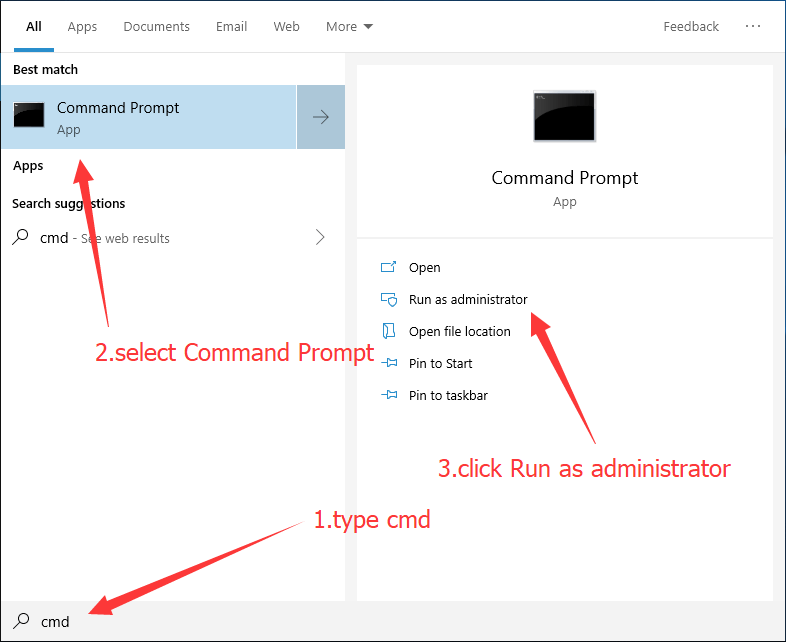
Or just search for "cmd" or "Command Prompt" in the Start menu. It looks old-school. A black window with blinking text. But don't let the appearance fool you. Behind that plain interface sits direct, low-level access to your system's disk tools, and that's exactly what makes it so useful when the pretty graphical methods fail.
There are plenty of situations where right-clicking a drive and hitting "Format" just doesn't cut it.
The most common one: Windows Explorer flat-out refuses to do the job. You get an error message and no further explanation. Infuriating, honestly. Sometimes the pendrive shows up as RAW, meaning Windows can't recognize its file system at all. The "Format" option in Explorer either doesn't appear or immediately fails.
Write protection is another frequent headache. Your pendrive has somehow been flagged as read-only, and Explorer won't let you format a read-only drive.
Then there are the cases where you need more control. Maybe you specifically need FAT32 for a car stereo or a game console, but Explorer only offers NTFS and exFAT. Or the drive doesn't show up in File Explorer at all, though you can see it in Disk Management. CMD and DiskPart can see and manipulate drives that Explorer can't even handle.
If you're cleaning up a virus-infected USB drive, a quick format through Explorer might not be thorough enough. CMD gives you the tools to do a more complete wipe. And if you're creating a bootable USB, you often need to set up a specific partition scheme that only command-line tools support.
Before you type a single command, it helps to understand what formatting really means. A lot of people think formatting a drive erases all the data on it permanently. That's not quite right.
Formatting rebuilds the file system structure. It removes the "table of contents" that tells your operating system where each file is stored. The files themselves? They're usually still sitting on the disk, untouched. Think of it like ripping the index out of a book. The pages are all still there. You just can't find anything without a lot of extra work.
This is important for two reasons. First, if you accidentally format the wrong drive, your data might still be recoverable. Don't panic, but stop using that drive immediately. Second, if you're formatting a pendrive because you want to make sure nobody can recover your personal files from it, a normal format won't be enough. We'll cover that later in the article.
A quick format only takes seconds and just rebuilds the file system index. A full format does the same thing but also scans for bad sectors. Neither one truly "erases" your data in the forensic sense.
Back up anything you need. Once you format, the file system is gone. Recovery might be possible, but don't count on it as your plan A.
Double-check the disk number. This is the single most dangerous part of using CMD for disk operations. If you accidentally select the wrong disk in DiskPart, you could wipe your external backup drive or even a partition on your internal hard drive. There's no undo button for clean.
Close any programs using the pendrive. If something has a file handle open on the drive, the format command might fail or behave unexpectedly.
Safely eject other USB drives. If you have three USB sticks plugged in, it's easy to get confused about which one is Disk 2 and which is Disk 3. Remove the ones you don't need.
Always run CMD as Administrator. Right-click "Command Prompt" and select "Run as administrator." The disk commands won't work without elevated privileges.
If you're not confident about identifying the right drive from a text-only disk list, then use DiskGenius Free that shows a visual map of every connected disk, complete with labels, sizes, and partition layouts. It's much safer than guessing based on a number and a byte count.
You can try this when your pen drive already has a drive letter assigned and Windows can recognize it.
Step 1. Open Command Prompt as Administrator.
Step 2. Type format K: /FS:FAT32 and press Enter:
Replace X: with the letter of the drive of your pendrive. You can see it in file explorer or disk management.
Step 3. The tool will ask you to confirm. Press Enter again (or type the volume label if prompted) and wait.

Let's break down the parameters, because you'll want to customize these:
/FS:FAT32 sets the file system. You can swap this for /FS:NTFS or /FS:EXFAT depending on what you need.
/Q performs a quick format. Without this flag, Windows runs a full format, which scans every sector and takes much longer. For most troubleshooting purposes, quick format is fine.
/V:MyPendrive assigns a volume label. Optional, but useful if you have multiple USB drives and want to tell them apart.
Once it finishes, you'll see a summary showing the total disk space, available space, and allocation unit size. The drive should now be usable.
This method handles maybe 60% of formatting scenarios. Simple, fast, no fuss. But if your drive is in bad shape, RAW, or write-protected, you'll need something more powerful.
DiskPart is the real heavy hitter. It operates below the level of drive letters and file systems, working directly with partitions and disks. This is the method that fixes the problems the format command can't touch.
Step 1. Open CMD as Administrator.
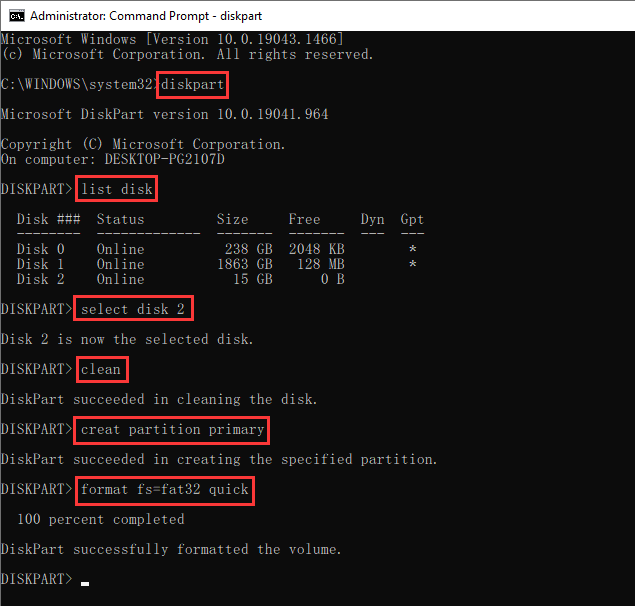
Step 2. Launch DiskPart:
diskpart
Step 3. List all disks connected to your system:
list disk
You'll see a table with columns for Disk Number, Status, Size, and Free. This is where you need to be extremely careful. Your internal hard drive might be "Disk 0" at 238 GB, and your pendrive might be "Disk 2" at 15 GB. Identify by size. If you have two drives of similar size, unplug the one you don't need.
Step 4. Select your pendrive:
select disk 2
(Replace 2 with the correct number.)
Step 5. Wipe the partition table:
clean
This removes all partition and formatting information. The drive becomes "uninitialized."
Step 6. Create a new primary partition:
create partition primary
Step 7. Format the new partition:
format fs=fat32 quick
Again, you can substitute fat32 with ntfs or exfat.
If the format fails because of write protection, there's one extra step to run before the clean command:
attributes disk clear readonly
This toggles off the software-level write protection flag. It won't help if the pendrive has a physical write-protect switch (some older models do), so check the body of the drive for a small slider.
format rewrites the file system on an existing partition. The partition structure stays intact. clean destroys the entire partition table. Think of format as repainting a room and clean as knocking down the walls. Use format when the partition is fine and you just want a fresh file system. Use clean when the partition table itself is corrupted or you need to start from scratch.
DiskPart is powerful but it doesn't give you much visual feedback. You're typing blind, essentially. If that makes you uneasy, DiskGenius offers the same partitioning and formatting capabilities through a graphical interface where you can actually see what each disk looks like before you do anything to it.
PowerShell is CMD's more modern cousin. It's scriptable, object-oriented, and in some cases more flexible than the traditional Command Prompt. Here's how to format a pendrive with it.
1. Open PowerShell as Administrator and run:
Get-Disk
2. This lists all connected disks. Find your pendrive by size, then:
Get-Partition -DiskNumber 2
3. To format it:
Format-Volume -DriveLetter K -FileSystem FAT32 -Confirm:$false
Note:

PowerShell is especially useful for IT administrators who want to fold formatting into automated scripts or remote management workflows. For a one-time format on a single pendrive, the regular format command or DiskPart is usually faster to type. But if you're managing dozens of machines and need reproducibility, PowerShell is the way to go.
Here's where things get frustrating. These are the errors real users run into, along with what to do about them.
"Windows was unable to complete the format"
The file system is likely corrupted, or there are bad sectors on the drive. Try DiskPart: run clean, then create partition primary, then format fs=fat32 quick. If DiskPart also fails, the drive may have physical damage. Use DiskGenius to run a surface scan and check for bad sectors before attempting another format.
"The disk is write protected"
First, check the pendrive itself for a physical switch. Some USB drives have a tiny slider on the side that locks them to read-only mode. If there's no switch (or it's already set to unlocked), open DiskPart and run attributes disk clear readonly before trying the format again.
"Format did not complete successfully"
Similar to the first error, but often points to hardware-level problems. Run chkdsk X: /f /r (replacing X with your drive letter) to scan for and attempt recovery of bad sectors. If chkdsk can't fix it, try using DiskGenius to perform a more thorough surface test. At that point, you'll need to decide whether the drive is worth continuing to use.
For more detailed solutions, refer to:
"DiskPart shows 0 bytes or an obviously wrong capacity"
This can mean two things. Either the partition table is severely corrupted, or you're dealing with a fake USB drive (a cheap drive that's been programmed to report a larger capacity than it actually has). DiskGenius can verify the real hardware capacity and help you determine whether the drive is salvageable.
"Access Denied"
You forgot to run CMD as Administrator. Close the window, right-click "Command Prompt," select "Run as administrator," and try again.
CMD covers a lot of ground. But there are real-world scenarios where it either can't do the job or where a better tool exists. DiskGenius is a free Windows utility that handles disk formatting, partitioning, data recovery, and more. Here's where it genuinely outperforms the command line.

Free Download DiskGenius
This is probably the most common reason people go looking for third-party tools. Windows has a hard-coded limitation: its built-in format command and DiskPart both refuse to format any drive larger than 32GB as FAT32. They'll offer NTFS or exFAT, but not FAT32.
Why does this matter? Because a surprising number of devices only work with FAT32. Car stereos, smart TVs, the PlayStation 2's Open PS2 Loader, older digital cameras, embedded systems. You've got a perfectly good 64GB USB stick and the device simply won't read it because Windows won't let you format it the way you need.
This isn't a bug. Microsoft imposed the 32GB limit on purpose, mainly because FAT32 becomes inefficient at larger sizes. But the file system itself supports volumes up to 2TB. The restriction is purely a software decision by Microsoft. DiskGenius bypasses it entirely. Any size, FAT32, no problem.
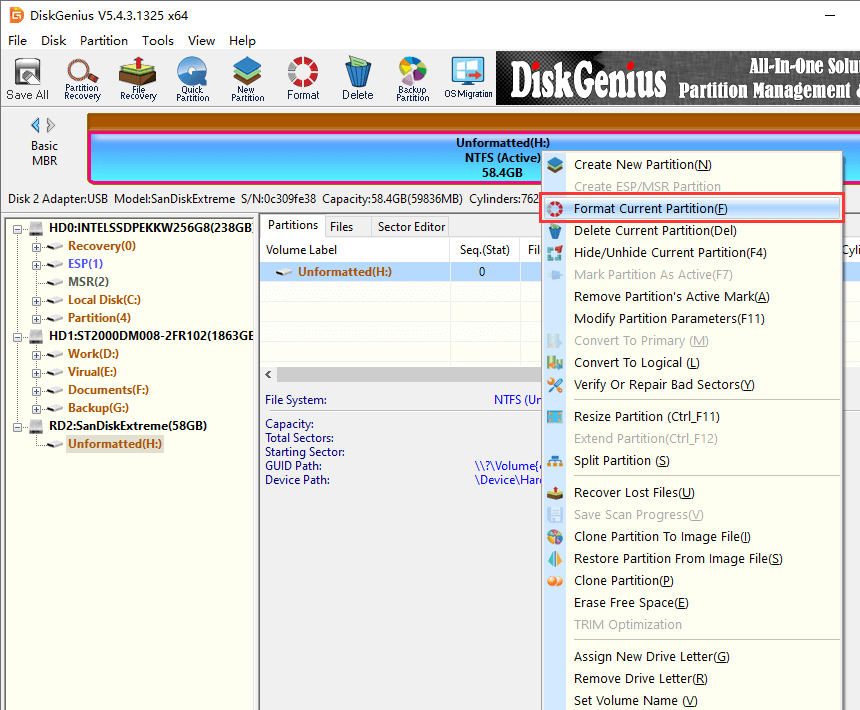
1. After launching DiskGenius Free Edition, right-click the pendrive you want to format, and choose "Format Current Partition".
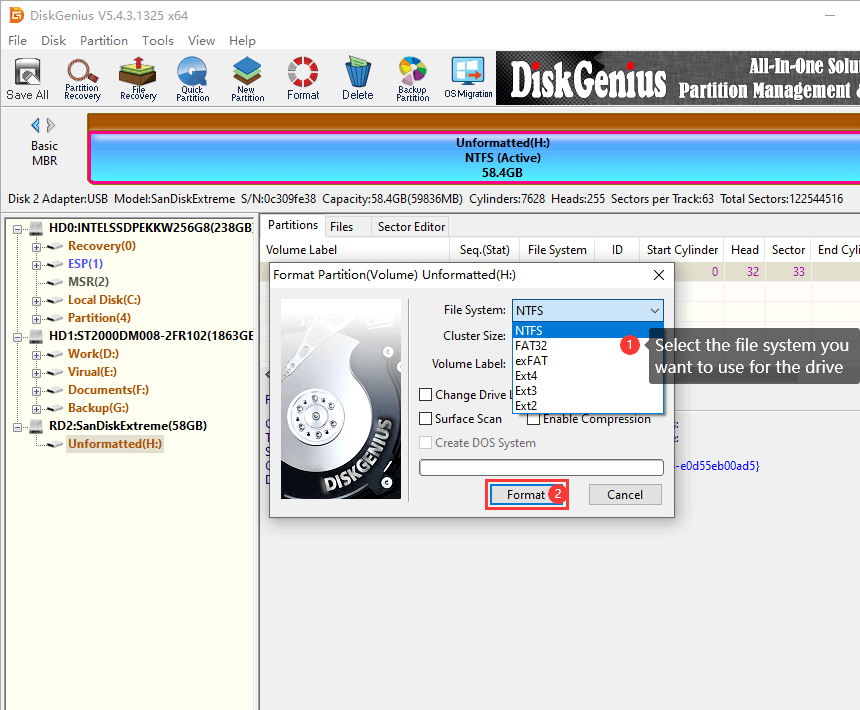
2. Select a file system for the drive and click "Format".
Need a pendrive or SD card formatted as EXT4 for a Raspberry Pi project, a router, or a NAS device? Windows CMD can't do this. At all. There's no flag, no parameter, no workaround. EXT file systems simply don't exist in Windows' formatting toolkit. DiskGenius supports EXT2, EXT3, and EXT4 natively, so you can prepare Linux-compatible drives without leaving Windows .
To learn steps about reading, writing or formatting EXT4/3/2 drive using DiskGenius, refer to the guide: How to Read EXT4 Partitions in Windows 11/10?
If you've ever had to prepare a batch of USB drives, maybe for a classroom, an office deployment, or a product shipment, you know how tedious it is to format them one at a time. You sit there, plug one in, format it, eject it, plug in the next one. Repeat twenty times. Or a hundred.
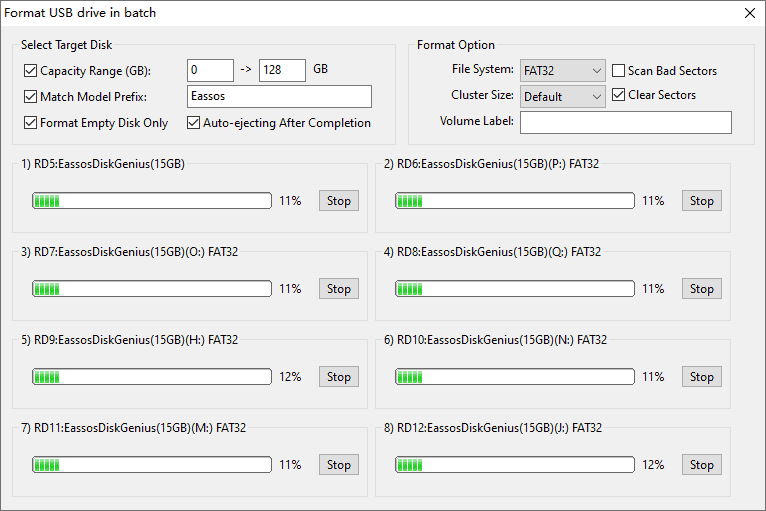
DiskGenius has a batch formatting function that lets you define your formatting parameters upfront: file system, partition type, volume label, and so on.
Click Tools – Batch Format USB Disk.
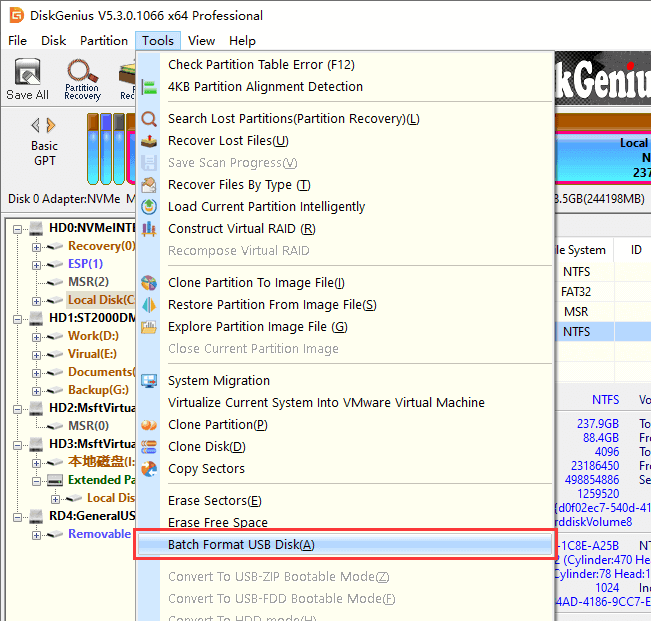
You can set a filter for which drives should be targeted. From that point on, every USB drive you plug in that matches your criteria gets formatted automatically.
When it's done, the drive safely ejects on its own. You don't have to touch anything. This is the kind of workflow that's simply impossible to replicate with CMD or DiskPart.
Here's something most people don't think about: when you format a pendrive, your files aren't actually gone. As we discussed earlier, formatting removes the file system index. The actual data blocks remain on the disk until something new gets written over them. Recovery software can scan those blocks and pull your files right back.
That's fine if you accidentally formatted the wrong drive. It's not fine if you're donating an old USB stick, disposing of one that contained financial records, or handing off a device with personal photos on it. A quick format through CMD leaves your data wide open to recovery.
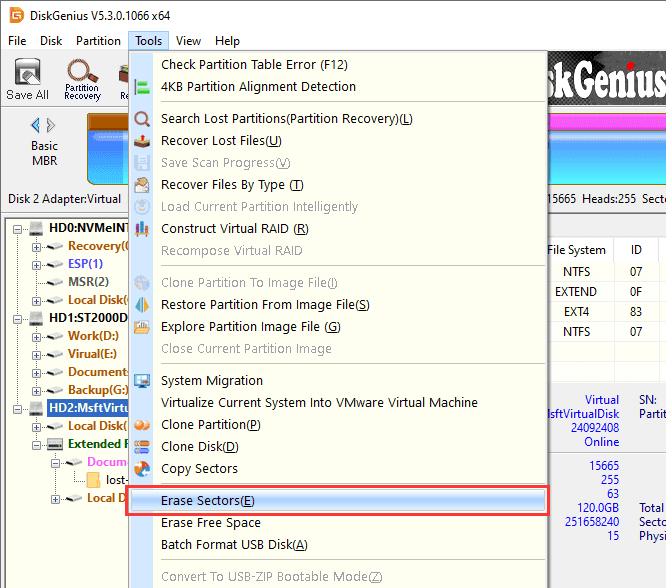
Windows doesn't give you a built-in way to do a secure multi-pass wipe on a USB drive. You can use DiskGenius to perform a full secure wipe:
Step 1. Select the USB drive from the disk list on the left pane, and click Tools – Erase Sectors.
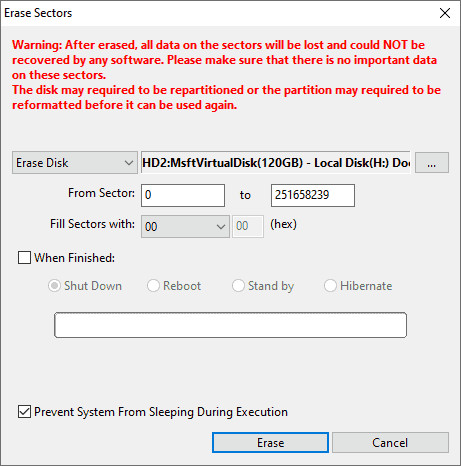
Step 2. Select a data wiping method and click "Erase".
If you want to erase multiple pen drives at the same time or want to use industry-standard methods like DoD 5220.22-M, you can try the Professional Edition.
|
Feature |
CMD / DiskPart |
DiskGenius |
|
Cost |
Free (built-in) | Free |
|
Ease of use |
Command line, technical | GUI, beginner-friendly |
|
FAT32 on 32GB+ drives |
Not supported | Supported |
|
Data recovery after format |
Not possible | Built-in recovery tools |
|
Secure data wipe |
Not available | Supported |
|
EXT4/3/2 file system |
Not supported | Supported |
|
Batch formatting |
Not supported | Supported |
Is formatting a pendrive using CMD safe?
Yes, as long as you select the correct disk. The commands themselves are standard Windows tools and won't harm your system. The real danger is typing the wrong disk number in DiskPart. Always verify before pressing Enter.
What is the best file system for a pendrive: FAT32, NTFS, or exFAT?
FAT32 is the most universally compatible. Almost anything with a USB port can read it. The downside is a 4GB maximum file size. NTFS handles large files and is the standard for Windows, but many non-Windows devices won't read it exFAT is the middle ground. Large file support , and good enough cross platform compatibility, though some older devices don't recognize it .
Can I recover data after formatting a pendrive with CMD?
Probably, if you did a quick format. The data is still on the drive until it gets overwritten. Recovery software can often restore it. A full format makes recovery significantly harder, and a secure wipe makes it essentially impossible. Guide: How to Recover Formatted USB Drive? Steps to Unformat USB
Why can't I format my 64GB pendrive to FAT32 using CMD?
Microsoft prevents you from formatting FAT32 on drives larger than 32GB with its included tools. This is a software limitation, not a limitation of the FAT32 file system itself. Third-party tools like DiskGenius bypass this limit.
How long does formatting take via CMD?
A quick format finishes in seconds. A full format, depending on the drive's size and speed, can range from a few minutes to well over an hour. The clean command in DiskPart is nearly instant since it only erases partition metadata rather than scanning every sector.
What's the difference between format and DiskPart's clean?
format rebuilds the file system on an existing partition. The partition structure stays intact. clean wipes the whole partition table, leaving the drive blank and uninitialized. Use format for routine formatting. Use clean if the partition table is damaged, or you want to completely re-organise the drive.
For straightforward formatting, the format command is quick and gets the job done. When things get messy, DiskPart gives you the low-level access to fix RAW drives, remove write protection, and rebuild partitions from scratch. PowerShell offers a third path for anyone who prefers scripting or manages machines remotely.
Most of the time, these built-in tools are all you need. But Windows has its blind spots. The 32GB FAT32 limitation. No Linux file system support. No batch formatting. No secure wipe. For those situations, DiskGenius fills the gaps without forcing you into another command-line session.
One last thing. Always safely eject your USB drives before pulling them out. It takes two seconds and prevents most file system corruption in the first place. Future you will be grateful.

DiskGenius is a one-stop solution to recover lost data, manage partitions, and back up data in Windows.
Download

 Facebook
 YouTube
 X
X