
Updated on Mar. 23, 2026
Position: Resource - Disk Utilities - How To Fix Stop Code PAGE FAULT IN NONPAGED AREA In Windows 11/10?
A blue screen never feels minor, even when it disappears in a second.
One moment your PC is running normally. The next, Windows crashes with a stop code that sounds vague, technical, and slightly threatening: Page Fault in NonPaged Area.
Sometimes it happens once and never comes back. Sometimes it appears after a driver update, a RAM upgrade, or what looked like a perfectly ordinary restart. In worse cases, it throws the computer into a boot loop and leaves you staring at the recovery screen.

The good news is that this error is often fixable. The less pleasant truth is that it does not point to one single cause. Faulty memory can trigger it. So can damaged system files, unstable drivers, disk problems, or low level software conflicts. That is why random guessing usually wastes time.
This guide walks through what the error actually means, why it happens, and what you can do to fix it in Windows 11 or Windows 10. And because real users care about their files before anything else, it also covers what to do if the system will not boot and you need to protect or recover important data first. In situations like that, a disk utility and data recovery tool such as DiskGenius can be genuinely useful, especially when the machine is unstable and you do not want troubleshooting to turn into data loss.
Despite the name, the error is not as mysterious as it looks.
Windows constantly manages memory. Some data can be moved temporarily between RAM and disk when the system needs space. Other data is considered critical and is supposed to remain in a part of memory that should always be available. That protected area is generally referred to as the nonpaged area.
When Windows tries to access data there and fails, it can trigger the Page Fault in NonPaged Area stop code.
In other words, the system thought it would find valid data in a place that should have been safe, but the data was either missing, broken, or hard to get to. That mismatch is enough to make Windows crash rather than continue operating in an unsafe state.
You might also see a file name on the blue screen. It can also point to a part of the system, like ntfs.sys, tcpip.sys, or win32kfull.sys. The named file isn't always the root cause, though. It could just be the time when the failure became clear. It is still a clue, and clues are important when fixing BSODs.
This error can appear during startup, during gaming, while using a browser, or even when the computer seems idle. That unpredictability is part of what makes it frustrating.
Faulty or Incompatible RAM
Bad RAM is one of the most common causes. If a memory module is failing, loosely seated, or incompatible with the system, Windows may try to read critical data and get garbage instead. That can lead directly to this stop code.
The issue sometimes starts right after a memory upgrade. New RAM is not always as plug and play as people hope. Different speeds, timings, voltages, or even a motherboard that is pickier than expected can create instability.
Corrupted or Problematic Drivers
A buggy graphics driver, storage controller driver, network adapter driver, or chipset driver can interfere with memory access and crash the system. Sometimes the trigger is an outdated driver. Sometimes it is the opposite, a fresh update that introduced instability.
Disk Errors and File System Corruption
People usually associate this stop code with RAM, but storage issues can play a role too. If the hard drive has bad sectors, if the file system is damaged, or if important system data is corrupted on disk, Windows may fail when trying to load or verify critical information. In some cases, the real problem is not memory at all. It is the drive underneath.
This is one reason it can be smart to check disk health rather than focusing only on RAM. Tools like DiskGenius can help inspect SMART information, examine partition status, and scan for bad sectors when you suspect the hard drive or SSD may be involved.
Corrupted System Files
Improper shutdowns, failed updates, sudden power loss, and malware can all damage system files. Once core Windows files become inconsistent, memory related stop errors are not unusual.
This category is annoying because the machine can look mostly fine until one damaged file gets called at exactly the wrong moment.
Corrupted System Files
Improper shutdowns, failed updates, sudden power loss, and malware can all damage system files. Once core Windows files become inconsistent, memory related stop errors are not unusual. This category is annoying because the machine can look mostly fine until one damaged file gets called at exactly the wrong moment.
Antivirus or Other Low Level Software Conflicts
Some third party security programs hook deeply into Windows. That is part of how they monitor threats, but it can also create conflicts. The same goes for certain disk tools, virtualization tools, or system tuning utilities.
Not every antivirus causes blue screens, obviously. But some do, and when troubleshooting a kernel level crash, you should not rule software out just because it is popular.
BIOS Settings or Overclocking Instability
Memory overclocking, XMP profiles, CPU tuning, and aggressive BIOS settings can make a system unstable in subtle ways. A computer may boot, open programs, and pass basic tasks, yet still throw blue screens under the right conditions.
There is no magic order that works for every machine, but the sequence below is sensible. Start with the easier, lower risk steps. Move deeper only if necessary.
Before diving into repairs, slow down for a minute.
If the system still boots, copy your important files first. That is not being overly cautious. It is being realistic. Troubleshooting storage, drivers, and system files always carries some risk. If the computer is crashing repeatedly, the risk goes up.
Disconnect non essential external devices too. USB drives, docking stations, printers, external adapters, even innocent looking accessories can complicate diagnosis. Strip the setup back to basics.
If the blue screen shows a file name or appears after a specific event, such as a driver update or hardware change, make a note of it. Those details help more than people think.
And if Windows is unstable but still somewhat accessible, consider backing up your data before doing heavier repairs. DiskGenius can be helpful here because it gives you a practical way to browse partitions, copy files, and check whether a drive is starting to fail before you go any further.
Yes, restart sounds basic. Do it anyway.
1. Click the Start button (the Windows logo) on the taskbar.
2. Click the Power icon in the bottom right corner of the menu.
3. Click Restart.

If the error started right after you installed new RAM, a new SSD, or another internal component, undo that change first. Reseat the hardware if you are comfortable doing it. Loose memory sticks cause more chaos than they should.
If you recently added external devices, disconnect them and test the system again. This is especially worth doing when the blue screen started "out of nowhere," which often means it did not actually start out of nowhere.
Safe Mode starts Windows with only the basic drivers and services, which can help if the system crashes during normal startup.
Step 1. Force Windows into the recovery screen by interrupting startup two or three times.
Step 2. Go to Troubleshoot > Advanced options > Startup Settings > Restart.
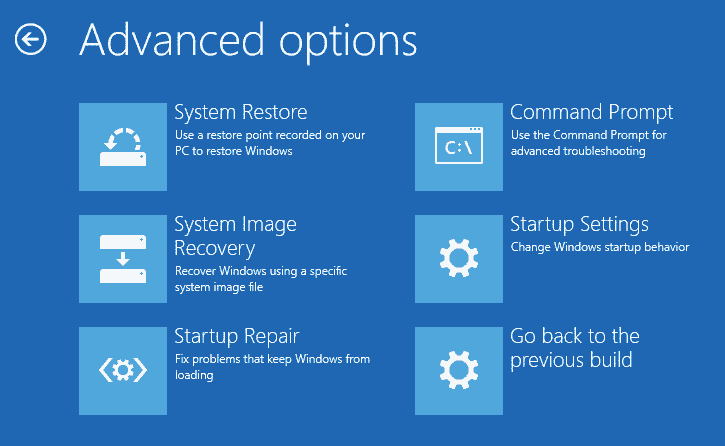
Step 3. Press 4/F4 for Safe Mode, or 5/F5 for Safe Mode with Networking.

Step 4. After entering Safe Mode, uninstall recent drivers, remove suspicious software, or back up important files.
Because RAM problems are so common with this stop code, memory testing should come early.
1. Click the Start menu and enter "Windows Memory Diagnostic" in the search box. Click "Run as administrator" to open the Windows Memory Diagnostic.
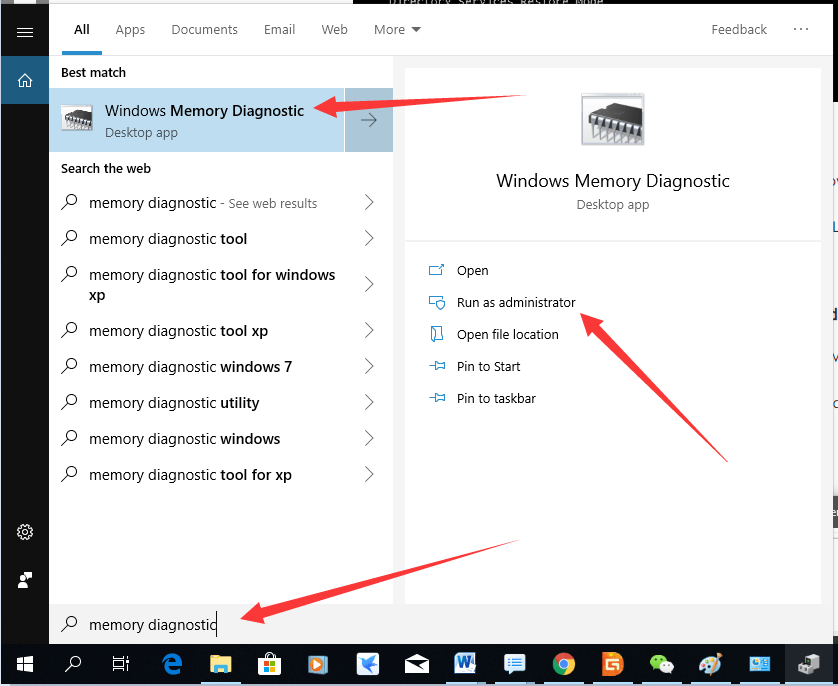
2. Choose "Restart and check for problems". Windows will scan memory during the reboot process.
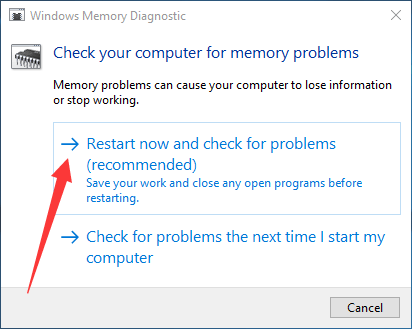
If it reports errors, do not ignore them. Test each RAM stick individually if you have more than one. If you recently upgraded memory, try reinstalling the old module or checking compatibility with your motherboard.
Memory issues can be intermittent, which is why one clean test does not always mean RAM is perfect. Still, it is an important step.
You can either run the error checking tool in File Explorer in run CHKDSK in Command Prompt to look for file system problems.
chkdsk /r
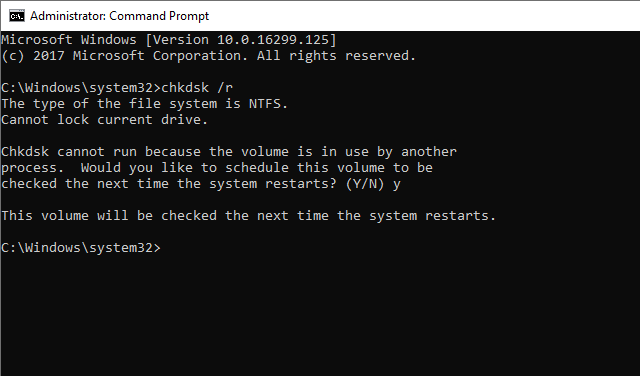
If Windows says the drive is in use, you need to type Y to allow the scan to run at the next restart.
This may take some time, especially on a large drive. That is normal. The scan looks for logical file system errors and attempts to locate bad sectors.
If you are not good at executing commands, you can use the alternative tool DiskGenius Free to check health status for your hard drives and SSDs. Using this free tool, you can have a clearer picture of overall drive condition, as it can give you more visibility regarding S.M.A.R.T. attributes and bad sectors/blocks. This will be helpful when you are trying to decide whether the system is merely corrupted or whether the storage device itself is becoming unreliable.
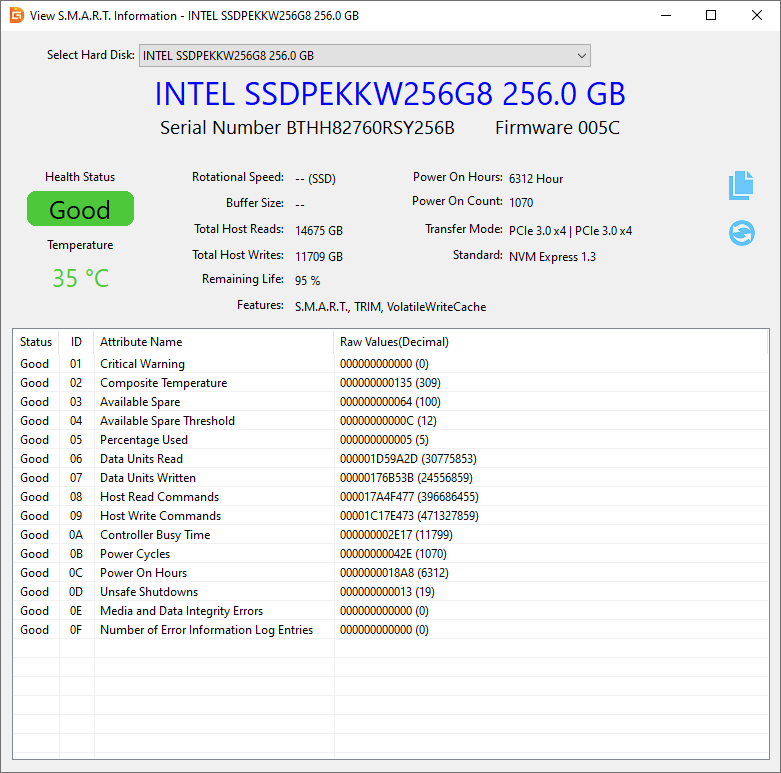
To check S.M.A.R.T. data:
Step 1. Open DiskGenius on the computer. In the main window, select the target hard drive or SSD from the disk list on the left side.
Step 2. Click Disk in the top menu, then choose View S.M.A.R.T. Information.
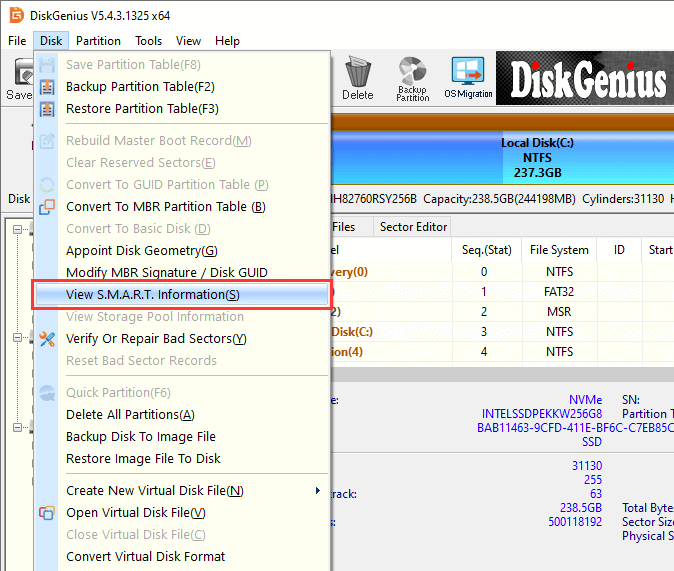
Step 3. Review the drive's health status and SMART attributes carefully.
If DiskGenius shows that the drive health is damaged or the SMART attributes look abnormal, back up important files as soon as possible before attempting more repairs.
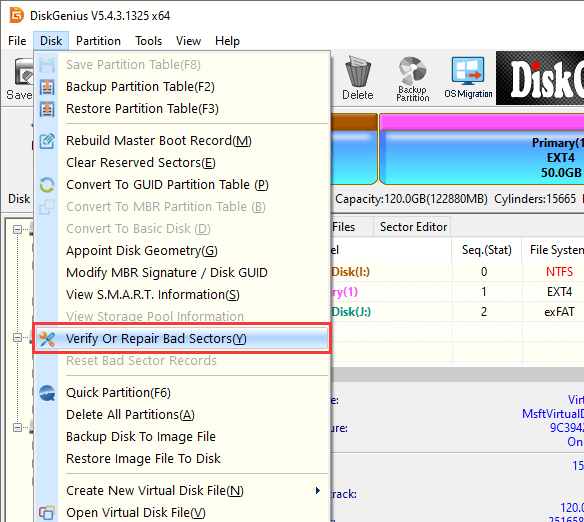
To check bad sectors/blocks:
Step 1. In DiskGenius, select the drive you want to inspect.
Step 2. Click Disk > Verify Or Repair Bad Sectors.
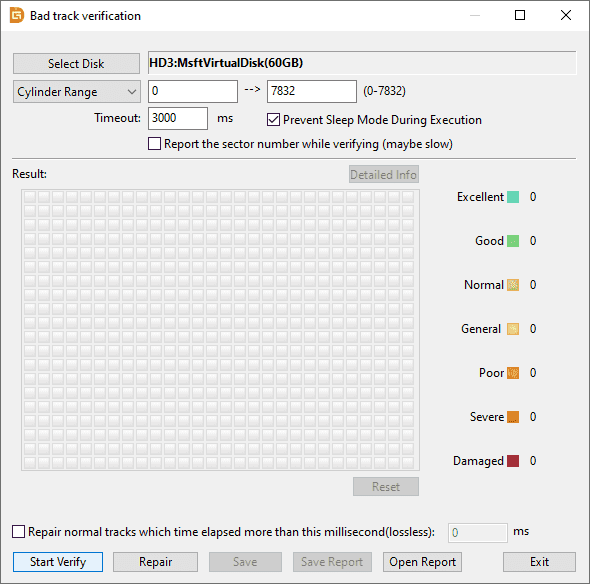
Step 3. Click Verify to scan the disk.
Review the results after the scan finishes. If bad sectors are detected, the drive may be failing and your data should be backed up immediately.
Corrupted Windows files are a routine cause of strange crashes, and fortunately Microsoft gives you built in tools to repair them.
Open Command Prompt as administrator and run: sfc /scannow
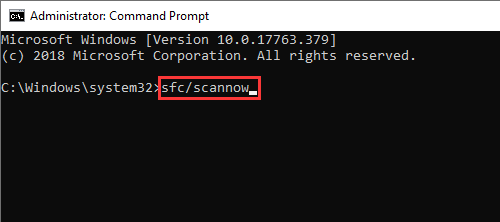
System File Checker will scan protected system files and attempt to replace damaged versions.
After that, run:
DISM /Online /Cleanup-Image /RestoreHealth
DISM checks the Windows image itself and repairs deeper corruption that SFC may depend on.
These commands do not fix everything, but they fix enough things often enough that they are absolutely worth running.
Don't be panic if DISM /Online /Cleanup-Image /RestoreHealth gets stuck, you can also try the rest solutions.
If the error started after a driver update, rolling back may be more useful than updating further.
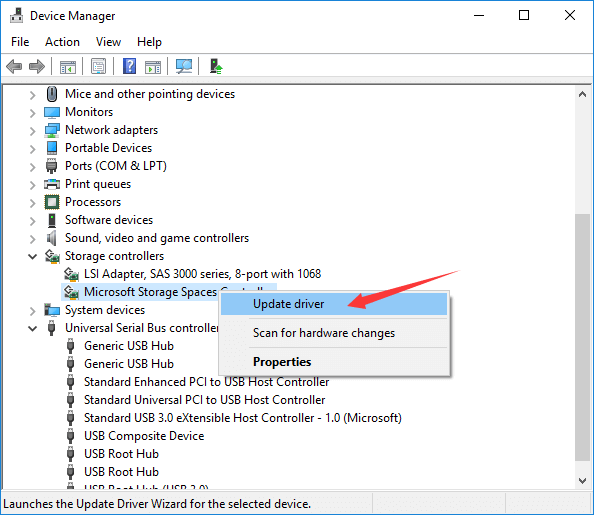
Focus on the drivers most likely to affect system stability: graphics, storage, chipset, and network. Open Device Manager and inspect recently changed devices. If one driver was updated shortly before the crashes began, try rolling it back.

If a driver looks outdated or suspicious, reinstall it from the hardware manufacturer's official support page.
A clean reinstall can help when a driver update completed badly and left behind a broken state.
Do not update drivers blindly through random driver tools. That tends to create new problems while pretending to solve old ones.
If you use a non Microsoft antivirus or another security suite, temporarily disable it and see whether the blue screens stop. If disabling is not enough, uninstall it for testing.
This is not a claim that antivirus is bad. It is just practical troubleshooting. Security tools operate deeply in the system, and deep system access means deeper consequences when something misbehaves.
If the crashes disappear after removal, you have learned something valuable.
Since this blue screen is related to memory management, it is worth checking whether the paging file is set up properly.
Step 1. Press Win + R, type SystemPropertiesPerformance, and press Enter.
Step 2. When the Performance Options window opens, switch to the Advanced tab.
Step 3. Under Virtual memory, click Change.
Step 4. Make sure Automatically manage paging file size for all drives is selected, then click OK to save the change.

Manual paging file settings are not always harmful, but unusual configurations can complicate stability. Restoring the default behavior is a reasonable troubleshooting step.
When the problem began right after a Windows update, cumulative patch, or major driver install, System Restore can sometimes undo the damage quickly.
If you have a restore point from before the crashes started, use it.
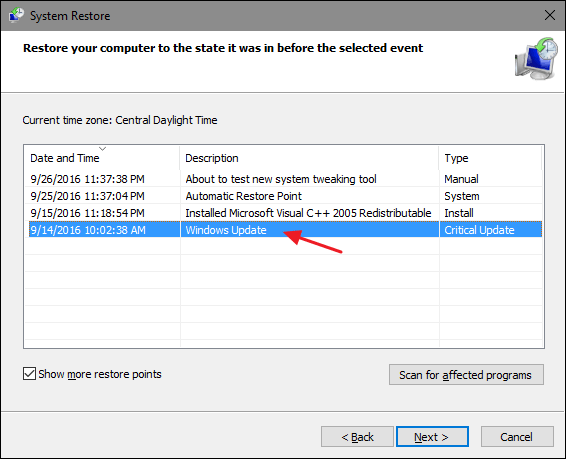
You can also uninstall recent updates from the recovery environment or from Safe Mode.
1. Go to Settings > Windows Update > Update History
2. Scroll down to the bottom, and under the "Related settings" section, click on Uninstall updates.
3. Find the recent update you want to remove from the list and click the Uninstall button next to it. Click Uninstall again to confirm your choice.
This is especially useful when the machine was stable for months and then began blue screening immediately after a specific system change.
If none of the above works, a Windows reset or clean installation may be necessary.
This should not be the first move. It is the move you make after testing memory, storage, drivers, and system files. Reinstalling Windows on top of a failing SSD or unstable RAM will not produce a happy ending. It only changes the scenery.
Before resetting or reinstalling, back up your files. If the computer will not boot normally, DiskGenius may help you access partitions and copy important data to another drive before you proceed. That step is easy to postpone and painful to regret.
When the PC is stuck in a blue screen loop, repair instincts kick in fast. But repair should not always come first.
If the system contains important documents, project files, photos, business materials, or anything else you cannot afford to lose, prioritize data access. Reinstalling Windows, repartitioning a hard drive, or repeatedly forcing startup repair can make a bad situation worse if the storage device is already unstable.
There are a few ways to handle this. You can connect the drive to another computer. You can boot into a recovery environment if one is available. Or you can use a utility designed to work with partitions and file recovery outside the normal workflow.
That is where DiskGenius fits naturally. It can create a bootable USB drive which can be used to boot the BSOD computer.
After your computer boots from the USB disk, you can back up files from the crashed computer to a readable disk.
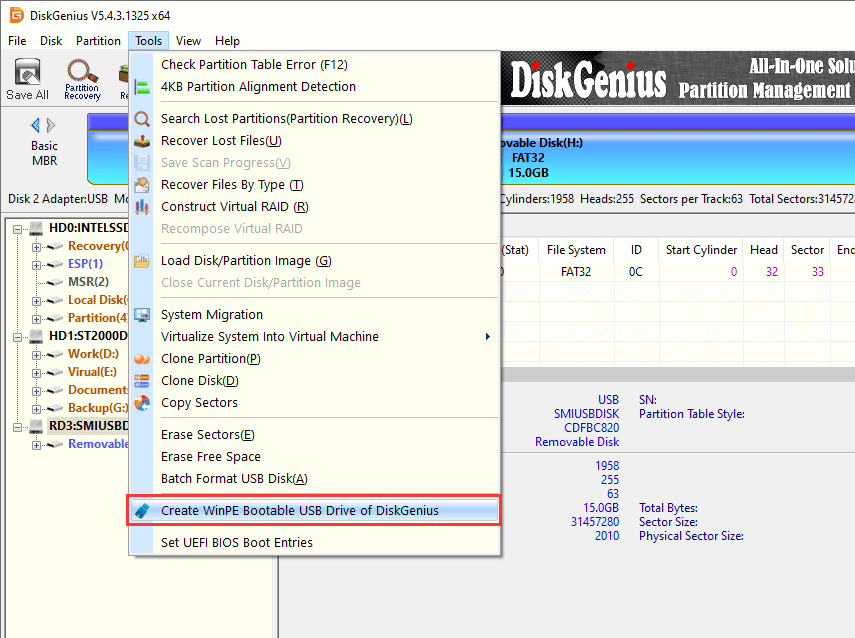
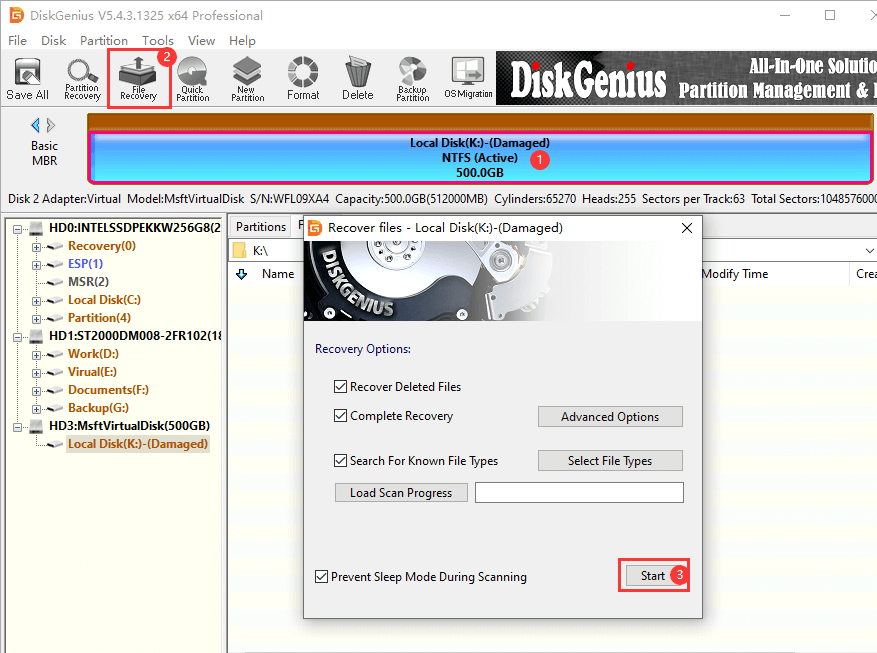
If partitions are no longer readable, you can use "Load Current Partition Intelligently" or "File Recovery" to find lost data.
1. Is Page Fault in NonPaged Area always caused by RAM?
No. RAM is a common cause, but not the only one. Driver problems, corrupted system files, disk errors, antivirus conflicts, and unstable BIOS settings can all produce the same stop code.
2. Can a bad SSD or hard drive cause this error?
Yes, it can. If the drive has file system corruption, bad sectors, or early hardware failure, Windows may crash while trying to access critical data. That is why checking drive health is part of proper troubleshooting.
3. Will I lose data because of this blue screen?
Not necessarily, but there is risk, especially if the system enters a reboot loop or the storage device is failing. If the files matter, back them up before attempting major repairs.
4. How can I recover files if Windows will not start?
You can try connecting the drive to another computer, using a recovery environment, or using data recovery software. DiskGenius can help access RAW partitions, search for lost partitions, recover deleted or formatted data.

DiskGenius is a one-stop solution to recover lost data, manage partitions, and back up data in Windows.
Download

 Facebook
 YouTube
 X
X