
Updated on Mar. 16, 2026
Position: Resource - Disk Utilities - [Fixed] We Couldn't Update the System Reserved Partition in Windows 11
You try to install a Windows 11 update, or maybe upgrade to a newer release such as 24H2, and instead of moving forward, Setup throws this at you: "We couldn't update the system reserved partition." In some cases, the wording may look slightly different, but the meaning stays about the same. Windows wants to modify a boot related partition and, for one reason or another, it cannot do it. Recent Microsoft Q&A threads show that this issue still comes up during newer Windows 11 feature updates, especially when the EFI or reserved partition does not have enough available space.

For many users, the error feels vague. It does not explain what partition is involved, what went wrong, or whether the PC is about to become unbootable if they touch anything. That uncertainty is what makes people hesitate. And honestly, that hesitation is not unreasonable. Boot partitions are not the place where most people want to experiment.
The good news is that this problem is usually fixable. In most cases, the cause is not mysterious at all. The reserved partition is too small, too full, slightly damaged, or not laid out in a way Windows Setup likes. Some users can solve it by freeing a bit of space. Others need a more permanent fix, which usually means extending the EFI or System Reserved partition.
On many PCs, Windows relies on a small separate partition that stores startup files. On older systems using MBR and Legacy BIOS, that partition is often called the System Reserved Partition. On newer computers using GPT and UEFI, the equivalent is usually the EFI System Partition, often shortened to ESP.
|
Partition |
Usually found on |
Purpose |
|
System Reserved Partition |
MBR/Legacy BIOS systems |
Stores the Windows Boot Manager and boot configuration data |
|
EFI System Partition (ESP) |
GPT/UEFI systems |
Stores EFI boot loaders, startup files, and other boot-related data |
So when Windows 11 says it could not update the system reserved partition, it usually means one thing. Setup tried to write or update boot related files in that small partition and failed.
That failure can happen for a few different reasons. The partition may not have enough free space. The file system may contain errors. The partition may be too small for a modern feature update. In some cases, the message says "system reserved partition" even though the real issue is the EFI partition on a UEFI based machine. Microsoft Q&A answers discussing this error commonly point to insufficient free space in the EFI partition as the underlying cause.
This is why the message is both accurate and misleading. Accurate, because Windows really is having trouble with a boot partition. Misleading, because users may go looking for a partition literally named "System Reserved" even when their PC actually uses an EFI partition instead.
A small note here, because it matters. This error does not necessarily mean your Windows installation is broken. It usually means the update process cannot complete a boot related task. That is inconvenient, but it is not the same as total boot failure. Most systems still boot normally after the update fails.
There is no single cause every time, but there are a few usual suspects. And one of them shows up again and again.
Windows feature updates often need to modify boot files, write updated recovery or startup components, or adjust boot configuration data. If the EFI or System Reserved partition is nearly full, Setup may stop with this exact error. Recent Microsoft Q&A discussions about Windows 11 24H2 explicitly connect the error to insufficient free space in the EFI partition. One thread even notes that 24H2 may require at least 20 MB of free space in the EFI partition.
That may not sound like much. Still, on older disks or OEM configured systems, these partitions can be quite small, and even a little extra data is enough to push them over the edge.
A lot of systems were set up years ago under older Windows versions or older manufacturer defaults. Their reserved partitions were sized for what the operating system needed at the time, not necessarily for future feature upgrades.
That is part of why this issue appears during major Windows 11 updates. A partition that used to be fine can quietly become inadequate later. Microsoft community answers about this error often recommend checking the partition size and extending it when it is unusually small. Some discussions mention expanding it toward 500 MB when repeated update failures continue.
In several Microsoft Q&A threads, suggested fixes involve mounting the EFI partition and removing certain font files to free space for the update. That would not be necessary if the partition had plenty of breathing room, but on cramped ESP layouts, even these files can become part of the problem.
It is not the cleanest long term solution, but it shows what the update process is fighting against. Sometimes the partition is only slightly too full, and a small cleanup is enough.
Not every failure is about raw space. If the partition is corrupted, or if the disk has errors in a sensitive area, Windows may fail while trying to write startup files. In those cases, checking the disk and file system integrity becomes part of the repair process.
This is less flashy than resizing partitions, but it matters. A damaged partition will not become healthy just because it gets bigger.
Security software, encryption tools, and some low level disk utilities can interfere with major Windows upgrades. Microsoft Q&A responses on reserved partition update failures also mention temporarily removing third party antivirus during troubleshooting.
That said, if the error message specifically points to the reserved partition, you should still inspect the partition itself first. Blaming security software too early wastes time.
Before changing anything, confirm what you are dealing with.
Open Disk Management in Windows and look for one of the following:
• A partition labeled System Reserved
• A partition labeled EFI System Partition
• A very small partition near the beginning of the system disk that does not have a drive letter

On modern Windows 11 PCs using GPT and UEFI, the EFI System Partition is the more likely target. On older MBR based installations, the system reserved partition may be the one involved.
Look at the size of the partition. Then consider its condition.
If the partition is unusually small, nearly full, or part of an old disk layout that has been carried across multiple Windows versions, it becomes a strong suspect. Microsoft discussions around this error regularly point users toward the reserved or EFI partition size as the first thing to check.
You should also pay attention to the surrounding partitions. This matters more than people expect. Extending a reserved partition is not just about how much total free space exists on the disk. It is about whether that free space can be placed next to the target partition in a usable way.
And one more thing before going further. Back up important data first.
That advice can sound repetitive, but here it is genuinely important. Working with boot partitions is not the same as shrinking a media partition or creating a new data volume for casual storage. If the system disk already has a weird partition layout, and plenty of them do, a backup is not overkill. It is basic common sense.
This will not solve every case, but it is still worth doing because sometimes the failure is made worse by temporary conditions.
Step 1. Restart the PC. Not a hibernation flavored quick restart. A real reboot.
Step 2. Disconnect external drives you do not need. Disable or uninstall third party antivirus temporarily if one is installed. Make sure Windows is not waiting for another restart from a previous update.
Step 3. Then run the Windows Update troubleshooter:
Select Start > Settings > System > Troubleshoot > Other troubleshooters. Next, under Most frequent, select Windows Update > Run.

None of this changes the reserved partition itself. That is exactly why it should come first. If the update succeeds after a clean restart and a less cluttered environment, great. You avoided deeper disk work.
Still, if the same message comes back, do not force repeated install attempts forever. Once the system repeatedly points to the reserved partition, it is usually telling you something real.
Sometimes the partition is only slightly short on free space. In that situation, a cleanup may be enough.
The EFI partition and deleting unnecessary font files from it as a way to recover a bit of space for the update. This is the kind of fix that belongs in the "possible but careful" category.
If you are comfortable with advanced Windows maintenance, you can temporarily assign a drive letter to the EFI partition, inspect its contents, and remove unneeded files that are known to be safe to delete in the context of Microsoft's suggested cleanup approaches. Then you retry the update.
The upside is obvious. It is fast. It may solve the problem without changing partition sizes.
The downside is just as obvious. It is not a durable fix if the partition is fundamentally undersized. You may also not love the idea of manually handling boot files inside a protected partition, and fair enough. For many users, that feels too close to the edge.
That is why this method works best when the partition is almost large enough already. If the partition is tiny, or if Windows 11 feature updates keep failing across releases, cleanup is more of a temporary patch than a real solution.
If the partition has enough space, the next question is whether it is healthy.
Run a disk check on the system drive. Use Windows built in error checking or CHKDSK, depending on how comfortable you are with command line tools.
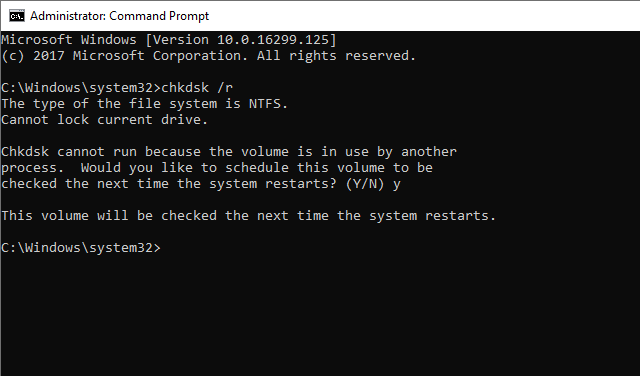
The aim here is simple. Rule out file system corruption or low level disk errors that might stop Windows from writing or updating boot data.
This step is easy to skip because it is not dramatic. People love a resizing fix. It feels concrete. Yet damaged file systems can produce vague update failures, and boot related partitions are not exempt from that.
If disk errors are detected and repaired, retry the update before doing more invasive partition work. There is no point rearranging the disk layout if the real issue is corruption.
If you have reached this point, this is often the fix that actually sticks.
A small cleanup can help when the partition is just barely short on space. But when the reserved partition is too small in a structural sense, the cleanest long term answer is usually to give it more room.
That sounds straightforward, but Windows built in tools are not always great at doing it. The problem is not just extending a partition. The real problem is usually that the free space is in the wrong place.
When a Windows 11 upgrade repeatedly fails because the EFI or reserved partition is cramped, you can spend time trimming files inside it. Or you can remove the bottleneck altogether.
Extending the partition makes future updates easier because it gives Windows more room to work with. It also tends to be more stable than relying on tiny margins and hoping the next feature update needs no additional boot space.
This is especially relevant on older installations that were migrated, cloned, or upgraded across several Windows generations. Their disk layouts often reflect old assumptions. The boot partition was sized for yesterday, and Windows 11 is asking for today.
Windows Disk Management is fine for basic jobs. Extend a data partition into adjacent unallocated space. Delete a volume. Create something new. Simple stuff.
Boot partitions are usually not simple stuff.
For the EFI or System Reserved partition to be extended, unallocated space usually needs to sit in the right location. If another partition is in between, Windows built in tools may not be able to help much because they do not always support the kind of partition moving that is needed first.
That is where a dedicated partition manager becomes useful. DiskGenius provides partition resizing and related disk management functions, including guides for EFI partition creation and boot related management.
In practical terms, that means you can do something Windows tools often struggle with: shrink a neighboring partition, move it if needed, create properly positioned unallocated space, and then extend the EFI or System Reserved partition in a cleaner visual workflow.
The exact layout will vary from one PC to another, but the general process looks like this.
Step 1. Open DiskGenius and identify the system disk.
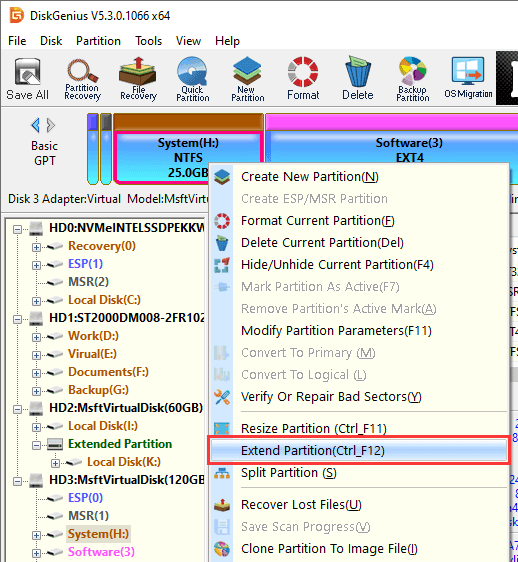
Step 2. Then locate partition you want to extend. Right click it and choose "Extend Partition".
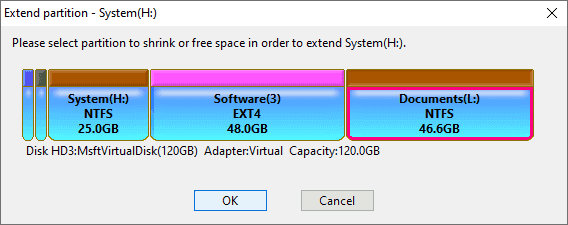
Step 3. Select the partition that has enough free space which can be transferred to the one you want to extend.
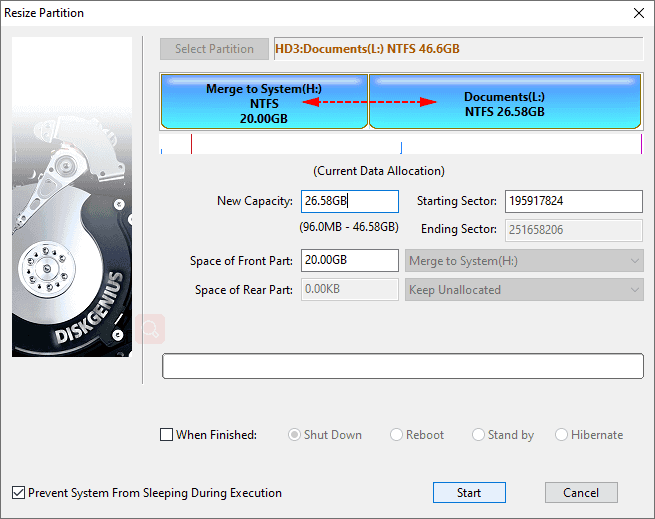
Step 4. drag the whole partition leftward or rightward to adjust the partition size. Click "Start" to continue.
Step 5. At this step, you will see what will be executed and what should be noted.
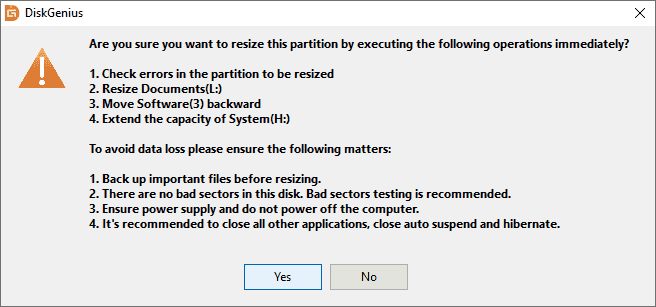
Step 6. Wait for the process to finish.
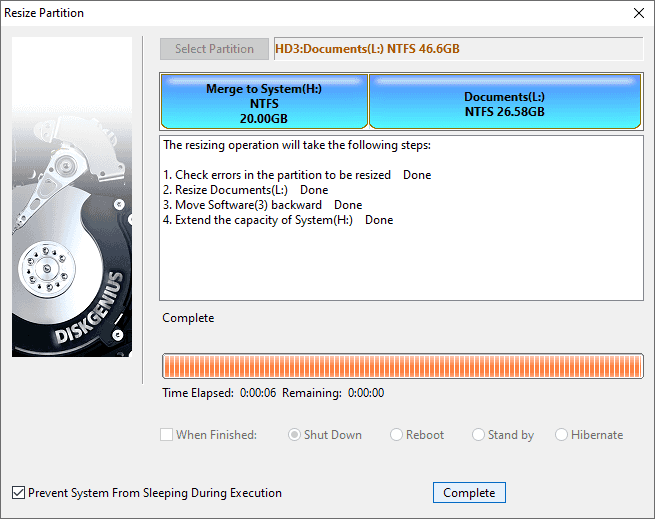
When the resize is done, boot back into Windows and retry the update.
In many cases, this is the point where the error disappears, because the update process finally has enough room to update the boot files it wanted to touch in the first place.
A quick practical note. There is no universal magic number that fits every machine. Some community answers mention that partitions under 500 MB are more likely to cause trouble, and some troubleshooting suggestions explicitly recommend resizing toward 500 MB when repeated failures continue.
That does not mean every system must use exactly that size. It does mean that if your EFI or reserved partition is extremely small and obviously cramped, making it more generous is usually smarter than trying to live on the edge of adequacy.
If the EFI partition is present but damaged, or if boot files are missing or broken, expanding the partition alone may not be enough.
In those cases, Windows boot components may need to be rebuilt. Tools such as BCDBoot or Windows Startup Repair can help recreate the necessary boot files. Also you can try recreating an EFI partition in Windows and rebuild the needed boot files when boot structures are missing or corrupted.
This is the more advanced branch of repair. It is not where most users need to start, but it should stay on the table if:
• the EFI partition is missing
• the partition exists but appears damaged
• update failures happen alongside boot errors
• the system has been cloned, converted, or repaired multiple times before
You might be wondering how about recreating the EFI System Partition. This can work when the existing boot partition is corrupted, missing, or beyond simple repair. However, this is not usually the first fix for the "We couldn't update the system reserved partition" error. In most cases, the problem is caused by insufficient free space, which means extending the EFI/System Reserved partition is safer and more appropriate.
1. What is the difference between the EFI partition and the System Reserved partition?
The difference is mostly tied to the disk and firmware style.
Older MBR and Legacy BIOS systems often use a System Reserved partition. Newer GPT and UEFI systems use the EFI System Partition. Both play a boot role, but the EFI partition is the normal one on modern Windows 11 PCs.
2. Why does Windows 11 mention the System Reserved partition when my PC uses EFI?
Because the error text is not always perfectly specific. In practice, many users see that wording even when the real issue is the EFI System Partition. Microsoft community discussions around this error regularly describe the EFI partition as the actual location of the space problem.
3. Will resizing the EFI partition erase data?
It should not if done correctly, but any partition operation on the system disk carries some risk.
That is why backups matter. A reliable partition manager helps because it lets you see the layout, move partitions when needed, and apply changes in a more controlled way than trying to improvise with tools that are not designed for complex boot partition rearrangement.
4. Why does this error appear during Windows 11 24H2 or later feature updates?
Because feature updates tend to be more demanding than small cumulative patches. Recent Microsoft Q&A posts specifically connect this reserved partition error to Windows 11 24H2, and even similar newer update scenarios, when the EFI or reserved partition does not have enough usable free space.
"We couldn't update the system reserved partition" sounds obscure, but the underlying issue is usually pretty ordinary. Windows needs to update boot related files. The relevant partition is too small, too full, damaged, or simply awkwardly laid out for the job.
That is why the fix is not always the same. Some systems only need basic troubleshooting. Some need a bit of cleanup. Others, and this is common enough, need the EFI or System Reserved partition to be extended so Windows finally has enough room to complete the upgrade.
If you want the most durable fix, focus less on the wording of the error and more on the actual disk layout. Once that layout makes sense again, the update usually stops complaining.
How to Delete EFI System Partition in Windows 11/10? [Full Guide]
Windows Detected That the EFI System Partition Was Formatted as NTFS

DiskGenius is a one-stop solution to recover lost data, manage partitions, and back up data in Windows.
Download

 Facebook
 YouTube
 X
X