
Updated on Jun. 05, 2026
Position: Resource - Disk Utilities - Windows Won't Boot? A Guide to Boot Repair & UEFI/Legacy Conversion
Table of contents:
If you've ever pressed the power button only to see a cryptic, unfamiliar error message instead of the familiar Windows startup screen, you're not alone:
Operating System Not Found
Bootmgr is Missing
Or maybe you did something that seemed simple, like cloning your system to a new SSD, converting the partition table from GPT to MBR, accidentally deleting a small partition while repartitioning, removing the EFI partition during a reinstall, or tweaking a BIOS setting, and suddenly your computer won't start at all.
Many users in this situation assume Windows is corrupted and immediately reinstall Windows. In reality, most boot failures have nothing to do with Windows system files. The problem is almost always in the boot environment, a layer that sits between the firmware and the operating system.
A missing boot partition, a damaged boot record, a corrupted EFI configuration, or a mismatch between UEFI and Legacy boot modes: these issues look catastrophic, but they're entirely fixable without reinstalling Windows. You just need to repair or rebuild the boot environment.
This article explains how Windows booting actually works, walks through the most common boot failures and their causes, and provides practical solutions you can follow.
Before you can fix a boot problem, you need to understand what happens between pressing the power button and seeing the Windows desktop.
On older computers, or systems configured for traditional BIOS mode, the startup sequence looks like this:
Hard Drive → MBR → PPR → Bootmgr → Windows
• MBR (Master Boot Record): A tiny piece of boot code stored in the very first sector of the hard drive. When the computer powers on, the BIOS firmware reads this code first. Its job is to locate the bootable partition.
• PBR (Partition Boot Record): The boot sector on the active system partition. Once the MBR hands off control, the PBR takes over and passes it to the Windows bootloader.
• Bootmgr: The Windows Boot Manager in Legacy mode. It reads the BCD (Boot Configuration Data) and loads the operating system.
On newer computers, UEFI replaces the traditional BIOS and uses a different boot path:
Hard Drive → EFI System Partition (ESP) → Windows Boot Manager → BCD → Windows
• EFI System Partition (ESP): A dedicated FAT32 partition (typically 100 to 500 MB) that stores all boot files. UEFI firmware reads the bootloader directly from this partition; it doesn't rely on the MBR at all.
• Windows Boot Manager: The UEFI-mode boot manager, stored inside the ESP.
• BCD (Boot Configuration Data): A database that holds all the configuration the system needs to boot, including menu entries, partition locations, boot options, and more.
Legacy and UEFI each require their own combination of partition table format, boot partition, and boot files. Switching boot modes is not as simple as changing a BIOS setting.
For example, suppose your computer currently runs in Legacy mode with an MBR partition table, and you want to switch to UEFI. Simply changing the Boot Mode in BIOS from Legacy to UEFI won't work, because the disk is still MBR, and UEFI doesn't recognize MBR. You would need to:
1. Convert the partition table from MBR to GPT.
2. Create an EFI System Partition (ESP).
3. Write the boot files to the ESP.
These three steps are interdependent. They must be done in order, and getting any one of them wrong can leave the system unbootable. The reverse switch (UEFI to Legacy) is equally involved: GPT to MBR conversion, BIOS boot partition creation, and MBR/PBR boot record rewriting.
When would you need to switch? Common scenarios include:
• Upgrading to a new motherboard that only supports UEFI, while the system still boots in Legacy mode.
• Enabling Secure Boot, which requires UEFI mode.
• Installing software or an OS that demands UEFI.
• Switching a new computer to Legacy mode for compatibility with older devices or specialized environments.
With the boot process in mind, you can match symptoms to causes:
| Symptom | Likely Cause |
| Bootmgr is Missing | Boot file missing or corrupted |
| No Bootable Device | EFI partition missing, MBR corrupted, or BIOS boot mode doesn't match the disk's partition table. |
| System boots directly into BIOS | The firmware couldn't find a bootable disk or partition; usually a sign of damaged boot records. |
| System won't boot after cloning to a new drive | Boot partition wasn't migrated, or the boot mode doesn't match the new drive. If you need to migrate OS to a new disk and want to make it bootable, use the "System Migration" feature. |
| GPT disk won't boot | BIOS is set to Legacy mode, which is incompatible with GPT. |
| Corrupted MBR | Virus, user error, or disk bad sectors. |
| Black screen after changing BIOS settings | Boot mode was changed but the boot environment wasn't updated to match. |
| System won't boot after a Windows update | Major Windows updates can modify the BCD or boot files; if the update fails or is interrupted, the boot configuration may become inconsistent. |
| System won't boot after replacing the motherboard or hard drive | The new hardware may default to a different boot mode (UEFI or Legacy) than the original system. |
| A boot entry disappeared in a multi-boot setup | Reinstalling one OS can overwrite the shared BCD, removing the boot entries for other systems. |
Once you've identified a boot problem, the next step is fixing it. Most users turn to Windows' built-in repair tools or their own technical knowledge. These approaches can solve some problems, but each has significant limitations.
Boot from a Windows installation USB, open Command Prompt, and run:
bootrec /fixmbr
bootrec /fixboot
bootrec /rebuildbcd
Simple in theory. In practice:
• A wrong parameter can make things worse, not better.
• On recent versions of Windows, bootrec /fixboot frequently returns Access Denied, requiring additional permission steps to resolve.
• These commands are designed for Legacy/MBR systems; they're essentially useless on GPT + UEFI setups.
• Even when they work, they only fix boot files; they can't repair a damaged partition table or recreate a missing boot partition.
bcdboot C:\Windows /s S: /f UEFI
This command regenerates boot files from the Windows directory to a target partition. The catch: you need to correctly identify which drive letter is the system partition and which is the boot partition. In a PE environment, drive letters are often assigned differently than in normal Windows, making it easy to target the wrong partition.
When the EFI partition has been deleted, recovery is a multi-step process:
1. Open diskpart.
2. Select the target disk.
3. Create a FAT32 partition (approximately 100 to 500 MB).
4. Assign a drive letter.
5. Run bcdboot to write boot files to the new partition.
6. Verify the BCD configuration.
Six or more command-line steps, leaving no room for error. For users unfamiliar with the command line, this is practically out of reach.
All three methods share the same fundamental limitation: they require the user to be comfortable with command-line tools and to understand Windows boot internals. A wrong partition letter, a mistyped parameter, or a misunderstood error message can turn a recoverable boot failure into a data loss situation.
And none of them can handle boot mode conversion. Switching between UEFI and Legacy involves partition table conversion, boot partition creation, and boot file rewriting, which no built-in Windows tool can do in a single operation.
Is there a tool that handles both boot repair and boot conversion, without command-line work?
DiskGenius includes the "Windows Boot Repair and Conversion" feature that brings boot repair, boot partition creation, boot record rewriting, and UEFI/Legacy boot mode conversion into a single graphical interface. No commands to type, no need to juggle multiple tools.
In most boot failure scenarios, Windows can't start at all, so how do you run DiskGenius in the first place? The answer is to boot your computer from a WinPE (Windows Preinstallation Environment) USB drive that has DiskGenius built in.
DiskGenius can create a bootable USB drive:
Before you begin, make sure your USB drive:
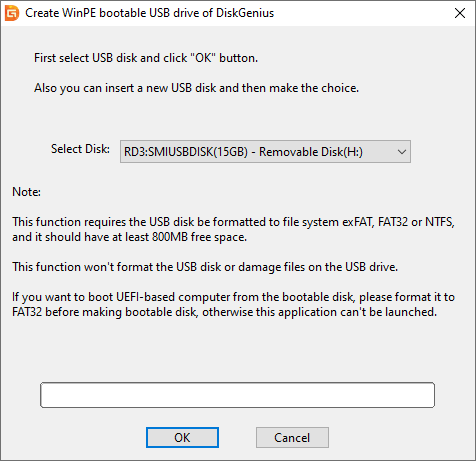
• Is formatted as FAT32, exFAT, or NTFS.
• Has at least 800 MB of free space.
• For UEFI-based computers: The USB drive must be formatted as FAT32 beforehand, or DiskGenius will not launch when booting from the drive.
To create the bootable USB drive:
1. Insert the USB drive into a working Windows computer and launch DiskGenius.
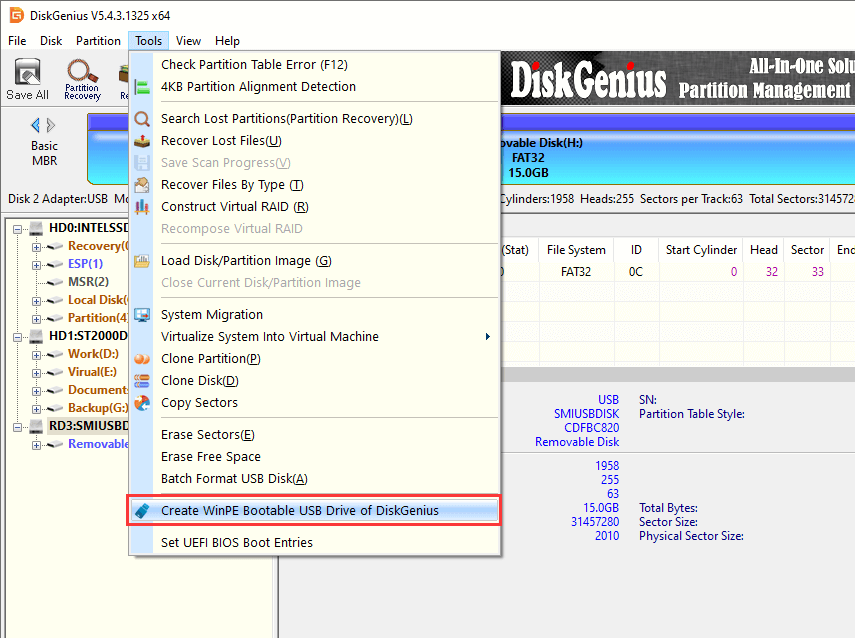
2. Click the "Tools" menu and select "Create WinPE Bootable USB Drive of DiskGenius".
3. Click OK in the confirmation window.
4. Wait a few seconds for the process to complete, then click OK.
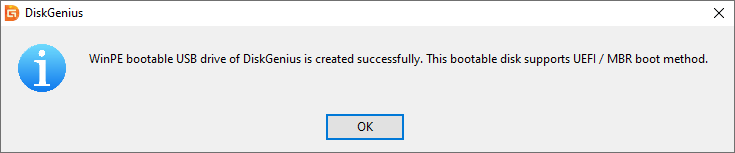
The process does not format the USB drive or damage existing files. Your other files on the drive remain intact.
Boot your computer from the bootable USB drive:
1. Insert the bootable USB drive into the computer that won't start.
2. Enter the BIOS/UEFI firmware settings (usually by pressing Del, F2, or F12 during startup; the key varies by manufacturer).
4. Save and restart. The computer will boot from the USB drive and launch DiskGenius directly.
5. From there, open "Tools" → "Windows Boot Repair and Conversion" and proceed with the repair.

DiskGenius will automatically scan the disk, list all available Windows system partitions, and recommend the corresponding boot partition based on the current boot mode. You simply need to confirm the settings and click "Execute".

If your system is still bootable (for example, if you only need to switch boot modes), you can simply use the installed version of DiskGenius directly.
Here's what the Windows Boot Repair and Conversion feature can do:
1. Repair Windows Boot Files
This is useful when BCD is missing, boot files are corrupted, or the system can't boot after a migration. DiskGenius detects the issue and rebuilds the necessary boot files, restoring the Windows Boot Manager to working order.
2. Rebuild the EFI System Partition
This is useful when the EFI partition gets deleted, the ESP is damaged, or a GPT disk fails to boot. If no usable boot partition is detected, you can select "Create Boot Partition" from the drop-down menu. DiskGenius will automatically create a FAT32 ESP partition and write the complete set of EFI boot files.
3. Rebuild MBR and PBR Boot Records
This is useful when a Legacy-mode system fails to boot, the MBR has been damaged by malware, or boot records are corrupted. With the boot mode set to Legacy, checking "Rebuild MBR/PBR Boot Records" rewrites both the Master Boot Record on the disk and the Partition Boot Record on the active partition.
4. Automatically Create a Boot Partition
This is useful when the system is missing either an EFI System Partition or a BIOS boot partition (for example, the original was deleted). DiskGenius creates the correct type of boot partition based on the current boot mode and configures the boot files automatically, no diskpart required.
Compared to command-line methods, DiskGenius offers a graphical interface, automatic system partition detection, automatic boot mode identification, and multi-OS support. Even if you're not deeply familiar with how Windows booting works, you can complete the repair safely.
If boot repair is "fixing things within the existing framework," boot mode conversion is "rebuilding the framework from scratch." It involves converting the partition table format, recreating the boot partition, and rewriting the boot files: the most complex boot operation you'll encounter.
Many users search for "GPT to MBR won't boot," "switch UEFI to Legacy," or "Legacy to UEFI conversion." The core issue is always the same: the boot mode must match the partition table format.
| Boot Mode | Partition Table | Boot Partition |
| UEFI | GPT | EFI System Partition (ESP) |
| Legacy BIOS | MBR | BIOS boot partition |
Simply changing the boot mode in BIOS without updating the disk's partition table and boot partition will leave the system unbootable. This is exactly why so many users end up with a black screen after switching modes.
How DiskGenius Handles the Conversion
1. Select the target system partition from the list.
2. Set the boot mode to "UEFI".
3. Choose an existing ESP from the boot partition drop-down, or select "Create Boot Partition".
4. Click "Execute".
DiskGenius automatically converts the partition table from MBR to GPT, creates the EFI System Partition, and writes the UEFI boot files. No manual commands required.
1. Select the target system partition from the list.
2. Set the boot mode to "Legacy BIOS".
3. Choose or create a boot partition from the drop-down.
4. Optionally check "Rebuild MBR/PBR Boot Records".
5. Click "Execute".
DiskGenius automatically converts the partition table from GPT to MBR, creates the Legacy boot environment, and rewrites the MBR/PBR boot records.
Both directions are handled entirely by the software. No diskpart, bootrec, or bcdboot commands needed.
This direction carries higher risk. Be aware of these constraints before proceeding:
• Disk capacity limit: MBR can address a maximum of approximately 2 TB. DiskGenius checks the disk size automatically before conversion and will block the operation if the disk exceeds this limit.
• Partition count limit: MBR supports a maximum of 4 primary partitions (or 3 primary + 1 extended). If the disk has more partitions than this, the conversion cannot proceed.
• NVMe compatibility: Some NVMe storage controllers do not support Legacy BIOS booting. If Windows is installed on an NVMe SSD, verify that your motherboard and controller support NVMe boot in Legacy mode before converting.
Here are the most common situations where this feature proves useful:
Scenario 1: System Won't Boot After Cloning to a New SSD
You cloned your original drive to a new SSD, but the system won't boot ("No Bootable Device").
Why: The clone copied Windows files but may not have fully migrated the boot partition. Alternatively, the new SSD's partition table format may not match the boot mode.
Fix: In DiskGenius, select the system partition on the new SSD, verify that the boot mode matches the partition table, and execute a boot repair. If the boot partition is missing, select "Create Boot Partition."
Scenario 2: EFI Partition Accidentally Deleted
You deleted the EFI System Partition while manually managing partitions. Now the BIOS can't find a Windows Boot Manager entry.
Why: The ESP is essential for UEFI boot. Without it, all boot files and BCD configuration are gone.
Fix: Open DiskGenius's boot repair tool, select "Create Boot Partition" from the drop-down, and DiskGenius will create a new ESP and rebuild the UEFI boot environment automatically.
Scenario 3: Boot Menu Missing After Installing a Second OS
You installed a second Windows system on your computer, but after rebooting, only the new system appears. The original one is gone.
Why: Installing the new OS overwrote the existing BCD configuration, removing the boot entry for the original system.
Fix: In DiskGenius system partition list, both systems will appear. Select the original system's partition and execute a boot repair. DiskGenius rebuilds the boot configuration and restores the boot menu. If you enable "Use legacy boot menu style," switching between systems doesn't even require a second restart.
Scenario 4: System Won't Boot After GPT to MBR Conversion
You used another tool to convert the disk from GPT to MBR, and now the system won't start.
Why: The conversion changed the partition table format but didn't update the boot environment. The old UEFI boot files are still there, but MBR requires a Legacy boot setup.
Fix: In DiskGenius, select the system partition, set the boot mode to Legacy, and execute. DiskGenius configures the Legacy boot environment and rewrites the MBR/PBR boot records.
Scenario 5: Migrating the System to a Different Drive
You moved Windows from one drive to another, and the new drive won't boot.
Why: The boot partition may not have been fully copied during migration, or the new drive's default boot mode doesn't match the original (for example, the old drive booted in Legacy, but the new motherboard defaults to UEFI).
Fix: In DiskGenius, select the system partition on the new drive, verify or adjust the boot mode, and execute a boot repair. If a new boot partition is needed, DiskGenius can create one automatically.
Keep these points in mind before running any boot repair or conversion:
1. Back Up Your Data First
Especially for partition table conversions (GPT to MBR or vice versa). While DiskGenius follows the standard Windows layout and won't intentionally damage system files, a partition table conversion is a fundamental structural change to the disk. Backing up beforehand is the safest approach.
2. NVMe Drives and Legacy Boot
Some NVMe controllers don't support Legacy BIOS booting. If Windows is on an NVMe SSD, confirm that your motherboard and controller support NVMe boot in Legacy mode before switching from UEFI. Otherwise, the system may fail to boot after conversion.
3. Update BIOS Settings After Conversion
After switching the boot mode, reboot into the motherboard firmware settings and change the Boot Mode to match:
UEFI to Legacy: Set Boot Mode to CSM / Legacy
Legacy to UEFI: Set Boot Mode to UEFI
If the firmware setting doesn't match the new boot configuration, the system still won't start.
4. Secure Boot Changes
Switching from UEFI to Legacy disables Secure Boot (which is only available in UEFI mode). If you later switch back to UEFI, you may need to manually re-enable Secure Boot in the BIOS.
5. Don't Interrupt the Operation
Do not close DiskGenius, shut down, or lose power while a boot repair or partition table conversion is in progress. Interrupting the process may corrupt the partition table or cause data loss.
6. BitLocker-Encrypted Systems
If the target system has BitLocker encryption enabled, changes to the boot environment may trigger BitLocker recovery mode on the next startup, requiring a 48-digit recovery key to proceed.
If the system is still accessible, suspend BitLocker protection first (Control Panel → System and Security → BitLocker Drive Encryption → Suspend Protection) before running the operation. If the system is already unbootable, make sure you have your recovery key available before proceeding. You can retrieve it from your Microsoft account at https://account.microsoft.com/devices/recoverykey.
A Windows boot failure doesn't mean your system is broken. A missing EFI partition, a corrupted MBR, damaged boot files, or a UEFI/Legacy mismatch: these are all problems with the boot environment, not with Windows itself. They can be fixed without reinstalling the OS.
Traditional command-line repair methods work but demand technical expertise, and none of them can handle boot mode conversion in a single operation.
DiskGenius provides the Windows Boot Repair and Conversion feature which brings everything together in one place: boot repair, boot partition creation, MBR/PBR rewriting, and full UEFI to Legacy (or Legacy to UEFI) boot mode conversion, all through a graphical interface. And if your system can't boot at all, you can create a WinPE bootable USB drive directly from DiskGenius and run the repair from there.

DiskGenius is a one-stop solution to recover lost data, manage partitions, and back up data in Windows.
Download

 Facebook
 YouTube
 X
X