
Updated on Jul. 13, 2026
Position: Resource - Disk Utilities - Fix "No Bootable Devices Found" and "Boot Device Not Found" (2026)
You turn on your computer, expecting the familiar Windows logo, and instead you get a cold, unhelpful message staring back at you: "No bootable devices found." Or maybe yours says "Boot Device Not Found." Either way, your heart sinks a little.
Take a breath. This error looks scary, but it's usually not as bad as it seems. In most cases, your hard drive is perfectly fine. Something in the boot process just got confused, corrupted, or misconfigured, and your computer can't find its way to Windows anymore.
Different computer brands word this error differently. Dell machines might say "No bootable devices found" or "No bootable device found" depending on the model year. HP loves adding an error code: "Boot Device Not Found. Hard Disk (3F0)." Lenovo and ASUS tend to go with the straightforward "No bootable device." Same problem, different packaging.
This guide will walk you through what's actually happening, why it happens, and how to fix it step by step. We'll start with the simplest checks and work our way up. By the end, you should have a bootable system again.
To understand this problem, we should know how Windows boots. It's a chain of steps, and the error shows up when one of those steps fails.
Here is the simple version. When you press the power button, your computer's firmware (BIOS or UEFI) kicks in first. Its job is to find a storage device that contains a bootable operating system. On a traditional BIOS/MBR system, it reads the Master Boot Record from the hard drive which points to the boot manager (BOOTMGR) that loads Windows. On a UEFI/GPT system, it looks for the EFI System Partition, finds the Windows bootloader file (bootmgfw.efi) and pull it from there.
"No bootable devices found" means the firmware looked at every available storage device and did not find a valid boot sequence on any of them. It tried, failed, and gave up.
The wording varies by manufacturer, but the meaning is identical:
Dell (newer models): "No bootable devices found" (plural)
Dell (older models): "No bootable device found" (singular)
HP: "Boot Device Not Found. Hard Disk (3F0)"
Lenovo: "No bootable device"
ASUS: "No bootable device found"
Acer: "No bootable device"
The subtle difference between Dell's older and newer models actually matters a little. Newer Dell machines tend to be UEFI-only, so the plural "devices" reflects that UEFI scans across multiple boot options. Older models with Legacy BIOS support use the singular form. But for practical purposes, the fix is the same either way.
There are quite a few possible causes. Some are software issues that take five minutes to fix. Others point to dying hardware. Here's the full picture:
| Cause | Description |
| Incorrect boot order | BIOS is trying to boot from the wrong device, often caused by a BIOS reset or dead CMOS battery |
| Drive not detected in BIOS | SSD or HDD has a loose connection (SATA cable, NVMe seating) or has physically failed |
| Corrupted MBR or PBR | The Master Boot Record or Partition Boot Record is damaged; BIOS can't read boot information from the disk. |
| Missing or corrupted BCD | Boot Configuration Data is missing or damaged; Windows can't locate the operating system. |
| System partition not set as active | The active partition flag is lost (MBR systems only); BIOS doesn't know which partition to boot from. |
| Missing or damaged EFI System Partition | The ESP is deleted or corrupted (GPT/UEFI systems only); UEFI firmware can't find boot files. |
| UEFI/Legacy boot mode mismatch | The BIOS boot mode doesn't match the disk's partition style. GPT requires UEFI, MBR requires Legacy. |
| Disk cloning issues | The BIOS boot mode doesn't match the disk's partition style. GPT requires UEFI, MBR requires Legacy. Boot information wasn't properly transferred during the cloning process. |
| GPT/MBR conversion issues | Partition style was converted but the boot configuration wasn't updated to match. |
| Bad sectors on the drive | Bad sectors in the boot area prevent boot files from being read. |
| Physical disk failure | The drive is dead or dying. May produce clicking sounds or trigger S.M.A.R.T. warnings. |
That's a long list, but don't let it overwhelm you. We'll work through these one by one, starting with the easiest checks.
If you have important files on this computer and no recent backup, keep that in the back of your mind throughout this process. Some fixes (like converting partition styles or rebuilding boot records) are generally safe, but others carry a small risk of data loss. If the drive is making clicking or grinding noises, stop right there. That's a sign of mechanical failure, and every additional power cycle could make things worse. In that situation, your priority shifts from "fix the boot" to "save the data."
Most of the fixes below require you to boot from something other than your internal drive. You'll need one of the following:
Option 1: Windows Installation USB. Download the Media Creation Tool from Microsoft's official website and create a bootable USB stick. This gives you access to the Windows Recovery Environment with command prompt and Startup Repair.
Option 2: DiskGenius WinPE Bootable USB. If you prefer a graphical interface over command lines, you can download DiskGenius from its official website and create a WinPE-based bootable USB. This lets you access DiskGenius' full toolkit without needing to boot into Windows first.
Either option works. Pick whichever you're more comfortable with.
Before you try any software fixes, do this one check first. It can save you a lot of time.
Enter your BIOS setup (usually by pressing F2, F10, or Delete during startup, depending on your brand). Look for the storage device list or boot device list. Can you see your hard drive or SSD listed there?
If yes: The drive is physically connected and recognized by the firmware. The problem is somewhere in the boot configuration. Continue with the fixes below.
If no: The drive isn't being detected at all. Try reseating the drive (unplug and reconnect the SATA cable or remove and reinsert the NVMe SSD). If it still doesn't show up after reseating, the drive itself may be dead. In that case, software fixes won't help. Skip ahead to Fix 8.
This single step takes about two minutes and immediately tells you whether you're dealing with a hardware problem or a software/boot configuration problem. Don't skip it.
This is the simplest possible cause and the simplest fix. Sometimes the boot order gets scrambled after a BIOS update, a power surge, or a CMOS battery replacement. Your computer might be trying to boot from a USB drive, an external HDD, or the network (PXE) instead of your internal SSD.
Enter BIOS setup and find the Boot Order or Boot Priority section. Make sure your Windows boot drive is set as the first boot device. Save and exit.
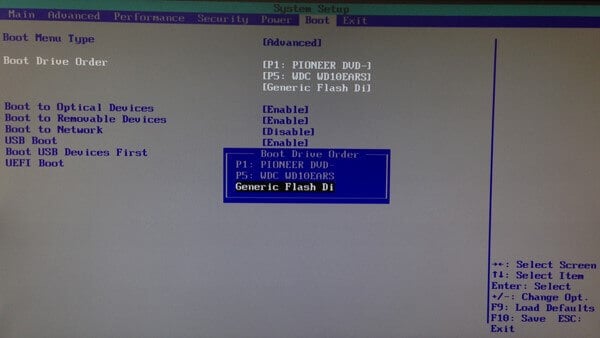
If your drive doesn't appear in the boot order list at all, that's a different problem. Go back to the "Check Whether the Drive Is Detected" step above. If the drive shows up in the device list but not in the boot order, it might not have a valid boot sector, which means you'll need the fixes below.
This one trips up a lot of people, especially after hardware upgrades or OS reinstallation. Here's the rule:
• If your disk uses GPT partition style, BIOS must be set to UEFI mode.
• If your disk uses MBR partition style, BIOS must be set to Legacy (or CSM) mode.
Mismatch = "No bootable devices found." The firmware is looking for a boot structure that doesn't exist on the disk.
How do you know which partition style your disk uses? If you can boot from a USB into DiskGenius, select the disk and look at the left panel. It shows the partition table type (MBR or GPT) right there.
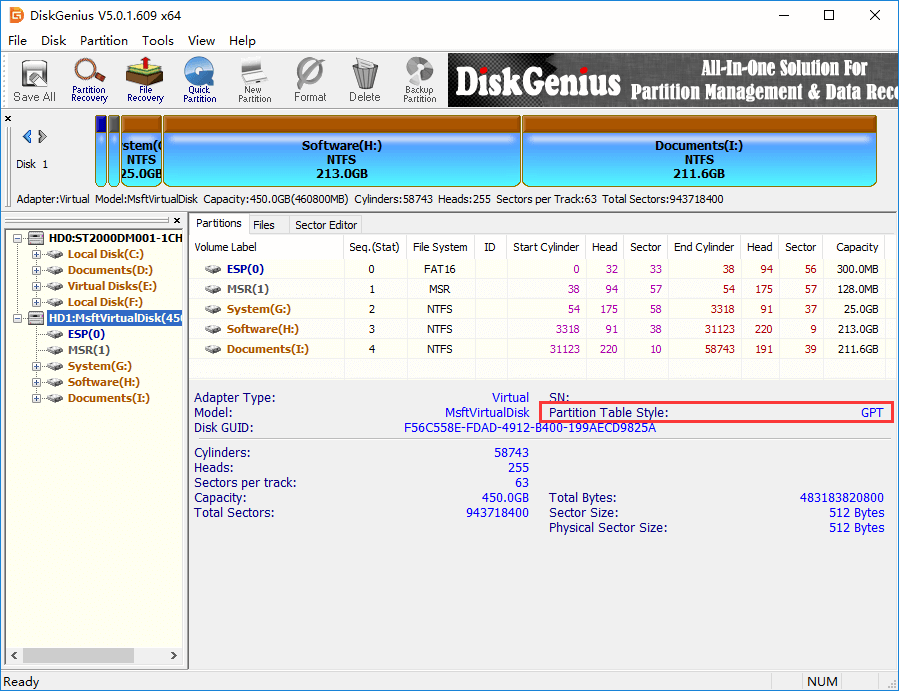
Alternatively, if you have a Windows installation USB, open Command Prompt from the recovery environment and run:
diskpart
list disk
Look for the asterisk in the "Gpt" column. If there's an asterisk, it's GPT. If not, it's MBR.
Once you know, go into BIOS and set the boot mode accordingly. If the mode was already correct, move on to the next fix.
If you need to change the partition style (say, your disk is MBR but you need UEFI), you can convert it using DiskGenius' Convert MBR to GPT feature, which preserves your data. That said, converting partition styles to fix a boot error is a more advanced step. Try the other fixes first.

Windows has a built-in automatic repair tool. It doesn't always work, but when it does, it saves you a lot of effort. Worth trying before getting into manual fixes.
Boot from your Windows installation USB. Select your language and click "Repair your computer" (not "Install now"). Navigate to Troubleshoot > Advanced Options > Startup Repair.
Windows will scan your system and attempt to fix any boot problems it finds automatically. This might take a few minutes. If it succeeds, great. Restart and you're done.
If it fails or says it couldn't repair your PC, don't worry. That's actually pretty common. The automatic tool has limitations and can't fix everything. Move on to the manual fixes below.
Now we're getting into the hands-on work. This fix targets the three most common boot problems: corrupted MBR, broken boot sector, and missing BCD.
1. Using the Windows Command Line:
Boot from your bootable USB disk, open Command Prompt from the recovery environment (Troubleshoot > Advanced Options > Command Prompt), and run these commands one by one:
bootrec /fixmbr
bootrec /fixboot
bootrec /scanos
bootrec /rebuildbcd

Here's what each one does. /fixmbr writes a fresh Master Boot Record to the disk. /fixboot writes a new boot sector to the system partition. /scanos scans for installed Windows operating systems. /rebuildbcd rebuilds the Boot Configuration Data based on what it found.
If /fixboot gives you an "Access denied" error, it sometimes happens on UEFI systems. Try this instead:
bootsect /nt60 sys
If the issue was a missing active partition flag (MBR systems only), you'll also need diskpart:
diskpart
list disk
select disk 0
list partition
select partition 1
active
exit
Replace "1" with the number of your actual Windows system partition. Setting the wrong partition as active can cause other problems, so double check.
2. Using DiskGenius Free Edition (GUI alternative):
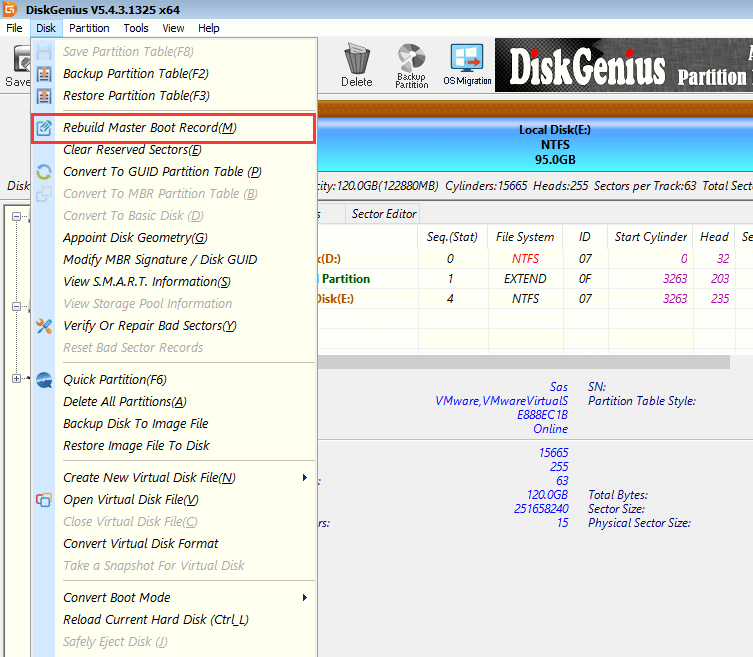
If you'd rather not type commands, boot into DiskGenius from your WinPE USB. Select the system disk, go to the Disk menu, and choose "Rebuild Master Boot Record" To set the active partition, right click on your Windows partition and select "Set as Active Partition." Both operations are straightforward and take seconds.
Fix 4 works well when you know exactly what's broken. But what if you're not sure whether it's the MBR, the BCD, the boot sector, or the active partition flag? Maybe it's a combination. Maybe the automatic Startup Repair in Fix 3 failed because it couldn't even identify the problem.
This is where DiskGenius' "Windows Boot Repair and Conversion" feature comes in handy. Instead of guessing and running commands one at a time, this tool scans the entire boot chain and fixes everything it finds in one pass.
| Feature | What It Does |
| Repair boot files | Restores missing or corrupted Windows boot files. |
| Rebuild EFI System Partition | Recreates a missing ESP when the system needs one. |
| Rebuild BIOS Boot Partition | Repairs the boot partition for Legacy BIOS systems. |
| Rebuild MBR / PBR | Repairs damaged Master Boot Record and Partition Boot Record. |
| UEFI/Legacy switching | Helps align boot mode with partition style. |
| GPT ↔ MBR conversion | Converts partition style with automatic boot configuration updates. |
| Compatibility checks | Prevents unsupported conversions before they happen. |
To use it, boot into the DiskGenius WinPE environment, select your system disk, go "Tools" → "Windows Boot Repair and Conversion".

The tool walks you through the rest.

When is this method most useful?
• Windows Startup Repair failed and you're not sure what else to try.
• The EFI System Partition is missing or was accidentally deleted.
• The boot mode doesn't match the disk partition style and you're not sure which one to change.
• You cloned C drive to a new SSD and it won't boot.
• You converted between GPT and MBR and the system broke.
• Multiple boot components seem to be corrupted at the same time.
These are, in fact, the exact scenarios where a huge number of "No Bootable Device" users find themselves. If any of them describe your situation, this is probably the fix that will work for you.
Read More:
Windows Won't Boot? A Guide to Boot Repair & UEFI/Legacy Conversion
If none of the boot repair methods worked, the problem might not be in the software at all. Bad sectors on your hard drive can corrupt boot files, and no amount of rebuilding the MBR will help if the physical area of the disk where boot data sits is unreadable.
You can check disk health in a couple of ways.
#1. S.M.A.R.T. check:
Open DiskGenius, select the drive, and go to "Disk" > "View S.M.A.R.T. Information".
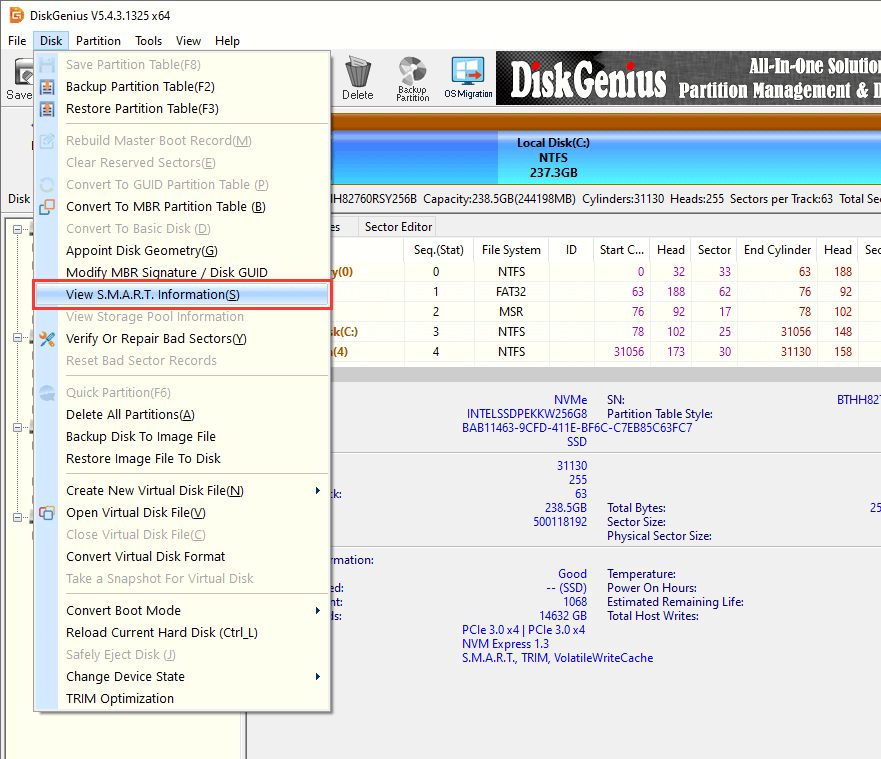
The detailed SMART data is show in the popped-up window:
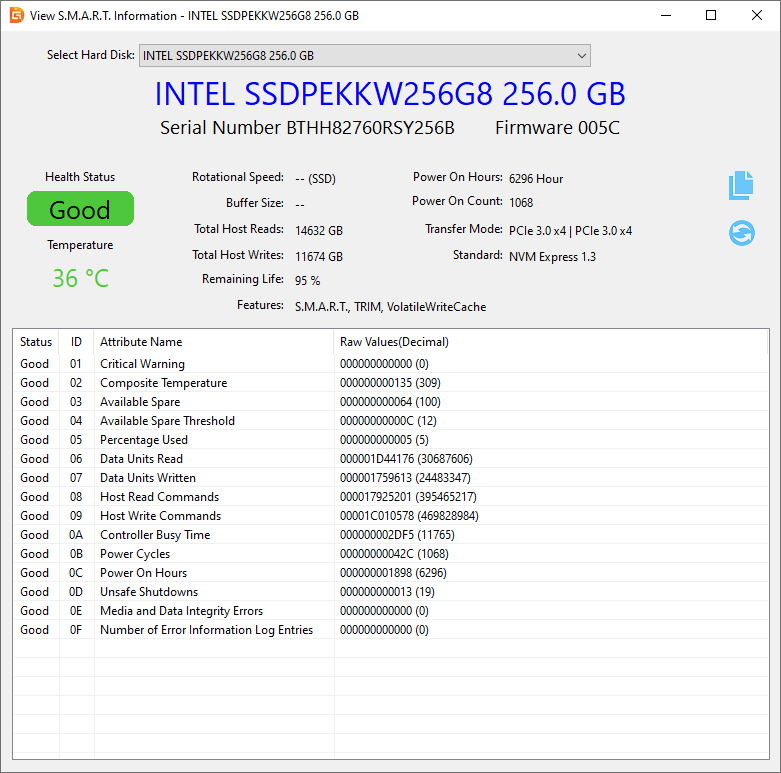
You're looking for a few key indicators:
• Reallocated Sector Count: If this is climbing, the drive is remapping bad sectors on its own. Not a great sign.
• Current Pending Sector: Sectors waiting to be remapped. Could indicate surface damage.
• Uncorrectable Sector Count: Sectors the drive can't fix. Bad news if the number is significant.
If the overall S.M.A.R.T. status reads "Caution" or "Bad," your drive's health is declining. Back up your data as soon as possible and start planning for a replacement.
#2. Bad sector scan:
In DiskGenius, go to "Disk" > "Verify or Repair Bad Sectors".
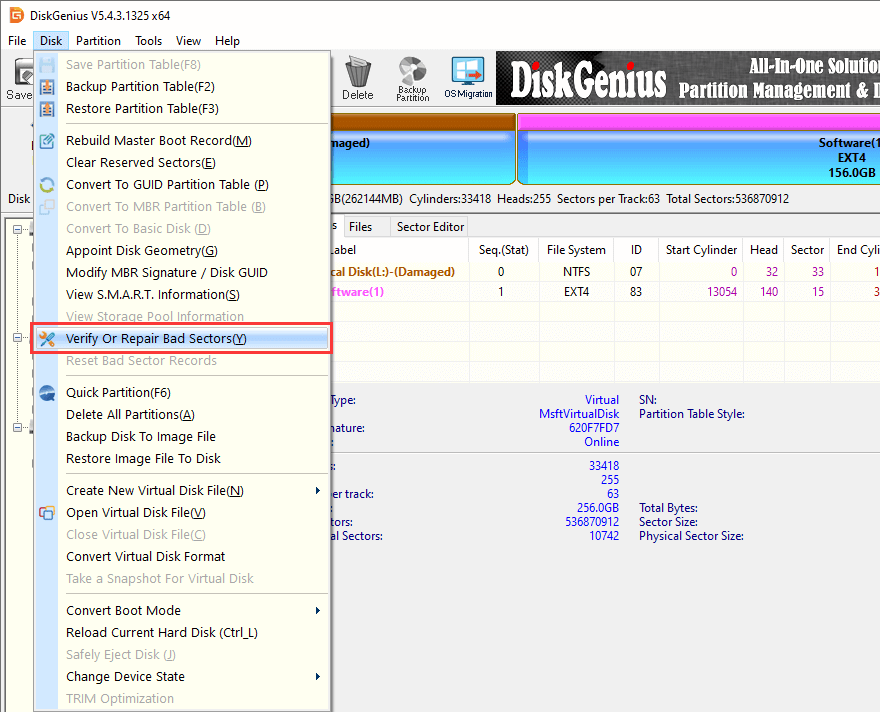
Click "Start Verify", and DiskGenius starts to scan the drive and check if there are bad sectors.
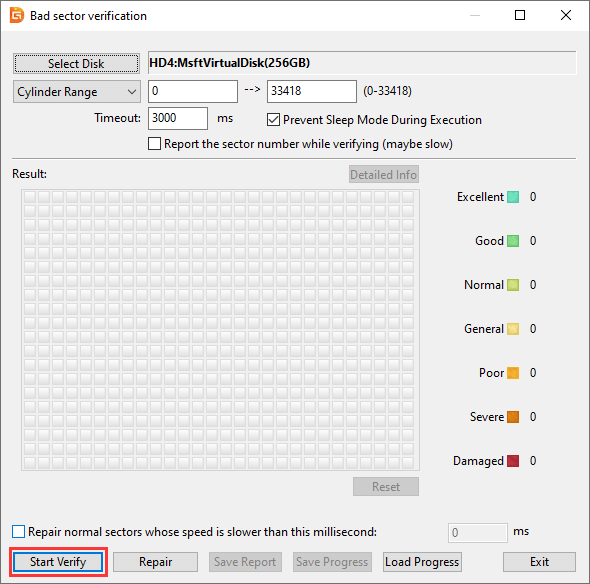
The tool scans the entire drive and shows you a visual map of which sectors are healthy and which aren't. If bad sectors cluster around the boot area, that explains everything. Logical bad sectors (caused by software errors) can sometimes be repaired. Physical bad sectors cannot, and they tend to spread over time.
Sometimes the boot problem is fixable, but the effort required isn't worth it. Maybe the system has been unstable for a while. Maybe the disk health report from Fix 6 made you nervous. Maybe you've already spent two hours trying fixes and you'd rather just start fresh.
Before you reinstall Windows, get your files off the drive.
If the system occasionally boots (sometimes it works, sometimes it doesn't), use that window of opportunity. Copy your important files to an external drive or cloud storage while you still can.
If Windows won't boot at all, boot into the DiskGenius WinPE environment. You can browse the partitions on the drive, select your files, and copy them to an external USB drive or another disk.
DiskGenius also has a "File Recovery" function that can scan for lost or deleted files, which is useful if partitions got corrupted during the boot failure.
Don't skip this step. A Windows reinstallation will wipe the system partition. Once that happens, file recovery becomes much harder.
If your drive isn't being detected in BIOS at all (you checked this in the "Before You Start" section), software fixes are off the table.
For desktops, open the case and check the SATA data cable and power cable connected to the drive. Unplug them and plug them back in firmly. Try a different SATA port on the motherboard. If you have a spare cable, swap it out. Cables do fail occasionally, especially the thin ones that come bundled with motherboards.
For laptops, it's a bit more involved. You'll need to remove the back panel and check the drive connection. On most modern laptops, the SSD is an M.2 NVMe stick that slots directly into the motherboard. Remove it, clean the contacts gently with a dry cloth, and reseat it.
If the drive still doesn't show up after reseating, it's almost certainly dead. Replace it with a new one, reinstall Windows, and move on.
One last thing: if the old drive occasionally gets recognized (dying drives sometimes work intermittently), try cloning it to the new drive using the "Clone Disk" function before it dies completely. You might salvage your data that way. But don't count on it. If the drive is truly failing, every additional power cycle makes things worse.
While the fixes above apply universally, each brand has its quirks worth knowing about.
Dell: The difference between "No bootable devices found" and "No bootable device found" isn't just grammar. Newer Dell models (roughly 2018 and later) tend to be UEFI-only, and they display the plural form. Older models that support both Legacy and UEFI show the singular form. Some Inspiron and Vostro models need Secure Boot disabled before they'll boot in Legacy mode. Dell's BIOS also has a "Boot List Option" setting separate from the boot order; make sure it's set to the right mode.
HP: The "3F0" error code is HP-specific and has its own support documentation on HP's website. HP laptops, especially the Pavilion line, sometimes need "Legacy Support" explicitly enabled in BIOS if you're booting from an MBR disk. HP's BIOS interface is also a bit different from other brands; boot order settings are under "Boot Options" rather than a dedicated "Boot" tab.
Lenovo: ThinkPad users occasionally run into this error after a BIOS update. The update sometimes re-enables Secure Boot, which conflicts with Legacy boot configurations. If you're running a Legacy/MBR setup on a ThinkPad, check that Secure Boot is still disabled after any BIOS update. Lenovo's BIOS entry key is typically F1 for ThinkPads and F2 for IdeaPads, which catches some people off guard.
ASUS and Acer: These brands generally use a more standard BIOS layout without major quirks. The fixes in this guide apply directly without brand-specific workarounds.
This deserves its own section because it comes up constantly. A surprising number of "no bootable device" cases happen right after one of these operations:
• Cloning an HDD to a new SSD
• Cloning a SATA SSD to an NVMe SSD
• Converting MBR to GPT (or the reverse)
• Migrating Windows to a new drive
You did everything right. The clone finished successfully. You swapped the drives. And then... nothing. "No bootable devices found."
Why does this happen?
After cloning: The cloning software copied your files perfectly, but it might not have copied the boot structure. Some cloning tools only copy partitions and skip the MBR, the EFI System Partition, or the BCD store. The data is all there, but the firmware has no idea how to boot it.
After GPT/MBR conversion: You converted the partition style, but the boot mode in BIOS didn't change to match. Or the conversion tool didn't update the boot records. An MBR disk converted to GPT still has an MBR-style boot record, and the UEFI firmware doesn't know what to do with it.
The fix:
1. First, check your BIOS boot mode. Make sure it matches the partition style of the converted or cloned disk.
2. If the EFI System Partition is missing (common after cloning), use DiskGenius Free to create an EFI partition.
3. Run DiskGenius' "Windows Boot Repair and Conversion" to rebuild the boot records and BCD for the new disk configuration.
A few simple habits go a long way:
Replace your CMOS battery every few years. A dead CMOS battery resets your BIOS settings, including the boot order. This is one of the most common and most preventable causes of this error.
Don't mess with BIOS settings unless you know what you're doing. Changing the boot mode from UEFI to Legacy (or vice versa) without understanding the implications is a fast track to this error screen.
Verify boot mode after cloning or converting partitions. Before you reboot after a clone or partition conversion, double check that the BIOS boot mode matches the disk's partition style. It takes ten seconds and prevents an hour of troubleshooting.
Keep an eye on disk health. Tools like DiskGenius can read your drive's S.M.A.R.T. data and warn you before the drive fails. A drive that's developing bad sectors is a ticking time bomb.
Create a backup before major changes. Partition conversion, OS reinstallation, drive cloning. Back up first. Always. It's not a matter of if something goes wrong, it's when.
1. Can a dead CMOS battery cause "No Bootable Devices Found"?
Yes, absolutely. When the CMOS battery dies, your BIOS resets to factory defaults. This often changes the boot order, boot mode, or both. Replacing the battery (it's a CR2032 coin cell on most motherboards, costs about a dollar) and reconfiguring the BIOS can fix the issue immediately.
2. Does this error mean my hard drive is dead?
Not necessarily. In fact, in most cases the drive is fine. The error is about the boot configuration, not the drive itself. Corrupted MBR, missing BCD, wrong boot mode, lost active partition flag. All of these are software issues that have nothing to do with the physical health of the drive. That said, if the drive isn't being detected in BIOS at all, or if S.M.A.R.T. shows failing health, then yes, the drive might be on its way out.
3. How do I fix "Boot Device Not Found" on an HP laptop specifically?
HP's "Boot Device Not Found (3F0)" error responds to the same fixes described in this guide. Start by checking BIOS boot order and boot mode. If those look correct, try running Startup Repair or rebuilding the boot records. HP's support site also has a specific troubleshooting page for the 3F0 error code if you want their official guidance.
4. Can I recover data from a PC that shows "no bootable device"?
Yes. The boot failure doesn't mean your data is gone. Your files are still on the drive; the computer just can't find the pathway to boot Windows. You can access the files by booting from a USB drive (Windows installation media or a DiskGenius WinPE USB) and copying them to an external drive. If the partitions themselves are damaged, use the file recovery feature to scan the drive and recover lost files.
5. What's the difference between "No bootable device" and "Operating System not found"?
They point to different stages of failure. "No bootable device" means the firmware couldn't find any device with a valid boot structure. It failed at the very beginning of the boot process. "Operating system not found" (or "Missing operating system") usually means the firmware found the drive and started reading it, but couldn't locate a valid Windows installation. The first is more about the drive or boot records; the second is more about the OS installation itself.
"No bootable devices found" is frustrating but rarely fatal. In the majority of cases, it's a boot configuration issue, not a dead hard drive. A corrupted MBR, a missing BCD store, a wrong boot mode setting. All fixable, most of them in under twenty minutes.
Start with the basics: check BIOS boot order, verify the boot mode matches your partition style, and let Windows Startup Repair take a shot. If those don't work, move on to manual boot repair, either through command line or through a tool like DiskGenius that can handle the entire boot chain in one go.
And if you're reading this after cloning a drive or converting between GPT and MBR, check the boot mode first. That's the fix nine times out of ten.

DiskGenius is a one-stop solution to recover lost data, manage partitions, and back up data in Windows.
Download

 Facebook
 YouTube
 X
X