
Updated on Jul. 10, 2026
Position: Resource - Data Recovery - 5 Best SD Card Recovery Software in 2026: Complete Guide to SD & microSD Data Recovery
You plug the micro SD card into your computer. You expect to see your vacation photos, your kid's birthday video, maybe a few hundred files from last month. Instead, the folder is empty. Or worse, Windows asks you to format the card before you can use it.
That sinking feeling is something millions of people experience every year. SD cards fail. They get accidentally formatted. Files vanish in the middle of a transfer. And most people assume the data is gone for good.
It usually isn't.
Deleted files, formatted cards, even RAW partitions that refuse to open in Explorer. In most of these cases, the data is still physically sitting on the card. What's missing is the pointer that tells your operating system where to find it. Good SD card recovery software can rebuild those pointers and bring your files back.
This guide covers how SD card recovery actually works, what separates reliable recovery tools from the rest, and which five options are worth your time. Whether you're dealing with corrupted micro SD cards or a formatted SDHC card, you'll find practical answers here.
When you delete a file from an SD card, the operating system doesn't erase the actual data. It simply marks that space as "available" and removes the file's entry from the directory. The bytes are still there, untouched, waiting to be overwritten by something new.
Formatting works similarly. A quick format (which is what most devices perform) rebuilds the file system's table of contents but leaves the underlying data intact. Even a full format on some file systems doesn't guarantee complete erasure.
Here's where file systems matter. Most SD cards formatted as FAT32 or exFAT. Cameras and phones almost universally use one of these two. Understanding which one your card uses helps recovery software locate files more efficiently, because each file system stores deletion markers differently. Some tools also support NTFS, which is less common on SD cards but worth noting if you ever used the card in a Windows environment.
The real enemy of data recovery is overwriting. Once new data occupies the same physical sectors where your deleted files lived, recovery becomes impossible. This is why the single most important thing you can do after discovering data loss is simple: stop using the card immediately. Don't save anything to it. Don't run chkdsk. Don't try to "repair" it. Pull it out and set it aside until you're ready to scan it with recovery software.
Data disappears from SD cards for a lot of reasons, and not all of them are obvious. Accidental deletion and formatting are the most common, but they're far from the only culprits.
Corrupted file systems happen more often than people realize. A card gets pulled out mid-transfer, or the device loses power while writing, and suddenly the file system structure is damaged. The memory card might show up as RAW in Disk Management, which means Windows can see the drive but can't read its file system.
Virus and malware infections can delete or hide files, especially if you've connected the card to a public computer or a compromised device. Some malware specifically targets removable storage.
Interrupted transfers are another frequent cause. You're moving photos from the card to your PC, the cable gets bumped, and the process halts halfway through. Both the source and destination copies can end up incomplete.
Then there's the hardware side. Physical damage (bent pins, water exposure, heat) can make a card unreadable. Bad NAND flash develops over time as memory cells wear out. And fake SD cards, which report a larger capacity than they actually have, tend to corrupt data silently once you exceed their real storage limit.
Knowing what caused your data loss won't always change your recovery strategy, but it does help set expectations. Logical issues (deletion, formatting, file system corruption) have high recovery rates. Physical damage is a different story entirely.
Not all recovery tools are equal. Some will recover 95% of your files in minutes. Others will scan for an hour and return corrupted fragments. The differences come down to a few key factors.
Recovery success rate is the metric that matters most. It sounds obvious, but you'd be surprised how many tools advertise features while delivering mediocre actual recovery. Testing conducted on formatted SD cards with mixed file types (photos, videos, documents) showed significant variation.
File system support is non-negotiable. Your tool needs to handle FAT32 and exFAT at minimum. If it doesn't, it won't properly parse the card's structure and will miss files. NTFS support is a bonus.
File type coverage matters when you're dealing with deep scans and file carving. RAW photo formats (NEF, CR2, ARW, RAF), video codecs (MP4, MOV, AVI), and standard document types should all be supported. The more formats a tool recognizes, the better it can reconstruct fragmented files.
Preview functionality saves you from wasting time recovering files that turn out to be corrupted. A good preview shows you the actual content, not just a filename.
Read-only operation is critical. The software should never write to the SD card during scanning. If a recovery tool modifies the source drive, it risks overwriting the very data you're trying to save.
Partition recovery is a feature many people overlook. When an entire partition vanishes from a card (which happens with RAW drives and partition table corruption), basic file recovery tools won't help. You need software that can scan for and restore lost partitions.
Speed, interface design, and pricing are secondary considerations, but they still affect the experience. Nobody wants to wait three hours for a scan that could finish in twenty minutes, and a confusing interface becomes genuinely stressful when you're already anxious about lost data.
DiskGenius Professional Edition is more than an SD card recovery tool. It's a full disk management suite that happens to have one of the most capable recovery engines available. That distinction matters, because when SD card problems get complicated (lost partitions, RAW file systems, damaged boot sectors), you often need tools that go beyond simple file scanning.
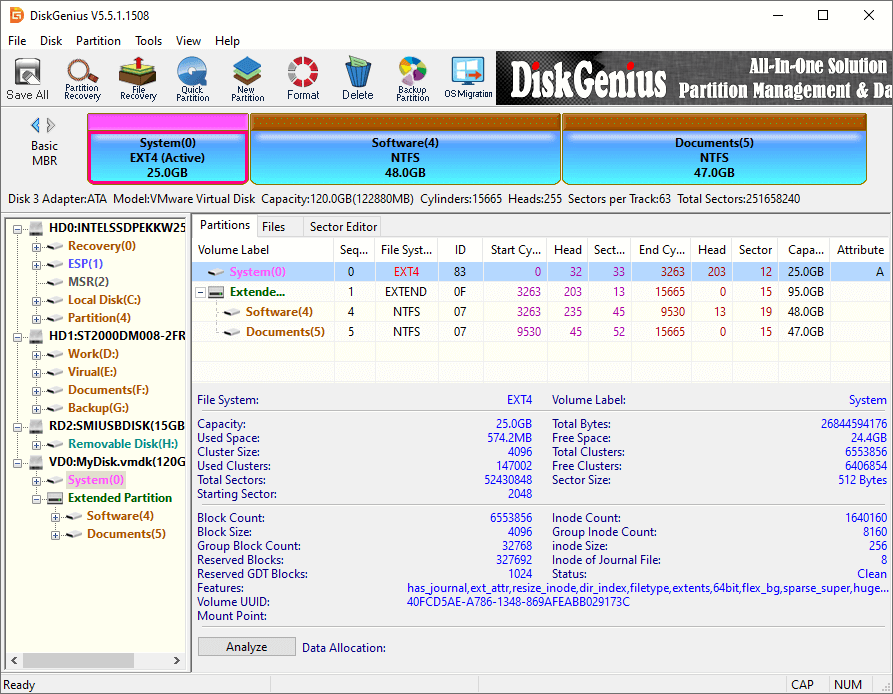
For micro SD card recovery, DiskGenius handles every common scenario. Deleted files from a phone? Quick scan finds them in seconds. Formatted SDHC card from a DSLR? Deep scan rebuilds the file structure and recovers photos with original filenames and folder hierarchy intact. RAW partition that Windows can't read? DiskGenius reads the raw sectors directly and extracts whatever data is still there.
The software supports FAT32, exFAT, NTFS, EXT4, which covers essentially every SD card configuration on the market. It recognizes SDHC, SDXC, and micro SD cards through any standard card reader. File type support is broad: JPEG, PNG, RAW camera formats (NEF, CR2, ARW, RAF, and others), MP4, MOV, DOCX, XLSX, PDF, and dozens more.
Two scan modes are available. The quick scan and full scan handles recent deletions and finishes fast, often within a minute on a 32GB or 64GB card. The Deep Scan ("Search For Known File Types") does a sector-by-sector search and takes longer, but it's the one you need for formatted or corrupted cards. Both modes let you preview files before recovery, so you can verify that your photos actually look right and your documents aren't corrupted before spending time saving them.
What sets DiskGenius apart from single-purpose recovery tools is its additional functionality. If your SD card has partition table damage, you can repair it directly. If you want to create a disk image of a failing card before attempting recovery (a smart move if the card is showing signs of physical degradation), there's a built-in cloning feature. You can even hex-edit the raw disk sectors if you know what you're doing.
The free edition lets you scan any drive and preview all recoverable files. You only need to purchase a license when you're ready to actually save the recovered data. This "try before you buy" model means you'll know exactly what's recoverable before spending anything.
For users dealing with SD memory card data recovery in a professional context (photographers, videographers, IT administrators), the Professional license is well worth the investment. For casual users with a one-time need, the free preview alone saves significant guesswork.
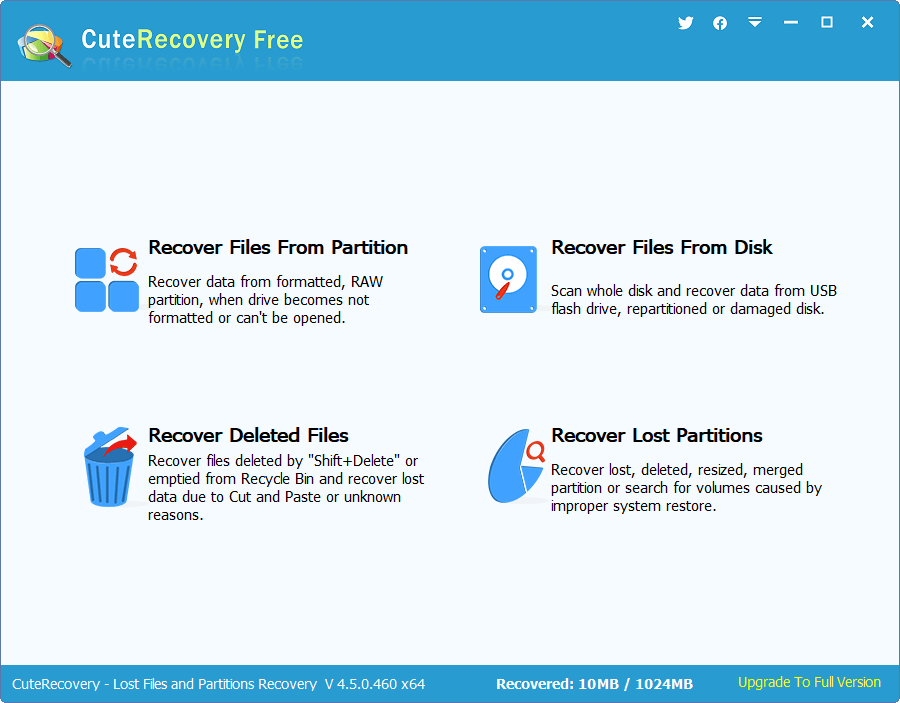
CuteRecovery Free is the no-cost standalone recovery tool in the DiskGenius ecosystem. Think of it as a focused, lightweight version of DiskGenius built specifically for file recovery without the disk management overhead.
It supports FAT32, exFAT and NTFS, handles deleted file recovery and formatted card scenarios, and provides file preview before saving. For someone who just needs to get photos off a corrupted micro SD card without learning a full disk utility, CuteRecovery Free is a straightforward option.
It won't match DiskGenius Professional in terms of advanced features. There's no Bitlocker recovery, no RAID recovery, no disk imaging, no hex editor. But for basic file recovery and partition, it gets the job done at zero cost, which is exactly what a lot of users need.
PhotoRec is the open source community's answer to data recovery. It's been around for over two decades, and its file carving engine is genuinely excellent. It ignores file systems entirely and searches for recognizable file signatures at the binary level, which means it can recover files even from severely damaged or reformatted cards where the file system is beyond repair.
The tradeoff is usability. PhotoRec runs as a command-line (or text-based terminal) interface. There are no visual previews, no drag-and-drop, no modern GUI. You navigate menus with arrow keys and type directory paths manually. For someone comfortable with terminals, it's perfectly functional. For everyone else, the learning curve is real.
It's free, open source, and runs on Windows, macOS, and Linux. If your card is badly damaged and other tools come up empty, PhotoRec is worth trying as a last resort before considering professional recovery services.

Microsoft released this command-line tool for Windows 10 and later, available from the Microsoft Store. It supports NTFS, FAT32, and exFAT, and offers two recovery modes: Regular (for recently deleted files) and Extensive (for formatted or corrupted drives).
It's free, it's official, and it works. But it requires comfort with the command line, and the syntax can be unintuitive. There's no preview function, so you recover files blindly and check them afterward. For tech-savvy users who want a free, no-install solution built into Windows, it's a reasonable option. For most people, a graphical tool will be less frustrating.

Recuva, developed by Piriform (the makers of CCleaner), has been a popular free recovery choice for years. Its wizard-driven interface walks you through the recovery process step by step, asking what type of files you're looking for and where to search. That guided approach makes it one of the most beginner-friendly tools available.
Recovery performance is decent for recently deleted files, though testing shows it falls behind the top performers on formatted or corrupted cards. The free version covers basic recovery. A paid "Professional" version adds virtual hard drive support and automatic updates.
Recuva is best suited for simple scenarios: files you just deleted, from a card that's otherwise healthy. For anything more complicated (RAW partitions, formatted cards, file system corruption), you'll likely get better results from the tools ranked above it.

This walkthrough uses DiskGenius as the example, but the general process applies to most data recovery software. The critical principle is the same regardless of which tool you use: work on a copy, not the original.
Step 1: Stop using the card.
The moment you realize files are missing, remove the SD card from your device. Don't take new photos. Don't let your phone scan or "fix" it. Every new write operation reduces your chances of full recovery.
Step 2: Connect the card to your computer.
Use a reliable card reader. Built-in laptop SD slots work fine for standard SD cards. For micro SD cards, use an adapter or a USB card reader. Avoid cheap, no-name readers that might cause connection drops during scanning.
Step 3: Install DiskGenius and launch it.
Download from the official website. Install it on your computer's main drive (not on the SD card).

Free Download DiskGenius
Step 4: Select the SD card.
In DiskGenius, your SD card will appear in the drive list. Click on it to select it. If the card shows as "unformatted" or "RAW," don't panic. DiskGenius can scan RAW drives just fine.
Step 5: Choose your scan type.
Click the "File Recovery" button from the toolbar (or right-click the SD card partition and select "Recover Lost Files"). For recently deleted files, a quick scan ("Recover Deleted Files") usually suffices and finishes in minutes.
For formatted cards or when the quick scan doesn't find what you need, enable the full scan ("Complete Recovery"). It takes longer, but it searches sector by sector.
For the recovery of SD cards or USB flash drives, the deep scan option "Search For Known File Types" should also be selected, as this can get a better result when the drive gets formatted or corrupted.
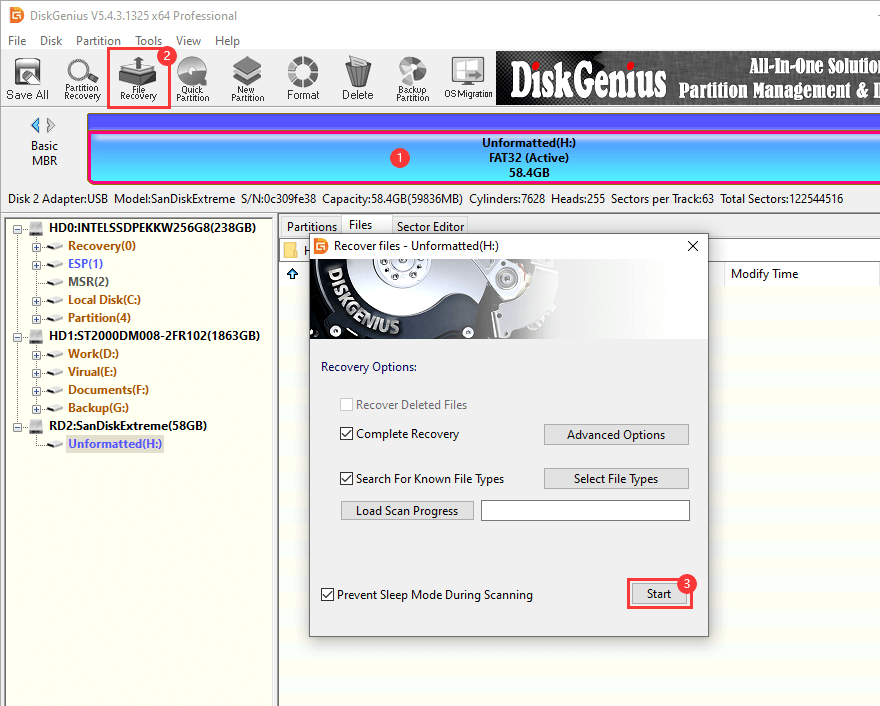
Click "Start", and the software begins to search for lost data.
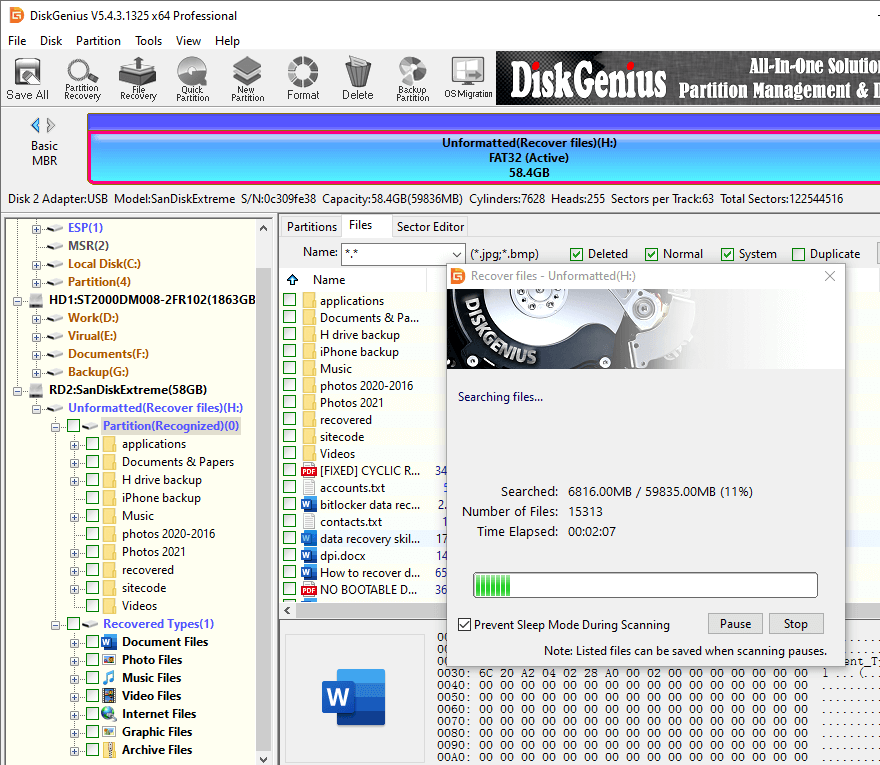
Step 6: Preview and verify lost data.
Once the scan completes, browse the found files. Use the preview feature to check that your photos display correctly, your videos play, and your documents open without errors. This step saves you from recovering a thousand files only to discover most of them are corrupted fragments.
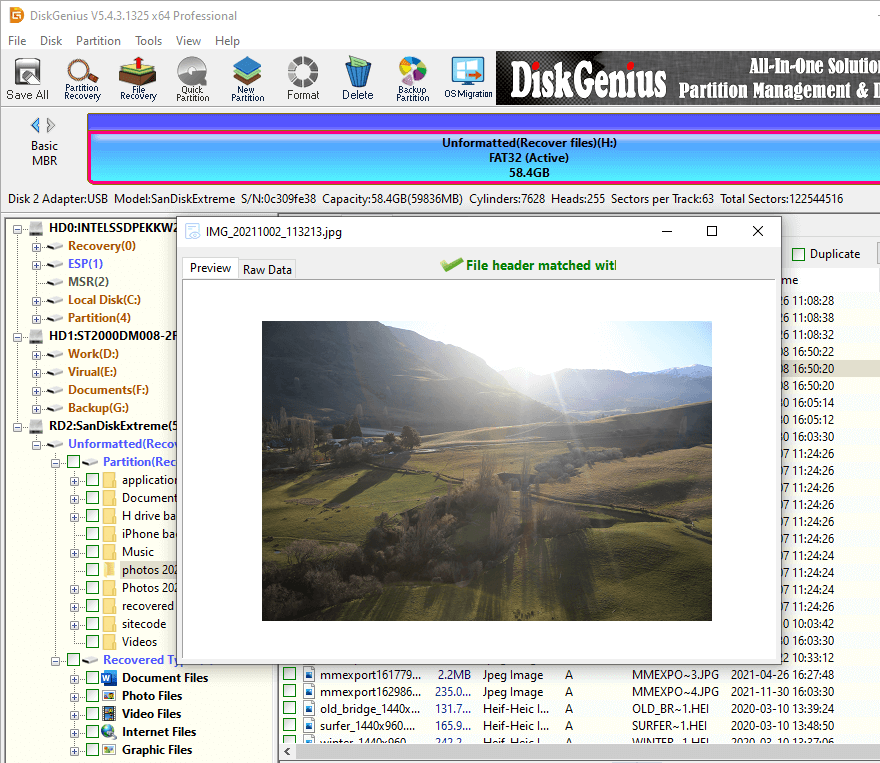
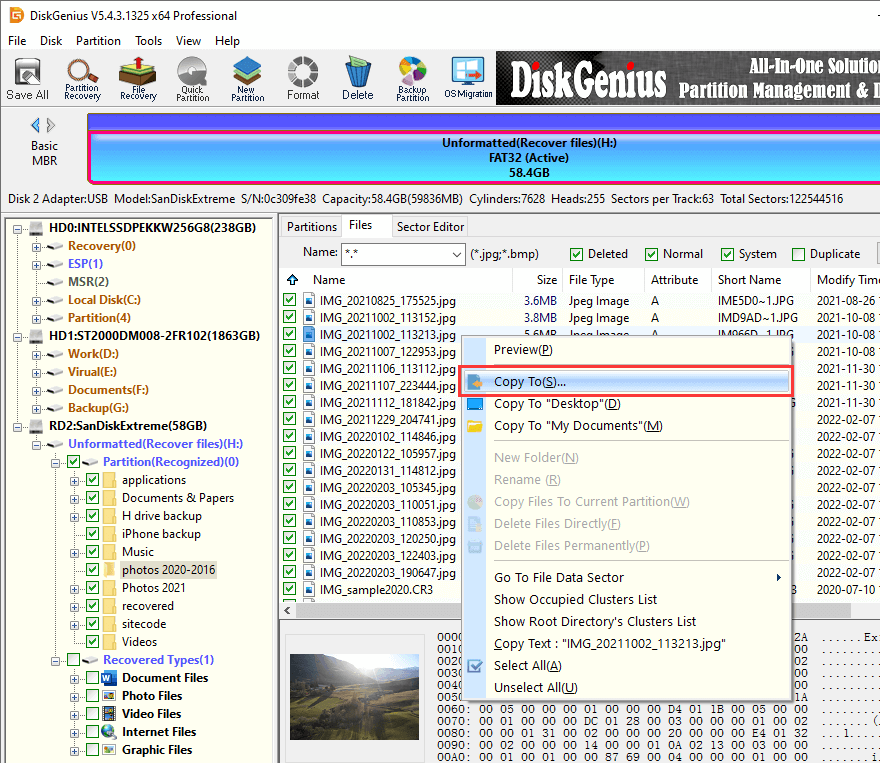
Step 7: Recover to a different location.
Select the files you want, right-click selected data and choose "Copy To".
Then you can save them to your computer's hard drive or an external USB drive, never back to the same SD card. Writing recovered data to the source card can overwrite other files still waiting to be recovered.
Data recovery software is powerful, but it's not magic. Understanding its limits helps you make better decisions and avoid wasting time on scenarios where software alone won't solve the problem.
Data that's been overwritten is gone. If you deleted photos two weeks ago and kept using the card daily, new data has likely occupied those sectors. Recovery software can only find what's still physically present on the storage medium.
TRIM on supported flash devices can actively erase deleted data. Some newer SD cards and USB flash drives support a TRIM-like command that tells the controller to wipe unused blocks. When this happens, recovery becomes nearly impossible regardless of which tool you use.
Physical damage is outside the scope of software recovery. Water damage, broken connectors, burnt controller chips. If the card isn't recognized by your computer at all (not even in Disk Management), no software will help. Professional data recovery services with cleanroom facilities and chip-off capabilities are your only option in these cases.
Fake SD cards create a particularly frustrating situation. These cards report, say, 128GB of storage but only have 16GB of actual flash memory. Once you write past the real capacity, data silently overwrites earlier files. Recovery from these cards is unreliable because the data layout doesn't match what the file system expects.
So how do you give yourself the best possible shot at successful recovery?
1. Can I recover files from a formatted micro SD card?
Yes, in most cases. A quick format only rebuilds the file system table and doesn't erase the actual data. Use micro SD card recovery software with deep scan capability, and make sure not to save new files to the card before scanning.
2. Is free SD card recovery software reliable?
Free tools like CuteRecovery Free genuinely capable for straightforward scenarios. For complex cases (RAW partitions, partition loss, severely corrupted cards), professional tools like DiskGenius Professional generally deliver higher success rates because they offer more advanced scanning algorithms and partition recovery features.
3. How long does SD card recovery take?
It depends on the card size, the scan type, and the tool. A quick scan on a 32GB card typically takes 2-10 minutes. A deep scan on a 128GB card can take 30 minutes to over an hour.
5. Why does my SD card show as RAW?
RAW SD cards mean the file system is unreadable. This usually results from corruption caused by improper removal, power loss during writing, or a failing card. The data may still be recoverable. Tools like DiskGenius can scan RAW partitions and extract files directly from the raw sectors.
6. Can I recover data from a physically broken SD card?
Software cannot help with physical damage. If the card isn't detected by any computer or card reader, you'll need a professional data recovery service. These services can cost anywhere from 300to1500+ depending on the damage, and success isn't guaranteed.
7. Will recovery software restore original file names and folder structure?
It depends on the tool and the file system condition. When the file system's directory information is still partially intact (common with deletion scenarios), the recovery software can recover files with their original names and folder paths. On formatted or severely corrupted cards, recovered files are often renamed sequentially because the original metadata is lost.
Losing files from an SD card feels catastrophic in the moment, but it's usually recoverable if you act quickly and use the right tool. The key decisions come down to how badly the card is damaged, how technical you're comfortable getting, and whether you need a free solution or are willing to invest in a professional-grade tool.
For most scenarios, DiskGenius Professional offers the best combination of recovery power, file system support, and additional utilities like SD card health checking and disk imaging. If you want to test the waters first, CuteRecovery Free handles basic recovery at no cost, and the free edition of DiskGenius itself lets you scan and preview everything before committing to a purchase.

DiskGenius is a one-stop solution to recover lost data, manage partitions, and back up data in Windows.
Download

 Facebook
 YouTube
 X
X