
Updated on Jun. 12, 2026
Position: Resource - Data Recovery - How to Recover Files After Formatting a Hard Drive, SD Card or USB Drive?
You plugged in your external hard drive and Windows asked you to format it. Or maybe you picked the wrong partition during a cleanup and clicked "Format" before your brain caught up with your finger. Either way, the result feels the same. Everything on that drive looks gone.
Here's what most people get wrong about formatting: it doesn't destroy your data. Not really. What it destroys is the map your computer uses to find that data. The files themselves are still sitting on the disk, intact, waiting. In most cases, you can get them back. Sometimes all of them.
This guide walks you through how format data recovery actually works under the hood, what affects your chances, and how to do it step by step with DiskGenius. It covers hard drives, USB sticks, SD cards, external SSDs, the works.
Already panicking and need to start right now? Jump to the recovery steps.
Your operating system presents formatting as a nuclear option. "Warning: all data will be lost." Dramatic. And mostly wrong.
Here's what's really going on. Every file system, whether it's NTFS on your Windows machine or APFS on your Mac, maintains a sort of table of contents. It tracks which files exist, where they start on the disk, how big they are, and which folder they belong to. When you format a drive, the system rebuilds this table of contents from scratch. The old one gets wiped.
But the actual chapters, the data clusters where your photos, documents, and videos physically reside, are left alone. At least on a standard quick format, which is the default in Windows and most other operating systems.
A good way to think about it: imagine a library where someone burned the card catalog. Every book is still on its shelf. You've lost the ability to look anything up efficiently, but nothing in the building itself has changed. Data recovery software is the person who walks through the stacks reading every spine, rebuilding the catalog from scratch.
Quick Format vs. Full Format
This distinction makes a real difference to your recovery prospects.
Quick format simply reinitializes the file system's index. On NTFS, the Master File Table headers get rewritten. On FAT32, the File Allocation Table is cleared. The data area of the disk is not touched at all. This is what Windows does by default unless you deliberately uncheck the "Quick Format" box. Recovery after a quick format is, in most cases, very successful.
Full format goes further. It writes zeros across every sector on the disk, actively overwriting whatever was there before. The process is slower, and the data it overwrites is genuinely gone. Recovery becomes much harder. Not every file is necessarily destroyed though, especially on large drives where the format may not have completed fully, or where certain sectors were skipped due to errors.
Not all formatting situations are equal. Some are practically guaranteed to work out. Others are a coin flip. A few are probably hopeless. Here's what matters.
This is the single biggest factor. Every byte of new data written to the formatted drive is a byte that might overwrite something you wanted back. If you formatted a drive and then spent three hours browsing the internet with that drive connected, temporary files and browser caches might have scattered themselves across the volume. If you installed an operating system on it? A large chunk of the old data is probably gone for good.
The ideal scenario: you realize the mistake, you stop everything, and you run data recovery software before the drive sees another write operation. The window might be measured in hours or weeks depending on how actively the drive is used. On a secondary data drive that doesn't see frequent writes, old data can persist for a long time.
Solid state drives add a complication that mechanical hard drives don't have. Modern SSDs support something called TRIM, a command that the operating system sends to the drive controller after files are deleted or a partition is formatted. TRIM tells the SSD to proactively erase the underlying flash cells, which helps the drive maintain write performance over time.
The practical effect is brutal for data recovery. On a spinning hard drive, deleted data might sit undisturbed indefinitely until something new gets written over it. On an SSD with TRIM, that data could be zeroed out within minutes. Some drives process TRIM commands almost instantly. Others batch them and run them periodically.
If you've formatted an SSD, speed is everything. Shut down whatever you're doing, disconnect the drive if possible, and get DiskGenius running on it immediately. The sooner you scan, the more likely TRIM hasn't gotten to all the affected blocks yet. Waiting even a few hours can make the difference between getting everything back and getting almost nothing.
Different file systems handle formatting differently, and this directly impacts recovery outcomes.
NTFS (the Windows standard) tends to be the most forgiving. After a quick format, the Master File Table is reinitialized but the original file records frequently survive in unused MFT slots. Recovery software can often reconstruct not just the file contents but the original file names and folder hierarchy.
FAT32 and exFAT are common on USB drives, cameras, and SD cards. These file systems are simpler, and their formatting process is more thorough about clearing directory information. Original file names are usually lost, but the actual data can still be recovered through file signature scanning. You might end up with files named "file0001.jpg" instead of "beach-sunset.jpg," but the photos themselves will be fine.
EXT4 (the default on most Linux distributions) sits somewhere in the middle. Its inode tables get partially reset during formatting, and metadata recovery is hit-or-miss. Deep scanning for file signatures works well though, and you can expect to recover the majority of common file types.
APFS and HFS+ are what Macs use. APFS is the newer standard and handles metadata in a way that can make recovery slightly more nuanced. HFS+ is more straightforward. Either way, you need recovery software that actually understands these file systems at a low level.
Pay attention to the health status of your drives, for example a hard drive with bad sectors scattered across its surface gives recovery software a hard time. If the sectors containing your file allocation tables or critical metadata are damaged, reconstruction becomes unreliable. If your drive is making clicking sounds, won't spin up, or isn't recognized by the BIOS at all, you're probably looking at a hardware issue that software can't solve. Professional data recovery labs with clean room facilities would be the next step.
For drives that are generally healthy but have a handful of bad sectors, DiskGenius can work around the damaged areas and recover data from the rest.
📌 Read More:
Before you download anything or start scanning, there are a few things to handle first. These matter more than most people realize.
Stop using the drive. Immediately. If it's an external drive or USB stick, safely eject it and unplug it. If it's an internal drive that doesn't have your operating system on it, just leave it alone. If it is your system drive, minimize what you do on the computer and prioritize getting recovery software ready on a different device.
Don't run chkdsk, fsck, or any disk repair tool. These utilities try to fix file system inconsistencies by modifying data on the disk. That's the opposite of what you want right now. They can overwrite the very structures that recovery software would use to find your files.
Don't "try" copying files back from a backup if you're not sure the backup is complete. Partially restoring a backup to the formatted drive will write new data and potentially overwrite recoverable files.
Don't panic-reinstall the operating system. If the formatted drive is your system drive and you need to use the computer, install the OS on a different drive if possible, or boot from a USB drive. Anything to avoid writing to the affected disk.
Note the details. What type of format was it? Quick or full? Which file system? How much data have you written to the drive since? These details help you set realistic expectations before you start the recovery process.
There are a number of data recovery tools available. DiskGenius is the right tool for this job. For format data recovery specifically, a few things stand out.

Free Download DiskGenius
Dual-mode scanning. When you run a recovery scan, DiskGenius works from two directions at once. First, it analyzes the surviving file system structures to find files the "normal" way, piecing together whatever metadata survived the format. Second, it scans the raw disk surface looking for recognizable file signatures, headers and structural patterns that identify specific file types. Running both modes simultaneously catches files that either approach alone would miss. This is particularly important after formatting, where file system metadata is often severely damaged.
Real-time preview. During or after scanning, you can double-click any file to see its actual contents before committing to recovery. Photos render as images. Documents show their text. Videos play back. Audio files can be listened to. This isn't just a convenience feature. It's the difference between hoping your files are okay and knowing they are. Preview first, recover second.
Wide format support. DiskGenius recognizes file signatures for hundreds of file types across categories: images (JPEG, PNG, RAW, TIFF, HEIC, and many more), video (MP4, MOV, AVI, MKV), audio (MP3, WAV, FLAC, AAC), documents (DOC, DOCX, XLS, XLSX, PPT, PDF), archives (ZIP, RAR, 7Z), and dozens of others.
Full file system coverage. NTFS, FAT12, FAT16, FAT32, exFAT, EXT2, EXT3, EXT4, Refs. If your drive uses one of these file systems, DiskGenius understands its internal structures well enough to perform meaningful recovery.
Portable execution. The software doesn't need to be installed. You download a ZIP archive, extract it, and run the executable. You can keep it on a USB drive and bring it out whenever you need it. For format recovery scenarios, this is more than a convenience. Installing software onto the formatted drive is exactly the kind of write operation that can destroy recoverable data.
Free scan and preview, no limits. You can scan any drive and preview all found files with the free version. It costs nothing to see what's recoverable. If you like what you see, you can decide whether the upgrade makes sense for your situation.
Download DiskGenius from the official website. The free version handles scanning and preview for all supported scenarios.
The process below works regardless of whether you're recovering a hard drive, USB flash drive, SD card, SSD, or memory card. The interface is the same. The steps are the same.
Step 1. Run DiskGenius (from the right place).
Download DiskGenius and extract it to a folder on a drive that is NOT the one you're trying to recover. If your D: partition got formatted, put the software on C:. If C: is the problem, put it on a USB stick or an external drive. If you can't boot your computer at all, create a WinPE bootable USB on another machine and run DiskGenius from that environment.
When the software opens, you'll see every connected disk listed on the left side with their partitions. Take a moment to identify the correct one. If you're not sure which partition was formatted, look at the size, file system type, and drive letter. They're all displayed in the partition list.
Step 2. Start the recovery scan.
Click on the formatted partition to select it. Then click "File Recovery" from the toolbar.
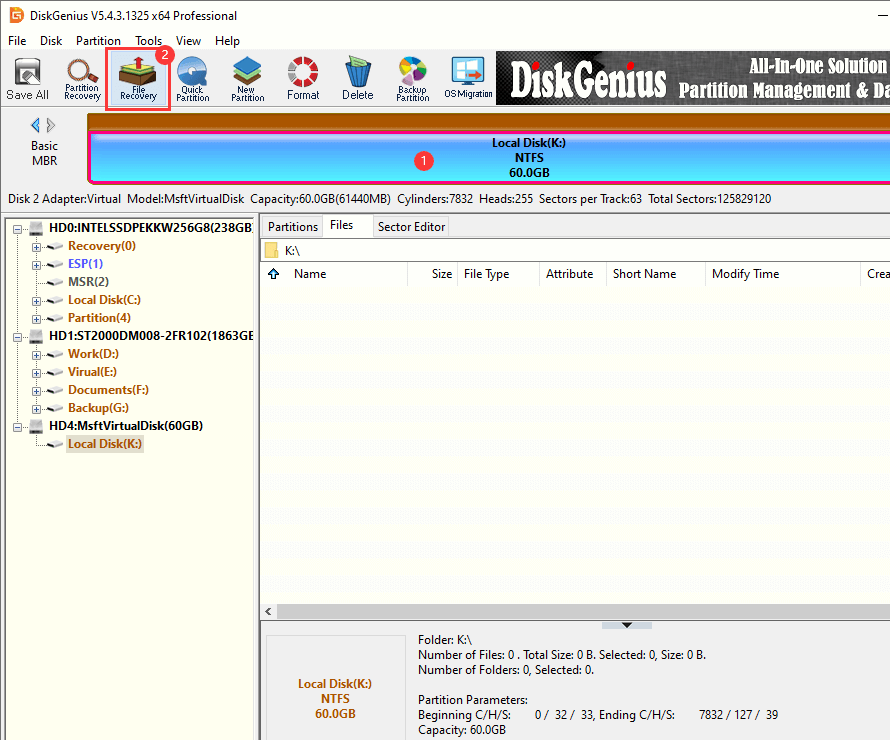
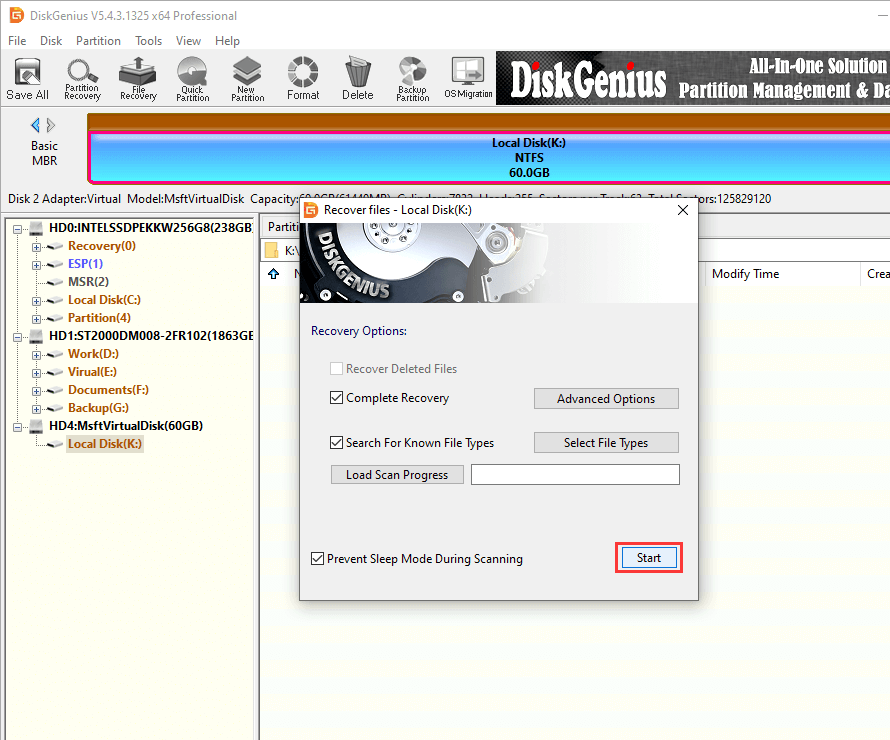
A dialog will appear with scan options. There are checkboxes for different recovery methods. Make sure "Search for Known File Types" is enabled. This triggers the file signature scan, which is essential after a format. Without it, you're relying entirely on whatever metadata survived the formatting process, and after a format that's often not much.
Hit "Start". The scan begins immediately.
Step 3. Let it run.
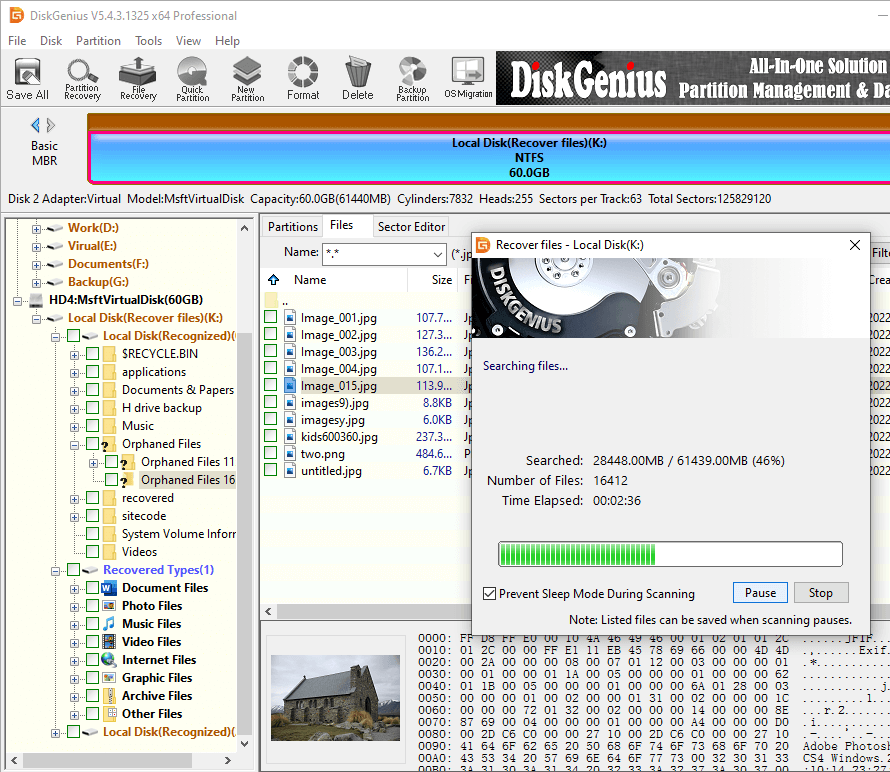
Files start appearing in the results tree as DiskGenius finds them. You can browse through them during the scan if you're impatient. Or you can let it finish and review everything at once.
How long does it take? Depends on the drive. The scan reads every sector on the disk, so larger drives simply take longer. The window shows a progress indicator with an estimated time remaining.
If you need to stop for any reason, the software can save your scan session. Resume later without losing progress. This is handy for large drives where you might not have a continuous block of time to sit and wait.
Step 4. Preview before you recover.
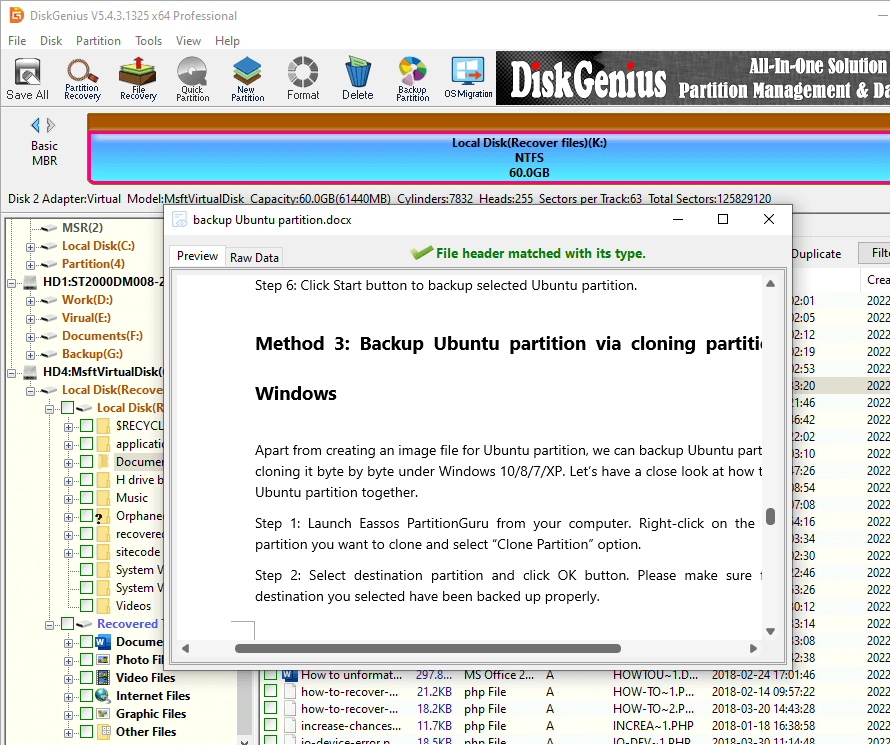
Double-click a file in the scan results. A preview window opens showing the actual content of that file. Not just a filename. Not just a file icon. The real content. A photo will display as an image. A Word document will show its text. A video will play.
If the preview looks correct, that file will recover correctly. If the preview shows garbled data or a blank screen, that file is damaged and probably won't be usable even after recovery. This way, you know exactly what you're getting before you spend time and disk space on the recovery.
DiskGenius supports previewing images, videos, audio files, Office documents (Word, Excel, PowerPoint), PDFs, and text files.
Step 5. Export the files to a safe location.
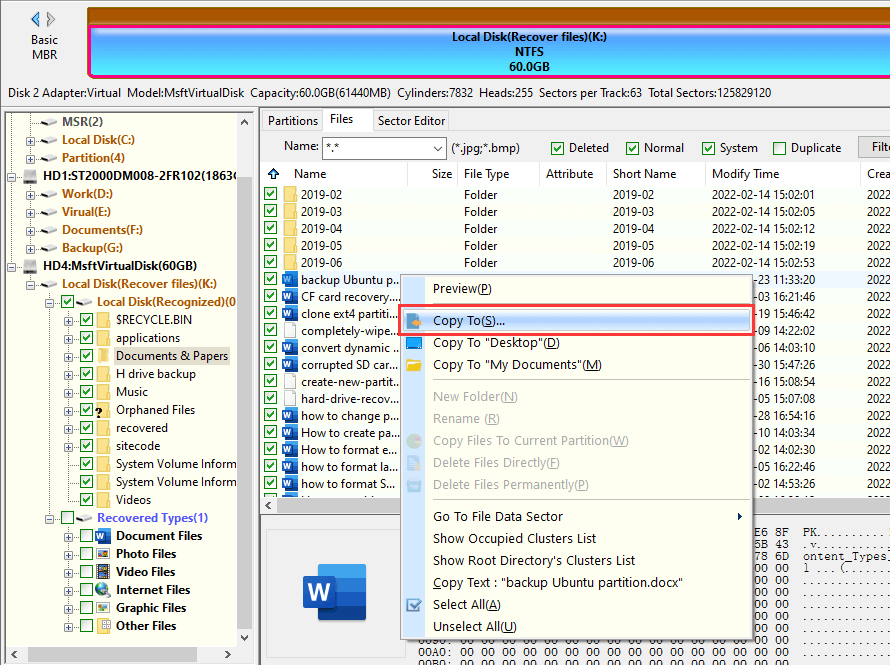
Select the files you want. You can check boxes next to individual files or entire folders. Right-click and choose "Copy To." Pick a destination folder.
Here's the part people get wrong most often: the destination must be on a different drive than the one you're recovering from. Recovering files from D: and saving them back to D: will overwrite the very data you're trying to retrieve. Save to C:, to an external drive, to a network share, to anything else. Just not the same partition.
Once the copy finishes, navigate to your destination folder and spot-check a few files to make sure everything looks right.
Recovery works. But it's stressful, it takes time, and it's never a 100% guarantee. Prevention is less exciting but far more reliable.
Back up your data. The boring advice that nobody follows until they need it. DiskGenius includes free backup features, such as partition backup (creates a complete image of any partition), disk cloning, system migration, disk imaging.... If something goes wrong, restoring from a backup takes minutes, not hours, and you get everything back exactly as it was.
Verify before you format. Take ten seconds to confirm you've selected the right partition. Read the drive letter. Check the volume label. Look at the partition size. These three pieces of information together make it virtually impossible to format the wrong drive.
Monitor your disk health. DiskGenius can check S.M.A.R.T. attributes for your hard drives and SSDs, including power-on hours, temperature, reallocated sectors, and pending sector counts. Checking these values periodically lets you spot a drive that's starting to degrade. You can back up and replace it before it fails catastrophically.
Safely eject external drives. That little icon in your system tray exists for a reason. Pulling a USB drive out mid-operation can corrupt the file system. If the corruption is severe enough, Windows might prompt you to format the drive the next time you connect it. You've just come full circle.
Keep important files in more than one location. Two copies on separate devices is the minimum. A third copy in cloud storage is better, especially for irreplaceable files like family photos, business records, or creative projects you've spent months on.
I formatted my hard drive by accident and haven't saved anything to it since. What are my chances?
Really good. If it was a quick format (and it almost certainly was, since that's the Windows default), your data is essentially intact. Photos, documents, spreadsheets, PDFs, these types of files have a near-perfect recovery rate under these conditions. Large video files and database files are somewhat more challenging because they tend to be fragmented across the disk, but even those usually come through. The fact that you haven't written anything new to the drive is the most important thing working in your favor.
Can I recover files from a formatted USB flash drive?
Yes. USB flash drives go through the exact same formatting process as hard drives. Connect it to your computer, open DiskGenius, select the USB partition, and run a scan. USB drives are small enough that scanning usually finishes in under 15 minutes. The recovery process is identical to hard drive recovery.
I accidentally formatted my hard drive while reinstalling Windows. Is it too late?
This happens more often than you'd think. The Windows installer makes it easy to format or delete partitions, and sometimes people target the wrong one. Your data is still there, generally speaking, but the situation is slightly more complicated because the Windows installation process writes a significant amount of data to the drive after formatting.
You have two options. First, if the drive can be removed, connect it to a different computer as a secondary drive and run DiskGenius there. Second, if removal isn't practical, create a WinPE bootable USB drive on another computer, boot your machine from that, and run DiskGenius from the PE environment. Either way, the goal is to access the formatted drive without booting the operating system that was just installed on it.
I used diskpart "clean" command and wiped the wrong disk. Can I recover the data?
This is more common than you'd expect, especially among IT professionals and power users who work with the command line. The diskpart clean command removes partition information and can optionally zero out the disk (clean all). A standard clean only removes the partition table and doesn't touch the data sectors, so recovery is very feasible. If you used "clean all," every sector gets written over, and recovery becomes extremely difficult.
For a standard clean, run DiskGenius and use the lost partition recovery feature, which can locate and restore the original partition layout. If that doesn't work, fall back to the "File Recovery" scan to find individual files.
My drive shows as RAW and Windows wants to format it. I already clicked yes. Now what?
RAW means Windows can't read the file system on the drive. This can happen due to corruption, improper ejection, or a failing drive. When you format a RAW drive, you're essentially writing a fresh file system on top of whatever was there. The old data is usually still underneath. DiskGenius handles this scenario well. Select the formatted partition, run a scan using the File Recovery feature, and check the previews.
I formatted the drive twice. Or three times. Is there still hope?
Maybe. Quick formatting multiple times just rebuilds the index multiple times. The data underneath might still be untouched. However, each time you format and then use the drive, new data gets written and old data gets overwritten. If you formatted, used the drive for a while, formatted again, used it again, and so on, the cumulative overwriting reduces your chances. Run a scan and see what comes up. The preview will tell you what's actually usable.
Some of my recovered files are corrupted or won't open. What happened?
A few things could cause this. The most common reason is that part of the file's data was overwritten after the format. A photo might display the top half correctly and then turn into gray blocks for the bottom half. A video might play for the first 30 seconds and then freeze. This happens when some of the disk sectors that stored the file got reused.
Another cause is file fragmentation. Large files are often split across multiple non-contiguous locations on the disk. The file system normally tracks these fragments. After formatting, that tracking information is gone. Recovery software has to guess at fragment ordering, and sometimes it gets it wrong.
Use the preview feature to check files before recovering. Only export what looks correct in the preview window. That way you avoid cluttering your drive with files you can't actually use.
I saved new files to the drive after formatting. Can I still recover the old data?
It depends on how much new data was written. A few small files? Probably minimal damage. An entire operating system installation? That's going to have overwritten a significant portion of the old data. There's no way to know the exact impact without scanning. Run a recovery scan and check the previews. Whatever shows correctly in preview is recoverable regardless of what else happened to the drive.
Can formatted SSD data be recovered?
SSD data recovery is harder than mechanical drives due to the TRIM mechanism we discussed earlier, but it's not automatically hopeless. If the SSD was formatted very recently and you haven't used it since, there's a real chance that TRIM hasn't processed all the affected blocks yet. The key variable is time. The longer you wait, the lower your odds. If this is your situation, stop reading this and go run the scan now.
Can I recover data after a full format, not just a quick format?
A full format actively writes zeros across the disk, which makes recovery substantially harder. On a traditional hard drive, some data might survive in areas that the format process skipped or didn't fully reach, but don't count on it. On an SSD with TRIM, a full format is essentially a death sentence for the data.
DiskGenius can still scan and attempt recovery after a full format. In some cases, particularly on very large drives where the full format didn't complete, files from the unaffected areas can be found. But set your expectations accordingly.
Accidentally formatting a drive feels catastrophic in the moment. But in the vast majority of cases, especially quick formats on healthy drives, the data is right where you left it. Invisible to the operating system, but still there.
DiskGenius makes the data recovery process straightforward. Scan the drive, preview what was found, recover what looks good, save it somewhere safe. Four steps. The preview feature removes most of the uncertainty. You see the actual file content before you commit, which means no unpleasant surprises after the fact.
Act quickly. Stop using the formatted drive. Save recovered files to a different location. Follow those three rules and your odds of a full recovery are excellent.

DiskGenius is a one-stop solution to recover lost data, manage partitions, and back up data in Windows.
Download

 Facebook
 YouTube
 X
X