
Updated on Jul. 22, 2026
Position: Resource - Disk Utilities - Why Is My SSD So Slow? 15 Causes and How to Fix Each One
Your SSD used to boot Windows in 10 seconds. Now it takes almost a minute. Large file transfers crawl. Even opening a browser feels like it takes longer than it should. Something changed, and you cannot figure out what.
Or maybe nothing changed at all. Maybe your SSD has felt sluggish since the day you installed it, and you are starting to wonder if the hype was overblown.
Both situations are more common than you would think. SSDs are faster than hard drives, absolutely. But "faster than a hard drive" and "running at full potential" are two very different things. Settings get misconfigured. Firmware falls behind. Drives fill up. Background processes eat disk cycles you did not know were being consumed. A drive that should be blazing fast ends up feeling like it is wading through mud.
The good news? Almost every slow SSD problem has a specific, identifiable cause. This article walks through 15 of them, starting with the most common and working toward the ones people rarely think about. Each one comes with a concrete fix. By the end, you will know exactly what is wrong with your drive and what to do about it.
Before diving into troubleshooting, it is worth asking a basic question: is your SSD really underperforming, or does it just feel that way?
This trips up a surprising number of people. You buy an SSD, pop it in, and expect everything to be instant. But SSDs come in wildly different speed classes, and the gap between the slowest and fastest drives on the market today is enormous.
A 2.5-inch SATA SSD tops out around 550 MB/s for sequential reads. That is its ceiling. The hardware cannot go faster. An NVMe drive on PCIe Gen3 hits roughly 3,500 MB/s. Gen4 doubles that to around 7,000 MB/s. And Gen5 pushes past 12,000 MB/s.
| SSD Interface | Max Sequential Read | Max Sequential Write |
| SATA III (2.5") | ~550 MB/s | ~520 MB/s |
| NVMe PCIe Gen3 (M.2) | ~3,500 MB/s | ~3,000 MB/s |
| NVMe PCIe Gen4 (M.2) | ~7,000 MB/s | ~5,500 MB/s |
| NVMe PCIe Gen5 (M.2) | ~12,000 MB/s | ~10,000 MB/s |
If you installed a SATA SSD and expected NVMe speeds, the drive is not slow. It is doing exactly what it was built to do. That is an important distinction.
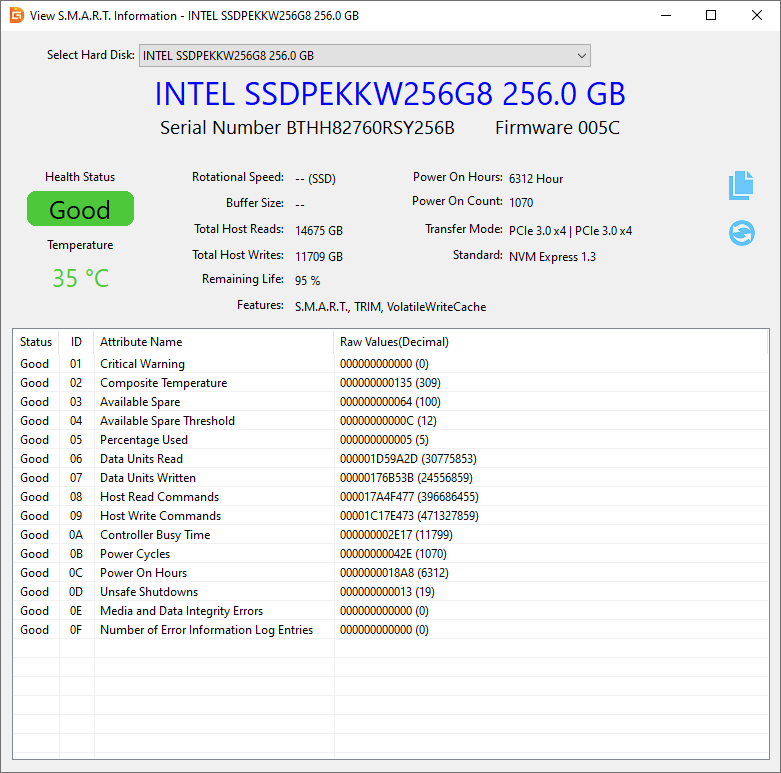
DiskGenius Free can help you confirm what you are working with. Open the S.M.A.R.T. information panel for your drive and you will see the exact model, interface type, and firmware version. No guessing. You know your hardware's identity and its theoretical ceiling before you start diagnosing anything.
Even if you have the right SSD, the numbers on the box can be misleading. Manufacturer specs are sequential read and write benchmarks run under ideal conditions: large files, short bursts, optimal queue depths. That is not how most people use their computers.
Real-world performance is dominated by random 4K reads and writes at low queue depths. That is what happens when you open an application, boot Windows, or load a game level. A drive that benchmarks at 7,000 MB/s sequential will not deliver anywhere near that during daily use, because daily use is mostly small, scattered I/O operations.
This is not a defect. It is how storage works. If your SSD benchmarks close to its rated spec in DiskGenius Free but "feels" slower than you expected, the drive is probably fine. The gap between sequential benchmarks and real-world responsiveness is something every SSD has.
Read More: Free SSD Benchmark Software: How to Test Read & Write Speed for SSDs?
Here is the thing about performance problems: feelings lie. Your SSD might feel slow because you are comparing it to a YouTube benchmark you watched once. Or it might genuinely be underperforming by 60% and you have just gotten used to it.
Do not diagnose by instinct. Run a test first.
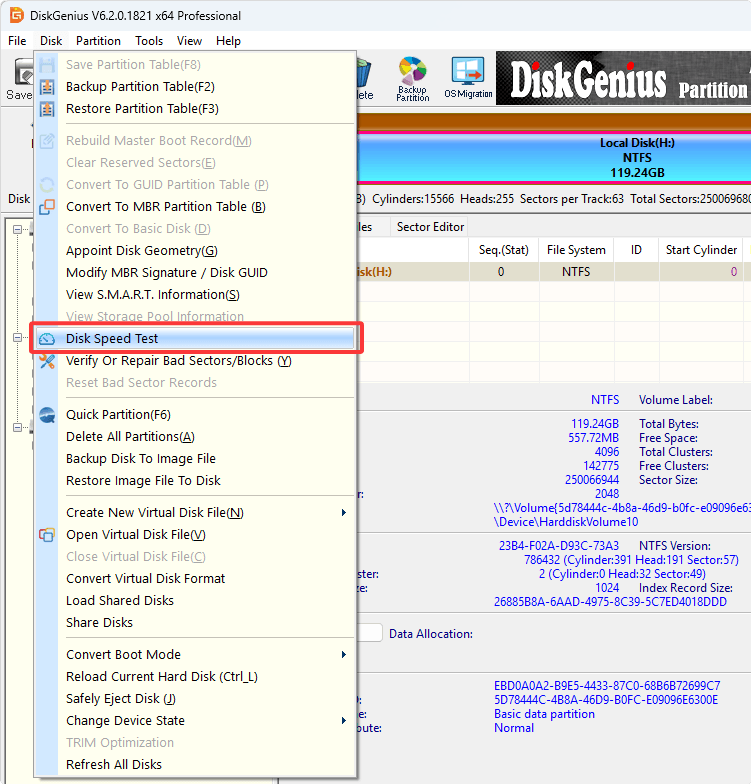
For users who want a dedicated benchmark tool, DiskGenius Free Edition is a solid free option. It includes a built-in disk speed test feature that measures read and write performance on any connected drive. Run it, compare the results to the expected numbers for your SSD type from the table above, and you will know within a minute whether there is a real problem or not.

While you are there, check the S.M.A.R.T. data. If the drive has been running hot, accumulating reallocated sectors, or showing signs of wear, you will see it right there in the health report.
If the numbers look right, the drive is fine. If they are way off, keep reading.
Read More: Just Got a New Drive? Here's How to Test Speed of your SSD or HDD
This is one of the most common mistakes people make, and it is completely invisible until you run a benchmark.
Modern motherboards often have two or three M.2 slots. They look identical. But they are not wired the same way. Some connect directly to the CPU via PCIe lanes at full speed. Others run through the chipset, which may share bandwidth with other devices. And some M.2 slots are wired for SATA only, which means your NVMe drive runs at SATA speeds (~550 MB/s) even though the drive is capable of 7,000 MB/s.
There is also the generation mismatch. A Gen4 NVMe SSD in a Gen3 slot works fine, but it runs at Gen3 speeds. You get 3,500 MB/s instead of 7,000 MB/s. The drive is not broken. It is just limited by the slot.
The fix:
Crack open your motherboard manual (or find the PDF on the manufacturer's website). Look at the M.2 slot specifications. Identify which slots support PCIe/NVMe and what generation they are. If your drive is in a SATA-only slot or a lower-generation slot, move it.
SSDs do not slow down gracefully when they run out of space. They slow down hard.
The reason is architectural. SSDs write data in pages but erase data in blocks, and blocks are much larger than pages. When the drive is nearly full, the controller has to juggle data constantly, reading valid pages out of partially filled blocks, erasing those blocks, and rewriting the valid data somewhere else before it can write anything new. This is called garbage collection, and it adds significant overhead.
Write amplification goes through the roof. SLC cache, the small fast-write buffer that most modern SSDs rely on for burst performance, either shrinks dramatically or disappears entirely when free space gets low. The result is an SSD that stutters during writes and feels sluggish overall.
The fix:
Keep at least 10% to 20% of your total SSD capacity free. On a 1TB drive, that means 100GB to 200GB of breathing room. If your drive is packed tight, you need to offload files, games, or media to a secondary drive.
TRIM is one of those background features that you never notice when it is working and you definitely notice when it is not.
The command tells your SSD which data blocks are no longer in use after you delete files. Without TRIM, the SSD has no idea those blocks are empty. It treats them as occupied until it tries to write new data to them, which forces unnecessary read-modify-write cycles. Over weeks and months, a drive without TRIM gets progressively slower. It is a slow bleed, not a sudden drop.
Windows 10 and 11 enable TRIM by default. But if you cloned your system from an older installation, upgraded from Windows 7, or migrated from a different configuration, TRIM might be disabled without you knowing.
The fix:
Open Command Prompt as administrator and type:
fsutil behavior query DisableDeleteNotify

A result of 0 means TRIM is active. A result of 1 means it is off.
To enable it: fsutil behavior set DisableDeleteNotify 0
SSDs generate heat. A lot of it, especially Gen4 and Gen5 NVMe drives. And when the controller gets too hot, it protects itself by reducing speed. This is called thermal throttling, and it is one of the most common reasons a fast SSD suddenly feels slow during heavy use.
You will recognize the pattern. A file transfer starts at full speed, looks great for 10 or 15 seconds, and then the speed drops by half or more. The drive is not broken. It is just hot.
The fix:
Check your SSD temperature. If it exceeds 70°C under load, install a heatsink on the M.2 drive and improve your case airflow. A basic aluminum heatsink costs a few dollars and typically drops temperatures by 10 to 20 degrees.
For a deeper dive into SSD temperatures, safe operating ranges, and cooling solutions, see our companion article on SSD temperature. It covers everything from heatsink selection to airflow optimization.
This one mostly affects SATA SSDs on older motherboards, but it still comes up more often than you would expect.
AHCI (Advanced Host Controller Interface) is a storage mode that enables features like NCQ (Native Command Queuing), which lets the SSD reorder and optimize incoming commands for efficiency. If your BIOS is set to IDE mode or RAID mode instead of AHCI, your SATA SSD loses access to these features and performance drops.
Older systems that were originally configured for hard drives sometimes ship with IDE mode as the default. Switching to AHCI can unlock measurable speed improvements.
The fix:
Enter your BIOS and look for the SATA Mode setting under storage configuration. Change it to AHCI.
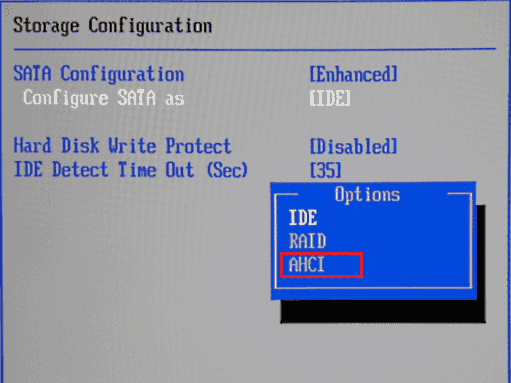
One important warning: if you switch from IDE to AHCI on a running Windows installation without preparing the system first, Windows will blue-screen on boot. Before changing the BIOS setting, you need to enable the AHCI driver in Windows:
1. Open Command Prompt as administrator. Type: bcdedit /set {current} safeboot minimal
2. Restart, enter BIOS, change to AHCI mode.
3. Boot into Windows Safe Mode.
4. Open Command Prompt again: bcdedit /deletevalue {current} safeboot
5. Restart normally. Windows will load the AHCI driver and boot correctly.
SSD firmware is the internal software that controls how the drive operates. Manufacturers release updates for it, and those updates sometimes include meaningful performance improvements, bug fixes, garbage collection optimizations, and thermal management tweaks.
A drive running firmware from two years ago might have a known write performance issue that was patched six months after launch. You would never know unless you checked.
The fix:
Go to your SSD manufacturer's website and check for firmware updates for your specific model. Samsung has Samsung Magician, Western Digital has WD Dashboard, Crucial has Storage Executive. Most brands have a utility that can check and apply firmware updates from within Windows.
Back up your data before updating firmware. The process is usually safe, but it is not worth the risk of losing files if something goes wrong.
The Power Saver plan in Windows does what it says: it saves power by limiting performance. That includes CPU clocks, but it can also affect how aggressively the system manages storage device power states.
Some aggressive power configurations put the SSD into a deep idle state. When the drive needs to wake up and handle a request, there is a noticeable latency spike. On NVMe drives using PCIe link state power management, this can introduce micro-stutters that make the system feel sluggish even though the drive itself is perfectly healthy.
The fix:
Open Settings, go to System, then Power and Battery (Windows 11) or Power Options (Windows 10). Switch to Balanced or High Performance.
For users who want to go further, open Power Options, click Change plan settings, then Change advanced power settings. Find PCI Express, expand Link State Power Management, and set it to Off. This prevents the PCIe link from entering low-power states, which eliminates the wake-up latency for NVMe drives. It uses a tiny bit more power but makes a real difference in responsiveness.
Cloning is a popular upgrade path. You take everything on your old HDD or SSD, copy it to a new drive, and keep all your files and settings intact. When it works, it is great. When it does not work properly, you end up with a drive that functions but runs well below its potential.
The most common issue is partition alignment. SSDs organize data differently than hard drives, and if the partition boundaries from the old drive do not line up with the new SSD's page boundaries, every single write operation requires extra read-modify-write cycles. The penalty is significant. Some users report 30% to 40% performance loss from misaligned partitions alone.
Other cloning artifacts include old driver configurations, legacy partition table formats (MBR instead of GPT), and BIOS boot mode mismatches.
The fix:
Check partition 4K alignment first. If partitions are misaligned, realign them.
Use DiskGenius Free Edition to do the SSD/HDD cloning, as the process makes sure the partitions on the target disk will be 4K aligned.
Sometimes your SSD is perfectly healthy and properly configured, but it still feels slow because something in the background is eating all its bandwidth.
Windows is a noisy operating system. At any given moment, multiple processes might be competing for disk access:
• Windows Search indexing, cataloging every file on your drive
• Windows Update downloading patches or installing in the background
• Antivirus running a full system scan
• OneDrive, Dropbox, or Google Drive syncing a large folder
• SysMain (formerly Superfetch) preloading applications into memory
Any one of these alone might not cause noticeable slowdown. But when two or three happen at the same time, your SSD's I/O queue gets saturated and everything else, including the applications you are actually trying to use, stalls.
The fix:
Open Task Manager (Ctrl+Shift+Esc), click the Disk column to sort by usage, and see what is hogging the bandwidth.
If Windows Search is constantly running, consider disabling the indexing service or scheduling it for off-hours. Let Windows Update finish its work before expecting peak performance.
Move antivirus scans to overnight. If SysMain is consistently showing high disk usage and you have an SSD (not an HDD), disabling the service sometimes helps, though results vary by system.
This is the one nobody wants to hear, but it needs to be said.
SSDs do not last forever. NAND cells have a finite number of program/erase cycles. As those cycles accumulate, cells degrade. The controller compensates by spending more time on error correction, which takes processing power away from actual data operations. Reallocated sectors, pending sectors, and uncorrectable errors show up in the S.M.A.R.T. data as early warning signs.
A drive that was fast six months ago and has gradually become slower, with no configuration changes and no obvious cause, might be approaching end of life. The slowdown is the controller struggling to manage degrading cells.
The fix:
Check SSD health status immediately.
DiskGenius displays the full S.M.A.R.T. attribute list for any SSD: wear leveling count, reallocated sector count, reported uncorrectable errors, power-on hours, total bytes written, and remaining life percentage. If the remaining life is below 70% or the reallocated sector count is climbing, back up your data now.
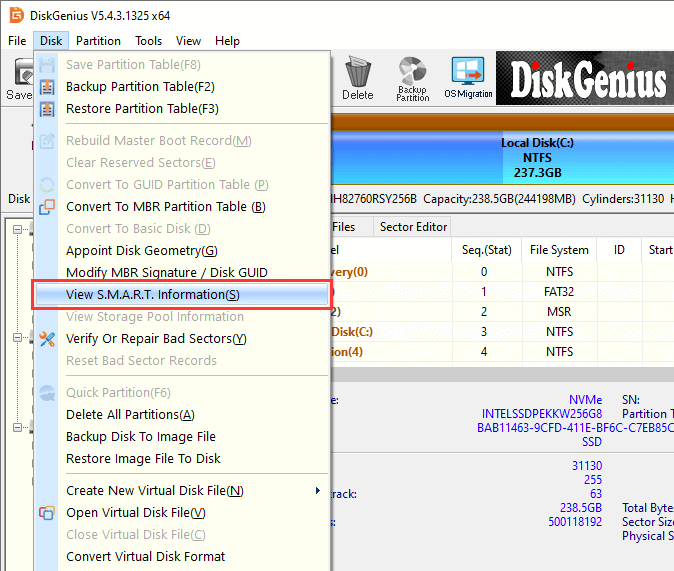
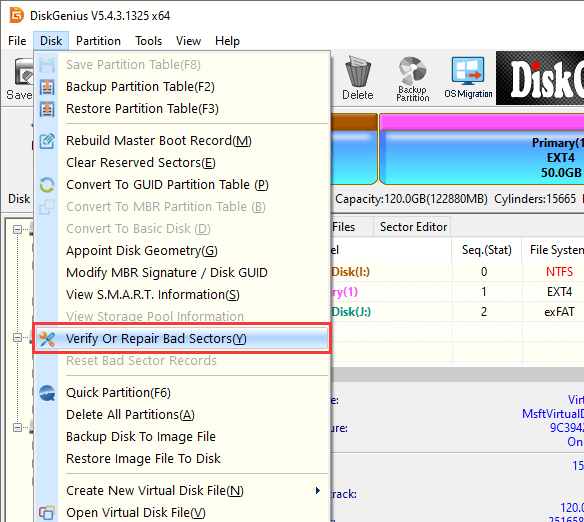
In addition, you can also use DiskGenius to scan for bad blocks for SSDs:
Select the drive you want to test from the left pane, click "Disk" – "Verify Or Repair Bad Sectors/Blocks".
This applies to 2.5-inch SATA SSDs only, but it is worth checking if you are using one.
A worn-out, low-quality, or loosely connected SATA cable can cause intermittent errors and retries that kill performance. The drive might appear to work normally most of the time, then randomly slow down when the connection degrades.
There is also the port issue. Not all SATA ports on a motherboard run at the same speed. Some are SATA III (6 Gbps). Others, especially on older boards or ports shared with M.2 slots, might be SATA II (3 Gbps). A SATA III SSD on a SATA II port runs at half its rated speed.
The fix:
Check your SATA cable. If it is old or you are using the one that came in a dusty box of spare parts, swap it for a new one. Then check your motherboard manual to confirm you are plugged into a SATA III port. If there is any doubt, try a different port.
Motherboard firmware matters more than most people realize. BIOS updates sometimes include improved NVMe compatibility, better memory training, and storage controller fixes that directly affect SSD performance.
If your BIOS is set to Legacy/CSM boot mode instead of UEFI, the system may not be utilizing the full capabilities of your NVMe drive. Some older motherboards will not even detect a newer NVMe SSD without a BIOS update.
The fix:
Visit your motherboard manufacturer's website and check for the latest BIOS version.
Read the release notes. If any update mentions storage, NVMe, or performance improvements, it is worth installing.
Also verify that your boot mode is set to UEFI. If you have been tweaking BIOS settings for months and things feel unstable, a reset to defaults followed by careful reconfiguration is a reasonable move.
These are two separate problems that sometimes look similar, so it is worth distinguishing them.
Malware can cause constant disk activity without any visible process in your normal Task Manager view. Crypto miners, data exfiltration tools, and some types of adware run background processes that thrash the disk. If you see 100% disk usage but cannot identify which process is responsible, malware is a real possibility.
The fix:
Run a full scan with Windows Security. Then run a second scan with a reputable second-opinion scanner like Malwarebytes. If either finds something, remove it and restart.
File system errors are different. Corrupted file system structures cause the operating system to spend extra time on error handling and retries. You might notice slow file access, occasional freezes when opening folders, or error messages about corrupted files.
Not every "slow SSD" problem has a fix. Some SSDs are simply limited by their hardware.
Early SATA SSDs from 2014 or 2015 used older controllers and slower NAND. They were a massive upgrade from hard drives at the time, but they cannot compete with anything built in the last few years. Performance degrades as the NAND wears, and without modern features like an SLC write cache, their sustained write speeds can drop below 200 MB/s.
Budget QLC (Quad-Level Cell) SSDs are another case. QLC NAND stores more data per cell, which keeps costs down, but it comes with a real performance tradeoff. Sustained write speeds on QLC drives drop significantly once the SLC cache fills up. A drive that starts a large file copy at 3,000 MB/s might drop to 500 MB/s or lower after the cache exhausts. That is a design characteristic, not a defect.
The fix:
If your SSD is from 2015 or earlier, or if it is a budget QLC model and you regularly handle large file transfers, the drive itself might be the bottleneck. Understand what your hardware is capable of before spending hours troubleshooting. If the drive benchmarks within its rated specifications, it is performing correctly. The upgrade path is the only real solution.
This is the cousin of Reason 14, but from a different angle.
You watched a YouTube video where someone's Gen4 NVMe loaded a game in 4 seconds. You have a Gen3 NVMe, and the same game takes 9 seconds. Your drive is not slow. It is half the theoretical bandwidth, and the real-world difference in something like game loading is smaller than the sequential spec gap suggests because game loads are mostly random reads.
Similarly, the difference between a SATA SSD and an NVMe SSD in Windows boot time might only be 2 or 3 seconds. In file transfers of large media files, the gap is enormous. In launching Photoshop, it is barely noticeable. Context matters.
The fix:
Know your drive. Understand its rated speeds. Run a benchmark and compare it to reviews of the same model. If the numbers match, the drive is fine. Your expectations might need adjusting, not your hardware.
If you have read through the 15 reasons above and are not sure which one applies to you, here is a step-by-step diagnostic process that narrows it down efficiently.
Step 1: Benchmark your SSD. Run a speed test using DiskGenius Free and compare the results to your drive's rated specifications: select a partition on the disk you want to test - "Disk" - "Disk Speed Test".
If the numbers are close to spec, the drive hardware is fine. The problem is elsewhere. If the numbers are way below spec, keep going.
Step 2: Check free space. Open File Explorer to see how much capacity remains. Below 15% free? That is likely a major contributor.
Step 3: Verify SSD type and connection. Confirm your drive is in the correct M.2 slot or connected to the right SATA port. Consult your motherboard manual. A Gen4 NVMe in a Gen3 slot will benchmark at Gen3 speeds, which is not a failure but it is leaving performance on the table.
Step 4: Check S.M.A.R.T. health data. Review the drive's health indicators. Look for reallocated sectors, uncorrectable errors, and remaining life percentage. If the health status is degraded, back up immediately and plan a replacement.
Step 5: Check SSD temperature. Monitor the drive under load. If it exceeds 70°C, thermal throttling is probably affecting performance. Install a heatsink and improve airflow.
Step 6: Verify TRIM. Run fsutil behavior query DisableDeleteNotify in Command Prompt. Make sure the result is 0.
Step 7: Update firmware. Check the manufacturer's website for firmware updates. Apply any available updates.
Step 8: Check Windows background activity. Open Task Manager and sort by disk usage. Identify any processes consuming excessive I/O. Address Windows Update, antivirus scans, cloud sync, and indexing services as needed.
Step 9: Run a malware scan. Full scan with Windows Security, then a second scan with Malwarebytes or a similar tool.
If your diagnostic process has identified the problem, here is a consolidated list of optimizations:
• Free up disk space. Keep at least 15% to 20% of total capacity available. Offload large files to a secondary drive if needed.
• Enable TRIM. One command in Command Prompt. Do it now if you have not already.
• Update SSD firmware. Check for updates from your drive manufacturer.
• Improve cooling. Install a heatsink. Clean dust filters. Improve case airflow.
• Disable unnecessary startup programs. Open Task Manager, go to the Startup tab, and disable anything you do not need running at boot.
• Optimize Windows power plan. Switch to Balanced or High Performance. Disable PCIe Link State Power Management for NVMe drives.
• Use AHCI mode. Make sure your BIOS is configured for AHCI, not IDE or RAID (unless you specifically need RAID).
• Replace damaged SATA cables. If you are using a SATA SSD and the cable is old or loose, swap it out.
• Update storage drivers. Make sure your chipset and NVMe drivers are current.
• Clone and replace an aging SSD. If S.M.A.R.T. data shows significant wear, migrating to a new drive with DiskGenius is the safest path forward. Clone the old drive, verify the copy, and swap it in. Your operating system, applications, and data come along for the ride, no reinstallation needed.
1. Why is my SSD slower than my old HDD?
In almost every case, it should not be. If your SSD is performing worse than a hard drive, something is seriously wrong. Check for thermal throttling, a nearly full drive, failing S.M.A.R.T. indicators, or a misconfigured connection. Run a benchmark to get objective numbers.
2. Why is my NVMe SSD so slow?
The most common causes are: the drive is in the wrong M.2 slot (SATA-only or lower generation), it is thermally throttling due to a missing heatsink, or TRIM is not enabled. Check the slot first, then the temperature, then the S.M.A.R.T. data.
3. Can an SSD become slower over time?
Yes. Gradual slowdown over months can indicate NAND wear, accumulating reallocated sectors, or a drive that is filling up. It can also indicate that TRIM was never enabled. Check health data and free space.
4. Will reinstalling Windows make my SSD faster?
Sometimes. A fresh install eliminates years of accumulated background processes, leftover drivers, and system clutter. But if the underlying issue is hardware-related (wrong slot, failing drive, thermal throttling), reinstalling Windows will not help. Diagnose first.
5. Should I replace a slow SSD?
Only after you have ruled out every other cause. Many slow SSD problems are fixable with configuration changes, firmware updates, or simple cooling improvements. If the drive benchmarks within spec and S.M.A.R.T. data is healthy, replacement is unnecessary. If the drive is worn out and error counts are climbing, clone it to a new one before it fails completely.
A slow SSD is frustrating because it feels like you did everything right. You ditched the hard drive. You bought the fast storage. And yet, here you are, waiting.
The reality is that SSD performance depends on a lot more than the drive itself. The slot you plugged it into, the space you left available, the firmware running on it, the heat building up around it, the background processes fighting for its attention, the power plan telling it to relax. All of it matters. And most of it is fixable.
Work through the causes systematically. Benchmark first so you have real numbers to work with. Check the basics: free space, connection type, TRIM, temperature. Then move to the less obvious culprits: firmware, power settings, cloning artifacts, malware.
If the drive itself is healthy, a few configuration changes can make a dramatic difference. If the drive is wearing out, do not wait for it to fail. Back up your data and clone it to a replacement while it still works.
Keeping an eye on your SSD's health does not have to be complicated. DiskGenius gives you the temperature, the S.M.A.R.T. data, the remaining life estimate, and the speed test results all in one place. Checking it once a month takes two minutes and can catch a problem weeks before it becomes a crisis. Your SSD is one of the most important components in your system. Treat it well, and it will return the favor.

DiskGenius is a one-stop solution to recover lost data, manage partitions, and back up data in Windows.
Download

 Facebook
 YouTube
 X
X