
Updated on Oct. 19, 2026
Position: Resource - Disk Utilities - BitLocker Recovery Key Not Working? 11 Methods to Fix It
You type in the 48-digit code, press Enter, and the screen says the recovery key is incorrect. Or it accepts the key, spins for a second, and drops you back at the same blue prompt. Either way you are locked out of your own computer at the worst possible time.
If your BitLocker recovery key is not working, the key itself is often fine. In a lot of cases it belongs to a different drive, a different PC, or a different recovery record, and the Recovery Key ID printed on that same screen tells you which. This guide covers what to do when a BitLocker recovery key does not work on Windows 10 or Windows 11: how to match the key ID, where to look when you have several saved keys, how to handle input problems in the recovery environment, and how to get your data out when nothing else works.
Don't reset the PC and don't format the drive yet. Neither one removes the encryption and both of them destroy the data. Give the checks below half an hour first.

Table of Contents:
If you are standing in front of the recovery screen and need a plan in the next two minutes, work through this in order.
1. Write down the Recovery Key ID shown on the screen. It disappears the moment you power off.
2. Compare that ID with every recovery key you can find. The saved record with the matching ID is the one that will work. If nothing matches, skip ahead to the section on finding the correct key.
3. Type the 48-digit password slowly. Numbers only, normally displayed in eight groups of six digits, hyphens optional. Don't type the key ID, your PIN, or your Windows password into that box.
4. If Windows accepts the key and then returns to the same screen, the boot environment is the problem. Go to the recovery loop section.
5. If the drive holds anything you cannot afford to lose, unlock it and copy the data out before you attempt repairs, resets, or reinstalls.
BitLocker asks for a recovery key when it can no longer verify that the machine is in the same trusted state it was in when the drive was protected. The key gets checked, and so does a lot of other stuff around it.
The key belongs to another device or drive. Recovery keys are generated per volume. A key saved from a work laptop will not unlock your home desktop, and a key from your external drive will not unlock the system drive.
The Recovery Key ID does not match. If you saved keys from several machines in one Microsoft account or one folder of text files, it is easy to pick the wrong record.
The password was entered or copied incorrectly. A single dropped digit is enough. Copying from a phone to a PC, or pasting through a chat app, sometimes eats characters or wraps lines.
The input environment is not what you expect. The recovery screen runs before Windows loads, so it does not behave exactly like the desktop. External keyboards, docks, and unusual layouts can all cause trouble.
Firmware, TPM, or Secure Boot changed. A BIOS update, a cleared TPM, a new motherboard, or a switch between UEFI and Legacy boot changes the state BitLocker measured at startup. Windows then falls back to asking for the recovery key.
The recovery loop. Windows accepts the key, tries to start, fails, and asks again. This one is a boot problem.
The boot configuration or recovery environment is corrupted. Even if you are successful in the unlocking, the machine cannot boot into Windows if the boot files are corrupted, the system partition is damaged, or the boot order is messed up.
The Recovery Key ID is the string of characters shown on the BitLocker recovery screen just above the box where you type. It won't unlock anything on its own. Its job is to identify which saved record belongs to this particular drive.
1. On the recovery screen, find the line that reads Recovery Key ID.
2. Write down at least the first group of characters. The first eight are normally enough to tell two records apart.
3. Open every place you have stored recovery keys and compare the IDs one by one.
4. Only then type the 48-digit password that sits next to the matching ID.
A recovery key ID looks like a chain of letters and numbers split into groups, for example 48AC71DF-6B21-.... A recovery password is 48 digits long, numbers only, shown as eight groups of six. If you have been pasting letters into the password field, you are using the ID.
If the ID check did not turn up a match, you do not have the right key yet. Go through these locations in order.
Microsoft account.
Visit the recovery key page at https://account.microsoft.com/devices/recoverykey on any device you can sign in from, including a phone. One account can hold keys for several machines, so open each entry and compare the ID instead of grabbing the first one you see.
2. Work or school account.
On a device managed by an organization, keys are usually escrowed to Microsoft Entra ID (formerly Azure AD). Try https://aka.ms/aadrecoverykey or https://aka.ms/myrecoverykey while signed in with the account you used on that machine. If the keys are not there, ask your IT administrator. Companies using Intune, Active Directory, or a third-party MDM hold the keys centrally.
3. Saved text files and USB drives.
Windows saves the key as a file named something like BitLocker Recovery Key 48AC71DF.txt on the drive you picked when encryption was enabled. Search old USB sticks, cloud storage, and email attachments for that filename.
4. Printed copies.
The printout is easy to overlook and easy to find, usually in the folder with the laptop receipts.
5. Someone else set up the PC.
If a family member, a previous owner, or a repair shop turned on BitLocker, the key is saved in that person's account and not yours.
Microsoft support cannot regenerate a recovery key for you. If a support agent or a website promises to recover a key that was never saved anywhere, treat it as a red flag.
Once you have a candidate key that matches the ID, typing is the next failure point.
Confirm you are using the recovery password and nothing else. The field on the recovery screen wants the 48-digit number, not the key ID, not your BitLocker PIN, and not your Windows sign-in password.
Then check the digits themselves. The password contains numbers only, so if any letter appears in the string you are reading the wrong field or a corrupted copy. Compare the groups against the original text file or printout one group at a time instead of reading the whole 48 digits at a glance. Hyphens are formatting, not data, so you can enter the digits with or without them.
If you are copying from a text file, open the original file on the machine where it is stored instead of copying it through chat apps or email, which sometimes rewraps long lines and drops characters at the seam.
For corporate machines there is one extra wrinkle. On devices locked down by group policy, a FIPS compliance setting can cause Windows to refuse a valid recovery password. If policy allows it, an administrator can check gpedit.msc under Computer Configuration, Windows Settings, Security Settings, Local Policies, Security Options, and look at "System cryptography: Use FIPS compliant algorithms for encryption, hashing, and signing".
The recovery screen runs before Windows loads, with a limited driver set, and it does not always agree with your usual keyboard setup.
If you use an external keyboard through a dock or a USB-C hub, try the laptop's built-in keyboard instead, or move the keyboard to a different port. On touch devices the recovery environment sometimes offers an on-screen keyboard.
Because the recovery password is digits only, keyboard layout problems are less common here than people assume. The real issues are usually input that never reaches the box, or a USB recovery key file that the pre-boot environment cannot read. If you normally unlock with a .bek key file on a USB stick rather than typing a password, check that the stick is readable before boot and try a plain USB 2.0 port. Pre-boot firmware cannot see every USB controller.
Sometimes the prompt is a one-off caused by a boot hiccup. Shut the machine down normally, wait a few seconds, and start it again.
Unplug everything that is not required: external drives, USB storage, docks, SD cards, and any bootable media. An external disk with an old bootloader on it can change which device the firmware picks first, and BitLocker reacts to that change.
Check the boot order in BIOS or UEFI and make sure the internal drive is still first.
If the machine comes straight back to the BitLocker screen, stop restarting. Repeating the same boot adds nothing and, on a machine with a failing drive or an interrupted firmware update, can make things worse. Move on to the next section.
Read this section even if you never touch BIOS. It explains cases the earlier fixes cannot reach.
On a typical laptop BitLocker stores the key in the TPM and measures the firmware, boot files, and boot configuration at startup. If those measurements match what the TPM recorded when protection was enabled, the drive unlocks silently. If they do not, Windows asks for the recovery key.
So ask yourself what changed in the last few days. A BIOS or UEFI firmware update is the classic trigger. So is toggling Secure Boot, clearing or reinitializing the TPM, swapping the motherboard, moving the system disk into another machine, or switching the boot mode between UEFI and Legacy. Even a Windows update that rewrites the boot configuration can shift the measurements enough to trigger the prompt.
If you can identify the change, undo it where that is possible. If you cannot, and the correct key unlocks the drive, back up your data before you touch anything else.
Some changes to avoid. Don't clear the TPM on a hunch. Don't flip between UEFI and Legacy to see what happens. Don't reset BIOS to defaults while the drive is still locked. Each of those can make things worse, because the boot chain stops matching what the drive expects.
This section is for the other half of the problem: Windows accepts the key and then lands back at the same prompt. Retyping the password will not help here.
Start by confirming what actually happens. Note whether the machine reaches the Windows loading logo, enters the Windows Recovery Environment, shows a blue stop screen, or returns to the BitLocker prompt without any of that. The path tells you where the failure is.
If the loop started right after a firmware or boot change, reverse that change first and try again.
If Windows can reach the recovery environment, open Troubleshoot, then Advanced options, then Startup Repair. Let it run once and see whether the machine boots afterwards. Startup Repair is surprisingly effective against broken boot records and mismatched boot configuration data.
If that does not do it, use manage-bde -status in the recovery command prompt to see the state of the volume. It shows whether the volume is locked, whether protection is on or suspended, and which key protectors are configured.
Anything beyond that involves TPM protectors or boot files, and those are higher risk operations. Back up before you change them.
If you have the correct password but the normal prompt is not cooperating, the recovery environment gives you a direct route to the data.
1. From the BitLocker screen, look for a link that says Skip this drive. If it is there, use it, then go to Troubleshoot, Advanced options, and Command Prompt. If the machine can reach the recovery environment another way, get to the same Command Prompt.
2. Run diskpart, then list volume, and identify the encrypted volume by size and label. Write down its letter. In the recovery environment the system drive is often not C:, so never assume.
3. Type exit to leave diskpart.
4. Run manage-bde -status to see the current state of that volume.
5. Unlock it with the 48-digit password, replacing the letter and the digits with your own:
manage-bde -unlock D: -RecoveryPassword 123456-123456-123456-123456-123456-123456-123456-123456
6. Once it unlocks, copy your important files to another drive before doing anything else. Data first, repairs second.
Note that unlocking the volume and fixing Windows startup are different jobs. Once you can copy files out you have solved the data problem. Getting the machine to boot again needs its own fixes.
BitLocker protection is often left suspended after this kind of intervention. Once the PC is back in Windows, open Manage BitLocker in the control panel and choose Resume protection so the drive is not sitting unprotected.
Some situations need a tool other than Windows itself. The system may refuse to unlock the partition, the edition of Windows in use may not offer the BitLocker management features you need, the PC may not boot at all, or the partition itself may be in an unusual state after a crash or a failed operation.
DiskGenius handles BitLocker encrypted partitions through its own engine rather than through the Windows BitLocker stack. It works even when the installed Windows edition does not support BitLocker operations, which is common on Windows 10 and Windows 11 Home. It can also run from a bootable WinPE USB drive on a machine that will not start Windows at all, so you are not stuck waiting for the operating system to cooperate.
The cases DiskGenius can handle:
To unlock a BitLocker partition in DiskGenius:
1. Start the program and select the BitLocker encrypted partition you need to get data from.
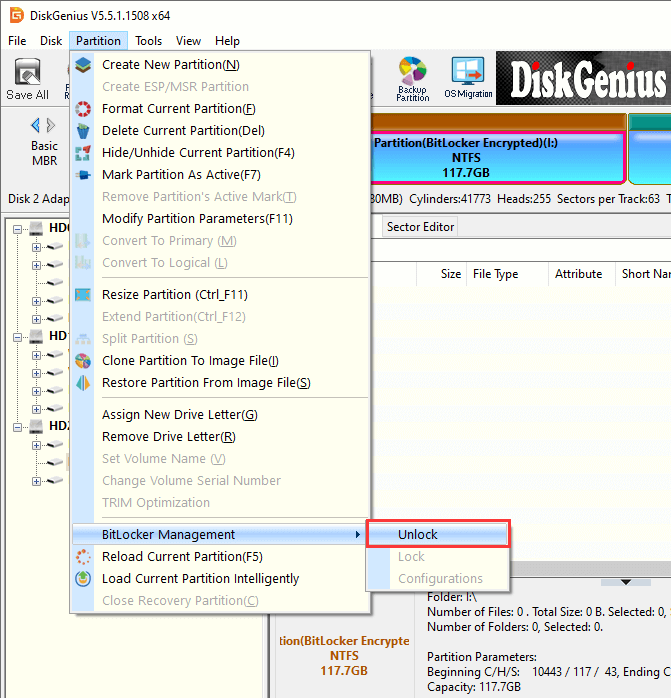
2. Click the "Partition" menu, then "BitLocker Management", then "Unlock".
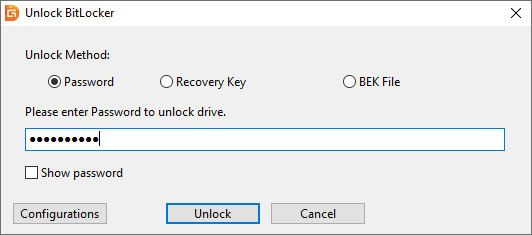
3. Enter the recovery key or password, or select a BEK file that belongs to this partition, then click "Unlock".
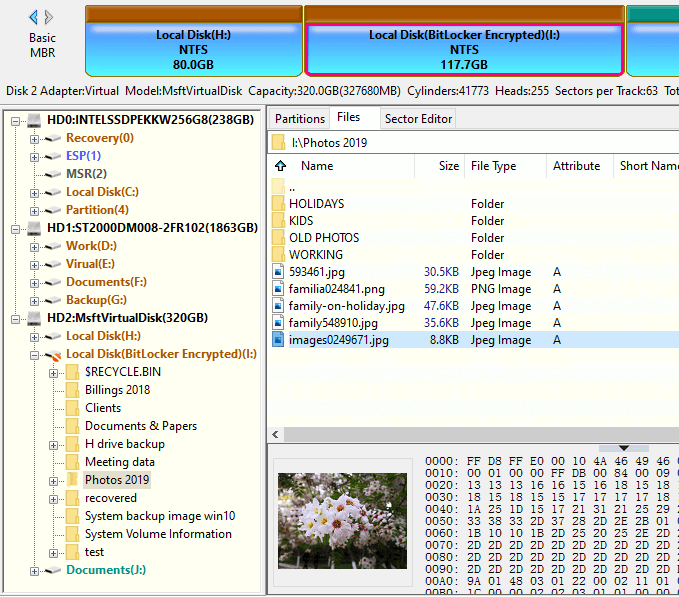
4. When the partition opens, check that a few files actually open, then copy the important data to another drive straight away.
DiskGenius cannot recover or remove a wrong recovery key, and it cannot decrypt a fully encrypted partition without the correct key or password. What it offers is a second route to your data when the Windows route is blocked: an unlock path that does not depend on the operating system, plus support for the odd partition states that Windows rejects.
Read More: BitLocker Partition Recovery: How To Recover Deleted / Lost BitLocker Partitions?
If the volume unlocks fine and the problem is Windows itself, work from the least destructive option downwards.
Try Startup Repair first, as described in the recovery loop section. Then, once you can get into Windows or a working desktop, run sfc /scannow and DISM /Online /Cleanup-Image /RestoreHealth to repair damaged system files.
If Windows still will not start properly, run a repair upgrade from official installation media. Download the Windows ISO from Microsoft, run setup from inside Windows or from the recovery environment, and choose the option that keeps personal files and apps. This reinstalls the system components, including the encryption stack, while leaving your data in place.
Avoid a clean install and avoid a format. Both of them wipe the volume. On an encrypted drive that removes the only copy of data the key was protecting.
Hardware failures can trigger the same prompt. If the disk is failing, no amount of key checking will help.
On a desktop, open the case and reseat the SATA or M.2 drive, and try a different port or cable. On a laptop, run the diagnostics that came with it or the equivalent for your brand.
Watch for the usual symptoms of a dying drive. Clicking or grinding noises, transfers that slow to a crawl, SMART warnings in DiskGenius, or files that fail to copy at random.
Some readers are past the point of key matching. The partition is RAW, or it has vanished from Disk Management, or the metadata is damaged and Windows will not accept a key it should accept. This is where BitLocker data recovery comes in.
Warning: Do not format the BitLocker drive. Formatting the drive while trying to fix it turns a key problem into permanent data loss.
Suspended BitLocker protection does not always mean the data is decrypted. It can sit halfway, and depending on how far the suspension goes, DiskGenius can read data straight out of the partition without asking for a key.
A partially encrypted partition happens when encryption was started and never finished, or when something interrupted the process. Reading it naively produces garbage, because some parts of a file are encrypted and others are not. DiskGenius works out which parts of the file data are actually encrypted as it reads.
Power loss, a blue screen, or a forced shutdown during an encrypt or decrypt operation leaves the drive in a state that normal tools refuse. Windows may reject the key, show the wrong partition size, or simply fail to read anything.
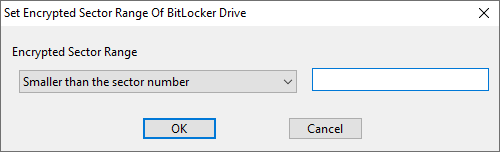
DiskGenius lets you unlock such a partition while specifying the encrypted sector range yourself instead of making the tool guess where the encryption begins and ends.
Read more: How to Recover BitLocker Data After Interrupted Encryption or Description?
If the encrypted partition disappeared after a disk error, a power cut, or an accident with partitioning software, the data is usually still there and only the partition entry got lost.
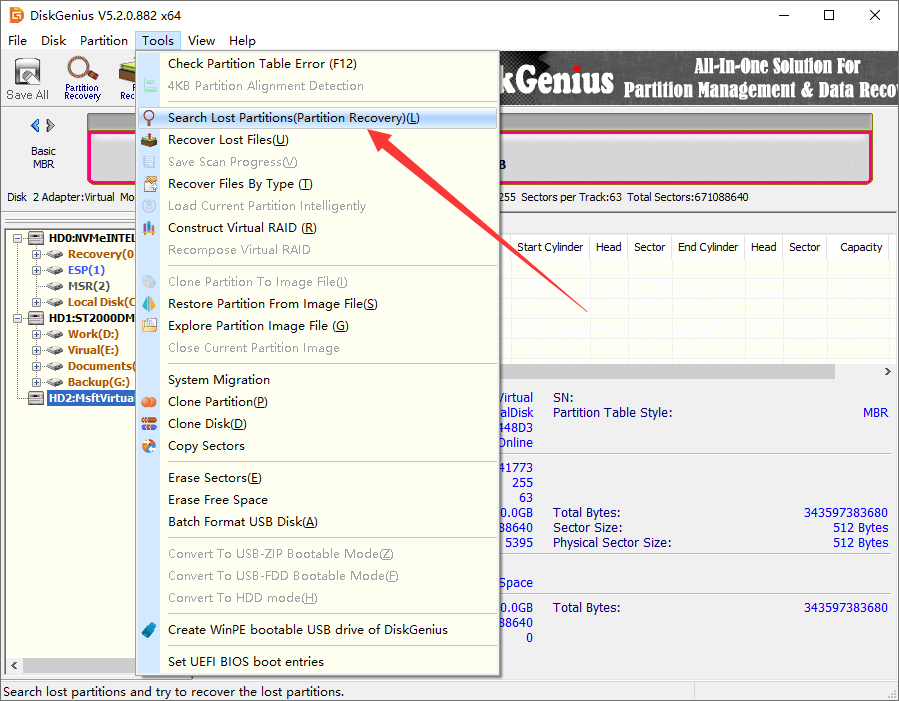
Select the disk in DiskGenius and choose "Search Lost Partitions (Partition Recovery)" from the "Disk" menu.
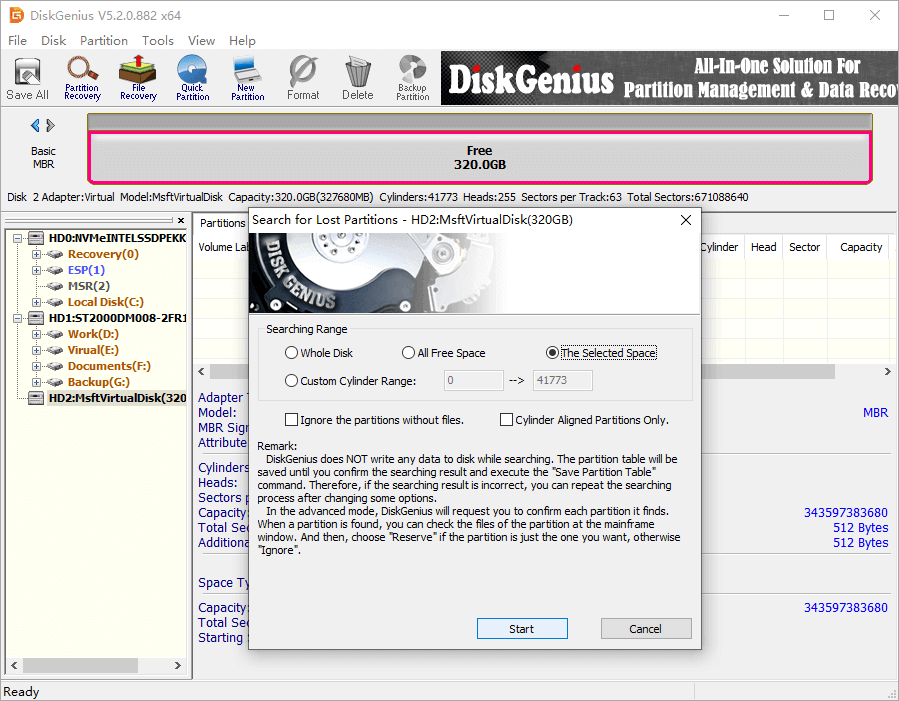
Click "Start" to let the program to search for lost partition.
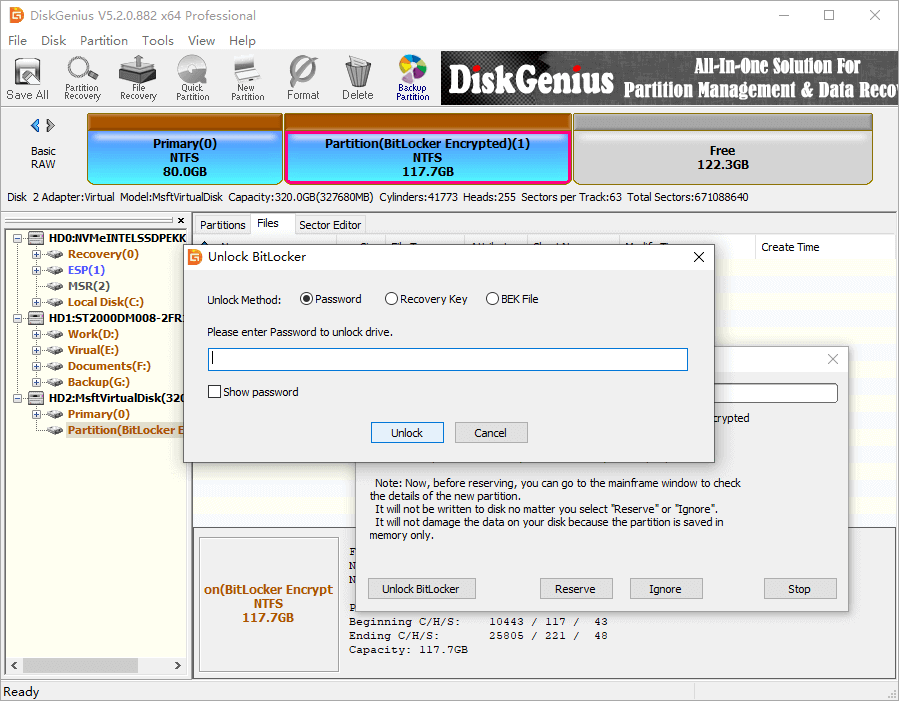
Preview files to check whether the partition is correct, then decide to "Reserve" or "Ignore" it. If a BitLocker encrypted is found, you can unlock it with your recovery key or password, then browse the files.
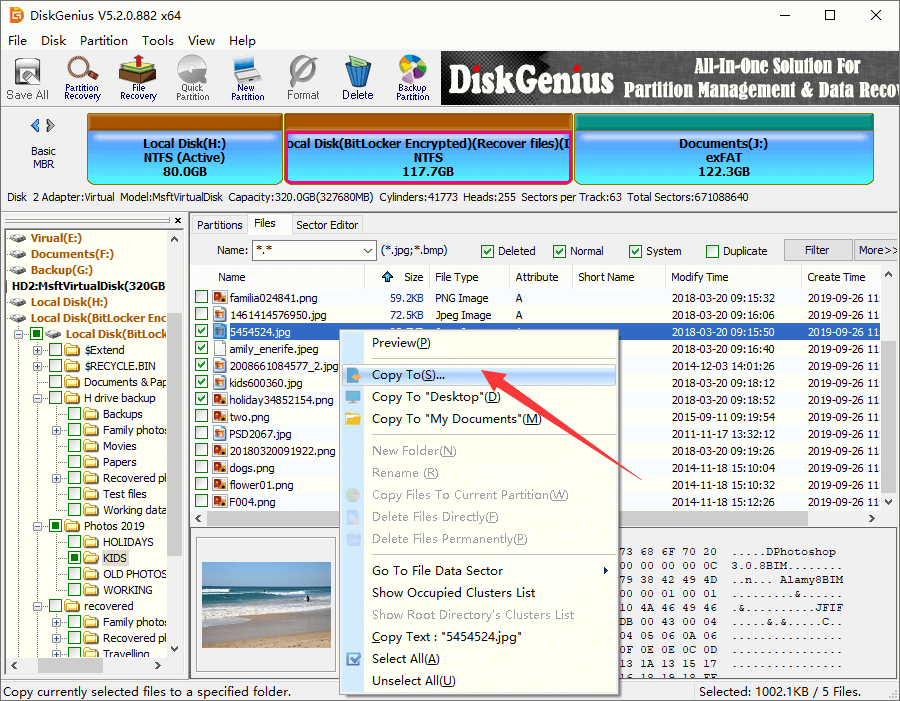
Copy what you need to another drive before you commit any changes to the original disk.
Read More: How to Clone BitLocker Drives Using Freeware in Windows 11/10/8/7?
Key is correct but Windows still won't start
If the key is accepted, the unlock worked. What is failing is the boot process. Stop retyping the password and start looking at boot configuration, firmware settings, TPM state, and the recovery loop steps above.
One key does not unlock every volume
Each encrypted volume has its own recovery key. A laptop with a system drive and a data drive has two keys. An external drive has its own. Check the Recovery Key ID for the specific volume in front of you.
No key anywhere to be found
Work through the search locations one more time, then contact whoever set the machine up. On a work device that means IT. On a family PC it may mean the person who turned on encryption.
If no key exists anywhere, and you cannot undo whatever triggered the recovery prompt, the encrypted data cannot be accessed. The encryption works exactly as designed here, and Microsoft support cannot generate a key that was never saved.
Check one more thing before you accept that. If the partition is in a suspended state, was only partially encrypted, or had its encryption interrupted, data access may still be possible without the key, because those volumes are not in a fully encrypted state. DiskGenius covers this range of cases, and a quick check of the drive will tell you whether anything is readable. If the partition is fully encrypted and no key exists, no software can help.
Back up recovery keys the moment encryption is enabled. Save the key as a text file, print it, and store the copy somewhere outside the encrypted machine.
Write down the Recovery Key ID next to each key. A folder of 48-digit numbers with no IDs becomes a guessing game.
Verify the key really exists in your Microsoft account. After enabling BitLocker, open the recovery key page from another device and confirm the key is listed with the right ID.
On work devices, confirm IT escrow. Make sure your administrator has the key in Entra ID, Active Directory, or the company's management console.
Suspend BitLocker before major changes. BIOS or UEFI updates, TPM changes, motherboard swaps, partition resizing, system migration, and cloning should all happen with protection suspended. DiskGenius disk cloning and system migration functions support BitLocker encrypted partitions, which helps, but suspending protection first still avoids most surprises.
Don't clear TPM or toggle Secure Boot casually. Both change the measurements BitLocker relies on, and both can put you back at the recovery prompt.
1. Can a BitLocker recovery key expire?
No. A recovery key does not work like a one-time code and it does not expire on a timer. The key that protected the drive last year will protect it this year. What changes is whether the key still matches the volume in front of you, and whether the key protection configuration has been altered.
2. Can I bypass BitLocker recovery without the recovery key?
Not on a fully encrypted volume. Tools that claim to remove or bypass BitLocker without the key are either misleading you or targeting something other than the encryption itself, such as a Windows password. The legitimate options are to find the key, contact the person or team that manages the device, or accept that the data cannot be recovered.
3. Will resetting my PC remove BitLocker and recover my files?
Resetting can remove BitLocker. It will not recover your files. A reset deletes personal data, and once that data is overwritten no key will bring it back. Recover or back up the data first, and only reset afterwards.
4. How do I unlock a BitLocker drive if Windows will not accept my key?
Start with the Recovery Key ID check and the WinRE command prompt steps in this article. If the system cannot unlock the partition, or the partition is suspended, partially encrypted, or was interrupted mid-encryption, DiskGenius can attempt the unlock outside of Windows.

DiskGenius is a one-stop solution to recover lost data, manage partitions, and back up data in Windows.
Download

 Facebook
 YouTube
 X
X