
Updated on Sep. 21, 2026
Position: Resource - Disk Utilities - SD Card Is Write Protected? How to Remove Write Protection?
You pop an SD card into your laptop, try to copy over some photos, and Windows hits you with: "The disk is write protected." You try deleting a file, same thing. Formatting? Nope. The card is frozen.
It is one of the more frustrating storage errors because the fix is not always obvious. Sometimes it takes ten seconds (move a switch), and sometimes you spend an hour trying different methods before you figure out the card's controller has permanently locked it. This guide covers everything in between.
In this article:
Write protection makes an SD card read-only. Windows can see the files, you can open them, but any attempt to write, modify, delete, or format gets blocked. The exact error message varies, "The disk is write protected," "The media is write protected," or on cameras, something like "Card locked" , but they all mean the same thing.
Here is an important distinction that trips people up: write protection on an SD card is not the same as a file's Read-only attribute. You can right-click a file in Windows, open Properties, and check a Read-only box. That only affects that individual file. Write protection operates at the disk level. It blocks everything, every file, every operation, including formatting the entire SD card.
SD, SDHC, SDXC, and microSD cards can all become write protected. SDHC and SDXC are just capacity classifications (4–32 GB and 64 GB–2 TB, respectively); they do not have different write protection mechanisms. The key physical difference is that full-size SD, SDHC, and SDXC cards have a Lock switch, while microSD cards do not.
The cause ranges from embarrassingly simple to unfortunately permanent. Here is the full picture:
| Cause | What is happening |
| Lock switch is engaged | The physical switch on a full-size SD card is in the locked position. |
| Faulty or locked adapter | A microSD-to-SD adapter has its own Lock switch; it may be engaged or loose. |
| Read-only disk attribute | Windows or a previous tool set a disk-level read-only flag. |
| Registry WriteProtect value | A Registry key enforces write protection on removable drives. |
| Group Policy restriction | An administrator locked down removable storage. |
| File system corruption | The file system is damaged; Windows refuses to write as a safety measure. |
| Bad sectors/blocks or media errors | The card has physical read errors. |
| Flash memory wear | The card's controller has permanently locked writes because too many memory blocks have degraded. |
| Faulty card reader | The reader misreports the card's status. |
The one most guides skip: SanDisk's own documentation states that when the usable memory blocks on a storage card degrade past a threshold, the card's internal controller switches to permanent read-only mode. This is not a bug, it is a deliberate safeguard. The controller locks writes so that existing data can still be read off the card before it fails entirely. If your SD card has been in a dashcam, a security camera, or any write-heavy device for a few years and suddenly goes read-only with no switch and no Windows setting to blame, this is the most likely explanation.
A lot of people land on this page and immediately try formatting the card. Do not do that yet.
If the card has files you care about, vacation photos, project files, anything you do not have backed up elsewhere, take two minutes to protect that data first. Once write protection is cleared, it is tempting to go straight to a format. But if the file system is corrupted and you format before recovering, you may destroy the very file structures that make recovery possible.
What to do right now:
Can you still see and open files on the card in Windows Explorer, even though you cannot write to it? If yes, copy everything you can to your computer's internal drive. Read operations are almost always allowed on a write-protected card.
Cannot see your files? The file system might be damaged. In that case, you will need SD card recovery software to scan the card at a deeper level. DiskGenius can scan a write-protected or RAW-formatted SD card and preview recoverable files, photos, videos, documents, before you commit to any formatting or partition operations. Running that scan now is a low-risk way to find out what is salvageable.
The rule is simple: secure your data, then fix the card. Not the other way around.
How to Recover Data from a Write-Protected SD Card?
Write protection blocks new data from going in. It does not touch the data that is already there. As long as the card is detected by your computer and your files are still visible (or at least scannable), recovery is possible. This is where DiskGenius comes in as the primary tool. Here is how to use it:
Step 1. Connect the write-protected SD card to your computer via a card reader. Windows may show a format prompt or a write protection error, that is fine. As long as the card appears as a drive letter or is visible in Disk Management, DiskGenius can work with it.
Step 2. Download and launch DiskGenius.
Step 3. Select the SD card from the disk list in DiskGenius. Click "File Recovery" → "Start".
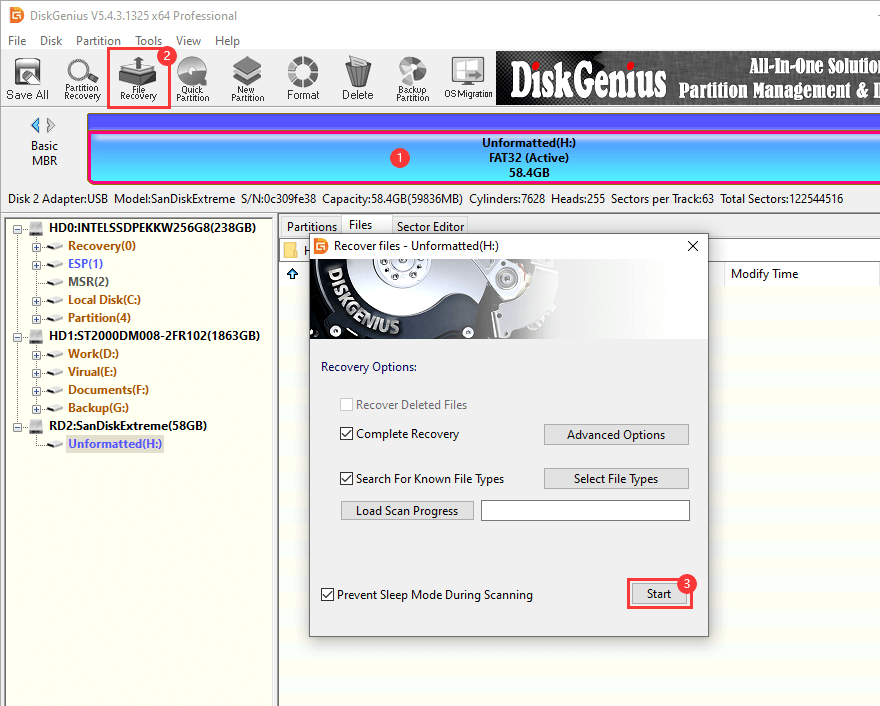
DiskGenius can scan for recoverable files, such as files lost due to file system corruption, accidental deletion, or formatting. The scan searches for recognizable file signatures. This gets below the file system level and looks at the memory card.
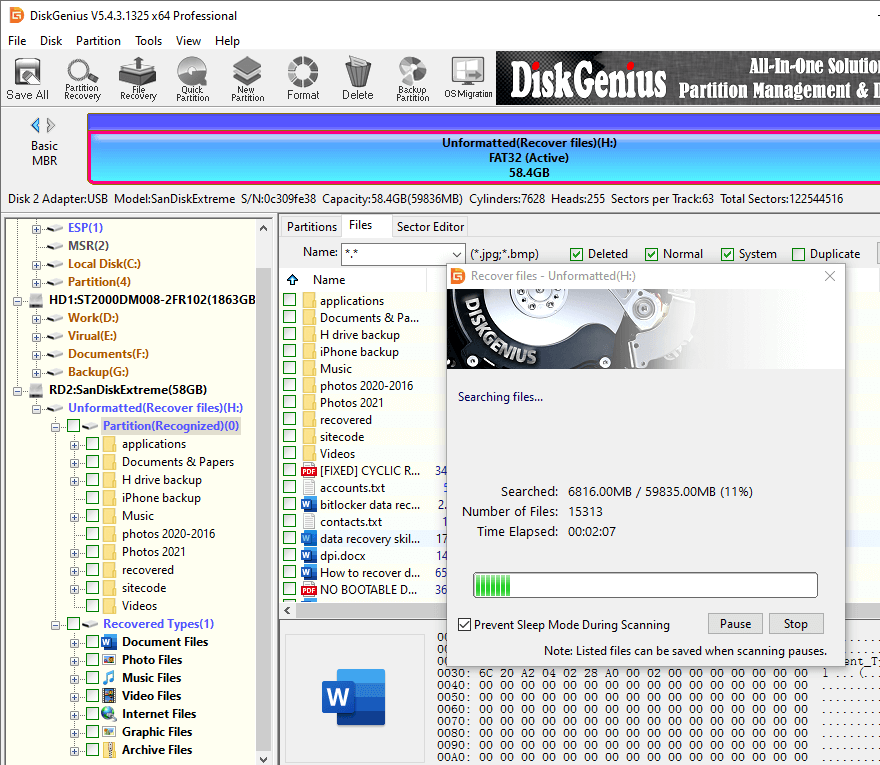
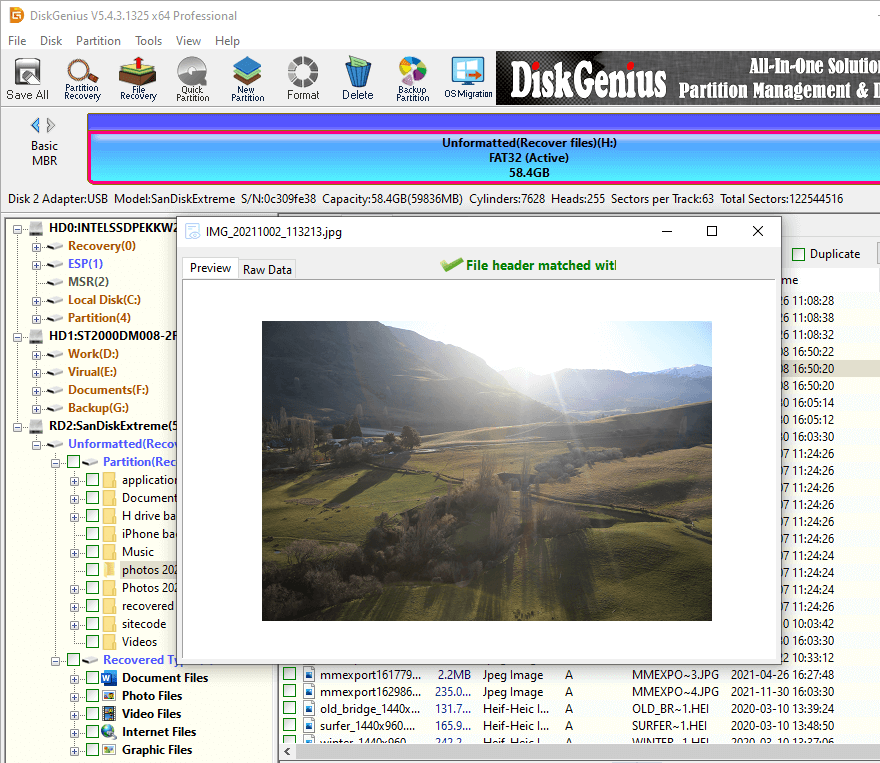
Step 4. Preview the results. You can preview found files and view their contents before recovery. This enables you to verify your important photos, videos or documents are safe.
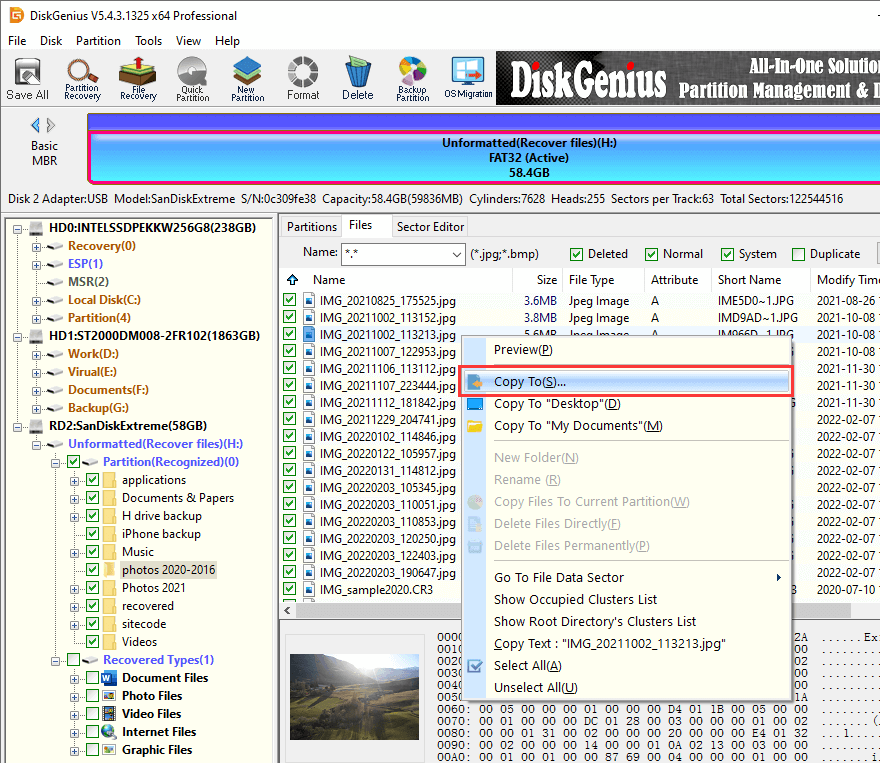
Step 5. Select the files you want to recover and restore them to another drive, which could be your computer's internal SSD, an external hard drive or anything other than the SD card you are recovering from.
Step 6. Once your data is safe on another drive, you can format or retire the SD card with a clear conscience.
Roughly half of all "my SD card is write protected" support cases turn out to be this. Full-size SD cards have a tiny sliding switch on the left edge. Slide it down toward the contacts, that is Lock. Slide it up, that is Unlock.
The switch does not actually touch any data on the card. It is a mechanical signal: the card reader checks the switch position and tells the host device whether to allow writes. Microsoft's SD bus specification defines this through the SDP_WRITE_PROTECTED property, which the host reads at connection time.
Pull the card out. Check the switch. If it is down, push it up. Reinsert. That might be the whole fix.
One common problem: the switch on older or cheap cards can become loose. It slides back into the Lock position when you push the card into a slot, and you do not notice. If this is happening, a small piece of tape over the switch holds it in place, not elegant, but it works until you replace the card.
MicroSD cards do not have this switch. If you are using a microSD card, the problem is elsewhere, start with Method 2.
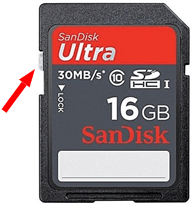
If your microSD card is showing write protected, the adapter is almost always the culprit. MicroSD cards are too small for a Lock switch, but the SD adapter you slide them into has one. Check it the same way you would check a full-size SD card, make sure the adapter switch is in the Unlock position.
SanDisk specifically calls this out in their troubleshooting guides: a worn adapter switch can slide to Lock during insertion without the user realizing it. If you have been through three different methods and nothing has worked, swap the adapter before going further. It costs almost nothing and solves the problem more often than you would expect.
Faulty card readers cause weird problems. They can misread the Lock switch state, fail to negotiate properly with the card, or report a write-protected status when the card is perfectly fine.
The fastest way to isolate the problem is to change one variable at a time:
This is the method that fixes most cases where the Lock switch and adapter are not to blame. Windows can set a disk-level read-only attribute on any storage device, and DiskPart is the tool to clear it.
1. Open Command Prompt as Administrator.
2. Run these commands:
diskpart
list disk
select disk X
attributes disk clear readonly

Replace X with the number that corresponds to your SD card. The list disk output shows every connected disk with its size, match the size to your card. A 32 GB SD card will show up as roughly 29 GB; a 64 GB card as roughly 59 GB.
This is the one step where you can actually cause damage if you are not paying attention. DiskPart commands act on whichever disk is currently selected. If you select your system drive by mistake and later run a command like clean, you will wipe your operating system. Double-check the disk number. If you are not sure, disconnect other external drives first so the list is shorter.
If it works, you will see "Disk attributes cleared successfully." Try writing to the card.
If DiskPart says it cleared the attribute but the card is still write protected, the read-only flag was not the cause. Move on.
Windows has a Registry value that can enforce write protection on all removable storage. It lives here:
HKEY_LOCAL_MACHINE\SYSTEM\CurrentControlSet\Control\StorageDevicePolicies
Look for a DWORD value called WriteProtect. If it is set to 1, change it to 0, then restart the computer.

If the StorageDevicePolicies key does not exist at all, this is not your problem, Windows has not set any write protection policy through the Registry. Skip it.
This method gets recommended a lot online, and in my experience, it rarely solves the issue for a single misbehaving SD card. It is more relevant when every USB drive and SD card you plug in is write protected, which points to a system-wide policy rather than a per-card issue. Still, it takes thirty seconds to check, so it is worth a look.
If you are on a company or school computer, an administrator may have disabled write access to removable storage through Group Policy. This shows up as all USB drives and SD cards being write protected, not just one.
1. Press Win + R, type gpedit.msc, and navigate to:
Computer Configuration → Administrative Templates → System → Removable Storage Access
2. Look for "Removable Disks: Deny write access". If it is Enabled, that is your answer.

3. Change it to Not Configured or Disabled. Run gpupdate /force in Command Prompt or restart the PC.
This only applies to Windows Pro and Enterprise editions. Windows Home does not ship with the Group Policy Editor. And if only one SD card is affected while other USB drives work fine, Group Policy is not the cause, skip this.
Sometimes the card's file system is damaged, and Windows interprets the corruption as a reason to block writes. You will typically see other symptoms alongside the write protection: files going missing, the SD card showing as RAW in Disk Management, or Windows prompting you to format before use. If you've recovered or backed up data from the SD card, you can try following steps:
1. Double-click This PC to open File Explorer.
2. Right-click the SD card you want to repair, choose "Properties".
3. Click "Tools" → "Check" → "Scan and repair drive".
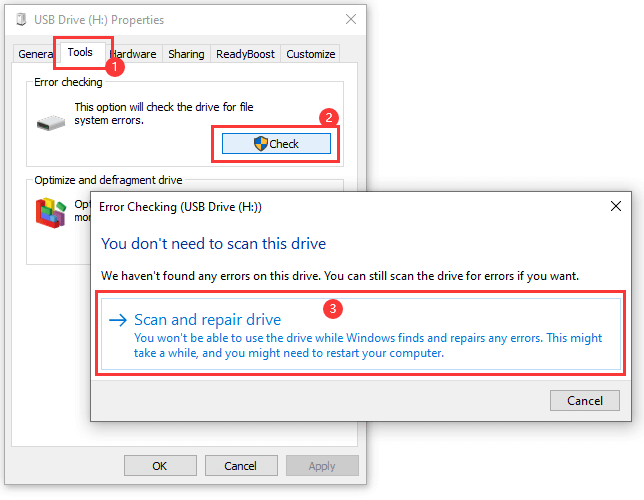
Note: If the SD card contains files you have not backed up yet, do not run disk checking or repairing. Each pass modifies the file system, and if you eventually need to turn to data recovery, a heavily modified file system is harder to recover from. Recover first, repair second.
1. Launch DiskGenius Free Edition. Click the write protected SD card from the left pane.
2. Click "Disk" → "Change Device State". Then you will see the "Read-only" option is selected, click it to cancel the selection.

3. Click "OK" to confirm the changes.

Format is the last resort in the "fix it" category. It wipes the file system clean and rebuilds it, which eliminates most software-level write protection flags.
But you cannot format a card that is actively write protected. You need to clear the protection first (Methods 1–7), then format. And before you format, make sure you have either recovered or accepted the loss of everything on the card.
How to Format a Write-Protected SD Card? You will see this question a lot, and the answer is always the same: you have to remove write protection before you can format. SD card format tools cannot format a card that is actively blocking writes. The format attempt will fail with the same "write protected" error.
The sequence is: remove protection → recover data → format. Skipping the data recovery step is how people lose files they needed.
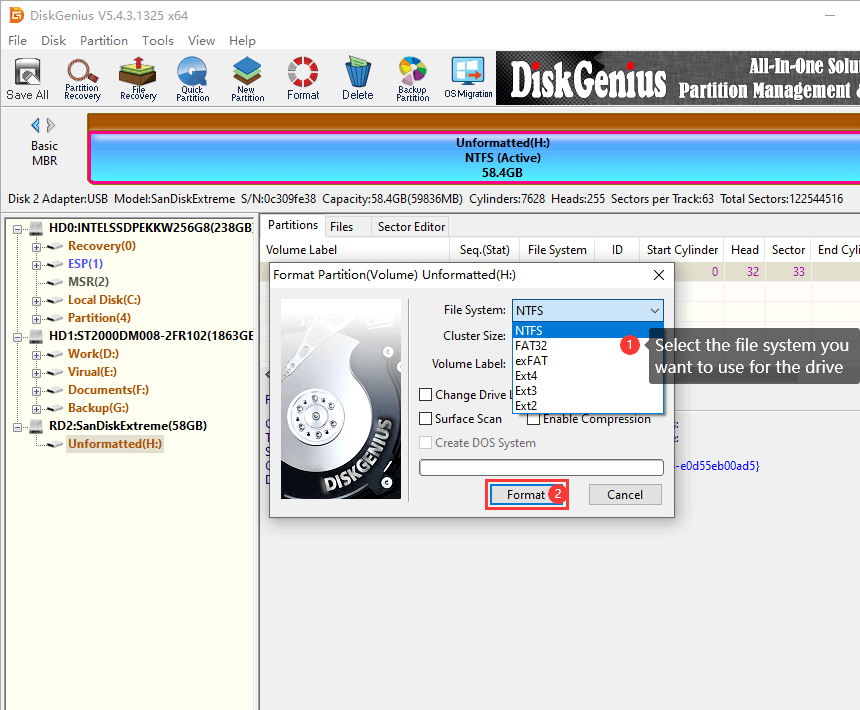
Once protection is cleared, you can follow these steps to format an SD card to FAT32, exFAT, NTFS or EXT4.
1. Launch DiskGenius Free Edition, click the partition on the SD card, then click "Format".
2. Select a file system from the dropdown list. Then click "Format".
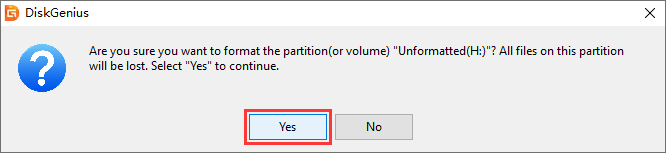
3. A warning message shows up. Click "Yes" to start the formatting.
You have been through every method. The Lock switch is unlocked. You tried three different readers and two different computers. DiskPart cleared the attribute. The Registry is clean. And the card is still write protected everywhere.
Here is the honest answer: the card's internal controller has locked it. This is not something a Registry edit or a command-line tool can undo. The controller on the SD card itself has determined that the flash memory is no longer safe for writes, and it has made that decision permanent. The card becomes a read-only device, you can pull data off it, but you cannot put anything new on it.
SanDisk, Samsung, and other major manufacturers all implement this behavior. It is designed to protect your existing data from being corrupted by writes to failing memory blocks.
Your path forward:
1. Recover your data now. The card is still readable for now. Do not wait. Flash memory that is degraded enough to trigger permanent write protection can continue to degrade. What is readable today might not be readable in six months.
2. Replace the card. If it is under warranty, contact the manufacturer. Many offer replacements for cards that fail prematurely.
3. Do not try to force writes to a permanently locked card. There is no software fix, and attempting workarounds risks corrupting the data you still have.
Not all write protection means the card is broken. The table below should help you figure out which situation you are in.
|
What you are seeing |
What it probably means | Outlook |
| Card is locked only when using one specific reader or adapter. | Faulty reader or adapter | Replace it; card is fine |
| Card is locked on one computer but works on another. | Windows configuration issue | Fixable with DiskPart, Registry, or Group Policy |
| DiskPart clears the attribute and everything works. | Software read-only flag was the cause | Already resolved |
| Card is write protected on every device, and no software method helps. | Controller-level lock, likely flash wear | Not fixable; recover data and replace |
| Card intermittently loses files or becomes unreadable. | Flash memory is actively degrading | Card is failing; recover and replace immediately |
| Card has been in a write-heavy device (dashcam, security camera) for 2+ years and suddenly went read-only. | End-of-life controller lock | Expected behavior; time for a new card |
The bottom line: If the problem follows the card across multiple devices and multiple readers, and no software method works, the card has made its decision. Respect that decision, get your data off, and move on.
Read More: How to Fix Corrupted SD Cards? Repair SD Cards Without Losing Data
From a troubleshooting perspective, the differences are small but worth understanding.
Full-size SD cards, including SDHC and SDXC in the full-size form factor, have a physical Lock switch. This is the first thing to check and the most common cause of the problem.
MicroSD cards, including microSDHC and microSDXC, have no Lock switch. When a microSD card is write protected, the cause is almost always the SD adapter, a Windows software setting, or the card's controller. Since there is no physical switch to accidentally flip, the troubleshooting skips Method 1 and starts with the adapter.
SDHC is a capacity designation (4–32 GB), not a card type with different write protection behavior. SDHC cards use the same protection mechanisms as standard SD cards. If your SDHC card is write protected, every method in this guide applies without modification.
The same goes for SDXC (64 GB–2 TB). Different capacity class, same troubleshooting.
Some causes are unavoidable, you cannot prevent flash wear, and you cannot stop a controller from eventually locking a card that has reached its write cycle limit. But many write protection headaches are preventable:
Always safely eject the card. Pulling it out mid-write can corrupt the file system, which can cause the card to behave as write protected.
Treat the Lock switch gently. The mechanism is fragile on cheaper cards.
Use a decent card reader. The $3 USB reader from a no-name brand is a false economy. A reader from SanDisk, Transcend, or Anker costs a few dollars more and saves troubleshooting time.
Avoid hot-swapping one microSD card between too many devices. Different devices can write conflicting metadata.
Back up regularly. SD cards are not archival storage. Flash memory wears out. If the files matter, keep a second copy somewhere else.
Monitor card health if the card is mission-critical. DiskGenius can check bad sectors/blocks, read S.M.A.R.T. data from storage devices and flag early signs of degradation.
Read more: How to Check SD Card Health in Windows 11/10/8/7?
Q1: How do I remove write protection from an SD card?
Check the Lock switch, check the adapter, try a different reader, then run attributes disk clear readonly in DiskPart. If that does not work, check the Windows Registry for a WriteProtect value and Group Policy for removable storage restrictions. Detailed steps are in the How to Remove Write Protection section.
Q2: Why is my microSD card write protected?
MicroSD cards have no Lock switch. The most common cause is the SD adapter, check its switch. If the adapter is fine, the cause is either a Windows software setting or the card's controller.
Q3: How do I remove write protection from a microSD card?
Start with the adapter. Swap it for a new one if you have one handy. If that does not help, use DiskPart to clear the read-only attribute, check the Registry and Group Policy, and try a different computer. If the microSD card is write protected everywhere, the card itself may be failing.
Q4: How do I format a write-protected SD card?
Remove write protection first. No formatter can touch a card that is actively blocking writes. Once protection is cleared, use Windows File Explorer, the SD Card Formatter from the SD Association, or DiskGenius.
Q5: DiskPart says "attributes cleared successfully" but the card is still write protected. Why?
The DiskPart command only clears the software-level read-only flag that Windows manages. If the write protection is enforced by the card's hardware controller, a Registry setting, a Group Policy, or a physical Lock switch, clearing the DiskPart attribute will not fix it. Work through the remaining methods.
Q6: Can a write-protected SD card be repaired?
Depends on the cause. A software flag or a locked switch, yes, easily. A corrupted file system, usually yes, with chkdsk or a format. A controller that has permanently locked due to flash wear, no. That card is done. Recover your data and replace it.
Q7: Can I recover data from a write-protected SD card?
Yes. Write protection blocks incoming writes; it does not erase what is already on the card. As long as the card is still detected by your computer, you can scan it with a recovery tool like DiskGenius, preview what is recoverable, and save it to another drive. Full instructions are in the data recovery section above.
Most SD card write protection problems are solved in under five minutes. Check the switch, swap the adapter, try a different reader, run DiskPart. For the majority of people reading this, one of those four things will do it.
The harder cases, where the card is locked on every device and no software method works, point to a card whose flash memory has degraded to the point that the controller has stepped in to protect what is left. When that happens, the priority shifts from fixing the card to getting your data off it while you still can.
If your card is in that situation, DiskGenius can scan it, preview recoverable files, and restore them to a safe location, all without writing anything to the card itself. After that, the card goes in the recycling bin and you start fresh with a new one.

DiskGenius is a one-stop solution to recover lost data, manage partitions, and back up data in Windows.
Download

 Facebook
 YouTube
 X
X