
Updated on Jul. 31, 2026
Position: Resource - Disk Utilities - QLC vs TLC SSD: What's the Difference and Which One Should You Buy?
SSD prices have fallen dramatically over the past few years. A 4TB internal SSD that would have cost you 600 USD in 2019 can now be had for under 200 USD. The main reason? QLC NAND flash memory has gone mainstream, pushing storage costs to historic lows.
But cheaper doesn't always mean better. If you've been shopping for a new SSD, you've probably come across terms like TLC and QLC and wondered whether the difference actually matters. It does, but maybe not in the way you'd expect. The answer depends entirely on how you use your computer.
This guide covers everything you want to know about QLC vs TLC SSDs: how they work, how they differ and how to choose the right one.
Before we get into the details, here's a high-level snapshot.
| Specification | TLC | QLC |
| Bits per cell | 3 | 4 |
| Endurance (typical 1TB) | 600 TBW | 200–400 TBW |
| Sequential read speed | Fast | Comparable |
| Sustained write speed | Consistent | Drops after SLC cache fills |
| Cost per GB | Moderate | Lowest |
| Best for | General use, gaming, pro workloads | Bulk storage, media libraries, read-heavy tasks |
If those terms feel unfamiliar, don't worry. We'll explain every one of them.
Every SSD stores data on NAND flash chips, and the basic unit inside those chips is a cell. Each cell holds an electrical charge, and the level of that charge determines whether it reads as a one or a zero. Simple enough. The interesting part is how many bits each cell can squeeze in.
The earliest consumer SSDs ran SLC NAND: one bit per cell, rock-solid endurance, and a price tag that made sense for servers but not much else. MLC came next, storing two bits per cell and roughly doubling the capacity. By the early-to-mid 2010s, MLC was everywhere, in both enterprise arrays and consumer laptops. It was a solid technology, but it wasn't cheap enough to make SSDs truly mainstream.
That changed with TLC. Three bits per cell meant higher density and lower manufacturing costs. Early TLC had a rough reputation (the Samsung 840 EVO slowdown fiasco didn't help), but the technology matured fast. Once 3D NAND stacking entered the picture, manufacturers could build TLC chips that were both affordable and reliable enough for everyday use. Within a few years, TLC pushed MLC out of the consumer market almost entirely. MLC still exists in enterprise and industrial settings where extreme write endurance matters, but you won't find it on a typical retail shelf.
What made QLC practical was 3D NAND technology. Instead of shrinking cells horizontally (which made them fragile), manufacturers started stacking them vertically in dozens of layers. That allowed QLC to breathe, and it was now a viable consumer product. Most of the big SSD brands today have QLC drives in addition to their TLC drives.
TLC stands for Triple-Level Cell. Each cell stores three bits of data, which gives it eight possible voltage states. It has been the dominant NAND type in consumer SSDs for nearly a decade, and for good reason. It hits a sweet spot between cost, performance, and endurance that works well for most people.
You'll find TLC NAND in drives like the Samsung 990 EVO, WD Black SN770, Crucial T500, and countless others. These are the SSDs that reviewers recommend for gaming rigs, general-purpose desktops, and even some professional workstations.
TLC drives typically offer sequential read speeds between 3,500 and 7,000 MB/s on PCIe Gen 4 interfaces, with write speeds that stay fairly consistent even under sustained load. Endurance ratings for a 1TB TLC drive usually land around 600 TBW, meaning you could write 600 terabytes of data to the drive before the manufacturer expects it to reach its write endurance limit. For a typical user who writes 20–30 GB per day, that translates to well over a decade of use.
The main downside is price. TLC costs more per gigabyte than QLC, and as SSD capacities grow into the 4TB and 8TB range, that price gap becomes noticeable.
QLC stands for Quad-Level Cell. Each cell stores four bits, which means sixteen distinct voltage states packed into the same tiny space. That's a significant engineering challenge, but the payoff is density and cost. QLC NAND can store roughly 33% more data than TLC on the same chip area.
You'll see QLC in drives like the Samsung 870 QVO, Crucial P3, Intel 670p, and Sabrent Rocket Q. These drives tend to offer the largest capacities at the lowest prices in their class. A 4TB QLC SATA SSD, for instance, is often cheaper than a 2TB TLC equivalent.
Read more: NVMe vs SATA SSD: What's the Difference and Which SSD Should You Choose?
Read performance on QLC drives is surprisingly competitive. In day-to-day use, booting your system, launching applications, browsing files, you'd be hard-pressed to tell a QLC drive apart from a TLC drive. The difference shows up when you push the drive with sustained writes. QLC drives rely on an SLC cache (a portion of the NAND that temporarily operates in SLC mode for faster writes). Once that cache fills up, write speeds can drop significantly, sometimes to HDD-level speeds on older or smaller capacity models.
Endurance is lower too. A 1TB QLC drive might be rated for 200 to 400 TBW, depending on the manufacturer. That sounds alarming compared to TLC, but in practice, most consumer users won't come close to hitting that limit within the useful life of the drive.
On paper, TLC and QLC read speeds are close enough that you won't notice a difference in everyday tasks. Both types easily saturate the PCIe Gen 3 interface and perform well on Gen 4. The operating system, games, and most applications issue small, random read operations, and both TLC and QLC handle those with similar latency.
Where they diverge is sustained sequential writes. Every modern SSD uses an SLC write cache to absorb incoming data quickly. For short bursts (a few gigabytes), both TLC and QLC write at roughly the same speed. But when you're transferring a 50GB video file or installing a large game, the cache can fill up. On a TLC drive, post-cache write speeds typically settle around 1,000–1,500 MB/s. On a QLC drive, that number might drop to 100–500 MB/s, especially on lower-capacity models with smaller caches.
This matters if you regularly move large files. For most people, it doesn't.
Endurance is the metric that gets the most attention in the QLC vs TLC debate, and also the one that's most often misunderstood.
TBW stands for Terabytes Written. It's the manufacturer's estimate of how much total data can be written to the drive over its lifetime before the NAND cells are expected to wear out. DWPD (Drive Writes Per Day) is a related metric that expresses this as how many times you can fill the entire drive daily over the warranty period.
A typical 1TB TLC drive is rated around 600 TBW. A comparable QLC drive might be rated at 200–400 TBW. That gap looks dramatic until you do the math. The average consumer writes somewhere between 10 and 40 GB per day. At 30 GB per day, a 200 TBW QLC drive would last over 18 years. Even a heavy user writing 100 GB daily would get more than five years out of it.
For reference, the older MLC NAND was typically rated around 1,200–3,000 TBW per terabyte, roughly double TLC's endurance. MLC is rarely found in consumer SSDs today, but it remains relevant in enterprise environments where drives are subjected to constant heavy writes.
For write-intensive professional workloads (constant video editing to the same drive, running a database, heavy development builds), TLC gives you more headroom. For everyone else, QLC endurance is a non-issue in practical terms.
Further reading: What Affects SSD Lifespan and How to Check the Remaining Lifespan?
This is where QLC clearly wins. The cost per gigabyte of QLC NAND is lower than TLC, and that savings gets passed on to the consumer. The gap is most noticeable at higher capacities. A 4TB QLC SSD might cost 180 USD, while a 4TB TLC equivalent could be 280 USD or more. That's a meaningful difference, especially if you're building a budget system or just need a lot of storage.
QLC has also made high-capacity SSDs accessible to mainstream buyers. A few years ago, a 4TB SSD was a premium product. Now it's a common recommendation for gamers with large Steam libraries.
One concern that comes up with QLC is data retention. Because the voltage states are more tightly packed, QLC cells can lose their charge faster when the drive is unpowered for extended periods. In theory, this means QLC is less suitable for cold storage (an SSD sitting unplugged on a shelf for months).
In practice, this is rarely a problem. Modern SSD controllers use error correction algorithms (LDPC, ECC) that can compensate for minor charge loss. If you're using the drive in a computer that gets powered on at least occasionally, data retention isn't something you need to worry about for either TLC or QLC.
Both TLC and QLC SSDs from reputable manufacturers are reliable. Drive failures in the real world are far more often caused by controller defects, firmware bugs, or power surges than by NAND wear.
The differences here are small. QLC NAND operates with more voltage states, which requires more precise control, but modern controllers handle this efficiently. Both TLC and QLC NVMe drives typically consume between 3 and 8 watts under load, and far less at idle.
For desktop users, this is essentially irrelevant. For laptop users who care about battery life, the controller and firmware matter more than the NAND type itself. A well-optimized QLC drive can actually consume less power than a poorly optimized TLC drive.
There's a lot of confident-sounding advice online about SSDs, and not all of it is accurate. Let's clear up some persistent myths.
"QLC SSDs are unreliable and will die quickly."
This is the most common misconception. QLC has lower endurance ratings than TLC, yes, but "lower" doesn't mean "low." A QLC drive rated for 300 TBW can handle years of normal consumer use without coming close to that limit. The vast majority of SSDs are replaced because the user upgraded to something faster or larger, not because the NAND wore out. Unless you're writing hundreds of gigabytes every single day, QLC endurance is a theoretical concern, not a practical one.
"QLC SSDs are always slow."
QLC read speeds are on par with TLC. You won't notice a difference when booting Windows, opening Photoshop, or loading into a game. The speed gap only appears during sustained heavy writes, and even then, it depends on the specific drive's controller, firmware, and SLC cache size. Some newer QLC drives have large enough caches that most users will never hit the slow zone.
"TLC is always the better choice."
If you need 4TB of storage for a media library and your budget is $200, buying a TLC drive might mean settling for 2TB instead. In that scenario, QLC gives you twice the capacity for the same money. "Better" depends on what you need. For an OS drive in a high-end workstation, TLC makes sense. For a Steam drive or a photo archive, QLC is often the smarter purchase.
"You should never use a QLC SSD as a boot drive."
This advice might have had some merit when QLC first launched and early drives had tiny SLC caches and sluggish post-cache writes. Modern QLC drives, particularly NVMe models, handle OS workloads just fine. Booting an operating system involves mostly read operations and small, scattered writes, exactly the kind of workload where QLC performs well. Unless your daily workflow involves writing tens of gigabytes to the boot drive, a QLC boot drive is perfectly reasonable.
"SSD performance stays the same throughout its life."
It doesn't, for either TLC or QLC. As an SSD fills up, the controller has less free space for wear leveling, garbage collection, and SLC caching. Performance can degrade noticeably when a drive is more than 85–90% full. QLC drives tend to be more sensitive to this than TLC. The practical takeaway: keep some free space on your SSD, and monitor its health periodically (more on that below).
"More bits per cell means more risk of data loss."
This is theoretically grounded but practically overstated. Yes, more voltage states per cell does mean a smaller margin for error. But modern SSD controllers employ very sophisticated LDPC (Low-Density Parity-Check) error correction which can recover from bit errors transparently. Manufacturers also keep some of the NAND as "over-provisioned" spare area to use when replacing cells that wear out. The end result is that both TLC and QLC drives, from reputable brands, maintain data integrity well beyond their rated lifespan under normal use.
TLC is the right pick when consistency and longevity are priorities. Choose TLC if:
• The SSD will be your primary boot drive and you do write-heavy work (video editing, software development, running virtual machines).
• You want maximum write endurance for peace of mind, even if you'd technically be fine with QLC.
• You regularly transfer large files and don't want write speeds to drop mid-transfer.
• You're building a system you plan to keep for 7+ years without upgrading the drive.
• The price difference at your target capacity is small enough that it doesn't affect your budget.
QLC makes sense when capacity and cost matter more than peak sustained write performance. Choose QLC if:
• You need a large-capacity drive (2TB, 4TB, or more) and want to keep costs down.
• The drive will mostly store games, media files, photos, or other data you read frequently but rarely overwrite.
• You're building a secondary storage drive alongside a smaller, faster boot drive.
• Your workload is read-dominant, which describes most consumer usage patterns.
• You'd rather put the money you save toward a better GPU, more RAM, or another component.
Knowing whether your SSD uses TLC or QLC is useful when you're shopping. But once the drive is in your system, what matters more is how healthy it is. SSDs don't give you the audible warnings that old hard drives did. A degrading SSD can go from working fine to read-only mode without much notice.
Key S.M.A.R.T. Attributes Worth Watching
Modern SSDs report their internal health through S.M.A.R.T. (Self-Monitoring, Analysis, and Reporting Technology). Here are the metrics that actually matter.
| Attribute | What It Tells You |
| Media Wearout Indicator | Remaining write endurance as a percentage (100 = new, 0 = end of rated life) |
| Total Bytes Written | How much data has been written to the drive so far (compare against the manufacturer's TBW rating) |
| Reallocated Sector Count | Number of failed sectors replaced with spare cells; a rising count is a warning sign |
| Temperature | NAND degrades faster at sustained high temperatures |
| Available Spare | Remaining reserve blocks for wear leveling and bad block replacement |
Checking S.M.A.R.T. Data with DiskGenius
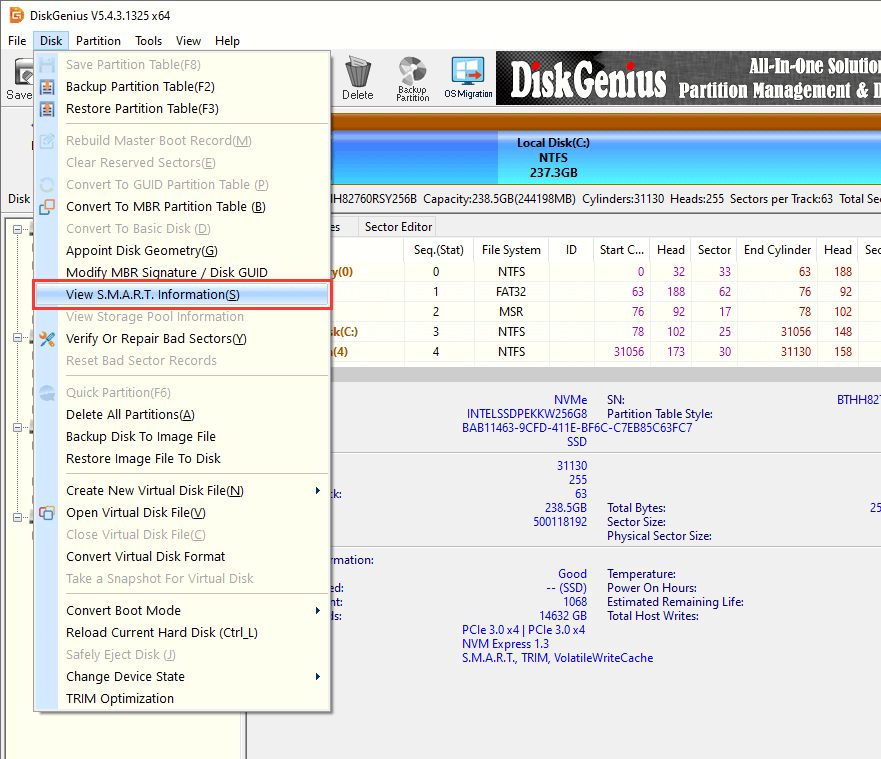
DiskGenius is a free disk management utility that reads and displays S.M.A.R.T. data in a straightforward table. To check SSD health:
1. Open DiskGenius Free Edition and select your SSD from the drive list.
2. Go to "Disk" – "View S.M.A.R.T. Information".
3. Look at the attributes listed on the pop-up window, such as health status, SSD temperature, remaining life, etc.
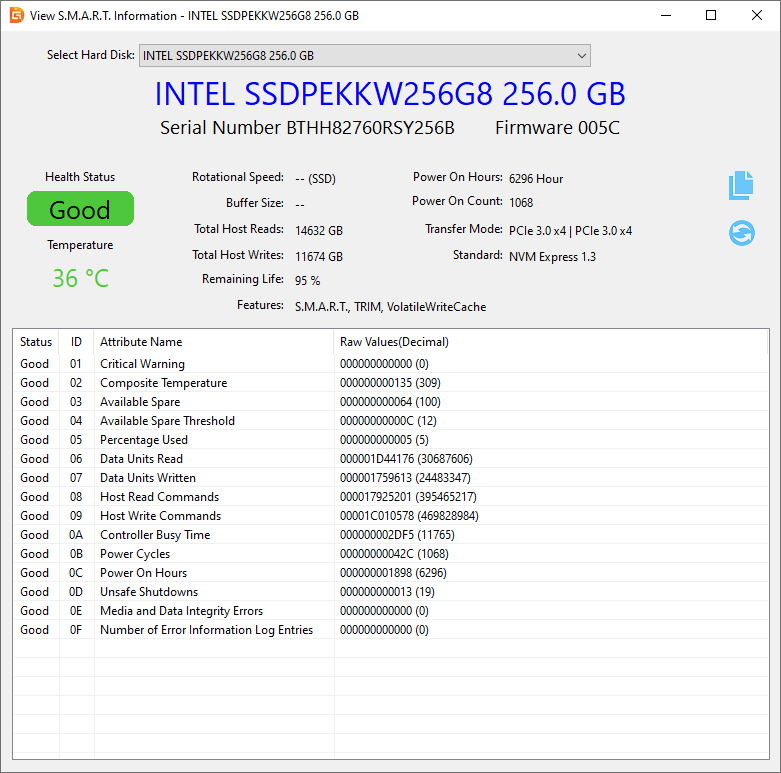
If you're buying a used SSD, this check is especially valuable. Ask the seller to run DiskGenius before purchase so you can see exactly how much life the drive has left.
How to Find Out Your SSD's NAND Type:
S.M.A.R.T. tools won't tell you whether your drive uses TLC or QLC. To find out, check the exact model number (visible in DiskGenius under the disk properties, or in Windows Device Manager under Disk Drives) and look it up on the manufacturer's website. Review sites like Tom's Hardware to identify NAND types in their SSD reviews, which is handy for less common models.
As a rule of thumb, some brand naming conventions can help. Samsung's EVO line uses TLC while QVO uses QLC. Crucial's P3 series is QLC, while the T-series is TLC. However, these conventions don't apply to all brands, so always check the specific model number for the safest bet.
Regardless of which NAND type you're running, these habits will help your SSD last longer and perform better.
Enable TRIM. TRIM instructs the OS to notify the SSD when files are deleted so the drive can proactively reclaim those blocks. Windows enables TRIM by default for SSDs, but it's worth confirming. Open Command Prompt as administrator and run fsutil behavior query DisableDeleteNotify. A result of 0 means TRIM is active.
Read more: What Is TRIM on SSD? How SSD Improves Performance & Extends Lifespan?
Keep at least 10–15% of the drive free. This gives the controller room for garbage collection, wear leveling, and maintaining a healthy SLC cache. On a QLC drive, this is especially important. A nearly full QLC drive with a tiny residual SLC cache will feel noticeably slower during writes.
Don't defragment SSDs. Defragmentation is a hard drive optimization. On SSDs, it adds unnecessary writes without any performance benefit. Windows should recognize your SSD and disable automatic defrag, but it's worth checking.
Update your SSD firmware. Sometimes, manufacturers release a firmware update that fixes bugs, improves performance, or improves error handling. Periodically check the management tool or website of the SSD manufacturer.
Monitor health regularly. Use DiskGenius or a similar tool to check S.M.A.R.T. data every few months. Catching a declining Media Wearout Indicator or a rising Reallocated Sector Count early gives you time to back up your data and replace the drive on your terms.
Avoid sustained high temperatures. Good airflow in your case matters. NVMe SSDs in particular can run hot under sustained load. If your M.2 drive regularly exceeds 70°C, consider adding a heatsink.
Is QLC SSD good enough for gaming?
Yes. Game load times depend primarily on sequential and random read speeds, and QLC drives perform nearly identically to TLC in those scenarios. You won't notice a difference loading into a game. QLC can be a problem when downloading and installing games that require large sequential writes. But even then, your bottleneck is usually your internet speed, not the SSD.
Can I use a QLC SSD as my main boot drive?
Sure. Modern operating systems issue mostly read requests with small scattered writes, just the kind of workload where QLC performs well. The concern about QLC boot drives was more relevant when the technology was new and early models had limited SLC caching. Current-generation QLC NVMe drives handle OS duties without any noticeable performance penalty.
Does QLC SSD slow down when it's full?
All SSDs slow down as they fill up, but QLC is more sensitive to this than TLC. With less free space available, the controller has a smaller area to use as SLC cache, and garbage collection becomes less efficient. If you keep a QLC drive above 85–90% capacity, you'll likely notice slower write speeds during large transfers. Maintaining free space is the single most effective thing you can do to keep any SSD performing well, and it matters even more for QLC.
Is it worth paying more for TLC over QLC?
It depends on your use case and the price difference at your target capacity. For a 1TB drive, the price gap between TLC and QLC might be 10-20 USD, which makes TLC an easy recommendation. At 4TB, the difference can be 80-100 USD or more, and QLC starts to make a lot more sense for budget-conscious buyers who need the space. If the drive will serve as a secondary storage disk for games and media, QLC is the better value. If it's your primary drive for professional work, the extra cost for TLC is usually justified.
The QLC vs TLC debate doesn't have a universal winner. TLC offers better sustained write performance and higher endurance, making it the safer all-around choice for primary drives and write-heavy workloads. QLC delivers unbeatable value per gigabyte and is perfectly capable for the vast majority of consumer use cases, especially as a secondary drive or for bulk storage.
For most people, the real decision comes down to capacity and budget. If you can afford a TLC drive at the capacity you need, it's a solid choice. If you need more storage than your budget allows in TLC, stepping down to QLC is not the compromise it's often made out to be.
Whatever you end up choosing, keep an eye on your drive's health. A few minutes with DiskGenius every couple of months can tell you whether your SSD is thriving or approaching the end of its useful life. That kind of visibility is worth more than any spec sheet comparison.

DiskGenius is a one-stop solution to recover lost data, manage partitions, and back up data in Windows.
Download

 Facebook
 YouTube
 X
X