
Updated on Oct. 28, 2026
Position: Resource - Disk Utilities - How to Create a Bootable USB for Windows 11 and Boot From It?
If you need to do a clean install of Windows 11, set up a newly built PC, repair boot issues, or rescue files from a computer that refuses to start, you will need a bootable USB drive. Making one only takes several minutes, provided you pick the right tool for what you are actually trying to fix. In this guide, we will cover two main things:
How to create a Windows 11 bootable USB (using Microsoft's official installer, an ISO image, or a WinPE rescue tool).
How to get your PC to boot from that USB, plus what to do when the drive does not show up in your boot menu.
Jump to a section:
"Windows USB drive" covers three different products, and people build the wrong one more often than you would expect. A few minutes of sorting out which one you need:
This is what most people mean when they say bootable USB, and it is what the Media Creation Tool produces. It boots the computer into Windows Setup, where you can install or reinstall Windows, and it also gives you the recovery tools hidden behind "Repair your computer". In practice people use it to:
Windows has a built-in tool called Recovery Drive (search for it in the Start menu) which copies the recovery environment out of the machine you are running. The catch is that the result is tied to that machine. It will rescue that PC, and it generally will not install Windows anywhere else.
| Feature | Installation USB | Recovery Drive |
| Install Windows | Yes | Not necessarily |
| Access recovery tools | Yes, through Windows Setup | Yes, if recovery files were included |
| Main purpose | Install or reinstall Windows | Recover an existing Windows installation |
| Typical creation method | Media Creation Tool | Windows Recovery Drive utility |
| Works on other PCs | Yes | Mostly no, tied to the PC that made it |
WinPE, short for Windows Preinstallation Environment, is a stripped-down Windows that boots from a flash drive. It does not touch your internal disk unless you tell it to. IT departments use it for deployment work, but the reason most home users care about it is this list:
DiskGenius builds exactly this kind of drive. Boot from it and you land in a small desktop with DiskGenius already open, ready to copy files, clone disks, resize partitions, or repair the boot record. The steps are in Method 3.
A USB flash drive
Size depends on which tool you are using. Microsoft's installation media wants at least 8 GB, 16 GB is more comfortable, and it wipes the drive on the way through. A DiskGenius WinPE maintenance drive only needs 800 MB of free space and leaves existing files on the drive alone, which is genuinely useful when the only flash drive in the house is the one holding your photo backup.
A working computer and a steady connection
You need one healthy machine to do the work on. Truncated downloads sit behind a surprising number of "the installer says a file is missing" complaints, so do not create the drive over a connection that keeps dropping.
Which method fits depends on the state the machine is in and how much control you want over the boot setup.
Step 1. Go to Microsoft's Download Windows 11 page. Under "Create Windows 11 Installation Media", click Download Now.
Step 2. Right-click the file you just downloaded and run it as administrator.
Accept the license terms, then check the language and edition. The defaults are correct for the machine you are running it on, which is not always the machine you are building for, so untick "Use the recommended options for this PC" if the target needs something different.
Step 3. Pick "USB flash drive" rather than "ISO file". Select your drive from the list and check the drive letter and size carefully, because the next click erases everything on it.
Step 4. Let it run. The tool downloads the files and writes them to the drive, which takes 10 to 30 minutes. Do not pull the drive out while the progress bar is moving.
Step 5. When you see "Your USB flash drive is ready", click "Finish" and eject the drive from the taskbar.
Note: Seeing the installation files in File Explorer afterwards is not proof the drive will boot on another machine. It proves the files are there. Whether the target PC boots from it depends on that machine's firmware settings, which is what the second half of this guide is about.
This is the method for when the computer is already in trouble and the data comes first. Booting from this drive gives you a working desktop with DiskGenius open, and from there you can copy files off a failing system disk, clone a dying drive onto a new one, resize partitions, recover deleted files, or rebuild the boot chain. All of this before you reinstall anything.
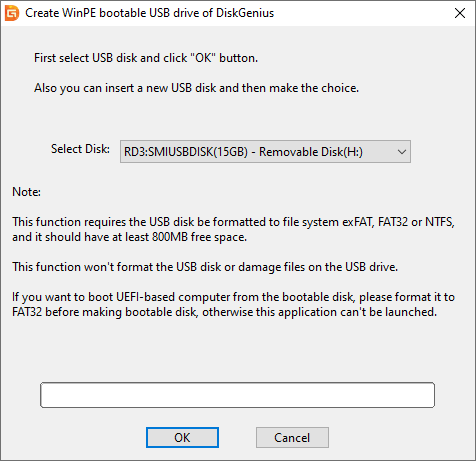
Before you start: The drive must be formatted as FAT32, exFAT or NTFS, with at least 800 MB free. If you want the drive to boot on UEFI machines, make it FAT32 first. If your Windows File Explorer refuses to format a drive above 32 GB as FAT32, use DiskGenius to do the formatting.
Step 1. On any working computer, download and install DiskGenius Free, then plug in the flash drive.
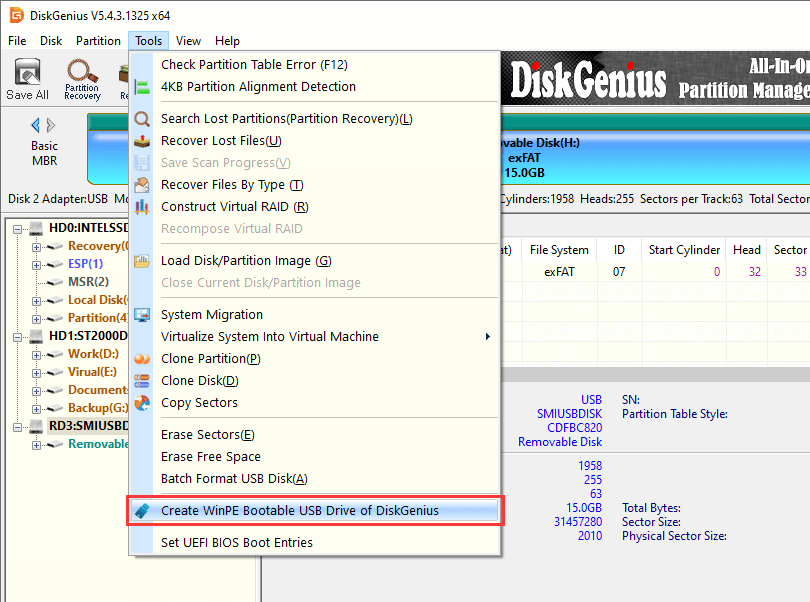
Step 2. Open DiskGenius and go to "Tools", then "Create WinPE Bootable USB Drive of DiskGenius".
Step 3. Select the correct USB drive in the dialog and click "OK". If it asks permission to unmount the partition on the drive first, allow it.
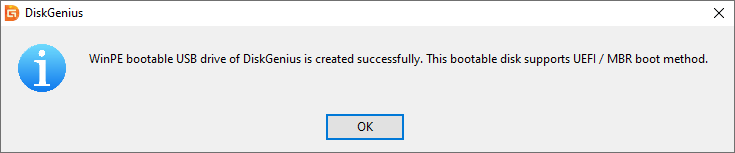
Step 4. Wait a few seconds for it to finish and click "OK" on the success message.
Step 1. Download the Windows 11 ISO from Microsoft. On the Download Windows 11 page, scroll to "Download Windows 11 Disk Image (ISO) for x64 devices" and pick your edition.
Step 2. Plug in an 8 GB or larger drive and copy anything on it you care about. Writing the ISO formats the whole stick.
Step 3. Open Rufus. Choose your drive in the Device dropdown, click Select, and point it at the ISO.
Step 4. Set the boot configuration to match the target PC.
Step 5. Click Start, wait for the status bar to say READY, close Rufus, eject.
Step 1. Shut down and plug the drive in.
Use a rear port on a desktop, the ones directly on the motherboard. Front panel ports, hubs and docking stations are frequently invisible to firmware, and that is a confusing way to lose an hour.
Step 2. Power on, or restart from Windows.
If the machine is currently sitting at the Windows desktop, use Restart instead of Shut down. Windows Fast Startup makes a full shutdown behave like hibernation, which can stop the boot menu key from responding at all.
Step 3. Tap the boot menu key.
Start tapping as soon as you press power, several times a second, and keep going until the menu appears.
The boot menu key varies by computer, pay attention to the on-screen line during startup, something like "Press F12 for boot options".
Step 4. Pick your drive. Arrow keys, Enter. If the same flash drive shows up twice, take the entry with a "UEFI:" prefix on any modern machine.
Step 5. What happens next depends on the drive.
• A Windows installation USB shows a black screen saying "Press any key to boot from USB". Press something within a few seconds, or it skips to the next device.
• A DiskGenius WinPE USB loads the small desktop and opens DiskGenius by itself.
• A recovery drive asks for a keyboard layout, then drops you into the Windows recovery menu.
Use this when your machine has no one-time menu, or when Windows Setup needs to reboot several times mid-install and you want the USB to stay first through all of them.
1. Restart and tap the setup key from the table above. Del or F2 on most desktops.
2. Find the Boot, Boot Priority, or Boot Order section. On some firmware it is buried under Security or Advanced.
3. Move the USB drive to the top of the list.
4. Press F10 to save and exit.
5. Leave the drive plugged in and let the machine restart.
Firmware screens vary wildly between brands. The modern mouse-driven UEFI pages look nothing like the old blue-and-gray text screens. The logic is the same everywhere though: find the boot priority list, put USB first. If the machine still ignores the drive after that, the problem is the drive itself or a boot mode mismatch, not the order.
This one is for machines that still boot into Windows 11 normally, and where the boot menu key has never once worked for you.
1. Open Settings → System → Recovery.
2. Next to "Advanced startup", click Restart now.
3. In the blue menu that appears, choose Use a device, then select your USB drive.
"Use a device" does not show up on every machine. It depends on the firmware, and on some systems it is simply missing. If you do not see it, that is not a fault in your setup. Go back to Method 1.
Booting from the installation USB starts Windows Setup. It walks you through language, product key (there is an "I don't have a product key" link if you want to activate later), license terms, and then the screen that matters: where to install.
Take that screen seriously. Windows lists drives as Drive 0, Drive 1 and so on, and it is very easy to wipe the wrong one if you are going by memory instead of reading the sizes. Custom installs let you delete and format partitions, and none of that is recoverable afterwards.
If there is any doubt at all, back up first. Booting from a DiskGenius WinPE USB before the installation lets you copy the important files to an external drive, or clone the whole system disk to new hardware, before a single partition is touched.
Bottom left of the first setup screen is a small "Repair your computer" link. It opens the Windows Recovery Environment, where you get:
Be careful with command line repairs found on forums. Deleting an EFI System Partition you do not fully understand turns a small boot problem into a large data recovery job. If a command's effect is not obvious to you, image or back up the disk first. It is slower, and it has saved me more than once.
Booting from the DiskGenius WinPE USB drops you into a full desktop without starting the broken Windows at all. From there the general possibilities are broad: copy files from an unbootable C drive to an external disk, recover deleted or formatted files, resize partitions without data loss, clone a hard drive to an SSD, check drives for bad sectors, Windows boot repair and conversion.
When your computer does not boot and gets errors like "No boot device found", "BOOTMGR is missing", or a black/blue screen. The "Windows Boot Repair and Conversion" feature can:


Work down this list in order.
1. Move the drive to a rear USB 2.0 or USB 3.0 port on the motherboard. Front panel ports and hubs are often invisible to firmware.
2. Confirm the drive was actually written as bootable media, not just filled with copied files, and that it is FAT32 formatted for a UEFI machine.
3. Open the BIOS/UEFI setup and check whether the firmware detects the drive as a storage device at all. If it is missing there too, you are looking at a hardware or port problem, not a boot problem.
4. Try the same drive on another computer. If it shows up in that machine's boot menu, your flash drive is fine and the two machines disagree about something.
The usual suspects:
The wrong entry was selected, the boot order was not saved,
The firmware does not treat the drive as bootable
The drive's boot mode conflicts with the firmware (a Legacy-only stick on a UEFI-only machine)
The clean fix is the one-time boot menu. Selecting the entry manually avoids editing firmware settings and avoids the mess that follows a wrong save. While you are at it, turn off Windows Fast Startup in Control Panel under Power Options. It is also the reason the boot menu key sometimes does nothing after a normal shutdown.
Three things to check:
The ISO first: truncated or corrupted downloads produce drives that look fine and fail at boot, and if Microsoft publishes a SHA-256 hash for your download, verify it.
The write process. The creation tool has to finish with a success message. Anything closed early or reporting errors needs to be run again.
The configuration. A UEFI PC will not boot from an NTFS-only single-partition drive, so use FAT32.
When any of the three is doubtful, reformat the drive and build it again from an official tool. And never copy the ISO onto the stick by hand. Copying is not writing.
Secure Boot verifies digital signatures along the boot chain and refuses unsigned bootloaders. Official Microsoft installation media passes this check without complaint. Older maintenance tools and customized images may not.
The sensible order of attack is signed media first. Do not disable Secure Boot as a reflex whenever a USB fails to boot. If a specific maintenance tool genuinely requires it, turn Secure Boot off temporarily in the firmware (usually under Boot or Security), do your work, and switch it back on afterwards. Windows 11 expects it to be on.
This happens constantly and usually has nothing to do with a faulty drive. Different machines have different firmware generations, security policies, USB controller drivers and boot modes.
On the machine that refuses, check in order: is USB Boot enabled in the firmware, does the drive's boot mode match the firmware mode, is Secure Boot blocking this particular drive, and are you using a port the firmware can see at all. Some older boards do not support USB 3.2 Gen 2 or USB-C ports during early boot. And if the drive boots on another machine, the drive is fine and the settings are the issue.
Worth being clear about the boundaries first. You have already booted from the USB successfully. Windows Setup is running. It is the internal drive that is missing from the list, which makes this a storage controller problem rather than a boot problem.
The usual cause is the SATA mode or storage controller setting. Modern laptops with Intel VMD or RAID mode enabled need the Intel RST/VMD driver loaded during setup. Click "Load driver" and point it at the driver on a second stick, or download it from the PC maker's support page.
Before touching anything in the BIOS, check whether the firmware itself sees the drive. If firmware sees it and Windows does not, it is a driver issue. If firmware does not see it either, look at cables, slots, or the drive itself. And do not casually switch the storage mode between RAID and AHCI to see what happens. An existing Windows installation configured for RAID will blue screen on the next boot if you flip it to AHCI without preparation.
The causes behind a mid-installation error are usually one of these:
Read the error code on screen and search for that specific code. It is far more productive than trial and error. And resist deleting every partition on the disk the moment setup complains. Format or delete only when you know which partition is which, and only once your data is somewhere else.
1. Can I create a Windows 11 bootable USB for free?
Yes. Microsoft gives away the Media Creation Tool and the Windows 11 ISO, and DiskGenius Free includes the WinPE bootable USB feature. Windows activation and the digital license are separate matters, handled after installation.
2. How big does a USB drive need to be for Windows 11?
At least 8 GB for the official installation media, 16 GB recommended, and the drive gets erased so back it up first. A DiskGenius WinPE maintenance drive is different. It needs 800 MB of free space and does not erase anything.
3. Can I boot Windows 11 from USB without installing it?
A standard installation USB boots into Windows Setup, which is an installer and a recovery toolkit. It is not a desktop. If you want to work on the disks or rescue data without touching the existing installation, make a WinPE bootable USB. It runs from memory and leaves your system alone.
4. How do I boot from USB on a Windows 11 laptop?
Plug the drive in, restart, and tap the one-time boot menu key as soon as the logo appears. F12 on Dell and Lenovo, Esc or F9 on HP, Esc or F8 on ASUS, F12 on Acer. Select the UEFI USB entry with the arrow keys and press Enter.
5. Why is my USB drive not showing in the boot menu?
Most often it is one of these: the drive was never written as bootable media, the file system does not match the firmware mode (UEFI usually wants FAT32), the drive is in a port the firmware cannot see, USB boot is disabled in the BIOS, or Secure Boot is blocking it.
6. Can I use the same Windows 11 bootable USB on multiple computers?
Yes, as many times as you like. Installation USBs and WinPE maintenance drives both work on any compatible machine. Each computer still has its own hardware requirements, its own firmware settings, and its own Windows activation status.
You now have the whole path, from an empty flash drive to a working Windows 11 installation. Keep one DiskGenius WinPE USB in a drawer next to the installation drive. The day a machine refuses to start, having a way to back up files, clone a failing disk, convert the partition table, or rebuild the boot chain without a repair shop is worth more than the flash drive cost.

DiskGenius is a one-stop solution to recover lost data, manage partitions, and back up data in Windows.
Download

 Facebook
 YouTube
 X
X