
Updated on Oct. 28, 2026
Position: Resource - Disk Utilities - Boot Repair Disk: How to Create and Use One When Windows Won't Start?
Your PC refuses to boot after a Windows update. Or it sits on the Automatic Repair screen and never finishes, shows a Boot Configuration Data (BCD) error, flashes "no bootable device found", or gives you a black screen with nothing but a cursor.
Either way, you need to get into the machine from the outside. That is what a boot repair disk is for. It boots the computer on its own, without the installed Windows, and hands you the tools to diagnose and fix the startup problem.
Good news and bad news about the typical boot failure: it is usually fixable without reinstalling. A corrupted MBR, a broken BCD store, the wrong partition marked active, a boot mode mismatch after a disk clone. All of these take about ten minutes to repair once you have the right media. This guide covers:
A boot repair disk is a bootable USB drive or CD/DVD that starts a computer independently of the installed Windows system and provides tools for diagnosing and repairing startup failures. Since it does not depend on Windows itself, it still works when the machine is stuck in a boot loop, showing a blue screen, or failing with a missing boot manager.
The term gets used in two ways.
1. The general category. Any bootable recovery media that can repair Windows startup counts: Microsoft's recovery drive, a Windows installation USB, a WinPE-based repair USB, and so on.
2. A specific product. "Boot-Repair-Disk" is also the name of a free Ubuntu-based rescue disk built around the Boot-Repair tool for GRUB. It is a good fit for Linux and dual-boot machines. For Windows startup errors like MBR damage, BCD corruption or winload failures, Windows-oriented repair media fits better.
A boot repair disk lets you:
Not every boot problem is fixable from software. If the drive is physically dying, the firmware does not see the disk at all, or the RAM is failing, no repair tool will bring Windows back. What a repair disk does is tell you which situation you are in. If the internal disk is missing from the BIOS/UEFI device list, or S.M.A.R.T. throws warnings, stop repairing and start backing up.
"Operating System not found" / "No bootable device": Disk detection issue, or partition table / boot order problem.
"BOOTMGR is missing": Damaged MBR or boot files (Legacy BIOS).
"INACCESSIBLE_BOOT_DEVICE": Boot mode or storage driver mismatch, file system errors
"Your PC/Device needs to be repaired" (BCD error): Corrupted Boot Configuration Data (UEFI).
If you recognize any of these, hold off on reinstalling.
Create it before you need it. The whole process takes 10 to 15 minutes and you need a working PC, a blank USB flash drive, and an internet connection.
The official route from Microsoft, and it costs nothing:
1. On a working computer, download the Media Creation Tool from Microsoft.
2. Run it, accept the license terms, and select Create installation media (USB flash drive, DVD, or ISO file) for another PC.
3. Pick language, edition, and architecture. 64-bit is the right answer for almost every modern PC.
4. Select USB flash drive, choose your drive, and wait. Everything on the USB gets erased.
5. When it finishes, boot the faulty PC from it and click "Repair your computer" in the bottom-left corner of the setup screen.
That link opens Troubleshoot → Advanced options, where Startup Repair, Command Prompt, System Restore and Uninstall Updates live.
There is also recoverydrive.exe, built into Windows. Type "recovery drive" in the search box on any working PC and it will build a USB that boots straight into the Windows Recovery Environment.
Both tools are free and official, and both have limits. Media Creation Tool is mostly a repair-and-reinstall vehicle. It runs Startup Repair and gives you a command prompt, but there is no graphical way to inspect partitions, rebuild the MBR, recover files, or switch boot modes. For that you need a WinPE-based repair USB.
When a computer cannot start Windows, the useful work happens on the disks themselves: checking partitions, rebuilding boot records, converting a partition table, copying files somewhere safe. That is what a WinPE bootable USB is for. Windows PE (Preinstallation Environment) is a compact Windows environment that runs from the USB drive, so maintenance tools work even when the installed system is completely unbootable.
Compared with Microsoft's media, a WinPE repair USB gives you:
✔️ A graphical interface instead of command-line-only fixes. Not everyone wants to type bootrec at a black screen.
✔️ Direct access to NTFS partitions. You can browse files, check and repair file systems, and back up data.
✔️ Both boot modes on one stick, UEFI and Legacy (CSM), so the same USB works on old and new machines.
✔️ The repair toolkit bundled in. No separate ISO hunting.
DiskGenius builds this kind of USB in a few clicks, and the WinPE it creates includes DiskGenius itself with its boot repair and partition tools already inside. The steps:
1. Download and install DiskGenius Free Edition on any working Windows computer.
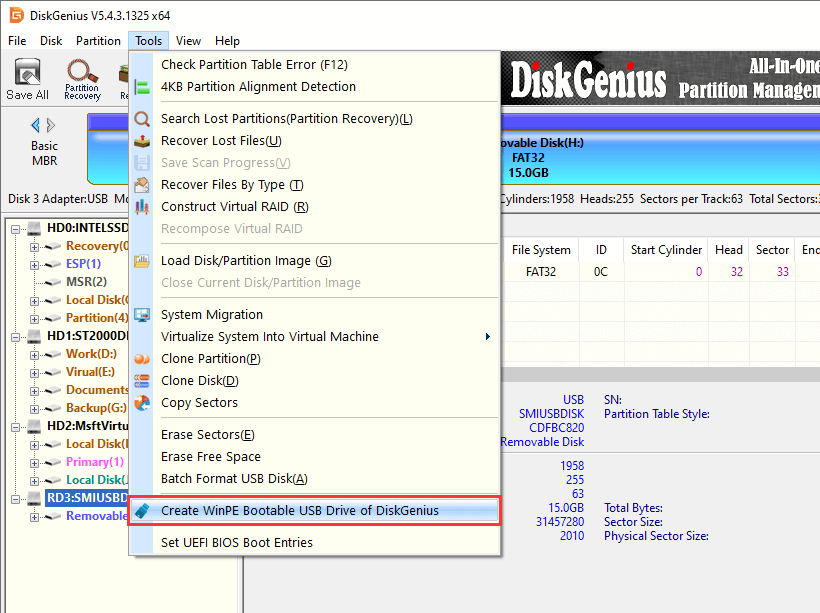
2. Plug in your USB flash drive. In DiskGenius go to "Tools" → "Create WinPE Bootable USB Drive".
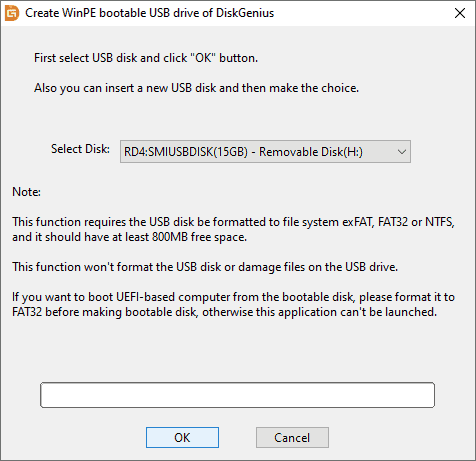
3. Select the USB drive and the click "OK".
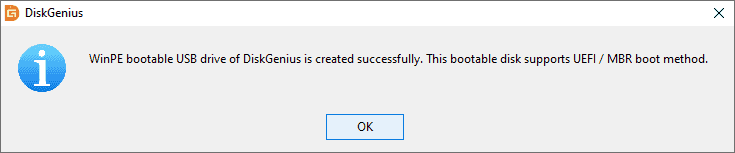
4. Click "OK" when the bootable USB drive is created successfully.
After creating the boot repair disk, you also need to know how to get your computer to boot from it.
1. Plug the boot repair USB into the faulty PC.
2. Power on and immediately press the Boot Menu key to pick a temporary boot device.
The key depends on the manufacturer, and it can be F12, F2, Del, etc. Pay attention to the information on your screen.
3. Choose your USB drive from the list. On UEFI systems the entry usually carries a "UEFI:" prefix, and that is the one to pick.
If the USB does not show up at all, enter the BIOS/UEFI setup and check three things: the boot order, Secure Boot, and CSM / Legacy Boot if your media or target disk is set up for Legacy mode. On older desktops a USB 2.0 port often works where a 3.0 port does not.
Once your computer boots from the USB drive created by DiskGenius, you can try fixing boot issues with following methods:
(1) Rebuild MBR
When the master boot code is trashed (malware, power loss in the middle of writes, a clone that went wrong), the BIOS finds nothing to load and reports "BOOTMGR is missing". This applies to Legacy/MBR disks. On GPT disks the equivalent problem lives in the EFI System Partition, which the tool below handles.
Step 1. Select the system disk in DiskGenius, choose "Disk" → "Rebuild Master Boot Record".
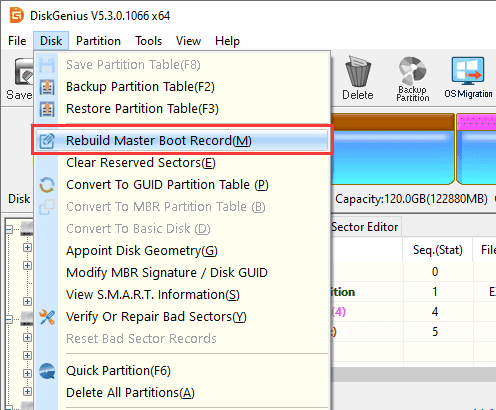
Step2. Click "Yes" to rebuild MBR.
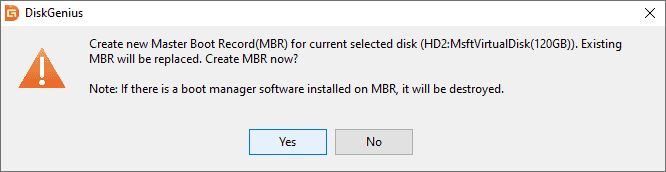
If you prefer commands, you can also fix the issue via following steps:
Step 1. Click the Start menu (the Windows logo) and click "Windows Command Processor".
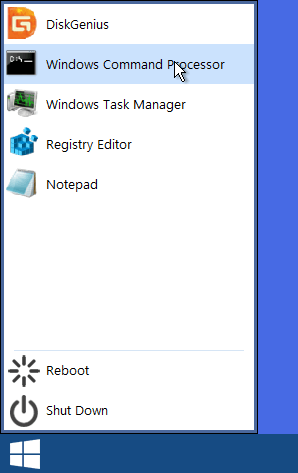
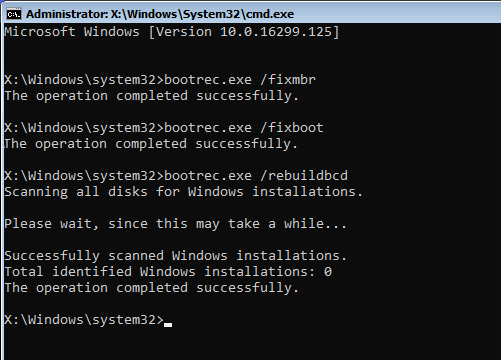
Step 2. Type following commands one by one:
bootrec /fixmbr
bootrec /fixboot
bootrec /rebuildbcd
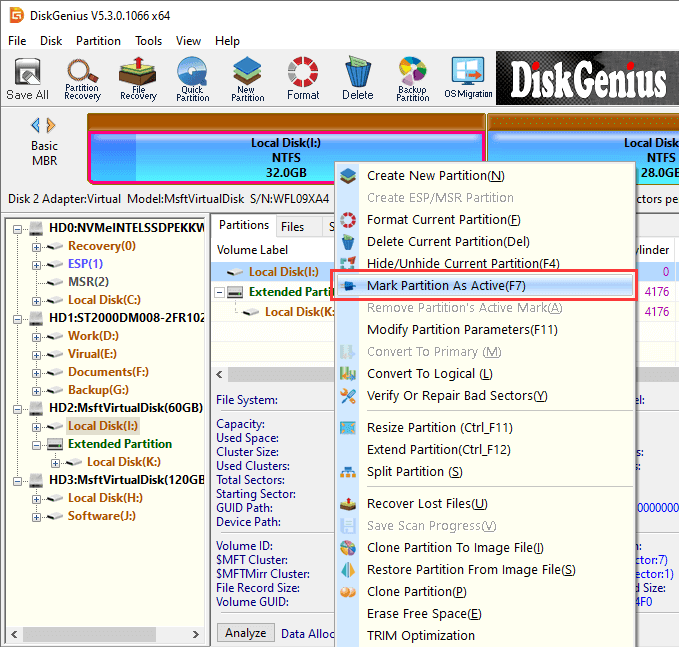
(2) Mark Partition As Active
If the system partition lost its active flag, usually after partition edits or a disk clone, the PC claims no bootable device was found even though Windows is right there on the disk.
Step 1. Right-click the system partition (or the small boot partition on MBR disks), select "Mark Partition As Active".
Step 2. Click "Save All" to save the changes, reboot.
(3) Windows Boot Repair and Conversion.
DiskGenius also ships a dedicated boot repair tool that examines the boot configuration and rebuilds it through guided steps instead of you doing each piece by hand. Depending on what is broken, it can:
🔸 Repair system boot files (bootmgr, winload.efi, BCD) after a failed update or crash.
🔸 Switch the boot mode between UEFI and Legacy BIOS, which helps when Windows was installed in one mode and the firmware insists on booting the other.
🔸 Rebuild or create the boot partition the machine needs: an EFI System Partition for UEFI, a BIOS boot partition for Legacy.
🔸 Rebuild the MBR and the PBR (partition boot record) in Legacy mode.
🔸 Convert the partition table (GPT ↔ MBR) automatically and check the disk limits as it goes. MBR cannot address disks past 2 TB and allows only four primary partitions, which is exactly why conversion comes up when someone swaps in a bigger drive.
Step 1. Click "Tools" → "Windows Boot Repair and Conversion".

Step 2. Select the system partition you want to repair, set boot mode, select boot partition. Then click "Execute".

And sometimes repair is the wrong goal. If the disk itself is failing, no amount of boot fixing helps, and what you actually want is the data. The File Recovery feature can scan the drive and recover files that Windows can no longer reach, or you can browse the partitions and copy what matters to another healthy drive. Rescuing documents, photos and work files out of an unbootable system is a large part of why people keep a boot repair USB around.
A boot repair disk solves the emergency. These habits make the emergency rarer.
✅ Keep a backup of important files. The 3-2-1 rule is still good advice: three copies, two media, one off-site.
✅ Create the recovery drive while Windows still works, and store the USB somewhere you can easily find.
✅ Save your BitLocker recovery key. If the drive is encrypted and Windows cannot unlock it, repair tools cannot read your data without the key. Print it or store it in your Microsoft account.
✅ Do not interrupt firmware or Windows updates. Losing power halfway through a BIOS update is a reliable way to produce an unbootable PC.
✅ Take disk health warnings seriously. Slow boots, files that vanish, S.M.A.R.T. alerts. Back up before attempting repairs.
✅ Do not change partition structures or boot modes on impulse. Converting GPT/MBR, resizing the system partition, or toggling CSM and Secure Boot will break bootability when done without a plan.
✅ Boot from your recovery USB once, right after making it. An untested repair disk does not count as preparation.
When Windows will not start, a boot repair disk gives you a way in. From there you can run automatic startup repair, rebuild the MBR and BCD, mark the correct partition as active, convert between GPT and MBR, and recover your files if repairs fail.
Making one takes a USB drive and a few minutes. Use Microsoft's Media Creation Tool for a basic repair USB, or create a WinPE bootable USB with DiskGenius for graphical access to disks, partitions and boot repair tools. Do it while your system still boots.
1. Can I create a boot repair disk on one PC and use it on another?
Yes. A 64-bit WinPE USB boots on nearly any modern computer no matter which machine created it. Two exceptions: very old 32-bit-only hardware, and some newer laptops with Intel VMD/RST storage controllers that need extra drivers loaded before the internal disk becomes visible.
2. Is there a free boot repair disk for Windows 11?
Yes. Microsoft's Media Creation Tool and the recovery drive tool are both free, and DiskGenius creates a WinPE boot repair USB at no cost. For Windows-specific boot errors, make sure whatever you pick can repair MBR/BCD and read NTFS partitions.
3. Can a boot repair disk recover my files if Windows won't start?
Yes. It boots up separately from Windows so you can open the partitions and copy files to another disk. DiskGenius is a data recovery tool that can scan the disk and recover files deleted or damaged/lost/formatted partitions.
4. Do I need a boot repair disk if I have UEFI/Secure Boot?
Yes. UEFI does not prevent boot problems, it changes where they come from: a damaged ESP, a broken BCD, or boot mode mismatches instead of a corrupted MBR. Just make sure your repair USB supports UEFI boot, and expect to disable Secure Boot temporarily for third-party WinPE media.
5. Can a boot repair disk fix the blue screen of death?
If the blue screen appears before Windows loads (INACCESSIBLE_BOOT_DEVICE, UNMOUNTABLE_BOOT_VOLUME, BOOTMGR errors), boot repair tools often fix it. If Windows starts and then crashes, the cause is more likely a driver, an update, or an damaged system disk, which repair media cannot fix.
6. Can I use a Windows 10 boot repair disk on Windows 11?
For boot repair purposes, yes. MBR/BCD repair, partition tools and file recovery work the same way on both. For reinstalling or resetting Windows, use media matching the installed version.

DiskGenius is a one-stop solution to recover lost data, manage partitions, and back up data in Windows.
Download

 Facebook
 YouTube
 X
X