
Updated on Jul. 22, 2026
Position: Resource - Disk Utilities - What Is SMART? How to Read SSD & HDD SMART Data?
Your hard drive could be failing right now, and you'd have no idea. No strange noises, no error messages, nothing obviously wrong. Then one morning the machine won't boot and years of photos, project files, and documents are just gone.
That scenario is exactly what SMART was built to prevent. SMART (Self-Monitoring, Analysis, and Reporting Technology) is a health monitoring system baked into virtually every SSD and HDD made in the last twenty years. It quietly tracks hundreds of internal metrics. Temperature spikes, bad sector counts, flash cell wear, power-on hours. And it can warn you about a failing drive weeks or even months before it actually dies.
In this guide, we'll break down how SMART works, which attributes matter most, and how to read SMART data using both built-in Windows commands and dedicated software like DiskGenius. Whether you're a sysadmin managing a server rack or just someone who doesn't want to lose their files, you'll find what you need here.
S.M.A.R.T. (Self-Monitoring, Analysis, and Reporting Technology) is a built-in monitoring system in SSDs and HDDs that continuously tracks drive health metrics such as temperature, error rates, power-on hours, and bad sectors. When a metric approaches a predefined failure threshold, SMART alerts the user to back up data before the drive fails.
SMART didn't begin its life with that name. IBM kicked things off in 1992 with a technology called Predictive Failure Analysis, which monitored a handful of early hard drive warning signs. A few years later, Compaq partnered with Seagate, Quantum, and Conner to build something more comprehensive: IntelliSafe. That was the real precursor to what we use today.
In 1996, the Small Form Factor Committee standardized these overlapping efforts into the S.M.A.R.T. specification that shipped with nearly every drive after that. The goal was straightforward: give every drive the ability to monitor itself and alert the user before something goes wrong.
The basic idea is elegant. Your drive's controller chip is always watching. Every time your SSD reads a block or your HDD spins up its platters, the controller logs what happens. It records temperatures. Counts errors. Tracks how many blocks have been remapped. Measures wear on flash cells. Monitors dozens of internal signals that you'd never see otherwise.
All this data lives in a reserved area of the drive, invisible to your operating system and safe from accidental modification. It persists across reboots and accumulates over the entire lifespan of the device.
The clever part is what happens next. For each metric, the drive manufacturer sets a threshold. If any monitored value approaches or crosses that limit, the drive flags a warning. Some drives even display a message at boot time telling you that failure is imminent and you should back up your data immediately.
Open a SMART report in any tool, DiskGenius Free, smartctl, a vendor utility, whatever, and you'll see the same six columns for every attribute. These parameters are universal across all SMART-capable drives.
Attribute ID: A numeric identifier from 0 to 255. Each ID maps to a specific metric. ID 05 is Reallocated Sectors Count. ID 09 is Power-On Hours. Some IDs are standardized across all manufacturers; others are vendor-specific, especially on SSDs.
Attribute Name: The human-readable label for the metric. Usually straightforward, though SSD names can vary between manufacturers because some use proprietary definitions.
Current Value (Normalized): The health score the firmware calculates from raw sensor data. It typically starts at 100 or 200 on a new drive. Here's the counterintuitive bit: a lower number means worse health. The value decreases as the drive degrades, which is the opposite of what your expects.
Worst Value: The worst value ever seen for the Current Value during the life of the drive. Think of it as a historical low watermark. Say if your Current Value is 95 but the Worst Value is 60, that means the drive took a pretty big hit at some point in its past.
Threshold: The manufacturer-defined failure line. If the Current Value drops to or below this number, the attribute is considered failed. This is the number you should be watching.
Raw Value: The actual measured reading. It might be a simple count (0 reallocated sectors), a time value (12,450 power-on hours), or something more complex depending on the attribute. Raw Values are where the real diagnostic information lives.
Let's make this concrete. ID 05, Reallocated Sectors Count, is one of the most important attributes on any drive. It tracks how many bad sectors have been remapped to the drive's built-in spare area.
A healthy drive looks like this:
| ID | Name | Current | Worst | Threshold | Raw Value |
| 05 | Reallocated Sectors Count | 100 | 100 | 10 | 0 |
Current (100) is well above Threshold (10). Raw Value is zero. No bad sectors, nothing to worry about.
Check again a few months later and you might see this:
| ID | Name | Current | Worst | Threshold | Raw Value |
| 05 | Reallocated Sectors Count | 78 | 78 | 10 | 48 |
The Current Value dropped. Forty-eight sectors have been reallocated. Technically the attribute hasn't failed yet (78 is still above 10), but the trajectory should get your attention. This is your cue to start backing up and looking at replacement options.
And then there's this:
| ID | Name | Current | Worst | Threshold | Raw Value |
| 05 | Reallocated Sectors Count | 1 | 1 | 10 | 4096 |
Current (1) is far below Threshold (10). Over four thousand bad sectors. The drive is on its last legs. Replace it now.
DiskGenius color-codes all of this in its SMART dialog: green for healthy attributes, yellow when something is trending toward the threshold, red when it's crossed. One glance tells you what's happening without you needing to memorize any numbers.
So why should anyone care about a bunch of internal drive metrics?
Because drives don't die gracefully. They hold onto your data until the bitter end, and by the time you notice visible symptoms like files disappearing or boot failures or random system freezes, recovering everything might not be possible. SMART is your window into what's happening behind the scenes, and that window can buy you critical time.
On a traditional hard drive, SMART monitors mechanical health. Read error rates, spin-up performance, whether the read/write heads are behaving normally. These are physical components that degrade over years of use, and SMART can detect that degradation long before it causes data loss.
SSDs tell a different but equally important story. Flash memory cells have a finite number of write cycles. SMART tracks wear leveling, erase counts, remaining endurance, and reserved block availability. When these values start declining, your SSD is telling you it's running out of runway.
Research supports the practical value here. Large-scale studies analyzing fleets of production drives have found that specific SMART attributes correlate strongly with actual failures. Attributes like ID 05 (Reallocated Sectors), ID 187 (Reported Uncorrectable Errors), ID 188 (Command Timeout), ID 197 (Current Pending Sector Count), and ID 198 (Offline Uncorrectable) stand out as the top predictors. When these numbers start climbing, failure rates increase dramatically.
Checking SMART data takes thirty seconds and costs nothing. Ignoring it can cost you everything.
You don't need to memorize all 200-plus possible SMART attributes. Most are either vendor-specific or rarely useful outside of specialized diagnostics. Here are the ones that actually matter.
Here is a quick reference table for the most critical attributes at a glance:
| Attribute ID | Name | Healthy Indicator | Action Needed |
| 05 | Reallocated Sectors Count | Raw Value = 0 | Raw Value > 0: monitor closely, start backup plan |
| 09 | Power-On Hours | Compare with manufacturer MTBF rating | Approaching MTBF: plan replacement |
| C2 | Temperature | Below 45°C (113°F) | Above 55°C (131°F): improve cooling |
| C5 | Current Pending Sectors | Raw Value = 0 | Raw Value > 0: backup recommended |
| C6 | Offline Uncorrectable Sectors | Raw Value = 0 | Raw Value > 0: backup immediately |
| E7 (SSD only) | SSD Life Left | Above 80% | Below 50%: plan replacement |
Universal Attributes (Both SSDs and HDDs):
| ID | Attribute Name | Why It Matters |
| 05 | Reallocated Sectors Count | Bad sectors that have been moved to the drive's spare area. One of the strongest failure predictors across all research. |
| 09 | Power-On Hours | Total time the drive has been running. Gives you the real age of the drive, regardless of when you bought it. |
| 0C | Power Cycle Count | How many times the drive has powered on. High counts paired with low power-on hours can suggest instability. |
| C2 | Temperature | Current operating temperature. Sustained heat above recommended ranges accelerates wear on both HDD and SSD components. |
| C5 | Current Pending Sector Count | Sectors the drive is unsure about. It hasn't decided whether to remap them or keep using them. A rising count is an early warning. |
| C6 | Offline Uncorrectable Sector Count | Errors found during background scans that the drive couldn't fix on its own. Another strong failure predictor. |
| C7 | Ultra ATA CRC Error Count | Data transfer errors between the drive and motherboard. Often caused by a faulty SATA cable rather than the drive itself. |
SSD-Specific Attributes:
| ID | Attribute Name | Why It Matters |
| 05 | Retired Block Count | The SSD version of reallocated sectors. Blocks that have worn out and been permanently taken out of service. |
| AD | Wear Leveling Count | How evenly writes are distributed across flash cells. Significant deviation means some cells are burning through their lifespan faster than others. |
| B4 | Unused Reserved Block Count | Spare blocks the SSD holds in reserve. When these get scarce, the drive has less capacity to handle future cell failures. |
| CA | Remaining Write Rated Endurance | How much write life is left compared to the manufacturer's rating. Can trigger predictive failure alerts on enterprise drives. |
| E7 | SSD Life Left | An overall estimate of remaining lifespan, typically expressed as a percentage of the original rated endurance. |
| F1 | Total Host Writes (LBAs Written) | How much data your operating system has written to the SSD. Useful for estimating real-world wear rate. |
| F2 | Total Host Reads (LBAs Read) | Cumulative read volume. Less critical than writes for SSD health, but still tracked. |
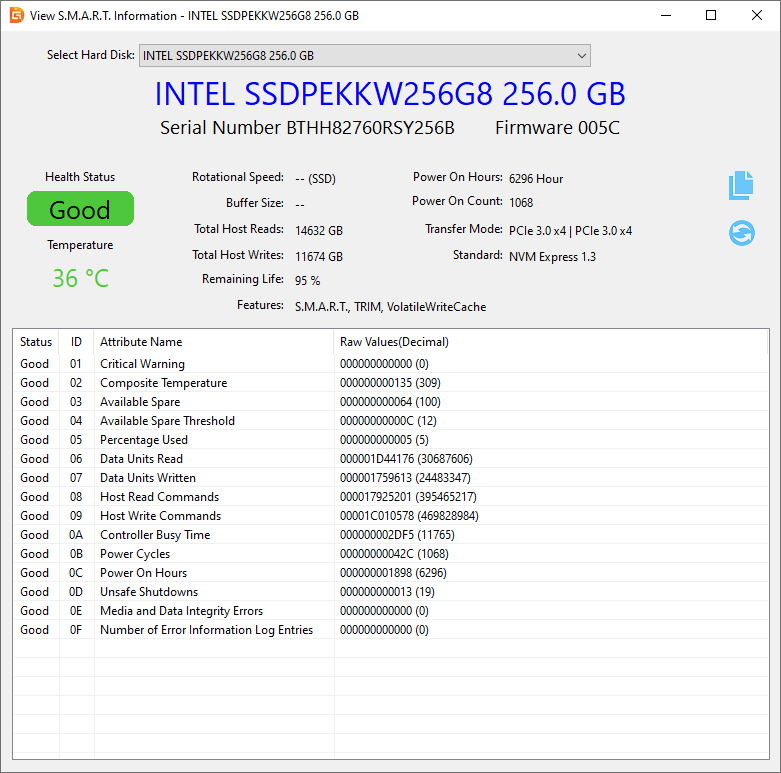
DiskGenius displays all of these in its S.M.A.R.T. information feature. Select any drive from the disk list, open the dialog, and you get every attribute with Current, Worst, Threshold, and Raw values laid out in a table. The interface also stays updated with the latest drive model databases, so attribute names show up correctly even for newer SSDs that use vendor-specific definitions.
There are several ways to access SMART data on a Windows machine. Some give you the complete picture. Others barely scratch the surface.
This is the most comprehensive option for Windows users who want full SMART details without touching the command line.
1. Download DiskGenius Free Edition and install it. The free version supports SMART data reading, bad sector checking & repairing.
2. Run the application. In the left side of the disk list you can see all the drives appear.
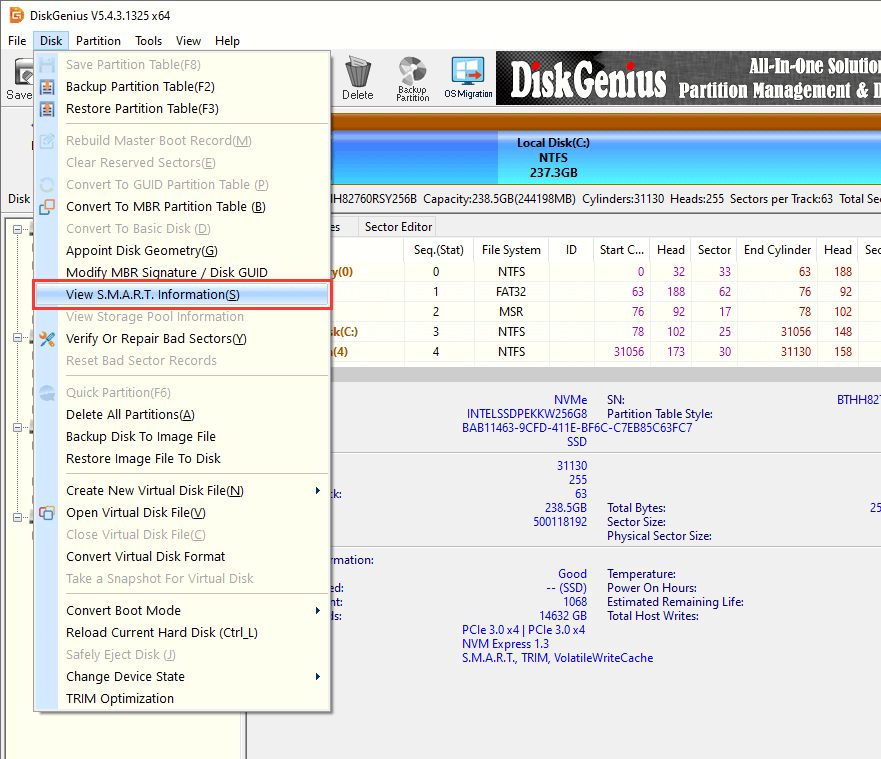
3. Click the drive you want to test. Then click the "View S.M.A.R.T. information" feature from the "Disk" menu.
4. A dialog appears showing SMART attributes. You can take a screenshot or export the data for record-keeping.
For a quick pass/fail check, open Command Prompt as Administrator and run:
wmic diskdrive get status

The output is either OK or Pred Fail for each connected drive. That's it. No individual attribute details, no temperatures, no power-on hours. Just a binary answer to whether the drive thinks it's healthy.
This is useful as a quick first check, especially on a machine where you don't have DiskGenius installed. But if the result says "Pred Fail," you'll need another tool to figure out what's actually wrong.
Open PowerShell as Administrator and run:
Get-PhysicalDisk | Select-Object DeviceId, FriendlyName, MediaType, HealthStatus, OperationalStatus

This shows basic health status (Healthy, Warning, or Unhealthy) along with the operational state of each physical disk. Slightly more informative than CMD, but still no granular SMART attributes.
| DiskGenius Free | CMD | PowerShell | |
| Detail level | Full attribute table | Pass/Fail only | Basic health status |
| Individual metrics | Yes, all attributes | No | No |
| Color-coded status | Yes | No | No |
| Ease of use | Point and click | Requires admin CMD | Requires admin PowerShell |
| Best for | Comprehensive monitoring | Quick sanity check | Quick sanity check |
Any of these three methods can tell you if your drive is okay right now. But if you want to understand what's changing inside your drive and whether the numbers are heading in a bad direction, DiskGenius goes deeper than what CMD and PowerShell can offer.
Note: Some systems also expose SMART data through the BIOS or UEFI firmware interface. Check your motherboard documentation to see if this option is available.
Finding a SMART warning is unsettling. Having a plan makes all the difference.
If the status shows FAILING_NOW, stop what you're doing and back up your most important files immediately. Not tomorrow, not this weekend. Right now. The drive could give out at any moment. Once your data is somewhere safe, replace the drive as soon as you can.
If a predictive failure alert appears, especially on a server or RAID system, follow these steps:
1. Back up everything critical. Backup the most important data first, then back up the less important data.
2. Export diagnostic logs. In server environments, use controller-level logs for root cause analysis.
3. Update firmware on the drive itself, the RAID controller, and the management software. Outdated firmware sometimes produces false positive warnings.
4. Recheck SMART data after the firmware update.
5. Replace the drive if the warning persists.
When values are declining but haven't hit the threshold, you have a window. Use it. Increase how often you check SMART data, keep backups current, and have a replacement drive ready to deploy. For SSDs specifically, watch Wear Leveling Count and SSD Life Left. When these approach their thresholds, begin planning the transition even if no actual errors have surfaced yet.
DiskGenius can help with the data migration or OS migration. Its disk cloning feature works sector by sector, copying everything, the operating system, applications, files, all of it, to a new drive. That level of detail matters when you're dealing with a drive that's already showing errors, because you want a complete, faithful copy before things get worse.
1. Check SMART monthly on personal machines, weekly on servers. Build it into your routine. Calendar reminders work.
2. Log your data over time. A single snapshot tells you less than a history. If you can compare this month's values to last month's, patterns emerge that a one-time check would miss.
3. Watch temperature. Sustained heat above 55°C accelerates wear on both HDDs and SSDs. Good airflow inside your case isn't optional.
4. For SSDs, monitor host writes, the total data written. If your usage pattern is writing 500 GB per month to a drive rated for 300 TBW, you can roughly calculate the SSD lifespan.
5. Combine multiple attributes for better prediction. Looking at several attributes together, especially IDs 05, 187, 188, 197, 198, 9, 193, 194, 241, and 242, produces much more accurate failure predictions than relying on any single metric alone.
This is the question everyone asks, and the honest answer is nuanced: sometimes yes, sometimes no.
SMART is built to detect failures that develop gradually. That covers a surprisingly wide range.
Media degradation on HDDs. The magnetic coating on hard drive platters weakens over years of use. SMART captures this through increasing read error rates and growing reallocated sector counts, often long before the drive starts showing visible symptoms.
Bad sector accumulation. Sectors rarely jump from healthy to dead in one step. They become unreliable first, entering a limbo state that SMART's pending sector and uncorrectable error attributes are specifically designed to detect. Learn How to Check and Repair Bad Sectors for Hard Drives, SSDs, SD Cards or USB Drives?
NAND wear-out on SSDs. Flash cells have a rated number of program/erase cycles. SMART tracks the countdown through wear leveling counts, retired block counts, and remaining life estimates. You can watch an SSD's endurance decline month by month.
Aging-related mechanical errors on HDDs. As drives get older, seek errors creep up, spin-up times lengthen, and head flying height becomes less stable. All of these are SMART-monitored.
Thermal damage across both types. Sustained high temperatures are destructive to any storage device. SMART logs temperature data so you can spot heat patterns that might be shortening your drive's life.
Not every failure follows the gradual pattern SMART is designed to catch.
Sudden controller chip failure is the most common blind spot. The drive's own processor dies, and since SMART relies on that processor to collect and report data, there's nothing to flag. One moment the device works, the next it doesn't.
Electrical damage from power surges can destroy components in an instant. A dropped laptop might crack an SSD's circuit board or cause an HDD head crash. Liquid spills, random manufacturing defects, firmware corruption... none of these announce themselves through slowly declining SMART metrics.
Large-scale studies have shown that a meaningful percentage of drives that eventually failed had no prior SMART warnings at all. That doesn't make SMART useless. It makes it one layer in a defense-in-depth approach.
The smartest strategy combines two things: proactive SMART monitoring to catch the failures you can predict, and regular, tested backups to survive the ones you can't. Neither works as well alone. Together, they cover nearly every scenario.
DiskGenius brings both strategies into one workflow. Monitor your drive's SMART data with its built-in health dialog, then use its backup and disk cloning features to keep a safe copy of your data at all times. One tool, two layers of protection.
If you've used tools like DiskGenius, you've probably noticed two things side by side: a detailed SMART attribute table and a simplified "Remaining Life" for SSDs, something like 92% or 75%. These are related but serve very different purposes.
That percentage isn't a raw SMART attribute. It's a calculated number, usually derived from one or more underlying SMART values. The most common source is SSD Life Left (attribute E7 or E8 depending on the manufacturer), which represents the firmware's own estimate of remaining write endurance. Some tools also factor in Wear Leveling Count, Retired Block Count, and other wear-related attributes using a weighted formula.
Think of it like a car's dashboard. The "check engine" light gives you a simple on/off signal. A full diagnostic readout tells you exactly which sensor triggered the alert and why. The health percentage is the warning light. The SMART data is the diagnostic readout.
A health percentage of 90% sounds reassuring. But underneath that number, your Reallocated Sectors Count might have jumped from 0 to 200 over the past month. The summary score alone won't flag that. Only the full SMART data will.
The reverse happens too. A health percentage of 60% might trigger alarm, but examining the complete attribute table could reveal the decline is entirely due to high power-on hours with zero actual errors. The drive is old but stable. No need to panic-replace tomorrow, just keep watching.
Here's the practical approach: use the remaining life percentage for quick screening when everything seems normal. It's perfect for a routine glance. But the moment that percentage drops noticeably, or you spot any performance weirdness, go straight to the full attribute breakdown to understand what's actually going on.
DiskGenius shows them in the same interface, the summary health percentage on top for quick assessment and the complete SMART attribute table below for deep analysis. You get the convenience of a snapshot and the precision of raw data without having to juggle multiple tools.
1. Is SMART available on all SSDs and HDDs?
Nearly all modern drives support it. The catch is that some external USB enclosures block S.M.A.R.T. data from passing through to the operating system. The drive collects the information internally, but the enclosure's bridge chip prevents your software from reading it. If you can't see SMART data on an external drive, try connecting it directly via SATA or NVMe.
2. Can SMART detect SSD failure?
It can detect gradual degradation: increasing bad blocks, declining remaining endurance, and wear-related issues. It cannot predict sudden failures like a controller burning out or damage from a power surge.
3. Is a SMART warning serious?
Yes. A SMART warning means one or more attributes have reached the manufacturer's failure threshold. Back up your data right away and start planning a replacement.
4. How often should I check SMART status?
For personal machines once a month is a good frequency. Servers or systems with sensitive data should be checked weekly. If anything seems weird, runs slow, freezes randomly or makes strange noises, check it out immediately.
5. Does SMART lower the life of an SSD?
No. Reading SMART data is a passive operation, just read. It doesn't write to the drive and it doesn't affect endurance.
6. Can SMART data be wrong?
Occasionally. Firmware bugs have produced both false positive warnings and, more worryingly, false negatives where a genuinely failing drive reports healthy values. If a reading feels off, update your drive's firmware and recheck with a reliable tool like DiskGenius.
7. What is a good SSD SMART health percentage?
Above 80% is generally healthy. Between 60% and 80%, the drive is aging and deserves closer monitoring. Below 60%, start planning a replacement. Below 40%, replace it immediately. Keep in mind that this percentage is a calculated estimate based on underlying SMART data, so if you want to understand exactly why the number is what it is, check the full attribute table.
SMART isn't flawless. Some drives die without any prior warnings. Some warnings turn out to be false alarms. But for a free, built-in system that runs silently in the background, it does a remarkably good job of catching the most common type of failure: the slow, predictable kind that gives you time to react.
The real takeaway is simple. Check your SMART data. Understand what the numbers mean (you've got that covered now). And pair SMART monitoring with a solid backup routine so you're protected against both the failures you can see coming and the ones you can't.
If you haven't checked your drive's health stauts recently, there's no better time than now. Download DiskGenius Free Edition, select your drives, and see what they've been trying to tell you.

DiskGenius is a one-stop solution to recover lost data, manage partitions, and back up data in Windows.
Download

 Facebook
 YouTube
 X
X