
Updated on Jul. 21, 2026
Position: Resource - Disk Utilities - SSD Temperature: Normal Ranges, Overheating Fixes, and How to Monitor?
There is a belief that floats around PC forums and Reddit threads like it is some kind of universal truth: SSDs have no moving parts, so why would temperature ever be a problem?
It made sense ten years ago. Early SATA SSDs ran cool, sip power, and rarely gave anyone thermal headaches. But that era is over.
Today's drives are a different breed entirely. We are talking PCIe Gen4 and Gen5 NVMe SSDs crammed into tiny M.2 sticks that push sequential reads past 10,000 MB/s. That kind of speed requires a powerful controller, dense NAND packaging, and a lot of electrical activity in a very small space. Heat is the inevitable byproduct.
And when an SSD gets too hot, things go wrong fast. The drive starts throttling itself. Transfer speeds tank. You get weird system freezes during a large file copy and blame Windows for it, but the real culprit is sitting right there on the motherboard, cooking itself.
Long term, the picture is worse. Elevated temperatures shorten NAND endurance. They reduce data retention. They can destabilize the controller. In extreme cases, they lead to drive failure and data loss.
None of this means SSDs are fragile. They are not. But pretending heat does not matter is a mistake that costs people real money, especially as Gen4 and Gen5 drives become the default choice for anyone building a new system.
This article covers everything. What SSD temperature actually means. What the numbers on your monitoring tool represent. How to check your drive's temperature. Why it runs hot in the first place. And what you can do about it, starting today.
When a monitoring tool reports your SSD's temperature, it is reading from a sensor located on or near the drive's controller chip. That single number gives you a snapshot of the hottest zone inside the SSD, which is usually the most critical area to watch.
An SSD is not one uniform temperature everywhere. The controller, the NAND packages, and (on some models) a DRAM cache chip each generate and dissipate heat at different rates. But the controller reading is the one that matters most, because it is the component most likely to trigger thermal protection mechanisms.
The Controller
This is the brain of the drive, and it is almost always the hottest part. The controller handles everything: data processing, error correction, wear leveling, garbage collection, TRIM operations. During a heavy workload, it is doing millions of operations per second. That takes power, and power means heat.
Different controllers have very different thermal personalities. A Phison E18 running a sustained write test can hit 90°C on an open bench without a heatsink. A Silicon Motion controller doing the same task might sit at 70°C. The model of your SSD determines a lot about how hot it will run, even before you factor in cooling.
NAND Flash
NAND cells produce less heat than the controller on their own. The real issue is that they absorb heat from the controller sitting right next to them. NAND is also the component most sensitive to temperature in terms of long-term reliability. Hotter NAND means faster cell degradation and shorter data retention when the drive is powered off.
DRAM Cache
Some SSDs include a dedicated DRAM chip for the flash translation layer mapping table. It adds a small amount of heat. Budget drives that skip the DRAM cache (using HMB or direct-to-NAND mapping instead) might run marginally cooler, but the difference is not dramatic enough to be a deciding factor when buying a drive.
This is the question everyone asks, and the honest answer depends on what kind of drive you have and what it is doing.
| SSD Type | Normal Temperature Range |
| SATA SSD (2.5-inch) | 25°C to 50°C |
| NVMe SSD (M.2) | 30°C to 70°C |
| PCIe Gen4 NVMe SSD | 40°C to 80°C |
| PCIe Gen5 NVMe SSD | 45°C to 85°C |
A SATA drive sitting at 45°C is perfectly happy. A Gen4 NVMe hitting 65°C during a game install is also perfectly normal. Context matters. A number in isolation does not tell you much.
Other factors that influence where your SSD lands within its range:
• The workload (idle versus sustained writes)
• Case airflow quality
• Whether a heatsink is installed
• Ambient room temperature
• The specific SSD model and controller
Is 40°C good for an SSD? Yes, genuinely excellent. At 40°C, your drive is comfortable no matter what type it is. If you are seeing this number at idle, your cooling situation is solid.
Is 60°C too hot? Not really. Most NVMe drives handle 60°C without breaking a sweat. This is a common temperature during mixed read/write activity, and it falls squarely in the safe zone for the vast majority of SSDs on the market.
Is 70°C too hot? Now we are in "it depends" territory. A brief spike to 70°C during a heavy sequential write is nothing to panic over. But if your SSD idles at 70°C or stays there for hours during normal desktop use, that is a problem worth solving. Sustained temperatures at this level will accelerate wear over time, even if the drive technically supports it.
Here is a quick reference you can bookmark:
Below 40°C: Excellent. Your SSD is in an ideal state. This is typical for idle operation or light desktop use with good airflow and a heatsink installed. No action needed.
40°C to 60°C: Normal. This is where most SSDs live during everyday computing. Web browsing, office work, even moderate gaming will usually keep the drive in this range. Completely safe.
60°C to 70°C: Warm. Acceptable during sustained workloads like video editing, large file transfers, or installing a 100GB game. If the drive stays here during light use, though, look into cooling improvements.
70°C to 80°C: Hot. Many NVMe SSDs begin thermal throttling somewhere in this range. You paid for Gen4 or Gen5 speeds, and at 75°C you are probably not getting them. Active cooling measures are recommended.
Above 80°C: Dangerous. Aggressive throttling, potential data errors, risk of sudden shutdown. If your SSD regularly exceeds 80°C, stop what you are doing and fix the cooling situation before something bad happens.
Read More: How to Check SSD Health in Windows 11/10?
You have options, ranging from a quick glance in Windows Settings to detailed professional-grade diagnostics. Here are the methods that actually work.
DiskGenius is a professional disk management tool that goes well beyond basic temperature readings. When you check the S.M.A.R.T. information for your SSD, you get a full health report in one place:
• Current temperature
• S.M.A.R.T. status and individual attribute values
• Overall health status
• Power-on hours (how long the drive has been running in its lifetime)
• Total host writes (cumulative data written)
• Firmware version
Here is how to check:
1. Open DiskGenius Free edition.
2. Select your SSD from the drive list on the left panel.
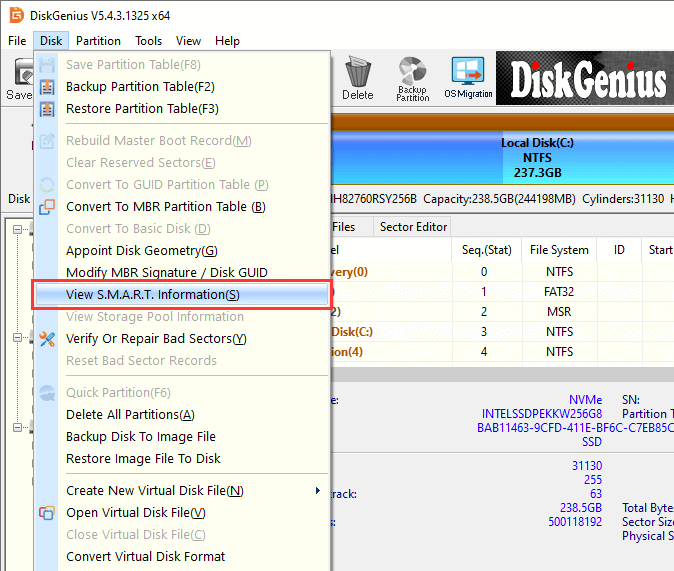
3. Click Disk in the top menu, then choose View S.M.A.R.T. Information.
4. The temperature is displayed right below the health status.
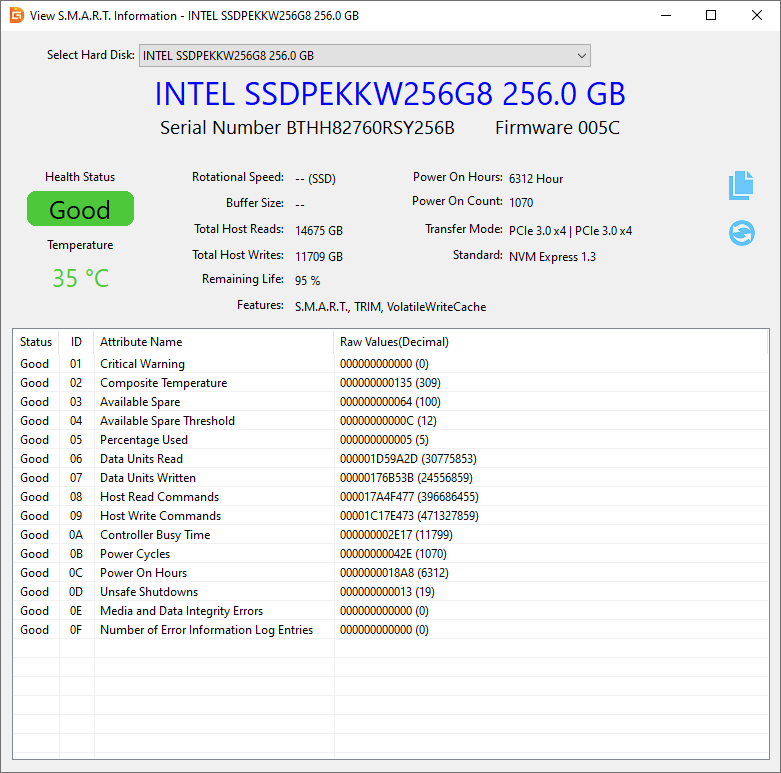
The thing that makes DiskGenius practical for this job is that you are not just reading a number. You are seeing the full context. If the temperature is 68°C and the wear leveling count shows significant progress and the health percentage has dropped below 80%, you have a bigger picture than any single metric provides. You can act before a problem becomes a crisis.
And if that action means cloning the drive to a replacement before it fails, DiskGenius handles that too. It also covers SSD cloning, partition management, SSD bad sector checking, data recovery, and Windows system migration. One tool, a lot of capability.
Windows 10 (version 20H2 and later) and Windows 11 can show SSD temperature natively. The feature is buried a few layers deep:
1. Open Settings from the Start menu.
2. Go to System > Storage.
3. Click Advanced storage settings.
4. Select Disks & volumes.
5. Choose your SSD and click Properties.
6. The temperature appears in the drive details section.

One catch: this only works for internal NVMe drives. If you have a SATA SSD, you will not see a temperature reading here. External drives are also excluded.
Every major SSD brand has its own utility for monitoring and management:
| Brand | Tool |
| Samsung | Samsung Magician |
| Western Digital | WD Dashboard |
| Kingston | Kingston SSD Manager |
| Crucial | Crucial Storage Executive |
| SK Hynix | Drive Manager |
| Seagate | SeaTools SSD |
These tools tend to give the most accurate readings for their own drives, and they include firmware update functionality. The downside is obvious: if your system has drives from different manufacturers, you end up juggling three or four separate applications.
Some motherboards show SSD temperatures in the BIOS under a Hardware Monitor or Storage section. It is a quick way to get a baseline reading, but it has real limitations. You have to reboot to see it. You cannot monitor in real time. And the reading only reflects idle state, which tells you very little about how the drive behaves under load.
If you have checked your drive and the numbers look concerning, here is where to start looking.
Poor Airflow
This is the single most common reason. A case with blocked vents, too few fans, or fans pointed in the wrong direction will trap heat inside. Your SSD is just one victim among many; your GPU and CPU are probably running hotter than they should be too.
No Heatsink on an NVMe Drive
A bare M.2 NVMe drive, especially a Gen4 or Gen5 model, will get hot under load. That is not a design flaw. It is physics. The controller is a powerful chip pulling significant wattage through a surface area smaller than a stick of gum. Without a heatsink, that heat has nowhere to go.
High Ambient Temperature
If your room is 32°C in the summer, your SSD starts 10°C hotter than it would in an air-conditioned room. Every degree of ambient temperature is a degree added to your component baseline. There is no software fix for this.
Dust Buildup
Over months of use, dust clogs intake filters, coats fan blades, and forms a thin insulating layer on heatsinks. It happens gradually enough that you do not notice until temperatures start climbing for "no reason." Cleaning your system every three to four months makes a real difference.
Bad M.2 Slot Placement
Many modern motherboards put an M.2 slot directly under the GPU. That backplate gets hot during gaming, and the heat radiates straight down onto your SSD. If your board has multiple M.2 slots, check the manual. The one farther from the GPU is usually the better choice.
Heavy Workloads
Video editing. Rendering. Installing a game that is 120GB. Copying hundreds of gigabytes between drives. Running a disk benchmark for fun. All of these push the SSD into sustained activity, and sustained activity means sustained heat generation. If the temperature spikes during these tasks and comes back down afterward, that is normal behavior.
Firmware Issues
Occasionally, a firmware bug causes abnormal power draw or inefficient thermal management. SSD manufacturers release updates that fix these problems, but most users never check. It takes two minutes to look up your model on the manufacturer's site and see if a newer firmware version exists.
Yes. This is not theoretical. You can measure it.
The mechanism is called thermal throttling, and every modern SSD controller has it built in. When the controller temperature crosses a threshold (usually somewhere between 70°C and 90°C depending on the manufacturer), the controller deliberately reduces its clock speed. Lower clock speed means slower data processing. Slower data processing means lower transfer speeds.
Here is what that looks like in the real world. A PCIe Gen4 NVMe drive rated at 7,000 MB/s sequential read starts a large file copy. For the first 10 to 20 seconds, you see speeds close to the rated spec. Then the temperature climbs past the throttling point, and the speed drops. Sometimes to 3,500 MB/s. Sometimes lower. That is a 50% performance loss, and it happens on a drive that benchmarks showed was "fast."
This is one of the most common complaints on hardware forums. "My new NVMe SSD is slow." More often than not, it is not slow. It is hot.
Cooling the drive is not just about making it last longer. It is about getting the performance you actually paid for.
Read More: SSD Benchmark Software: How to Test Read & Write Speed for SSDs?
1. Install a Heatsink
For M.2 NVMe drives, this is priority number one. Most current motherboards include an M.2 heatsink on at least one slot. If yours does, make sure the thermal pad is making proper contact and that you removed the plastic protective film (you would be surprised how often people forget).
No integrated heatsink? Aftermarket options cost between five and fifteen dollars and typically bring temperatures down by 10°C to 20°C under load. Aluminum fin designs with a thermal pad work well. Copper is slightly better if you want to spend a bit more.
2. Improve Case Airflow
A well-ventilated case helps every component inside it. A few basics that make a tangible difference:
3. Update Firmware and Drivers
Manufacturers sometimes release firmware updates that improve thermal behavior. Check your SSD brand's support page or use their management utility to see if an update is available. Updated NVMe drivers from the chipset vendor can also improve power management efficiency.
4. Do Not Fill the Drive Completely
When an SSD is nearly full, the controller has to work significantly harder on background tasks. Garbage collection becomes more aggressive. Write amplification increases. The drive spends more time in active states, generating more heat as a result.
Keep at least 10% to 20% of the total capacity free. On a 1TB drive, that means leaving 100GB to 200GB unused. It sounds like a lot, but the performance and thermal benefits are worth it.
5. Move the SSD Away from Heat Sources
Check where your M.2 slot is physically located relative to your GPU and CPU cooler. If your motherboard has multiple M.2 slots, choose the one with the most clearance from major heat sources. On many boards, the slot closest to the RAM is cooler than the one sandwiched between the GPU and the chipset.
6. Reduce Background Writes
Background processes that constantly write to the disk generate heat you might not realize is happening. Browser caches, Windows Search indexing, update services, torrent clients running in the background, temp file accumulation. None of these generate massive heat individually, but together they keep the SSD in an active state more than necessary.
Moving your browser cache or download folder to a secondary HDD, if you have one, takes some of the pressure off.
7. Manage Virtual Memory
If your system has 8GB of RAM or less, Windows leans heavily on the page file, which lives on your SSD. That means constant reads and writes to the drive as memory gets swapped in and out.
The best fix is upgrading your RAM. More physical memory means less paging. If that is not an option right now, you can move the page file to a secondary HDD to reduce the workload on your primary SSD.
Temperature plays a real role in how long your SSD lasts, but it is worth keeping the context in mind.
NAND endurance is measured in program/erase cycles. Every time data is written to a cell and erased, the oxide layer inside that cell degrades a tiny bit. Higher temperatures accelerate this process. A cell that might last 3,000 P/E cycles at 40°C could see measurably reduced endurance at 70°C.
Controller stability is the other concern. The controller is a processor, and processors behave erratically at extreme temperatures. Sustained heat can cause intermittent errors, unexpected resets, and in severe cases, complete controller failure.
Data retention is affected too, particularly for drives that get stored or powered off for long periods. An SSD holding important archived data will retain that data longer if it was kept cool during its operational life.
That said, do not panic. A few hours at 72°C during a summer heat wave is not going to brick your drive. SSDs are designed with thermal margins. The danger is chronic, sustained heat over weeks and months. If your drive consistently runs above 70°C, you are shortening its life in a measurable way. But you have a window to fix the cooling before anything catastrophic happens.
Some users are curious how SSDs compare to traditional hard drives on the thermal front. The comparison is not straightforward because the failure modes are so different.
| SSD | HDD | |
| Moving parts | None | Spinning platters, actuator arm |
| Primary heat source | Controller chip | Spindle motor and platter friction |
| Built-in thermal protection | Yes (throttling) | No |
| Typical operating temperature | 30°C to 70°C | 30°C to 50°C |
| What high temperature does | Triggers performance throttling, reduces NAND endurance | Accelerates mechanical wear, increases risk of head crash |
| Needs a heatsink? | Often, for NVMe M.2 drives | Almost never |
HDDs have a narrower comfortable temperature range, but they also produce less heat in most scenarios. The mechanical parts inside a hard drive are sensitive to heat in a different way: bearings degrade, lubricant thins, and the gap between the read/write head and the platter surface becomes less predictable.
The key distinction is that SSDs can protect themselves through throttling. They slow down before they break. HDDs have no such mechanism, so they tend to fail more suddenly when pushed past their thermal limits.
1. What is a good SSD temperature?
Between 30°C and 50°C is ideal for idle or light use. Under 65°C during heavy workloads is considered good for NVMe drives.
2. What is a dangerous temperature for an SSD?
Above 80°C. At this point, the drive is likely throttling aggressively and is at risk of errors or shutdown.
3. Do SSD heatsinks actually work?
Yes. A good heatsink drops NVMe temperatures by 10°C to 20°C under load. For Gen4 and Gen5 drives, they are practically mandatory.
4. Can high SSD temperature cause data loss?
Over time, yes. Sustained heat degrades NAND cells and reduces data retention. In severe cases, controller failure can make data inaccessible.
5. Does SSD temperature affect speed?
Directly. Thermal throttling reduces transfer speeds when the drive gets too hot. On high-end NVMe drives, you can lose more than half your rated speed.
6. How often should I check?
Once a month is reasonable for most users. Check immediately if you notice performance drops or system instability.
SSDs do not get enough credit for how much heat they deal with. The old "no moving parts, no heat problem" line does not hold up anymore, not when a single M.2 stick can pull 8 to 10 watts and sit sandwiched between a 300W GPU and a hot CPU.
The good news is that managing SSD temperature is not complicated. A heatsink that costs less than a lunch. A few minutes spent cleaning dust filters. Checking firmware once or twice a year. Keeping some free space on the drive. These are small, easy things that pay off in performance today and drive longevity over the next several years.
And monitoring matters. You cannot fix a problem you do not know about. Tools like DiskGenius give you a clear view of your drive's temperature, SSD health status, wear indicators, and more, all in one place. If the numbers start trending in the wrong direction, you will see it early enough to do something about it, whether that means adding a heatsink, improving airflow, or cloning your data to a healthy new drive before the old one gives out.
Your SSD is one of the most important components in your system. Keeping it cool is one of the easiest things you can do to protect it.

DiskGenius is a one-stop solution to recover lost data, manage partitions, and back up data in Windows.
Download

 Facebook
 YouTube
 X
X