
Updated on Sep. 18, 2026
Position: Resource - Disk Utilities - Dynamic Disk vs Basic Disk: Differences and How to Convert
You open Disk Management on a Windows machine and spot something you hadn't noticed before: next to your disk, it says "Basic" or maybe "Dynamic." You didn't set this yourself. You're not sure what it means. And now you're wondering if you should change it, or if changing it might break something.
That confusion is understandable. The terms "basic" and "dynamic" get thrown around alongside MBR, GPT, NTFS, and a dozen other acronyms, and it's not immediately clear how they all relate. So let's untangle it.
Basic and dynamic are disk types, they describe how Windows organizes and manages storage on a physical drive. They are separate from partition styles (MBR vs GPT), and they are separate from file systems (NTFS, FAT32, exFAT). A disk can be basic with GPT, basic with MBR, dynamic with GPT, or dynamic with MBR. These are independent settings.
For most people, a basic disk is all you'll ever need. Dynamic disks were designed for more advanced scenarios, spanning a volume across multiple drives, striping for performance, mirroring for redundancy. Useful stuff in certain contexts, but Microsoft has moved away from dynamic disks in recent years and now considers them a legacy technology for most purposes.
This guide walks through what each type actually does, how they differ, when (if ever) you'd want to switch, and what to watch out for. We'll also look at how DiskGenius can help when you need to inspect your disks, convert between types, or recover data from a volume that's gone sideways.
In this article:
A basic disk is the default disk type in Windows. When you install a new SSD or HDD and initialize it, Windows sets it up as a basic disk unless you specifically choose otherwise. The vast majority of computers in the world run on basic disks.
Basic disks store their layout information in a partition table. That table is either MBR or GPT, and it tells Windows where each partition starts, how big it is, and what type it is.
On an MBR disk, you get up to four primary partitions. If you need more, you sacrifice one primary slot to create an extended partition, which can then hold multiple logical drives. It's a bit clunky, but it's been working that way since the 1980s.
GPT removes that limitation entirely. You can have up to 128 primary partitions by default, with no need for the extended/logical workaround. If you're setting up a modern system, GPT is the better choice and it's what Windows 11 requires for the system drive.
Each partition on a basic disk functions independently. You assign it a drive letter, format it with a file system, and use it. The partitions don't know about each other, and they don't need to. That simplicity is the whole point.
There's a reason basic disks are the default: they're straightforward. You don't need to understand LDM databases or volume extents. You manage partitions, and that's it.
A few practical advantages:
Honestly? Almost always. A basic disk is the right choice for:
You don't need a special reason to use a basic disk. You'd need a specific reason not to.
Dynamic disk is a Windows-specific storage technology introduced back in Windows 2000. It was built to solve a problem that basic disks couldn't handle: managing storage across multiple physical drives as a single unit.
Where a basic disk uses a partition table, a dynamic disk uses the Logical Disk Manager (LDM) database, a hidden database maintained by Windows that tracks all dynamic volumes on the system. Instead of traditional partitions, you get dynamic volumes: simple, spanned, striped, mirrored, or RAID-5.
The LDM database lives at the end of the disk and is replicated across all dynamic disks in the system. Windows reads this database to understand which volumes exist, where they're located, and how they're constructed.
This design enables capabilities that basic disks simply don't have. It also introduces a layer of complexity that can cause real headaches when things go wrong.
Simple volume. Essentially the same as a partition on a basic disk. It uses space from one physical drive, no fancy distribution or redundancy. If you convert a basic disk to dynamic, your existing partitions become simple volumes.
Spanned volume. Combines unallocated space from 2 or more physical disks into one logical volume. Say you have 300 GB free on Disk 0 and 200 GB free on Disk 1, you can create a 500 GB spanned volume that looks like a single drive in Windows.
The catch: spanned volumes offer no performance benefit and no fault tolerance. Data fills one disk before moving to the next. Lose any disk in the set, and you lose the whole volume.
Striped volume. Distributes data across multiple disks in alternating blocks, similar in concept to RAID-0. Reads and writes hit multiple disks simultaneously, which can improve throughput. But again, no redundancy. One disk dies, everything on the striped volume is gone.
Mirrored volume. Writes identical data to two disks at the same time. If one disk fails, the other has a complete copy. This is the dynamic disk equivalent of RAID-1. Microsoft has restricted new mirrored volume creation to Windows Server editions, though existing mirrored volumes still work on client editions.
RAID-5 volume. Stripes data and parity across three or more disks, providing a balance of performance, capacity, and fault tolerance. Also restricted to Windows Server.
| Feature | Basic Disk | Dynamic Disk |
| Storage management | Partition table | LDM database |
| Works with MBR | Yes | Yes |
| Works with GPT | Yes | Yes |
| Simple volumes / partitions | Yes | Yes |
| Spanned volumes | No | Yes |
| Striped volumes | No | Yes |
| Mirrored volumes | No | Yes |
| RAID-5 volumes | No | Yes |
| One volume across multiple disks | No | Yes |
| Recognized by Linux / macOS | Yes | No |
| Common for personal PCs | Yes | Rare |
| Microsoft's current stance | Standard | Deprecated for most uses |
Two things stand out from this table.
One: the disk type and the partition style are independent. Both basic and dynamic disks can use either MBR or GPT. Don't conflate them.
Two: Microsoft has marked dynamic disks as deprecated. The functionality still exists in current Windows versions, but it's not being actively developed. Microsoft's documentation directs users toward Storage Spaces for new deployments that need multi-disk pooling or resiliency. This isn't a minor footnote, it fundamentally changes the calculus of whether you should use dynamic disks for anything new.
Rather than declaring a winner, let's look at specific scenarios.
You have a typical Windows 11 desktop or laptop. Use a basic disk. There's no reason to make it dynamic. A basic disk with GPT is the standard, recommended configuration.
You have a single SSD or HDD for general use. Basic disk. Converting to dynamic adds complexity without any benefit when you're working with one drive.
You need to span storage across multiple physical disks. This is one of the original use cases for dynamic disks, and it still works. But you should know about Storage Spaces first it's Microsoft's current technology for this purpose, and it offers more flexibility. More on that comparison later.
You want software-based disk mirroring for redundancy. Dynamic mirrored volumes can do this, but they're limited to Windows Server for new setups. On Windows 10/11, Storage Spaces with a two-way mirror layout is the modern equivalent.
You run a dual-boot system with Linux. Basic disk, no question. Linux can't read dynamic disks natively, and you'd be locking yourself out of cross-platform access.
You're managing a server with legacy dynamic disk configurations. Keep them running if they work, but plan for migration to Storage Spaces or hardware RAID as part of your next infrastructure refresh.
No. Let's be direct about this. The disk type, basic or dynamic, doesn't change how fast the physical drive reads or writes data. It's a management framework, not a performance layer. Whether your disk is basic or dynamic, a SATA SSD will perform like a SATA SSD and an NVMe drive will perform like an NVMe drive.
The things that actually affect storage speed:
A dynamic striped volume does spread I/O across multiple disks, which can improve sequential throughput in benchmarks. But that's a property of the striping, not of "dynamic-ness." You can achieve the same thing with hardware RAID-0 or software striping through other means. And for a single-drive setup, which is what most people have, the difference between basic and dynamic is zero.
This is where the practical differences hit hardest. Basic disks are recognized by basically everything. Windows, Linux, macOS, FreeBSD, ChromeOS recovery tools, third-party bootable utilities, they all understand MBR and GPT partition tables. If you plug a basic disk into a different system, it shows up. You can read the files. Done.
Dynamic disks are a Windows-only affair. Plug one into a Mac or a Linux box and you'll get nothing, or worse, you'll get a prompt to format it. Even within Windows, moving a dynamic disk between machines can trigger problems:
There's also the recovery angle. If your Windows fails to boot and you need to access the system disk from a recovery environment, a basic disk is far easier to work with. Most recovery tools understand partition tables. Far fewer understand LDM databases. If your system drive happens to be a dynamic disk, recovery becomes a more complicated, and sometimes more expensive, proposition.
This isn't theoretical. It's one of the most common reasons people end up searching for "convert dynamic disk to basic" in the first place, they've hit a compatibility wall and want out.
Three ways, from simplest to most detailed.
Press Win + X, pick Disk Management, and look at the bottom pane. Each disk has a header that shows its type:
Disk 0
Dynamic
476.94 GB
Online

Open Command Prompt as admin, then type following commands:
diskpart
list disk
Look at the Dyn column. An asterisk (*) means dynamic; blank means basic.

If you prefer a visual interface with more detail at a glance, DiskGenius shows disk type, partition table style, partition boundaries, file system types, and capacity information all in one panel. It's particularly handy when you're dealing with multiple disks and want to compare configurations side by side.

Windows makes this relatively painless through Disk Management.
Steps:
1. Open Disk Management (Win + X → Disk Management).
2. Right-click the disk header in the lower panel — the area that says "Disk 0" or similar, not a partition.
3. Select "Convert to Dynamic Disk".
4. Confirm the disk selection and follow the prompts.

The existing partitions become simple volumes. Your data should survive the conversion intact.
You can also do this via DiskPart:
Diskpart
List disk
select disk 1
convert dynamic

A few things to know before you pull the trigger:
Back up anything you care about first. Yes, the conversion is supposed to preserve data. But "supposed to" and "guaranteed to" aren't the same thing, and a backup costs you 20 minutes while data loss can cost you a lot more.
Once converted, going back to basic through Windows means deleting every volume on the disk. There's no "undo" button that preserves your data. If you're not sure you need dynamic features, don't convert. You probably don't need it.
Also worth noting: converting your system disk to dynamic will break dual-boot setups. Linux won't be able to see the disk.
Here's where things get tricky, and where most people end up searching for help.
Windows Disk Management can convert a dynamic disk to basic, but with a major caveat: you must delete every dynamic volume on the disk first. Every single one. There's no partial conversion, no "just keep this volume" option. DiskPart follows the same rule, convert basic won't work until all volumes are gone.
If the disk has nothing important on it, or you've already moved everything off, that's fine. Delete the volumes, convert, create new partitions, move your data back. Straightforward, if tedious.
But most people searching for this topic are in a different situation. The disk has data on it. Maybe a lot of data. Maybe the volumes are already inaccessible and you can't copy anything off. Deleting the volumes in that scenario means losing everything that isn't safely stored somewhere else.
So the real question isn't "how do I convert", it's "how do I convert without losing my data." There are 2 approaches, and the right one depends on your situation.
1) Back up → Delete → Convert → Restore
The traditional method. Copy everything from the dynamic disk to a separate drive or cloud storage, delete the volumes in Disk Management, convert to basic, recreate partitions, restore.
It works. It's reliable. It's also slow, especially if you're dealing with hundreds of gigabytes and don't have a fast external drive. And it requires enough free space on another drive to hold a complete copy of your data. If that's not available, you'll need to get creative (or get a bigger drive).
Before going this route, verify your backup actually works. Open some files from it. A backup you can't restore from is just wasted time.
2) Use DiskGenius
DiskGenius can convert a dynamic disk to basic without deleting volumes. The existing dynamic volumes become standard basic disk partitions, and the data stays in place.
The steps are short:
Step 1. Open DiskGenius Professional Edition, select and right-click the target dynamic disk (e.g. HD 1:NVMEINTEL..), then choose "Convert to Basic Disk". You can also find the feature by clicking "Disk" → "Convert to Basic Disk".
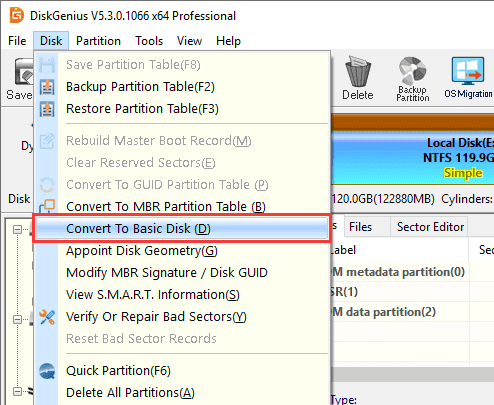
Warning: If the conversion involves the partition or disk where current operating system is located, the OS might become unstable or even crash. Please back up everything in advance.
Step 2. Click "Save All" to make the change take effect.
Because dynamic disks support striped and mirrored volumes, people sometimes assume they're the same thing as RAID. They're not.
|
Technology |
What it actually is |
| Dynamic Disk | Windows software-based volume management, using the LDM database |
| Hardware RAID | Storage managed by a dedicated controller card, transparent to the OS |
| Software RAID / Storage Spaces | Windows modern approach to pooling and protecting data across drives |
A dynamic striped volume shares a concept with RAID-0 (data spread across disks), but the implementation is different. Same with dynamic mirrored volumes and RAID-1. They're software constructs managed by Windows at the OS level, not by dedicated hardware.
Hardware RAID operates below the operating system. The RAID controller presents the array to Windows as a single disk, Windows doesn't even know there are multiple drives underneath. Hardware RAID generally offers better performance and more configuration options, but costs more and requires a dedicated controller.
The practical takeaway: if someone tells you to "set up RAID" using dynamic disks, they're conflating two different technologies. Dynamic disk volumes can provide some RAID-like functionality, but they're not a substitute for actual RAID hardware, and they come with trade-offs in compatibility and recoverability.
This comparison matters because Microsoft's official position is that Storage Spaces is the replacement for dynamic disk functionality in most scenarios.
Storage Spaces appeared in Windows 8 and has been quietly improving ever since. The idea: take a bunch of physical drives, group them into a storage pool, and then create virtual disks from that pool with your choice of layout, simple (no redundancy), mirror (one or two copies), or parity (similar to RAID-5).
|
Dynamic Disk |
Storage Spaces | |
| First appeared | Windows 2000 | Windows 8 |
| Multi-disk volumes | Yes | Yes |
| Resiliency options | Mirrored, RAID-5 (Server) | Simple, two-way mirror, three-way mirror, parity |
| Thin provisioning | No | Yes |
| Automatic repair with available drives | No | Yes |
| Works with ReFS | No | Yes |
| Actively developed | No — deprecated | Yes |
| Recommended by Microsoft for new setups | No | Yes |
The writing on the wall is pretty clear. If you need to combine multiple disks or protect against drive failure, Storage Spaces is where Microsoft wants you to go. It's actively maintained, integrated with the current Windows storage stack, and doesn't carry the legacy baggage of LDM.
For existing dynamic disk setups that are working fine, there's no emergency to migrate. But if you're planning a new multi-disk configuration, start with Storage Spaces.
Dynamic disks introduce failure modes that basic disks don't have, mostly because of the LDM database. Here are the ones people run into most often.
1. Disk shows as Offline
Windows has set the disk offline, possibly due to an LDM database issue, a hardware glitch, or a signature collision with another disk.
Right-click the disk in Disk Management and try Reactivate Disk (or Online). If that doesn't work, check cables and connections. If the disk still won't come online, the LDM metadata might be damaged, consider recovering data before doing anything else.
2. Disk shows as Missing
Windows remembers a dynamic disk that used to be at a certain location, but it's not there anymore. This usually means the disk was disconnected, the enclosure failed, or the drive itself died.
If you've reconnected the drive and it still shows as missing, try a reboot. If the disk is genuinely gone and not coming back, you can right-click the missing entry and select Remove Disk to clean up the stale reference.
3. Volume is inaccessible
The disk is online, but you can't open the volume. Could be file system corruption, could be LDM database inconsistency, could be both.
If the data is critical and you can't afford to risk further damage, recover data from the inaccessible drive with DiskGenius before attempting any repairs.
4. Disk shows as Foreign
You moved a dynamic disk from one Windows machine to another. The destination machine doesn't recognize the LDM database because it belongs to a different system.
Right-click the foreign disk → Import Foreign Disks. Windows will merge the LDM entries and bring the volumes online. This usually works without issues, but if the import fails or volumes don't appear correctly, don't force it, recover the data first.
5. Accidental conversion
You clicked through a prompt in Disk Management and now your basic disk is dynamic. Don't panic. If you haven't deleted any volumes, your data is still there, the partitions have simply been reclassified as simple volumes. You can convert back using one of the methods described above.
Is a dynamic disk better than a basic disk?
For most people, no. Dynamic disks offer advanced volume types that basic disks don't, but the trade-off is reduced compatibility, a more complex underlying structure, and a technology that Microsoft itself has deprecated. Unless you have a specific need for spanned, striped, or mirrored volumes, basic is the way to go.
Should Windows 11 use basic or dynamic?
Basic. Windows 11 personal computers should use a basic disk with GPT partition style. That's the standard configuration, and there's no reason to change it for typical use.
Does converting to dynamic erase data?
The basic-to-dynamic conversion in Disk Management is designed to preserve your data, existing partitions become simple volumes. That said, back up first. Always.
Can I convert a dynamic disk back to basic without losing data?
Not with Windows' built-in tools. Disk Management and DiskPart both require you to delete all volumes before converting, which wipes the data. DiskGenius can convert dynamic to basic without deleting volumes, preserving the data in place.
Is dynamic disk the same as RAID?
No. Dynamic disks are a Windows software volume management technology. They support some RAID-like configurations (striping, mirroring), but they're not the same as hardware RAID or modern software RAID solutions. The implementations are different, the performance characteristics are different, and the limitations are different.
Is GPT better than dynamic disk?
These aren't comparable things. GPT is a partition style; dynamic is a disk type. A disk can be both GPT and dynamic, or GPT and basic. GPT is recommended over MBR for modern systems, but that's a separate question from whether a disk should be basic or dynamic.

DiskGenius is a one-stop solution to recover lost data, manage partitions, and back up data in Windows.
Download

 Facebook
 YouTube
 X
X