
Updated on Sep. 09, 2026
Position: Resource - Disk Utilities - Windows Storage Spaces Explained: What Is a Storage Pool and How Does It Work?
If you have more than one drive in your Windows PC, you have probably wondered at some point whether there is a better way to manage them than treating each one separately. Windows Storage Spaces is Microsoft's answer to that question. It lets you pull multiple physical drives together into a Storage Pool, then create virtual drives out of that pool with different options for speed, capacity, and fault tolerance.
One thing to get straight before going any further: a Storage Pool and a Storage Space are two different things. People use these terms interchangeably all the time, and it causes real confusion. The chain goes like this:
Physical Disks → Storage Pool → Storage Space → File System → Files
The pool is the container. The Storage Space is what you actually use. You format the Storage Space with a file system like NTFS, and that is where your files go. Everything in this article builds on that relationship, so keep it in the back of your mind.
Here is what we will cover: what Storage Spaces actually is, how pools work, the different resiliency layouts, setup steps, what goes wrong and how to fix it, and how DiskGenius fits in when Windows cannot access your Storage Spaces on its own.
In this article:
Storage Spaces is a built-in Windows feature (available in Windows 10/11 Pro and Enterprise, plus Windows Server) that virtualizes storage. You give it a bunch of physical disks, it organizes them into a pool, and from that pool you create virtual drives that behave like regular disks in File Explorer.
A lot of people hear "combine multiple drives" and assume this is just a way to merge disks into one big volume. It is not. Storage Spaces creates a virtual storage layer on top of the physical drives, and that layer is what makes features like mirroring and parity possible. It is also what makes Storage Spaces fundamentally different from just spanning a partition across two disks.
The whole thing works in layers: Physical Drives → Storage Pool → Storage Space → File System → Data
Physical Drives
Storage Spaces works with internal HDDs, internal SSDs, SATA drives, and in some setups, USB-connected external drives. The drives do not need to match in size, brand, or speed. That said, mixing a fast NVMe SSD with a slow USB hard drive in the same pool will give you inconsistent performance, so some common sense applies.
And here is something a lot of people get wrong: adding disks to a pool does not create a backup. The pool is just a container. Whether your data is protected comes down to the resiliency type you pick when setting up a Storage Space. Choose Simple, and one dead drive can take everything with it.
Storage Pool
Once drives go into a pool, Windows manages them as a single unit. The pool tracks which physical disks it owns, how much total space they provide, and how that space gets distributed to the Storage Spaces inside it.
When you create a Storage Space, Windows spreads data across the member drives based on your chosen layout. Simple stripes it. Mirror duplicates it. Parity distributes parity information for fault tolerance. The pool handles all of this behind the scenes.
Worth noting: disks that belong to a pool are not ordinary standalone disks anymore. Their contents are structured according to Storage Spaces metadata, and messing with them outside that framework can cause real problems.
Storage Space
This is what you actually use. A Storage Space gets a drive letter, gets formatted, shows up in File Explorer, and works like any other disk as far as day-to-day use is concerned. You save files to it, install programs on it, and never think about which physical drive holds what.
You do not interact with the pool directly during normal use. You interact with Storage Spaces. One pool, multiple Storage Spaces, each configured independently. That is the model.
| Term | Meaning |
| Physical Disk | A real HDD or SSD plugged into your computer. |
| Storage Pool | A group of physical drives managed by Storage Spaces. |
| Storage Space | A virtual disk carved out of a Storage Pool. |
| File System | NTFS, ReFS, etc. applied to the Storage Space. |
| Files | Your data, sitting on the Storage Space. |
You put disks into a pool. You carve Storage Spaces out of that pool. One pool can hold multiple Storage Spaces, each with its own resiliency type, size, and drive letter. The pool is the foundation; the Storage Space is what you interact with every day.
When you create a Storage Space, you pick a resiliency type. This is the single most important choice in the whole process because it determines whether your data survives a drive failure.
Data gets striped across multiple drives. No redundancy. Fast reads and writes, full use of your combined capacity, but if any drive dies, the data on that drive is gone and the whole Storage Space may become unusable.
Simple is not a backup strategy. Use it for temporary data, scratch files, or situations where you already have proper backups elsewhere.
Two copies of your data, stored on different physical drives. One drive can fail and the other still has everything. The cost is capacity: with two drives, you get roughly half the total space usable. With four drives, still half, because every piece of data exists twice.
For most people storing personal files, photos, or small business documents, Two-Way Mirror hits a reasonable balance between protection and capacity.
Three copies across three different drives. Can survive two simultaneous drive failures. Requires at least five physical disks, and you keep roughly one-third of your raw capacity.
This is for data that really cannot be lost. Financial records, critical business databases, that kind of thing. For a home user, it is usually overkill.
Data plus parity information spread across multiple drives. Think of it like RAID 5 in concept (though the implementation differs). If one drive fails, the parity data lets Windows reconstruct what was on it.
Parity gives you better capacity efficiency than mirroring. Three drives in a Parity layout give you roughly the usable space of two. The trade-off is speed, specifically write speed. Every write has to compute and store parity data, so Parity Spaces feel noticeably slower during heavy write operations. Reads are fine.
Parity works best for data you read a lot but write to infrequently. Media archives, backup targets, that sort of thing.
| Type | Redundancy | Usable Capacity | Performance | Drive Failure Tolerance |
| Simple | None | Highest | Best | None |
| Two-Way Mirror | 2 copies | ~50% | Good | 1 drive* |
| Three-Way Mirror | 3 copies | ~33% | Good | Up to 2 drives* |
| Parity | Parity data | Better than mirror | Good reads, slower writes | 1 drive* |
*Depends on total drive count and configuration. More drives generally mean more resilience, but there are edge cases.
People search for "Storage Spaces vs RAID" all the time, and for good reason. They solve overlapping problems, but they are not the same thing.
| Storage Spaces | Hardware RAID | |
| How it works | Software, managed by Windows | Dedicated controller card or chipset |
| Flexibility | Add/remove drives relatively easily | Often requires array rebuild |
| Cost | Free with Windows | Controller costs money |
| Raw performance | Good enough for most people | Generally faster, especially for parity layouts |
| Hardware dependency | None | Tied to the controller |
Hardware raid has been around for decades in server rooms and enterprise setups. Storage Spaces is easier to use, doesn't require special hardware, and is a good fit for home users and small offices who want pooling and redundancy without buying a RAID card.
Storage Spaces Direct (S2D) is the enterprise version built into Windows Server. It supports clustered multi-node setups, NVMe/SSD caching tiers, and is designed for datacenter workloads. If you are reading this, you are almost certainly working with the regular Storage Spaces in Windows 10 or 11, not S2D.
Solutions like StableBit DrivePool have their own approach to pooling. Some users prefer them for specific features, like per-folder duplication rules. Storage Spaces has the advantage of being built into the OS and costing nothing, but it is less configurable than some alternatives in certain respects.
Here is the setup process. The exact screens may look slightly different depending on your Windows version, but the steps are the same in principle.
• You need Windows 10 Pro/Enterprise or Windows 11 Pro/Enterprise. Home editions do not have the Storage Spaces Control Panel.
• Two or more unused drives for any resiliency beyond Simple.
• Back up anything on those drives first. Adding drives to a pool erases them. This is not a non-destructive operation.
1. Connect the drives. Internal SATA, NVMe, or USB (USB works but is less reliable for this purpose).
2. Open Storage Spaces. Search for "Storage Spaces" in the Start menu. Click through to the Control Panel page.
3. Create the pool. Click "Create a new pool and storage space." Windows finds available drives.

4. Select the ones you want. Confirm the warning that they will be wiped.

5. Configure the Storage Space. Give it a name, pick a drive letter, choose a file system (NTFS is the safe default, ReFS is available on some editions), select your resiliency type, and set the size. You can set the size larger than the physical capacity right now. That is thin provisioning; Windows will prompt you to add more drives when space runs low.

6. Click the "Create storage space" button, wait for formatting to finish, and the new drive appears in File Explorer. Done.

Adding More Storage Spaces to the Same Pool: No need to create a new pool each time. Once a pool exists, you can create additional Storage Spaces inside it, each with different settings. Go back to the Storage Spaces Control Panel and look for the "Create a storage space" option under your existing pool.
"I set up Storage Spaces, so my data is safe." Maybe. Depends on what you chose.
Simple
Any drive fails, and you are probably looking at data loss. No redundancy, no safety net. The Storage Space may go completely offline.
Two-Way Mirror
One drive fails, the other copy keeps things running. Windows marks the space as "Degraded" or "Warning." Replace the dead drive, and the pool rebuilds its redundancy. If a second drive fails before you replace the first one, you lose data.
Three-Way Mirror
Handles up to two drive failures depending on the setup. Strongest protection of the standard layouts.
Parity
Survives one drive failure. Same rules as Two-Way Mirror: the pool degrades, you replace the drive, it rebuilds. Wait too long and a second failure kills it.
The Catch
None of this protects against accidentally deleting a file, ransomware encrypting your data, or a bug corrupting your file system. Redundancy guards against hardware failure. That is the extent of it.
You still need backups. There is no way around this.
Catching problems early saves you from nasty surprises. A few ways to keep an eye on things.
1. Storage Spaces Control Panel
Open it from the Start menu. It shows each pool and its status. Green "OK" means healthy. "Degraded," "Warning," or "Disk missing" means something needs attention.
PowerShell
More detail than the Control Panel gives you:
Get-StoragePool shows pools and their operational status
Get-VirtualDisk lists Storage Spaces and their health state
Get-PhysicalDisk shows individual drive health; look for "Unhealthy" or "Lost Communication"
Get-StorageJob shows rebuild or repair progress after a drive replacement
Worth running these every so often, especially if you have a lot of drives. The Control Panel can be slow to update; PowerShell gives you real-time info.

2. Disk Management
Open diskmgmt.msc to see how Windows views the physical drives at the partition level. Pool member drives often show as "Storage space" "Healthy". If one shows up as "Unallocated" or "Unknown" without explanation, pay attention.
3. S.M.A.R.T. Monitoring
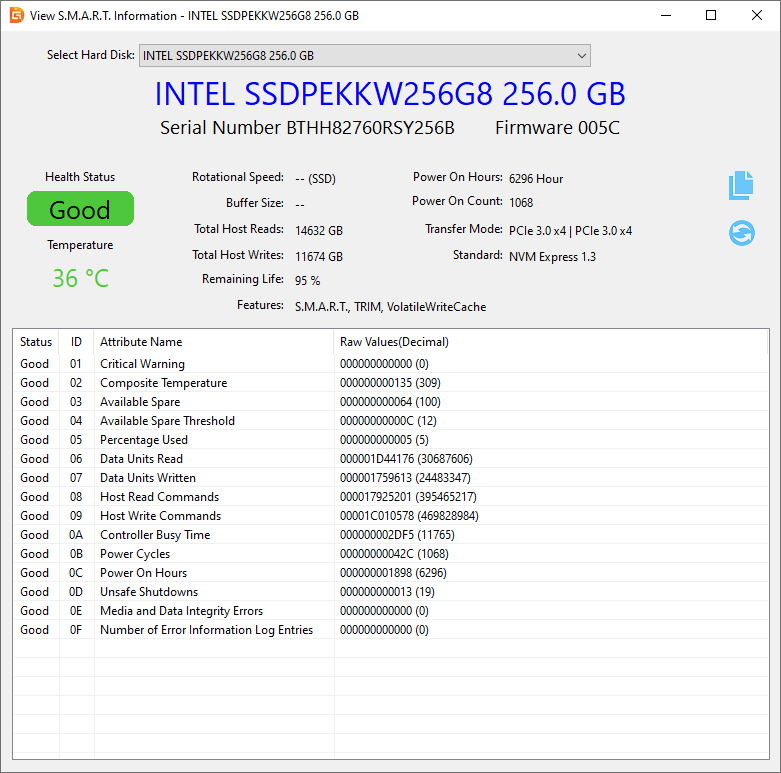
Beyond what Storage Spaces tells you, individual drive health matters. A drive developing bad sectors or showing climbing reallocated sector counts is a drive about to fail. DiskGenius can check S.M.A.R.T. data for any connected HDDs and SSD drives, which gives you an early heads-up before a drive drops out of the pool and degrades your redundancy.
This is where things get stressful. A Storage Space that worked fine yesterday refuses to open today. Some common scenarios:
• Nothing shows up in File Explorer
• The pool shows an error or warning in Control Panel
• Windows wants to format or initialize a disk that is part of the pool
• The Storage Space appears as RAW or unformatted
• You reinstalled Windows and the pool vanished
• You moved the drives to another PC and the new system does not load the pool
The One Rule That Matters Most: Do not format. Do not initialize. Do not repartition.
If Windows prompts you to format a Storage Space you need, say no. If it asks to initialize a pool member disk, say no. Formatting destroys file system metadata. Initializing overwrites partition tables. Both make recovery harder, and in some cases, impossible.
What to Try First
1. Check cables. Loose connections cause more "missing drive" panics than you would expect.
2. Reboot. Sometimes the Storage Spaces service fails to load properly and a restart fixes it.
3. Open Disk Management. See if Windows detects the drives at all, even if the Storage Space will not mount.
4. Check the Storage Spaces Control Panel for specific error messages.
5. Run the PowerShell commands from the previous section to narrow down which drives or spaces are affected.
If none of that works and the data matters, you need to look beyond what Windows offers out of the box.
This works, but do not expect the drives to just show up and behave normally.
Storage Spaces stores its configuration metadata on the member drives themselves. Connect those drives to another Windows Pro or Enterprise machine, and the Storage Spaces service should detect the pool and offer to bring it online. In a clean scenario, this happens automatically or with one click.
Things that complicate it:
• The new PC needs a Windows edition that supports Storage Spaces. Home editions will not help.
• All member drives should be connected. Missing drives mean the pool may come up degraded or refuse to come online at all.
• The drives may show as "Unknown" in Disk Management on the new system. This is expected. Do not initialize them.
If the pool does not appear automatically, check the Storage Spaces Control Panel for an import option. Get-StoragePool in PowerShell will tell you whether Windows can see the pool at all.
Recovering data from a Storage Space is more involved than recovering from a regular partition. The reasons are straightforward:
• Multiple physical disks can back a single Storage Space
• Data may be striped, mirrored, or spread with parity
• Metadata describes the layout, and that metadata needs to be at least partially intact
• One member disk by itself usually does not contain a complete file system
The right approach depends on what you are dealing with.
If the Storage Space Still Opens: Copy your data off it. Now. Do not wait, do not try to fix the underlying problem first. A degraded pool is one failure away from losing data, so get the files to safety before doing anything else.
If the Storage Space Will Not Open, but Windows Sees the Drives: The Storage Space is inaccessible, maybe showing as RAW, but the physical drives show up in Disk Management or Device Manager.
DiskGenius has data recovery capabilities to Storage Spaces, which go beyond simple file copying. How much you can recover depends on the specifics: which resiliency type was used, how many drives failed, and how extensive the damage is.
Step 1. Open DiskGenius. Click the "Storage Pool" tab in the left panel. If the software has successfully parsed the pool, the Storage Spaces will be listed there.
Step 2. Browse into the Storage Space you need. If the file system is intact, you will see folders and files displayed normally. Select what you want to keep, right-click, choose "Copy To," and save them to a different drive. Open a few of the copied files to make sure they are not corrupted.
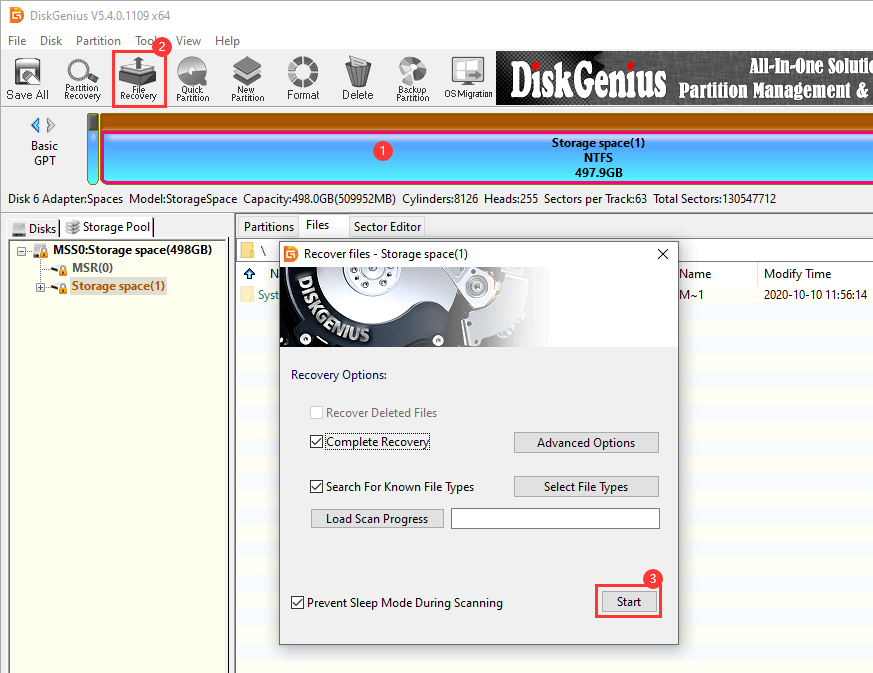
Step 3. If the Storage Space does not appear under the "Storage Pool" tab, or the contents look empty, switch to the "Disks" tab. Select the partition you want to recover data from, click "File Recovery", then click "Start".
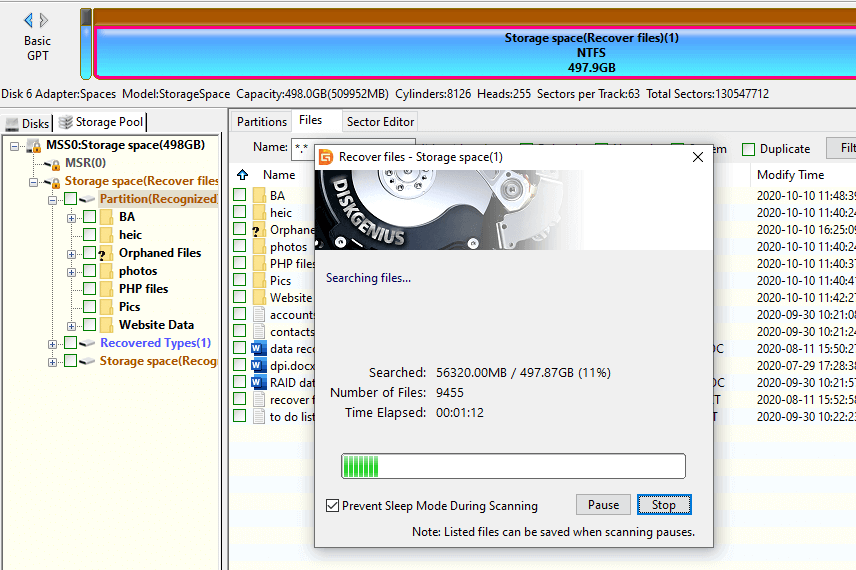
Step 4. Wait for the scan to finish. The duration depends on the size of the partition and the speed of the drives.
Step 5. Preview the found files. This lets you check whether the files are intact before committing to recovery.
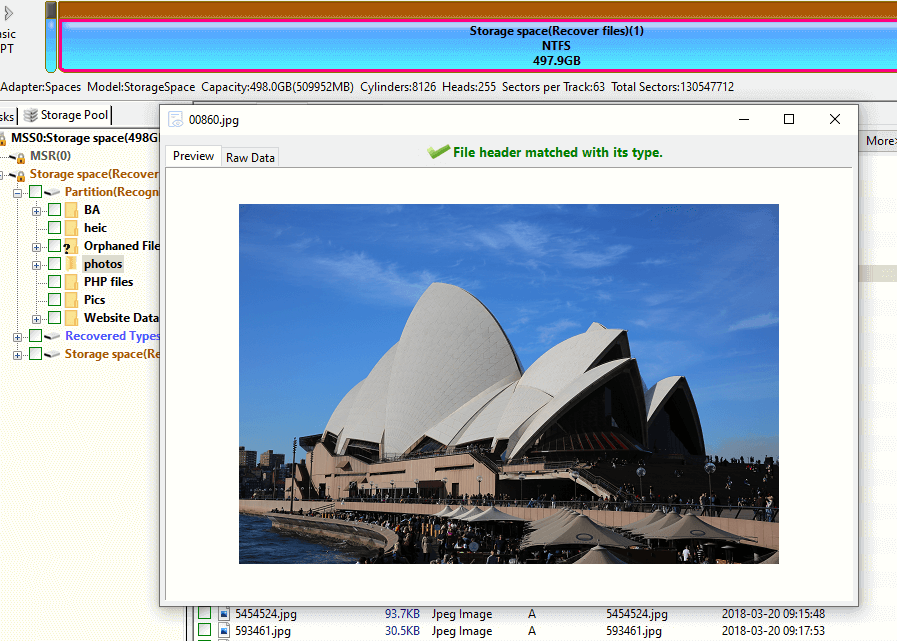
Step 6. Select the files you want to recover and copy them to a healthy drive.
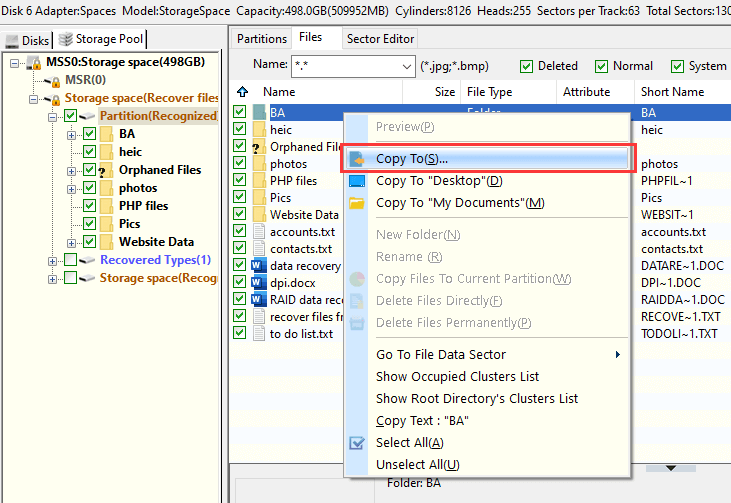
One note of caution: do not make destructive changes to pool member disks while recovery is still on the table. No formatting, no repartitioning, no initializing. Preserve everything until you are sure the data is safe.
DiskGenius is a disk management and data recovery tool. It is not a Storage Spaces replacement. Think of it as something you reach for when Windows itself cannot do what you need: reading pool metadata when the Storage Spaces service is broken, accessing a Storage Space on a system that does not support Storage Spaces natively, recovering files from a damaged or offline space, or simply inspecting how a pool is put together.
It works with Windows-created Storage Spaces across data recovery, disk management, backup, and pool structure analysis.
Connect the pool's physical disks to your computer. Open DiskGenius. It picks up the Storage Pool member disks and associated Storage Spaces automatically.
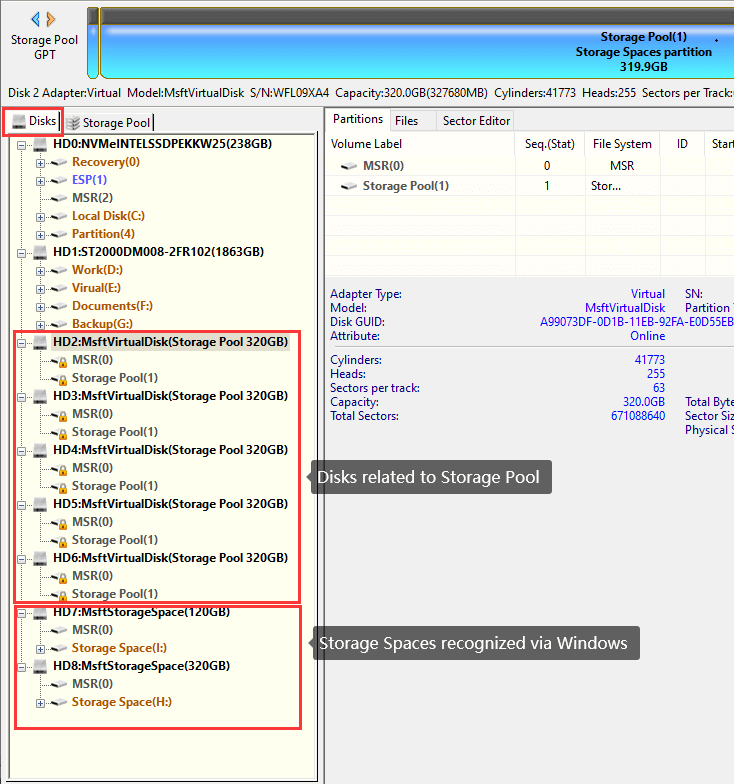
Once the software recognizes a pool, the left panel shows two tabs: "Disks" and "Storage Pool."
The "Disks" tab lists every physical disk on the system: regular standalone drives and pool member drives alike. It also shows Storage Spaces that Windows has loaded. These behave like normal disks inside DiskGenius. Browse, copy, manage, same as anything else.
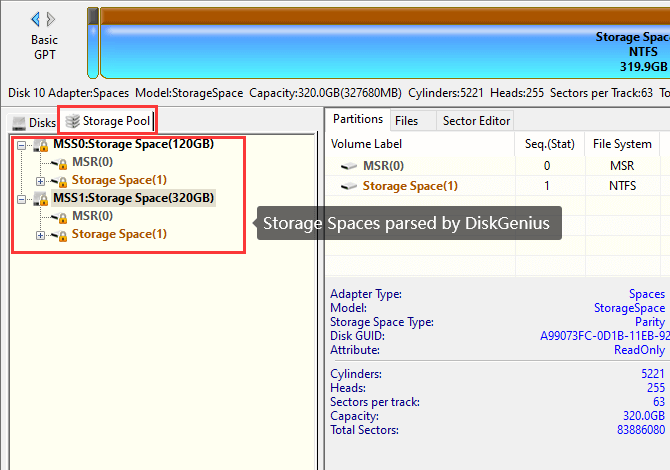
The "Storage Pool" tab is the interesting one. This shows Storage Spaces that DiskGenius has parsed on its own, directly from the pool metadata written to the disks. It does not depend on the Windows Storage Spaces service at all.
This matters when Windows cannot load a Storage Space. Maybe the service is broken, maybe the system was reinstalled, maybe you are on a Windows edition that does not support Storage Spaces, maybe the pool metadata is partially corrupted. Whatever the reason, if DiskGenius can read the Storage Space from the "Storage Pool" tab, you can get to your files.
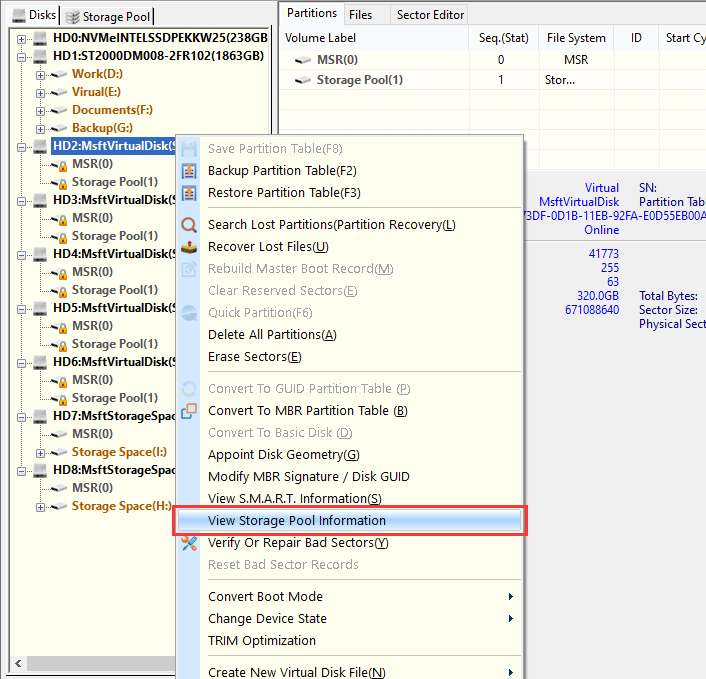
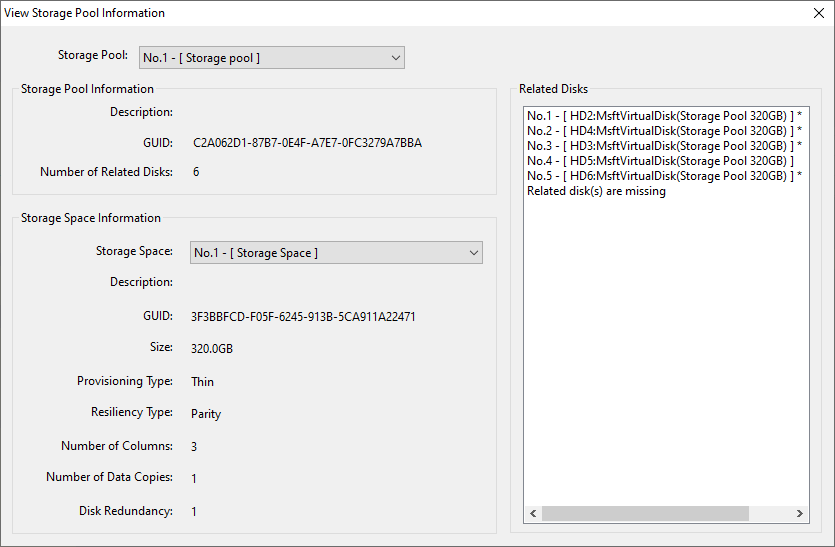
DiskGenius has a dedicated feature for inspecting Storage Pool details. It is straightforward to use.
Right-click any disk or Storage Space that belongs to the pool, then select "View Storage Pool Information" Or go through the menu bar: Disk → View Storage Pool Information.
What the Window Shows:
1. Pool-level info:
• Description (whatever you named the pool)
• GUID (the unique identifier)
• Number of related disks
2. Per-Storage Space info (select from a dropdown):
| Parameter | What It Means |
| Description | Name you gave the Storage Space |
| GUID | Unique identifier for this space |
| Size | Configured capacity |
| Provisioning type | Thin or fixed provisioning |
| Resiliency type | Simple, Mirror, Parity, etc. |
| Columns | How many disks participate in striping |
| Data copies | Number of redundant copies (mirror layouts) |
| Disk redundancy | How many drives can fail before data is at risk |
This information is helpful when you are trying to figure out why a Storage Space went offline, or when you want to verify that the pool is configured the way you think it is.
What is a Storage Pool in Windows?
A group of physical drives managed together by Storage Spaces. You create virtual drives (Storage Spaces) from the pool.
Are Storage Pool and Storage Space the same thing?
No. The pool holds the drives. The Storage Space is the virtual disk you create from the pool.
Is Storage Spaces the same as RAID?
Related concepts, different technology. Both offer mirroring and parity options, but Storage Spaces is software-defined and managed entirely by Windows.
Does Storage Spaces mean I do not need backups?
No. Redundancy protects against drive failure. It does nothing for accidental deletion, ransomware, or corruption. You still need backups.
What happens when a drive fails?
With Mirror or Parity, the Storage Space keeps working in a degraded state. Replace the drive to rebuild redundancy. With Simple, data loss is likely.
Can I move pool drives to another PC?
Yes. Connect all member drives to a Windows Pro/Enterprise machine. The Storage Spaces service should recognize the pool. Do not initialize the drives if Windows prompts you to.
Does Storage Spaces work with SSDs?
Yes. SSDs, HDDs, or a mix. SSDs throughout gives the best performance.
Can I use drives of different sizes?
Yes. Different sizes and types can coexist in the same pool.
Why did my Storage Space disappear after a Windows reinstall?
The Storage Spaces service needs to re-import the pool. Check the Control Panel or use PowerShell to see if the pool is detected. If not, DiskGenius can often read the pool independently.
Why does Windows want to format my Storage Space?
It detected the space but cannot read the file system. Do not format if you need the data.
Can DiskGenius recognize Storage Spaces?
Yes. Connect the pool member drives, open DiskGenius, and it detects the pool automatically. It provides both Windows-loaded access and its own independent parsing.
Windows Storage Spaces is a solid built-in option for pooling drives and adding redundancy without buying extra hardware or software. It works well for what it is designed to do.
But it is not a backup solution. Redundancy handles drive failure. It does not handle the dozen other ways data can disappear. Back up your important files separately, no matter which resiliency type you pick.
When a Storage Space does become inaccessible, whether from drive failure, a system reinstall, missing disks, or metadata problems, DiskGenius can analyze the pool structure, show you what is there, identify what is missing, and when the data parses correctly, give you a path to back up or recover your files.
If you are dealing with an inaccessible Storage Space or want to look at your pool configuration in more detail, download DiskGenius and see what it finds on your system.

DiskGenius is a one-stop solution to recover lost data, manage partitions, and back up data in Windows.
Download

 Facebook
 YouTube
 X
X