
Updated on Aug. 27, 2026
Position: Resource - Data Recovery - Hard Drive Shows Up But Won't Open? How to Recover Your Data?
You open This PC and the drive is still there. It has a drive letter. Windows may even show the correct capacity and used space. At first glance, everything looks normal. But when you double-click the drive, it refuses to open.
Depending on what went wrong, Windows might show one of these messages:
• You need to format the disk in drive X: before you can use it.
• The file or directory is corrupted and unreadable.
Sometimes there is no error message at all. File Explorer just keeps loading, the green progress bar moves painfully slowly, and the whole computer starts to lag.
When this happens, people often make the same mistake: they start trying to fix the drive immediately. They format it because Windows tells them to, run CHKDSK because they found the command online, or keep opening the drive again and again hoping it will suddenly work.
If there are important photos, videos, work documents, or other files on the drive, that is usually the wrong order of operations.
A drive that shows up in Windows but cannot be opened does not necessarily mean the data is gone. Windows may still be able to detect the drive and its partition while being unable to read the file system correctly. In many cases, the files are still there and can be copied or recovered before you attempt any repair.
A drive letter only tells you that Windows can see a volume and assign it a letter such as D: or E:. It does not mean that everything inside the partition is healthy.
To display your files, Windows needs to read the file system. On an NTFS drive, for example, that includes important structures such as the boot sector, the Master File Table (MFT), directory records, and other metadata. FAT32 and exFAT have their own structures that serve a similar purpose.
Think of the file system as the map Windows uses to find your files. The actual data may still be stored on the drive, but if the map is damaged, Windows may no longer know how to locate or interpret it. That is why the drive can still appear in This PC while refusing to open.
The error message you see can provide some clues about the problem.
The message usually looks something like this: You need to format the disk in drive X: before you can use it.
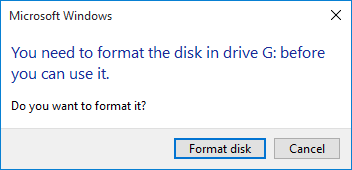
If the drive contains important files, click Cancel.
Windows is telling you that it cannot use the file system in its current state. The problem may involve the boot sector, file system metadata, or other information needed to identify and mount the volume correctly.
Formatting may make the drive accessible again, but that does not mean it is the right first step. A new format creates new file system structures, which can overwrite information that data recovery software could otherwise use to reconstruct your original files and folders.
This error usually means Windows can identify the volume but encounters damaged file system information when it tries to access files or folders.
On an NTFS drive, the problem may involve the MFT or other important metadata. On FAT32 or exFAT drives, allocation information or directory entries may be damaged.
The important point is that this message does not automatically mean the files themselves have disappeared. The information Windows needs to organize those files may simply be damaged.
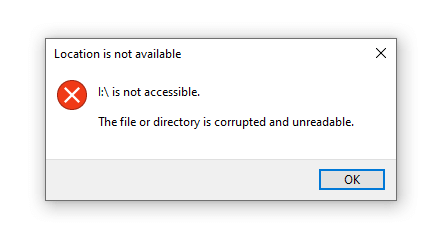
This error is less specific. It can appear when Windows reads information from the partition that does not make sense or cannot be processed correctly.
The underlying cause may be damaged partition information, corrupted file system metadata, or read errors on the drive.
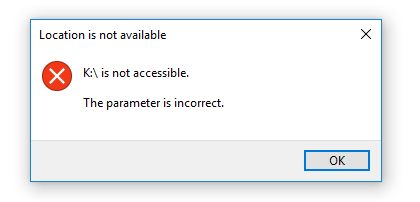
This is a different situation and deserves a little more caution.
If opening the drive causes File Explorer to spin indefinitely, or the entire computer becomes slow and unresponsive, the drive may be having trouble reading certain areas.
This is often seen with failing mechanical hard drives. Windows keeps waiting for the drive to respond, while the drive may be retrying failed read operations in the background.
If the drive repeatedly freezes the computer, avoid opening it over and over again. Do not keep clicking the same folders hoping that the next attempt will work. If the data is important, the priority should be getting the files out with as little unnecessary stress on the drive as possible.
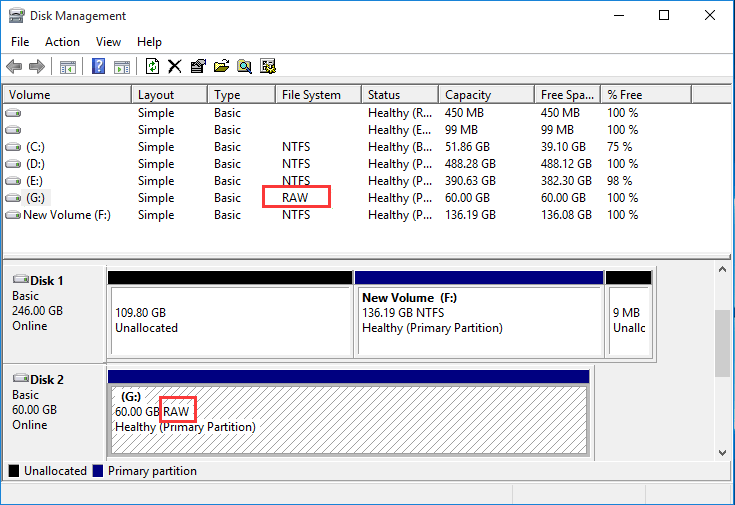
You can check this in Disk Management. If a partition that was previously NTFS, FAT32, or exFAT is now shown as RAW, Windows can no longer recognize its file system properly.
RAW is not necessarily a new file system that has replaced NTFS or FAT32. It is essentially Windows saying, "I can see the partition, but I don't understand the file system on it."
This can happen when important file system information is damaged or unreadable. A RAW partition can still contain recoverable data.
There is no single reason why a drive can have a letter but refuse to open.
A sudden power failure is one possibility. If the computer loses power while Windows is updating file system information, the operation may be interrupted before all metadata is written correctly.
The same thing can happen with an external hard drive or USB drive that is disconnected while data is still being written. Simply pulling the cable or removing the device without safely ejecting it does not always cause damage, but if a write operation is still in progress, the file system can be left in an inconsistent state.
Another possibility is a problem with the drive itself. Mechanical hard drives can develop bad sectors. If a bad sector happens to contain important file system information, Windows may no longer be able to read the information needed to open the partition.
Interrupted partition operations can also cause trouble. For example, resizing, merging, or splitting partitions and then losing power before the operation is complete may leave the partition or file system in an unusable state.
Malware and accidental modification of disk structures are less common, but they can also result in an inaccessible partition.
With SSDs, the situation can be more complicated. In addition to ordinary file system corruption, SSD firmware or hardware problems can sometimes cause the drive to behave normally one moment and become inaccessible the next.
The format prompt is probably the most common trap. Windows is not telling you that formatting will restore your original files. It is simply telling you that it cannot use the drive in its current state.
A quick format does not normally erase every file immediately, which is why formatted drives can often still be scanned by hard drive recovery software. However, formatting creates a new file system and can overwrite metadata from the old one. That metadata may contain the original file names, folder structure, and other information needed for a clean recovery.
It is usually much better to recover important data first and worry about repairing or formatting the drive afterward.
CHKDSK is useful, but it is important to understand what it is designed to do. It is a file system repair tool, not a data recovery tool.
CHKDSK checks the file system for inconsistencies and modifies file system structures when it finds problems. Sometimes that is exactly what you need. But if your first priority is recovering important files, modifying the damaged file system before you have copied the data elsewhere may not be ideal.
For example, CHKDSK can remove damaged entries or place recovered file fragments in a folder such as FOUND.000.
After that, some of the original folder structure or file names may be gone.
A safer order is: Recover important files first. Repair the drive later.
If you have already run CHKDSK, do not assume that recovery is impossible. It simply means that some of the original file system information may have changed.
If the drive is still detected and DiskGenius can see the partition, start with the simplest option.
Open DiskGenius and select the inaccessible partition. Then switch to the Files tab.
Windows File Explorer and DiskGenius do not always handle damaged file systems in exactly the same way. Sometimes Windows refuses to open the partition while DiskGenius can still read enough of the file system to display the files.
If your files appear, do not rush to fix the corrupted partition. First, open or preview important files to make sure they are intact. Then copy the files you need to another drive. If the files can be recovered successfully, you can avoid a full recovery scan altogether.
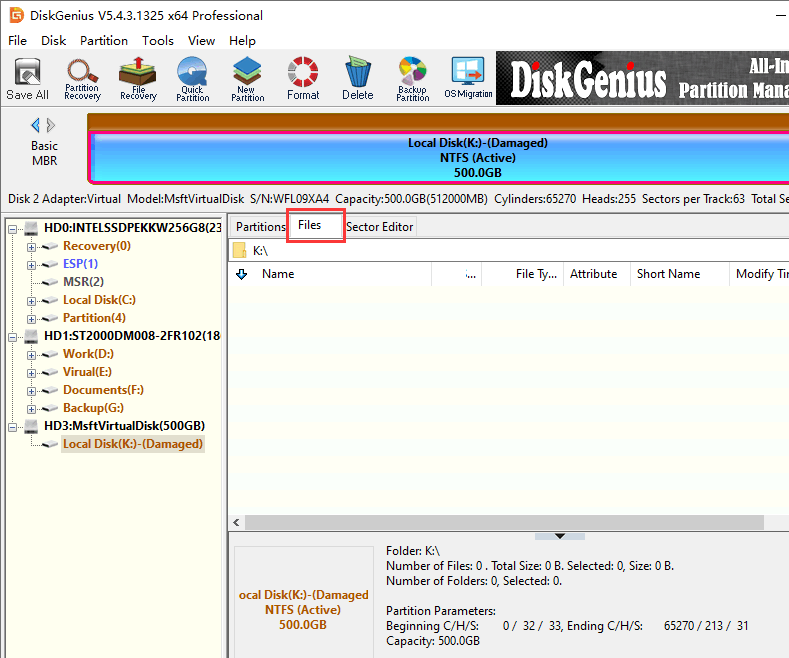
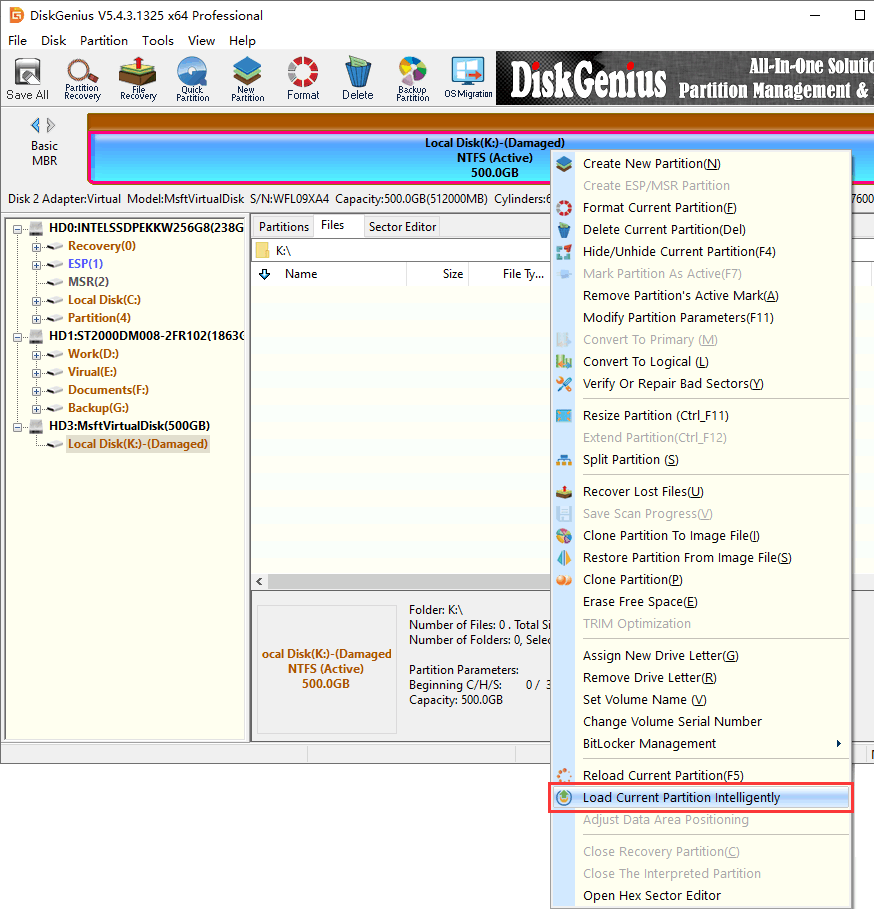
If the files are not immediately visible, the next step is to try loading the existing file system information. When enough of the original file system is still intact, DiskGenius can analyze and display files with the original directory structure.
Right-click the inaccessible partition, and choose "Load Current Partition Intelligently".
This is preferable to "File Recovery" based only on file signatures because it gives you a better chance of keeping the original: file names, folder structure, file sizes, dates, and other file information.
If the files you need appear, preview them first and then copy them to another drive. If lost files cannot be loaded as expected, move on to a full recovery scan.
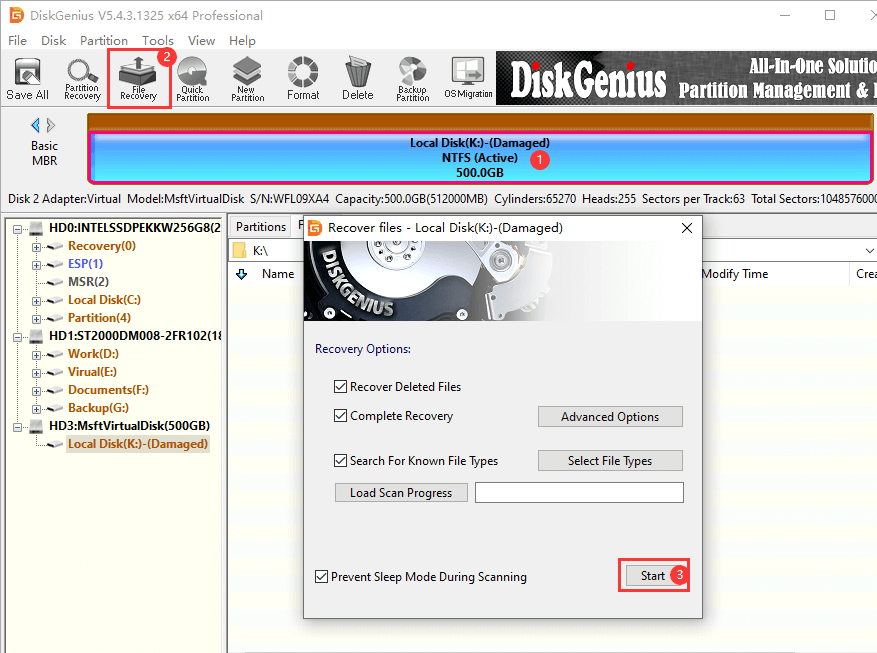
Select the affected partition and click "File Recovery". Then click "Start".
DiskGenius will scan the partition and look for files using the remaining file system information. If parts of the original file system are badly damaged, the scan can also identify files based on their data characteristics. The scan may take some time, especially with a large drive.
When the results start appearing, do not judge them only by file names or file sizes. Preview important files whenever possible. For example:
• Open photos and check whether they display correctly.
• Open documents to see whether the contents are readable.
• Play recovered videos to make sure they are not damaged.
Once you have confirmed that lost files are recoverable, copy them to another drive. Do not recover the files back to the same drive you are scanning.
Tip: This is a case of corrupted drive, not a lost-partition problem. The partition itself still exists. Windows simply cannot access the file system inside it. In this situation, you normally do not need to search for lost partitions. Start by trying to browse or recover the files from the existing partition. Lost partition recovery is more appropriate when a partition has actually disappeared, been deleted, or is no longer shown in the partition table.
The general idea is the same: if the drive is detected and the data can still be read, recovery software can scan the file system and look for recoverable files.
However, SSDs have one important difference: TRIM. When files are deleted, or when certain operations remove file system entries, the operating system may send a TRIM command to the SSD. After TRIM has been processed, the underlying data may no longer remain available in the same way it would on a mechanical hard drive.
That is one reason why deleted or formatted data can sometimes be much harder to recover from an SSD.
SSDs also perform internal garbage collection and wear-leveling operations. For this reason, if an SSD contains important data and suddenly becomes inaccessible, it is better not to continue using it unnecessarily.
If DiskGenius can still detect the SSD and its partitions, try recovering the data as soon as possible. If the SSD is no longer detected by BIOS or Windows, repeatedly disconnects, or reports an incorrect capacity, the problem may be beyond what normal data recovery software can handle.
1. Can I recover files after formatting the drive?
Sometimes, yes. A quick format usually creates new file system structures without immediately overwriting every sector that previously contained data. If little or no new data has been written afterward, data recovery software can find many of the original files.
The result depends on the type of format, the amount of new data written afterward, and whether the drive is an HDD or SSD. SSD data recovery can be more difficult if TRIM has already processed the deleted data.
2. How do I change a RAW drive back to NTFS?
If the drive contains important files, don't try to convert it back before recovering the data. RAW only means that Windows cannot properly recognize the current file system. The partition may still contain recoverable files.
Recover the important data first. Once the files are safely stored elsewhere, you can format the RAW partition as NTFS if that is the file system you want to use.
3. Why can I find a recovered file, but it won't open?
Finding a file does not always mean that every part of it is intact. The file may have been partially overwritten, stored in damaged sectors, or split into fragments that could not all be reconstructed correctly.
This is why previewing files is important. A photo that displays correctly is more useful evidence than simply seeing a .jpg file listed in the scan results.
4. How long does data recovery take?
It depends on the size and condition of the drive. A small drive with minor file system damage may be scanned fairly quickly. A multi-terabyte drive with read errors can take several hours or longer.
If the drive is physically unstable and repeatedly freezes the computer, do not assume that leaving it to scan indefinitely is always the best option. In that situation, creating an image of the drive or getting professional advice may be safer.
5. Can I save recovered files back to the same drive?
No. Always save recovered files to another physical drive. Writing recovered files back to the source drive can overwrite data that you have not recovered yet.
6. Why are the recovered files missing their original names and folders?
The content of a file and the information describing that file are not the same thing.
Your photo may still exist on the drive, but the file system record containing its original name and folder location may be damaged. When enough file system information remains, recovery software can often restore the original directory structure.
When that information is badly damaged, the software may only be able to identify files from their internal structure. It may recognize a JPG image, MP4 video, or DOCX document, but it may not know the original file name or where the file was stored.
In that case, the recovered file itself may still be perfectly usable even though the original folder structure is gone.
If a drive still shows up in Windows, don't assume that the data is gone. At the same time, don't assume that repairing the drive should be your first move.
When important files are involved, it is usually better to get the data out first. Once your photos, documents, videos, and other files are safely stored on another drive, you can decide what to do with the original one, such as run repairs, reformat it, test it for hardware problems, or replace it entirely.
The key is not to let Windows' format prompt push you into making changes before you know what can still be recovered.

DiskGenius is a one-stop solution to recover lost data, manage partitions, and back up data in Windows.
Download

 Facebook
 YouTube
 X
X