
Updated on Sep. 17, 2026
Position: Resource - Disk Utilities - USB Flash Drive vs SSD: What's the Difference and Which Should You Use?
In this article:
If you're looking for portable storage, you've probably noticed two categories everywhere: USB flash drives and SSDs. Both use flash memory. Both plug into your computer. Both come in similar capacities at the low end. So what actually separates them and does it matter?
Is an SSD faster? Yes, almost always. Does it last longer? Almost certainly. Is a USB flash drive cheaper? For small capacities, absolutely. Can you just use a USB flash drive instead of an SSD and save some money? That depends on what you're doing, and the answer changes a lot depending on the use case.
A USB flash drive is a pocket-sized storage device that plugs directly into a USB port. No cables, no external power, no moving parts. You plug it in, drag files onto it, unplug it, and carry it in your pocket.
USB Flash Drive, Pen Drive, Thumb Drive, and USB Stick: Are They the Same? Yes. These are four names for the same device:
• USB flash drive — the standard term used in technical contexts and product listings.
• USB stick — casual, widely understood.
• Thumb drive — common in North America, named after the size.
• Pen drive — popular in India, South Asia, and parts of the Middle East, probably named after the pen-like shape of early models.
If someone asks you about any of these, they're talking about a small portable storage device with a USB connector and NAND flash inside. This article uses "USB flash drive" as the primary term, but you'll see the others appear in headings and natural context, because real people search for all four.
The inside is simple compared to an SSD: USB Connector → USB Controller (basic) → NAND Flash (usually 1 chip)
That's it. The USB controller handles communication with the computer and basic data management. The NAND chip stores everything. Most USB flash drives don't have a dedicated DRAM cache, and the controller runs relatively simple firmware.
This simplicity is a feature, not just a limitation. It's why USB flash drives cost a few dollars, weigh almost nothing, and fit on a keychain. But it's also why they slow down under heavy use and lack the reliability features that SSDs provide.
The use cases are real and practical:
These tasks share something in common: they're short-duration, low-write-volume, and prioritize convenience over speed. That's exactly where USB flash drives fit.
An SSD (Solid State Drive) is a storage device built around NAND flash, the same basic technology as a USB flash drive, but with a completely different level of engineering inside.
Open up an SSD and you'll find:
All of this adds cost and complexity, but it produces a drive that's faster, handles heavy workloads without collapsing in performance, and lasts longer under sustained use.
When people compare a "USB flash drive vs SSD," they're often really comparing a USB flash drive to an external portable SSD, both plug into a USB port, but the internal hardware is a different class entirely.
Here's a point worth making clearly: an external SSD connected through USB is still an SSD inside. It has the same kind of controller, the same multi-channel NAND layout, and the same firmware features as an internal drive. The USB enclosure is just a housing. The performance difference between that and a USB flash drive comes from the hardware inside, not the connector.
| Feature | USB Flash Drive | SSD |
| Storage technology | NAND flash | NAND flash |
| Controller | Basic | Advanced |
| NAND channels | 1–2 | 4–8+ |
| DRAM cache | Usually absent | Present in many models |
| Wear leveling | Basic or limited | Comprehensive |
| Error correction | Minimal | Robust |
| Sustained write speed | Drops significantly under load | Holds up much better |
| Capacity range | 16 GB – 1 TB | 128 GB – 8 TB |
| Portability | Fits on a keychain | Small but needs a cable |
| Price per GB | Higher | Lower |
| Built for | Occasional file transfer | Daily workloads, OS, applications |
Short answer: yes, and the gap is bigger than most people expect.
Long answer: it depends on the type of speed you're measuring.
Copying a single large file, an ISO image, a video, a disk backup, is a sequential workload.
Here's what real-world performance looks like across different drive types:
| Device | Sequential Read | Sequential Write |
| Cheap USB 3.0 flash drive | 30 – 80 MB/s | 10 – 30 MB/s |
| Good USB 3.2 Gen 1 flash drive | 100 – 200 MB/s | 40 – 100 MB/s |
| High-end USB 3.2 Gen 2 flash drive | 300 – 1,000 MB/s | 100 – 400 MB/s |
| SATA SSD (internal) | ~550 MB/s | ~500 MB/s |
| NVMe SSD (internal) | 3,500 – 7,000 MB/s | 2,000 – 5,000 MB/s |
| External SSD (USB 3.2 Gen 2) | 800 – 1,050 MB/s | 700 – 1,000 MB/s |
Notice the overlap: a high-end USB flash drive can match or beat a SATA SSD on sequential reads. But that's where the good news for USB flash drives ends.
Random performance is what you feel when you boot Windows, open a program, load a game level, or browse a folder with thousands of files. These operations involve lots of small, scattered reads and writes.
SSDs destroy USB flash drives on random I/O. It's not close. The multi-channel NAND access, DRAM caching, and sophisticated firmware inside an SSD let it handle thousands of small requests per second. A USB flash drive's simple controller processes them one at a time or in small batches
This is why running an operating system from a USB flash drive is painful, and why gaming from one is impractical. The raw sequential speed might look acceptable on paper, but the random access latency makes everything feel broken.
This is where USB flash drives disappoint the most people, and it's rarely explained clearly.
A USB flash drive might advertise "up to 200 MB/s write speed." That number might be real for the first few seconds. Here's what happens during a large sustained write:
1. First 10–30 seconds: Data goes into a small SLC cache (a portion of the NAND temporarily running in a faster mode). Speed looks great.
2. Cache fills up: The drive starts writing directly to its native TLC or QLC NAND. Speed drops, sometimes to 20–40 MB/s, sometimes lower.
3. Heat builds: The controller gets hot. Without a heatsink or thermal pad (most USB flash drives have neither), the controller may throttle to protect itself.
The advertised speed was real, but only for a fraction of the transfer. The speed you actually experience over a 20 GB copy might average 50 MB/s on a drive that advertised 200 MB/s.
SSDs experience the same SLC caching behavior, but with larger caches, more NAND channels to spread the write load, better thermal management, and smarter firmware handling the transition. The drop-off is less dramatic and recovers faster.
Don't take anyone's word for it. If you have a USB flash drive and an SSD, you can test this yourself. Plug each one in, open DiskGenius, and run the built-in Disk Speed Test. Run it for long enough to see whether the speed holds up or drops. The numbers speak for themselves.
Here's a misconception that trips up a lot of buyers: "My USB flash drive is USB 3.2, so it should be fast."
The USB version defines the interface bandwidth, the maximum theoretical speed of the connection between the drive and the computer. It says nothing about whether the drive inside can actually use that bandwidth.
Think of it like a highway. USB 3.2 Gen 1 is a 5 Gbps highway. But if you're driving a scooter (the flash drive's internal controller and NAND), the highway's speed limit is irrelevant. You're still going 30 mph. Here's the practical breakdown:
| USB Version | Theoretical Bandwidth | What It Means in Practice |
| USB 2.0 | 480 Mbps (~60 MB/s) | Bottlenecks even slow flash drives |
| USB 3.2 Gen 1 | 5 Gbps (~500 MB/s) | Enough for most flash drives; many can't saturate it |
| USB 3.2 Gen 2 | 10 Gbps (~1,000 MB/s) | Needed for fast external SSDs to stretch their legs |
| USB 3.2 Gen 2x2 | 20 Gbps (~2,000 MB/s) | Rare; only high-end external SSDs benefit |
| USB4 | 40 Gbps | Backward compatible; speed depends on the device |
USB-C Is a Connector, Not a Speed
This catches people off guard regularly: USB-C is the shape of the plug, not a speed standard. A USB-C port can run USB 2.0 (480 Mbps), USB 3.2 Gen 2 (10 Gbps), USB4 (40 Gbps), or Thunderbolt 4 (40 Gbps). Two laptops sitting side by side might both have "USB-C ports" with a 20x speed difference between them.
How Much Storage Do You Get?
USB flash drives are sold most commonly in 32 GB to 256 GB capacities. You can find 512 GB and 1 TB models, but they're niche, expensive, and not always easy to find from reputable brands.
SSDs start at 128 GB and go up to 8 TB for consumer models. External SSDs in the 500 GB – 2 TB range are mainstream and widely available.
If you need to carry 500 GB or more of data regularly, an external SSD is the practical choice. USB flash drives at that capacity exist, but the options are limited and the price doesn't make sense compared to what you'd pay for an external SSD.
Price Per Gigabyte
At the 32–64 GB range, USB flash drives win on absolute cost, you can get one for $5–15. That's hard to beat.
At 256 GB and above, external SSDs usually offer a better price per gigabyte than high-performance USB flash drives. A 1 TB external SSD from a major brand typically costs 60-100. A 1TB USB flash drive, if you can find one, might cause 80-140 and perform worse.
The crossover point is somewhere around 128–256 GB, depending on the specific models. Below that, flash drives are cheaper. Above that, SSDs are better value.
Both Use NAND, Both Wear Out
Every NAND flash cell can handle a limited number of write cycles. After enough program/erase cycles, the cell degrades and eventually can't reliably hold data. This applies to USB flash drives and SSDs alike.
The difference is in how each device manages that wear.
What SSDs Do That USB Flash Drives Usually Don't
SSD controllers run several background processes to extend the drive's life:
USB flash drives may include some basic wear leveling, but the implementation is usually far simpler. Most don't support TRIM. Most don't have sophisticated ECC. The firmware's job is to store files and hand them back, not to manage long-term cell health.
TBW: The Number SSD Makers Give (and Flash Drive Makers Don't)
SSD manufacturers publish TBW (Terabytes Written) ratings, the total amount of data you can write to the drive over its lifetime. A 1 TB consumer SSD is commonly rated at 300–600 TBW. That's hundreds of terabytes of writes before the NAND is expected to degrade.
USB flash drive manufacturers almost never provide TBW numbers. This alone tells you something about how each product category views write endurance.
What This Means in Practice?
If you use a USB flash drive to occasionally copy documents and photos, it'll last for years, possibly longer than you'll want to keep using it.
If you write 50 GB to a USB flash drive every day, expect noticeably degraded performance and reliability within a year or two.
An SSD under the same 50 GB/day workload would handle it comfortably for years, thanks to its endurance rating and wear management.
Read more: What Affects SSD Lifespan and How to Check the Remaining Lifespan?
This question comes up a lot, and the honest answer is uncomfortable: flash memory is not a reliable long-term archive. Here's why:
The rule of thumb: if a USB flash drive is the only place a file exists, that file is at risk. Don't treat a USB flash drive as a backup. Treat it as a transport mechanism.
A Better Approach: 3-2-1 Backup:
3 copies of your data
2 different types of storage (e.g., internal SSD + external HDD, or NAS + cloud)
1 copy offsite or in the cloud
USB flash drives and external SSDs can both play a role in this strategy, but neither should be the only place your important files live. If you want to create full disk image backups, DiskGenius supports partition backup, disk cloning, system migration, and file-level backup to any connected drive.
Some uses: yes. Others: not even close.
Works fine:
• Transferring files between computers
• Windows installation media
• Portable documents and presentations
• Bootable diagnostic tools
Doesn't work well:
• Running Windows or macOS (the random I/O will make you miserable)
• Gaming (load times will be painfully long, and some games may stutter or freeze)
• Video editing (sustained write performance can't keep up with high-bitrate footage)
• Running applications or virtual machines (same random I/O problem as the OS use case)
• Daily-heavy write workloads (the drive will wear out faster than an SSD)
Pick a USB flash drive if:
• Portability is the top priority, you want something that lives on your keychain.
• You're transferring small to medium files occasionally.
• You need a Windows installer or bootable recovery tool.
• Budget is tight and you need 128 GB or less.
Pick an external SSD if:
• You move large files regularly (video, photo libraries, project archives).
• You need consistent speed throughout a large transfer.
• You edit files directly from the external drive.
• You want a reliable portable backup destination.
• You need 256 GB or more and want reasonable pricing.
Whether you end up using a USB flash drive, an SSD, or both, it's worth checking the health condition, especially if you're relying on them for anything important.
S.M.A.R.T. (Self-Monitoring, Analysis, and Reporting Technology) is built into most SSDs and some USB flash drives. It reports things like: Health status, Remaining life (as a percentage), Total host write, Power-on hours, Temperature.
Open DiskGenius, select your drive, and click "Disk" → "view S.M.A.R.T. Information".
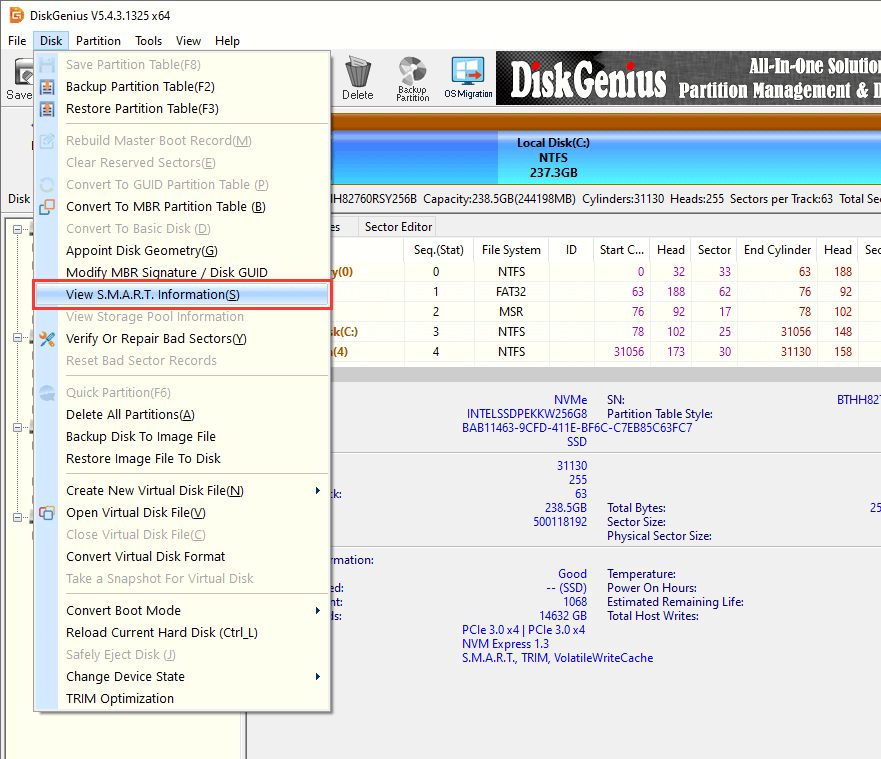
If your USB flash drive does not support SMART, you can scan the drive for bad sectors/sectors. Here are steps to check and repair bad sectors/blocks for HDDs and USB drives.
Spec sheets tell you what the marketing department wants you to believe. A speed test tells you what the drive actually does.
DiskGenius Free Edition has a built-in Disk Speed Test that measures sequential read and write speeds on any connected drive.
1. Select the partition of the disk you want to test speed, then click "Disk" → "Disk Speed Test".

2. Select test method: File Test or Benchmark Test. Then click "Start Test".

Is an SSD the same as a USB flash drive?
No. Same basic storage technology (NAND flash), but completely different levels of engineering. SSDs have more powerful controllers, more NAND channels, better error correction, and firmware designed for heavy workloads.
Is an SSD faster than a USB flash drive?
Yes, with one caveat: a high-end USB 3.2 Gen 2 flash drive can match a SATA SSD on sequential reads. On random I/O and sustained writes, SSDs win by a wide margin.
SSD VS thumb drive, which lasts longer?
SSDs have published TBW ratings and better wear management. For heavy write workloads, SSDs last significantly longer. For occasional light use, a USB flash drive can last years too.
Are USB flash drives good for backups?
As a secondary copy, they're fine. As your only backup, no. Flash memory degrades, controllers fail, and a single NAND chip has no redundancy. Follow the 3-2-1 rule.
Can I install Windows on a USB flash drive?
You can create a Windows installer on one, which is one of the best uses for a USB flash drive. Running Windows directly from one (as a portable workspace) is impractical, the random I/O performance makes the experience painfully slow. Learn how to copy existing Windows 10/11 to USB and make it bootable
Does USB 3.2 make a flash drive as fast as an SSD?
No. The USB 3.2 interface sets a bandwidth ceiling, but the flash drive's controller and NAND determine how close it gets. Many USB 3.2 flash drives never come close to saturating the interface.

DiskGenius is a one-stop solution to recover lost data, manage partitions, and back up data in Windows.
Download

 Facebook
 YouTube
 X
X