
Updated on Sep. 03, 2026
Position: Resource - Disk Utilities - Can You Use a Hard Drive with Bad Sectors? How to Check Its Health?
A hard drive that suddenly becomes slow, freezes while copying files, or causes Windows to hang can be showing the early signs of a disk problem. If a surface scan then reports bad sectors, the next question is usually straightforward: Is the drive about to fail, or can I keep using it?
There is no single answer. A few bad sectors do not always mean that a hard drive is going to stop working tomorrow. What matters more is why the errors appeared, whether they are increasing, and what other symptoms the drive is showing.
For example, an isolated error does not carry the same meaning as a drive that develops more unreadable sectors over time, starts producing I/O errors, shows deteriorating S.M.A.R.T. attributes, or makes unusual noises. In the latter case, the drive should be considered unreliable, even if Windows can still access most of the files.
A hard drive with a small number of isolated bad sectors may continue to work, but it should not be considered fully reliable. If bad sectors are increasing or the drive is also showing slow reads, corrupted files, I/O errors, or unusual noises, back up or recover important data as soon as possible and plan to replace the drive. If the drive contains data you cannot afford to lose, do not make bad-sector repair your first step.
A traditional hard disk drive (HDD) stores data on magnetic platters. The data on the platter is stored in many small storage units called sectors and the read/write head moves over the surface of the platter to access the data. Usually, the drive can read and write these sectors without any problem. When a sector can no longer be read or written reliably, it may be reported as a bad sector.
Bad sectors have different causes and it is important to know what they are to be able to decide what to do with the drive.
Physical bad sectors are related to the physical condition of the drive.
An aging HDD can have problems with its magnetic surface or other moving parts. A strong impact or vibration while the drive is working can also damage the platter surface or affect the mechanism that reads and writes to it.
Once a sector is physically damaged, software cannot restore the damaged part of the platter to its original condition. The drive may be able to work around the problem by remapping the affected sector to a spare one, but that does not repair the underlying physical damage.
A growing number of bad or remapped sectors is therefore a reason to pay close attention to the drive's overall health.
Not every sector-related error necessarily means that the platter itself has been physically damaged.
Data can become inconsistent because of an interrupted write, an unexpected shutdown, file-system problems, or other software-related issues. In some situations, the drive or operating system may be able to correct the problem.
That said, it is a mistake to assume that every bad-sector warning is harmless simply because it might have a logical cause. If read errors keep appearing or the number of problematic sectors continues to increase, the storage device should be investigated more carefully.
The practical difference is simple: a logical problem may sometimes be corrected, while physical damage cannot be repaired by software.
A hard drive with a small number of bad sectors may continue to work. Whether you should keep using it is a different question.
Suppose a drive reports a few isolated errors after an unexpected shutdown, while its SMART information remains stable and there are no other symptoms. The drive may continue operating normally for some time.
But a drive that is still accessible is not necessarily a drive you should trust with important data.
Some failing HDDs continue working for months after their first warning. Others deteriorate much faster. There is no reliable way to look at a single bad-sector count and predict exactly when a drive will fail.
What is much more useful is watching the trend.
If a drive initially has a few problematic sectors and later develops more, starts reading certain areas very slowly, produces file corruption, or generates repeated I/O errors, the situation is much more concerning.
The symptoms can also become more obvious as the problem progresses. A drive may first seem unusually slow when opening folders or copying files. Later, Windows may freeze whenever it accesses a particular directory. A partition may become inaccessible, files may stop opening, or the system may fail to boot if the affected areas contain important system files.
So after finding bad sectors, don't focus only on the number shown by the scan. Look at the condition of the drive as a whole and whether that condition is changing.
A hard drive does not always fail without warning. Often there are clues that things are going wrong.
One common symptom of a faulty HDD is that accessing certain areas suddenly takes much longer than they normally would.
When the drive has trouble reading a sector, its firmware may make repeated attempts to retrieve the data. To a user this can appear like Windows has stopped responding. You might see things like:
A deteriorating disk can eventually cause problems with the structures Windows uses to locate and organize files. Depending on what has been damaged, you may see messages such as:
If a partition suddenly becomes inaccessible and it contains important files, do not immediately format it just because Windows asks you to. Formatting does not fix a failing disk, and it can make the subsequent recovery process more complicated.
At this point, it is usually more important to determine whether the data is still recoverable than to make the partition usable again.
Another warning sign is when files that used to work fine become unreadable. You might find that:
A single corrupted file does not necessarily mean that the disk is failing. The file itself may have been damaged for other reasons.
The situation is more concerning when multiple unrelated files start developing problems, particularly when they are stored in different locations on the same drive.
Mechanical hard drives are supposed to make some noise. During normal operation you may hear the platters spinning and the read write head moving.
The repeated clicking, the repeated sounds of spin-up and spin-down, the grinding and scraping noises are different. They can be a sign of a serious mechanical problem.
If an HDD containing important data suddenly starts making abnormal noises, avoid repeatedly restarting it or running unnecessary scans. Every additional operation makes the drive work, and a mechanically failing drive may become less stable as it continues running.
In this situation, protecting the data is more important than finding out exactly how many bad sectors the disk has.
Most modern HDDs and SSDs support S.M.A.R.T., or Self-Monitoring, Analysis and Reporting Technology. SMART allows a storage device to record information about its operating condition. Depending on the manufacturer and model, the information can include power-on hours, temperature, error information, reallocated sectors, and other health-related attributes.
SMART is useful, but should not be used as a precise predictor of when a drive is going to fail. Manufacturers use different attributes and thresholds, and a drive can sometimes fail without giving you a clear warning beforehand. For HDDs, several attributes are particularly useful when investigating bad-sector problems.
Reallocated Sector Count
When a drive determines that a sector can no longer be used reliably, it may replace that sector with a spare sector reserved for this purpose.
A growing reallocated-sector count can indicate that the drive's physical media is developing problems.
Current Pending Sector Count
A pending sector is an area that the drive has had difficulty reading and has not yet successfully remapped.
A non-zero value does not automatically mean that the drive is about to fail, but an increasing value is a warning sign, especially when it appears together with slow reads or other disk errors.
Uncorrectable Sector Count
This represents errors that the drive could not correct internally.
If the value is rising, it is especially concerning if there are read errors, corrupt files, or other signs of disk instability.
SSDs show different SMART information. Useful indicators can be, depending on model, remaining life, total host writes, media/data integrity errors, temperature and manufacturer specific health attributes.
You can use DiskGenius Free Edition to view S.M.A.R.T. data and examine the health information reported by your HDD or SSD.
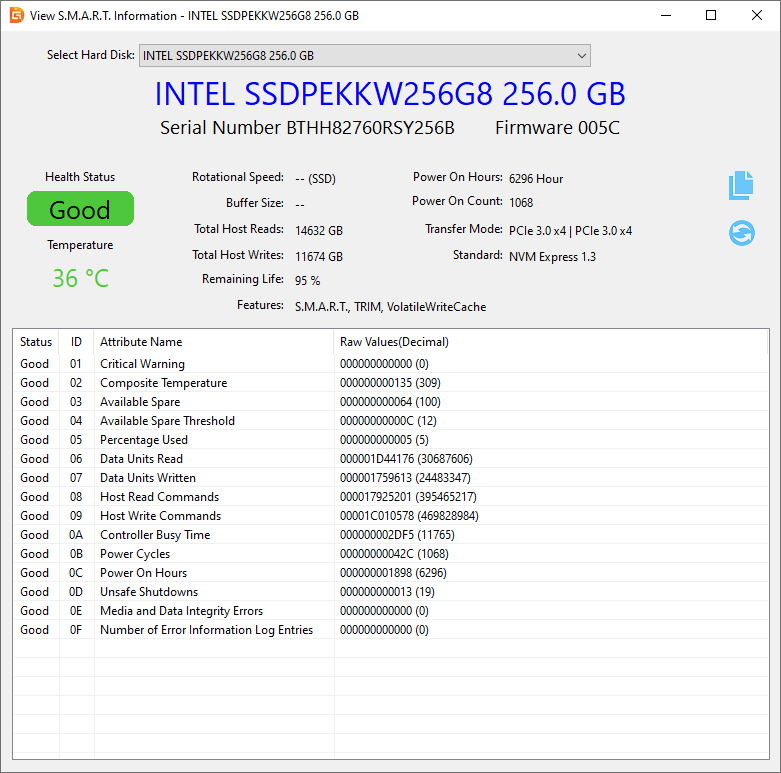
If a drive is showing signs of trouble, a disk surface test can help determine whether some areas are difficult or impossible to read.
A surface test does more than simply count bad sectors. It reads sectors across the disk and records whether they can be read successfully and, depending on the tool, how long individual reads take. This can help you see whether:
There is one important limitation, though: a surface test tells you about the drive's condition at the time of testing. It cannot tell you how long the drive will continue to work.
If the drive contains valuable data, there is also little benefit in repeatedly scanning it just to see whether the result changes. If the drive is already unstable, unnecessary reads can add additional workload.
Steps to check Bad Sectors with DiskGenius:
DiskGenius Free Edition includes a bad sector/block detection feature that scans the disk and displays the read performance of different areas.
1. Open DiskGenius and select the disk you want to check from the left panel.
2. Go to "Disk" → "Verify or Repair Bad Sectors".
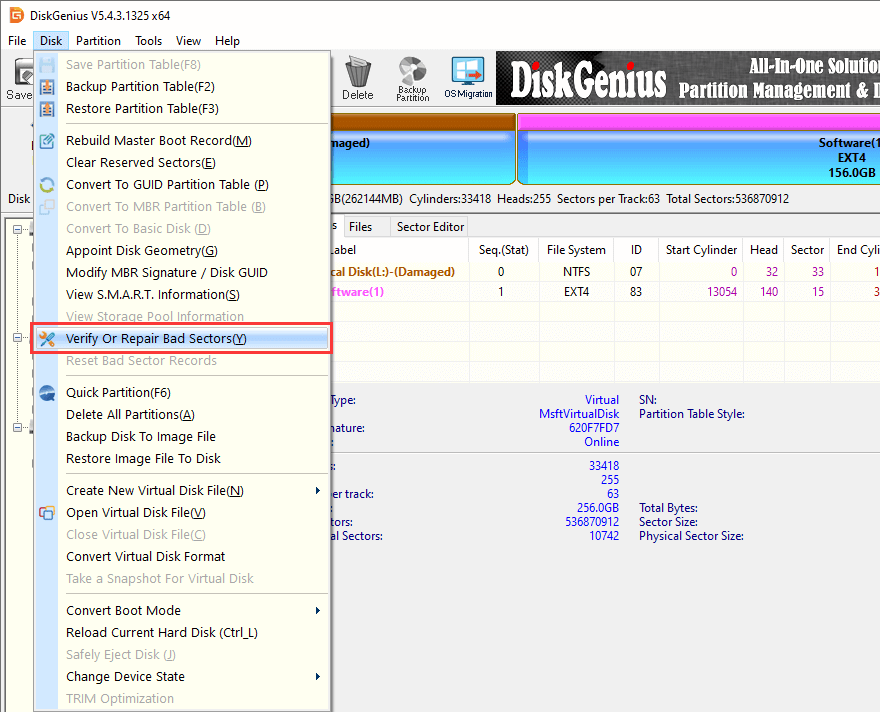
3. Click "Start Verify" to begin the surface test.
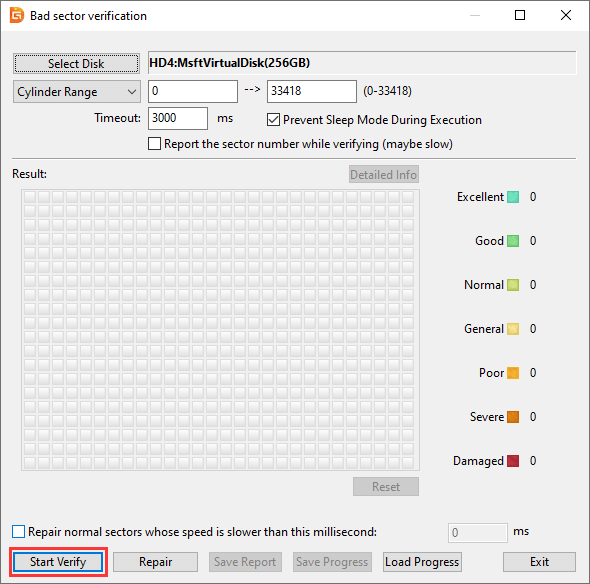
During the scan, avoid unnecessary read/write activity on the same disk. If other applications are accessing the drive heavily at the same time, the test results may also be harder to interpret.
Important: If the disk contains important files that have not been backed up, consider backing up or recovering those files before running an intensive surface test.
This is where it is easy to take the wrong approach.
After a scan reports bad sectors, many users immediately search for a way to "repair" them. That makes sense at first glance, but it is not necessarily the safest thing to do.
If the disk contains important data, the priority should be:
Protect the data → assess the drive → decide whether to replace it.
If the drive is accessible, first copy irreplaceable files to another healthy storage device. Do not wait until the drive becomes completely inaccessible. Start with important files that have no other backup:
What about repairing bad sectors with DiskGenius? DiskGenius provides a bad-sector repair function, but repairing bad sectors and recovering data are two different things.
More importantly, repair operations can involve writing to the disk. If the drive already contains damaged or unstable data, attempting repairs before securing a backup can increase the risk of losing files or making the recovery situation more complicated.
For this reason, if the disk contains important files that exist nowhere else, do not start with bad-sector repair.
If the drive is already failing and important files are no longer accessible, data recovery should take priority over repair.
If you need to recover files from a disk with bad sectors, see our guide on How to Recover Data from a Hard Disk with Bad Sectors?
SSDs can experience storage errors, but they do not develop bad sectors in exactly the same way as mechanical hard drives.
An SSD has no spinning platters or moving read/write heads, and it stores data in NAND flash memory and uses a controller to manage the flash cells. Over time, flash cells wear out, and the drive may also experience media errors, bad blocks, controller problems, or other hardware faults.
Modern SSDs use several mechanisms to manage this process, including:
• Wear leveling
• Bad-block management
• Error correction
• Garbage collection
• Spare NAND capacity
These mechanisms allow an SSD to continue working even when some flash cells can no longer be used. Things get a lot more worrying when the drive's error count starts to increase, the health indicators start to deteriorate quickly, or the SSD starts acting up. Possible warning signs include:
• A sudden drop in performance
• File read errors
• Windows reporting disk problems
• Blue screens or system crashes
• The SSD occasionally disappearing from Windows
• The SSD disappearing from BIOS/UEFI
• The drive suddenly becoming read-only
• A significant decline in reported SSD health
An SSD that repeatedly disappears from the system should not be treated as a normal performance problem. If important data is still accessible, back it up immediately.
No HDD or SSD lasts forever, but there are a few simple habits that will reduce the risk of data loss and make it easier to spot problems.
1. Protection of HDDs from physical shock
Mechanical hard drives have moving parts and are sensitive to physical shock and vibration, particularly when they are running.
Be especially careful with external HDDs and portable computers. Never move your external hard drive while it is reading or writing data.
2. Prevent unexpected power loss
If the write is active, it may be interrupted by an unexpected shutdown, leading to file-system corruption.
For desktop computers, a UPS can offer extra protection against sudden loss of power. This is especially useful if your system does a lot of important disk work.
3. Leave enough free space on SSDs
Don't let an SSD stay completely full for extended periods. SSD controllers require free space for internal processes such as garbage collection and wear leveling.
Keeping some free capacity can help the drive manage these operations more effectively.
4. Check drive health from time to time
There is no need to run a surface test every day. In fact, constantly scanning a drive is unnecessary.
A better way is to check SMART info periodically and notice the changes in performance or behavior. Investigate the drive if it begins to get unusually slow, produce errors, or disconnect unexpectedly, rather than waiting for the drive to fail completely.
DiskGenius can check HDD and SSD health, view SMART information, test disk speed and perform other disk management tasks.
Most importantly, remember that health monitoring is not a replacement for backups. A drive that shows as healthy can fail without warning.
A bad sector on a hard drive doesn't mean it stops working right away. A few isolated errors may not cause an immediate failure, particularly if the drive remains stable and does not show other warning signs.
That does not make the drive completely trustworthy, though.
If you see bad sectors increasing over time, worsening SMART attributes, extremely slow reads, corrupted files, repeated I/O errors, partition problems, or unusual mechanical noises, assume that the drive may be deteriorating.
The safest response is fairly simple:
Back up important data first. Check the drive's condition. Replace it if it is no longer reliable.
There is little value in waiting for a failing hard drive to become completely inaccessible before dealing with the data stored on it.
DiskGenius can help with several parts of this process, including checking disk health, data recovery, partition management, disk cloning, and Windows system migration when you need to move your system to a replacement drive.

DiskGenius is a one-stop solution to recover lost data, manage partitions, and back up data in Windows.
Download

 Facebook
 YouTube
 X
X