
Updated on Sep. 24, 2026
Position: Resource - Disk Utilities - USB Drive Keeps Disconnecting? How to Fix USB and External Hard Drive Disconnecting?
A USB flash drive or external hard drive that keeps disconnecting almost always comes down to one of six things: a loose connection, a cable or port that cannot deliver enough power, a Windows power setting that switches the device off, a driver or controller problem, a corrupted file system, or failing hardware on the drive itself. The fixes below start with the checks that cost nothing and take two minutes, then move into Windows settings, then into the drive. If the drive holds files you cannot replace, jump to the data section first and come back afterwards.
In this article:
You plug the drive in, Windows plays the usual two tone sound, and everything looks fine. Then five minutes later, or halfway through copying a folder, the sound plays again and the drive is gone. Sometimes it comes back on its own a few seconds later. Sometimes it stays missing until you unplug it and plug it back in.
The pattern you see is the single most useful clue you have. It points at one part of the chain and saves you from working through fixes that were never going to help. Read the four situations below and see which one matches yours.
The drive shows up when you plug it in, then vanishes and does not return.
When it does this, the problem usually sits on the connection side: the USB port, the cable, the enclosure, the power, or the USB controller and its driver. Hardware failure on the drive itself is possible but less common than people expect.
Windows plays the disconnect sound, then the connect sound, then the disconnect sound again, sometimes for minutes at a time.
This loop almost always points at power or driver issues. USB selective suspend is a frequent culprit, so is a port that cannot hold the current the drive wants, and so is a driver that keeps resetting the device. If the drive is a portable hard disk or a portable SSD, a weak cable or a passive hub sits near the top of the list.
The drive works fine when it is sitting idle, and drops the moment you start copying a large folder or writing a big file.
Transfer time is when the drive draws the most current and works the hardest, so this pattern usually means insufficient power, a marginal cable, heat, bad sectors in the area being read, or a controller that is starting to fail.
A USB flash drive that keeps disconnecting only during large writes is often a cheap drive with a weak controller, or a fake capacity drive that falls over once you pass the real size of its memory.
Open Device Manager or Disk Management and the physical disk is listed, but there is no drive letter, or the USB drive shows as RAW, or the space reads as unallocated.
The hardware chain is working at this point, so the problem has moved into the partition table, the file system, or the file system metadata. This is the situation where data recovery tools and USB repair tools have the most to offer, and it is also where a wrong move can cost you the files, so handle it carefully.
Insufficient or unstable power. Portable hard drives pull their power straight from the USB port. A desktop external drive has its own adapter. When the port or the hub cannot hold the current the drive wants, the drive spins up, the voltage sags, and the device drops. This shows up as disconnects during large transfers or at the moment the drive spins up.
Loose or damaged USB cable, or a worn port. If the drive drops when you touch the cable or shift the laptop, this is your answer. Front panel desktop ports get loose over time, and the cheap cables that ship with many enclosures break internally long before the jacket shows any damage.
A failing enclosure or bridge board. An external hard drive is not one device. It is a storage drive, a USB to SATA or USB to NVMe bridge board, an enclosure, a cable, and often a power supply, all bolted together. Any one of them can fail. When the bridge board resets, Windows sees the whole drive disconnect even though the disk inside is perfectly healthy. This is the single most misunderstood cause, and it explains why "external hard drive keeps disconnecting" does not automatically mean a dying hard drive.
USB power management and Windows power settings. Windows has three separate mechanisms that will happily switch a USB device off: USB selective suspend, the per device power management checkbox on the USB root hub, and fast startup. Each one can be the cause on its own.
Outdated or corrupted drivers. USB controller drivers and storage controller drivers occasionally get into a state where they reset the device over and over. Chipset drivers matter here too, especially on AMD systems and on laptops with third party USB controllers.
File system corruption and drive letter conflicts. When the file system is damaged, Windows can see the disk but not mount the partition. You get a RAW volume, or a request to format, or a drive letter that keeps disappearing. A drive letter conflict with a network drive or a mapped share can produce something that looks similar.
Bad sectors. The mechanism is worth understanding. The drive heads read a damaged area, the drive stalls, the USB bridge decides the device has hung and resets, and Windows loses the disk. A moment later the drive is back. If your drops always happen at roughly the same point in a transfer, or always when a particular file is touched, suspect this.
Overheating. Enclosures with no airflow get hot under sustained transfers. When the drive hits its thermal limit it will throttle and sometimes drop off the bus entirely. If the drops only start after fifteen or twenty minutes of continuous work, and the case is hot to the touch, this is likely.
A failing drive, just normal wear out. Mechanical drives have a finite life and SSDs wear with writes. As a drive ages, its bad sector count climbs, its reads slow down, and it starts to fall off the bus under stress. The telltale sign is frequency: drops that get more and more common over a few weeks are far more ominous than a single drop every month.
Further Reading: [Fixed] The Last USB Device You Connected to This Computer Malfunctioned
Do these six checks before touching any Windows setting.
Right click the drive in File Explorer, choose Eject, wait for the message that it is safe to remove, then unplug it. Wait five or ten seconds and plug it back in, ideally into a different physical port. Half the time that is all it takes, particularly if the drop happened during a heavy transfer.
Use a port on the back of a desktop if you can, because those wire straight to the motherboard. Front panel ports run through an internal header and a cable, and both are common failure points. Try one USB 2.0 port and one USB 3.x port if your machine has both, because they use different controllers and different power rails. If the drive only misbehaves on one port, the drive is fine and the port is not.
This matters most for external hard drives, portable SSDs, and anything in a USB enclosure. Cables carry power as well as data, and a cable that has been bent around a laptop bag for a year can pass data fine while dropping voltage under load. Use a short cable, and if you have one, use the cable that shipped with the drive rather than a random spare.
Drops on one computer only: Look at that computer's USB port, drivers, and power settings.
Drops on every computer: Look at the cable, the enclosure, the power supply, and the drive.
If you only have one computer available, a powered desktop at work, a family member's laptop, or even a modern TV or router with a USB port can serve as the second test machine for a simple plug in check.
Because an external drive is an assembly, the enclosure deserves its own look. Feel for looseness where the cable meets the connector. If the drive is a 3.5 inch desktop model, check that its power adapter is firmly seated and plugged into a wall outlet rather than a crowded power strip shared with a monitor and a printer. If the drive has been dropped, or if the USB connector has been levered sideways by a cable, the bridge board inside may have a cracked joint. That shows up as a drive that drops whenever it is moved, and no amount of Windows configuration will help.
Power problems have a recognizable shape. Look for these five signals:
If you see one or more of those, connect the drive straight to a motherboard port with nothing else on that controller, avoid passive hubs entirely, and use a powered hub if you genuinely need to run several devices. For a desktop external drive, check the adapter first. For a portable drive that still struggles on every machine, the drive may simply need more current than that model of laptop provides, and a Y cable or a powered hub is a legitimate fix rather than a workaround.
USB selective suspend lets Windows put an idle USB device to sleep to save power. Most devices wake up perfectly. Some do not, and the ones that fail to resume correctly look exactly like a drive that keeps disconnecting.
1. Open Control Panel.
2. Go to Hardware and Sound, then Power Options.
3. Click Change plan settings next to your current plan.
4. Click Change advanced power settings.
5. Expand USB settings.
6. Expand USB selective suspend setting.
7. Set both On battery and Plugged in to Disabled.
8. Click Apply, then OK.
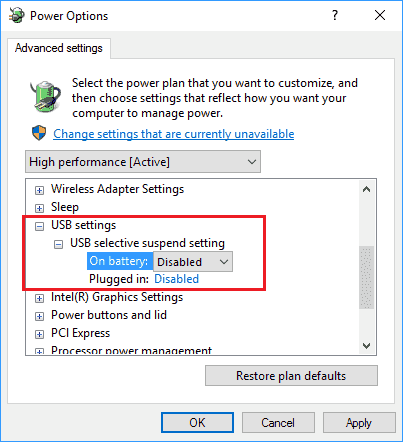
If you use a laptop and battery life matters to you, set On battery back to Enabled later and leave Plugged in disabled. That gets most of the benefit. And if disabling selective suspend makes no difference at all, restore your preferred settings and keep going, because this is only one of three Windows power mechanisms that can drop a device.
This one is separate from selective suspend and lives on the device itself.
1. Press Win + X and choose "Device Manager".
2. Expand "Universal Serial Bus controllers".
3. Right click "USB Root Hub or Generic USB Hub" and choose "Properties".
4. Open the "Power Management" tab.
5. Clear the checkbox for "Allow the computer to turn off this device to save power".
6. Click "OK".

Most computers list several USB root hubs, one per controller, so repeat this for every entry you find. Then expand Disk drives, find your external drive, right click it, choose Properties, and if it has a Power Management tab, clear the same checkbox there.
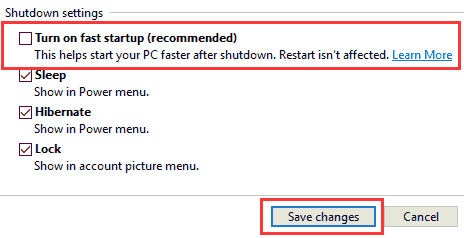
Fast startup saves a partial hibernation image when you shut down, and USB drivers occasionally come back from that image in a bad state. Disabling it costs you a few seconds on boot and fixes a surprising number of flaky USB problems.
1. Open "Control Panel", then "Power Options".
2. Click "Choose what the power buttons do".
3. Click "Change settings that are currently unavailable".
4. Under Shutdown settings, clear Turn on fast startup.
5. Save changes and restart the computer.
Start with the chipset drivers from your laptop or motherboard manufacturer. Intel, AMD, and ASMedia USB controllers each have their own driver package, and Windows Update does not always pick the best one. Then work through three steps inside Device Manager.
1. Update the USB controller drivers.
Expand Universal Serial Bus controllers, right click each USB controller and each USB root hub in turn, choose Update driver, and let Windows search automatically.
If you know the controller is an ASMedia or a third party chip, download the driver from the system maker instead.
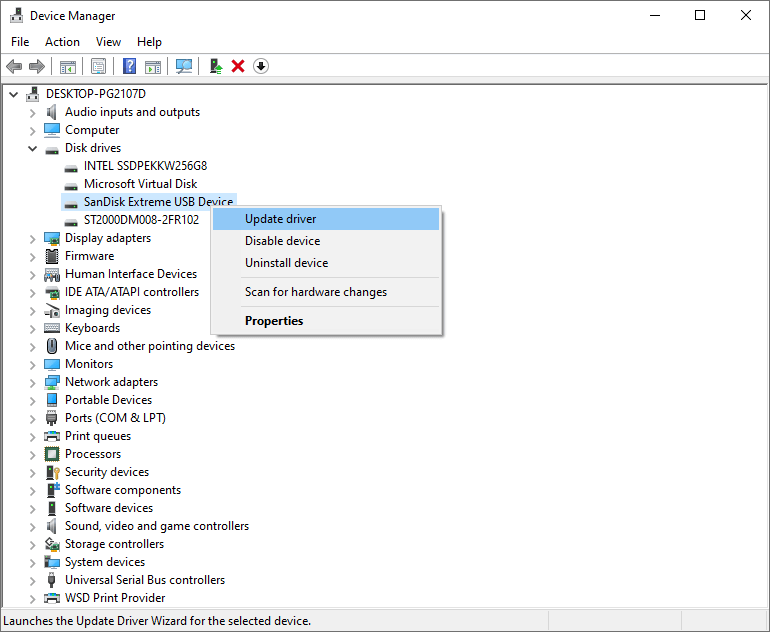
2. Update the disk driver.
Expand Disk drives, find the external drive, right click it and choose Update driver.
3. Uninstall and reinstall the USB device.
This clears out a driver that has gotten into a bad state.
1. Open Device Manager.
2. Expand Disk drives.
3. Right click the external drive and choose Uninstall device.
4. Disconnect the drive.
5. Restart Windows.
6. Reconnect the drive and let Windows install it fresh.
This does not work every time, but when a driver has silently corrupted its configuration, it is often the only thing that does.
Press Win + X and open Disk Management. Look at the lower pane while the drive is connected and again at the moment it drops.
Five things are worth checking: whether the disk appears at all, whether it has a drive letter, whether the partition shows as RAW, whether the disk shows as unallocated, and whether the disk itself disappears at the moment of the drop.
A missing drive letter is a two minute repair. Right click the partition, choose "Change Drive Letter and Paths", and assign a letter. The other rows move us into repair and recovery territory, and the next two fixes handle those.
If the partition is readable but behaving badly, Windows has its own checker. Open an elevated Command Prompt and run:
chkdsk X: /f
Replace X with your drive letter. The /f switch repairs file system errors only.
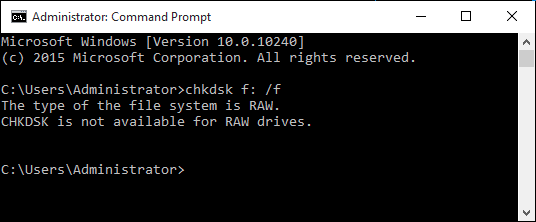
Read this before you type anything else. The /r switch additionally scans for bad sectors and tries to read data out of them, which means a lot of extra reading and writing on a drive that may already be in trouble.
If the drive contains files you care about, or if it is dropping constantly, skip this fix and go to the USB data recovery section below. Repair is not the same as rescue, and on a physically failing drive, repair can finish off what the hardware started.
If Windows reports that it cannot lock the drive, or if chkdsk aborts partway because the drive dropped, treat that as evidence of a hardware problem rather than a software one.
S.M.A.R.T. is the drive's own record of how it is doing. It is not a prophecy, but it is good evidence, and reading it takes under a minute.
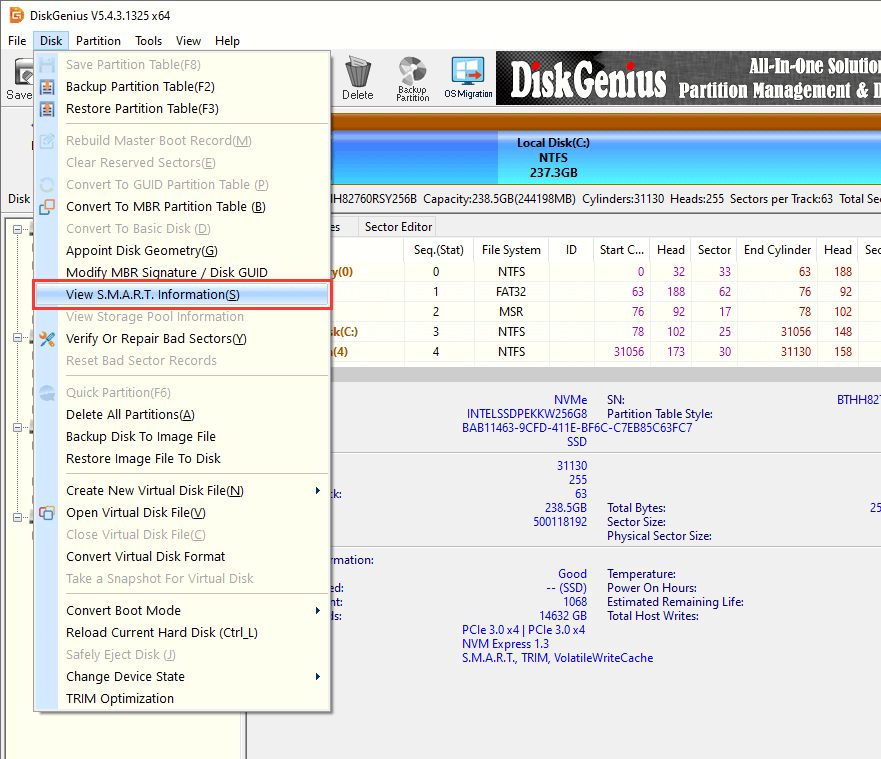
1. In DiskGenius Free Edition, select the disk you want to inspect, then choose "Disk" and "View S.M.A.R.T. Information". You can also right click the disk in the list on the left and pick the same item from the context menu.
2. The window that opens shows the raw values and the current status.
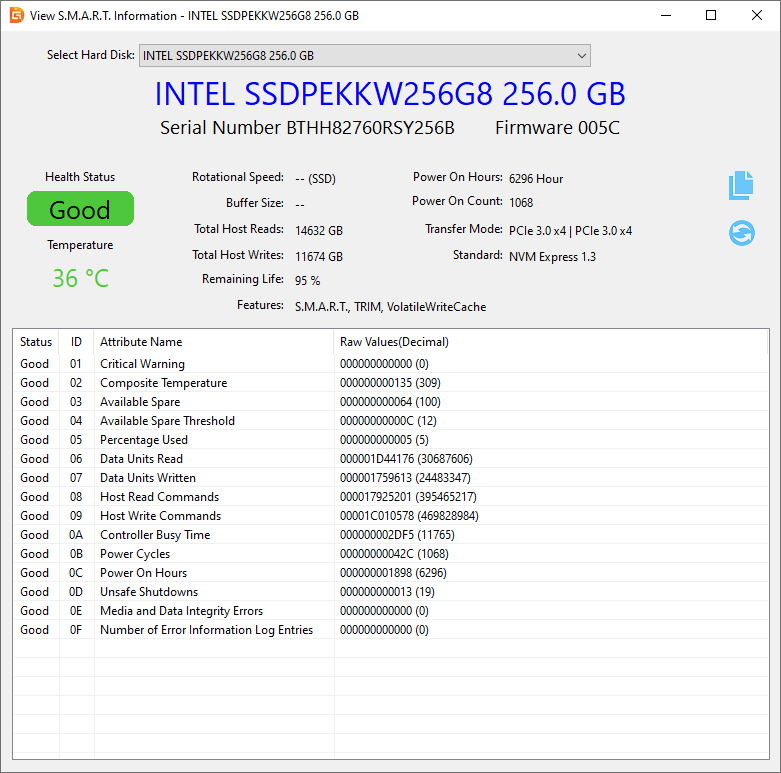
On a mechanical drive, a Reallocated Sector Count above zero and climbing is the classic warning. Current Pending Sector Count tells you about areas the drive has flagged but not yet remapped, and those are the areas most likely to cause a hang or a drop. Power-On Hours gives you context for the rest.
On an SSD, Percentage Used is the wear indicator, and Media and Data Integrity Errors is the one you never want to see moving.
One caution that gets forgotten: a healthy looking S.M.A.R.T. status does not guarantee that a drive will never fail. Plenty of drives die without ever tripping a threshold. Use it as one piece of evidence alongside what the drive is actually doing.
Remember the mechanism from earlier. The drive hits a damaged area, stalls, the bridge board resets, and Windows loses the device. If your drops line up with reading particular files or reaching a certain point in a transfer, this is what you are looking at.
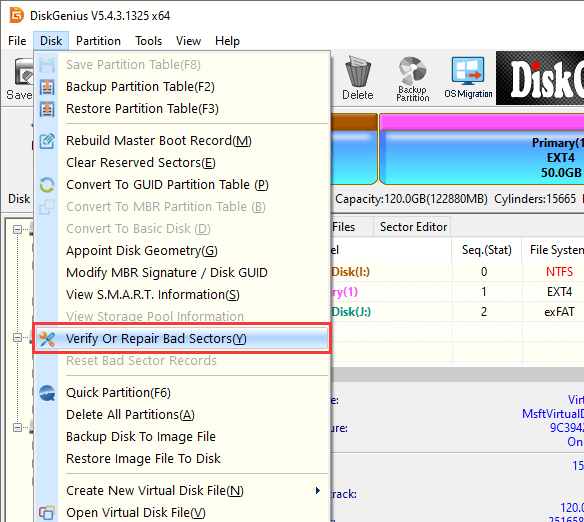
1. In DiskGenius Free Edition, select the disk or partition you want to check, choose "Disk", then "Verify Or Repair Bad Sectors/Blocks".
2. click "Verify" to start the scan. The window maps the disk into blocks and shows read times for each one. Fast blocks are fine. Slow blocks are suspect. Blocks marked as damaged are the bad ones.
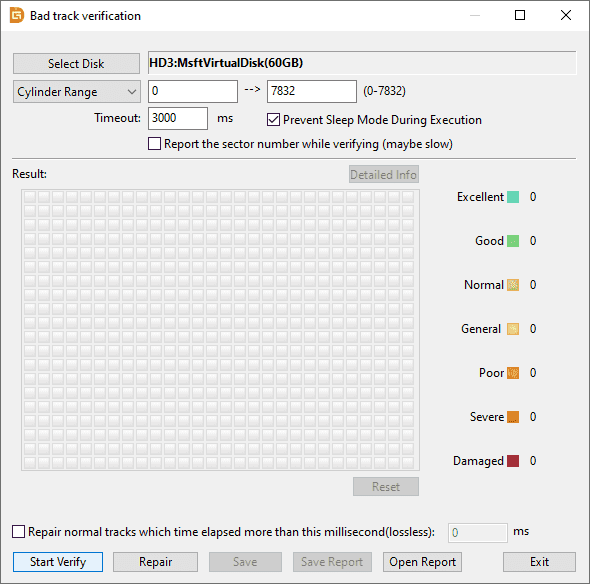
Two things to keep in mind. Verifying is a read test and is comparatively safe. Repairing is a write operation, and on a dying drive it buys you time rather than a cure. If the scan finds a lot of slow or damaged blocks and the data on the drive matters, stop and clone the USB drive before you repair anything.
Here is the honest version of the question most people are actually asking: not how do I fix my drive, but how do I get my files off before it drops again. If that is your situation, this section is the article for you and everything else can wait.
Do not format the drive. When a partition turns RAW, Windows pops up a cheerful message: "You need to format the disk before you can use it." Clicking Format will build a new empty file system on top of the old one and make recovery harder than it needs to be. Cancel the dialog.
Do not run disk checking or repairing. Running chkdsk command or other repairing attempts will cause further damage to original data, making it difficult to get a success recovery.
Do not keep hammering a failing drive. If the drive is dropping constantly, clicking, grinding, taking minutes to list a folder, or disappearing partway through a scan, stop giving it work to do. Every pass across a mechanically failing disk wears it further. Decide what you need first, then extract exactly that.
DiskGenius is useful in exactly the case where Windows can see the physical disk but the partition or file system is no longer readable. It combines file recovery, partition management, disk cloning, and other disk utilities in one application, which means you are not switching tools halfway through a problem.
Step 1. Launch DiskGenius and look at the disk list on the left. If the external disk appears, you are in good shape. If it does not appear at all, the problem is hardware and no software will see it.
Step 2. Click the partition that held the lost files, click "File Recovery" → "Start" to start the scan.
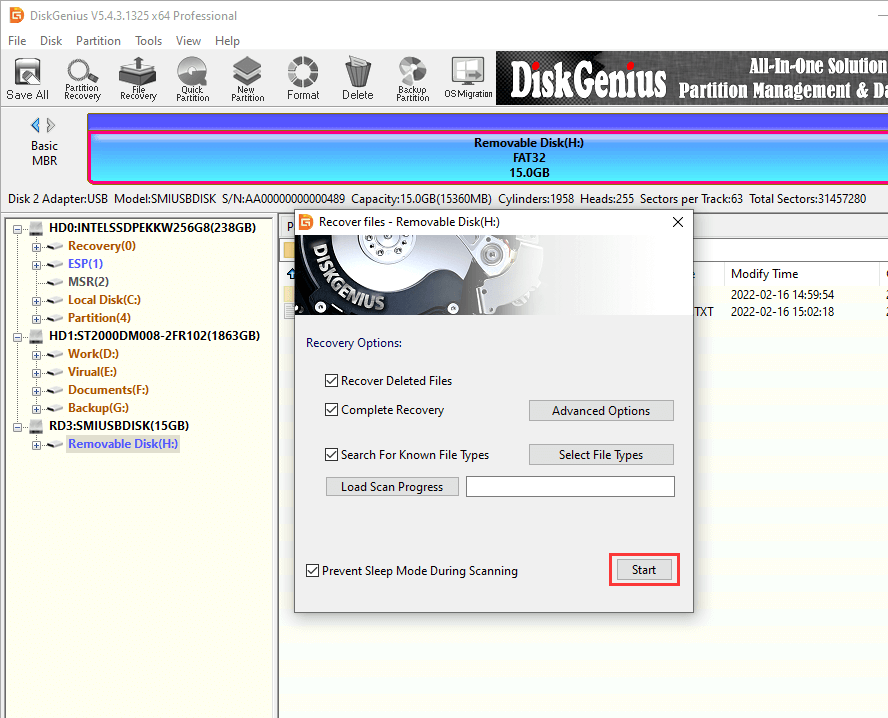
A full scan takes a while on a large drive and does a lot of reading, so if the drive is unstable, prefer the faster option first and escalate only if you need to.
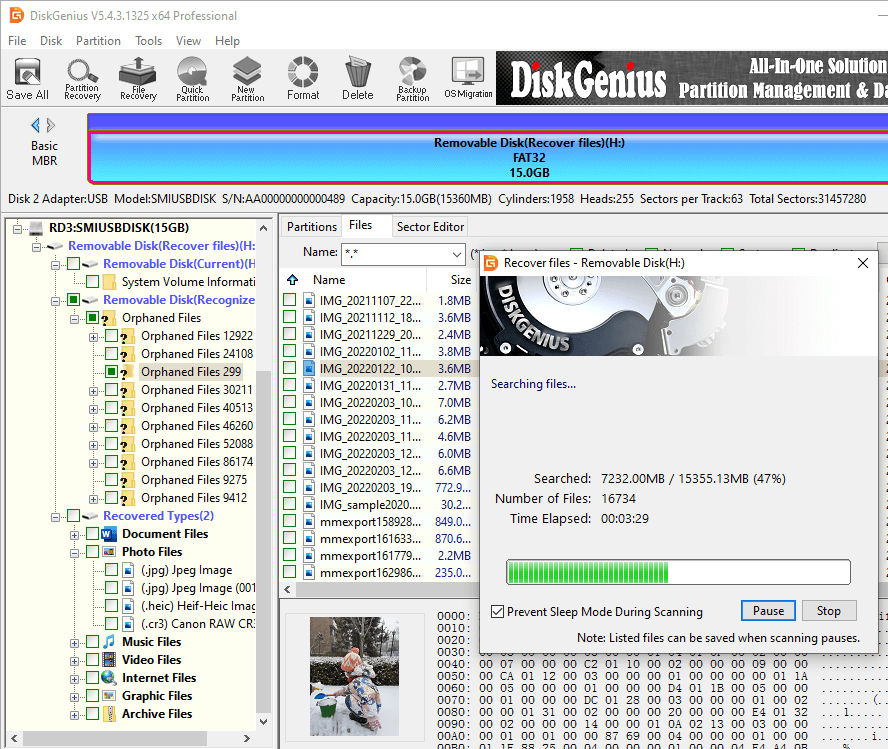
Step 3. Preview lost files. Double click a file in the results to preview it. This is the step that tells you whether recovery actually worked. A preview that renders correctly is a file you can trust.
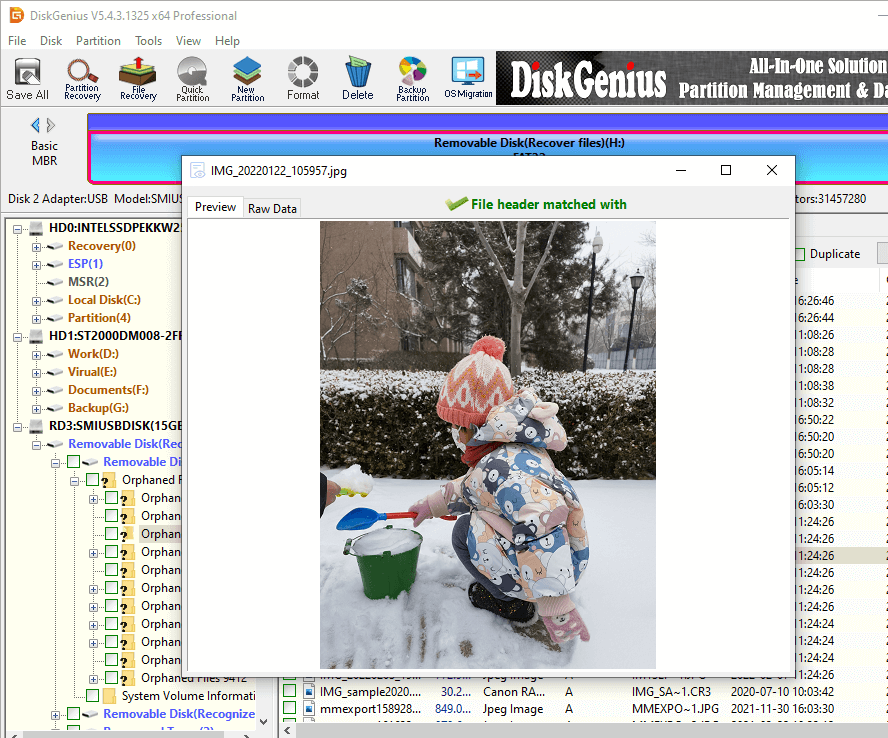
Step 4. Recover the files to another drive. Select what you need and copy it out.
Never save recovered files back to the drive you are recovering from. Write the output to a different physical disk.
Check Windows Event Viewer for USB disconnect errors.
Windows logs what happens at the driver level, and the log is more informative than most people expect.
1. Press Win + X and open Event Viewer.
2. Expand "Windows Logs" and click "System".
3. Sort by time and look at the entries around the moment of a drop.
4. Use the Filter Current Log dialog to narrow to sources such as Disk, Ntfs, Kernel-PnP, USB, storahci, and stornvme.
PnP, USB, storahci, and stornvme. If every disconnect comes with a Disk or Ntfs or storage controller error at the same second, the problem is deeper than USB power management and the drive or its controller is implicated. If the log is clean and the device simply re enumerates, a power management setting is much more likely.
Decision tree: what your test results mean
By this point you have run enough tests to draw a conclusion.
| Case | What you observed | What to do |
| 1 | Only one USB port has the problem | Have the port repaired, or stop using it |
| 2 | Only one cable has the problem | Replace the cable |
| 3 | The drive works fine on another computer | Investigate the original computer's drivers and power settings |
| 4 | The drive drops on every computer | Suspect the cable, the enclosure, the power supply, or the drive itself |
| 5 | The drive only drops during heavy transfers | Check power, temperature, cable, enclosure, and drive health |
| 6 | The drive holds important files and is getting less stable | Recover or clone the drive before any further repair |
One drop does not mean a dead drive. Drives fall off the bus occasionally for reasons that never repeat. What matters is a pattern. Consider replacing the drive or its enclosure when you see several of these at once:
The general rule is simple. A USB connection problem can usually be fixed. The same symptoms appearing on different computers and different cables is much stronger evidence that the storage device or the enclosure itself is the problem, and at that point you are looking at replacement rather than repair.
Why does my external hard drive disconnect during file transfer?
Transfers draw the most current and stress the drive the most. Insufficient power, a marginal cable, heat, and bad sectors are the usual suspects, and the mechanism is often a bad sector that stalls the drive long enough for the USB bridge to reset.
Why does my USB drive disconnect when my computer sleeps?
Windows suspends USB devices aggressively on wake and some drives fail to come back correctly. Disable USB selective suspend and clear the power management checkbox on the USB root hub.
Can a bad USB cable cause a hard drive to disconnect?
Yes. Cables carry power as well as data, and a cable that has been bent and coiled for a year can pass data while dropping voltage under load. Swapping the cable is the cheapest test in the whole list and should be one of the first things you try.
Why does my external hard drive work on another computer?
If the drive is fine elsewhere, the fault is on the original machine: the USB port, the chipset or USB controller driver, or a power management setting. Update the chipset drivers and work through the power settings on that computer.
Can a failing hard drive cause USB disconnections?
Yes. Bad sectors and a failing controller can stall the drive long enough for the USB bridge to reset, and Windows sees the whole device disappear. If drops get more frequent over time, or if they line up with reading the same files, suspect the drive.
Will formatting fix an external hard drive that keeps disconnecting?
Only if the cause is purely file system corruption, and even then it erases everything on the partition. If the cause is power, cabling, the enclosure, or failing hardware, formatting changes nothing except the location of your data. Recover what you need first and only format afterwards.

DiskGenius is a one-stop solution to recover lost data, manage partitions, and back up data in Windows.
Download

 Facebook
 YouTube
 X
X