
Updated on Oct. 22, 2026
Position: Resource - Disk Utilities - Legacy vs UEFI: Key Differences, CSM Explained, and How to Switch
Open the boot menu on almost any motherboard sold in the last decade and you will find the same three suspects: UEFI, Legacy, and CSM. The labels are cryptic, the manual says little, and picking the wrong one can stop Windows from installing or, worse, stop an installation that worked yesterday from starting at all.
Legacy boot is the traditional BIOS method. It reads a Master Boot Record from an MBR disk and starts Windows through the active partition. UEFI is the modern replacement. It reads a GUID Partition Table, launches a boot application from the EFI System Partition, and can verify the boot chain with Secure Boot. CSM, the Compatibility Support Module, sits inside UEFI firmware and lets it imitate the old behavior when something needs it.
From here we go through each piece in order: the boot process, the MBR and GPT relationship, what CSM does and does not change, how to check your current setup, and how to move a working Windows installation from Legacy to UEFI without reinstalling.
Key takeaways:
Legacy BIOS boots from an MBR disk through the active partition. UEFI boots from GPT through an EFI System Partition.
CSM is a compatibility layer inside UEFI firmware, not a third boot mode.
Windows 11 requires UEFI and GPT, so new installations should use UEFI.
Converting an existing Legacy installation to UEFI usually works, but back up before you touch anything.
In this article:
Legacy BIOS is the startup method IBM PC compatible machines have used since the 1980s. At power on, the firmware runs a self test, picks a boot device, and reads that disk's first sector into memory. That sector is the Master Boot Record, and inside it sit a few hundred bytes of code plus the partition table. The code finds the partition flagged as active, loads the boot sector from that partition, and hands off to the Windows loader.
Three limits shape the whole method. Boot disks top out around 2 TB, because with 512-byte logical sectors the table runs out of addressing room just past 2 TiB. It holds four primary entries, so anything beyond that needs an extended partition with logical drives inside. And there is no built-in way to tell whether the boot code has been tampered with.
None of that stops Legacy boot from being useful. Windows XP and 32-bit Windows 7 expect it, and so do plenty of bootable recovery discs and older imaging tools. Lots of working PCs have booted this way for ten years and gain nothing from a change.
UEFI (Unified Extensible Firmware Interface) is the firmware standard that replaced the old BIOS design. Instead of executing raw code from a boot sector, the firmware reads the GUID Partition Table, mounts the EFI System Partition (a small FAT32 partition holding boot applications), and launches a file such as Windows Boot Manager.
The payoff is substantial. GPT removes the 2 TB ceiling and allows up to 128 primary partitions. Secure Boot can block unsigned boot loaders on hardware that supports it. The firmware environment itself is richer, with graphical menus, mouse input, network boot, and NVMe support on modern boards.
Secure Boot and UEFI are related but separate. Dual boot machines commonly run UEFI with Secure Boot switched off, and that is a perfectly normal configuration.
Legacy boots from MBR through a 16-bit environment with no security layer and no support for large boot drives. UEFI boots from GPT through a modern firmware environment with Secure Boot and current hardware support.
Boot speed deserves a caveat, because the claim gets repeated without much evidence. UEFI often starts a machine faster thanks to parallel device init and a shorter POST, but firmware quality, storage speed, and Windows settings matter just as much. A fast NVMe drive in Legacy mode will outboot an old laptop in UEFI mode every time. Treat quicker boot as a common side effect rather than a promise.
UEFI advantages. Designed for current Windows and hardware, NVMe boot included. Pairs with GPT, so boot disks over 2 TB and many-partition layouts work fine. Secure Boot is available when you want it. Boot entries live in NVRAM instead of depending on a single active flag. Hardware init is usually quicker.
Legacy advantages. Runs older operating systems and bootable tools that expect a traditional BIOS. Keeps long-standing installations working when conversion would be pointless risk. Still common in recovery, disk cloning and industrial setups. In one narrow sense it is simpler: one boot sector, one active flag, nothing else to manage.
Often, though the gap is rarely what people expect. Parallel hardware init and a shorter POST typically trim a few seconds off a cold boot, and after that storage speed and driver load order dominate. If boot time is your only reason for converting, measure the difference on your own machine first.
CSM is the firmware option people understand least, and the confusion around it is well earned.
CSM is a component inside some UEFI firmware implementations. It emulates the old BIOS environment so operating systems and bootable media built for Legacy boot still work on a UEFI board. With CSM on, the firmware can expose devices through legacy-style interfaces and execute a boot sector from an MBR disk, the same way a 1990s BIOS would.
You will run into CSM mostly on systems from the Windows 8 through early Windows 11 era, where the firmware still covers both worlds. Newer boards have largely dropped it, and some lock it out whenever Secure Boot is enabled.
They are not, and treating them as rivals leads to bad decisions. CSM does not stand next to UEFI as an alternative standard. It lives inside UEFI firmware, so a board with CSM enabled is still running UEFI. The module simply adds a legacy boot path alongside the native one.
Two things follow from that. Turning CSM on does not mean Windows is booting in Legacy mode. The system may well live on a GPT disk and launch through the normal UEFI path, with CSM idle except for a legacy USB stick now and then. And turning CSM off deletes nothing. It removes the compatibility path. If Windows happens to depend on that path, the machine stops booting until you either switch CSM back on or convert the installation.
Vendors label the same ideas in completely different ways. ASUS writes "CSM (Compatibility Support Module) Support" with separate controls for boot devices and video cards. Gigabyte uses "CSM Support". MSI hides the choice under "Boot mode select" with entries like Legacy+UEFI and UEFI. Dell calls it "Boot List Option", and HP pairs "Legacy Support" with Secure Boot. The table covers what these options actually do.
| Firmware option | What it usually means |
| UEFI Only | Only UEFI-aware boot loaders are considered. Legacy devices are ignored. |
| Legacy Only (CSM Only) | The system boots through the compatibility path, like a traditional BIOS. |
| UEFI and Legacy (UEFI First / Legacy First) | Both paths are available and one takes priority. Handy for mixed boot media. |
| CSM Enabled | The compatibility module is active. Legacy boot is possible. |
| CSM Disabled | Pure UEFI operation. Often required before Secure Boot can be turned on. |
| Secure Boot | Verifies boot loader signatures. Normally needs UEFI mode with CSM disabled. |
When Secure Boot is grayed out, CSM is usually the reason. Firmware ties the two together closely, so disabling CSM is normally the first step toward a Secure Boot configuration. Exact names and behavior vary, so check the board manual when something looks unfamiliar.
Boot mode and partition style are two views of the same problem. Following the actual boot flow shows why changing one without the other leaves an unbootable machine.
Power on, firmware self test. Firmware reads sector 0 of the boot device, the Master Boot Record. MBR code scans the partition table for the active flag, loads the partition boot sector (PBR) from that partition, and executes it. The Windows loader takes over from there.
Every step leans on the one before it, and all of it lives in the first few hundred bytes of the disk. Overwrite the MBR or move the active flag and the chain breaks at once.
Power on, firmware initialization, including drivers for storage devices. Firmware reads the GUID Partition Table to find partitions, mounts the EFI System Partition (on Windows, the one holding Windows Boot Manager), and launches the EFI boot application, typically bootmgfw.efi. Control passes to Windows Boot Manager and the OS loader starts.
UEFI also records boot entries in NVRAM, which is why the boot order shows names like "Windows Boot Manager" instead of raw device names.
The Master Boot Record is the only partition structure a traditional BIOS understands. Conventional MBR gives you four primary entries and, with 512-byte sectors, cannot describe storage past roughly 2 TiB. On a 4 TB disk that leaves the extra space unusable as boot capacity, and it is one of the most common reasons people convert.
GPT stores a header at the start of the disk, a backup header at the end, and up to 128 partition entries by default, each with checksums so firmware can spot damage. For Windows, a UEFI installation keeps its boot files in the EFI System Partition and firmware launches Windows Boot Manager from there. No active flag to maintain, and the backup header gives you a recovery path MBR never had.
For the Windows system disk, treat them as a matched pair. Microsoft's supported configuration for UEFI-mode Windows is GPT, and Windows 11 requires it outright.
Data disks are a different story. You can boot Windows from GPT under UEFI and still run secondary drives as MBR for storage. Boot mode is a firmware setting while partition style belongs to each disk. Mixing them up is how people disable CSM on an MBR system disk and then wonder where Windows went.
Before changing anything, it pays to know what the disk actually looks like. DiskGenius reports the partition table type (MBR or GPT) as soon as you select a disk, and the layout shown beside it reveals whether there is an EFI System Partition or a Legacy setup with an active partition. Thirty seconds spent checking tells you far more than guessing from BIOS settings.
For most readers the answer is UEFI. The exceptions are in the table.
| Situation | Recommended approach |
| Installing Windows 10 or 11 on a modern PC | UEFI with GPT |
| Installing Windows 11 | UEFI, plus its hardware and security requirements |
| Running an older OS that needs BIOS boot | Legacy, if the hardware supports it |
| Existing Windows already booting in Legacy mode | Keep it unless you plan a careful conversion |
| Booting installation media | Pick the entry matching the mode you intend to install in |
| Enabling Secure Boot | UEFI configuration with CSM disabled if required |
Is UEFI Better for Windows 10 and Windows 11?
On Windows 10, UEFI with GPT is the right configuration for any hardware that supports it. On Windows 11 the question is settled: Microsoft requires UEFI, GPT and Secure Boot capability as part of the minimum spec.
Flipping a switch to UEFI does not by itself make an unsupported PC eligible for Windows 11. Boot mode is one requirement among several.
When Should You Still Use Legacy Boot?
Three cases hold up. Old software, meaning Windows XP, 32-bit Windows 7, or tools that boot through a traditional boot sector. An installation that has run stably in Legacy mode for years on hardware with nothing to gain from conversion. Recovery work, since some utilities still assume the old path. Outside those, UEFI is the better default.
1. Press Win + R, type msinfo32, press Enter.
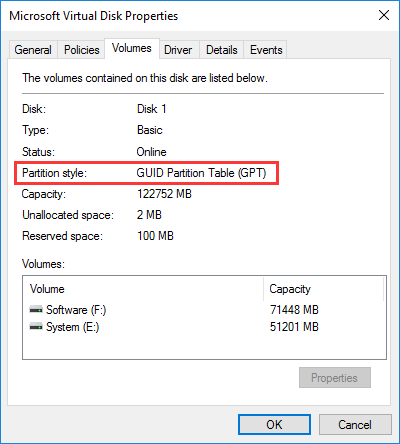
2. In "System Summary", find the "BIOS Mode" row. It shows UEFI or Legacy.

1. Open Disk Management.
2. Right-click the gray disk number area on the left, choose "Properties".
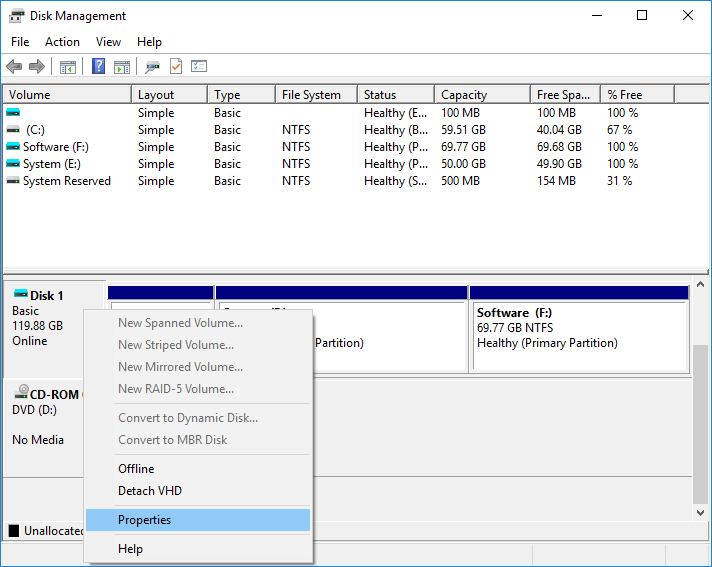
3. Click the "Volumes" tab. The "Partition style" shows either "Master Boot Record (MBR)" or "GUID Partition Table (GPT)".
DiskGenius shows the partition table type as soon as a disk is selected, with the full partition layout beside it.
A UEFI system disk has an EFI System Partition, FAT32 and usually a few hundred MB. A Legacy system disk shows an active partition instead. Both facts on one screen make mismatches obvious before any conversion starts.

Why You Should Check Both Boot Mode and Partition Style?
BIOS Mode tells you how Windows started. Partition style tells you how the disk is built. Machines often carry several disks with different styles at once, so make sure you are looking at the actual system disk and not a data drive. The two normally agree (UEFI with GPT, Legacy with MBR), and when they do not, that disagreement is usually the root of the boot problem.
Converting a live installation works on many systems. The job has three parts: convert the system disk from MBR to GPT, make sure the boot files are right, then change the firmware setting. Skipping any one of them is the usual cause of a failed switch.
Before You Start:
Check that the motherboard supports UEFI boot, using the vendor documentation if you are unsure.
Identify the Windows system disk and confirm it is MBR. Back up important data.
If BitLocker is enabled, suspend protection and keep the recovery key handy, because BitLocker reacts badly to boot environment changes and can lock the drive without warning.
Make sure the disk layout fits the method you pick.
MBR2GPT ships with Windows 10 version 1703 and later. It converts a supported Windows system disk from MBR to GPT without touching files, but validation runs first and the disk has to qualify: basic MBR disk, no more than three primary partitions, a working Windows partition, and room for an EFI System Partition.
To convert a disk to GPT:
1. Launch Command Prompt as administrator.
2. Execute the command: mbr2gpt /allowfullos /convert

Then restart, enter firmware setup, and switch boot mode to UEFI.
That order matters. Change the firmware setting only after a successful conversion. If validation fails, fix the layout or use another method rather than forcing it through.
DiskGenius includes a feature called Windows Boot Repair and Conversion. It can repair Windows boot files, switch the target Windows installation between UEFI and Legacy boot modes, create a boot partition (EFI System Partition or BIOS boot partition) when one is missing, adjust boot files and boot configuration to match the target mode, and handle the GPT or MBR partition style conversion that goes with a supported boot mode switch.
Using it is straightforward:
1. Open "Tools" → "Windows Boot Repair and Conversion".

2. Select the target Windows system drive. Then choose the intended boot mode (UEFI or Legacy BIOS).

3. Review the boot partition and configuration options shown. Click "Execute".
A few limitations to know before running it. Boot mode switching works only on compatible system and disk configurations, and only one Windows system partition can be handled at a time. The currently running Windows and its boot partition cannot be operated on directly, so for those, boot a WinPE USB with DiskGenius instead. Some NVMe systems cannot Legacy boot at all, which means the reverse conversion may not exist on new hardware.
Read More: Windows Won't Boot? A Guide to Boot Repair & UEFI/Legacy Conversion
Enter firmware setup (Del or F2 on most boards), set boot mode to UEFI, and disable CSM if the configuration needs it. Select Windows Boot Manager in the boot order rather than the raw disk name. Review Secure Boot settings if you plan to use them. Then start Windows and check a few files before removing any backup.
Windows Won't Boot After Disabling CSM
The usual cause is Windows sitting on an MBR disk in Legacy mode while the path it boots through has been removed. Re-enable CSM to get back in, or treat it as a conversion project. Check the real boot mode and partition style first, convert the disk properly, then disable CSM again.
Windows Cannot Be Installed to This Disk. The Selected Disk Has an MBR Partition Table
The install media booted in UEFI mode while the target disk is MBR. The mirror image of this problem produces the GPT version of the same error. Decide which mode you want before touching partitions. For UEFI, convert the disk to GPT or wipe it and install to unallocated space. Never delete partitions or convert a disk without a backup of what is on it.
The Windows Boot Manager Option Is Missing
Start with the firmware boot list and boot order. If Windows Boot Manager is gone entirely, the EFI System Partition may be missing or its files damaged. Boot from a WinPE USB or recovery drive, inspect the disk, and rebuild the boot files as needed. Inspect first, repair second.
Secure Boot Is Unavailable or Cannot Be Enabled
Secure Boot wants UEFI boot with CSM normally off. If the option is grayed out, look at boot mode first. Some firmware also requires setting an administrator password or clearing the secure boot keys before the options unlock. Behavior varies by manufacturer.
A Cloned SSD Won't Boot After Replacing the Original Drive
Copying Windows partitions does not automatically produce a bootable system. Check that the clone contains the boot partitions it needs (EFI System Partition on UEFI systems, active partition on Legacy ones), then check firmware boot mode and boot order. A mismatch between how the source booted and how the firmware is set now is the most common culprit.
When boot files are missing, the configuration is wrong, or a boot mode mismatch is suspected, the Windows Boot Repair and Conversion feature in DiskGenius is the right place to start. Our step-by-step feature guide covers the procedure with screenshots.
Read More: Fix "No Bootable Devices Found" and "Boot Device Not Found"
1. Is UEFI better than Legacy BIOS?
On modern hardware with current Windows versions, yes. GPT, large boot disks, Secure Boot and NVMe boot all assume UEFI. Legacy still earns its keep for older operating systems and specific compatibility needs, so the practical answer depends on what the machine runs today.
2. Will disabling CSM delete my data?
It is a firmware setting and it does not erase disks. It can leave a Legacy installation unbootable until you re-enable CSM or convert the disk. Converting the partition table is a separate operation and belongs after a backup.
3. Does UEFI make a computer boot faster?
It can, through parallel hardware init and a shorter POST, but firmware quality, storage and Windows settings matter just as much. Boot speed is a side effect of UEFI rather than a guarantee.
4. Can UEFI boot from an MBR disk?
UEFI firmware can read MBR data disks, and some boards can boot MBR through CSM. A standard UEFI Windows installation should still live on GPT. Windows on MBR with firmware set to UEFI-only will not start.
5. What happens if I switch the firmware to UEFI without converting the disk?
With the system disk on MBR, disabling CSM or setting UEFI-only mode means the firmware finds no bootable device and Windows never loads. Your data is untouched. Either restore the firmware settings or convert the disk to GPT and rebuild the boot files.
The two boot modes amount to an old path through an MBR active partition and a modern one through GPT and an EFI System Partition. CSM bridges them without belonging to either. For new installations and current hardware, UEFI with GPT is the configuration to use, and Windows 11 leaves no room for argument on that.
Do not change boot mode blindly on a machine with a working Windows installation. Check boot mode and partition style first, back up, convert in the right order, and only then touch the firmware setting. DiskGenius covers inspecting partition layouts, converting MBR to GPT and repairing Windows boot files, including switching a supported installation between UEFI and Legacy modes. The Windows Boot Repair and Conversion guide has the full walkthrough.

DiskGenius is a one-stop solution to recover lost data, manage partitions, and back up data in Windows.
Download

 Facebook
 YouTube
 X
X