
Updated on Jul. 22, 2026
Position: Resource - Data Recovery - How to Recover Lost Partitions and Data in Windows 11 | Full Guide 2026
Losing disk partitions and critical data is one of the most frustrating issues for Windows 11 users. Accidental partition deletion, incorrect disk formatting, sudden power outages, virus attacks, or failed Windows updates can easily make partitions disappear, turn drives into unallocated space, or trigger RAW partition errors. When this happens, all photos, documents, videos, and work files stored on the partition seem irrecoverable. Fortunately, with a professional all-in-one tool like DiskGenius, you can recover lost partitions and data in Windows 11 safely without advanced technical skills or expensive repair services.
Before starting the recovery process, it is essential to understand common causes of lost partitions, which helps avoid similar issues in the future. Most partition loss incidents stem from human errors or system failures, not permanent disk damage.
Typical scenarios include mistaken deletion in Disk Management, improper MBR/GPT conversion, sudden system crashes or power failures during disk operations, malware and ransomware that corrupt partition tables, and incorrect disk repartitioning. Windows 11's strict UEFI security and modern disk partition schemes also make old manual repair methods ineffective. The built-in Windows disk tools can only detect unallocated space but cannot restore lost partitions or retrieve original data, making third-party professional recovery software a necessity.
DiskGenius is a powerful, user-friendly disk utility trusted by millions of global users, specializing in lost partition recovery and data restoration. Different from single-function recovery tools, it integrates partition repair, file recovery, disk management, and system maintenance into one lightweight program, fully compatible with Windows 11's UEFI boot, GPT partition tables, and modern SSD/HDD devices.
It delivers outstanding advantages for Windows 11 users. First, it features a high success rate for lost partition recovery, accurately scanning and restoring complete partition tables, directory structures, and original file data. Second, all recovery operations are read-only, ensuring no secondary damage or data overwriting to your disk. Third, it supports multiple complex scenarios, covering RAW partition repair, formatted drive recovery, BitLocker encrypted partition restoration, and Linux Ext4 file system access on Windows 11. Additionally, the free version allows users to scan, preview, and verify recoverable files, providing a risk-free recovery experience.
Follow this simple 3-step tutorial to restore lost partitions and data on Windows 11 with DiskGenius. The whole process is beginner-friendly and takes only a few minutes.
Step 1: Install and Launch DiskGenius
Download DiskGenius from its official website and complete the installation. Do not install the software on the disk with lost partitions to avoid overwriting lost data. Launch the program, and it will automatically load all disks and device information on your Windows 11 computer, clearly displaying unallocated space and missing partition areas.
Step 2: Scan and Locate Lost Partitions
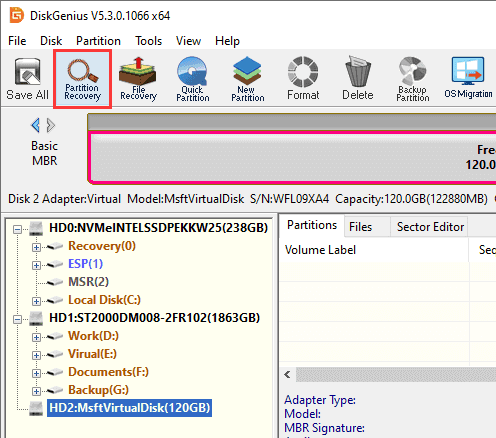
Select the disk that suffered partition loss from the left sidebar. Click the Partition Recovery button on the top toolbar to launch the partition search window.
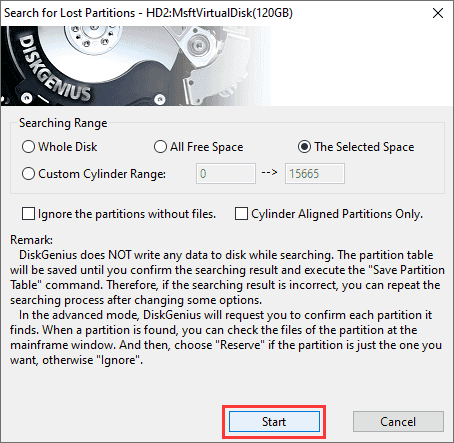
DiskGenius provides two scanning modes: Automatic and Advanced. For most Windows 11 users, the default Automatic mode is recommended, which intelligently scans the entire disk, identifies valid partitions, and filters invalid ones automatically.
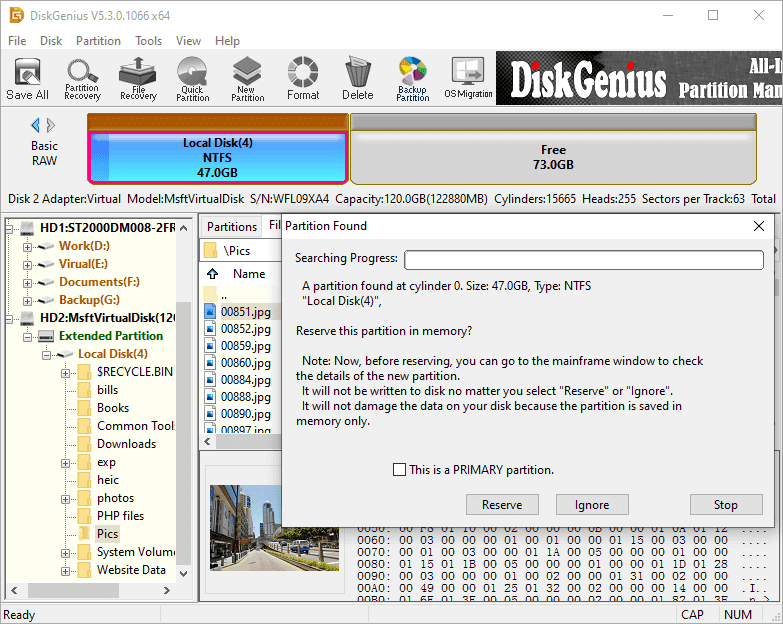
Click Start to begin the scanning process. During the scan, the software will pop up prompts once it finds recoverable partitions. You can preview files in the found partitions in real time to confirm accuracy, ensuring you restore the correct target partition.
Step 3: Save Partition and Recover Data
After the scan finishes, tick all valid lost partitions with intact files. Click Reserve to keep the partition information, then click Complete to finish partition recovery. The lost partition will reappear in Windows 11 File Explorer.
If you need to restore specific files, select the target partition, right-click and choose Recover Lost Files, run a deep scan, preview the recoverable data, and save the files to another safe disk partition to avoid data overwriting.
Beyond core partition and data recovery, DiskGenius offers comprehensive disk management tools to optimize your Windows 11 storage experience. It supports safe MBR/GPT conversion without data loss, one-click Windows OS migration to SSD, lossless partition resizing, merging and splitting, bad sector checking and repair, and secure disk wiping. It also supports creating a WinPE bootable USB for offline recovery, which rescues data even when Windows 11 fails to boot normally.
Once you find partitions lost or disks showing unallocated space on Windows 11, stop all disk write operations immediately. Do not create new partitions, format the disk, or install new software on the affected drive, as new data will overwrite lost files and reduce recovery success rates. With DiskGenius, you can safely rescue lost partitions and data by yourself, eliminating the high cost and uncertainty of manual repair or professional offline maintenance.
Lost partitions and missing data on Windows 11 are not irreversible disasters. As an all-in-one disk solution, DiskGenius simplifies the complex partition recovery process with intelligent scanning, high recovery accuracy, and user-friendly operation. Whether you are a regular user encountering accidental partition loss or a professional needing advanced disk maintenance, it reliably protects your data security. Download DiskGenius now to recover lost partitions and data on Windows 11 quickly and effortlessly.

DiskGenius is a one-stop solution to recover lost data, manage partitions, and back up data in Windows.
Download

 Facebook
 YouTube
 X
X