
Updated on Oct. 21, 2026
Position: Resource - Disk Utilities - How to Fix "We Couldn't Create a New Partition or Locate an Existing One"?
Your Windows installation stops at the drive selection screen. You pick a disk or an empty area, click Next, and Setup replies: "We couldn't create a new partition or locate an existing one. For more information, see the Setup log files."
You can also run into this on brand new NVMe drives and on disks that booted Windows perfectly the day before. It appears in the "Where do you want to install Windows?" step, and it means Setup failed to build the boot structure it needs, or failed to find that structure on the disk you selected. On UEFI machines that structure is the EFI System Partition. On Legacy BIOS machines it is the system reserved area plus a valid MBR. Windows must create or find both before it copies a single system file.

Here is the part most people get wrong: the message does not mean your drive is dead. Nine times out of ten it is a layout or boot mode problem, a confusing install USB, or another storage device stealing the show. The fixes below run from harmless to destructive in order. Toward the end there is a full walkthrough for preparing the disk with a DiskGenius WinPE USB drive, which is what you want when Setup cannot handle the layout at all, plus a DiskPart section for command line people.
Table of Contents:
Back up first. Anything you cannot afford to lose should be copied somewhere else before you delete partitions, run clean, format, or convert a partition table. A ten minute backup turns a disaster into an inconvenience.
Setup writes a small boot structure before it copies Windows. That structure lives in its own partition, separate from the partition that will hold your system files. The error fires when Setup cannot create either one, or cannot find them on the disk you chose. So the error is really about boot partitions. Data partitions can look perfectly healthy and you will still hit it.
Probably not. A failing disk can produce this message, but the far more common culprits are configuration problems: installation media, partition style, boot mode, or other devices confusing Setup. Work through the checks below before blaming hardware. And whatever you do, don't wipe the disk "just to see if it helps". That destroys your data and your evidence at the same time.
Read More: 8 Best Free Programs to Check Hard Drive Health (HDD Test Tools)
Same underlying problem, different wording. If you searched for one of these, you are in the right place:
Multiple storage devices. USB sticks, external hard disks, memory cards, even a second internal drive can make Setup number its disks differently than you expect, or place boot files on the wrong device. This is the single most common trigger. Method 1 exists for exactly this reason.
A partition layout that conflicts with the boot mode. GPT expects UEFI and an ESP. MBR expects Legacy booting and, on older systems, an active primary partition. If the disk sits somewhere between these two worlds, Setup does not know where to put anything.
No room for the required boot partition. Windows wants a boot partition separate from the system partition, and Setup wants to create it near the start of the disk. If unallocated space sits in the wrong place, or a broken ESP already exists, it gives up.
Broken installation media. Corrupted files, a stick made with the wrong tool or wrong settings, a flaky USB port. Cheap drives fail quietly. Recreating the installer costs nothing, so try it early.
Disk or controller trouble. Read and write errors, RAID or Intel VMD modes the installer does not expect, NVMe quirks, a disk that drops out during copying. These need real diagnosis, and the error message alone tells you nothing about hardware.
Read more: Windows Won't Boot? A Guide to Boot Repair & UEFI/Legacy Conversion
This alone fixes the problem surprisingly often. Shut the machine down, unplug every external drive, USB stick, memory card, and connected phone. Leave the installer and the target drive connected, nothing else. Boot from the installer again and select the target.
If the machine has several internal drives and you are comfortable opening it (and the warranty allows), unplug the non-target drives too. If not, skip that and move on. The external devices alone are worth removing.
Once Windows is up and running, reconnect everything.
On a working computer, download the official media from Microsoft. Use the Media Creation Tool or the official ISO, and write it to a decent 8 GB or larger stick with Microsoft's own tool. I don't recommend third party flashing tools here, not because they are bad, but because the official tool removes one variable from the equation.
Three things to watch. Recreating the drive erases it. The stick should be booted in the mode that matches your goal (UEFI for GPT, Legacy for MBR). And do not confuse the installer with the target disk in the drive list. The installer is the small one, easy to spot by capacity.
If Setup proceeds on the new stick, the old one was the problem. Toss it.
Before touching anything, make sure you know which disk is which. Match capacities. A 512 GB SSD shows roughly 476 GB, a 1 TB drive roughly 931 GB. Size identifies drives faster than labels ever will.
Now look at what is actually on your target. Unallocated space? Old partitions? A mix? Note which partitions hold files you care about, including recovery partitions you may want to keep.
Do not delete everything just because the error appeared. If the disk has files you need, back them up first, or split a partition into two without losing data (Method 5 shows the graphical way to do that). Delete only what you are sure you can lose.
When the partition list in Setup looks murky, or you want a proper look at the disk before deciding anything, boot from a maintenance USB with a graphical disk manager. Method 5 covers it.
GPT is the modern partition table and pairs with UEFI. MBR is the older one and pairs with Legacy BIOS. Windows 11 wants GPT with UEFI. Windows 10 runs on either.
To see how the installer booted, check your BIOS boot menu. If the USB entry appears twice, once labeled UEFI and once plain, that label is your answer. On the disk side, run diskpart then list disk: the GPT column shows an asterisk for GPT disks.
If the two sides don't match, fix one or the other. Either reboot the USB in the correct mode (F12, F11, Esc, or F8 right after power on, depending on the machine), or convert the disk. Converting is Method 4's second half.
DiskGenius shows the partition table type right under each disk name in its interface, no commands needed. It also converts MBR to GPT and back without destroying existing partitions, which is the part people actually care about. convert gpt and convert mbr in DiskPart do the same job in theory, but only after clean, so the disk has to be empty. Choose your route accordingly.
Converting MBR to GPT (or GPT to MBR) Without Losing Data
Boot from a DiskGenius WinPE USB (Method 5, Steps 1 and 2), or run DiskGenius inside an existing Windows.
Select and right-click the disk, choose "Convert to GUID Partition Table" from the context menu.

Click "Save All" and "Yes" to save changes to the disk.

Rebuilding the MBR
On Legacy/MBR systems, partitions can sit right there on the disk while Setup pretends they don't exist. A damaged master boot record does that. It fits the "locate an existing one" half of the error message exactly.
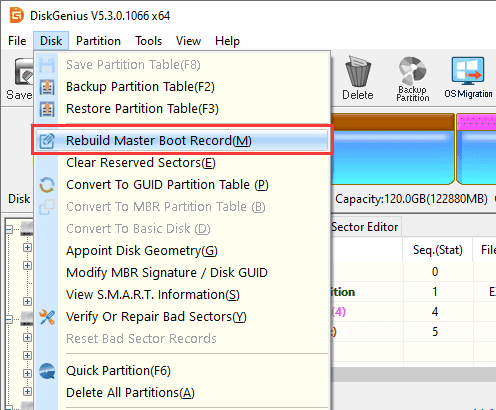
In DiskGenius, select the disk you want to fix, then click "Disk" → "Rebuild Master Boot Record".
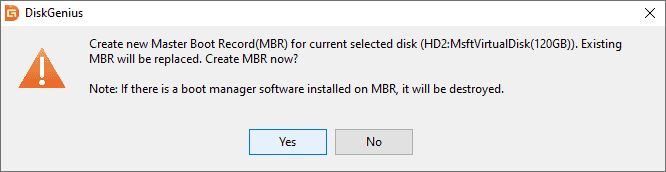
Click "Yes" from the pop-up message box and DiskGenius commits the task.
Sometimes Setup is the wrong tool for the job. A DiskGenius WinPE bootable USB gives you a small independent Windows-like environment with a full graphical disk manager, so you can inspect the disk, fix or create partitions, and copy files to safety before starting the real installation.
Worth reaching for when you want to see the true disk layout before deleting anything, when Setup refuses to touch the disk, when you need to resize partitions to make room, when you want to repair boot issues, or when you need to repartition the hard drive.
One thing to keep straight: WinPE is a maintenance desktop, not an installer. You prepare the disk there, then reboot into the Windows installer and continue.
Step 1. Create the DiskGenius WinPE bootable USB.
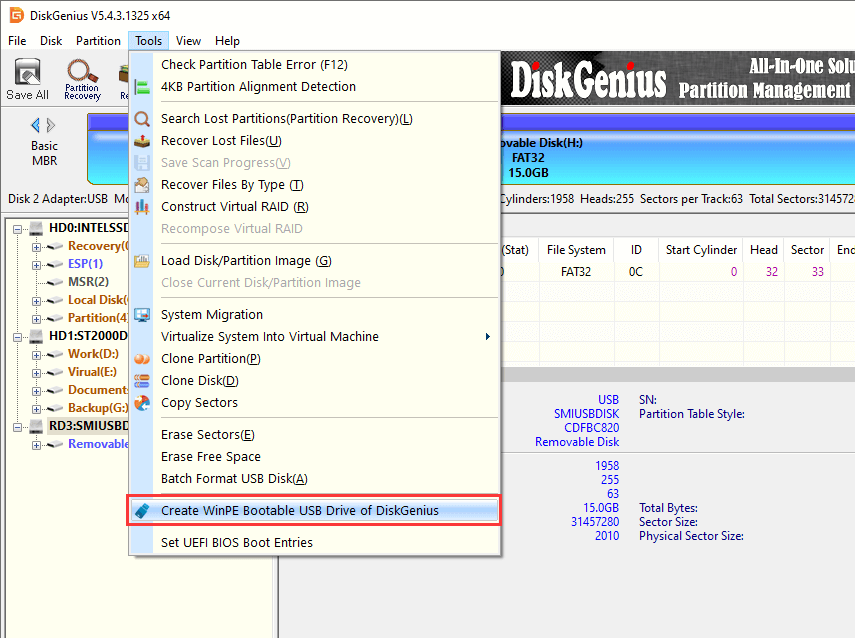
On any working computer, install DiskGenius, then choose "Tools" → "Create WinPE Bootable USB Drive of DiskGenius" from the menu.
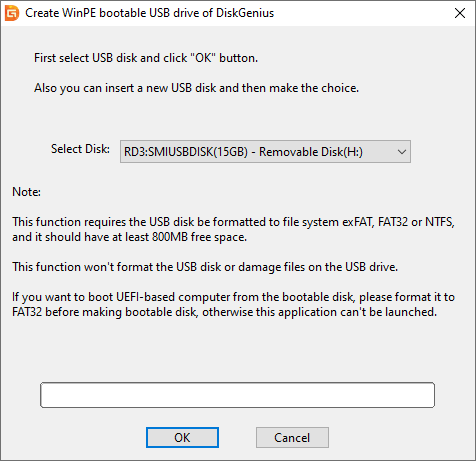
Pick your USB drive in the dropdown list, click "OK", and give it a moment.
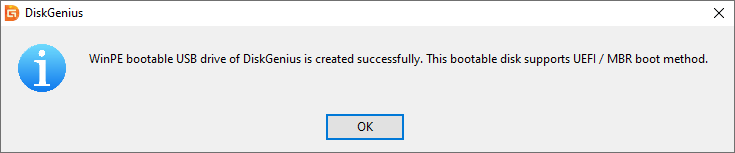
Step 2. Boot the problem machine into WinPE.
Plug the stick in, power on, open the boot menu (F12 on many PCs, F11 or Esc on others; the splash screen or your manual will say). Select the USB entry. When both UEFI and Legacy entries appear, pick the mode you intend to use for Windows later. WinPE loads, and DiskGenius opens by itself.
If the stick does not show up, check that USB boot is enabled in BIOS and that you booted in the right mode. That solves most "my PC won't boot from USB" moments.
Step 3. Inspect the target disk.
Find your SSD or HDD in the left pane and match it by capacity. Check the partition table type, look at each partition's size and file system, and see where the unallocated space sits. Mark down which partitions hold data that has to survive. Only then decide what to change.
Step 4. Create a new partition.
If there is enough unallocated space, select the unallocated space, click "New Partition" (or right-click, "Create New Partition"), set the size, type, and NTFS file system, check the preview at the bottom, and click "OK".
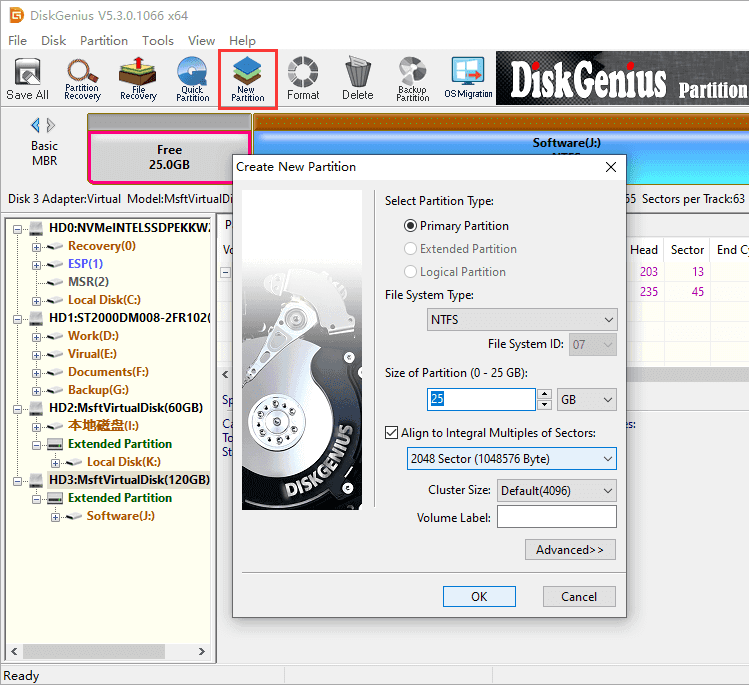
Click "Save All" to save changes, and DiskGenius will format the partition automatically.
Two more capabilities matter in this exact scenario. If the free space you need is locked inside an existing partition, select that partition and use "Create New Partition" from the right-click menu to split it.
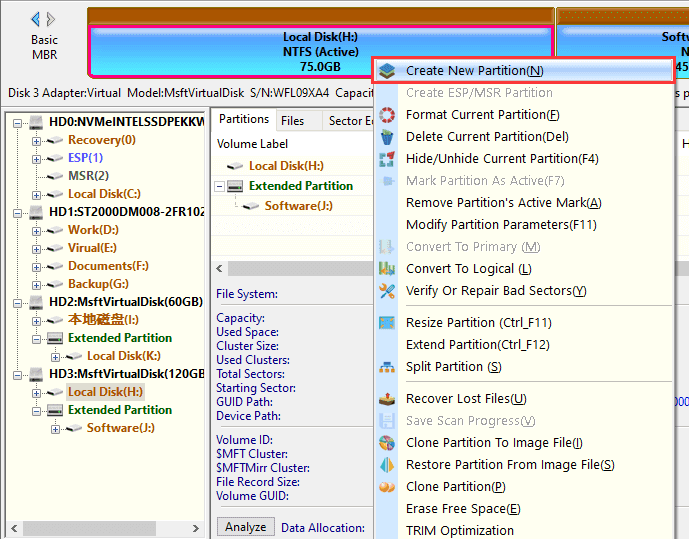
Resizing moves data around, so the time and risk depend on the disk's health and how much has to move. Even a good resize feature deserves a backup first.
If the disk is missing an ESP and you are installing in UEFI mode, use "Create ESP/MSR Partition" instead. A normal data partition is not a stand-in for an ESP, so let the tool make the right kind.

And when the whole disk is free and you want a clean even layout in one shot, "Quick Partition" does it. Set the partition table type (GPT or MBR), the number of partitions, and their sizes, then let it write.
Afterwards, reboot into the Windows installer. The disk should now look the way Setup expects.
For people who trust the command line more than a mouse. DiskPart rewrites disk structures directly, and picking the wrong disk number plus running clean erases the wrong drive with no undo. Read every command before you press Enter.
Opening the prompt. The fast way: press Shift+F10 on the "Where do you want to install Windows?" screen. A command prompt opens right on top of Setup.
If you already have the DiskGenius WinPE stick from Method 5, you can also boot it and open Windows Command Processor from the Start button in the lower left.
1. Identifying the disk.
diskpart
list disk
list volume
Match by size. Then confirm before you touch anything:
select disk N
detail disk
Replace N with the real number on your screen. Never copy example numbers blindly.
2. Creating the partition.
When the selected disk has suitable unallocated space:
create partition primary
format fs=ntfs quick
assign
For a Legacy/MBR install, follow with active to mark the partition bootable. That command does nothing on a GPT/UEFI install. It is not a universal fix.
If the disk is completely full, decide first whether to resize (Method 5) or to start over. And if the disk holds data you need, stop. Move the data first.
Note: clean strips all partition information from the selected disk. It is the right tool when the disk is confirmed empty or disposable, and it is not a required step for this error. The same goes for convert gpt and convert mbr, which in DiskPart only work on a cleaned disk.
Warning: Deleting partitions makes their data inaccessible. If anything on the disk matters, back it up first or go back to Methods 3 through 5.
Confirm the disk is empty of anything you need. Confirm you have the right disk. Check the size twice. Then delete its partitions in the Setup drive list, select the unallocated space that appears, and click Next. Setup will build whatever partitions the boot mode requires.
This clears old layout problems cleanly. It does nothing for bad installation media, missing drivers, or failing hardware, so it is one tool among several. Not the automatic answer to every case.
When the software fixes come up empty:
DiskGenius includes S.M.A.R.T. status and bad sector/block checking, which earn their keep here. If the health status warns, or the scan turns up growing numbers of bad sectors, stop writing to the disk. Clone it or copy files elsewhere first, then think about replacement. Formatting a failing drive repeatedly just buries the data deeper.
You have tried the methods and the error still appears. Fine. Stop re-running partition commands and look wider.
Is the drive in BIOS at all? Check firmware setup under storage or boot. A missing drive, a wrong size, or one that flickers in and out points at cabling, power, or the drive itself. Try another SATA port and cable if you can.
Read the setup logs. Press Shift+F10 in Setup and open setupact.log from the setup's Panther folder, commonly X:\Windows\Panther\ or C:\$WINDOWS.~BT\Sources\Panther\. Search for "partition", "error", or "fail". The lines around the failure usually name the step that broke. The exact path depends on the installation phase, so check what exists in your environment rather than trusting a fixed one.
Take hardware seriously. Disks that disconnect mid-copy, long I/O stalls, errors that follow the drive to another machine, SMART warnings. When those pile up, priority one is getting the data off. Once a drive refuses to mount at all, professional recovery services are the remaining option, and every further write lowers their odds.
How to avoid the "We couldn't create a new partition or locate an existing one" error in the future? Decide on GPT and UEFI before you start and check the disk's partition style first. Make installation media with Microsoft's official tool on a stick you trust. Keep a current backup, and if your disk layout is intricate, keep a partition table backup too (DiskGenius can create and restore one). Install with only the target disk connected. And on a brand new drive, create the layout you want, including an ESP for UEFI installs, before Setup ever runs.
1. Will deleting all partitions fix this error?
Sometimes it does, because a clean slate removes old layout problems entirely. It also erases your data and it does nothing for bad media, missing drivers, or dying hardware. Try the cheap fixes first.
2. Can I fix this error without formatting my drive?
Often, yes. Unplugging other devices, recreating the installer, correcting the boot mode, rebuilding the MBR, or adding a missing ESP can all work without touching your files. Shrinking an existing partition to make room is another good option. Formatting becomes necessary only when the partition or file system itself is damaged.
3. Can DiskPart clean fix the partition error?
On a disk you are allowed to erase, yes. Clean removes the partition table and clears layout problems in one stroke, at the cost of everything on that disk. It is not a routine step. Running it on the wrong disk number is one of the classic ways to lose data permanently.
4. Can I use DiskGenius to create a partition before installing Windows?
You can create, resize, and delete partitions, convert the partition table, and generate an ESP/MSR partition in advance. What matters is that the final layout matches your boot mode: an ESP for UEFI, an active primary partition for Legacy.
5. Can I use DiskGenius WinPE if Windows won't boot?
That is what it is for. It starts independently of any installed Windows, so you can inspect disks, copy files to safety, rebuild the MBR, or repartition even on a machine with no working system. The prerequisite is that the machine can boot from USB at all, which brings us back to the boot menu and the stick creation step.
6. Does this error mean my SSD is failing?
No. It describes a partitioning problem, not a hardware verdict. Judge the drive by its SMART status, how reliably BIOS sees it, and its read and write errors. Not by this message.
7. Where can I find Windows Setup logs?
Press Shift+F10 during setup and open setupact.log in the setup's Panther folder. It records each installation step, and the entries near the end show where things stopped. The folder location varies with the phase, so use the one visible in your environment.
Back up first, try the cheap fixes, and only wipe the disk when nothing else works. Most of the time this error is a boot mode or disk layout problem you can solve in under half an hour. If the installer proves too clumsy for your disk layout, the DiskGenius WinPE USB gives you a graphical way to prepare the disk and rescue your files before trying again. Good luck with the install.

DiskGenius is a one-stop solution to recover lost data, manage partitions, and back up data in Windows.
Download

 Facebook
 YouTube
 X
X