
Updated on Sep. 23, 2026
Position: Resource - Disk Utilities - How Long Does an SD Card Last? SD Card Lifespan Explained
An SD card typically lasts 2 to 10 years, depending almost entirely on write load. A card used to hold photos can easily last a decade. The same card running continuous dash cam recording can wear out in 12 to 24 months. Workload, NAND type and heat decide the real lifespan, not the date on your receipt.
An SD card's lifespan is measured in write cycles, not birthdays. That one fact explains why two cards bought on the same day can behave so differently a few years later. The card sitting in a digital camera still works fine. The card living in a dash cam has already started eating its own footage.
A surprising number of people who search for "sd card lifespan" are not planning ahead. Their card is already acting up and they want to know how much time is left. So this guide covers both sides of the question. It explains what actually decides how long an SD card lasts, gives you a table of real-world numbers, shows you how to spot a card that is running out, and walks you through what to do once it fails.
Table of Contents:
There is no single number that fits every card. What there is, instead, is a pattern, and the pattern is driven almost entirely by how much you write to the card.
If you use an SD card for occasional photography, file transfers, phone storage expansion, or holding a music and video library, you are in the easy end of the range. Writes are infrequent, files are large and sequential, and the card spends most of its life being read rather than rewritten.
Under these conditions, a decent consumer card commonly gives five to ten years of service, and plenty of people get more. Cards that just hold photos and then sit in a drawer are rarely the ones that fail. They tend to get retired while they still work, usually because capacity became too small.
Now put the same memory card into a device that never stops writing. Dash cams loop over old footage every few minutes. Security cameras record around the clock. Action cameras capture hours of high bitrate video. Raspberry Pi boards write logs and swap data continuously. Industrial loggers push records every second.
This is where some memory cards die early. A card in a 24/7 dash cam or CCTV setup often needs replacing somewhere between six months and two years. That is not a defect. It is the physics of NAND flash catching up with an unrelenting write pattern.
Partly, and less than most people think. A larger card holds more NAND cells, so the same amount of written data spreads across more cells and each cell gets used less often. A 256GB card will usually outlast a 32GB card doing identical work. The effect is real but it is not magic.
Capacity alone does not tell you how long a card will last. A 512GB card in a dash cam can still fail faster than a 64GB card in a camera, because the workload difference dwarfs the capacity difference. Treat bigger capacity as a helpful margin, not as a guarantee.
| Use Case | Write Intensity | Expected Lifespan | Why |
| Smartphone or tablet (photos, apps, media) | Low to medium | 5 to 10 years | Scattered writes, plenty of idle time |
| Digital camera, stills only | Low | 7 to 10+ years | Large sequential files, infrequent sessions |
| Music and video library | Low | 7 to 10+ years | Mostly reads after the initial copy |
| Nintendo Switch and game storage | Medium | 5 to 8 years | Regular saves and patch installs |
| Raspberry Pi or single board computer | High | 1 to 3 years | Logs, swap and package writes |
| Action camera, frequent 4K capture | Medium to high | 2 to 5 years | Long sequential bursts |
| Dash cam with loop recording | Very high | 6 months to 2 years | Constant overwrite, often in high heat |
| Security camera or NVR, 24/7 | Very high | 1 to 3 years | Non stop writing at fixed bitrate |
| Long term archival, write once | None | 10 to 20+ years | No wear, but charge loss over time |
SD cards are not unusually fragile. Every storage medium has a weak point, and the trick is to use each one where its weakness does not matter.
| Storage | Typical Use | Main Limitation |
| SD Card | Cameras, phones, handhelds, portable devices | Limited write endurance, small and easy to damage |
| USB Flash Drive | Moving files between machines | Flash wear and controller failures |
| SSD | Laptops and desktops | NAND endurance, usually rated in TBW |
| HDD | Desktop and external bulk storage | Mechanical parts that wear and dislike shock |
| Cloud | Backup and off site archive | Depends on network access and on the provider |
An SD card in a dash cam will wear out long before an SSD in a laptop, but the SSD would face the same fate under the same write load. An HDD in a drawer will keep data for years but drops it if it gets knocked off a shelf.
Redundancy beats any single device's endurance. For anything you would be sad to lose, keep two copies and make one of them somewhere else.
Read more: How Long Do External SSDs and HDDs Last?
Buying a card is easy. Understanding why one lasts and another does not takes a little background, and it pays off every time you pick storage for a new device.
Every SD card stores data by trapping electrons inside tiny cells, and each cell can only be programmed and erased a limited number of times. That limit depends on how many bits the cell holds.
| NAND Type | Bits per Cell | Typical P/E Cycles | Where You Find It |
| SLC | 1 | 60,000 to 100,000 | Industrial and high endurance cards |
| MLC | 2 | 3,000 to 10,000 | Older premium cards, some pro models |
| TLC | 3 | 1,000 to 3,000 | Most consumer cards today |
| QLC | 4 | Under 1,000 | Budget and very high capacity cards |
Consumer cards are mostly TLC, sometimes QLC at the top end of the capacity range. Manufacturers go this route because TLC and QLC squeeze more gigabytes out of each wafer. The trade is endurance, and it is a fair trade as long as you know what you bought.
One warning here. Do not take the TBW rating printed on an SSD box and apply it to an SD card. Different controllers, different over provisioning, different duty cycles. The underlying silicon is related but the numbers do not translate.
This is the factor that decides the outcome in almost every real case. Copying files onto a card once a week is a trickle. Shooting a few hundred photos on a weekend is a small burst. Recording 4K video to the card for six hours a day is a firehose. Continuous 24/7 recording is a firehose that never shuts off.
Can an SD card wear out? Yes, and this is exactly how it happens. Cells reach their program and erase limit, the controller retires them as bad blocks, the spare block pool shrinks, and eventually there is nothing left to retire. Slowdowns and errors appear long before the card stops mounting.
Modern SD cards use wear leveling, a controller routine that quietly moves data around so that no single region of the flash takes all the damage. It works better when there is more free space to shuffle through.
This is why filling a card to the last megabyte shortens its life. The controller loses room to spread writes, hot spots form in the remaining free blocks, and those blocks burn through early.
Heat is the quiet killer. Every extra degree of operating temperature accelerates charge loss and cell degradation.
The worst offender is a dash cam mounted behind a windshield in summer. Cabin temperatures climb well past 50 degrees Celsius and the card bakes for hours at a time, while being written to constantly. Outdoor security cameras in direct sun have the same problem. Cold is gentler but it still stresses the package and can cause condensation when the card warms up.
Moisture, static discharge and physical flex during repeated insertions all add up as well. Cards in devices that stay put tend to outlast cards that get swapped between gadgets every week.
Read more: SSD Temperature: Normal Ranges, Overheating Fixes, and How to Monitor?
Pulling a card out mid write, or having a camera die while recording, does not wear out the NAND. What it does is worse in the short term: it breaks the file system.
You can lose the file being written, corrupt the directory structure, leave orphaned entries, or in bad cases leave the whole partition unreadable and showing as RAW. These are the failures that make people think their card has "died" when in truth the flash underneath is still fine.
Keep this distinction in mind. A card that suddenly shows errors after a power cut is often recoverable. A card that slowed down and threw bad sectors after years of dash cam duty is physically exhausted.
Two cards with the same printed speed and capacity can behave very differently inside. The controller handles error correction, bad block remapping, garbage collection and wear leveling, and its quality varies widely.
Budget cards often skimp on ECC strength and over provisioning. When errors start, the controller has less to work with and the card degrades faster. Premium and high endurance lines usually disclose a bit more about endurance and are built to survive sustained writes rather than to win a benchmark.
Cheap cards sold at prices that look too good usually are. Counterfeit cards report a large capacity to the host while physically containing a small amount of flash. The controller wraps writes around and silently overwrites older data once the real space fills up.
These cards fail in weeks or months, take files with them, and are the fastest way to lose irreplaceable photos. If a card was suspiciously cheap, or if files keep disappearing after a certain amount of copying, suspect a fake.
The section below on checking SD card health explains how to confirm this in about fifteen minutes.
Flash cells have a limited number of program and erase cycles, but you cannot calculate a card's real life by multiplying a fixed cycle count by its capacity. It does not work that way.
Several things get in the way. NAND type changes the cycle count. The controller's wear leveling spreads writes unevenly, so some cells die long before others. Write amplification means the flash actually writes more data than the host asked for, because of internal housekeeping. Bad blocks get retired and the usable pool shrinks over time. Workload patterns vary wildly between devices.
And on top of that, most SD card makers do not publish endurance figures at all. You get a speed rating and a capacity, and that is it.
Some cards do carry an endurance number, usually written as TBW (terabytes written) or DWPD (drive writes per day). You will mostly see this on high endurance, industrial and surveillance rated cards, because those are sold into use cases where buyers need to plan replacements.
If a card has a TBW figure, use it. If it does not, you can estimate from the NAND type and your own write volume.
Here is a rough model that works well enough for planning:
Lifespan in years = TBW ÷ (average GB written per day × 365)
Take a 64GB card that the datasheet rates at 30 TBW, used in a dash cam that overwrites about 30GB per day.
30,000 GB ÷ (30 GB × 365) = about 2.7 years
Now put the same card in a camera and it might see 2GB of writes per day.
30,000 GB ÷ (2 GB × 365) = about 41 years
In practice other failure modes catch up first, but the shape of the answer is right. Same card, same silicon, two completely different outcomes.
Plug in your own numbers from the manufacturer's datasheet and you will have a decent planning figure for your specific setup.
Continuous recording is the harshest normal workload there is. There is no idle time for garbage collection to run efficiently, the write pattern never changes so the same regions get hit repeatedly, and the bitrate keeps pressure on the controller every second.
The difference between the first and last row is roughly two orders of magnitude in lifetime. That is the whole story of SD card durability in one table.
People often assume that the letters after the logo tell them something about durability. They mostly do not.
Physical Form Factor: SD vs microSD
Full size SD and microSD cards use the same underlying flash and the same controllers in most cases. Endurance is comparable for cards of the same class.
What differs is mechanical. A microSD card is smaller, gets swapped more often, and is easier to lose or damage. A full size card in a professional camera usually stays put. Neither form factor has a real lifespan advantage, so pick based on the slot you have.
SDHC vs SDXC vs SDUC: Capacity Standards, Not Durability Ratings
SDHC tops out at 32GB. SDXC covers 64GB to 2TB. SDUC goes beyond that. These are capacity and file system standards, and they say nothing about how many times you can write to the card.
A 32GB SDHC card and a 512GB SDXC card built on the same TLC NAND with the same controller class will have similar per cell endurance. The larger card simply has more cells to share the load. The letters on the label describe the addressable capacity, not the toughness.
Wear is not the only way to lose data. Charge can also leak out of cells while a card sits on a shelf.
How long can an SD card store data without being used? Not immediately, and usually not from wear, since a card that is never written to barely uses up any program and erase cycles. What does happen is charge loss. Electrons trapped in the floating gate slowly escape, and once enough of them are gone the controller cannot reliably tell a one from a zero.
How fast this happens depends on how worn the cells already are and how hot the storage spot is. Manufacturer retention figures for fresh consumer flash are commonly quoted in the range of one to ten years at normal room temperature, and the number drops as the cells approach their rated cycle limit and as temperature rises.
Physical aging continues as well. Solder joints, connectors and the controller package all age, and a card left in a damp garage can fail from corrosion without ever being used.
A few habits help if you intend to store files on a card long term. Keep it cool and dry, put it in an anti static sleeve, power it up and verify the contents every year or two, and keep a second copy somewhere else.
An SD card should never be the only copy or the sole long term archival medium for important files.
If the photos matter, they belong on at least two different media in at least one different location. A card is convenient storage. It is not a vault.
Read more: How to Fix Corrupted SD Cards? (Repair SD Cards Without Losing Data)
Cards rarely fail without warning. The trouble is that the warnings look like everyday glitches until the day they are not. Here are the ones worth taking seriously.
1. Files suddenly disappear. Photos you shot last week are gone, or folders show up empty. This is the classic symptom of a fake card wrapping writes, or of a controller losing its mapping table.
2. The SD card becomes read-only. You can open files but cannot delete, copy or save anything. Most controllers lock the card into read only mode once they decide writing is no longer safe. It is a last resort protection, and it usually means the card is finished.
3. Windows asks you to format the card. The card mounts but shows as unformatted, or the SD card shows up as RAW. Sometimes this is just a damaged file system after a power cut. Sometimes it is the controller failing to translate the mapping table.
4. Photos or videos become corrupted. Images open half way and then break. Videos refuse to play past a certain timestamp. Damaged files scattered across the card point to failing blocks rather than one bad file operation.
5. Copying files becomes extremely slow. A card that used to copy at 80 MB/s now crawls at 5 MB/s. Endurance testing shows that slow down is often the earliest sign of flash degradation, because the controller spends more time on error correction and retries.
6. The card randomly disconnects. It disappears from the file manager mid transfer and comes back after you reinsert it. Bad contact can cause this, but so can a controller that is dropping out under load.
7. The SD card shows the wrong capacity. A 256GB card now reports 32GB, or shows strange unallocated space. Either the card is a fake that has started failing, or the partition table has been damaged.
8. The SD card not showing up at all. Nothing appears in any device, in any reader. At this stage the controller may have failed outright and physical recovery is the only path left.
If your camera or Windows asks to format the card and the files matter, do not click Format. Formatting rewrites the file system and can destroy what is left of your data. Stop, and go straight to the recovery section at the end of this guide.
Before you trust a card with anything important, there are three cheap checks that tell you most of what you need to know.
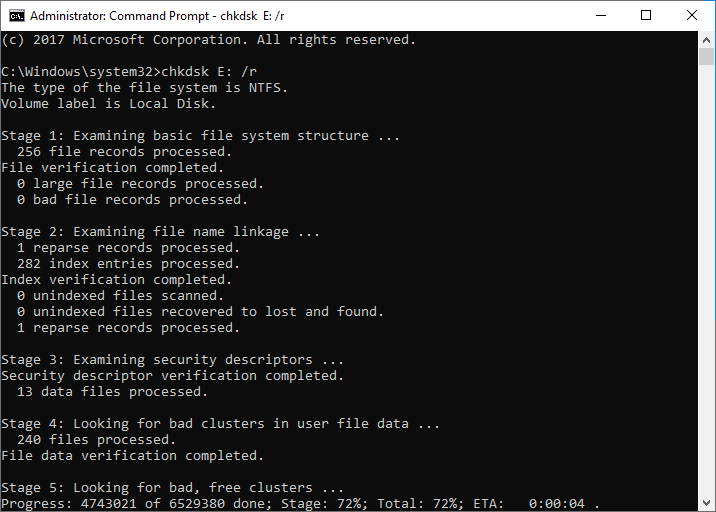
Windows has a built in Error Checking tool and there is also CHKDSK from the command line. Both look for file system inconsistencies and can fix some of them.
There is a trap here that is worth spelling out. CHKDSK is a file system repair tool, not a disk health diagnostic tool. It rearranges directory structures and flags bad clusters at the file system level. It does not tell you whether the NAND itself is wearing out, and the repair process writes to the card.
If the files on the card are still needed, do not run a repair pass first.
Compare the card against its rated speed. Copy a few gigabytes of large files on and off and note the transfer rate. Then copy a folder of small files and note the difference.
For cleaner numbers, use a proper benchmark instead of eyeballing a file copy. The disk speed test built into the free edition of DiskGenius Free Edition measures sequential and random read/write rates on any SD card sitting in a card reader, so you can see actual MB/s figures rather than the marketing number printed on the box. Steps to check SD card speed:
1. In DiskGenius, select the partition on the SD card, click "Disk" → "Disk Speed Test".

2. Select test mode: File Test or Benchmark Test. Then click "Start Test".

A card that matches its rated sequential speed but stumbles on small random writes is probably fine for photos and video. A card that falls well short of both, or one that has slowed noticeably against its own earlier numbers, is showing its age.
Bad sectors on an SD card are not random accidents. They are usually NAND cells that have reached the end of their program and erase cycles. Once a few appear, more tend to follow, because the controller's reserve of spare blocks is already running low. This is the clearest physical sign that a card is close to its write endurance limit.
Windows' built in Error Checking tool focuses on file system problems and gives you no real picture of the card's physical condition. To see the state of the storage blocks themselves, run a block level surface scan with a tool such as DiskGenius Free. It reads the card sector by sector, times each block, and flags damaged or abnormally slow areas on a colour coded map. The same scan also exposes fake capacity cards. A "256GB" card that only scans clean up to 32GB is a counterfeit, no matter what the label claims.
1. In DiskGenius, select the SD card from the left pane. Then click "Disk" → "Verify Or Repair Bad Secotrs/Blocks".
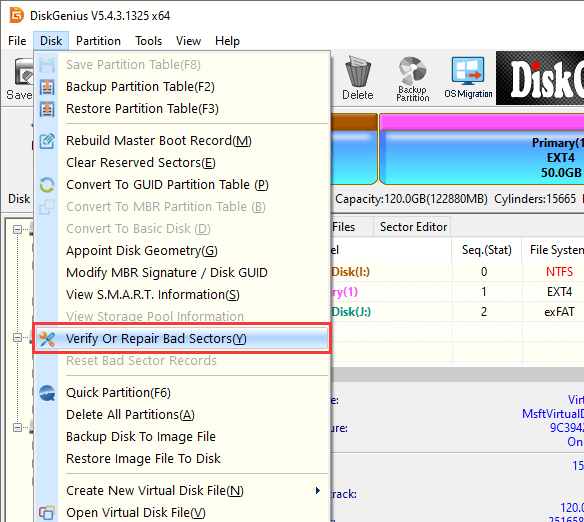
2. Click "Verify", and the program starts to scan the SD card and test if there are bad sectors.
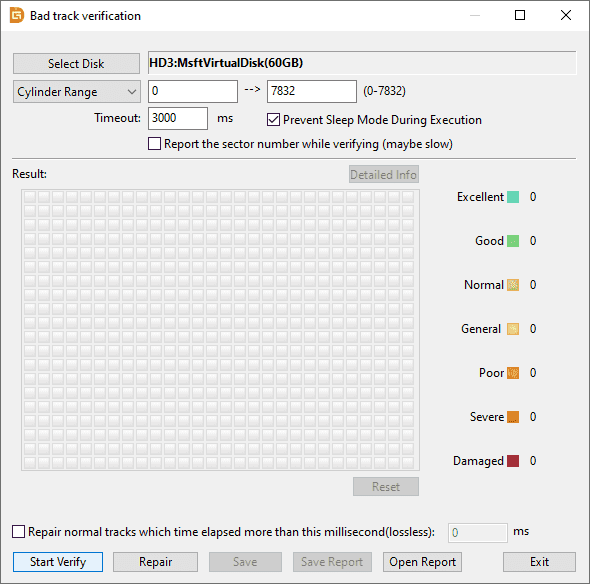
One warning, and it matters. Do not use any "repair bad sectors" option on a card that still holds files you need. Repairing bad blocks writes to the card and can overwrite data that would otherwise be recoverable. Scan first. Recover second. Repair only once the data is somewhere safe.
Avoid filling the card completely. Leave ten to twenty percent free so the controller has room for wear leveling and garbage collection.
Reduce unnecessary writes. Turn off constant logging or caching to the card where the device lets you. Trim a large write backlog into one batch instead of many.
Safely eject the card before you pull it. It takes three seconds and it prevents the file system corruption described earlier.
Match the card to the workload. A card rated for occasional photography is the wrong tool for 24/7 surveillance recording. Read the intended use on the label.
Choose high endurance or industrial cards for dash cams and CCTV. They cost more per gigabyte and they last several times longer under sustained writes. In a 24/7 device they usually work out cheaper overall.
Replace cards used for continuous recording on a schedule. Do not wait until a card fails completely if losing the data would be costly. Swap dash cam and security cards every twelve to eighteen months, and use the old one for light duty where a failure would not hurt.
Keep cards away from heat. Do not leave a dash cam card baking on a dashboard. Store spare cards out of direct sun and out of damp.
Format the card in the device that uses it. Cameras, drones and dash cams often expect a particular file system and directory layout. Formatting in the device gives the card exactly what that device wants.
Keep device firmware updated and keep a second copy of anything that matters. Firmware fixes write behaviour and error handling more often than people expect. Backup costs nothing compared to recovery.
A card that shows errors, asks to be formatted, or refuses to mount is frequently still readable at the block level. What you do in the next ten minutes decides most of the outcome.
Recovery Rules: Do These Before Anything Else
Start with the obvious things first. Try a different reader and a different USB port. Try the card in a different computer or in the camera it came from. If the card mounts and files are simply missing, copy what you can see to another drive before doing anything else.
If those steps get you nowhere, move to recovery software. DiskGenius can scan the corrupted to get back lost data.
Step 1. Select the corrupted SD card, click "File Recovery" → "Start".
This feature can recover deleted files, recovers files after a format, recovers data from a corrupted or RAW partition, and pulls files from cards that no longer show a drive letter.
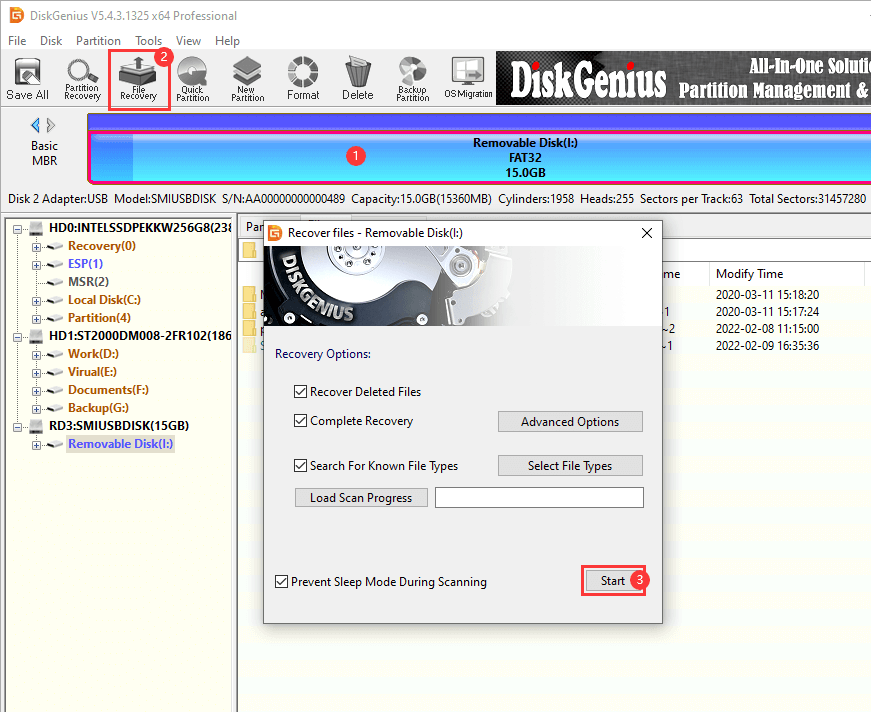
Step 2. The scan lists what it found and lets you preview files before you commit to anything, so you can see whether your photos are intact before saving them.
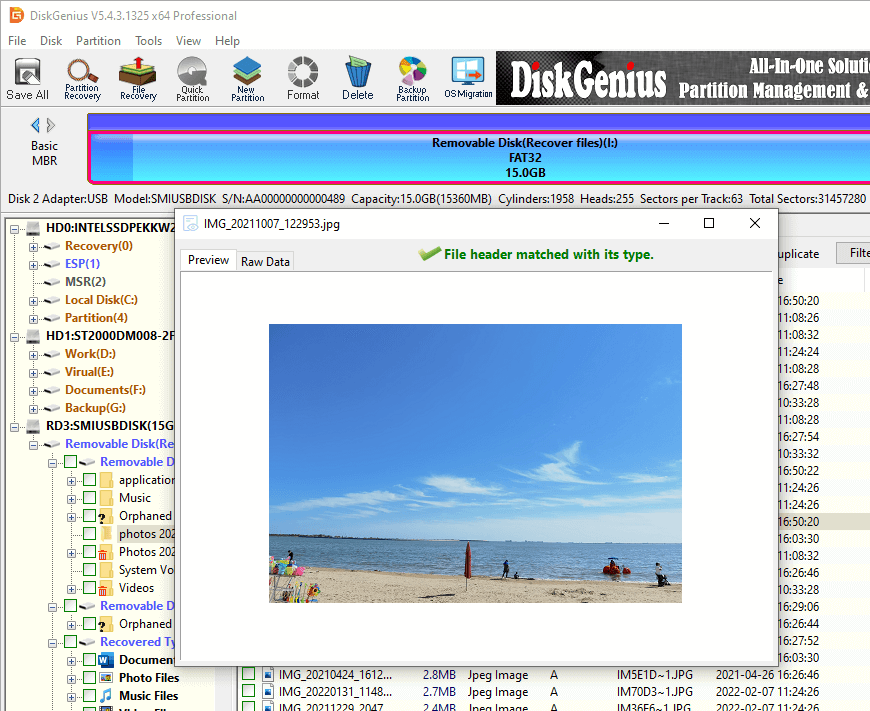
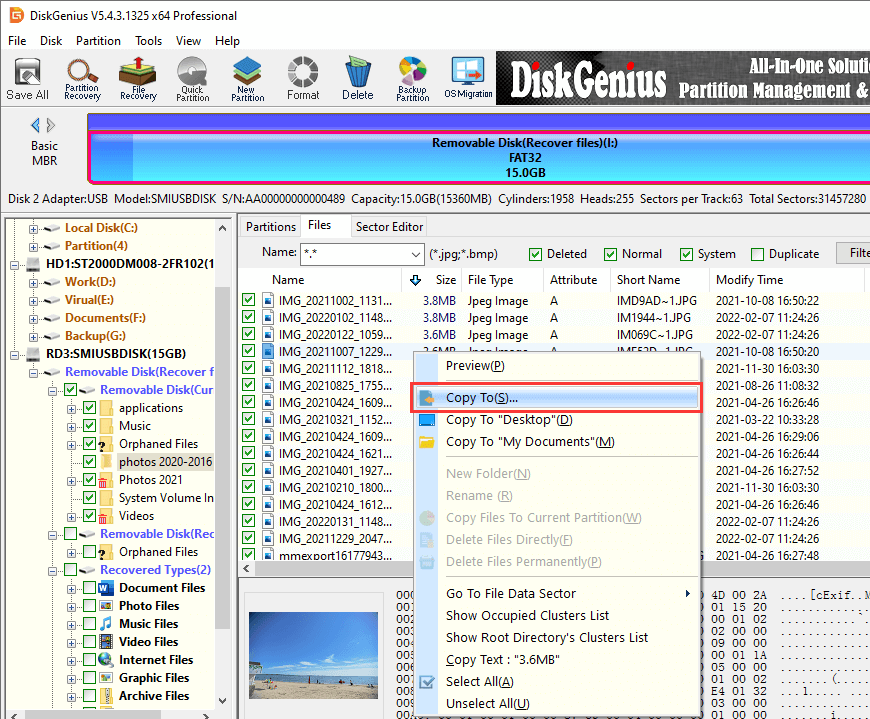
Step 3. Choose what you want to recover, right-click and select "Copy To". Then you can specify a location to store these recovered files.
When to Repair and Reformat the SD card? Once everything you need is safely on another drive, you can think about fixing the SD card. Run error checking, attempt a repair pass, and format the SD card in the device that will use it.
If the card has real bad sectors or has already been flagged read only, do not put it back into anything important. Recycle it as light duty storage at most. A card that has shown physical wear has told you what it is.
Read more: How to format a 32GB or larger SD card to FAT32 in Windows 11/10?
How long do microSD cards last?
About the same as full size SD cards of the same class, since both use similar NAND and controllers. In practice microSD cards get swapped more often and take more physical handling, which adds a little risk on top of normal flash wear.
Can an SD card wear out?
Yes. Every NAND cell supports a limited number of program and erase cycles, and once the controller runs out of spare blocks to retire failing cells, errors start appearing. High write workloads get there in months rather than years.
How long can an SD card store data?
Fresh consumer flash is commonly quoted as retaining data for one to ten years at normal room temperature. Retention drops as cells approach their rated cycle limit and as storage temperature rises. Treat a card as working storage, not as an archive.
How do I know if my SD card is dying?
Watch for disappearing files, sudden read-only mode, prompts to format, corrupted photos or videos, sharp slow downs, random disconnects, wrong capacity readings and cards that stop being recognized. One of these on its own can be a fluke. Two or more together usually mean the card is on the way out.
Should I replace my SD card after a certain number of years?
Replace on workload and on warning signs rather than on a birthday. Cards in continuous recording devices should be swapped every 12 to 18 months as a precaution. Cards used for occasional photography can run for many years, provided they are checked occasionally and backed up.

DiskGenius is a one-stop solution to recover lost data, manage partitions, and back up data in Windows.
Download

 Facebook
 YouTube
 X
X