
Updated on Oct. 27, 2026
Position: Resource - Partition Management - How to Make a Partition in Windows 11? Step-by-Step Guides
There are three ways this usually goes. Either your disk already has unallocated space and you just want to turn it into a usable drive, or everything is crammed into one big C: and you want a D: created out of it, or Windows flatly refuses to shrink or extend something and you need another tool.
Whichever one you are in, the matching section is below. Disk Management handles most of it for free. Where it stops, DiskGenius Free can split and move partitions without formatting the whole disk. The steps here were tested on Windows 11.
In this article:
What Is a Partition, and Why Create One?
A physical disk is the storage device in your machine. A partition is a region carved out of it. A volume is the storage area Windows manages inside that region, usually with a file system on it, and a drive letter like C: or D: is just how you reach that volume in File Explorer.
Most people partition for one of two reasons. Keeping personal files on their own volume means a Windows reinstall does not take your documents with it, and having media, projects or games separated makes backups less of a puzzle. There is also the dual-boot crowd, who need a second OS to live somewhere.
What partitioning does not do is make anything faster or safer. Two partitions on the same disk die together when the disk dies, so treat this as data organization and not as backup.
Check the Disk Layout in Disk Management
Open Disk Management and look at the graphical view in the bottom pane before changing anything.
The common pieces: unallocated space shows as a black bar and belongs to no partition. Volumes show blue, with a drive letter and file system. On a GPT disk there is a small EFI System Partition with no letter, and usually a small Recovery Partition after the Windows one. The system volume is the one marked "Boot, Page File, Crash Dump".
Here is the part that catches people out. Unallocated space and free space are not the same thing. If C: shows 100 GB free in File Explorer, that is room inside C, not 100 GB of raw unallocated space on the disk. To turn that room into a separate partition you have to shrink C first.
Back Up Important Data Before Changing Partitions
Shrinking a volume or creating one on unallocated space normally leaves your files alone. Back up the irreplaceable stuff anyway before you resize anything, keep a laptop on mains power, and let the operation run to completion. And before you format, delete or initialize a disk, know what is on it.
Step 1. Open Disk Management. Right-click the Start button and pick Disk Management. Or press Win+R, type diskmgmt.msc, hit Enter.
Step 2. Find unallocated space on the right disk.
Look for the black bar in the lower pane. Before you touch anything, match the disk number and total size against the physical drive you have in mind. Do not go by drive letters. They move around, and external drives often pick up letters that look like internal ones. If there is no unallocated space anywhere, skip to Guide 2.
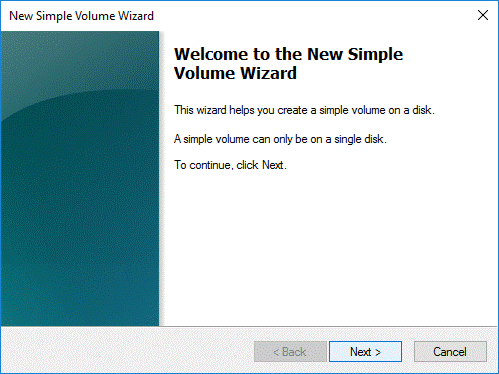
Step 3. Right-click the unallocated area, choose "New Simple Volume", click Next. This wizard is the standard Windows way of creating a volume on a basic disk.

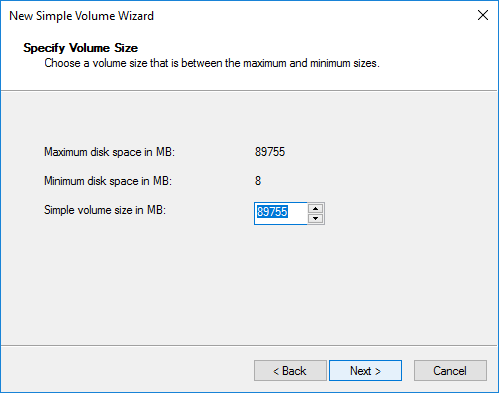
Step 4. Choose the partition size and click "Next".
The box asks how much of the unallocated space the new volume should take, in megabytes (MB).
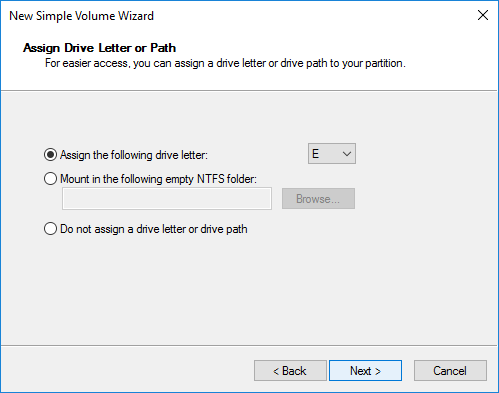
Step 5. Assign a drive letter and click "Next".
Take any free letter. Windows will suggest D, but D is not guaranteed. If something already holds it, or a removed USB drive once did, the letter can be unavailable or reserved. E or F do the same job, and you can rename later.
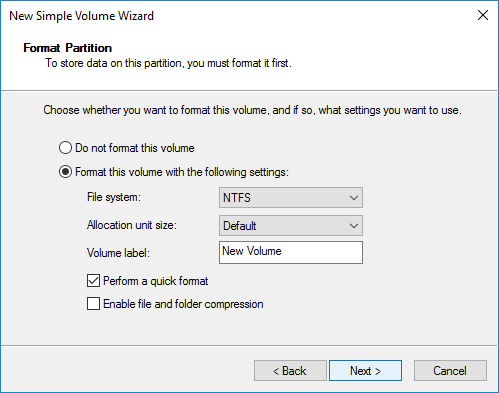
Step 6. Format the new volume.
Formatting builds the file system structures that let the volume store files at all. Check twice that you are formatting the new volume and not an existing one with data on it. Quick format is fine here, though worth knowing it is not a secure erase.
Step 7. Finish and verify. Click Next, then Finish.
The volume should appear in Disk Management with its letter and file system, and pop up in File Explorer within seconds.
DiskGenius Free does the same job with more options at the end of it. It supports NTFS, exFAT, FAT32 and Linux file systems like EXT4/EXT3/EXT2. It creates large FAT32 partitions well beyond the 32 GB limit Windows still enforces, which matters for drives headed to a camera or a console. And if you care about exact placement, you can set the starting cylinder and starting sector yourself, settings Windows does not show at all.
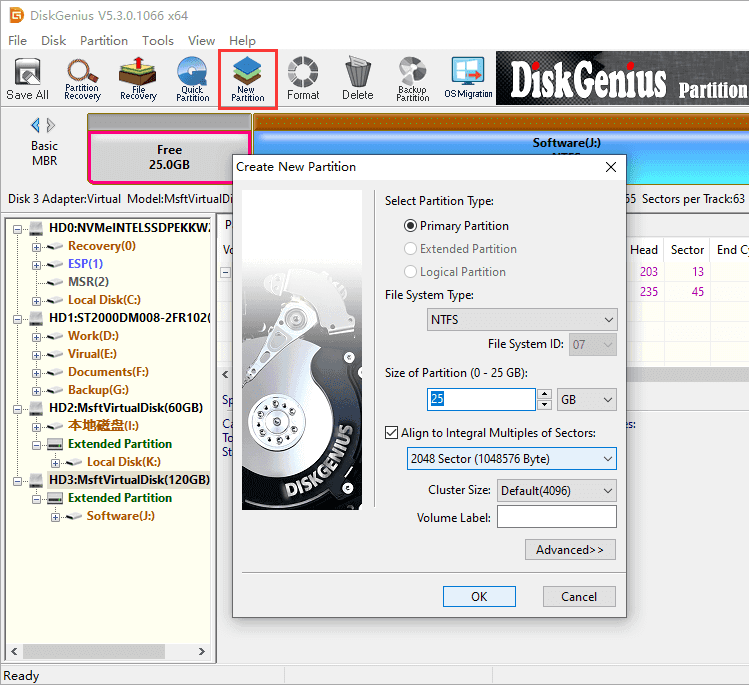
Step 1. Open DiskGenius, click the gray unallocated area on the target disk, then click "New Partition" on the toolbar.
Step 2. Pick the partition type and file system, type the size, click "OK".
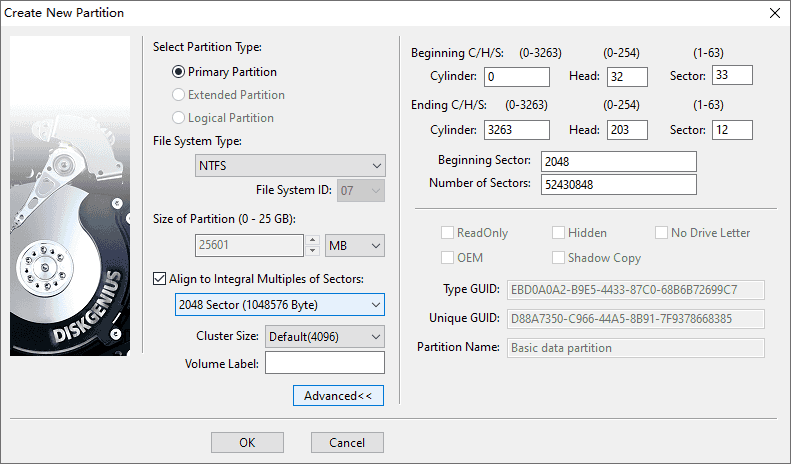
If you want low-level settings such as beginning sector/cylinder, total sector of the partition, click "Advanced" button to expand the following dialog.
Step 3. Save the changes. A partition created this way lives in memory first and only reaches the disk when you click "Save All", after which it will be formatted and assigned with a drive letter.
How to make partition of C drive? For most people searching this, the real job is here: one giant C:, and you want a D: out of it without reinstalling Windows or losing anything.
Step 1. In Disk Management, right-click the C volume and choose "Shrink Volume". Windows works out how much the volume can give up and shows you an amount box.

Step 2. Enter how much to shrink and click "Shrink".

Wait for a second and a black block of unallocated space appears to its right
Step 3. Create a new partition from the unallocated space. Right-click the new black block, choose New Simple Volume, and run through the wizard from Guide 1. Size, letter D if it is free, NTFS, done.
Step 4. Move personal files over. Creating D does not move anything by itself, you need to move files manually.
What If You Cannot Shrink C Drive Enough?
Sometimes Windows offers far less than the free space on C suggests. Page files, hibernation files and shadow copies sit near the end of the volume and block everything behind them. File system errors and low free space make it worse. The troubleshooting section below goes through it properly. For now, one thing to keep in mind: advice that tells you to disable System Restore or delete system files to gain shrink space is not worth following.
DiskGenius has a dedicated Split Partition function that divides a partition into two, and it does not deleting existing data.
Since this touches the running system partition, the split has to happen in Windows PE. Save your work and close other programs before starting.
Step 1. Right-click the C partition you want to split and choose "Split Partition".

Step 2. Drag the partition edge to set the size of the two results, then click "Start".

Step 3. A warning dialog lists what the program wants you to confirm. Read it, then click "Yes".

Step 4. A second dialog shows the exact sequence of operations coming up. If it matches what you expect, click "Yes".

Step 5. Another dialog explains that the operation involves the system partition and must be finished in Windows PE, and asks you to save your work.

Click "OK". DiskGenius prepares the PE environment, which takes a short while.

Step 6. When it is ready, click "OK" and the machine reboots.

DiskGenius opens automatically in Windows PE and runs the split. When it finishes, the computer restarts into Windows and the two partitions are there.

Step 1. Confirm the disk shows up.
Open Disk Management and look for it in the bottom pane. A disk with a black unallocated bar and an Online status is ready to use. One marked Offline can usually be right-clicked online. One marked Not Initialized needs the next step.
If it is missing entirely, check power and data cables, the enclosure or slot, and BIOS detection before assuming anything about the drive itself.
Step 2. Initialize if needed.
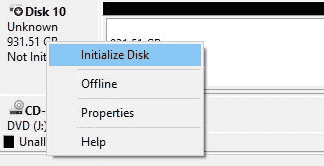
Right-click the disk, choose Initialize Disk
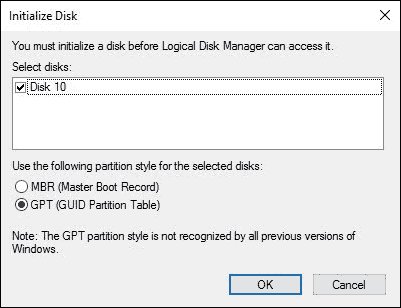
Pick a partition style. For any new disk going into a modern PC, take GPT (GUID Partition Table).
Step 3. Create and format a volume. Right-click the unallocated space, run "New Simple Volume" with the settings from Guide 1.
Step 4. Check it works. Confirm the size and file system in File Explorer and copy a test file on and off.
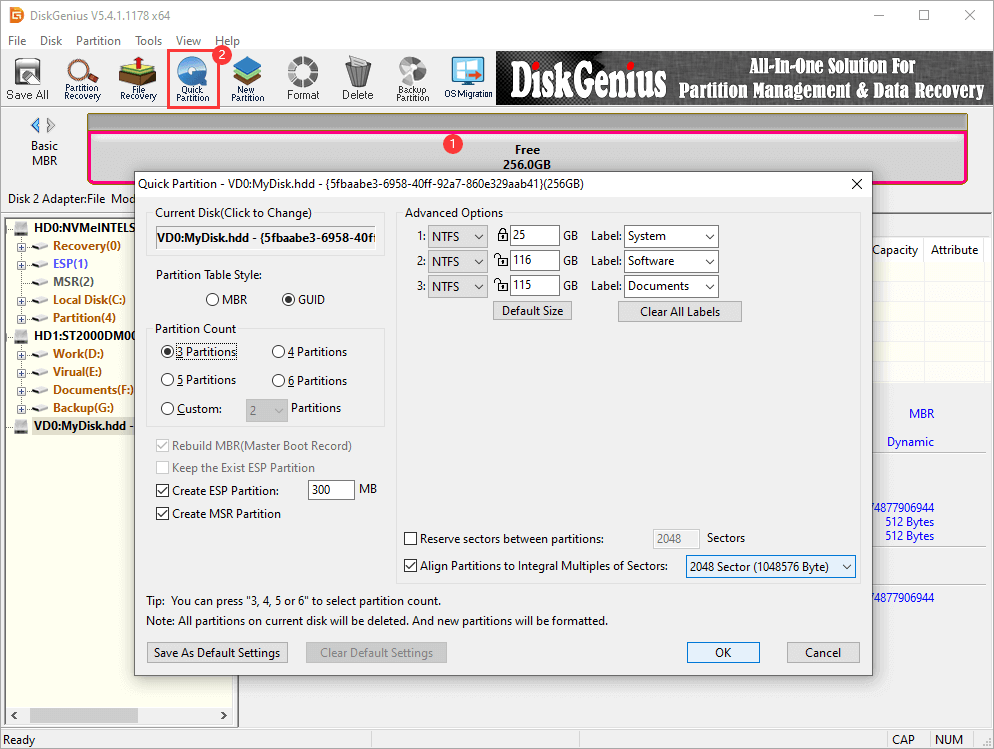
The "Quick Partition" feature repartitions and formats a whole disk in one pass. You set the partition table style, number of partitions, their sizes, labels and 4K alignment in one dialog, and the tool does the rest. Setting up a blank drive takes under a minute.
One warning, and it matters. Quick Partition rebuilds the disk's partition table and formats everything on it. Every existing partition and file on that disk is deleted. Use it on a new or empty disk, or only once everything on the disk is backed up.
Step 1. Select the disk, then choose "Quick Partition" from the toolbar (or press F6).
Step 2. Set the partition table type (MBR or GUID), partition count, types, sizes, labels, and 4K alignment ("Align Partitions to Integral Multiples of Sectors.
Step 3. Click OK. The partitions are created and formatted together.
Read more: How to Partition SSDs in Windows 11/10/8/7?
For scripting, or for following someone's written instructions exactly, DiskPart is the command-line route.
Open an elevated Command Prompt or PowerShell and enter these one at a time:
diskpart
list disk
select disk 1
create partition primary
format fs=ntfs quick
assign
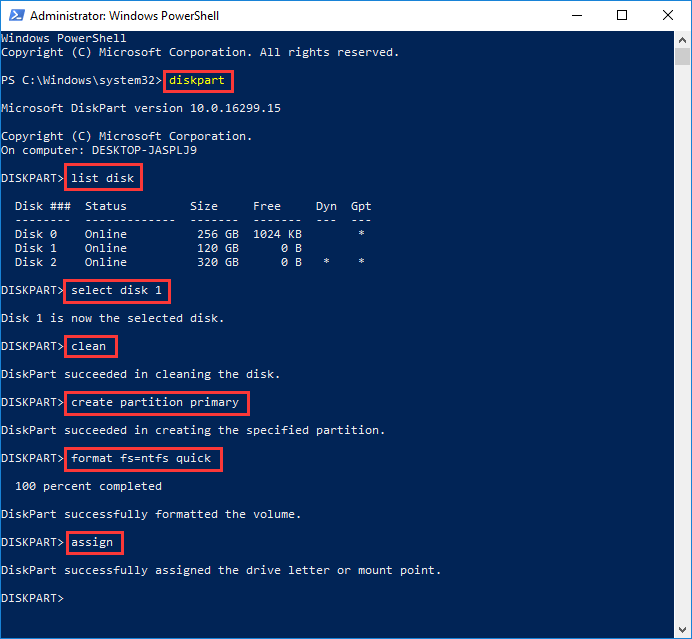
list disk gives each disk a number and size, and select disk 1 targets the second one in the list, so read the sizes before committing.
Recent Windows 11 builds can manage disks from "Settings".
Go to System → Storage → Advanced storage settings → open Disks & volumes → Create volume.
You can initialize disks and create volumes from there.
The entry points have shifted a little across Windows 11 updates, so if a label looks different on your build, that is not just you. Disk Management remains the steadier place for anything fiddly.

1. Shrink Volume Is Grayed Out
Work down the list. Make sure you right-clicked the volume and not empty space in the window. The volume needs to be NTFS, since Windows will not shrink FAT32 or exFAT this way. A read-only state or a dirty flag can block it, as can file system errors that make Windows avoid touching the volume. If BitLocker is protecting the drive, unlock it or suspend protection and try again.
2. Windows Cannot Shrink the Volume Enough
Worth understanding rather than just working around. Windows can only shrink a volume up to the first unmovable file. The page file, hibernation file and shadow copies from System Restore all count, and any of them sitting near the end of the volume locks up everything behind it. That is why a drive with 200 GB free sometimes offers a 2 GB shrink.
So: confirm the free space is really there. Back up what matters. Run chkdsk and a disk health check before resizing anything you suspect. Then look at what is pinning the end of the volume, and know that shadow copies and temp files often clear themselves after a reboot.
3. New Simple Volume Is Grayed Out
Usually you have not actually right-clicked unallocated space. Click somewhere else and the option changes. It can also happen when the disk is offline or uninitialized, or when the layout has no room left, as on an MBR disk that already holds four primary partitions. Look at the graphical view again and check the disk status on the left.
4. Cannot Extend a Partition in Disk Management
Windows extends a basic volume only into unallocated space sitting immediately to its right on the same disk. If the free space is beyond the recovery partition or on another drive, Extend Volume grays out, and it is a confusing sight when the disk clearly has room somewhere.
A layout screenshot explains it instantly: C: on the left, a small EFI or Recovery block next to it, unallocated space trapped on the far side. The fixes are to move the blocking partition out of the way or to merge the space in with a tool that knows how to relocate partitions. DiskGenius can move the intervening partition and merge unallocated space into C regardless of which side it sits on, without reinstalling anything.
5. The Disk Shows as Not Initialized
On a genuinely new disk, initialize it and move on. On a disk that ever held data elsewhere, hold off first. Initialization writes new partition metadata and lowers your odds of recovering whatever was on it. Decide about hard drive data recovery before you touch anything.
6. The New Partition Does Not Appear in File Explorer
A created partition and a visible drive are two different things. Open Disk Management and check whether the volume is there but missing a drive letter, which takes one right-click to fix. Also confirm the disk is online and the volume shows a recognized file system.
7. Accidentally Deleted or Formatted the Wrong Partition
Stop writing to that disk right now. Do not create partitions on it, do not format it again, do not run cleanup tools against it. Every new file written is a file that may land on top of what you are trying to recover.
If the data matters, DiskGenius includes partition recovery and file recovery for exactly this situation, and its Search for Lost Partitions function rebuilds deleted partition entries in many cases. No recovery tool promises a full recovery every time, but moving quickly and leaving the disk alone gives you the best odds on offer.
1. How Much Space Should You Leave for C Drive?
Look at how much C uses today and add room for the next couple of years of updates, software and user files. A machine with a 512 GB SSD might split 200 GB for C and the rest for data; a video editor with large project files would go the other way. Partition sizes can be adjusted later, but it is easier to get them roughly right now than to shuffle things once the disk is full.
2. Should You Create Separate Partitions for Files and Games?
A separate data partition is useful when you want to reinstall Windows without dragging your files along. Splitting further into media, game and project volumes is taste. The tradeoff is rigidity, since a full games partition next to a half empty media partition is its own small annoyance. Two or three volumes suit most people better than six.
3. Should You Partition an SSD?
You can, and it does no harm. TRIM and wear leveling keep working across partition boundaries. What partitioning will not do is add speed or lifespan. That belief is a leftover from hard drive days.
4. How to Delete or Merge a Partition Later
Changed your mind? Right-click a volume in Disk Management and choose Delete Volume to free its space, then "Extend Volume" on the neighbor if the freed space happens to land in the right place. If it lands somewhere awkward, DiskGenius merges it into the partition you actually wanted to grow. Deleting a volume erases its data, so move anything you want to keep first.
1. How do I create a D drive in Windows 11?
If the disk already has unallocated space, create a new simple volume on it and assign the letter D. If there is no unallocated space, shrink an existing volume first, usually C, and create D from what appears.
2. Can I create a partition without losing data?
Yes. Shrinking keeps the files on the volume in place, and creating a volume on unallocated space touches nothing else on the disk. Back up the irreplaceable anyway, because power cuts and dying hardware are not statistical impossibilities.
3. How do I make a partition in Windows 11 without formatting?
Creating a partition is not the same as formatting a drive. You format only the new volume. The existing volumes keep their data.
4. How many partitions can Windows 11 have?
On a GPT disk, far more than anyone uses. On an MBR disk, four primary partitions, or three primary plus logical drives inside an extended partition.
5. Does partitioning an SSD improve performance?
No. It organizes storage. It does not change read or write speed.
6. Can I create a partition during Windows 11 installation?
Yes. The Windows setup screen has drive options that let you delete, create and format partitions before installing. Be certain you are working on the right disk. Changes made there take effect immediately and there is no undo.

DiskGenius is a one-stop solution to recover lost data, manage partitions, and back up data in Windows.
Download

 Facebook
 YouTube
 X
X