
Updated on Mar. 25, 2026
Position: Resource - Partition Management - How Do I Format an External Hard Drive for Windows and Mac?
An external hard drive can be incredibly useful until it suddenly is not. Maybe it is brand new and needs to be set up. Maybe it is showing the wrong file system. Maybe your computer recognizes it, but you cannot open it properly. Or maybe you simply want to wipe it and start over. Whatever the reason, one question comes up again and again: how do I format an external hard drive?
The good news is that formatting an external hard drive is usually not difficult. Windows and macOS both include built in tools that can do the job. There are also more flexible disk management tools, such as DiskGenius, which can be helpful if you want more control over partitions, file systems, or even data recovery before formatting.
That said, formatting is not something to do casually. In most cases, it removes access to the data stored on the drive. So before clicking anything, it is important to understand what formatting does, when you should do it, which file system to choose, and what method makes the most sense for your situation.
This guide walks through all of that. Step by step, without making it more complicated than it needs to be.
Formatting a drive means preparing it to store data by creating a file system. The file system is what allows your operating system to organize, read, and write files on the disk. Without it, the drive is not very useful.
When you format an external hard drive, the old file system information is replaced with a new one. In practical terms, this often means the drive is reset and ready for use again. It may also solve certain errors, remove corruption, or make the drive compatible with another operating system.
There are two common types of formatting people usually encounter:
A quick format is the faster option. It recreates the file system structure without thoroughly scanning the disk. For everyday use, this is often enough.
A full format takes longer. It checks the drive more thoroughly and may look for bad sectors depending on the system and method you use. If the drive has been acting strangely, a more thorough format can sometimes make sense.
Simple idea, really. You are not physically changing the drive itself. You are changing how the system prepares and recognizes its storage space.
People format external hard drives for all kinds of reasons, and not all of them involve something going wrong.
A very common reason is that the external drive is new. Some external drives come preformatted, but not always in the most suitable file system for your setup. If you want to use the drive mainly on Windows, mainly on Mac, or across both, formatting may be necessary.
Another common reason is compatibility. A drive formatted for one operating system may not work properly on another. For example, a drive with a Mac specific file system may not behave well on a Windows PC. The opposite can also be true.
Then there are the problem cases. The drive may show errors, ask to be formatted before use, or appear as RAW instead of showing a normal file system. In those situations, formatting is often suggested as a fix. Not always the first fix, though. If the drive contains important files, recovering data should come first.
People also format drives before reusing them, selling them, or reorganizing their storage setup. Sometimes the goal is not repair. It is just a clean start.
And yes, sometimes the drive is cluttered, messy, full of things you no longer need, and formatting is simply easier than sorting through years of digital leftovers.
Before formatting, pause for a minute. This is the part many people rush through, and it is the part that matters most.
Back up important files
If the external hard drive contains files you still need, copy them somewhere else before you begin. Formatting typically removes access to everything on the disk. Photos, videos, documents, project folders, archives, the whole lot.
If you are not completely sure what is on the drive, check first. A few extra minutes now can save a huge headache later.
Check whether the external hard disk has hardware problems
If the external hard drive is making unusual noises, disconnecting randomly, freezing your system, or failing to show up consistently, formatting may not solve the real issue. The problem could be physical, not logical.
In those cases, pushing the drive too hard is not always wise. If the files matter, the recovery of data from external HDD should come before repair attempts.
Decide which file system you need
This part is more important than it sounds. The file system determines how the drive works and where it works best. Choosing an improper file system can create unnecessary limits or compatibility problems. We will go over the main file systems in the next section.
Make sure the connection is stable
Loose cable. Faulty port. Power issue. These small things can interrupt the formatting process or make the drive appear unreliable when the drive itself is actually fine.
Use a reliable USB cable and a stable connection. If possible, connect the drive directly to the computer instead of through a questionable hub.
This is where a lot of people hesitate, and honestly, for good reason. The list of file systems looks technical at first. But once you match the format to the way you use the drive, the choice becomes much easier.
NTFS is the standard file system for modern Windows systems. It supports large files, large partitions, permissions, and other advanced features. If you want to use the external hard drive mainly with Windows computers, NTFS is often the best choice.
The catch is that macOS has limited native write support for NTFS. A Mac can usually read NTFS drives, but writing to them is another matter unless extra software is involved.
exFAT is often the most practical choice for an external hard drive that will be shared between Windows and Mac. It supports large files and avoids the annoying 4 GB file size limit that comes with FAT32. For many users, exFAT is the sweet spot. Flexible, widely supported, and simple.
FAT32 is older, but still very compatible with many devices, including some TVs, game consoles, media players, and car systems. The downside is the file size limit. You cannot store a single file larger than 4 GB on a FAT32 drive. And Windows File Explorer cannot format a USB drive that is larger than 32 GB to FAT32.
If the external drive is for Mac only, APFS or Mac OS Extended may be appropriate. APFS is designed for newer Apple systems, while Mac OS Extended still appears in some workflows, especially for older Macs.
These are not ideal choices if you also need the drive to work smoothly on Windows.
If the external drive is for Windows only, choose NTFS.
If it is for Mac only, choose APFS or sometimes Mac OS Extended, depending on the version and purpose.
If you want the drive to work on both Windows and Mac, the simplest answer is usually exFAT.
That is the short version. And for most people, the short version is enough.
Windows gives you several ways to format an external hard drive. Some are simple and visual. Others are more advanced. If one method does not work, another often will.
This is the easiest method for most users.
Step 1. Connect the external hard drive to your Windows computer.
Step 2. Open File Explorer, then go to This PC. Find the external drive, right click it, and choose Format.
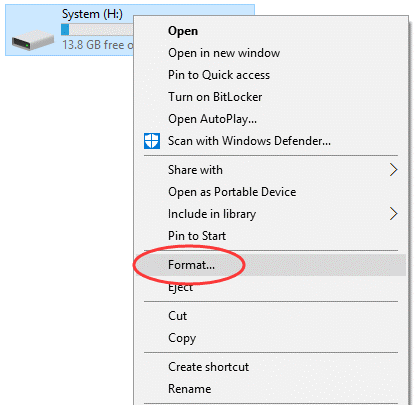
Step 3. A small format window will appear. Select the file system you want, such as NTFS or exFAT.
You can also enter a volume label, which is basically the name of the drive. If you want a faster process, leave Quick Format checked.

Step 4. Then click Start.
Step 5. Windows will warn you that formatting will erase the data on the drive. If you are sure, continue. After the process finishes, the drive should be ready to use.
This method is quick and convenient, though not always ideal for drives with partition problems or file system corruption.
If File Explorer does not work, Disk Management is the next thing to try.
Step 1. Right click the Start button and choose Disk Management.
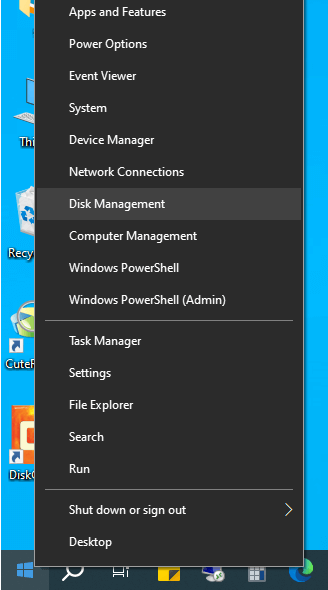
Step 2. Once the window opens, locate your external hard drive in the disk list. Be careful here. Check the size so you do not select the wrong disk.
Step 3. If the drive already has a partition, right click that partition and choose Format. Select the file system you want, adjust the label if needed, and confirm the operation.
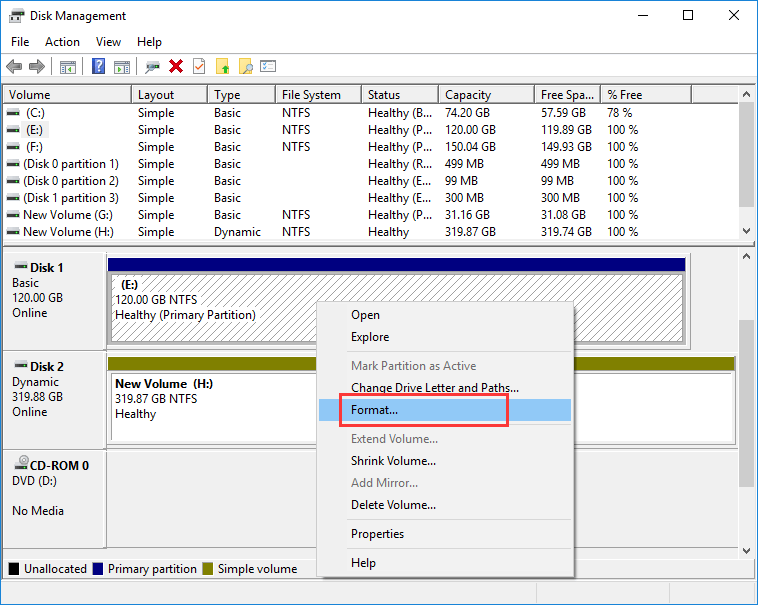
Disk Management is useful because it gives you a broader view of the disk and partition layout. If the partition is missing, unallocated, or showing unusual status, you will see that here more clearly than in File Explorer.
Sometimes the issue is not the drive itself but the partition structure. Disk Management helps reveal that.
If you want more control, DiskGenius Free is a good option. It is especially useful when the built in Windows tools cannot format the drive properly (e.g., you want to format a large partition to FAT32, or format your drive to EXT4), or when you want to check the disk health status carefully before making changes.
Step 1. After launching DiskGenius, locate the external hard drive in the disk list. You can review its partitions, file system information, and overall layout before doing anything else. That alone is helpful. It reduces guesswork.
If the drive contains important files and something seems wrong, DiskGenius can also help you attempt data recovery before formatting. That matters in situations where the hard drive is inaccessible, damaged, or accidentally formatted.
Step 2. Once you are ready, select the partition or disk, choose the Format option. Also, you can right-click the partition and choose "Format Current Partition" from the context menu.

Step 3. Select the target a file system, and click "Format".

Step 4. Click "Yes" to confirm the operation, and the partition will be formatted immediately.

For some users, a visual disk management tool just feels safer. Not because it is magical. Because you can actually see what you are doing.
DiskPart is a command line tool in Windows. It is powerful, and it can help when other methods fail. It is also less forgiving. If you select the wrong disk, you can erase the wrong disk. So caution is not optional here.
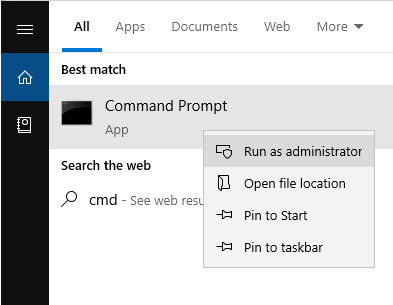
Step 1. Connect the external hard drive to your computer. In Windows search, type cmd, then run Command Prompt as administrator.
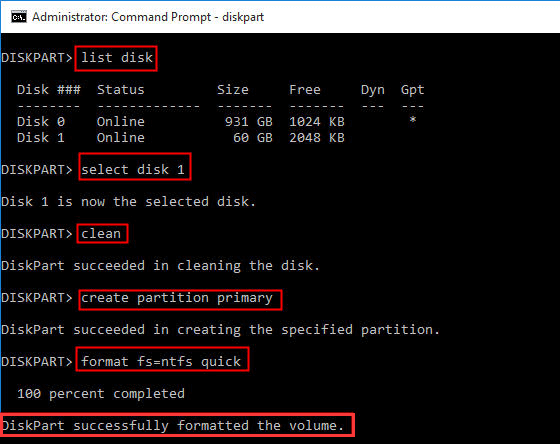
Step 2. In the command window, type diskpart and press Enter.
Step 3. Then type list disk and press Enter.
This will show all connected disks. Identify your external hard drive carefully by checking its size.
Step 4. Once you are certain, type select disk X and press Enter.
Note: Replace X with the correct disk number.
Step 5. If you want to remove the existing partition information, type clean and press Enter.
Step 6. Then type create partition primary and press Enter.
Step 7. Type format fs=ntfs quick and press Enter.
If you are using a Mac, the built in tool you need is Disk Utility.
Step 1. Connect the external hard drive to your Mac and open Disk Utility.
You can find it through Spotlight search or in the Utilities folder.
Step 2. In the left sidebar, select the external drive.
Not the volume beneath it unless that is specifically what you intend to erase. The top level disk is usually the safer thing to examine first.
Step 3. Click Erase.
Ste 4. You will then be asked to enter a name and choose a format.
If the drive is for Mac only, you may choose APFS or Mac OS Extended depending on your needs. If you want to use the drive on both Mac and Windows, exFAT is often the better choice.
You may also be asked to choose a scheme, such as GUID Partition Map. In many cases, the default recommended option is fine.
Step 5. Click Erase again to begin formatting. Once the process finishes, the drive should appear as a clean, usable volume.

Sometimes formatting should be easy, but the drive refuses to cooperate. It happens.
There are a few common reasons.
The drive may be write protected. The file system may be corrupted. The partition table may be damaged. The drive may contain bad sectors. Or another program may be using the drive in the background, preventing formatting from completing.
Sometimes Windows throws vague errors. Sometimes the drive appears in Disk Management but cannot be formatted normally. Sometimes it shows up as RAW. Sometimes it does not show up properly at all. External drives can be dramatic like that.
Here are a few things worth trying:
Reconnect the drive and use a different USB port. A surprisingly ordinary fix, but it solves more problems than people expect.
Try a different cable. Faulty cables cause strange behavior.
Use Disk Management or DiskPart instead of File Explorer.
If the drive contains important data, avoid repeated formatting attempts and consider recovery first.
Use DiskGenius to inspect the disk structure, check partitions, and attempt repairs or recovery where appropriate.
If the drive is physically failing, no software method can truly fix that. In that case, the priority shifts from formatting to protecting whatever data is still recoverable.
Sometimes the answer is technical. Sometimes the answer is that the drive is simply wearing out.
A standard format usually removes the file system references and makes the drive appear empty, but it does not erase the underlying data completely. In many cases, recovery software can still retrieve files if the data has not been overwritten.
So, if your goal is privacy, a quick formatting is not enough.
If you plan to sell, donate, recycle, or dispose of an external hard drive, and it once stored sensitive personal files, financial records, business documents, or private media, you may want to erase it more securely instead of just formatting it. Secure erasure means overwriting the data sector by sector on the drive so that hard drive recovery becomes impossible.
One practical way to do this is wiping the disk thoroughly using DiskGenius Free edition.
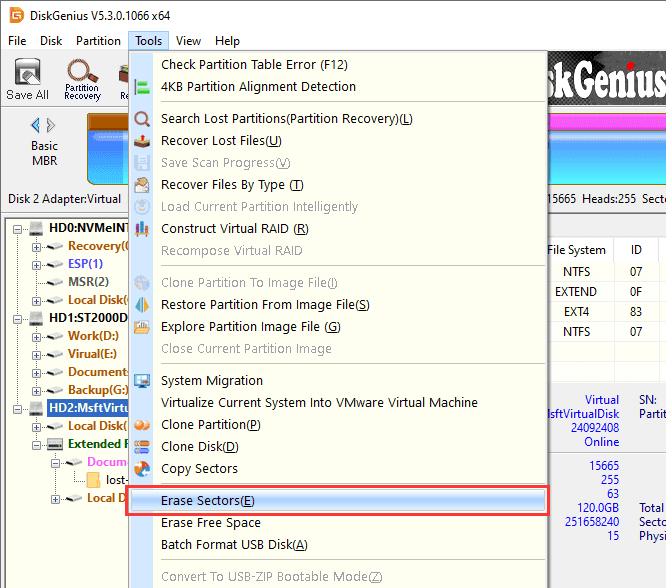
Step 1. You can select the external hard drive from the left pane, then click Tools – Erase Sectors.
Step 2. select an overwrite method, and click Erase.
Once the overwrite begins, the data is meant to be gone for good. So back up anything important first. Then check the selected disk again. And then check it one more time.
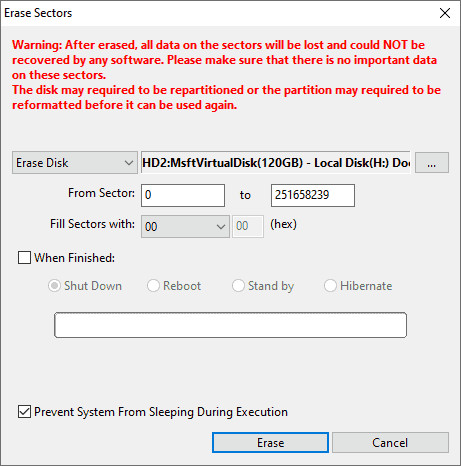
Step 3. Then carry out the operation carefully.
1. Does formatting an external hard drive erase everything?
Formatting usually removes access to all stored data. In many cases, the files are no longer available through normal use after formatting. Some data may still be recoverable until overwritten, but you should never rely on that.
2. What is the best format for an external hard drive?
It depends on how you use the drive. NTFS is usually best for Windows only. APFS or Mac OS Extended suits Mac only use. exFAT is usually the best option for a drive used on both Windows and Mac.
3. Why is my external hard drive asking to be formatted?
This often happens when the file system is corrupted, unsupported, or unreadable. If the drive contains important files, do not format it immediately. Try to recover data from the corrupted hard drive first.
4. Is quick format enough?
Usually, yes, for ordinary setup or reuse. A quick format is faster and works well in many situations. If you suspect bad sectors or want to securely erase data, a more thorough method may be worth considering.
5. Can I recover files after formatting?
Sometimes. Recovering data from formatted partitions is more likely if the drive has not been used after formatting. The sooner you stop writing new data and begin recovery efforts, the better.

DiskGenius is a one-stop solution to recover lost data, manage partitions, and back up data in Windows.
Download

 Facebook
 YouTube
 X
X