
Updated on Mar. 19, 2026
Position: Resource - Disk Utilities - DISM Online Cleanup Image RestoreHealth Stuck? Causes and Fixes
You run DISM /Online /Cleanup-Image /RestoreHealth, expecting a quick repair. Instead, it just sits there. Maybe at 20%. Maybe 62.3%. Maybe 84.0%. Maybe 100%, which somehow feels even more annoying because it looks finished and still refuses to end.

At that point, a lot of people do the same thing. They assume the command is frozen, close the window, restart the PC, and hope for the best. Sometimes that works. Often it doesn't. And in some cases, it makes troubleshooting more confusing than it needs to be.
The tricky part is that DISM can look stuck even when it is still working. That is why this problem frustrates so many Windows users. There is no obvious progress bar behavior you can fully trust, and the command is tied to deeper parts of Windows repair that most people do not think about until something breaks.
This guide walks through the whole thing: What the command actually does. Why it gets stuck. How long you should wait before worrying. And, more importantly, what to do when DISM /Online /Cleanup-Image /RestoreHealth is taking forever or appears completely frozen on Windows 10 or Windows 11.
DISM stands for Deployment Image Servicing and Management. When you run this command:
DISM /Online /Cleanup-Image /RestoreHealth
you are telling Windows to check the current operating system image for corruption and repair the component store if possible.
/Online means DISM is working on the Windows installation you are currently using, not an offline image.
/Cleanup-Image tells it to perform tasks related to the Windows image, especially the component store.
/RestoreHealth tells it to scan for corruption and try to repair what it finds.
That component store matters more than it sounds. Windows uses it as a source for repairing system files and servicing the operating system. If it gets damaged, updates may fail, system file checks may stop working properly, and Windows can start behaving in strange, inconsistent ways.
This is also why DISM is often paired with SFC. SFC repairs system files. DISM repairs the source that SFC relies on. If the source itself is corrupted, SFC may not be enough.
📒Read More: Fix SFC Scannow Not Working Error in Windows 11/10/8/7
On a healthy SSD-based system with a good internet connection, the command may finish in minutes. On an older PC, a heavily corrupted system, or a machine dealing with Windows Update problems, it can stay at one percentage for a surprisingly long time. That does not automatically mean it has failed.
The percentages people worry about most are usually 3.8%, 20%, 54%, 62.3%, 84.0%, and 100%. Those pause points are common. The process can appear dead while still working in the background. Disk activity, CPU usage, or occasional network activity may still be happening even though the number on screen refuses to move.
A command that is probably still working often comes with some signs of life. Task Manager may show disk usage. CPU usage may rise and fall. The system remains responsive. You can move windows around, open apps, and generally use the PC, even if the repair is crawling.
A command that may actually be stuck tends to look different. No percentage change for well over an hour. No meaningful CPU or disk activity. No network activity when DISM might need online repair files. The Command Prompt window may also start acting unresponsive, or you may get explicit error output.
In other words, a long wait is annoying but normal. Absolute silence for a very long time is where concern becomes reasonable.
A lot of users search for this issue with a percentage attached. That makes sense. Seeing the same number for ages is what makes the problem feel so specific.
If DISM is stuck at 20%, it is often still in the earlier analysis stage. Slow hardware can make this feel much worse than it is.
If it is stuck at 40%, the process may be deeper into image checking or validating repair needs. Again, not unusual, though not pleasant.
DISM stuck at 62.3% is one of the most commonly reported cases. There is nothing magical about 62, but it does show up often in user reports. Systems can sit there for quite a while and still finish successfully.
DISM stuck at 84.0% is another classic. That stage seems to catch a lot of people because it feels close enough to completion that any delay looks suspicious. Sometimes it is just a slow repair phase. Sometimes not.
DISM stuck at 100% is especially misleading. You would think 100 means done. Not always. Finalization, cleanup, and logging can continue after that number appears. If it stays there forever, though, then yes, something may be wrong.
There is no single cause. That is part of the problem. DISM sits in the middle of several Windows repair mechanisms, so when it stops moving, the issue can come from different directions.
1. Windows Update components are damaged
DISM often uses Windows Update as a repair source. If the update components are corrupted, misconfigured, or partially broken, DISM may hang while trying to fetch or verify files. This is especially common on systems that have had repeated update failures.
2. The component store itself is seriously corrupted
This command exists because corruption happens. But if the corruption is extensive, DISM may slow down dramatically or struggle to finish the repair. Sometimes the tool is trying to fix exactly the part of the system that is needed for the repair process to proceed smoothly. Not ideal, obviously.
3. The internet connection is unstable
This does not affect every run, but if DISM needs to reach Windows Update and the connection is weak, filtered, unstable, or blocked by a proxy or VPN, the process may stall. It can look like a freeze when it is really a failed attempt to retrieve repair content.
4. Antivirus or security software interferes
Some security tools are a little too enthusiastic. Real-time protection can interfere with system-level repair operations, especially when DISM is reading, verifying, or replacing protected files. It does not happen on every machine, but it happens often enough to be worth checking.
5. The disk has file system errors or bad sectors
This is an overlooked one. If the system drive has read or write problems, DISM may become painfully slow, appear stuck, or fail partway through. A damaged file system, unstable sectors, or bad sectors can all interfere with a repair that depends on reading many protected Windows files.
6. There are pending updates or unfinished servicing operations
Windows does not love being interrupted in the middle of internal servicing work. If a previous update has not completed properly, or if a restart is pending, DISM may hit a wall. The system may need to finish one thing before it can begin another.
7. System resources are under pressure
Low free disk space, heavy CPU usage, background maintenance tasks, or too many other processes running at once can slow the operation down. Not every delay is corruption. Sometimes it is just a machine under load.
8. The repair source does not match the installed Windows version
When users try a local source such as an ISO file, mismatch becomes a real issue. If the edition, build, or language does not line up closely enough with the installed Windows version, DISM may fail or hang during the attempt.
Now for the part that people actually came for.
Not every system needs every step. The best approach is to start with the simple, low-risk fixes and move toward the more involved ones only if necessary.
Before changing anything, take a breath and check a few basic things.
First, give it a fair amount of time. If the process has only been sitting for ten or fifteen minutes, especially on an older machine, that is not enough evidence.
Second, open Task Manager and look for CPU, disk, and network activity. Even light activity can mean DISM is still working.
Third, make sure the internet connection is stable if you are relying on online repair sources.
Fourth, save any open work in other applications. Some of the fixes below involve restarts, Safe Mode, or deeper system checks.
And one more thing. If you can create a restore point before doing more advanced repair work, that is worth doing. It is not always possible on a damaged system, but if it is, take it.
This sounds almost insulting, but it is genuinely the correct first move.
If DISM has only been sitting there for a short while, do not interrupt it too early. On some systems, especially older HDD-based PCs, the command can stay at one percentage for a very long time and still complete successfully.
Give it more time than feels comfortable. Thirty minutes. Sometimes an hour. Context matters, but impatience causes a lot of false alarms.
If the process has clearly stalled for too long and there is no sign of activity, restart Windows and try again.
After rebooting, open Command Prompt as administrator and run:
DISM /Online /Cleanup-Image /RestoreHealth
A restart can clear temporary servicing glitches, file locks, and odd background states that interfere with repair operations.
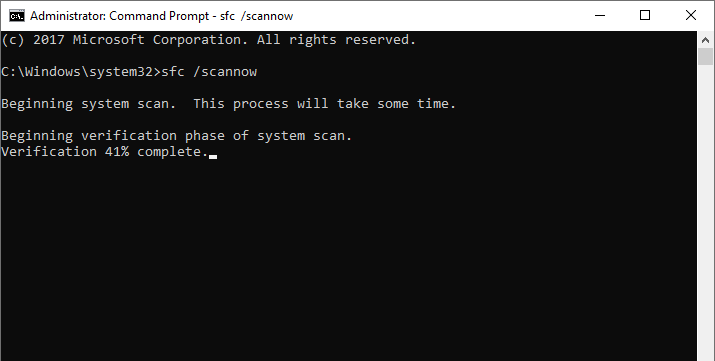
SFC and DISM are related, but they are not the same tool.
DISM repairs the Windows image and component store. SFC checks protected system files and replaces corrupted ones using the component store as a source. Because of that relationship, a good sequence is often this:
sfc /scannow
DISM /Online /Cleanup-Image /RestoreHealth
sfc /scannow
Why run SFC first if DISM is supposed to repair the source? Because sometimes SFC can clean up enough surface-level corruption to make the DISM process smoother. Then, once DISM repairs the underlying image, running SFC again can catch anything that still needs replacement.
It is not always required, but it is a solid workflow.
If DISM is trying to pull repair files from Windows Update, network issues matter.
Make sure the PC is on a stable connection. If you are using a VPN, custom DNS settings, enterprise proxy configuration, or anything else that might filter Microsoft services, temporarily disable it and test again.
This one gets missed because the command is local, so people assume the repair is local too. Not necessarily.
When Windows Update is part of the problem, DISM may not complete until the update infrastructure is repaired.
You can reset Windows Update components by stopping related services, renaming update cache folders, and restarting the services. Here are commonly used commands in an elevated Command Prompt:
net stop wuauserv
net stop cryptSvc
net stop bits
net stop msiserver
ren C:\Windows\SoftwareDistribution SoftwareDistribution.old
ren C:\Windows\System32\catroot2 catroot2.old
net start wuauserv
net start cryptSvc
net start bits
net start msiserver

After that, restart the PC and try DISM again. This sounds more dramatic than it is. You are basically forcing Windows to rebuild update-related caches and service state. If those parts were corrupted, the repair command often has a better chance afterward.
If the drive has logical file system damage, Windows repair tools may behave unpredictably. CHKDSK can help.
Run:
chkdsk /r
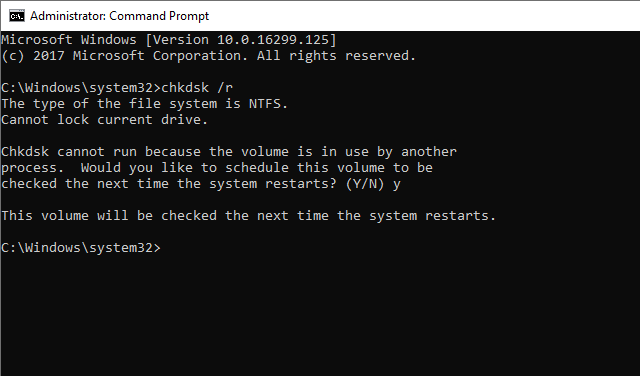
If prompted to schedule the scan for the next restart, agree and reboot.
This process can take a while, especially on large or slow drives. But if the system partition has errors, fixing them first may remove the obstacle that is causing DISM to hang.
This is where a third-party tool can make real sense, though not in the way some articles oversell it.
DiskGenius does not replace DISM. It does not directly repair the Windows component store. That is not the job. What it can do, though, is help you identify a deeper disk problem that may be causing DISM to stall in the first place.
If the system drive has bad sectors, unstable sectors, file system issues, or partition-related problems, DISM may become extremely slow or appear frozen because it is having trouble reading or verifying required data. In that scenario, the command is not necessarily the root problem.
You can use DiskGenius to inspect the health of the system drive more visually than CHKDSK allows. Look at the partition state. See whether the drive is showing warning signs that built-in tools are not making obvious.
Step 1. Check SMART information.
In the left-hand panel (the Device Tree), click on the physical disk you wish to test, and click Disk > View S.M.A.R.T. Information.
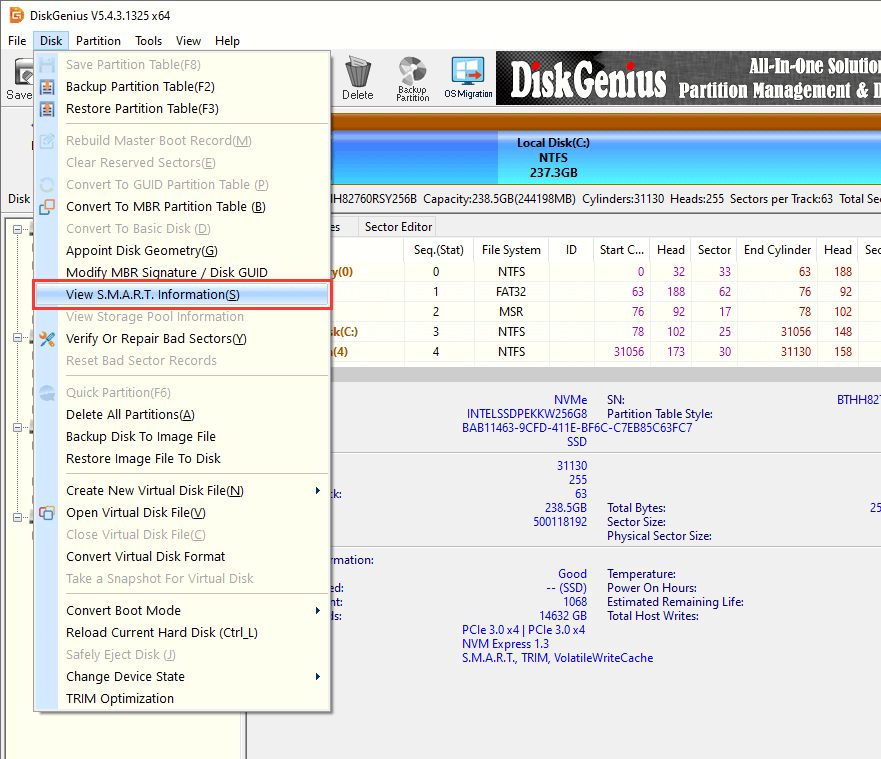
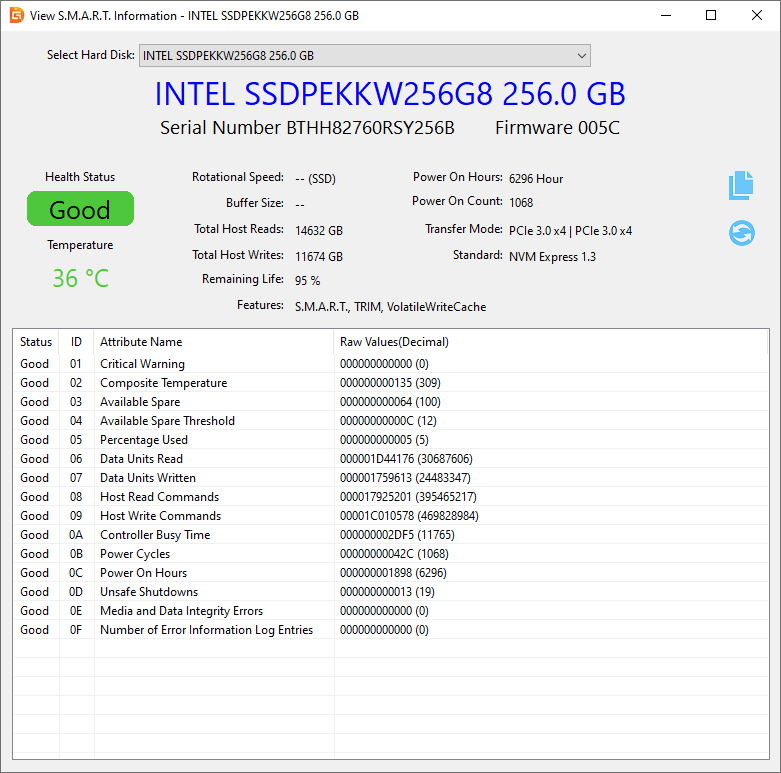
A new window will appear showing the drive's health details:
Health Status: A health drive will show as "Good". If it shows "Caution" or "Bad", you should back up data immediately.
Temperature: This parameter shows the current operating temperature to ensure the drive isn't overheating.
You can also view other parameters such as Power-on Hours, Power-on count, remaining life, Reallocated Sectors Count, and Uncorrectable Error Count.
Step 2. Run a bad sector scan.
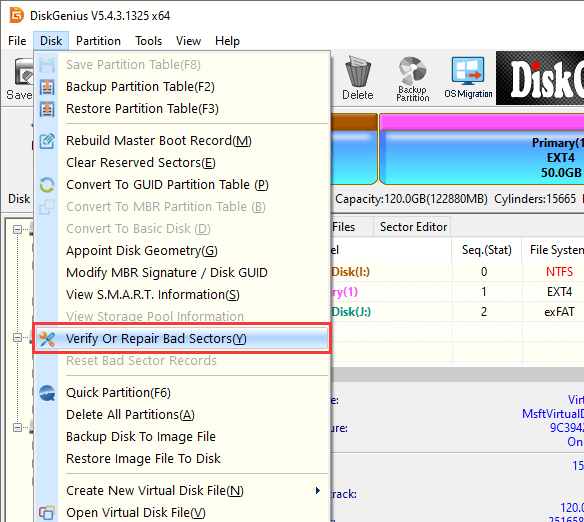
Select the drive you want to check bad sectors in the left pane, and click Disk > Verify Or Repair Bad Sectors/Blocks.
Click "Verify" button, and the program starts to scan the drive and check if there are bad sectors/blocks.
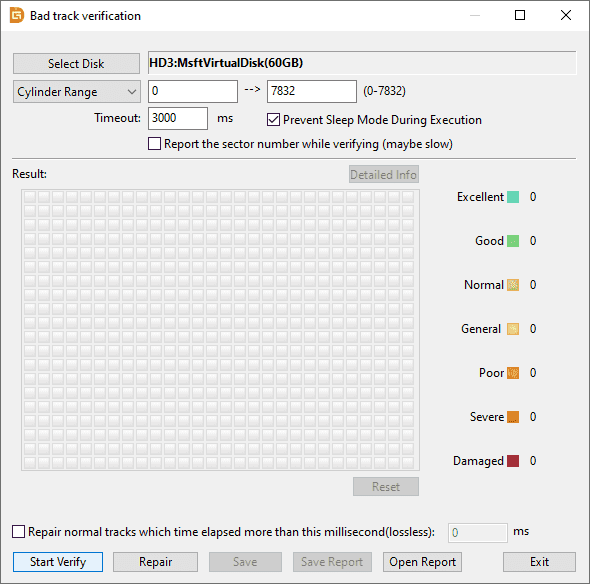
If DiskGenius shows disk-level problems, you should back up files first. After that, you can try fixing the DISM struck issue.
Background services and third-party software can interfere with Windows repair operations. Safe Mode reduces that noise.
Step 1. Boot into Safe Mode with networking
Click the Start icon (the Windows logo) and click Setting.
Then go to System > Recovery > Advanced startup > Restart now.
After the PC restarts to the Choose an option screen, select: Troubleshoot > Advanced options > Startup Settings > Restart.
Once the list of options appears, press 5 or F5 to select Safe Mode with Networking.

Step 2. After booting into the Safe mode, you can open an elevated Command Prompt: Press the Start button, type cmd, right-click Command Prompt, and select Run as administrator.
Step 3. Type the following command to check the health of the image.
DISM /Online /Cleanup-Image /CheckHealth
Step 4. Type the following command to restore the health.
DISM /Online /Cleanup-Image /RestoreHealth
Some antivirus products inspect system-level actions aggressively, and DISM definitely qualifies as a system-level action.
Temporarily disable real-time protection, then run the command again. Do this carefully and reconnect the protection afterward. You do not want to leave the system exposed longer than necessary.
If the repair suddenly works after disabling security software, you have probably found the interfering factor.
This is one of the most effective fixes when Windows Update is broken or inaccessible.
Instead of relying on online sources, you can mount a Windows ISO and use install.wim or install.esd from the media as the repair source. For example:
DISM /Online /Cleanup-Image /RestoreHealth /Source:WIM:X:\sources\install.wim:1 /LimitAccess
Or, if the ISO contains an ESD file:
DISM /Online /Cleanup-Image /RestoreHealth /Source:ESD:X:\sources\install.esd:1 /LimitAccess
Replace X: with the mounted drive letter.
/LimitAccess tells DISM not to contact Windows Update, which is useful if online repair is exactly what is failing.
One catch. The source should match your installed Windows version as closely as possible. Edition, language, and build all matter. A mismatch can create new errors instead of solving the old one.
When DISM gets stuck or fails, the logs often tell the real story.
Look here:
C:\Windows\Logs\DISM\dism.log
C:\Windows\Logs\CBS\CBS.log
These logs can reveal whether the issue involves missing source files, corruption details, access problems, update failures, or storage errors. You do not need to read every line like a detective novel, but scanning for repeated errors or obvious failure messages can point you in the right direction.
This comes up constantly, and the confusion is understandable.
If you suspect the Windows component store is damaged, DISM should usually come first. That repairs the source files Windows relies on. After that, SFC can use the repaired source to fix corrupted system files more effectively.
If you start with SFC and it reports that it found corruption but could not fix some files, that is often a sign that DISM needs to run next. Then you run SFC again afterward.
A practical pattern looks like this.
Run DISM when the system image may be damaged.
Run SFC after DISM to clean up system files.
If needed, repeat SFC once more after a successful DISM repair.
That sequence is not a strict law. It is just the pattern that makes the most sense on most damaged systems.
How to Prevent DISM from Getting Stuck Again?
You cannot eliminate every Windows repair issue, but you can lower the odds.
Keep Windows updated, especially if the system has had a messy history of failed or interrupted updates. Avoid forcing shutdowns during updates or repair operations. Maintain enough free space on the system drive so Windows servicing has room to work. Check disk health from time to time rather than only after errors appear.
That last point matters more than people think.
If your system drive is starting to fail, DISM getting stuck may be one symptom among many. Using tools such as CHKDSK for basic file system checks and DiskGenius for a more visual look at disk health, partitions, and bad sectors can help you catch storage issues earlier. Prevention is not glamorous. Still useful, though.
Also, if you are experimenting with system tweaks, third-party update blockers, aggressive cleanup tools, or security products that alter core Windows behavior, be aware that those choices can complicate repair operations later.
1. How long should DISM RestoreHealth take?
It depends on the system. On some PCs it finishes in ten or twenty minutes. On others, especially older machines or systems with corruption, it may take an hour or longer. Long duration by itself does not prove that it is frozen.
2.Can I close Command Prompt if DISM is stuck?
Not right away. If the process has only been paused for a moderate amount of time, it is usually better to wait. If there has been no progress for a very long time and no CPU, disk, or network activity, a restart may be reasonable.
3. Does DISM need internet access?
Sometimes. If it uses Windows Update as the repair source, internet access may be needed. If you specify a local source with /Source and use /LimitAccess, internet access may not be necessary.
4. What if DISM says the source files could not be found?
That usually means DISM could not locate valid repair files through Windows Update or the local source you provided. Resetting Windows Update components or using a matching Windows ISO as the repair source often helps.
5. Can disk problems cause DISM to freeze?
Yes. File system errors, read failures, and bad sectors on the system drive can all slow down or interrupt the repair process. That is why CHKDSK and, in some cases, a disk utility like DiskGenius can be useful when troubleshooting.
If DISM /Online /Cleanup-Image /RestoreHealth is stuck, the good news is that it does not always mean the command has failed. Sometimes it is just slow. Very slow, maddeningly slow, but still working.
When it really is stuck, though, the fix usually comes from understanding the reason behind the stall. It could be Windows Update corruption. It could be system file damage. It could be an unstable network path. And sometimes the real issue sits lower, at the disk level, where file system errors or bad sectors are quietly sabotaging the repair.
Start with the basics. Wait. Reboot. Rerun DISM. Use SFC. Reset Windows Update components. Check the drive. If the system disk may be part of the problem, CHKDSK is a good starting point, and DiskGenius can be a practical way to inspect HDD/SSD health status, scan for bad sectors, recover data from crashed computers, and look for underlying storage issues more clearly.

DiskGenius is a one-stop solution to recover lost data, manage partitions, and back up data in Windows.
Download

 Facebook
 YouTube
 X
X