
Updated on Jan. 06, 2026
Position: Resource - Partition Management - 2026 Full Guide: Best Free OS Migration Software for Windows 11/10
Do you remember the last time you got a new computer or upgraded your hard drive? Backing up files, finding installation media, reinstalling the system, installing drivers and applications one by one... This process could take hours or even a whole day, and you would lose personal settings because you forgot to do something. This has changed completely thanks to Windows migration technology. DiskGenius, a leader in this field, is making it easier than ever to move your operating system.
The main difference between Windows migration and regular data copying is that it's more than just moving files. A full operating system has a boot record, system files, the registry, drivers, user settings, and programs that are installed on the system drive. When you reinstall manually, you have to reconfigure all of these things. But when you use professional migration tools, you can essentially transfer the whole thing to the new environment without affecting the original OS.
In real life, system migration primarily serves scenarios below:
Hard Drive Upgrade: Moving from a mechanical hard drive to a solid-state drive will make your computer much faster.
Equipment Replacement: Replace the old hard drive with a new and larger drive, and then you can get rid of the C drive getting full issue.
System Backup: Making a copy of the system that can be used right away in case of a disaster.
Create a portable "Windows to Go” operating system: You can move the current OS to a USB flash drive or external hard drive and get a potable version of Windows OS.
You can't learn everything from books. Let's take a look at how to use DiskGenius to move the whole Windows OS to an SSD or HDD.

Scenario:
A three-year-old office computer with a hard drive that is getting slower and slower decides to switch to an SSD. The computer has important work software and a lot of configuration files, so reinstalling the system would be energy-draining.
Step 1: Get ready
Put the new SSD into the computer. For desktops, it can be temporarily mounted as a second drive. For laptops, you can use a USB-to-SATA cable. Open DiskGenius, and the program will automatically find all the disks that are connected. The interface is easy to understand and makes it clear which drive is the system drive and which is the new hard drive.
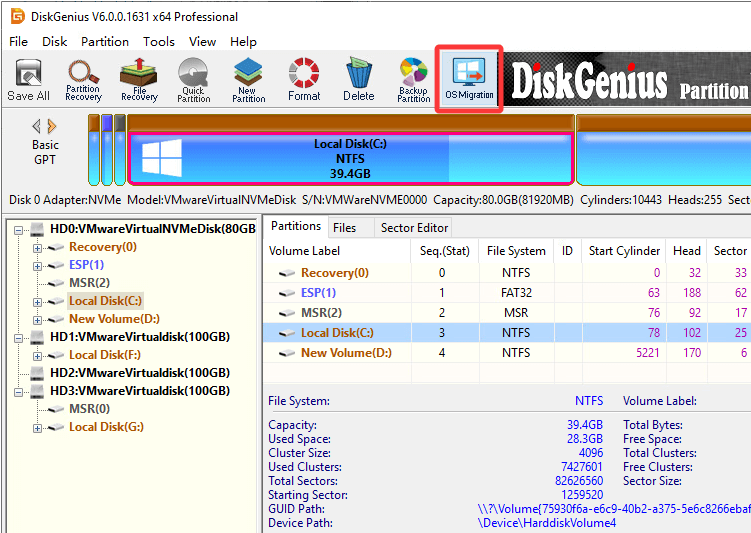
Step 2: Click the "OS Migration" icon from toolbar to launch the feature.
Step 3: Select the target disk.
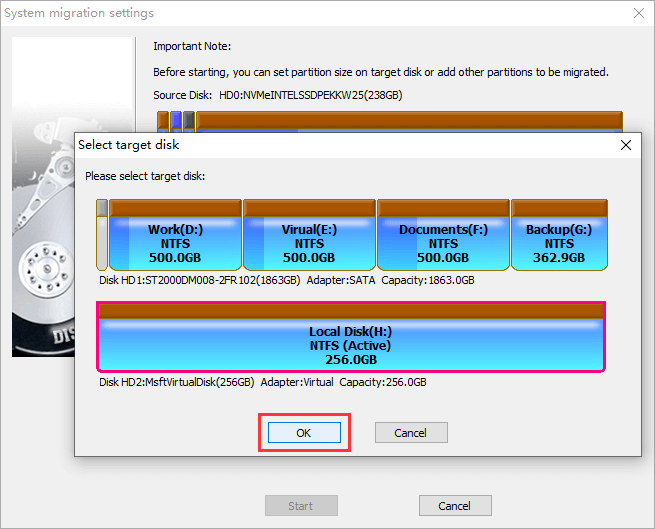
In the pop-up window, select the disk to which you want to move the system to, and then click "OK".
📜 Note: The target disk can be smaller than the source disk, but it must be big enough to accommodate the used space of the system partition.
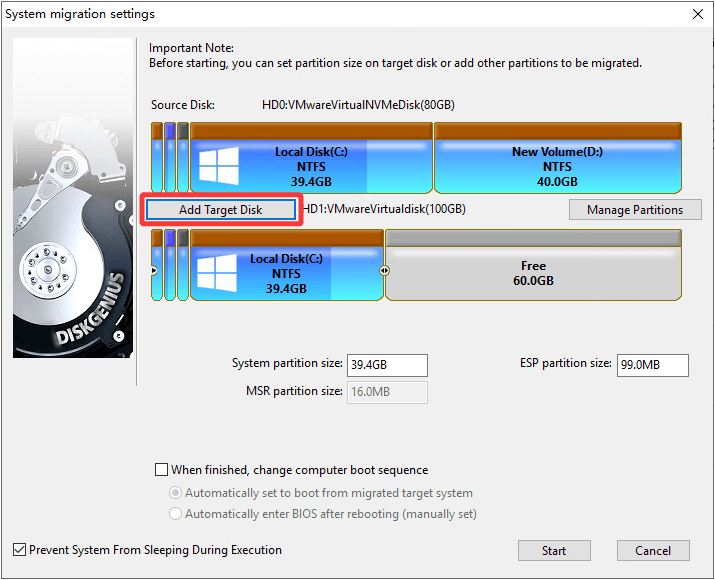
To add multiple target disks, click "Add Target Disk”.
Step 4: Change the layout of the partitions on the target disk.
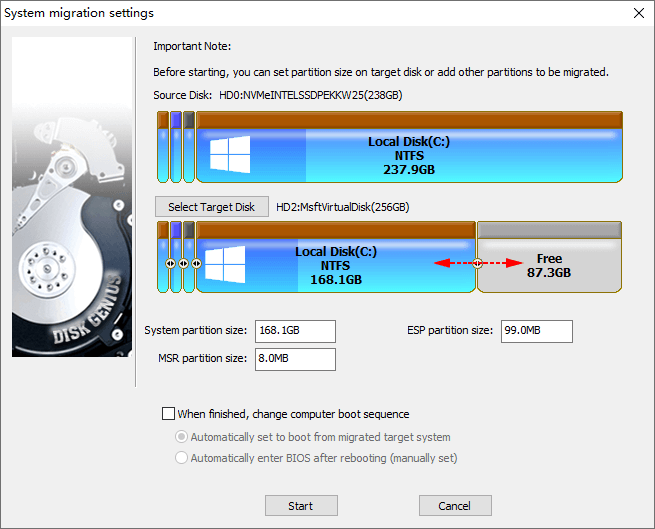
After selecting the target disk, you can customize partitions to be migrated and their sizes:
Select partitions you want to move: DiskGenius transfers the system partition and the boot partition by default. You can click "Manage Partitions" to add or remove partitions to the task.
Adjust partition size: You can adjust the partition size by dragging the partition boundaries on the target disk or by manually entering the capacity value. For example, if the C drive on the original disk has limited free space, you can make the C drive bigger on the target disk.
Step 5: Set up the boot settings (only for UEFI computers).
DiskGenius lets you change the boot order on UEFI-based computers after migration. You can choose one of the following after checking the box that says "When finished, change computer boot sequence":
Set to automatically boot from the migrated target system: After the migration, the computer will start up from the target disk.
Automatically go to BIOS after restarting (set by hand): You can choose the boot device by hand when the computer restarts and goes into BIOS.
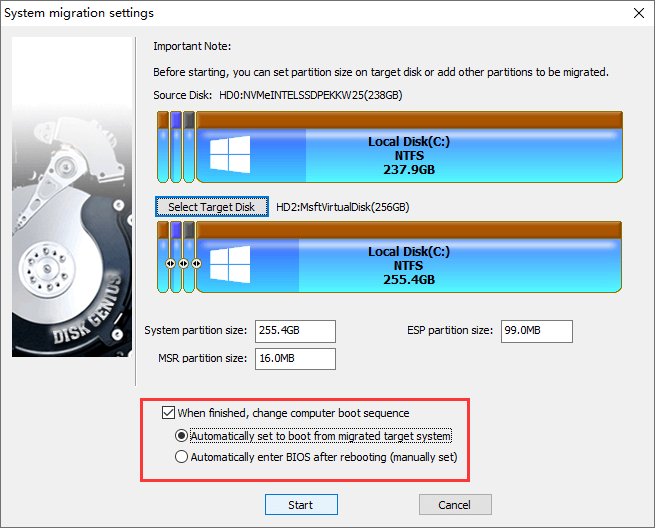
After completing the setup, click the "Start" button.
Step 6: Verify the Results.
After the migration is complete, shut down the computer, remove the old hard drive (or set the new hard drive as the first boot option in the new BIOS), and power on. Windows will detect the hardware change and may need to restart once. Then you'll enter the familiar desktop—all software, all settings, and all files are still there, and the running speed is significantly improved.
After using DiskGenius for a while, you'll see that its OS migration features have a lot of great design details:
Better performance and more flexibility When you move to a new drive, you might have to worry about technical settings, but DiskGenius takes care of all the hard work for you. It does 4K alignment on the target SSD in the background so that your new drive is always running at its best speed.
You also have a lot of options when it comes to storage space. You can move from a big HDD to a smaller SSD as long as your data fits on the new drive. DiskGenius lets you move more than just Windows at once, so your data stays organized.
The goal of the OS migration process is to cause as little trouble as possible. With hot migration support, you can move your system while the computer is still running, which means you won't have to stop working.
There is also an option for advanced users to move the OS to more than one target disk at the same time. The most important thing is that the software treats the source disk as read-only for the whole task. This makes sure that your original system stays completely safe and untouched no matter what happens during the transfer.
Many people think DiskGenius is just a small tool for individual users, but that's not the case. Many IT service companies have already listed it as a standard tool for three reasons:
Standardized Deployment: A standard system can be installed and configured on one computer first, and then DiskGenius can be used to migrate it to other computers in batches. This is more flexible than traditional image deployment because it can be adjusted according to the specific hardware of the target computer.
Hardware Upgrades: When a customer's server needs to replace the RAID card or upgrade the storage, the traditional method requires reinstalling the system. Now, with DiskGenius, seamless migration is possible, reducing business downtime from hours to tens of minutes.
Disaster Recovery: When encountering a situation where the system disk is damaged but the data is still readable, DiskGenius can migrate the entire system to a new hard drive. Often, users won't even feel that the hardware has been replaced.
"Is the free version really sufficient?" Absolutely. All the features mentioned earlier, including system migration, disk cloning, securely wiping hard drives, and partition management, are fully available in the free version. The paid version mainly adds advanced features such as data recovery.
"How stable is the system after migration?" Very stable. DiskGenius doesn't simply copy files; it handles all the details, including drivers, the registry, and system configuration, ensuring the migrated system is perfectly compatible with the new hardware. Windows will detect the disk changes, but this is normal and only requires a restart.
"Does it support Windows 11?" Fully supported, including Windows 11's TPM and Secure Boot requirements. In fact, DiskGenius supports the latest hardware and systems very well, including NVMe SSDs and Intel Optane.
"What if the new hard drive is smaller than the old one?" DiskGenius is smart; it analyzes the actual amount of data, not just the partition size. As long as the new hard drive can hold the actual data, it can complete the migration.
While this article is mainly about Windows OS migration, DiskGenius offers a complete suite of disk management and data recovery.
Data Recovery: Accidentally deleted files? Formatted the wrong disk? DiskGenius boasts powerful data recovery capabilities that can recover lost data from various data loss scenarios.
Partition Management: Resizing partitions, formatting SD cards to FAT32, create new partitions, converting MBR to GPT, creating bootable USB drives, and more. These functions are frequently used in routine maintenance.
Disk Health Checking: SMART information viewing, bad sector detection, and disk speed testing give you complete control over your disk's status.
Backup and Restore: In addition to system migration, DiskGenius can also create disk images and perform incremental backups, making it a valuable data protection tool.
In this time of fast technological progress, we often run into problems that seem hard to solve. In the past, moving a system was a difficult technical task that required specialized knowledge and a lot of experience. Now, tools like DiskGenius have made it easy for anyone to do.
This may be the most important thing about technological progress: not making things more complicated, but making them easier to understand.
If you're planning to upgrade your hard drive, replace your computer, or simply want your system to run faster, stop dreading reinstalling your operating system. Download DiskGenius, spend a few minutes, and you can experience the magic of "seamless migration." Your time and data deserve better protection.

DiskGenius is a one-stop solution to recover lost data, manage partitions, and back up data in Windows.
Download

 Facebook
 YouTube
 X
X