
Updated on May. 14, 2026
Position: Resource - Partition Management - FAT32 Formatter GUI: How to Format Large Drives to FAT32 on Windows 11/10?
You bought a 64GB USB drive, plugged it into your PS4, and nothing happened. Or maybe your car's head unit refuses to read your music stick. The drive works fine on your PC, but the moment it meets a console, a dashcam, or anything that isn't a modern operating system, it just… ignores you.
Nine times out of ten, the answer is the same: you need FAT32. And the reason your drive doesn't work is because Windows wouldn't let you format it that way in the first place.
This guide explains why FAT32 still matters, why Windows makes it unreasonably hard to use on larger drives, and how a FAT32 formatter GUI can solve the problem in a couple of clicks. We'll walk through several tool options and show you, step by step, how to do it with DiskGenius Free.
The name is pretty self-explanatory, but let's pin it down. A FAT32 formatter GUI is a software tool with a graphical interface that lets you format storage devices (USB drives, SD cards, external hard drives, even internal partitions) to the FAT32 file system.
The "GUI" part matters more than you might think. Windows does technically have built-in ways to format drives. But the graphical tool you get by right-clicking a drive in File Explorer caps out at FAT32 for drives under 32GB.
A proper FAT32 formatter GUI gives you a visual layout of your disks and partitions. You can see what you're doing before you do it. Some tools go further and offer partition management, data recovery, or disk cloning alongside the formatting feature. Tools like DiskGenius Free Edition, for instance, bundle all of this into a single application.
So in short: it's the friendly, no-surprises way to get your drive formatted to FAT32. No command line, no guesswork.
FAT32 has been around since Windows 95. That makes it about thirty years old, which in technology terms is practically ancient. We have NTFS, we have exFAT, we have APFS and ext4. So why is anyone still talking about FAT32?
Because everything supports it. That's really the whole argument.
FAT32 works on Windows, macOS, Linux, and basically anything else that can read a storage device. Game consoles recognize it. Smart TVs read it. Car stereos, GPS units, printers, routers, 3D printers, digital photo frames, and all sorts of embedded systems use it as a default or preferred format. If a device has a USB port and it was made in the last two decades, there's a very good chance it understands FAT32.
Of course, there are limits. A single file on a FAT32 volume cannot exceed 4GB. For most everyday files, that's irrelevant. But if you're trying to copy a movie rip or a large disk image, you'll hit that ceiling fast. The file system itself supports partitions up to 2TB in theory, though in practice Windows artificially limits what it will create.
Still, for cross-platform compatibility and broad device support, nothing else comes close. FAT32 isn't glamorous. It just works everywhere, and that's exactly why people keep needing it.
This is a question that comes up a lot, and it's worth taking thirty seconds to sort out.
FAT32 is the universal option. It works with virtually everything. The tradeoff is the 4GB file size limit and that it does not have modern features like file permissions and journaling. FAT32 is the way to go for USB sticks, SD cards and devices that specifically ask for it.
exFAT is supposed to be FAT32's successor. It removes the 4GB file size limit, and supports larger volumes. It is supported by most modern OSes, including Windows, macOS and recent versions of Linux . The catch is that older devices and embedded systems often don't recognize it. If you're sharing files between a modern PC and a modern Mac, exFAT is a good choice. If there's any chance the drive will end up in an older device, stick with FAT32.
NTFS is Windows' native file system. It's robust, supports large files and volumes, and includes features like file compression, encryption, and permissions. But macOS can only read NTFS by default (no writing without third-party tools), and Linux support requires additional drivers. NTFS is best for internal drives and Windows-only environments.
If your device says FAT32, use FAT32. Don't overthink it. And if you need to format a drive larger than 32GB to FAT32, that's exactly what a tool like DiskGenius is for.
Here's the thing that trips people up: you right-click your 64GB USB in Windows File Explorer, select "Format," look at the File System dropdown, and FAT32 simply isn't there. You get NTFS and exFAT. That's it.
This isn't a bug. It's a deliberate restriction Microsoft introduced back in the Windows 2000/XP era. At the time, the reasoning was that large FAT32 volumes would suffer from performance problems. The file allocation table gets bloated, fragmentation becomes an issue, and managing clusters across hundreds of gigabytes introduces overhead that NTFS handles more elegantly. So Microsoft set a 32GB ceiling on FAT32 formatting through the graphical tools and the quick format command.
But here's the part that frustrates people: the FAT32 specification itself supports volumes up to 2TB. The 32GB limit is entirely a software decision made by Microsoft. It's not a hardware constraint. It's not a file system limitation. It's just a line in the code that says "nope, not going to do it."
If you search this online, you are probably advised to work around it with the DiskPart command line. Running ‘format /FS:FAT32 X:' in an elevated Command Prompt. However, the command will end up with the error "the volume is too big for FAT32".
This is precisely why third-party FAT32 formatter GUI tools exist. They bypass Microsoft's artificial restriction and format large drives to FAT32 quickly, often in minutes rather than hours.
You might already have a specific reason in mind. But just in case, here are some of the most common scenarios where FAT32 is the required or recommended format:
Gaming consoles. The PS3 and PS4 expect external USB storage in FAT32. If you're loading games, saves, or media onto a USB stick for a console, FAT32 is often the only accepted option. The Xbox 360 has the same requirement.
Dashcams and action cameras. Most dashcams require a FAT32-formatted microSD card. GoPro cameras, especially older models, also prefer FAT32. If your dashcam keeps asking you to format the card, check whether it's expecting FAT32 specifically.
Car audio and multimedia. A lot of car head units only support FAT32 for USB playback. You plug in a perfectly good exFAT drive full of MP3s, and the stereo acts like nothing is there. Reformatted to FAT32? Music shows up instantly.
Embedded systems and IoT devices. Raspberry Pi, Arduino projects, network routers running OpenWrt, 3D printers with SD card slots, and the list goes on. Many of these devices have minimal firmware that only knows FAT32.
Cross-platform file sharing. If you regularly shuttle files between Windows, Mac, and Linux machines, FAT32 is the one format that all three handle natively without any extra software. exFAT is catching up, but older Linux distributions may not support it out of the box.
Industrial and legacy equipment. CNC machines, medical devices, point-of-sale systems. If you work in an environment with older specialized hardware, you've probably already encountered a "FAT32 only" requirement.
The pattern is clear. Whenever a device isn't running a full modern operating system, FAT32 is almost always the fallback. And when that device has a storage slot, you need a way to prepare the media.
So you've established that you need FAT32, and Windows won't cooperate. What now?
A good FAT32 formatter GUI solves all of this. It shows you exactly which drives are connected, lets you pick the right one visually, and gives you clear options for file system, cluster size, and volume label. Some of them format large drives in a fraction of the time that Windows' built-in tool would take.
The best tools in this category don't stop at formatting, either. They include partition management, disk health monitoring, and data recovery. Having everything in one place means you don't need five different utilities installed for five different tasks. DiskGenius is a standout example here: it handles FAT32 formatting as just one feature inside a full disk management suite, and its free edition covers the needs of most users.
There are several solid options available. Here's a quick look at the most popular ones.
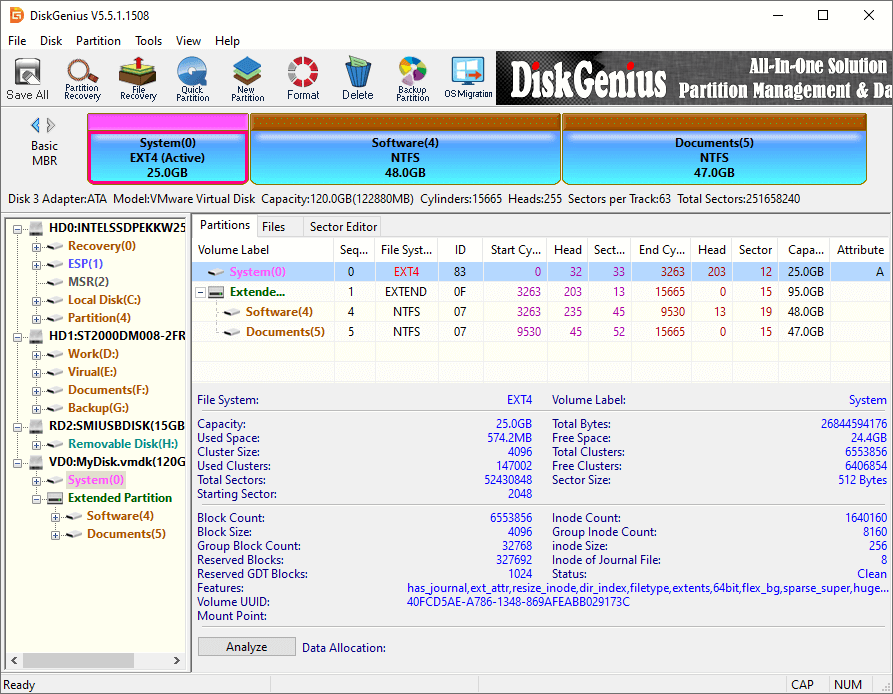
This is a full-featured disk management tool that handles FAT32 formatting on drives well beyond 32GB. The interface shows a visual map of your partitions, so you always know which disk you're working with.
Beyond formatting, DiskGenius includes partition resizing, data recovery, disk cloning, disk wiping, and backup features. It reads and writes NTFS, FAT32, FAT16, exFAT, EXT2/3/4, and even ReFS.
For someone who manages disks regularly, it's hard to find a reason not to have it installed. The free edition covers formatting, basic partition operations, and limited data recovery, which is more than enough for the task at hand.

Free Download DiskGenius
Built by Ridgecrop Consultants, this is essentially a single portable executable (guiformat.exe) that you download and double-click. No installation needed. It formats drives to FAT32, including volumes larger than 32GB, and the whole process takes just a few seconds.
The tool is intentionally minimal: pick a drive, set the allocation unit size, hit Start.

Development stopped years ago, but the tool remains stable and widely recommended in forums and tech communities. Keep in mind it only formats existing partitions, and it won't create or resize them. For that level of control, you'd want a more complete tool like DiskGenius.
Most people know Rufus as a bootable USB creation tool, but it is also a FAT32 formatter. Select "Non bootable" in the boot selection dropdown and it functions purely as a formatting utility. It handles drives well beyond 32GB, supports FAT32, NTFS, exFAT, and a few others, and the formatting speed is consistently fast.
It's open source, actively maintained with regular updates, and available as a portable version so you don't even need to install it.
Developed by the SD Association, this is the official tool for formatting SD, SDHC, and SDXC cards. It's free, lightweight, and specifically optimized for SD media. The interface is clean and straightforward.
You pick your card, choose "Quick format" or "Overwrite format", and go. The catch is that it only works with SD cards connected through a card reader; USB flash drives and external hard drives are not supported. For anyone working exclusively with SD cards, it's a trustworthy option.

Let's walk through the process. It takes about two minutes.
Step 1: Download and install DiskGenius Free Edition.
Head to the DiskGenius website and grab the Free Edition. The installer is small, and the setup process is straightforward. No bundled software, no weird surprises. If you don't want to install anything on your computer, download the potable version.
Step 2: Launch DiskGenius and find your drive.
When the application opens, you'll see a list of all connected disks in the upper panel, with their partitions displayed both as a list and as a visual bar. Take a moment to identify the correct drive by its size and label. This is important. Formatting the wrong drive is a mistake you want to avoid.
Step 3: Select the target partition you want to format, and click "Format" on the toolbar. Also you can right-click on the partition, and click "Format Current Partition" from the context menu.
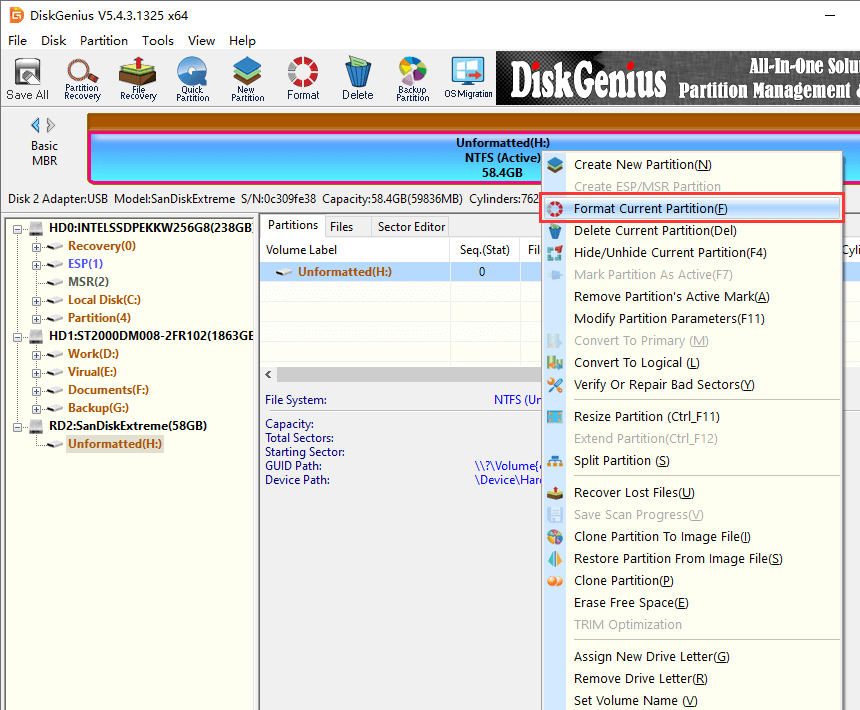
Step 4: Choose your settings. A dialog box will pop up asking for the file system. Select FAT32 from the dropdown.
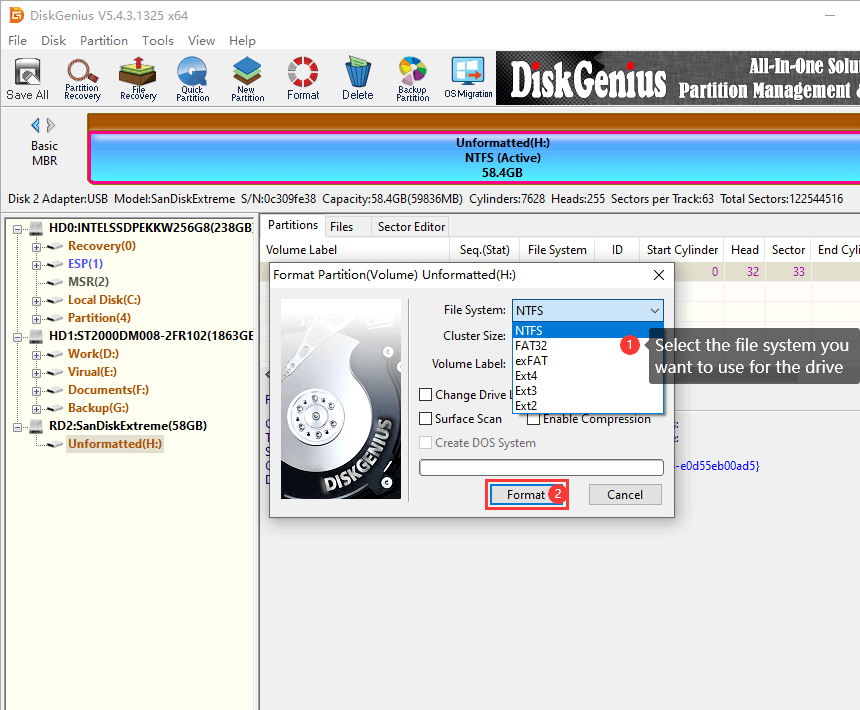
You can also set the cluster size (the default is usually fine) and add a volume label if you want to name the drive.
Step 5: Click "Format", and then confirm the warning that pops up. DiskGenius will format the partition. On a 64GB USB 3.0 drive, this typically finishes in under a minute.
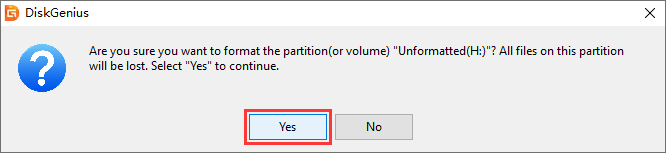
That's it. Your drive is now FAT32 and ready to go into whatever device needs it.
One last note: If you're working with an empty drive (or one that doesn't have a partition table yet) you can use the "Quick Partition" feature of DiskGenius to configure the whole disk in one go. It lets you pick the partition number, size and file system in one go, which is quicker than creating partitions by hand.
Why can't I see FAT32 as an option when I try to format my 64GB USB?
Windows limits FAT32 formatting to drives of 32GB or smaller through its graphical tools. This is a software restriction from Microsoft, not a limitation of the FAT32 format itself. Use a third-party FAT32 formatter GUI like DiskGenius to format larger drives.
Will formatting erase everything on my drive?
Yes. Formatting a partition destroys the data on it. Before you format, copy anything important to another location. If you've already formatted accidentally, DiskGenius has a data recovery feature that may be able to help, depending on whether the sectors have been overwritten.
Formatting takes forever on large drives. Is there a faster way?
The built-in Windows command-line formatter is notoriously slow for FAT32 on large volumes. Third-party tools like DiskGenius, Rufus, and GUIFormat use optimized formatting routines that are significantly faster.
Is FAT32 safe for daily use on a USB drive?
Absolutely. FAT32 doesn't have journaling, so it's theoretically more susceptible to corruption if you pull the drive out mid-write. But for normal everyday use, reading and writing files, it's perfectly reliable. Millions of USB drives and SD cards run FAT32 every day without issues.
What if the drive cannot be formatted?
If the formatting process ends up with an error, you should pay attention to the disk health status. You can check disk health by viewing S.M.A.R.T. data or checking bad sectors/blocks.
FAT32 isn't going anywhere. As long as there are devices that need simple, universally compatible storage, this three-decade-old file system will keep showing up in spec sheets and user manuals. The problem isn't FAT32 itself. It's that the most common operating system on the planet won't let you use it on drives larger than 32GB without jumping through hoops.
A good FAT32 formatter GUI removes that obstacle entirely. You plug in your drive, pick your format, and you're done.
DiskGenius Free Edition handles this task cleanly and quickly, and it gives you a whole toolkit of disk management features alongside it. Whether you're prepping a USB stick for your PS4, setting up an SD card for a dashcam, or just need a drive that works on every computer you touch, it's a solid tool to keep around.
📌 Read More:

DiskGenius is a one-stop solution to recover lost data, manage partitions, and back up data in Windows.
Download

 Facebook
 YouTube
 X
X