
Updated on May. 14, 2026
Position: Resource - Partition Management - How to Format an SDXC Card to FAT32 on Windows 11/10? [2026 Guide]
You pop a brand new 64GB SDXC card into your camera, your car stereo, maybe your Nintendo Switch, and instead of things just working, you get hit with something like "unsupported file system" or "card not recognized." Annoying. Especially when the card works fine on your computer.
Here's what's happening: SDXC cards ship formatted with exFAT. That's the default. It's a fine file system, but a lot of devices simply don't support it. They want FAT32. And if you've ever tried to force a large SDXC card into FAT32 format using the tools Windows gives you out of the box, you've probably run into a wall. Windows, for reasons known only to Microsoft, really does not want you to format anything over 32GB as FAT32.
The good news? There are several ways around this. In this guide, I'll walk you through four methods that actually work, from the simplest built-in options to a dedicated tool that handles the whole thing in a few clicks. By the end, your SDXC card will be FAT32 and your device will be happy.
SDXC cards cover the 64GB to 2TB range and almost always come pre-formatted with exFAT. For most modern computers, that's perfectly fine. But "most modern computers" isn't the only place people use SD cards.
Some real-world situations where FAT32 is the only option that works:
• Older digital cameras from Canon, Nikon, and others that were built before exFAT became mainstream.
• Car infotainment systems and head units (surprisingly picky about file systems).
• Nintendo Switch, 3DS, and certain other gaming consoles.
• Raspberry Pi boards and various embedded Linux setups.
• Smart TVs and standalone media players.
The common thread? These devices were designed when FAT32 was the universal standard, and their firmware was never updated to recognize anything else.
Two things to keep in mind before you format anything.
First, back up your data. Formatting is destructive. Everything on the card will be gone. If there are photos, videos, or files you care about, copy them somewhere safe first.
Second, know that FAT32 comes with a limitation: no single file can be larger than 4GB. If you're shooting 4K video or working with large disk images, that cap will hit you fast. For most use cases (photos, music, documents, game saves), it's not a problem. But if you regularly deal with files over 4GB, you might want to reconsider whether FAT32 is really what you need. exFAT or NTFS could be better fits.
One more small thing: use a decent card reader. A flaky USB 2.0 reader can cause format failures that have nothing to do with the card itself. USB 3.0 readers are cheap and worth having around.
And if your SDXC card has a physical write-protect switch on the side, make sure it's slid into the unlocked position. You'd be surprised how often that tiny switch is the entire problem.
To check the current file system and partition layout of your card before formatting, a tool like DiskGenius Free Edition can give you a clear picture of what you're working with.
This is the first thing most people try, and it works perfectly... if your card is 32GB or smaller. For SDXC cards, which by definition start at 64GB, you'll likely hit a snag.
Here's the process anyway, because it takes ten seconds and is worth trying first:
1. Open File Explorer and find your SDXC card under "This PC."
2. Right-click on it and select Format.
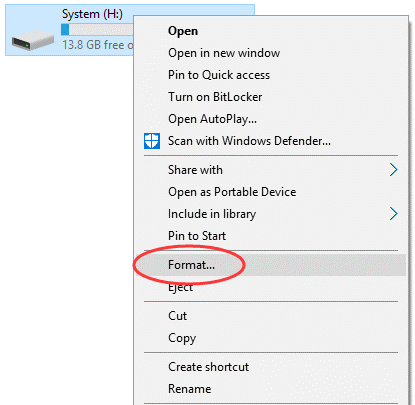
3. In the file system dropdown, look for FAT32.
4 .If it's there, select it, make sure "Quick Format" is checked, and click Start.
If FAT32 doesn't appear in the dropdown, Windows is telling you it won't format this volume as FAT32. That's expected for cards larger than 32GB. Don't fight it. Move on to the next methods.
Disk Management is a step up from File Explorer in terms of control, but it plays by the same FAT32 rules.
1. To open it, press Win + R, type diskmgmt.msc, and hit Enter.
2. Find your SDXC card in the volume list.
Be careful to identify the right one and you can look at the size and drive letter.
3. Right-click the partition and select Format.

4. If FAT32 is available in the file system list, great. In most cases for SDXC cards, though, it won't be.
You can also try deleting the existing partition and creating a new simple volume. Sometimes that shakes things loose. Sometimes it doesn't. Windows Disk Management is inconsistent on this point, and the behavior can vary between Windows 10 and Windows 11.
Honestly? If you're at this stage and FAT32 still isn't showing up, the next two methods are where you want to be.
If File Explorer and Disk Management both refuse to offer FAT32, your next instinct might be to try the command line. Fair enough CMD diskpart bypasses GUI limitations all the time.
1. Open Command Prompt as Administrator (search for "cmd," right-click, "Run as administrator"), then type:
diskpart
2. Run the following commands one by one:
list disk
select disk X
clean
create partition primary
format fs=fat32 quick
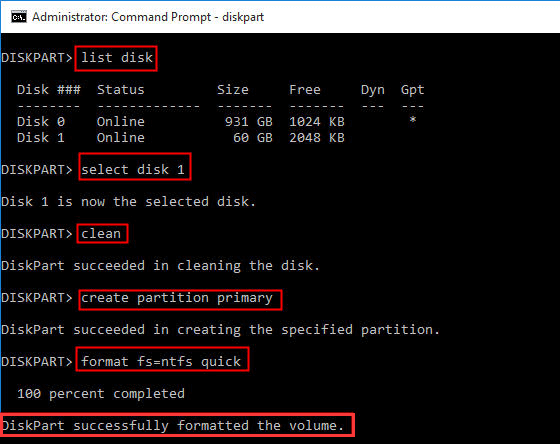
Notes:
- Replace X with the disk number of your SDXC card.
- Use 'list disk' first to identify the right one.
- Selecting the wrong disk and running 'clean' will wipe that drive completely, so double-check before you proceed.
- If your card is 32GB or smaller, this works. For SDXC cards which start at 64GB, Windows will throw an error: "The volume is too big for FAT32."
So why keep this method in the guide? Because it's worth confirming for yourself. A lot of online forums still recommend CMD as the solution for large FAT32 formatting, and technically that advice is outdated. Now you know.
The actual solution requires a free SD card format tool that doesn't enforce Microsoft's artificial limit. That's what Method 4 is for.
For most people dealing with a stubborn SDXC card, this is the path of least resistance.
DiskGenius is a free partition manager for Windows. It handles the FAT32 formatting that Windows refuses to do, and it does so through a clean point-and-click interface. No commands to memorize. No 32GB ceiling. No guessing. What's more, DiskGenius can format a drive to EXT4/3/2.
Here's how it works:
1. Download DiskGenius Free Edition and install it.
2. Launch the application. You'll see a list of all connected disks on the left side. Find your SDXC card. It'll be listed by size, so it's easy to spot.
3. Select the partition of the SDXC card and click "Format".

4. In the format settings window, choose FAT32 from the file system dropdown.

5. Click Format and confirm when prompted.

That's it. The whole process takes a few seconds on most cards, regardless of whether it's 64GB or 256GB.
Why this method stands out compared to the built-in Windows options:
• No 32GB restriction. Format a 512GB SDXC to FAT32 if you want. DiskGenius doesn't have a limitation on the capacity.
• Visual interface with clear disk identification. You see the disk model, size, and current layout before you do anything. Much harder to format the wrong drive.
• Fast. Even large cards finish quickly.
• Batch format USB drive. if you're working with multiple SD cards or USB drives (maybe you're a photographer who just got back from a shoot, or you're preparing cards for a classroom or an office), DiskGenius supports batch formatting.
• Erase SDXC cards. If you want to permanently wipe data for the SDXC card (make it impossible to recover data), then try Erase Sectors.
|
Format Tool |
Supports >32GB |
Speed | Difficulty |
Risk of Formatting Wrong Drive |
|
File Explorer |
No | Fast | Easy | Low |
|
Disk Management |
No | Fast | Easy | Low |
|
DiskPart Command |
No | Fast | Medium | High |
|
DiskGenius Free |
Yes | Fast | Easy | Low |
If your card is 32GB or under, honestly, just use File Explorer. It works fine and it's instant.
For anything larger (which is the whole reason you're probably reading this article, DiskGenius gets it done faster and with less room for error.
"Windows was unable to complete the format."
This usually points to a connection problem. Try a different card reader, a different USB port, or close any programs that might be accessing the card. If nothing works, the card may have bad sectors. DiskGenius has a surface scan feature that can check for this and tell you whether the card is physically healthy. For more fixes, read the guide: Fix "Windows Was Unable to Complete the Format" in Windows 11/10
"The disk is write-protected."
First, check the physical lock switch on the side of the SD card. Slide it to the unlocked position. If the switch is already unlocked and you're still getting the error, there might be a software-level write lock. This can happen with corrupted partition tables. In DiskGenius, you can delete all existing partitions on the card and reinitialize it as a fresh disk, which typically clears the write protection. For detailed guides, refer to How to fix "The disk is write protected" error on USB drives?
"The card shows the wrong capacity after formatting."
This is more common than people expect. Sometimes a format operation goes sideways and the card ends up showing a fraction of its actual capacity. The fix: delete every partition on the card so the entire space shows as unallocated, then create a new partition spanning the full disk. DiskGenius makes this straightforward because you can see and manipulate the exact partition layout.
"Formatted to FAT32, but my device still won't read it."
Some older devices have a maximum capacity limit they can recognize, regardless of file system. If your device can only handle cards up to 32GB, a 64GB FAT32 partition might still fail. The workaround: create a 32GB FAT32 partition and leave the remaining space unallocated. The device will see a 32GB card and work normally.
If you're reading this section, there's a decent chance you've already formatted the card and realized afterward that something important was on it. Take a breath. In many cases, that data is still recoverable.
When you format a drive, the data isn't immediately erased from the storage chips. The file system index is simply reset, telling the operating system "this space is available." Until new data is written over those sectors, recovery tools can still find and restore the original files.
DiskGenius includes a file recovery feature built right in. To use it:
1. Open DiskGenius and select the formatted SDXC card.
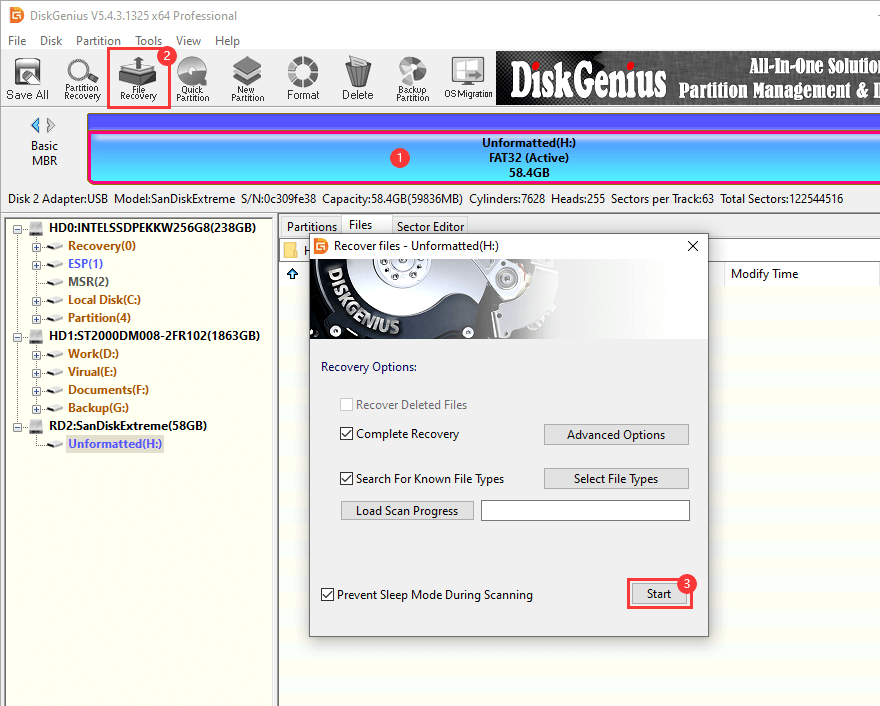
2. From the toolbar, click File Recovery.
3. Choose Start.
4. Allow it to scan.
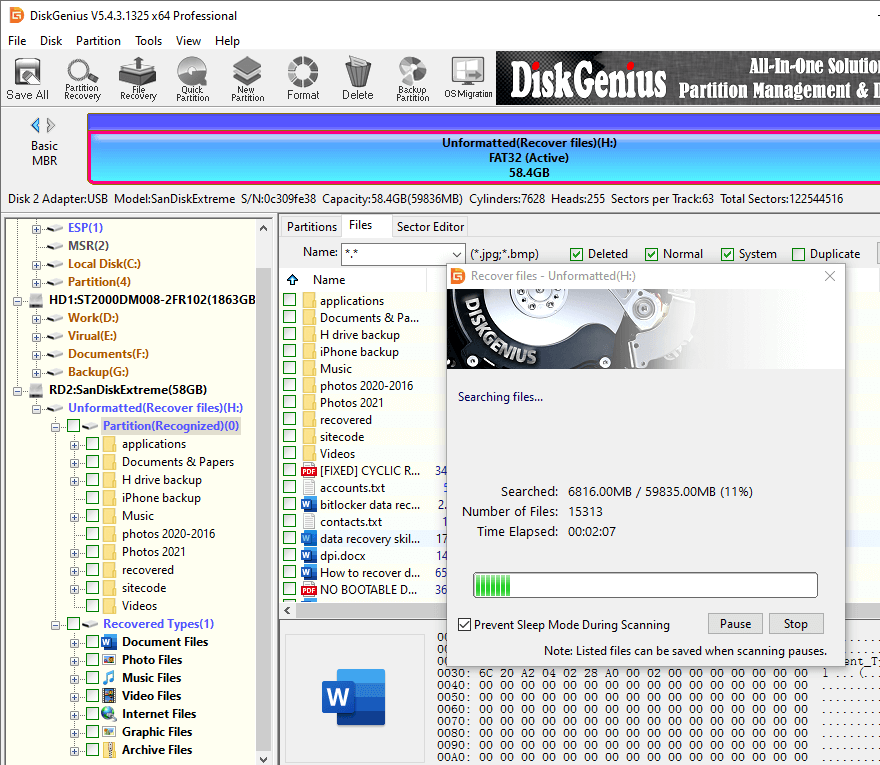
5. When completed, you will have a list of the recoverable files. Preview photos and videos you want to recover to check if they are damaged.
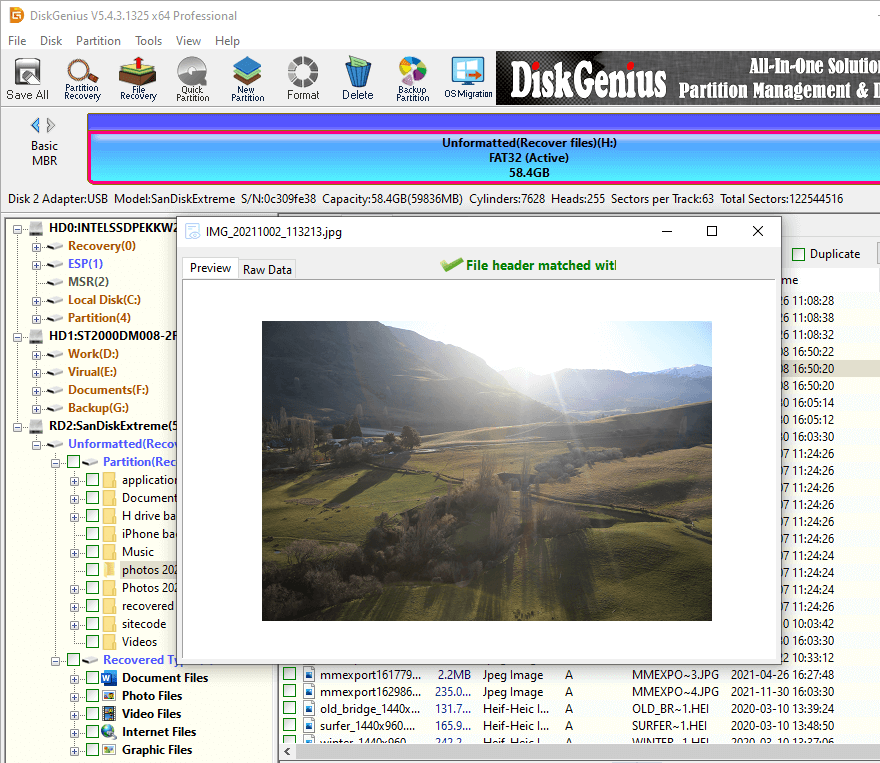
6. Choose what you need and save them to another drive (never save recovered files back to the same card you are recovering from).
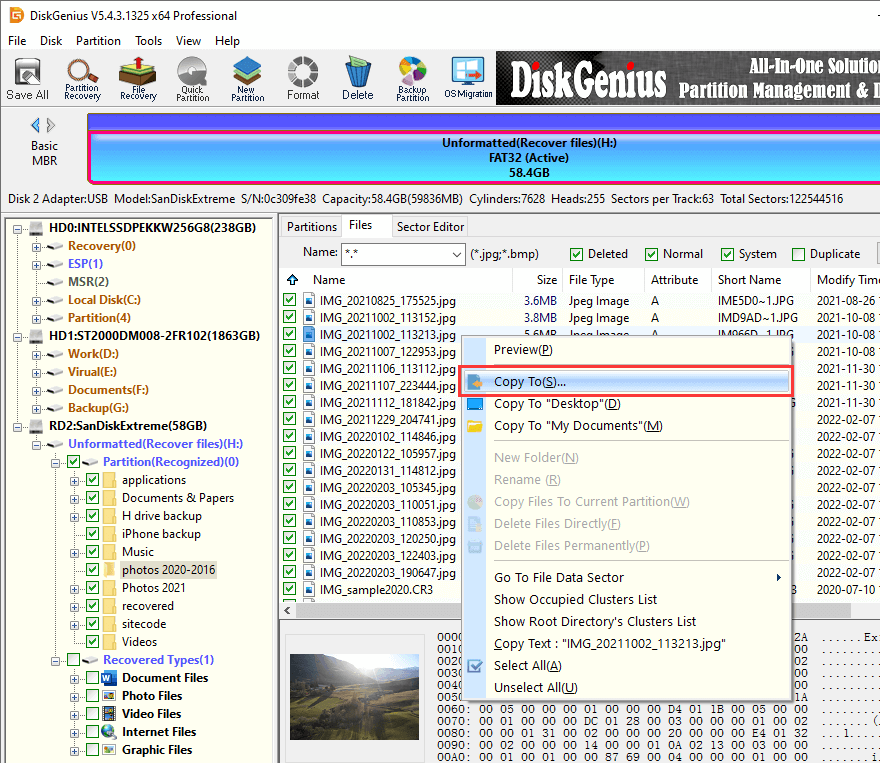
The sooner you attempt recovery, the better your chances. Every new file written to the card reduces the odds.
Can I format a 256GB or 512GB SDXC card to FAT32?
Yes. Windows' built-in tools will give you trouble, but both Command Prompt and DiskGenius handle cards of any SDXC-supported size without issues.
Is FAT32 slower than exFAT on an SDXC card?
For everyday use, the difference is negligible. exFAT is a bit more efficient at handling extremely large files but for photos, music, documents and game data you will not see any speed difference.
Does formatting to FAT32 shorten my SD card's life?
No, the file system structure has no influence on the wear out of NAND flash memory over time. The number of write cycles is determined by hardware, not the file system.
Can I convert exFAT to FAT32 without losing data?
Not directly. There's no in-place conversion path between these file systems. You need to back up your data, format the card to FAT32, and then copy the data back. DiskGenius can help with both creating a disk image for backup and performing the format.
SDXC cards default to exFAT. Most devices in your life probably handle that just fine. But for the ones that don't, FAT32 remains the universal fallback that everything from a 2012 car stereo to a Raspberry Pi can read.
Windows' refusal to offer FAT32 for volumes over 32GB is an artificial limitation, and now you know four ways around it. For a quick one-time fix on a single card, DiskGenius is the more practical choice. Either way, your SDXC card and your device should be on speaking terms again in a few minutes.

DiskGenius is a one-stop solution to recover lost data, manage partitions, and back up data in Windows.
Download

 Facebook
 YouTube
 X
X