
Updated on Apr. 08, 2026
Position: Resource - Backup & Restore - How to Transfer Windows to Another Drive Without Reinstalling?
Upgrading a computer sounds simple until Windows gets involved.
You buy a faster SSD, or a larger drive, or maybe your old hard disk is starting to feel unreliable. Then the real question appears. How do you transfer Windows to another drive without reinstalling everything from scratch?
For many users, reinstalling Windows is the last thing they want to do. It takes time. You have to reinstall programs, redo settings, log back into apps, move files around, and hope you did not forget something important. That is why many people look for a way to move the existing Windows system directly to a new drive and keep it bootable.
The good news is that this is absolutely possible. In most cases, you can transfer Windows to another drive without losing your system setup, installed applications, or personal files. But there is one point that often confuses users. Some people use disk cloning, others choose OS migration, and many assume those two things are exactly the same. They are related, yes, but not always interchangeable in practice.
If your goal is to move Windows from one drive to another, such as from an HDD to an SSD, or from an older SSD to a larger one, you do not necessarily need to reinstall the operating system. There are usually three possible approaches.
One is a clean installation. That gives you a fresh system, but it also means rebuilding everything from zero. Another is disk cloning, which copies an entire disk to another drive. The third is OS migration, which is designed specifically for moving Windows and the partitions required to boot it.
For users searching for how to transfer Windows to another drive, the real concern is usually not just copying data. It is making sure the new drive can actually start Windows normally. That is where the difference between cloning a disk and migrating the operating system starts to matter.
This is where a lot of people get tripped up.
At first glance, Clone Disk and Migrate OS seem to do the same thing. Both can put Windows onto another drive. Both are used when replacing or upgrading a disk. Both may result in a bootable system if everything is done correctly. So naturally, users mix them up.
But the logic behind them is a little different.
Disk cloning usually means copying the whole source disk to the target drive. Not just Windows, but the entire layout. That may include the system partition, recovery partition, hidden boot partition, data partition, and everything else on the disk. If you want the new drive to be an almost exact copy of the old one (clone disk sector by sector), this is often the right method. However, disk cloning does not consider whether the target disk will be bootable.
OS migration is more focused. It is typically intended to move Windows itself, along with the partitions needed for startup, to another drive. That makes it especially useful when the destination drive will become the new system drive, but you do not necessarily want to duplicate every single partition on the original disk.
So which one should you use?
If you want to replace the whole old disk with an exact copy, Clone Disk can be a good choice. If you mainly want to transfer Windows to another drive and boot from it, Migrate OS is usually the more direct and user-friendly option.
That does not mean disk cloning is wrong. It can work perfectly well. The problem is that some users clone only what they think matters, often just the visible C: partition, and then wonder why the new drive will not boot. In many cases, the issue is not the cloning feature itself. It is that not all required system partitions were copied, or the boot settings were not adjusted afterward.
That is exactly why some software, including DiskGenius, provides both Clone Disk and OS migration features. They are similar tools, but they serve different needs.
There are plenty of reasons, and most of them are pretty practical.
The most common one is performance. Migrating Windows from an HDD to an SSD can make a huge difference. Boot times get shorter. Programs open faster. The whole system feels less sluggish. Even older computers can feel noticeably better after this kind of upgrade.
Another reason is storage space. Sometimes the existing system drive is simply too small. Windows updates, applications, games, cached files, temporary data, they all pile up. Migrating Windows to a larger drive gives the system more room to breathe.
Then there is drive replacement. If the old drive is showing signs of failure, strange noises, bad sectors, slow reads, random freezes, transferring Windows to another drive before the situation gets worse can save a lot of trouble.
And honestly, there is also the convenience factor. People do not want to rebuild their working environment if they do not have to. They want the same desktop, the same applications, the same settings, just on a better drive. That is a very reasonable goal.
Before you start, a little preparation goes a long way.
First, make sure the target drive is suitable. It can be an SSD, HDD, or NVMe SSD, depending on your hardware. What matters most is capacity. If the destination drive is larger than the current system usage, great. If it is smaller, the used space on the source drive must still fit. That sounds obvious, but it gets overlooked more often than you might think.
Next, connect the new drive properly. On a desktop PC, this may mean installing it internally through SATA or M.2. On a laptop, or when testing before a physical replacement, users often connect the new drive through a USB adapter or external enclosure. As long as Windows and the migration software can detect it correctly, you are fine.
Backing up important data is also a smart move. Even if the migration process is generally safe, things happen. A wrong click. A power interruption. A cable issue. A damaged source drive that chooses the worst possible time to act up. Better to have a backup and not need it.
It is also helpful to understand, at least briefly, that boot mode and partition style matter. A GPT disk usually works with UEFI boot mode. An MBR disk usually works with Legacy BIOS. If those do not match correctly after migration, the new drive may fail to boot even though the files were transferred.
Finally, use a reliable and free OS migration tool. A utility such as DiskGenius Free can be useful here because it combines OS migration, disk cloning, and partition management in one place. That is convenient. Instead of jumping between different tools and hoping they play nicely together, you can handle most of the job in a single workflow.
If your main goal is to move Windows itself and boot from the new drive, OS migration is usually the most straightforward approach.
DiskGenius Free Edition is a user-friendly tool for this task. It provides both OS migration and disk cloning features. However, upgrading a drive is rarely a one-click process. You may need to review the disk structure or adjust partitions during the process.
Step1. Start by connecting the destination drive and making sure it is recognized by the system. If the disk is brand new, it may appear as unallocated space.
Step2. Launch DiskGenius Free Edition, identify the current system disk carefully and double-check the target drive before doing anything else.
This part matters more than people like to admit. Choosing the wrong destination can overwrite the wrong disk.
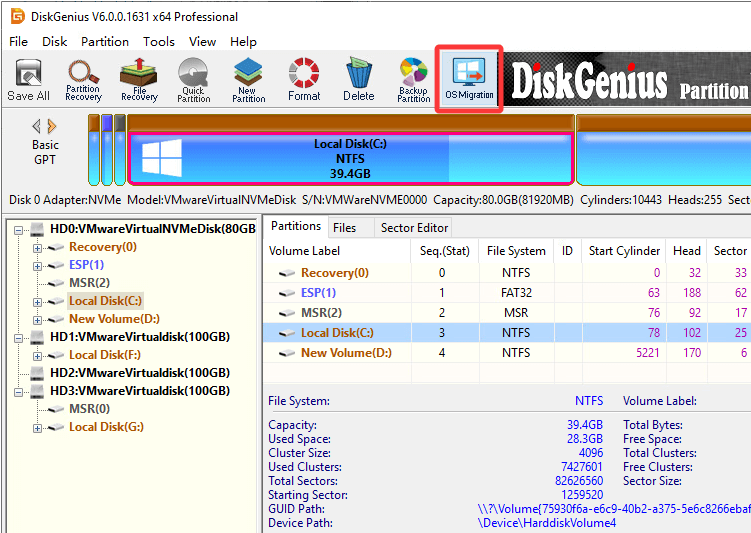
Step 3. Click "OS Migration" from the toolbar.
Step 4. Now choose the destination drive and click "OK".
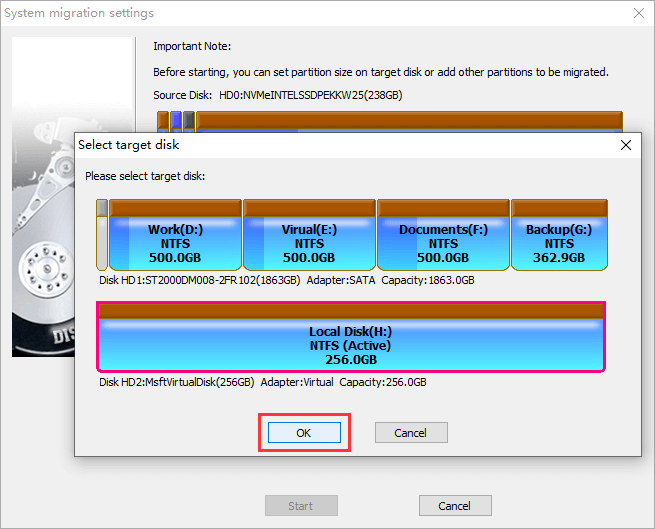
The software automatically include all required system partitions to ensure the migrated system remains bootable.
You can take a moment to view the partition layout on the destination disk. If you are not satisfied with the partition number or size on the original drive, you can now make some changes on the destination drive. Moreover, this software supports migrating Windows OS to multiple target disks at the same time.
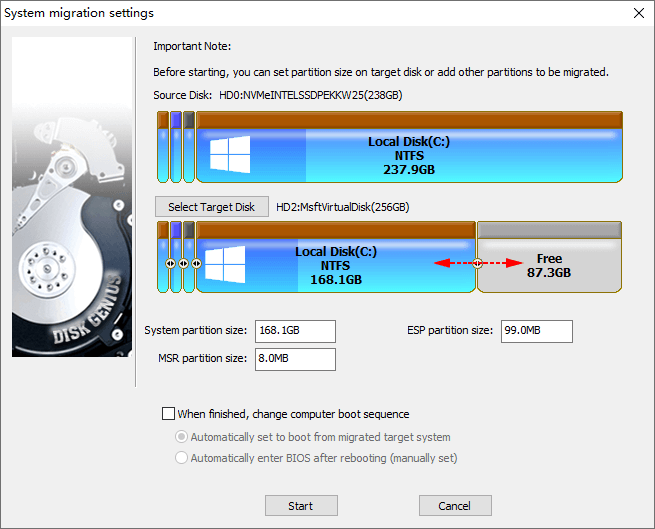
Step 5. Once everything looks correct, click "Start" to begin the migration.
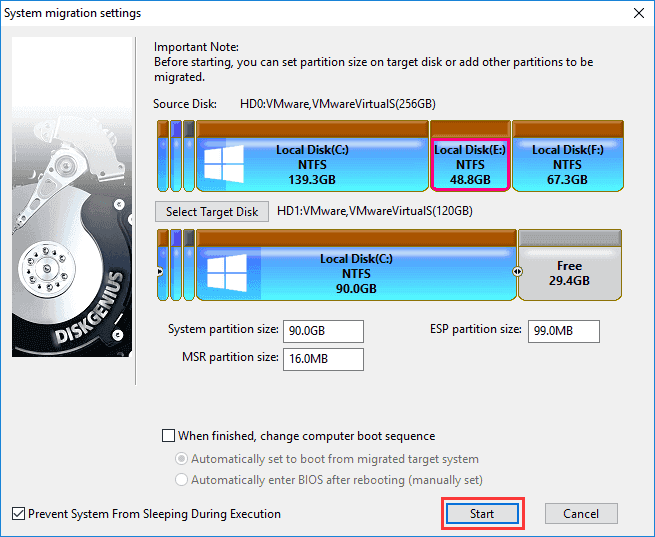
Step 6. Choose the migration method.
You can select "Hot Migration" first, as this method can do the migration without asking for a reboot.
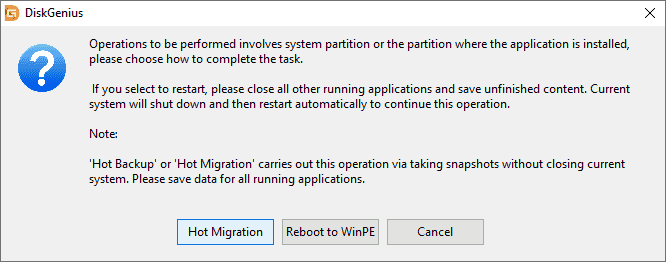
Step 7. When the migration is complete, you can shut down the computer and enter BIOS or UEFI firmware settings. Change the boot order so the new drive is listed as the first boot device. Save the settings and restart.
If all goes well, Windows should start from the new drive.
Yes, in many cases you can.
Disk cloning can absolutely be used to transfer Windows to another drive, especially when the intention is to replace the original disk entirely. In fact, for some users it feels more straightforward because it copies everything, not just the operating system.
Still, this method has a small trap built into it. Or maybe not a trap exactly, more like a misunderstanding waiting to happen.
Users often assume that cloning the visible Windows partition is enough. It usually is not. A bootable Windows installation often depends on additional partitions, such as the EFI System Partition, the System Reserved Partition, or recovery-related partitions. If those are missing, the target drive may contain Windows files and still refuse to boot. In some setups, the boot partition and the system partition may even reside on different physical drives, which can further complicate the cloning process.
So yes, disk cloning can work well. It simply requires more attention to the full disk structure. If the goal is specifically to move Windows in the simplest possible way, OS migration tends to be the more direct option.
This is the part people care about most, even if they do not always say it directly.
To make the transferred Windows drive bootable, the necessary system-related partitions must be included. On modern systems, that often means the EFI partition in addition to the main Windows partition. On other systems, there may be a System Reserved partition or recovery partition involved.
Boot mode also has to match the disk style. A GPT target drive should normally boot in UEFI mode. An MBR drive usually needs Legacy BIOS or a compatible setting. If the migration is technically successful but the firmware is looking for the wrong boot style, Windows will not start.
Boot priority matters too. If the old drive is still connected and remains first in the boot order, the computer may continue starting from the old disk, which can confuse users into thinking the migration failed. Sometimes the easiest test is to disconnect the old drive temporarily and boot only from the new one.
That one step clears up a surprising number of doubts.
Read More:
How to Create an EFI Partition in Windows 11/10 (UEFI/GPT)?
MBR VS GPT, Which Is the Better Choice for Your Computer?
Sometimes the process goes smoothly. Sometimes it gets weird.
If the new drive does not show up at all, check the connection first. Loose SATA cables, faulty USB adapters, or an uninitialized disk can all cause this. It is usually something simple.
If Windows will not boot from the new drive, the most common causes are incorrect boot order, missing system partitions, or a mismatch between partition style and boot mode. Less often, the migration itself may have been interrupted or incomplete.
If the target SSD is smaller than the source drive, that is not always a problem. What matters is how much data is actually used, not the total size of the old drive. Still, deleting temporary files or moving large personal files elsewhere before migration can make the process easier.
Some users also notice that a few programs ask for reactivation afterward. That can happen, especially with licensed software tied to hardware changes. It is not always caused by the migration tool. Sometimes the application simply detects a change in storage configuration.
And if the PC keeps booting from the old drive, check the boot settings again. Seriously. It sounds too simple, but it is one of the most common causes of post-migration confusion.
Transferring Windows to another drive is not only possible, it is often the smartest way to upgrade storage without rebuilding your entire system from scratch.
The key is understanding what you are trying to do. If you want an exact copy of the whole old disk, cloning may be appropriate. If you mainly want to move Windows and boot from the new drive, OS migration is usually the more direct option. That distinction matters because it helps you choose the right method before a small misunderstanding turns into a boot problem later.
Take a little time to prepare. Back up important files. Check the target drive. Pay attention to boot settings after the transfer. And if you want a tool that can handle both migration and cloning with extra disk management features, DiskGenius can be a practical option for the job.
In the end, the goal is simple. Same Windows. Better drive. Less hassle.
1. Is it better to clone a disk or migrate the OS?
That depends more on your goal than anything else.
If you're trying to replicate the entire old drive, cloning is the obvious choice. Everything comes over as-is.
But if all you really need is Windows on a new drive, OS migration tends to feel lighter and more direct. Less to think about, fewer chances to miss something.
2. Can I transfer Windows from an HDD to an SSD?
Yes, and this is actually one of the most common reasons people do it in the first place.
The difference can be quite noticeable. Faster boot times, quicker app launches, and the system just feels more responsive overall.
3. Why is the new drive not booting after the transfer?
Usually it's not just one single reason.
Sometimes a required system partition didn't get copied. Other times it's something simpler, like the boot order in BIOS or UEFI still pointing to the old drive. There are also cases where the boot mode and partition style don't line up, which can quietly break things.
4. Can I move Windows to a smaller SSD?
Yes, but there's a limit. As long as the data you're actually using fits into the new drive, it should work. If it doesn't, you may need to shrink partitions first, which is fairly common in this scenario.
5. Will I lose installed programs after transferring Windows?
In most cases, no. Everything should carry over if the process goes smoothly.
That said, a few programs might behave differently afterward. Some will ask to be reactivated, especially if they notice the change in hardware.
6. Migrate OS or Reinstall Windows: Which Is Better?
That depends on what you want. If your current Windows system is working well and you just want it on another drive, OS migration is usually the better answer. It is faster, less disruptive, and keeps your applications and settings intact.
A clean installation has its place. It can help if the system is already unstable, cluttered, or infected with deep software problems. But it takes more time, and the amount of reconfiguration afterward is not small.
For most users who simply want to transfer Windows to another drive, reinstalling is unnecessary extra work.

DiskGenius is a one-stop solution to recover lost data, manage partitions, and back up data in Windows.
Download

 Facebook
 YouTube
 X
X