
Updated on Mar. 26, 2026
Position: Resource - Partition Management - SanDisk Format Tool: Format USB Drives and SD Cards on Windows 11/10
When you search for a SanDisk format tool, you are usually not looking for a brand name alone. You are looking for a fix. Something practical. Something that helps them format a SanDisk USB drive, SD card, or microSD card without errors, confusion, or wasted time.
Sometimes the task is simple. You plug in the device, right click it in Windows, choose Format, and that is the end of it. But real life is often messier than that. A SanDisk USB drive may suddenly become unreadable. An SD card may show up as RAW. Windows may display the familiar but frustrating message saying "Windows Was Unable to Complete the Format". In other cases, the card looks normal, yet it refuses to work in a camera, phone, or another computer.
That is why the phrase "SanDisk format tool" has become a broad search term. It can refer to a built in Windows formatting method, a third party SD card formatter, or a more advanced disk utility used when standard tools are no longer enough. This guide walks through all of that. You will see how to format SanDisk storage devices in Windows, which file system to choose, what to do when formatting fails, and when a utility like DiskGenius makes more sense than repeating the same failed attempt again and again.
The phrase sounds specific, but in practice it is not. There is not always one single official utility that covers every SanDisk product and every formatting problem. Many users type this keyword because they want the fastest route to a working drive, not because they care whether the solution comes directly from the brand.
A SanDisk USB flash drive, for example, can usually be formatted with Windows File Explorer, Disk Management, or DiskPart. A SanDisk SD card or microSD card may sometimes be better handled with an SD card formatting utility, especially when the card is used in cameras or portable devices. And when the storage device is corrupted, inaccessible, or full of partition errors, the search for a "SanDisk format tool" often leads users toward more capable disk management software.
So the better question is not "What is the official SanDisk format tool?" It is this: What is the best way to format a SanDisk device safely and successfully on this system, in this condition, for this purpose?
In many cases, there is no universal official SanDisk formatting program that applies to every USB drive, SD card, and microSD card in one neat package. For ordinary formatting jobs, Windows already provides what most users need. You can format a USB drive from File Explorer in seconds. If that fails, Disk Management offers another route. If you are comfortable with command line tools, DiskPart is there too.
For SD and microSD cards, some users prefer tools designed specifically for memory cards. That is especially true when the card structure or compatibility becomes an issue. Still, even then, the goal remains the same. You want the memory card to be detected properly, formatted with the correct file system, and ready to use again.
In other words, people searching for a SanDisk format tool are often looking for a reliable method rather than a specific official download.
And that is fair. Because when a drive stops cooperating, branding is not the problem. Function is.
Not every format is done for the same reason. Sometimes it is routine maintenance. Sometimes it is more like emergency surgery.
You may need to format a SanDisk device if you want to change the file system from FAT32 to exFAT or NTFS. You may also need to do it if the drive is unreadable, if it opens with errors, if it asks to be formatted before use, or if it has become RAW. Some people format a USB drive after using it across different devices. Others do it because a camera or game console no longer recognizes the memory card.
Then there are the annoying cases. The card shows the wrong capacity. The USB drive is labeled write protected. Windows starts the formatting process, pauses, and then gives up. You try again. Same result. At that point, the issue is no longer just formatting. It may involve partition damage, file system corruption, bad sectors, or even failing hardware.
A basic formatting option is still the first step. But not always the last one.
Windows gives you several ways to format a SanDisk storage device. The best method depends on whether the drive is healthy, visible, and behaving normally.
This is the easiest approach, and for a healthy drive, it is often all you need.
Step 1. Connect the SanDisk USB drive or memory card to your computer.
Step 2. Open This PC in File Explorer. Find the device, right click it, and choose Format.
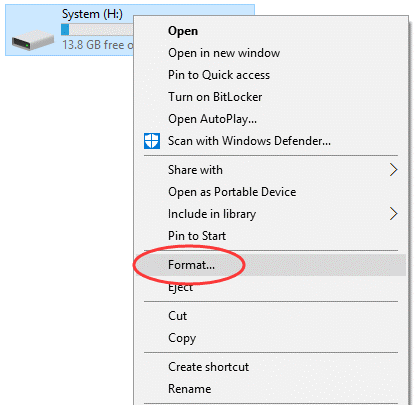
Step 3. You will then be asked to select a file system. In most situations, the main options are FAT32, exFAT, and NTFS.
If the device is small and meant for wide compatibility, FAT32 may be enough. If it is a large capacity flash drive or SDXC card, exFAT is usually a better fit. NTFS is often chosen for Windows only use, especially when dealing with larger files or permissions.
You can keep Quick Format enabled if you simply want to erase the file system structure quickly. If you suspect problems with the drive, a full format may be worth trying, although it takes longer.
Step 4. Click Start, confirm the warning, and Windows will begin formatting the device.
If the drive appears in Disk Management but not properly in File Explorer, this method can help.
Step 1. Press Win + X and open Disk Management.
Step 2. Locate the SanDisk device in the lower pane. If the partition is visible and healthy enough, right click it and choose Format.
If the partition is damaged or the layout looks wrong, you may need to delete the volume and create a new one before formatting it again.

Step 3. Select a file system for the drive and click "OK".
Step 4. Confirm the operation, and the drive will formatted immediately.

DiskPart is more powerful and less forgiving. It is often used when graphical Windows tools fail.
Step 1. Open Command Prompt (or Terminal) as administrator.
Step 2. Type the following commands one by one. Press the Enter key after each command.
diskpart
list disk
select disk X
clean
create partition primary
format fs=exfat quick
assign
exit
Note: Replace X with the correct disk number.
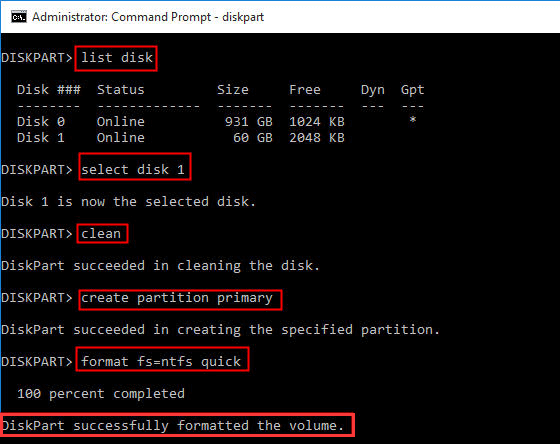
This can fix stubborn partition issues because the clean command removes the existing partition structure before rebuilding it. But caution is not optional here. Select the wrong disk and you may erase the wrong device. That mistake is not theoretical. It happens.
When a SanDisk format tool in the broad sense is no longer just about routine formatting, DiskGenius becomes a more natural fit.
For one thing, it lets you see the disk and partition layout more clearly. That alone can tell you a lot. A drive that seems invisible in File Explorer may still appear in the partition map. A memory card that Windows labels RAW may still contain recoverable files. An odd capacity display may point to partition errors or leftover layout issues from previous usage.
Moreover, DiskGenius can format an SD card or USB flash drive that is larger than 32GB to FAT32, or format the drive to EXT4.
The process is straightforward.
Step1. Connect the SanDisk USB drive, SD card, or microSD card to your Windows computer.
Step2. Open DiskGenius and locate the correct device in the disk list. Make sure you identify the right partition. Click the partition and choose "Format" from the tool bar, or right-click the partition and choose "Format Current Partition" from the context menu.

Step 3. Select the desired file system and click "Format".

Step 4. Confirm the operation, and let the software complete the process.

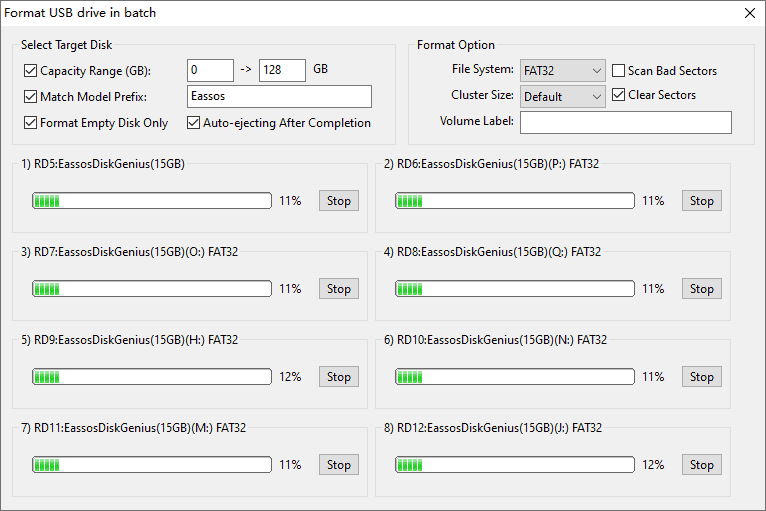
By following guides above, you can format an SD card or USB flash drive once a time, if you want to format multiple USB drives simultaneously, you can refer to following steps:
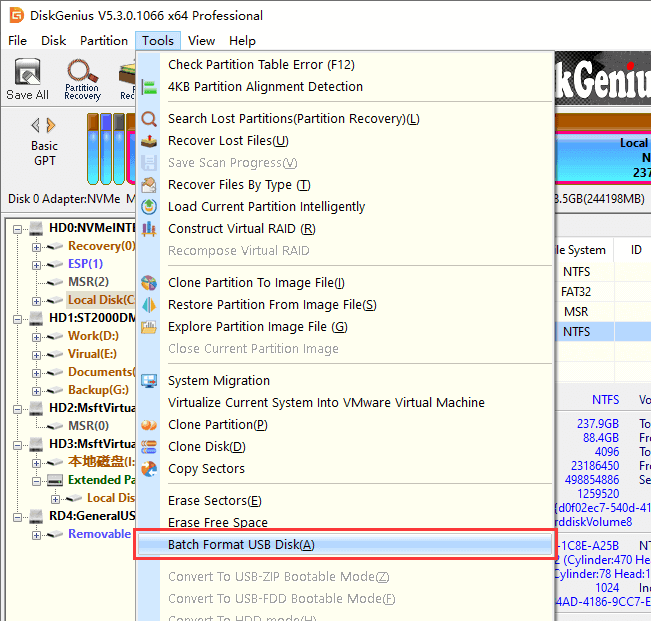
Step 1. Launch DiskGenius again, click Tools – Batch Format USB Disk.
Step 2. Customize criteria for USB drives to be formatted, for example, capacity range, model range.
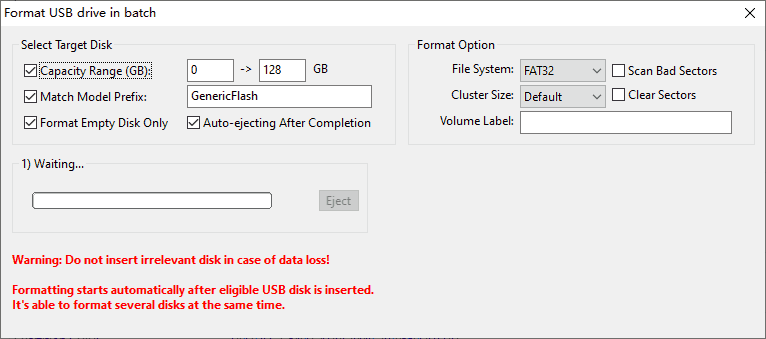
Step 3. Connect your USB drives to this computer, and DiskGenius will detect and format them automatically as long as they meet the requirements you set in step 2.
This is where people usually begin searching in earnest. A quick format fails. Another attempt fails. Windows gives an error, or worse, no useful explanation at all.
If your SanDisk drive will not format, try these checks before assuming the hardware is dead.
Check for Write Protection
Some SD cards and adapters have a physical lock switch. It sounds obvious, but this tiny switch causes a ridiculous amount of trouble. Make sure it is not set to the locked position.
For USB drives or cards without a physical lock, Windows may still treat the device as read only. In some cases, DiskPart can clear that attribute, though it does not always solve the root cause.
Try Another Port, Reader, or Computer
A failing USB port or low quality card reader can make a healthy storage device look broken. Test the SanDisk drive on another port. Better yet, test it on another machine. This step is quick, unglamorous, and surprisingly effective.
Check for File System Errors
If the file system is damaged but the drive is still partially accessible, Windows error checking or a CHKDSK scan may reveal the issue. This is not a cure for everything, though. Sometimes a damaged partition table or unstable sectors sit deeper than that.
Delete and Recreate the Partition
If formatting fails because the partition itself is corrupted, simply clicking Format may never work. In such cases, deleting the old partition and creating a new one can help. Disk Management and DiskPart can both do this, although the process is more controlled in dedicated partition software.
Consider a Professional Disk Utility
This is the point where a more advanced tool becomes useful. Not because "advanced" sounds impressive, but because some storage problems are not basic formatting problems anymore. They involve damaged partition tables, inaccessible volumes, RAW file systems, or hardware warnings that Windows tools barely explain.
You can use DiskGenius to check the health status for your SanDisk memory cards or flash drives, for instance scan the drive to test if there are bad sectors/blocks. Then will have a clear understanding whether the problem is logical, physical, or somewhere in the gray middle.
In many cases, yes. Formatting erases the file system structure and can complicate recovery, especially if more data is written afterward. If the SanDisk drive contains important files and is still recognized by the computer, it is worth attempting SanDisk data recovery first.
This is particularly true when the device suddenly becomes RAW, asks to be formatted before opening, or contains files that cannot be replaced. A rushed format may solve the access problem while creating a much bigger one.
The process of recovering data from a corrupted drive is straightforward:
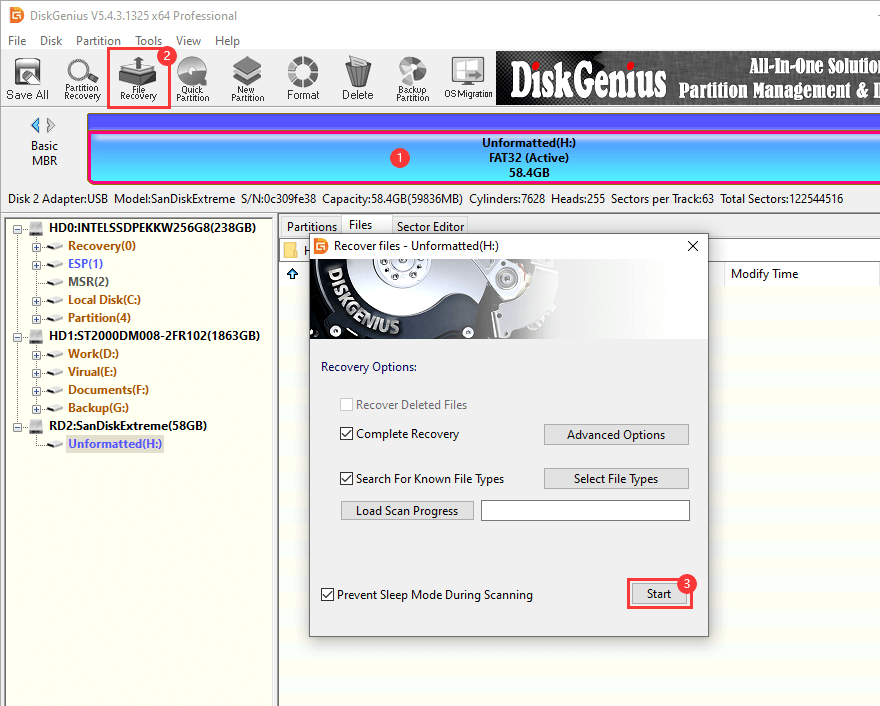
Step 1. In DiskGenius, click the corrupted drive and click File Recovery – Start.
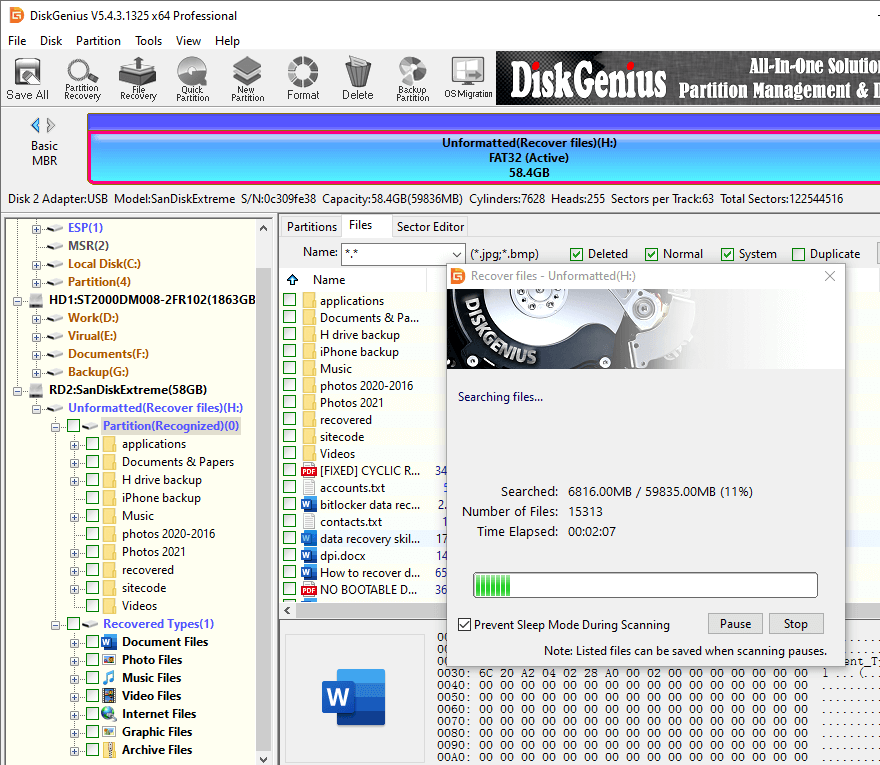
Step 2. Let the software scan the drive thoroughly. Then you can preview lost files in the scanning result to make sure if they are still recoverable.
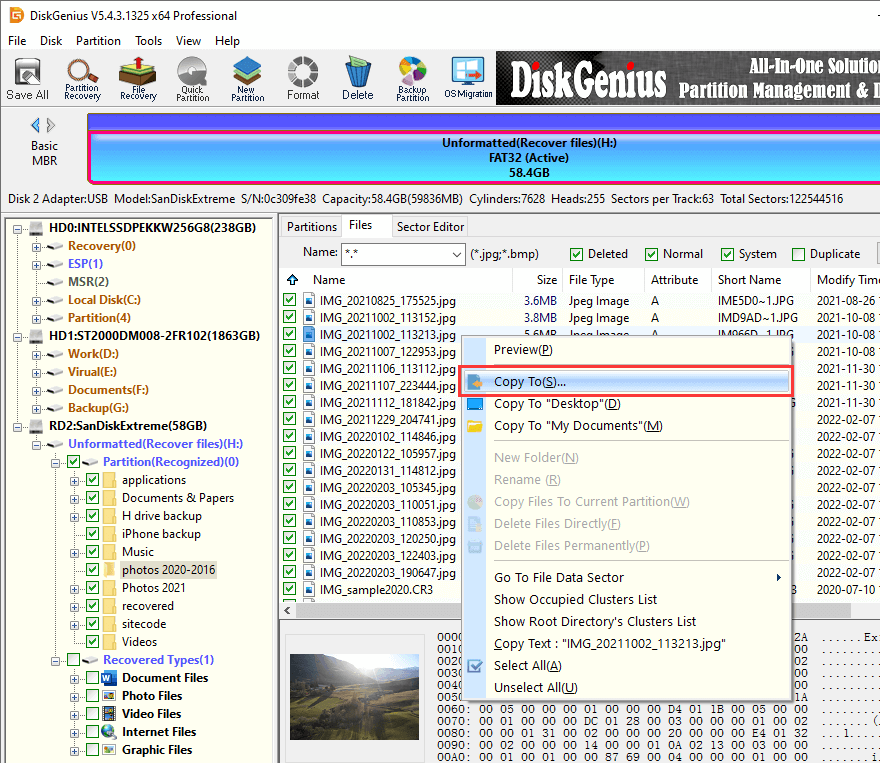
Step 3. Select files and folders you want to restore, right click them and choose "Copy To". After that you can specify a target location to store these recovered files.
1. What is the best SanDisk format tool for Windows?
For standard formatting, Windows File Explorer or Disk Management is often enough. However, when dealing with more complex situations ,such as formatting to EXT4, accessing RAW drives, or attempting to repair SD cards, DiskGenius will be the better option.
2. Can I format a SanDisk SD card to FAT32?
Yes, if the card size and intended usage make FAT32 appropriate. FAT32 offers broad compatibility, though it does have the 4 GB file size limit.
3. Why does my SanDisk USB drive say it is write protected?
The cause may be a physical lock switch, a read only attribute, file system corruption, or even a hardware issue. Start with the simple checks first, then move to disk management tools if needed.
4. What should I do if Windows cannot complete the format?
Try another port or card reader, check for write protection, use Disk Management or DiskPart, and inspect the drive for partition or file system errors. If those methods fail, use a dedicated utility such as DiskGenius to examine and repair the disk structure.
5. Will formatting erase everything on the SanDisk drive?
Yes. Formatting removes access to stored data and may overwrite file system information. If the files matter, try recovery first.

DiskGenius is a one-stop solution to recover lost data, manage partitions, and back up data in Windows.
Download

 Facebook
 YouTube
 X
X