
Updated on Oct. 14, 2026
Position: Resource - Disk Utilities - How to Fix KMODE EXCEPTION NOT HANDLED Blue Screen in Windows 10 and 11?
Your PC restarts, the screen goes blue, and the stop code reads KMODE_EXCEPTION_NOT_HANDLED. It shows up at boot sometimes. Right after a driver update other times. In the middle of a game now and then. I have also seen it pop up in the middle of a clean Windows install, which is the last place anyone expects it.
What it means in plain terms: a driver or a system component running in kernel mode raised an error Windows could not handle, so the operating system stopped itself before things got worse. In practice this is a driver problem most of the time. The rest of the time it is a Windows update, a device you just plugged in, flaky memory, or a drive that is starting to fail.
The fixes below go from simplest to most involved. You will not need all ten. If you already know what changed on your machine before the crashes started, undo that change and stop there. Quick fixes worth trying first
Contents:
The KMODE EXCEPTION NOT HANDLED is a Blue Screen of Death, recorded as bug check code 0x0000001E. It appears when a kernel-mode driver or system component raises an exception that the operating system's error handler does not catch. Windows has no safe way to continue from there, so it stops and collects diagnostic data before restarting. You will mostly see this on Windows 10 and Windows 11 desktops and laptops.

Every blue screen gets a numeric bug check code so the same failure always reports the same number. For this error the number is 0x0000001E and the name attached to it is KMODE_EXCEPTION_NOT_HANDLED.
Kernel mode is the layer that talks to hardware and memory directly. Drivers run there. When a driver hits a condition it was not written to handle, and nothing in the kernel can resolve it either, Windows shuts down rather than keep running in a state nobody understands. That shutdown is the blue screen.
The usual presentation is a full blue screen with a sad face, the stop code, and often a file name in parentheses: Stop code: KMODE_EXCEPTION_NOT_HANDLED (ntfs.sys)
That file name is a hint about which driver or component was involved at the moment of the crash. It is not a verdict. Sometimes it names the real culprit. Sometimes it names the place where the damage happened to surface.
Other things you might notice alongside it:
One blue screen is not automatically a sign of dying hardware. Windows can crash because of a bad update or a program that misbehaved once. If it happens once and never comes back, note it and move on.
It turns serious when the same error returns, and more serious still when it appears earlier and earlier during boot. Whatever is behind it at that point is persistent and will not resolve on its own.
The one case where you should stop troubleshooting and start protecting files is when the blue screen shows up alongside other warning signs. Clicking from the drive. Folders that will not open. Read and write errors. Drives that vanish from File Explorer. A S.M.A.R.T. warning at startup. When you see any of those, back up what you can reach before you run repairs. Repair tools write to the disk, and a physically failing drive gets worse faster the more you hammer it.
The same stop code covers several different failures. Roughly in order of how often each one shows up:
Faulty, Outdated, or Incompatible Drivers
This is the most common cause and it is not close. Graphics drivers, network adapters, storage controllers, and chipset drivers lead the list, along with the small vendor utilities that install their own kernel drivers for fan control, RGB lighting, or overclocking.
A driver can be perfectly fine on its own and still trigger this error after a Windows update changes a kernel interface it depends on. That is why the crash so often appears a day or two after an update, on a machine where nothing else changed.
Recently Installed Hardware or Software
Anything you added just before the crashes started is a suspect. A USB dock, a new SSD, a Wi-Fi card, an external GPU enclosure. Same goes for software that ships kernel drivers: antivirus suites, VPN clients, virtual machine tools, disk utilities, driver update helpers.
When the timeline is clean and the errors start within hours of an install, it is rarely a coincidence.
Corrupted Windows System Files
Windows protects a lot of its own files, but a power loss mid-update, a full system drive, or disk errors can damage them anyway. Once a protected component is broken, the kernel can hit exceptions it has no answer for. SFC and DISM rule this out cheaply, so it is worth running them early.
Faulty RAM or Other Hardware Problems
Memory errors cause a surprising share of unexplained blue screens. Failing modules, a stick that is not seated properly, a marginal power supply, a GPU with a bad connection. Any of them can produce kernel exceptions.
If you turned on XMP or EXPO recently to get your memory running at its rated speed, turn it off while you test. Plenty of modules are simply not stable at advertised timings on a particular board.
BIOS Settings, Overclocking, or Firmware Issues
Manual overclocking, aggressive undervolting, or a BIOS version with known compatibility problems can destabilize kernel operations. Firmware updates also change storage controller modes and power management defaults sometimes, in ways older drivers were not written for.
This is the category where people waste the most time. Do not flash a new BIOS because the error is mysterious. Flash it when the manufacturer's release notes mention your hardware, or when you are planning a full reset anyway.
Storage Errors or Disk-Related Driver Problems
A failing drive or a corrupted file system can generate I/O errors that surface as kernel exceptions. The storage driver itself, Intel RST being the usual one, can be the culprit even when the disk is perfectly healthy.
Worth saying plainly: this stop code does not prove your SSD or HDD is dying. No read errors, no unusual noises, no S.M.A.R.T. warnings, look at drivers and memory first.
Read More: How To Check Hard Drive / SSD Health in Windows 11/10?
Two rules will save you a lot of grief. First, if the blue screens started right after a specific change, undo that change before you try anything else. That single step fixes more machines than the entire list below. Second, do not run partition repairs, disk fixes, system resets, or a reinstall until your important files are somewhere safe. If Windows still boots, copy them to an external drive or the cloud right now. If it does not, jump to the file recovery section before anything writes to the disk.
How to fix KMODE EXCEPTION NOT HANDLED when Windows Won't Boot?If the PC blue screens a few seconds after power-on and never reaches the desktop, you are in a boot loop. You need a bootable USB drive (Learn how to create a WinPE bootable USB drive), then boot your computer from it.
Difficulty: low.
Start here whenever the error appeared shortly after you plugged something in.
1. Shut the PC down fully. Hold the power button for about ten seconds if it will not shut down normally.
2. Unplug every nonessential device. USB drives, docks, external displays, printers, card readers, controllers, hubs.
3. Leave the power cable, the monitor, keyboard, and mouse, and nothing else.
4. Turn the PC on and use it normally for a while.
If the blue screens stop, reconnect devices one at a time and leave a few hours between each. The one that brings the error back is your answer. On a desktop, reseat whatever you installed recently, including RAM and expansion cards.
Difficulty: low to medium.
Narrowing down the responsible driver saves you from trying fixes at random.
Write down exactly what the blue screen shows. Three details matter: the stop code, the file name in parentheses if there is one, and roughly when it happened.
Common file names and where to look first:
| File on the blue screen | What it belongs to | First thing to try |
| ntfs.sys | NTFS file system | Check the disk for errors and file system problems |
| iaStorAC.sys | Intel RST storage driver | Roll back or reinstall the storage driver |
| netwtw10.sys, Netwtw12.sys | Intel Wi-Fi adapter | Reinstall the wireless driver |
| nvlddmkm.sys | NVIDIA graphics driver | Clean install the graphics driver |
| asmtxhci.sys | ASMedia USB 3.x controller | Update or disable the USB controller |
| tcpip.sys | Windows network stack | Reset the network stack and update the network driver |
| wdf01000.sys | Windows Driver Framework | Usually a third-party driver sitting underneath |
A file name is a lead, not a diagnosis. In particular, if the blue screen names ntoskrnl.exe, that only means the exception surfaced in the kernel. The Windows kernel is almost never the actual source.
Windows stores crash dumps in C:\Windows\Minidump, one per crash. You can also open Event Viewer with eventvwr, go to Windows Logs, then System, and look around the time of each crash. Honestly, Event Viewer is mostly noise in these cases and it is easy to lose an afternoon in there. The file name on the blue screen usually gives you the same answer faster. Full dump analysis with WinDbg will name the exact module, but that is overkill unless you have already ruled out the obvious drivers.
Difficulty: low to medium.
Safe Mode loads Windows with a minimal set of drivers. Stable in Safe Mode and not in normal mode points at a driver or a startup program, almost every time.
The most reliable way in:
1. Hold the power button until the PC turns off. Do this three times in a row during boot, and Windows loads the recovery environment on the fourth start.
2. Choose "Troubleshoot", then "Advanced options", then "Startup Settings", then "Restart".
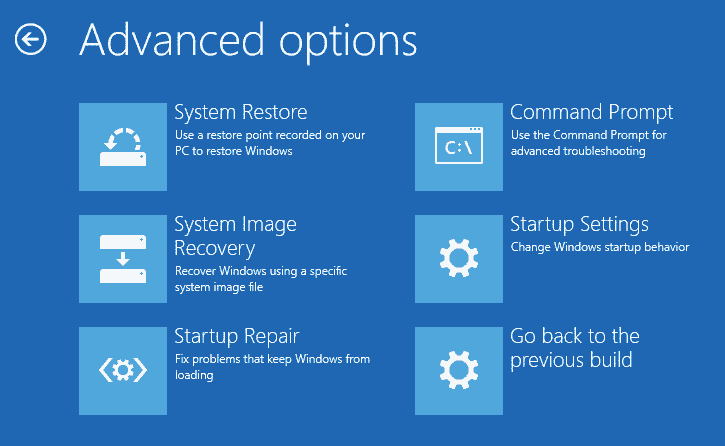
3. After the restart, press 4 for Safe Mode or 5 for Safe Mode with Networking.

You can also boot from Windows installation media and choose "Repair your computer" to reach the same menu.
If the device uses BitLocker, it will ask for a recovery key partway through. Have it ready. It is usually in your Microsoft account under Devices.
While you are in Safe Mode, open Device Manager and look at recently changed drivers, and check installed programs sorted by install date. That combination covers most of what you are looking for.
Difficulty: medium.
Once you have a suspect, this is usually where the problem ends.
1. Right-click the "Start" button and open "Device Manager".
2. Find the device, right-click, and open "Properties".
3. On the "Driver" tab, choose "Roll Back Driver" if it is available. That is the fastest route when a recent update introduced the problem.
4. If there is nothing to roll back, choose "Uninstall device", tick the box to remove the driver software if offered, and restart. Windows installs a basic working driver on its own.
5. To update instead, use "Update driver", but get drivers from the PC or hardware manufacturer's own website.
For graphics drivers, a clean install beats an upgrade on top of an old one. NVIDIA and AMD both offer that option during setup.
Skip driver update utilities from random sources. They routinely install the wrong package, and a bad driver in kernel mode is exactly what caused this error in the first place. Get the driver from the people who made the hardware.
Difficulty: medium.
Work from the timeline rather than removing things at random.
For programs: go to Settings, Apps, Installed apps, sort by install date, and remove anything installed shortly before the crashes. Antivirus suites, VPN clients, virtual machine software, RGB and fan controllers, system tuning tools. They all run kernel drivers and they all turn up in these crashes sooner or later.
For updates: go to Settings, Windows Update, Update history, then Uninstall updates. Pull the most recent quality update and restart. If the blue screens stop, pause updates for a week or two while things settle.
Running a third-party antivirus? Uninstall it for now and let Windows Defender cover you while you test. Putting it back later takes a few minutes.
Difficulty: medium.
These two repair different things, and the order matters.
Open Terminal or Command Prompt as administrator and run: DISM /Online /Cleanup-Image /RestoreHealth
Let it finish. It repairs the Windows component store that SFC pulls healthy files from. Then run:
sfc /scannow
Let it complete without interruption and restart when it reports results. Running SFC first often fails against a damaged component store, which is why DISM goes before it.
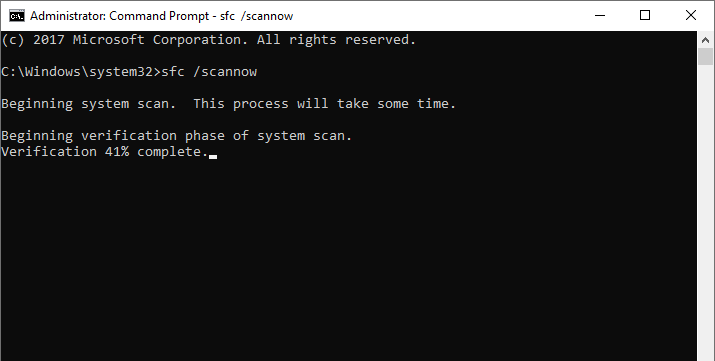
If Windows will not start, both commands need to run from the recovery environment with different syntax, because you have to target the offline system. Use the route in "When Windows Won't Boot" below rather than copying the commands above.
Difficulty: medium.
Do this whenever the crashes look random, or when Safe Mode is also unstable.
1. Press Win + R, type mdsched.exe, press Enter.
2. Choose "Restart now and check for problems (recommended)".
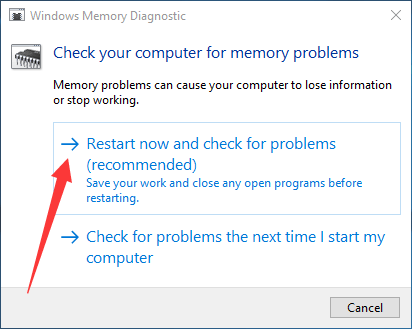
3. Let it run. Windows restarts afterwards and shows results, which also land in Event Viewer.
Windows Memory Diagnostic catches the obvious faults and misses a fair number of the subtle ones. It comes back clean on plenty of bad sticks.
If you turned on XMP, EXPO, or a manual overclock, switch it off and test again at default speeds. Stable at defaults means the profile is the problem, not the hardware. With more than one stick installed, testing them one at a time identifies the failing module in a single evening.
Difficulty: medium.
Storage causes this error two ways. Either the file system is corrupted and hands bad data to the kernel, or the storage driver is talking to hardware that stopped responding properly.
Windows has a basic checker. Open Command Prompt as administrator and run: chkdsk /r
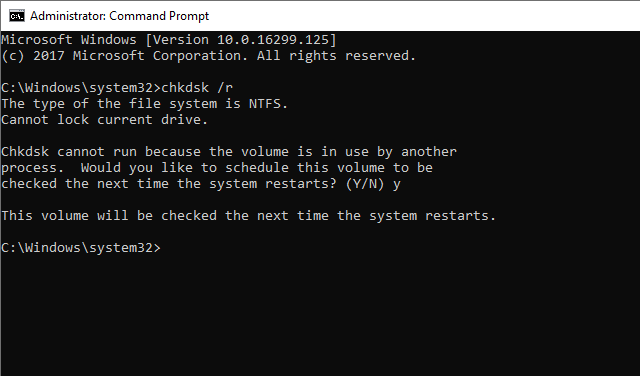
Windows will ask to schedule the scan for the next restart. Say yes and reboot. The /f flag fixes file system errors and /r locates bad sectors and pulls readable data off them.
For a real picture of whether the drive itself is healthy, chkdsk is not enough. DiskGenius shows S.M.A.R.T. health status including reallocated sector count, pending sectors, and reported uncorrectable errors, and it can scan for bad sectors directly. Worth running before any high-risk repair, and it doubles as a way to recover data from inaccessible drives.
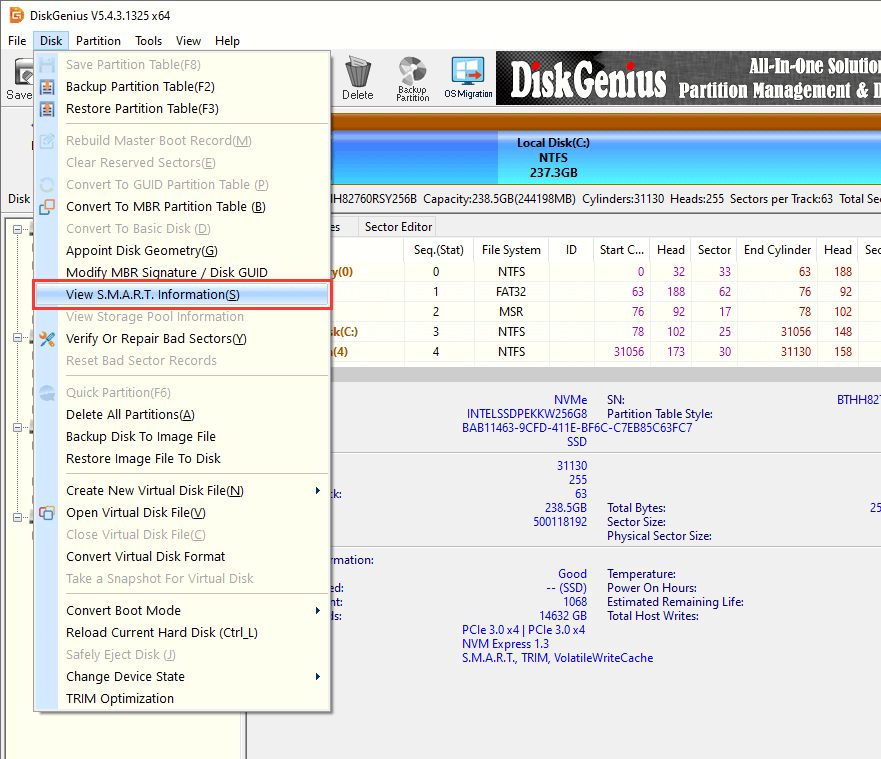
Reading S.M.A.R.T. is not complicated: Select the disk you want to test → "Disk" → "View S.M.A.R.T. Information".
The detailed SMART data is show in the popped-up window.
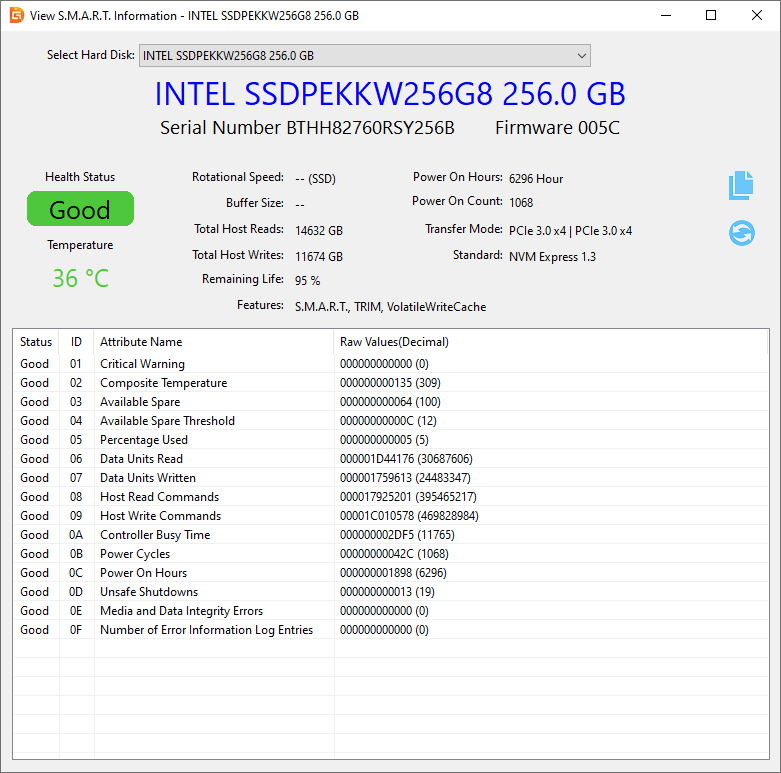
Reallocated sectors and pending sectors should both sit at zero. When those numbers are climbing, the drive is degrading and no software repair reverses it. Clone the drive to a healthy one while it is still readable, then do your troubleshooting on the copy.
A drive that is dying usually tells you before Windows does. Clicks. Files that will not open. A folder that was there yesterday and is not today. When you see those, stop repairing and start copying.
Two limits worth naming. A disk check tells you whether the drive is healthy or failing, but it cannot fix a blue screen caused by a bad driver or bad memory. And scanning a drive with audible clicking, repeated dropouts, or severe S.M.A.R.T. warnings makes things worse. In that case, power down and go to the data protection section below.
Difficulty: medium to high.
Only do this with a reason. The manufacturer's release notes mention your hardware, a known issue matches your symptoms, or you have already ruled out drivers, memory, and disk.
1. Find your exact model and current BIOS version with msinfo32 (Press Win + R, then type "msinfo32".).

2. Go to the PC or motherboard manufacturer's support page and read the changelog for each newer version.
3. Use a stable power source. On a laptop, keep it plugged in with the battery in.
4. Follow the manufacturer's flashing procedure exactly. Do not interrupt it.
While you are in BIOS, load optimized defaults, switch off overclocking, and leave memory at its rated default speed until the machine is stable. Change settings back one at a time after that.
Difficulty: medium to high.
Treat these as the end of the list, and only after your files are safe.
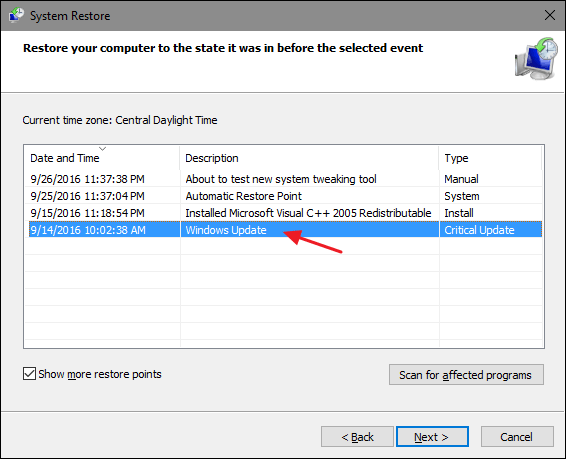
System Restore is the gentler option. Boot into the recovery environment, choose Troubleshoot, Advanced options, System Restore, and pick a restore point from before the crashes started. It rolls back system files, drivers, and settings. Personal files stay where they are. Anything installed after the restore point may need reinstalling.
Reset this PC is more thorough. From Settings, System, Recovery, choose Reset this PC and pick:
• Keep my files: removes apps and settings, keeps personal files. Faster and usually enough.
• Remove everything: wipes apps, settings, and personal files. Only after you have backed up, or when the machine is going to someone else.
A full reinstall from installation media is the last resort of all. It should never be your first move. If you are only here because a boot loop would not stop, read the next section before wiping anything.
Write down what you were doing each time. Which application, whether the machine was under load, how long it had been running, whether it had just woken from sleep. Patterns like "only after an hour of gaming" or "only on cold boot" narrow the field to heat, power, or memory far more often than people expect.
Check the dumps. C:\Windows\Minidump holds one file per crash. Event Viewer's System log around the crash time sometimes surfaces disk, memory, or driver warnings that showed up nowhere else. If you want a specific module name, BlueScreenView or WinDbg will read the dumps for you, though the file name on the blue screen is usually the same answer.
Remember that 0x0000001E is only the category of failure. The actual cause has to be matched against the exception code, the faulting module, and the circumstances. Two machines showing the same stop code can need completely different fixes, and there is no shortcut around that.
Already handled the obvious drivers and updates and the error still returns on a schedule? Run extended memory testing and a long disk surface scan before touching anything else. Faults that only show up under load are very often hardware.
How to prevent it from happening again? Most recurrences trace back to the same three habits. Install drivers only from the hardware or PC manufacturer, not from update utilities that bundle unrelated packages along for the ride. Read what a Windows update changes before you install it on a machine you rely on, and wait a day or two on release day. Keep a current backup on a drive that is not connected to your PC day to day, so a hardware failure cannot take both copies at once.
A monthly glance at S.M.A.R.T. status and one full memory test after any hardware change costs very little and catches most problems while they are still cheap to fix.
When Windows will not boot, the instinct is to reset or reinstall. Resist it. A machine that refuses to start usually leaves the files perfectly intact on the disk, and there is no good reason to trade them for a working desktop.
First, know when to stop. If the drive makes clicking or grinding noises, drops out repeatedly, or has serious S.M.A.R.T. warnings, power the machine down and leave it off. Every extra minute of access shortens the life of a failing drive. At that point the correct move is a professional data recovery service, not another scan.
If the drive is stable and readable, you can reach your files from outside Windows:
1. On a working PC, build a bootable USB drive with a Windows PE environment or a rescue disk.
2. Boot the affected machine from that USB. It loads a small system that does not care about your broken Windows install.
3. From there, open the disk and copy files to an external drive.
DiskGenius works here in a few ways. It can browse partitions and preview files without booting Windows, so you can pull documents, photos, and other data across to a healthy drive. If the partition is damaged or files have already gone missing, its recovery module searches for lost data. When a drive is clearly on the way out, its clone function copies the whole disk to a healthy one so you work on the copy instead of the original.
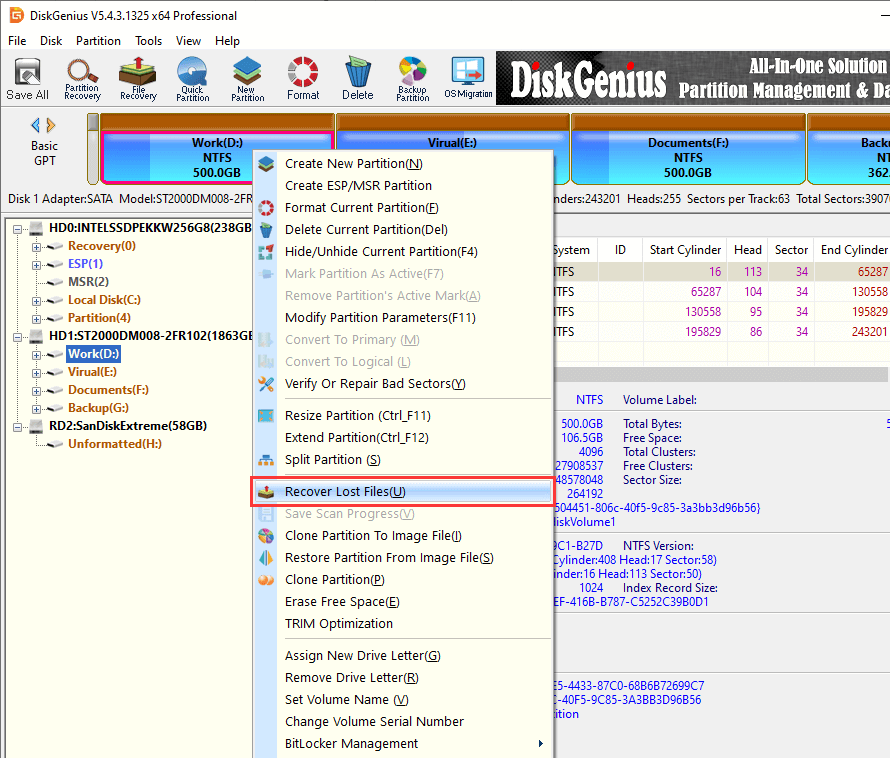
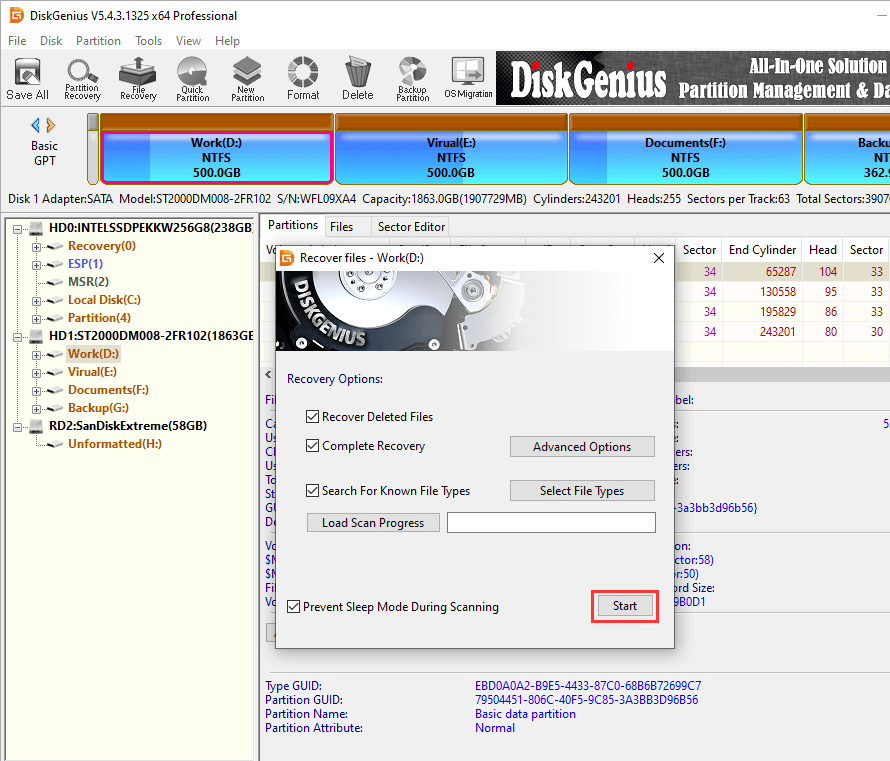
Step 1. In DiskGenius, right-click the partition from which you want to recover data, choose "Recover Lost Files".
Step 2. Click "Start" on the popped-up window to let the software search for lost data.
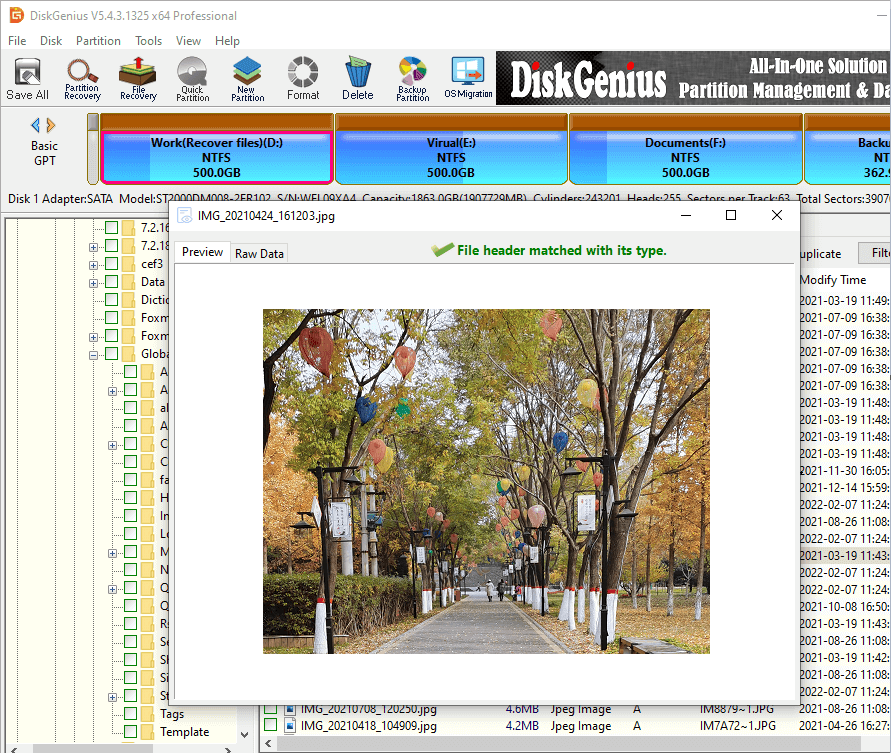
Step 3. Preview lost files shown in the scanning result to check if they are correct.
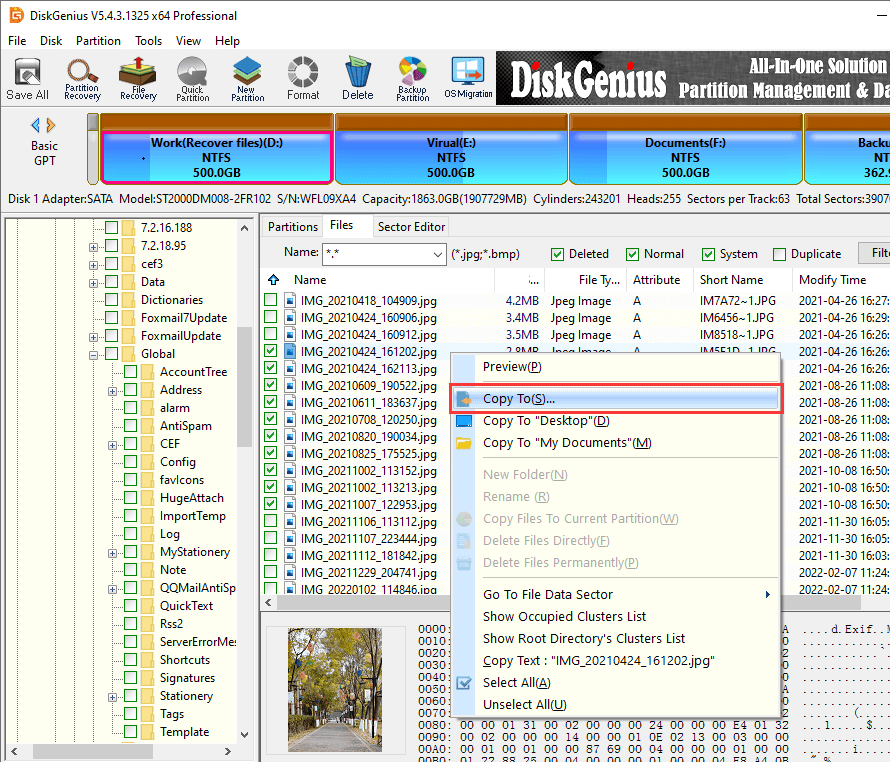
Step 4. Copy files you want to restore to a different location.
One thing to keep straight: this protects your data, it does not repair the stop code. Recovering files does not make the blue screen go away. It gives you room to troubleshoot, reset, or reinstall without gambling your personal data on the outcome.
And not every blue screen needs data recovery software. If Windows boots and your files are fine, a normal backup is simpler and faster.
1. Is KMODE_EXCEPTION_NOT_HANDLED caused by a bad driver?
Very often, but not always. Drivers are the biggest source of kernel exceptions, yet faulty memory, a corrupted file system, and unstable firmware produce the same stop code. Treat a file name on the blue screen as a strong clue rather than a final answer, and confirm it by rolling back or removing the driver before you move on.
2. Can faulty RAM cause KMODE_EXCEPTION_NOT_HANDLED?
Yes, and it does fairly often. Memory errors are the usual explanation when crashes look random, happen in Safe Mode too, or show up under load rather than at specific times. Run Windows Memory Diagnostic first, then MemTest86 for at least four passes. Test modules one at a time to isolate a bad stick.
3. Can KMODE_EXCEPTION_NOT_HANDLED damage my files?
The crash itself rarely damages files, but it interrupts whatever was being written at the time. Documents you were saving may be incomplete or corrupted. Repeated crashes add risk, and so does any underlying storage fault. Back up before running repair tools, resets, or a reinstall.
4. Why does KMODE_EXCEPTION_NOT_HANDLED appear after a Windows update?
Updates change kernel interfaces and can leave existing drivers incompatible even when the driver itself has not changed. Roll the update back from Windows Update history, or roll back the specific driver in Device Manager. If the crashes stop, pause updates for a short period while a fixed driver becomes available.
5. Does KMODE_EXCEPTION_NOT_HANDLED mean my hard drive is failing?
Not on its own. This error does not prove a storage problem. It becomes a storage question when it comes with read or write errors, missing files, drives that disappear from the system, unusual noises, or S.M.A.R.T. warnings. In that case, check drive health and protect your data before attempting repairs.
6. Can KMODE_EXCEPTION_NOT_HANDLED happen during Windows installation?
It can. On installation media this usually points to storage controller drivers, unstable memory, or installation media written to a failing USB drive. Remake the USB installer on a different drive, load storage drivers during setup if your controller needs them, and run a memory test before retrying.
7. Can KMODE_EXCEPTION_NOT_HANDLED happen when gaming?
Gaming pushes the GPU, CPU, and memory harder than normal use, so unstable drivers, heat, and marginal overclocks show up here first. Roll back or clean install the graphics driver, put memory and CPU back to default speeds, and watch temperatures across a long session.

DiskGenius is a one-stop solution to recover lost data, manage partitions, and back up data in Windows.
Download

 Facebook
 YouTube
 X
X