
Updated on Sep. 15, 2026
Position: Resource - Disk Utilities - How Long Do External SSDs and HDDs Last?
How long will your external drive last? You have probably seen the usual answer floating around online: "SSDs last about 5 years, HDDs last about 3 to 5 years." That is not wrong, exactly, but it is the kind of answer that sounds informative while telling you almost nothing useful for your specific situation.
There is no fixed expiration date stamped inside an SSD or HDD. The lifespan of an external drive depends on what kind of work you ask it to do, how often you use it, the conditions it operates in, and honestly, some luck with the specific unit you bought. We have seen drives last well over a decade with minimal care, and we have seen drives die within two years despite careful handling. Two identical models off the same production line can have very different fates if one sits on a cool, stable desk doing weekly backups and the other travels in a backpack across humid job sites five days a week.
SSDs and HDDs also age in fundamentally different ways. An SSD wears down through write operations on its flash memory chips. An HDD wears down through mechanical friction in its spinning components. Knowing which of these applies to your drive changes what you need to watch for.
What we can say with confidence: a well-maintained external SSD or HDD, bought from a reputable manufacturer, will probably serve you well for years under normal consumer use. But "probably" is not "definitely," and that gap is where people lose data. So let us get into what actually determines how long your drive will last, what kills drives early, and what you can do about it.
If you are still deciding between SSD and HDD in the first place, our External SSD vs HDD guide covers that comparison in full. This article focuses on what happens after you own one.
PAGE CONTENT:
How long does an external SSD last? It depends on what you mean by "last." If the question is "how long before the NAND flash cells wear out from writes," the answer for most consumer users is: a very long time. If the question is "how long before something inside the drive fails and takes my data with it," the answer is harder to pin down because electronic components do not always give you a heads up.
For everyday use, occasional backups, transferring files, storing photos, an external SSD can easily remain functional for many years. Modern SSDs are built to absorb far more writes than most people will ever throw at them in a typical external storage scenario.
1. NAND flash type
SSDs store data on NAND flash memory cells, and each cell can only handle a limited number of program/erase cycles before it starts to degrade. The type of NAND determines how many cycles that is:
The endurance difference between TLC and QLC is real, but it is partly offset by larger drive capacities (more cells to distribute writes across) and smarter firmware algorithms. For the kind of read-heavy workload that most external drives see, both TLC and QLC hold up fine.
2. TBW
TBW stands for Terabytes Written, and it is the manufacturer's estimate of how much total data can be written to the drive over its lifetime. A 1TB external SSD might be rated at 300 TBW, or 600 TBW, depending on the NAND type and how conservative the manufacturer wants to be with their rating.
To make that concrete: if you write 10TB per year to your external SSD, which is already on the high end for most people, a 300 TBW drive has 30 years of endurance runway on that metric alone. We have tested drives that sailed past their rated TBW without issues. It is not a cliff. The drive does not shut down when it hits the number. Think of it more like a tire tread wear indicator: worth monitoring, but you are not going to blow through it under normal driving.
3. The controller and firmware
An SSD's controller chip manages wear leveling, garbage collection, error correction, and communication with the USB bridge. A controller failure can lock you out of your data even when the NAND chips underneath are perfectly healthy. Firmware bugs have bricked drives before, too, sometimes with no warning. These types of failures are uncommon, but they have nothing to do with TBW and no amount of careful use will prevent them. They are the "check engine light that never came on" of the SSD world.
4. Temperature
Heat accelerates NAND cell degradation and can cause the controller to throttle performance to protect itself. An SSD that lives in an air-conditioned office ages differently from one that spends summers in a car glove compartment. We have seen drives that were perfectly healthy come back from a season of hot storage with noticeably degraded SMART indicators.
SSD endurance is consumed by write and erase operations, not reads. Reading data back from an SSD causes negligible wear on the flash cells. You could read the same file a million times and it would not meaningfully affect the SSD lifespan.
This is worth keeping in mind when you evaluate your own usage. If your external SSD mostly stores files that you read back from time to time, photos, videos, documents, its endurance is barely being touched. If you use it as a working drive with constant large file writes (editing video directly off the drive, running a virtual machine, downloading large files), you are consuming TBW faster. But even then, a modern SSD with a 300+ TBW rating has a lot of runway.
For most people who use an external SSD the way external SSDs are typically used, TBW will never be the thing that ends the drive's life.
External hard drives face a different set of aging challenges. Where SSDs degrade electronically, HDDs degrade mechanically.
Inside every hard drive, one or more platters coated with magnetic material spin at thousands of revolutions per minute while a read/write head floats nanometers above the surface on an actuator arm. The motor, the spindle bearings, the actuator, the heads themselves, all of these are physical components that wear with use. Lubricants break down. Bearings develop play. Tolerances shift.
An external HDD can also last many years. But it carries failure modes that simply do not exist in an SSD, and the way you handle and store the drive has a much bigger impact on HDD longevity than it does for a solid state drive.
1. Operating hours and workload
A hard drive that you plug in once a week for backups experiences far less mechanical stress than one that spins eight hours a day. Motor bearings, head actuator arms, and spindle assemblies all wear proportionally to operating time. This is why drives sold for NAS or server use cost more: they are built with tighter tolerances and tested for continuous operation.
2. Power cycles
Each time a hard drive spins up from rest, the motor draws extra current and the heads go through a load/unload sequence. Frequent power cycling, plugging in, backing up a small file, unplugging, doing this ten times a day, adds stress beyond what steady operation would cause. That said, we are not suggesting you leave the drive running all the time. Just know that the spin-up moment is one of the harder parts of the drive's daily life.
3. Temperature
Hard drives are engineered to operate within a specific thermal range, and running hot accelerates the breakdown of lubricants in the spindle motor and actuator bearings. An external HDD sitting in an unventilated enclosure on a warm desk, behind a monitor, or under a laptop running at full load is silently aging faster than it needs to. Give it some air.
4. Vibration and physical shock
Dropping an HDD while the platters are spinning can send the head crashing into the disk surface. That is a worst-case scenario, but even short of a drop, sustained vibration, from a nearby speaker, an uneven surface, carrying the drive while it is transferring data, adds cumulative wear to the mechanical components. We cannot stress this enough: if your HDD is plugged in and active, put it down on a flat, stable surface and leave it alone.
5. Environment
Dust, humidity, static electricity, and even altitude (which affects the air bearing the head rides on) all play roles. A drive used in a clean home office has a much easier life than one used on location at outdoor events or in a workshop.
Hard drive manufacturers publish MTBF (Mean Time Between Failures) numbers that often exceed 1 million hours. If you do the math, that is over 114 years, which is obviously not a realistic lifespan for any hard drive. The confusion comes from what MTBF actually measures. It is a statistical figure calculated across large populations of drives. It means that across thousands of units running simultaneously, failures are relatively infrequent per hour of operation. It does not predict what your specific drive will do.
AFR (Annualized Failure Rate) is more useful for setting expectations. A 1% AFR means that, out of 100 drives running for a year, roughly 1 is expected to fail. Backblaze, a cloud storage company that publishes regular reliability reports based on tens of thousands of drives in their data centers, has shown AFRs ranging from well under 1% to several percent depending on the model and workload. Their drives run 24/7 in server racks, which is harsher than how most external drives are used, so your numbers will likely be better.
If you are thinking about archiving data on a shelf for years, this is where the SSD vs HDD comparison gets interesting.
HDDs store data magnetically, and magnetic data is relatively stable when the drive is sitting unpowered. The actual bits on the platter can persist for many years. But the mechanical parts do not get a free pass from time. Lubricants dry out. Bearings can develop stiction, where the head literally sticks to the platter surface. We have seen drives that sat in a drawer for five years refuse to spin up cleanly on the first power-on, even though the data underneath was probably fine.
SSDs store data as electrical charges trapped in NAND cells, and those charges leak over time.
Here is a side-by-side view.
| Factor | External SSD | External HDD |
| Moving parts | No | Yes |
| Primary wear mechanism | NAND cell degradation | Mechanical component wear |
| Mechanical wear | Very low | Significant over time |
| Shock resistance | High | Low |
| Write endurance metric | TBW | Not typically measured this way |
| Failure mode | Often sudden | Often gives warning signs |
| Electronic failure risk | Yes | Yes (PCB, USB bridge) |
| Heat sensitivity | Yes | Yes |
| Unpowered data retention | Weaker (charge leakage) | Stronger (magnetic stability) |
| Unpowered mechanical integrity | No issue | Degrades over time |
Neither technology has a blanket advantage. They age differently, and which one holds up better in your situation depends entirely on how you use and store the drive.
An SSD sitting in a climate-controlled room with moderate use will probably outlast an HDD that gets knocked around in a backpack five days a week. Reverse the conditions, and the outcome could easily flip.
One pattern we see consistently: most people replace their external drives not because the drive wore out, but because they need more capacity, the interface became outdated, or something unexpected happened, a drop, a power surge, a random component failure. The drive's technical lifespan is usually longer than its useful life in your workflow.
These three terms get used interchangeably, and that causes real confusion.
Lifespan is how long the drive remains operational. For an SSD, this is primarily about NAND write endurance and controller health. For an HDD, it is about mechanical wear and component longevity.
Reliability is the probability that the drive keeps working without failure during a given period. A drive can be well within its expected lifespan and still experience a sudden, random failure. Cars are designed to run for 200,000 miles, but the transmission can still give out at 50,000. Same principle.
Data retention is how long your files remain readable on the drive when it is sitting unpowered. This is the one that surprises people.
For SSDs, data retention is a genuine concern. NAND cells store data as electrical charges, and those charges slowly dissipate. The JEDEC industry standard for consumer SSDs specifies roughly 1 year of data retention at 30 degrees Celsius when the drive is not powered. In practice, newer drives at room temperature often hold data longer than that, but there is no guarantee, and the retention window shrinks as the drive ages and as temperatures rise. If you are counting on an SSD as a long-term archive that you stick on a shelf and do not touch for years, that is a risk worth understanding.
For HDDs, magnetic data is more stable when unpowered. The bits on the platter do not "leak" the way NAND charges do. But as we covered above, the mechanical components can degrade during storage, and after a long rest, the drive might not spin up without some coaxing, or at all.
A drive can be within its expected lifespan, perfectly reliable day to day, and still lose data in long-term storage. These are three separate problems that each need separate attention.
The drive itself does not age much faster from sitting on a shelf. But the data on it is another story.
The flash cells slowly lose their stored charges. How quickly depends on the NAND type, how worn the cells already are (well-used cells lose charges faster), and the SSD temperature. A relatively fresh SSD stored in a cool, dry room should hold its data for a reasonable period. An old, heavily used SSD stored in a hot garage is at much higher risk of data loss. If an SSD is part of your backup strategy, power it on every few months and spot-check that your files are still there.
The magnetic data is more stable over time, so your files are less likely to silently disappear. But after months or years of inactivity, the mechanical components can stiffen. Lubricants in the spindle motor thicken. The head may stick to the platter surface. When you finally power the drive on, it might click, hesitate, or fail to mount cleanly on the first try. The data is probably still there, but getting to it might require some patience, or some help.
The short version: if you have an external drive sitting in a drawer with the only copy of something important, power it on, verify the data, and make a second copy somewhere else. This is not optional.
The light user plugs in an external drive once or twice a week to back up documents, transfer some photos, copy a few files. Reads far outnumber writes. For an SSD, the TBW consumption is negligible. For an HDD, the low operating hours and minimal mechanical activity mean very slow wear. Either technology will last a long time, and you will probably replace the drive because you need more space, not because it failed.
The heavy user works off the external drive daily. Editing 4K video directly from the drive. Managing a large Lightroom catalog. Transferring hundreds of gigabytes regularly. For an SSD, the write volume is meaningful but still well within the endurance budget of a modern drive rated at 300+ TBW. For an HDD, the daily operating hours and constant read/write activity add mechanical wear noticeably faster, and the sustained heat from heavy use does not help either.
The always-on user runs the external drive as a semi-permanent fixture: continuous backup destination, media streaming source, quasi-server. This is the scenario that puts the most strain on either technology. SSDs see constant writes eating into TBW. HDDs see maximum mechanical wear and heat exposure. If this is your plan, spend a bit more on a drive rated for it, or consider a NAS with drives designed for continuous operation rather than pushing a portable external drive beyond what it was built for.
Your usage pattern is the single biggest variable in how long your drive will last. Two people with the same drive model can see vastly different lifespans depending on how they use it.
Drives rarely die without some kind of advance notice. The signs are there if you know what to look for.
Files that worked yesterday are now corrupted or unreadable. You open a photo and it is garbled. A document will not load. A video plays with glitchy artifacts. This is one of the earliest and most common warnings that something is going wrong on the drive.
The drive takes much longer to show up after connecting. If it used to appear in your file manager within a couple seconds and now takes thirty seconds or a minute, the drive is struggling.
Repeated "scan and repair" prompts from the operating system. The occasional prompt after an unsafe eject is nothing to worry about. If it keeps happening when you have been ejecting properly, the file system is developing problems on its own.
Random disconnections during use. Before blaming the drive, try a different cable and a different USB port. If the problem follows the drive and not the cable, something is wrong with the drive or its internal USB bridge.
Capacity changes. The drive shows less or larger space than it should, or partitions appear at the wrong size.
Write speed drops dramatically and stays low. Not a brief dip during a sustained transfer (that can be normal thermal throttling), but a persistent slowdown that shows up across different file sizes and transfer types. The controller may be struggling with error correction.
The drive becomes read-only. Some SSD controllers lock the drive into read-only mode when they detect critical NAND degradation. This is actually a protective measure, the drive is trying to let you get your data off before it fails completely. If your SSD suddenly refuses to accept new files but lets you read existing ones, take the hint and start backing up.
Clicking, grinding, or repeating spin-up sounds. A rhythmic clicking, often called the "click of death," means the heads are repeatedly failing to read and resetting to their park position. Do not keep powering the drive on hoping it will sort itself out. Every spin-up in this state risks more damage to the platter surface.
Certain files or folders cause the system to hang. If opening a specific folder freezes your file manager for thirty seconds while the rest of the drive works fine, that area of the platter likely has bad sectors. The drive keeps retrying reads on the damaged zone and the system waits.
When you notice any of these signs, stop using the drive for anything non-essential and start getting your data off it. Do not run diagnostics first. Do not "just try one more copy" Back up what you can access, then diagnose.
If you want to catch problems before they become the symptoms listed above, here're two methods to check disk health:
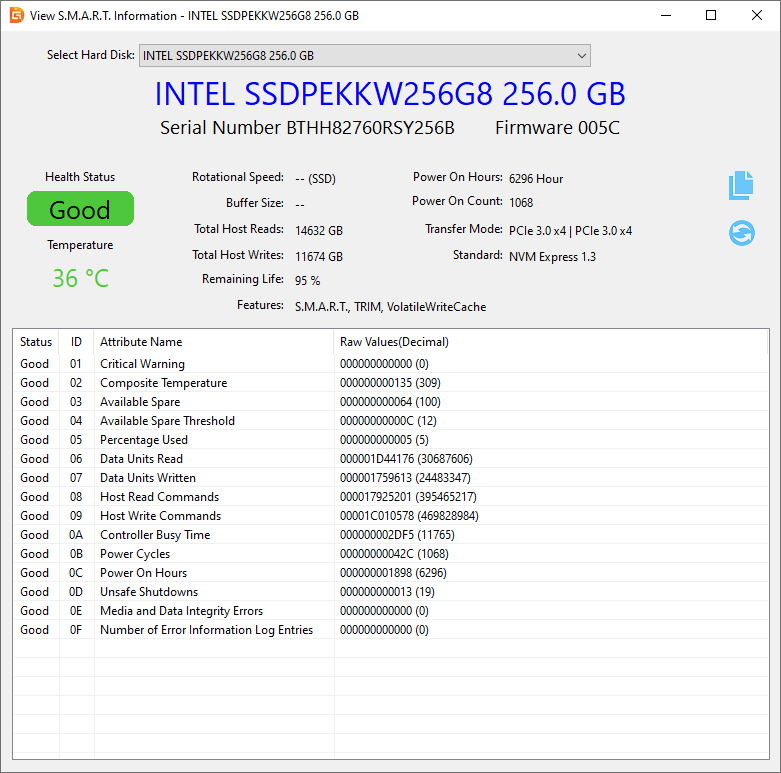
S.M.A.R.T. stands for Self-Monitoring, Analysis, and Reporting Technology. It is a built-in health monitoring system that both SSDs and HDDs use to track internal metrics. S.M.A.R.T. will not predict every possible failure, but it reveals trends that are invisible from the outside.
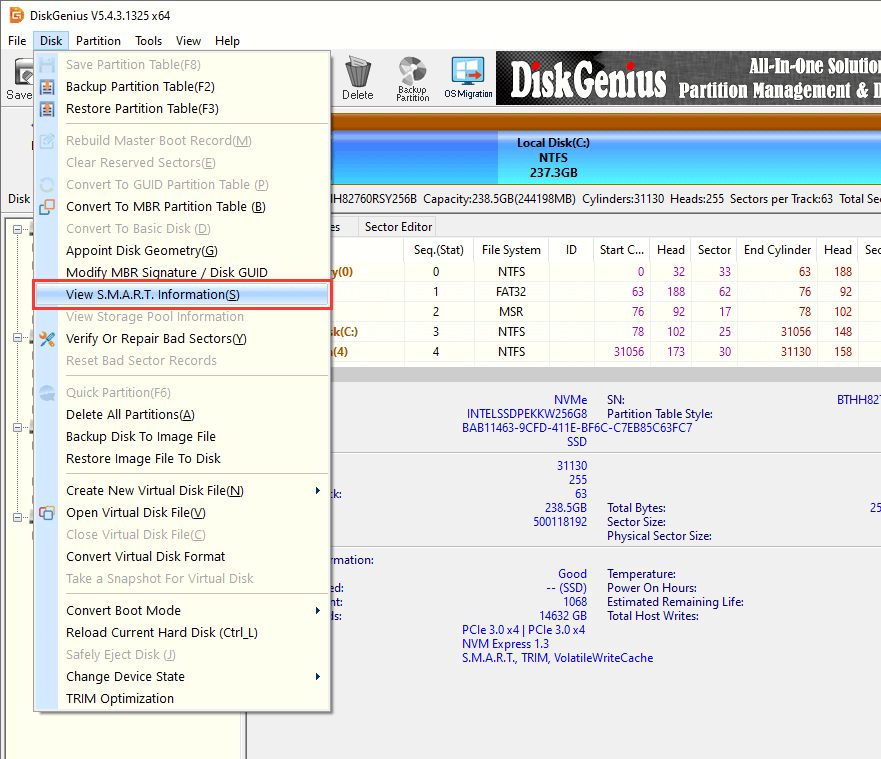
DiskGenius Free Edition reads and displays S.M.A.R.T. data for both SSDs and HDDs. Here're steps:
Step 1. Launch DiskGenius, select the external HDD or SSD from left disk-list pane. Then click "Disk" → "View S.M.A.R.T. Information".
Step 2. View detailed information on the pop-up window, such as health status, temperature, remaining life.
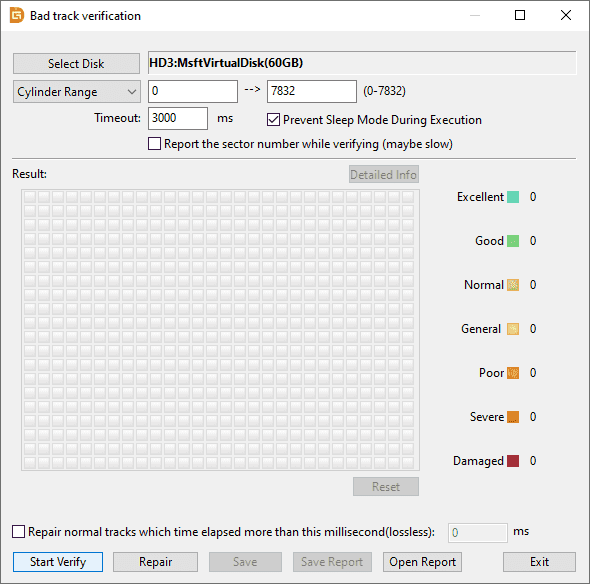
A bad sector/block scan reads every sector on the drive and reports which ones respond correctly. An increasing count means the drive is physically degrading.
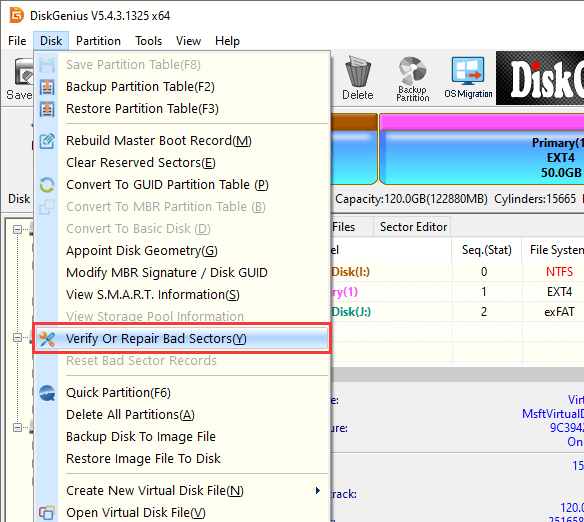
DiskGenius Free Edition includes a bad sector verification tool that performs this scan. The bad sector checking process is read-only, so it will not touch your data.
Step 1. Click the drive you want to scan for bad sectors, click "Disk" → "Verify Or Repair Bad Sectors/Blocks".
Step 2. Click "Verify" button to start the scanning.
SSDs are lower-maintenance than HDDs, but a few habits make a real difference.
Keep free space available. SSDs need empty blocks for wear leveling and garbage collection, two background processes that keep the drive healthy and performing well. When the drive is nearly full, these processes work less efficiently, performance drops, and write amplification increases, meaning the drive consumes more of its TBW per unit of actual data written. Keep at least 10 to 20 percent free if you can.
Do not use it as a constant-write scratch drive. Torrent downloads, temporary video renders, virtual machine swap files, all of this works fine on an SSD, but the writes add up faster than typical external storage use.
Use a quality enclosure and cable. A cheap USB enclosure with an unreliable bridge chip can cause random disconnects and file system corruption (e.g., RAW SSD). The flash inside might be perfectly healthy, but if the bridge keeps dropping the connection, your data is at risk anyway. Use the cable that came with the drive, or a known-good replacement. This is a 10 problem that causes 1000 headaches.
Eject before unplugging. Pulling the cable mid-write can corrupt the file system. It will not damage the NAND physically, but a corrupted file system makes your data just as inaccessible as a hardware failure.
Keep it cool. Direct sunlight, hot car dashboards, enclosed spaces with no airflow during heavy transfers. All bad for NAND longevity and controller performance. Heat is the one environmental factor that hurts SSDs more than most people expect.
Let TRIM work. TRIM is an operating system command that tells the SSD which data blocks are no longer in use after you delete files. This helps the drive manage space efficiently and reduces unnecessary write amplification. Do not defragment an SSD; it does nothing useful and only wastes write cycles.
Hard drives need more physical care because of what is inside them.
Do not move it while it is running. This is the single most important rule. If the platters are spinning and the heads are active, set the drive on a flat, stable surface and do not touch it until the transfer is done. Picking up a running HDD, even gently, introduces vibration that the internal components were not designed to handle mid-operation.
Protect it from drops. A padded case helps during transport. But the best protection is behavioral: treat an external HDD like the precision mechanical device it is.
Give it air. Do not run it tucked behind a monitor, buried under papers, or inside a closed drawer. If the enclosure feels hot to the touch after a long transfer, find it a better spot. Heat kills hard drives slowly but reliably.
Stable power matters. For portable HDDs running on USB bus power, a weak or fluctuating USB port can cause the motor to behave erratically. If your laptop's port seems flaky, try a powered USB hub. For desktop external HDDs with a wall adapter, use the original or a properly rated replacement.
Take noises seriously. Hard drives make some normal sounds: a low hum from spinning, occasional light clicks during reads and writes. But loud, rhythmic clicking, grinding, or repeated spin-up attempts are not normal operational sounds. If you hear them, stop using the drive immediately and start getting data off it. Every additional spin-up in that state can cause more damage.
Check SMART data a couple times a year. A five-minute check with DiskGenius Free every few months can reveal a deteriorating drive long before it starts exhibiting the symptoms in the warning signs section above.
1. Stop using the drive.
Not "finish this one last transfer." Not "let me just check one more thing." Stop. Additional read or write attempts on a failing drive risk more data loss. This is true for HDDs with bad sectors that are spreading. It also applies for SSDs with controller errors too.
2. Check if the drive is detected.
Open Disk Management in Windows or Disk Utility in Mac. If the drive is recognized, even if the partitions appear incorrect or show up as RAW, your data is probably still there.
3. If the drive is still readable, get your data off it now.
Copy your most important files to another drive first. Then copy the less important files. Do not try to copy everything at once and risk the drive failing mid-transfer.
4. If files are already inaccessible.
Use recovery software to scan the drive and recover what was lost. DiskGenius handles file recovery and partition recovery across NTFS, FAT32, exFAT, EXT2/3/4, and other file systems. It also support sector-by-sector cloning disk with bad sectors.
1. How long do external SSDs last?
For typical consumer use, many years. An SSD's lifespan is primarily limited by NAND write endurance, measured in TBW, and the reliability of its controller and electronics. A modern SSD rated at 300+ TBW, used for normal external storage (backups, file transfers, media storage), has far more endurance than most people will ever consume. You will most likely replace it because you need a bigger or faster drive, not because the old one wore out.
2. How long can an external SSD sit unused?
The data on an unpowered SSD degrades over time. The JEDEC industry standard suggests about 1 year of data retention at 30 degrees Celsius for consumer drives. Newer SSDs at room temperature often hold data longer, but there is no guarantee, and the window shrinks with age and heat. If you are storing an SSD for the long term, power it on periodically and verify your data. For true cold storage where the drive will sit untouched for years, HDDs hold data magnetically and are less prone to silent data loss, though their mechanical parts can also deteriorate.
3. Does reading data wear out an SSD?
No. Writes and erases consume NAND endurance. Reads are essentially free. If your external SSD is mostly used for reading stored files back, its lifespan is barely being affected by that usage pattern.
4. Does an external SSD have a TBW limit?
Every SSD has a TBW rating, but it is not a hard cutoff. TBW is the manufacturer's estimate of write endurance. After reaching it, the NAND cells may develop more errors, but many SSDs continue working well beyond their rated TBW. For most consumer users with typical external storage workloads, the TBW limit is so far out that it never becomes a practical concern.
5. Can an external HDD suddenly fail?
It can, though HDDs usually provide some warning first. Clicking sounds, accumulating bad sectors, increasing read errors. Sudden failures do happen from drops, power surges, or electronic component burnout, but they are less common than gradual decline with warning signs.
6. Should I replace my external hard drive after 5 years?
Not just because of the number on the calendar. Check its SMART health. If the indicators are clean, bad sectors are not accumulating, there are no strange noises, and performance is normal, a 5-year-old drive with light use might have plenty of life left. Replace it when the data says to, not when the warranty expires. Lear more: Can You Use a Hard Drive with Bad Sectors? How to Check Its Health?
7. Is an old external HDD still safe for backup?
Check its SMART data and bad sector counts and overall health indicators. Power it on and verify that your files are accessible. If the drive is healthy and the backup is verified, it is still usable. But do not rely on any aging drive as your only backup copy, no matter what the SMART data says.

DiskGenius is a one-stop solution to recover lost data, manage partitions, and back up data in Windows.
Download

 Facebook
 YouTube
 X
X