
Updated on Sep. 10, 2026
Position: Resource - Disk Utilities - External SSD vs HDD: Which One Should You Choose?
You need more storage. You have narrowed it down to two options: an external SSD or an external hard drive. On the outside, they look almost identical. A small box with a USB port. But inside, they are built on completely different technologies, and the one you pick will affect your daily experience with the drive for years.
The core difference is this: an external SSD stores data on flash memory chips with no moving parts. An external hard drive (HDD) stores data on spinning magnetic platters with a mechanical read/write arm. SSDs are faster, lighter, quieter, and far more resistant to drops. HDDs give you more storage capacity for the money.
But that summary alone will not help you make a decision. What actually matters is how those differences play out in the specific ways you plan to use the drive. A video editor working off an external drive has very different needs than someone doing weekly backups of a family photo library. The right answer is not "SSD is better" or "HDD is better." It is which one is better for you.
This guide covers everything: speed, capacity, price, durability, portability, lifespan, power consumption, noise, reliability, gaming performance, video editing workflows, data recovery, backup strategies, and more. We have worked with both types of drives extensively, and we will share what we have learned along the way.
In this article:
Before getting into the details, here is a side-by-side overview.
| Factor | External SSD | External HDD |
| Speed | Excellent | Moderate |
| Random access | Excellent | Slow |
| Large capacity | Good | Excellent |
| Price per TB | Higher | Lower |
| Portability | Excellent | Good |
| Shock resistance | Excellent | Lower |
| Noise | Silent | May produce noise |
| Power consumption | Usually lower | Usually higher |
| Gaming | Excellent | Acceptable |
| Video editing | Excellent | Good for storage |
| Backup | Excellent | Excellent |
| Long-term/cold storage | Good, with caveats | Often more economical |
| Best for | Performance and portability | Capacity and value |
One thing worth getting out of the way early: this is not a story about new technology replacing old technology. Hard drives are not going away. They serve a purpose that SSDs have not yet fully matched, mainly because of cost. A 4TB portable HDD still costs a fraction of a 4TB portable SSD. For anyone who needs a lot of space without spending a lot of money, that matters.
At the same time, SSD prices keep falling. Two years ago, a 2TB portable SSD felt expensive. Today, it is a reasonable purchase for most people. The gap is closing, but it has not closed yet.
An SSD stores data on NAND flash memory, the same basic technology behind USB thumb drives and your phone's storage, but built to a much higher standard. A controller chip manages reads and writes across the memory cells. No platters spin. No arms swing. Data access is electronic, not mechanical.
That single fact, no moving parts, explains almost every advantage SSDs have over HDDs. Speed, shock resistance, silence, compact size. It all flows from that one design difference.
Not every external SSD performs the same way. The internal architecture and the connection method both matter.
SATA external SSDs use a SATA interface inside a USB enclosure. Real-world speeds top out around 400 to 550 MB/s. These are the most common and affordable external SSDs. For most people, they are fast enough.
NVMe external SSDs use a faster NVMe protocol and are usually paired with USB-C or Thunderbolt enclosures. Depending on the connection, they can reach 1,000 to 2,000+ MB/s. They run hotter than SATA models and cost more, but the speed advantage is real for heavy workloads.
USB flash drive-style SSDs look like oversized thumb drives. They are pocket-friendly but tend to top out at 1TB and can struggle with sustained writes due to heat buildup in the tiny enclosure.
Here is something a lot of people miss: putting an NVMe SSD into a USB enclosure does not unlock the full speed that SSD could deliver inside a computer with a PCIe connection. The USB port becomes the bottleneck. We will dig into this more later, because it affects buying decisions directly.
The port on your computer determines how fast data can flow to and from the drive, regardless of how fast the SSD itself is.
If your computer only has USB 3.0 ports, there is no reason to pay extra for a top-shelf NVMe external SSD. You will never see the speed benefit. Match the drive to what your machine can actually support.
Inside an external hard disk drive (HDD), one or more aluminum platters with a layer of magnetic material rotate at thousands of revolutions per minute. A read/write head sits on a mechanical arm, hovering nanometers above the surface of the platter, reading and writing data as the disk spins. In portable drives it is usually 5400 RPM. Desktop drives often spin at 7,200 RPM.
This mechanical process introduces latency. The head needs to seek to the right track, and the platter needs to rotate to the right sector. For sequential reads of large files, this is not a huge deal; the drive reads continuously once it gets going. For random access, lots of small files scattered across the disk, the constant seeking adds up fast. This is why an HDD can feel sluggish when you are browsing a folder full of thousands of files, even though it handles a single large video file just fine.
Hard drive technology has been refined for over 60 years. The manufacturing process is mature. The raw materials, aluminum platters and magnetic coatings, are cheap. NAND flash is more expensive to produce and supply is constrained by semiconductor manufacturing capacity.
This is why, at the same price point, an HDD gives you three to five times more storage than an SSD. If you need 8TB and do not want to spend a fortune, hard drives are still the only realistic option.
The distinction matters more than people realize.
Portable external HDDs use 2.5-inch drives, run on USB bus power (no wall adapter needed), and fit in a jacket pocket. They max out around 5TB, with 2TB and 4TB being the most common sizes.
Desktop external HDDs use 3.5-inch drives, require a power adapter, and are meant to live on a desk. They are bigger, heavier, and louder. But they go up to 16TB, 20TB, or more in a single unit. If you are building a home backup server or need to store a massive media library, this is where you land.
Do not buy a desktop external HDD expecting to toss it in your bag. And do not expect a portable external HDD to match the capacity of a desktop model. Knowing which category you need upfront saves headaches later.
This is the section that actually answers your question. Let us break it down factor by factor.
Speed is where the gap between SSD and HDD is widest, and it shows up in places you might not expect.
The headline numbers: An external HDD reads and writes at 80 to 160 MB/s. A SATA external SSD hits 400 to 550 MB/s. An NVMe external SSD over USB 3.2 Gen 2 reaches 900 to 1,000 MB/s. Those are sequential speeds, reading or writing one continuous stream of data. On paper, the SSD is 3 to 6 times faster. In a real file transfer, you will feel every bit of that difference.
Where SSDs really pull ahead is random access. This is about reading and writing small chunks of data scattered across the drive. An SSD handles this electronically and nearly instantly. An HDD has to physically move its read/write head to each location. When you are copying a folder with 5,000 small files, or browsing a Lightroom catalog, or loading a game level with hundreds of assets, random access performance is what determines how long you wait. SSDs can be 10 to 20 times faster than HDDs at this kind of work.
Latency matters too. SSDs respond in microseconds. HDDs respond in milliseconds. It does not sound like much, but in daily use, it is the difference between a drive that feels responsive and one that feels like it needs a moment to catch up.
A practical example: transferring a 50GB video file. On an external HDD at 120 MB/s, you are looking at roughly 7 minutes. On an external SSD at 1,000 MB/s, about 50 seconds. Now try copying a folder of 10,000 small files totaling 5GB. The HDD might take several minutes because of the random access overhead. The SSD finishes in seconds.
And then there is the interface bottleneck. The speed of your external drive is capped by the slowest link in the chain: the drive, the enclosure's bridge chip, the USB port on your computer, and even the cable. A fast NVMe SSD connected to a USB 3.0 port will run at about 400 MB/s, the same speed as a cheaper SATA SSD on that same port. Before buying a premium external SSD, check what ports your computer actually has.
External hard drives still own this category, especially at higher capacities.
Portable external SSDs are widely available from 250GB to 4TB, with 1TB and 2TB being the sweet spots. 8TB portable SSDs exist but are expensive and uncommon.
Portable external HDDs go from 1TB to 5TB. Desktop external HDDs reach 10TB, 16TB, 20TB and beyond in a single unit.
If you need a lot of cheap storage, four or more terabytes, an HDD is still the straightforward answer. The price gap at those capacities is too large to ignore. For most people, though, 1TB or 2TB is plenty for an external drive, and at those sizes, an SSD is well within reach.
The math is simple: HDDs are cheaper per terabyte. A lot cheaper.
A 1TB portable external HDD might cost 45 to 55. A 1TB portable external SSD runs 70 to 100 for a budget model, and 100+ for a name brand. At 4TB, you might pay 90 to 100 for an HDD versus 250 to $350 for an SSD.
For someone who needs 500GB or 1TB, the absolute price difference is small enough that the SSD upgrade is an easy call. You are paying 30 to 50 more for a dramatically better experience. At 4TB and above, the math shifts in HDD's favor.
SSD prices have dropped steadily over the past five years, and they will keep dropping. But as of 2026, if raw capacity per dollar is your top priority, hard drives win.
Drop a portable SSD from a desk. It will be fine. Drop a portable HDD from a desk while it is running, and you might hear that sickening click of a head crash. This is the most tangible, everyday difference between the two.
Inside an HDD, platters spin at 5,400 RPM and a read/write head floats just above their surface. A sharp impact during operation can send the head into the platter, scratching the magnetic coating and destroying data. Modern drives have drop sensors that park the heads when they detect freefall, which helps. But the vulnerability is inherent to the design.
An SSD has nothing to hit. The flash chips and controller sit on a circuit board inside a solid enclosure. You can throw it in a backpack, take it on a plane, use it in a moving car. It does not care.
One caveat that gets overlooked: SSDs are not invincible. They can fail from controller malfunctions, firmware bugs, NAND wear, or USB bridge chip problems. We have seen SSDs not showing up in computer one day, with no warning and no drop involved. Both technologies can fail. SSDs are just immune to one specific category of failure that affects HDDs.
A typical portable external SSD is smaller than a credit card and weighs around 40 to 60 grams. Some are barely bigger than a USB flash drive. They need no external power, no special cable, just a single USB connection.
A portable external HDD is still small, but noticeably larger and heavier, usually 130 to 180 grams. Not a burden by any means, but you will feel the difference in a jacket pocket.
For anyone who carries a drive daily, students running between classes, photographers on location, developers commuting between office and home, the SSD's smaller footprint is a genuine quality-of-life upgrade.
SSDs draw less power because there is no motor to spin. Both portable SSDs and portable HDDs run on USB bus power, but the HDD draws more from the port, which translates to slightly shorter laptop battery life during extended use.
Desktop external HDDs need a wall adapter and consume more power overall, though for a stationary device that is rarely a concern.
For portable use on battery, the difference is real but modest. If you are working off-grid for hours and every minute of battery counts, an SSD helps.
An HDD hums. It clicks. If you work in a quiet room and the drive sits next to your laptop, you will hear it. Some models are louder than others, but none are silent.
An SSD produces zero noise. No spinning, no clicking, no vibration.
The one caveat: NVMe external SSDs can get hot under sustained writes. A well-designed enclosure with thermal padding manages this fine. A cheap plastic enclosure may allow the drive to throttle its speed to cool down. If you plan to do long, continuous file transfers, it is worth paying attention to enclosure quality.
Read More: SSD Temperature: Normal Ranges, Overheating Fixes, and How to Monitor?
The "right" drive depends on what you do with it. Here is how the choice plays out across common scenarios.
Carrying documents, photos, and project files between locations. Either works. An SSD is faster to browse and open files from. An HDD gives you more space for less money. If your everyday storage needs are under 2TB, the SSD is the better experience and the price premium is small. If you are hoarding 4TB+ of files, the HDD starts making more financial sense.
Both SSDs and HDDs work well for backup. The question is what matters more to you: speed or capacity.
An SSD makes backup and restore fast. A full system image that takes two hours on an HDD might finish in 30 minutes on an SSD. When you actually need to restore after a failure, that speed is a lifesaver.
An HDD gives you more room. If you are backing up multiple computers or years of accumulated data, a single affordable 4TB or 5TB portable HDD can hold it all.
More important than the type of drive is having a strategy at all. The 3-2-1 rule is a good starting point: 3 copies of your data, on 2 different types of media, with 1 stored offsite. An external drive is one excellent piece of that puzzle.
If you want to create full disk image backups of your system or external drives, DiskGenius includes a backup and restore function that can image entire disks or individual partitions. It works with both SSDs and HDDs, and the resulting image can be restored sector by sector if you ever need it.
An external SSD makes a noticeable difference for PC gaming. Load times drop, texture streaming is smoother, and installing or updating games is significantly faster. Open-world games that load assets on the fly benefit the most.
For console gamers, the picture is more nuanced. On PS5 and Xbox Series X, current-generation games are designed to run from the internal SSD and generally cannot run directly from USB storage. But you can store them on an external SSD and shuffle them back when needed, which is much faster than re-downloading. Last-generation titles (PS4, Xbox One) run well from external storage, and an SSD speeds up their load times noticeably.
USB 3.0 vs USB 3.2 matters here. On a slower USB port, the SSD advantage shrinks. If gaming performance is a priority, use the fastest USB port your system has.
If you edit directly from an external drive, the SSD advantage is hard to overstate.
Working with RAW photos in Lightroom or Capture One, scrubbing through a 4K timeline in Premiere, applying effects in DaVinci Resolve, all of these tasks involve constant random reads and sometimes sustained writes. An HDD can technically do this work, but you will spend noticeable time waiting. An SSD makes the experience feel native, as if the files were on your internal drive.
A common workflow among creative professionals: active projects live on the fast external SSD. Completed projects get archived to a larger, cheaper external HDD. This gives you performance where it matters and capacity where it counts.
This is trickier than most articles admit.
SSDs store data by trapping electrical charges in NAND cells. Over time, especially in warm environments, those charges can leak. An SSD left unpowered for years can, in theory, lose data. The risk is low for drives stored at room temperature, and manufacturers design for it, but it is not zero.
HDDs store data magnetically, which is more stable over long periods of inactivity. But the mechanical components can degrade: lubricants dry out, bearings seize, heads can stick to the platter surface (a problem called stiction).
Neither technology is a safe "set it and forget it" archive on its own. The right approach for long-term storage is redundancy: multiple copies, on different drives, checked periodically. If you have data you cannot afford to lose, do not trust it to a single drive in a drawer, regardless of the technology inside.
Smaller, lighter, silent, and you do not have to worry about it getting knocked around in a bag. For photographers at events, journalists in the field, videographers on set, or anyone who works in multiple locations, a portable SSD is the obvious choice. The durability alone is worth the price premium if you are anywhere near a situation where the drive might get bumped, dropped, or jostled.
Reliability does not reduce to a simple "SSD wins" answer. The failure modes are different.
HDDs fail mechanically. Motors wear out. Heads degrade. Platters develop bad sectors. Heavy use, high temperatures, vibration, and age all take their toll. The warning signs are sometimes audible: clicking, grinding, or repeated spin-up attempts. Other times, an HDD simply stops working without much warning.
SSDs fail electronically. Controllers can die. NAND cells degrade with writes. Firmware can corrupt. USB bridge chips in external enclosures can fail independently of the storage media. SSDs do not give you audible warnings the way HDDs often do. A healthy SSD and a dying SSD can look and sound identical until the day one of them stops showing up on your computer.
We have recovered data from thousands of drives over the years at DiskGenius, and here is what we can tell you: both types fail, both types can take your data with them, and the drives that cause the most pain are always the ones where the owner had no backup.
Under normal consumer use, with a reputable brand, either technology will likely last many years. The failure rate for modern drives is low. But "low" is not zero. Plan accordingly.
"How long will this drive last?" is one of the first questions people ask, and one of the hardest to answer honestly.
SSD lifespan is measured in TBW (Terabytes Written). A consumer SSD rated at 300 TBW can absorb 300 terabytes of write operations over its lifetime. If you write 15TB per year to your external drive, which is more than most people do, that is 20 years of endurance. In practice, the controller or firmware is more likely to cause issues before you hit the TBW limit.
TBW is not a cliff. The drive does not die when it reaches the number. It is a statistical expectation from the manufacturer about when NAND degradation might start affecting reliability. Plenty of SSDs run well past their rated TBW.
HDD lifespan depends on mechanical wear. The motor, the spindle bearings, the heads, all degrade with use. MTBF figures (often 1 million hours or more) sound reassuring, but they are population-level statistics, not predictions for your specific drive. A hard drive in a climate-controlled office, used occasionally, might last 10 years. The same drive in a hot, dusty environment running 12 hours a day might last 2.
Our honest take: do not pick SSD over HDD (or vice versa) because of lifespan. Under normal conditions, both will last years. What matters far more is whether you have a backup when one eventually fails.
When a drive fails or data gets lost, the type of storage technology inside affects what is possible.
SSDs and TRIM. This is the big one. When you delete a file on an SSD, the operating system sends a TRIM command that tells the SSD to erase those data blocks right away. This keeps SSD performance healthy over time, but it also means deleted files are often gone for good within seconds. Recovery software cannot restore data that the SSD has already wiped internally.
HDDs do not do this. When you delete a file on an HDD, the data stays on the platter until something new is written over it. As long as you stop using the drive promptly, recovery chances are generally better.
Common data loss scenarios include accidental deletion, accidental formatting, file system corruption, lost partitions, bad sectors, and drives that are no longer recognized. These can happen to any drive, SSD or HDD.
How to recover files from an external SSD/HDD?
1. Stop using the drive immediately. Every additional write operation, even the operating system writing temporary files, can overwrite data you are trying to recover.
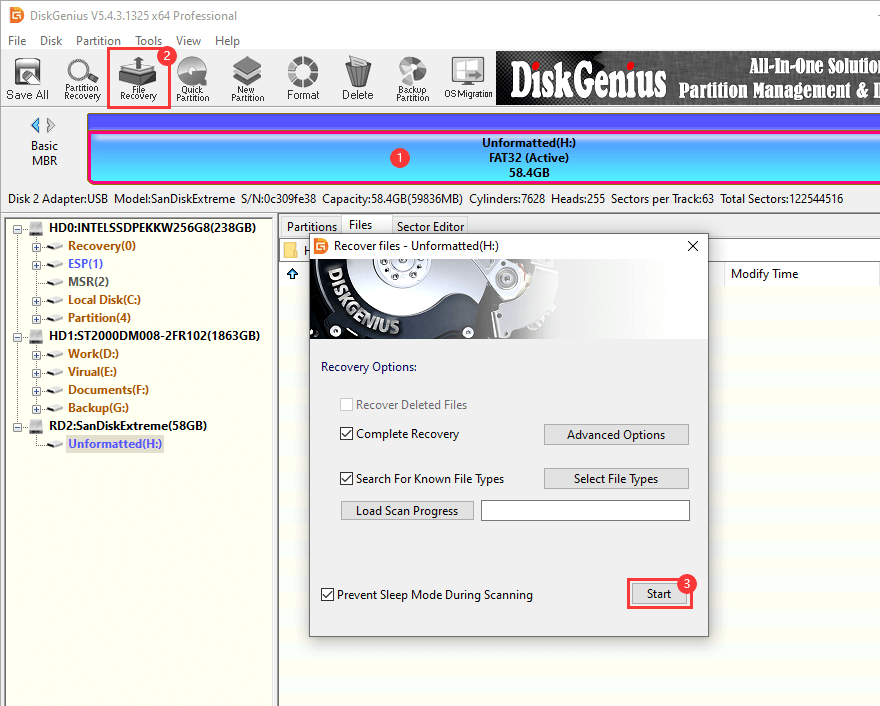
2. Run a scan with data recovery software DiskGenius.
It offers both file recovery and partition recovery and supports NTFS, FAT32, exFAT, EXT2/3/4 on both SSDs and HDDs.
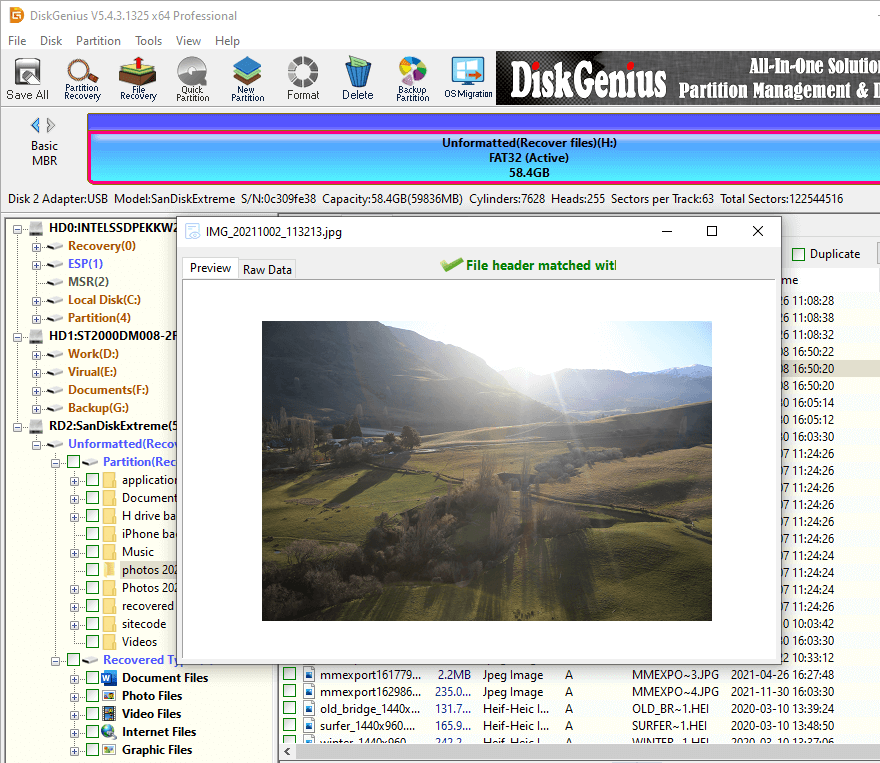
3. Preview lost files listed in the scanning result to make sure if they are still recoverable.
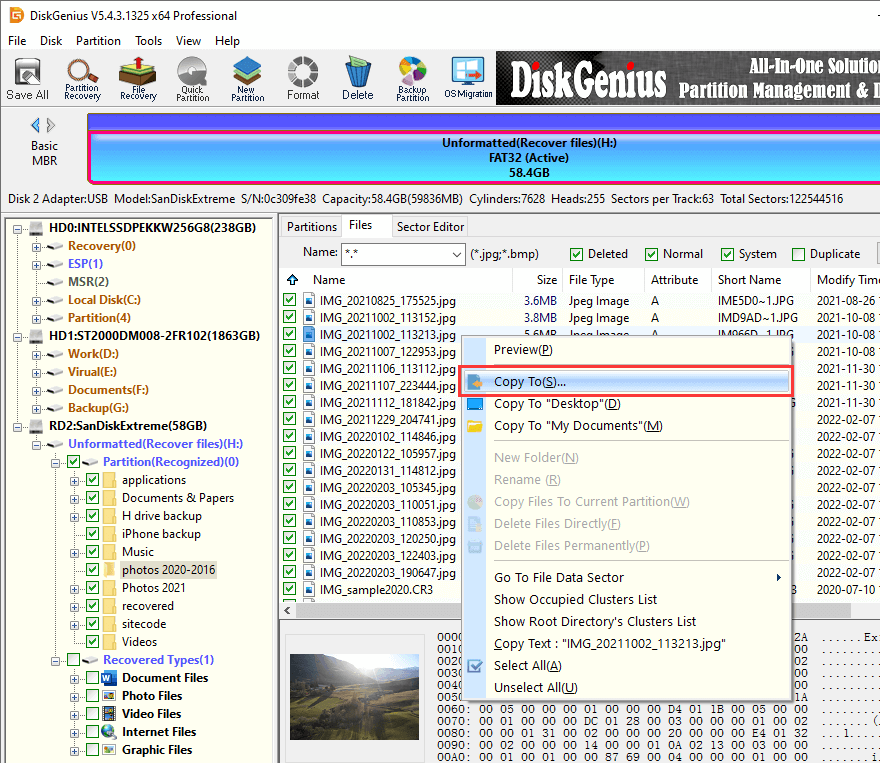
4. Save recovered files to a different drive. Never recover data back to the same drive you are scanning. It is the fastest way to permanently destroy the files you are trying to save.
The SSD or HDD inside your external enclosure is only one part of the speed equation. The connection between that drive and your computer is just as important.
USB version determines your ceiling. USB 3.0 maxes out around 400-450 MB/s in real use. USB 3.2 Gen 2 pushes that to about 1,000 MB/s. Thunderbolt goes higher. If your computer's fastest USB port is 3.0, a top-tier NVMe external SSD will perform the same as a mid-range SATA model. You are paying for speed you will never see.
The internal interface matters. A SATA SSD in an enclosure tops out around 500-550 MB/s regardless of the USB version. An NVMe SSD can go higher, but only if the USB connection allows it.
Enclosure quality is underrated. The bridge chip inside the enclosure (the component that translates between the drive's internal interface and USB) affects speed, stability, and compatibility. Cheap chipsets can cause disconnects, inconsistent speeds, or poor driver support on certain systems. Enclosure design also affects heat dissipation. NVMe SSDs generate real heat under sustained load, and a poorly ventilated enclosure can cause the drive to throttle itself down to slower speeds to avoid damage.
Cables are not all the same. A cheap USB-C cable that came in a drawer might not support the full bandwidth of USB 3.2 Gen 2. If your drive is rated for high speed and you are not seeing it, try the cable that came in the box before blaming the drive.
The bottom line: when shopping for an external SSD, look at the full picture. Drive speed, USB port version, enclosure chipset, cable quality. A fast drive behind a slow connection is a waste of money.
After everything above, here is a straightforward way to think about it.
1. Go with an external SSD if:
2. Choose an external hard drive if:
3. Consider getting both.
This is what many of the experienced users do. 1TB or 2TB external SSD for active work, frequent transfers, portability. A 4TB+ external HDD for backups and archives. Speed where you need it, capacity where it counts. This combination covers nearly every scenario and costs less than you might expect.
Buying the right drive is step one. Keeping your data safe on it is step two, and it matters just as much.
Keep Multiple Copies
We say this constantly, and we will keep saying it: never make a single external drive the only copy of data you cannot afford to lose. Drives fail. Drives get stolen. Drives get dropped in water. Follow the 3-2-1 rule: 3 copies, 2 different media types, 1 offsite.
Eject Before Unplugging
This takes two seconds and prevents a huge category of problems. Yanking a USB cable while the drive is writing data can corrupt the file system, damage partition tables, or cause data loss. Both SSDs and HDDs are vulnerable to this. Use the "Safely Remove Hardware" option every time.
Monitor Drive Health
Both SSDs and HDDs report their health through S.M.A.R.T. (Self-Monitoring, Analysis, and Reporting Technology). S.M.A.R.T. data includes bad sector counts, temperature, power-on hours, and (for SSDs) remaining write endurance. Checking this periodically gives you early warning before a drive fails.
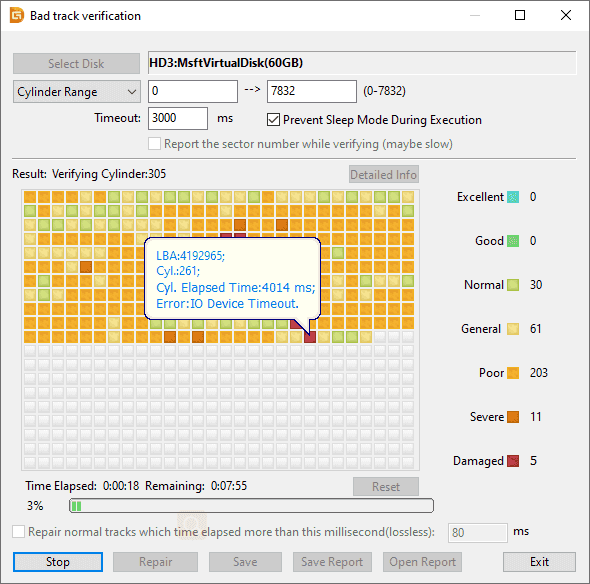
DiskGenius can check health for HDDs and SSDs by reading the SMART data and scanning bad sectors/blocks. It is worth checking every few months, especially on drives that hold important data.
Check for File System Errors and Bad Sectors
If your external drive starts behaving oddly, slow file access, folders that will not open, random disconnections, it is worth running a diagnostic. File system errors can often be repaired, and bad sector scans can tell you whether the drive surface is degrading.
DiskGenius includes a bad sector verification feature. Catching problems early is always better than discovering them after data is already gone.
Clone a Failing Drive Immediately
If your HDD starts making unusual noises, takes forever to respond, or disconnects randomly, do not keep trying to access it hoping it will behave. The more you stress a failing drive, the worse the damage gets.
The safer move: clone the entire drive to a healthy one. A sector-by-sector clone copies everything, including the partition structure and all data, to a new disk. Once the clone is complete, you can work from the healthy copy and retire the failing drive.
DiskGenius supports disk cloning and partition cloning for exactly this scenario. It is also the easiest way to upgrade from an old external HDD to a new external SSD: connect both drives, clone, swap. Done.
Is an external SSD better than an external HDD?
It depends on what "better" means for your situation. Faster? Yes, dramatically. More durable? Yes. More portable? Yes. Cheaper per terabyte? No. Available in larger capacities? Not yet. If speed and portability matter most, SSD is the better drive. If you need maximum storage on a budget, HDD wins.
How much faster is an external SSD than an HDD?
A lot. An external HDD typically reads at 80-160 MB/s. A SATA external SSD hits 400-550 MB/s. An NVMe external SSD over USB 3.2 Gen 2 reaches 900-1,000 MB/s. For large file transfers, the SSD is 3 to 6 times faster. For tasks involving many small files, the gap can be 10 to 20 times or more because of the SSD's superior random access speed.
Are external SSDs more reliable than HDDs?
Against drops and vibration, absolutely. SSDs have no moving parts and handle physical shocks far better. But SSDs are not immune to failure. Controller issues, NAND degradation, firmware bugs, and USB bridge failures can all take down an SSD. The honest answer is that both are reliable enough for normal use, and neither is failure-proof. Backups matter more than the choice of drive technology.
How long does an external SSD last?
An SSD's endurance is measured in TBW (Terabytes Written). A typical consumer SSD rated at 300 TBW can last well over a decade under normal use, since most people write far less than that annually. The controller and firmware matter too. In practice, most SSDs last many years without issues. The limiting factor is usually not the NAND wearing out; it is an unexpected electronic failure or the drive simply becoming too small for your needs.
Is an external SSD worth the extra cost?
For 1TB and under, absolutely. The price difference is often 30 to 50, and the improvement in speed, portability, and durability is substantial. At 2TB, it depends on your budget and use case. At 4TB and above, the cost gap becomes harder to justify unless speed is critical to your work.
Which is better for backup, SSD or HDD?
Both work well. An SSD gives you faster backup and restore times. An HDD gives you more capacity for less money. The most important thing is having a backup strategy at all. A backup on any drive is better than no backup on the perfect drive.
Does USB speed limit external SSD performance?
Yes, and this is one of the most overlooked factors in external drive shopping. If you plug a fast SSD into a USB 3.0 port, you are capped at about 400 MB/s regardless of what the SSD can do. To get full speed from a high-performance external SSD, you need USB 3.2 Gen 2 or faster on your computer, plus a compatible cable and enclosure.
There is no universal winner here, and anyone who tells you otherwise is oversimplifying. An external SSD gives you a faster, quieter, more portable, and more durable drive. If those qualities matter in your daily use, the SSD is worth the premium without question.
An external hard drive gives you more storage per dollar. If you need to store a lot of data cheaply, or you are building a backup archive measured in terabytes, the HDD is still the practical choice.
And for a lot of people, the smartest move is to use both: a fast SSD for the work you do every day, paired with a larger HDD for backups and archives. This combination covers speed, capacity, and redundancy in a way that a single drive cannot.
Whichever you choose, do not stop at the purchase. Protect your data. Keep backups. Monitor your drive's health. And when the time comes to clone, partition, recover, or manage your external drive, DiskGenius has you covered. Free to download at diskgenius.com.

DiskGenius is a one-stop solution to recover lost data, manage partitions, and back up data in Windows.
Download

 Facebook
 YouTube
 X
X