
Updated on Jul. 28, 2026
Position: Resource - Disk Utilities - NVMe vs SATA SSD: What's the Difference and Which SSD Should You Choose?
Upgrading "to" an SSD is one of the most noticeable improvements you can make to an older computer. Applications open faster, boot times shrink, and the whole system just feels snappier. But once you start shopping, the terminology gets confusing quickly. You'll see SATA SSDs, M.2 SSDs, NVMe SSDs, and variations like "PCIe Gen3" or "Gen4" thrown around as if they're self-explanatory. They're not.
The short version? These are all solid state drives that use flash memory. The long version is that their interfaces, protocols, speeds, and even physical shapes differ in ways that directly affect whether a given SSD will work in your machine and how fast it will be once installed.
If you're planning to upgrade from a SATA SSD to a faster NVMe SSD, you'll also need to think about moving your existing operating system over. Tools like DiskGenius handle this well. Its System Migration feature can transfer your Windows installation from an old SATA drive to a new NVMe drive without requiring a fresh OS install, and its Clone Disk function works for non-system drives too. We'll come back to that later.
For now, let's break down the real differences between SATA and NVMe SSDs, clear up the M.2 confusion once and for all, and help you figure out which type actually makes sense for how you use your computer.
NVMe stands for Non-Volatile Memory Express. NVMe was designed from the ground up to work with flash storage. That distinction matters more than most people realize.
Instead of going through the SATA controller, NVMe drives communicate directly with the CPU through PCIe (Peripheral Component Interconnect Express) lanes. These are the same high-bandwidth pathways used by graphics cards. A PCIe 3.0 x4 connection provides roughly 4 GB/s of theoretical bandwidth, while PCIe 4.0 x4 doubles that to around 8 GB/s. The newest PCIe 5.0 drives push even further.
The NVMe protocol itself is also leaner than AHCI. It was built to handle the parallelism that flash memory excels at, supporting up to 65,535 command queues with 65,536 commands per queue. AHCI, by contrast, supports a single queue with 32 commands. For heavy multitasking workloads, this architectural difference shows up in real-world performance.
When people say "M.2 NVMe SSD" or "PCIe SSD," they're typically referring to the same category of drive: an NVMe protocol drive that connects through a PCIe interface in the M.2 form factor.
The speed numbers tell the story. A typical SATA SSD maxes out around 550 MB/s for sequential reads. A PCIe 3.0 NVMe drive hits 3,500 MB/s. PCIe 4.0 models reach 7,000 MB/s. And the latest PCIe 5.0 drives go past 14,000 MB/s. That's a massive difference on paper.
But speed isn't just about sequential throughput. NVMe drives tend to perform substantially better in random read/write operations too. This is where everyday responsiveness lives: how fast an application launches, how quickly a file search returns results, how snappy your system feels when you have 30 browser tabs open alongside a video editor.
Latency is another area where NVMe pulls ahead. Because the protocol eliminates the overhead that AHCI carries, commands reach the drive and responses come back faster. You won't always consciously notice this in casual use, but it compounds under load.
NVMe drives cost more than their SATA counterparts, though the gap has narrowed considerably in recent years. At the time of writing, you can find budget NVMe drives priced within a few dollars of comparable SATA SSDs, especially at the 500 GB and 1 TB capacities.
Compatibility is worth checking. Your motherboard needs an M.2 slot that supports NVMe, which generally means a slot wired to PCIe lanes rather than SATA. Older motherboards may only have SATA-compatible M.2 slots, or no M.2 slot at all.
Heat is another consideration. NVMe drives, particularly Gen4 and Gen5 models, generate more heat than SATA SSDs. Some come with heatsinks, and many motherboards now include M.2 heatsink shields. Without adequate cooling, an NVMe drive can thermal throttle under sustained writes, temporarily reducing its speed to protect itself.
SATA stands for Serial Advanced Technology Attachment. It's been the standard storage interface in consumer PCs for well over a decade, created for mechanical hard drives in the first place. When SSDs started to replace HDDs, manufacturers used the same SATA interface for ease of use and to maintain backward compatibility.
SATA SSDs communicate with systems via the AHCI (Advanced Host Controller Interface) protocol. This protocol was designed for spinning hard disks, so it has some overhead that flash memory doesn't really need. The bandwidth ceiling is SATA III's 6 Gbps, which translates to a real-world maximum of roughly 550 MB/s for sequential reads.
That's fast compared to a traditional hard drive, but it's nowhere near what modern NAND flash is capable of delivering. The interface itself becomes the bottleneck.
When you see a "2.5 inch SSD" listed online, that's almost always a SATA drive. It's designed to fit in the same slot that laptop and desktop HDDs have used for years, which is part of why SATA SSDs are such a popular upgrade path. You pull out the old hard drive, plug in the new SSD, and you're done.
Price. SATA SSDs are cheaper per gigabyte than NVMe drives. For a basic office PC or a secondary storage drive, that cost difference adds up.
Compatibility. If your computer has a SATA port (and almost every computer made in the last 15 years does), a SATA SSD will work. No need to check motherboard specs, no BIOS updates, no wondering whether your M.2 slot supports the right protocol.
Ease of installation. For desktops, it's a straightforward cable swap. For laptops, many older models have a 2.5-inch drive bay that makes the upgrade nearly foolproof.
The SATA III interface tops out at around 550 MB/s, and that's a hard ceiling. Modern NAND flash chips can push data much faster than that, but the interface simply can't keep up. It's like connecting a fire hose to a garden faucet. The hose is rated for more but the faucet will not allow it.
For most of what you do, such as web browsing or editing documents, this bottleneck will not matter much. But when you copy large files or do anything that requires high throughput you will feel the limitation. SATA SSDs also have higher latency than NVMe drives, so it takes longer for the system to access small or fragmented data.
Before diving into the technical details, here's a side-by-side comparison to give you the lay of the land.
| Feature | SATA SSD | NVMe SSD |
| Interface | SATA III | PCIe |
| Protocol | AHCI | NVMe |
| Maximum Sequential Speed | Around 550 MB/s | Up to 14,000+ MB/s (Gen5) |
| Common Form Factor | 2.5-inch, M.2 SATA | M.2 |
| Latency | Higher | Lower |
| Typical Price (per GB) | Lower | Higher |
| Best For | Office work, everyday use, budget builds | Gaming, creative work, professional workloads |
So which one is right for you? A SATA SSD is a perfectly sensible, affordable upgrade, especially if your machine is a few years old or you're working within a tight budget. An NVMe SSD delivers substantially higher performance, which matters if you regularly move large files, edit video, or want the fastest possible load times in games. The answer really depends on what you do and what your hardware supports.
This is where things get interesting, because marketing numbers and real-world experience don't always align. Let's look at how these two types of SSDs actually perform in different scenarios.
Sequential Read and Write Speed
Sequential speed measures how fast a drive can read or write large, continuous blocks of data. Think copying a movie file, installing a game, or loading a level with large textures.
A SATA SSD reading sequentially at 550 MB/s will transfer a 20 GB file in roughly 37 seconds. An NVMe Gen3 drive doing 3,500 MB/s handles the same file in about 6 seconds. A Gen4 drive cuts that further to around 3 seconds.
For boot times, the difference is noticeable but not dramatic. A Windows 10/11 system on a SATA SSD typically boots in 15 to 20 seconds. The same system on an NVMe drive might boot in 8 to 12 seconds. It's faster, sure, but we're talking about saving a handful of seconds each morning.
Random Read/Write Performance
This is where NVMe drives have a more meaningful advantage in day-to-day use. Random performance is how fast a drive can read small chunks of data scattered throughout the storage. This is exactly what happens when you open an application, open a file, or search through a folder.
NVMe drives handle these operations with lower latency and higher IOPS (input/output operations per second). The gap between SATA and NVMe in random 4K reads can be anywhere from 30% to several hundred percent, depending on the specific drives being compared.
That said, the everyday user probably won't feel the difference as sharply as benchmarks suggest. If your current SATA SSD already feels fast when opening Chrome or Word, switching to NVMe won't make those activities feel dramatically different. The improvement tends to show up under heavier loads: compiling code, running virtual machines, managing large Lightroom catalogs, or working with dozens of applications simultaneously.
Gaming Performance
Does an NVMe SSD actually improve gaming? The answer is more nuanced than you might expect.
Game load times benefit from faster storage. An NVMe drive will load levels, fast travel sequences, and initial game launches noticeably faster than a SATA SSD. We're talking about shaving off a few seconds here and there, which adds up if you play frequently.
Microsoft's DirectStorage technology, now available in select titles, is designed to let NVMe drives feed data directly to the GPU, bypassing CPU decompression. As more games adopt this technology, the advantage of NVMe storage in gaming will grow. For now, though, most games don't fully exploit it.
Frame rates, on the other hand, are largely unaffected by storage speed. Your FPS is determined by your GPU, CPU, and RAM. An NVMe drive won't make your game run smoother in terms of frame delivery. What it will do is reduce waiting times between action, which is a quality-of-life improvement rather than a performance one.
The right SSD for you depends on what you do with your PC, what hardware you already have, and how much you're willing to spend. So let's go through the common use cases.
1. For Office Work and General Use
A SATA SSD is more than enough. If your day involves email, spreadsheets, web browsing, and video calls, you won't notice a meaningful difference between SATA and NVMe speeds. Save the money. A 500 GB or 1 TB SATA SSD will serve you well, and you can put the savings toward more RAM or a better monitor.
2. For Gaming
An NVMe SSD is the better choice, especially if you're building a new system or your motherboard already has an NVMe slot. Game install sizes keep growing (many AAA titles now exceed 100 GB), and faster storage means shorter load times. As DirectStorage support becomes more widespread, NVMe will become increasingly relevant for gaming.
That said, if you're on a tight budget and already have a SATA SSD, don't rush to upgrade just for gaming. The FPS difference is negligible, and load time improvements, while real, are measured in seconds.
3. For Content Creators
NVMe is strongly recommended. Video editors working with 4K or 8K footage; photographers working with huge RAW libraries; and anyone else who regularly moves large files between drives will notice the speed difference on a daily basis. The NVMe drive's sequential write speed means faster exports and smoother timeline scrubbing in editing software.
If your workflow involves constant read/write operations on large files (tens of gigabytes at a time), investing in a Gen4 NVMe drive is money well spent.
4. For Budget Upgrades
SATA SSDs still make sense in certain scenarios. If you're breathing new life into an older laptop or desktop that predates M.2 slots, a 2.5-inch SATA SSD is often the only option, and it transforms the experience compared to a mechanical hard drive. You can typically find 1 TB SATA SSDs at very reasonable prices.
Also consider SATA SSDs for secondary storage. Many people run their operating system and key applications on an NVMe drive while using a larger, cheaper SATA SSD for bulk storage like game libraries, media files, and archives.
5. A Quick Decision Framework
Ask yourself these questions:
This is one of the most common points of confusion, and it causes real problems when people buy the wrong drive. Here's the thing: M.2 is a form factor, not a protocol. It describes the physical shape and connector of the drive, not how it communicates with your system.
An M.2 SSD is a small, rectangular stick that plugs into an M.2 slot on your motherboard. But what happens after it's plugged in depends entirely on which type of M.2 drive it is.
M.2 SATA SSD: This looks like an NVMe drive from the outside, but it uses the SATA interface and AHCI protocol on the inside. Its speed is limited to the same ~550 MB/s as a traditional 2.5-inch SATA SSD. It just comes in a smaller package.
M.2 NVMe SSD: This is the fast one. It uses the PCIe interface and NVMe protocol, delivering speeds from 3,500 MB/s all the way up to 14,000+ MB/s depending on the generation.
| Type | Interface | Protocol | Typical Speed |
| M.2 SATA | SATA III | AHCI | ~550 MB/s |
| M.2 NVMe (Gen3) | NVMe | PCIe | ~3,500 MB/s |
| M.2 NVMe (Gen4) | PCIe 4.0 x4 | NVMe | ~7,000 MB/s |
| M.2 NVMe (Gen5) | PCIe 5.0 x4 | NVMe | ~14,000 MB/s |
Not all M.2 SSDs are NVMe SSDs. This is probably the single most important thing to understand before you buy. If your motherboard's M.2 slot only supports SATA, plugging in an NVMe drive won't work. Check your motherboard manual before purchasing.
Since both of these drives share the same physical form factor, they get compared constantly. And honestly, if you're looking at an M.2 slot on your motherboard, you might be wondering whether it matters which type you install.
Physically, an M.2 SATA SSD and an M.2 NVMe SSD look almost identical. They're both small sticks with a single notch on the connector. The key (the position of that notch) can differ slightly between SATA and NVMe variants, but you'd have to look closely to notice.
The difference is all underneath.
| Feature | M.2 SATA SSD | M.2 NVMe SSD |
| Connection | SATA | PCIe |
| Protocol | AHCI | NVMe |
| Sequential Speed | ~500-550 MB/s | 3,000-14,000+ MB/s |
| Random IOPS | Lower | Significantly higher |
| Heat Output | Lower | Higher |
| Price | Lower | Comparable to slightly higher |
An M.2 SATA drive gives you the convenience of the compact M.2 form factor without the speed benefits of NVMe. In 2024 and beyond, M.2 SATA drives are becoming less common as NVMe prices drop, but you'll still find them in older systems and budget builds.
If your motherboard supports NVMe in its M.2 slot, there's very little reason to choose an M.2 SATA drive anymore. The price gap is small enough at most capacities that NVMe makes more sense for new purchases.
Before buying an NVMe drive, you need to confirm that your system can actually use one. There are a few ways to check.
Check your motherboard specifications. This is the most reliable method. Look up your motherboard model online and check the storage section of its spec sheet. You're looking for an M.2 slot that explicitly lists PCIe or NVMe support. If the M.2 slot is described as "M.2 SATA only," then an NVMe drive won't work in that slot.
Look at your existing drive. If your computer already has an M.2 SSD installed and you're not sure what type it is, open Windows Device Manager, expand the "Disk drives" section, and look up the model number online. This will tell you whether it's a SATA or NVMe drive, and by extension, what your slot supports.
Use Disk Management. Press Win + X and select Disk Management. This shows your installed drives and their capacities, though it doesn't directly indicate the interface type.
Use DiskGenius for detailed information. For a better picture, DiskGenius gives you detailed information about each installed disk, such as its interface type, model name, partition style (GPT or MBR), disk GUID, total sectors, etc. This is useful if you are planning a migration and want to know what you are working with before you make any changes.
Laptops are similar, but in general you can not look at the M.2 slot without opening the case. As a general rule, the quickest method is to visit the manufacturer's support page for your particular laptop model.
This is the part most people worry about. You've bought a shiny new NVMe drive, but your current SATA SSD has your entire Windows installation, all your applications, and years of accumulated settings.
Reinstalling everything from scratch would take hours, maybe an entire weekend. Nobody wants that. The good news: you don't have to. DiskGenius can migrate your system to the new drive while keeping everything intact. Here's how to do it.
Step 1: Install the NVMe SSD.
Shut down your computer and install the new NVMe drive into an available M.2 slot. Just make sure the slot supports NVMe. If you're adding the NVMe drive next to your existing SATA SSD, that's fine. Both are compatible. Just be sure the M.2 slot is PCIe wired before you begin.
Step 2: Open DiskGenius and Choose "System Migration".
Launch DiskGenius. You will find the option "System Migration" in the toolbar. This feature can migrate Windows from one drive to another while keeping the boot configuration intact.
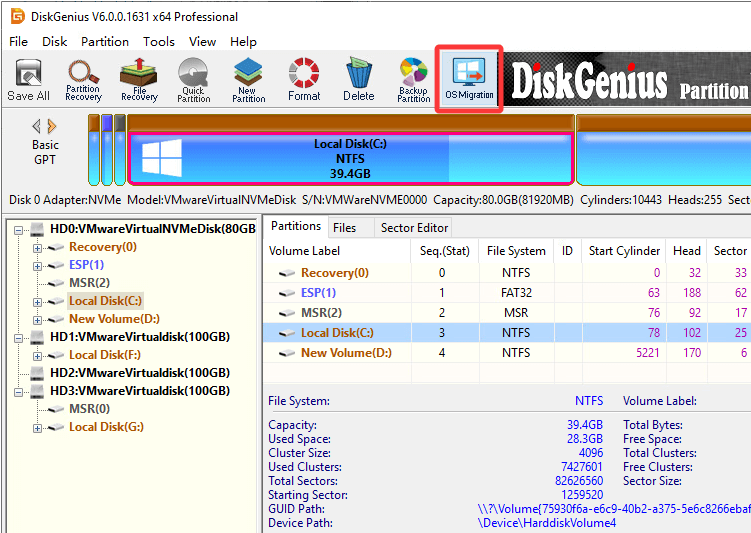
Note: If the source drive does not have an operating system, or you do not need the destination drive to be bootable, you can also use "Clone Disk".
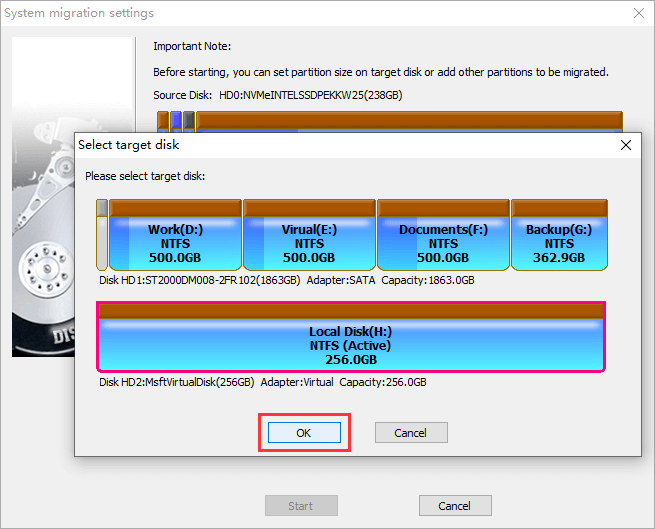
Step 3: Select the new NVMe SSD you just installed as the target disk. Make sure you have selected the correct one, as the process will wipe everything on the target drive.
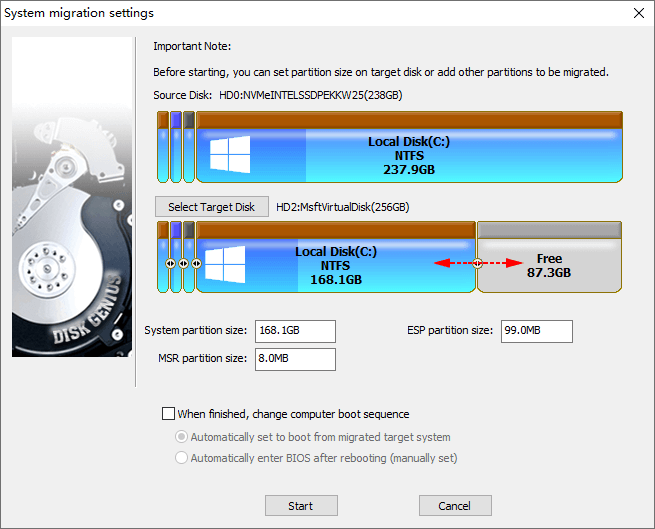
Prior to migration, you resize each partition on the target drive. This is useful if your new NVMe drive is a different capacity than the old SATA SSD. You can either extend the system partition. Click "Start" when everything is ready.
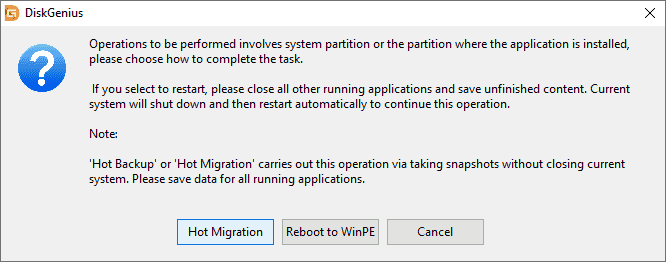
Step 4: Select Hot Migration or Reboot to WinPE.
There are two ways of migration. Hot Migration works while Windows is running, which means you can continue to use your computer during the process. If the hot migration is not available on your computer, choose the Reboot to WinPE option.
Step 6: Wait for the process to finish. The time it takes to migrate depends on how much data is on the source drive. Please do not interrupt the process.
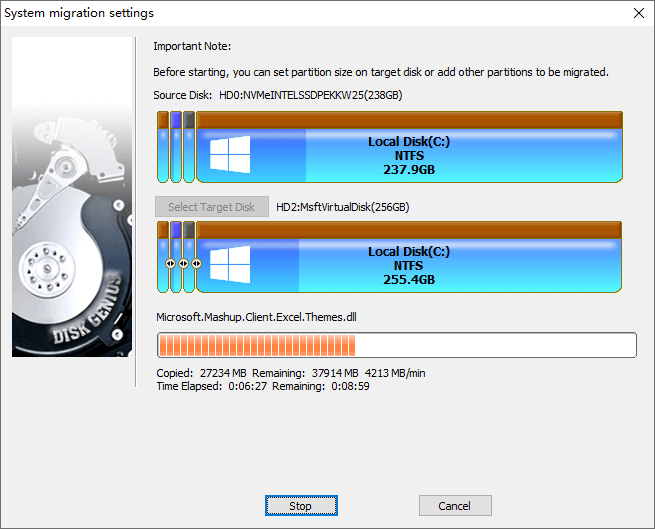
Once done, reboot your computer and enter your BIOS (usually done by pressing Del, F2 or F12 on startup depending on your motherboard). Make the NVMe SSD the first item in the boot order. Save and exit. Windows should boot from the new drive exactly as it did from the old one: same desktop, same applications, same files, same settings.
Your old SATA SSD can remain connected as a secondary drive for extra storage, or you can wipe it and use it elsewhere.
Your old SATA SSD can remain connected as a secondary drive for extra storage, or you can wipe it and use it elsewhere.
Can I use an NVMe SSD and a SATA SSD at the same time?
Yes. Most modern motherboards support multiple storage devices at the same time. For speed use the NVMe drive for your operating system and the SATA SSD for bulk storage. Just be aware that some motherboards may disable one or two SATA ports when you use an M.2 slot. See your motherboard manual for specifics.
Will an NVMe SSD work in a SATA M.2 slot?
Nope. If the M.2 slot is only wired for SATA, it will fit physically but an NVMe drive won't work. The protocols are different and are not interchangeable. Some motherboards have M.2 slots that support both SATA and NVMe but you need to check in your board documentation.
Is an NVMe SSD worth it for gaming?
It depends on your expectations. You'll see faster load times, and as DirectStorage adoption grows, the benefits will increase. But if you're expecting higher frame rates from a storage upgrade alone, you'll be disappointed. The GPU and CPU still drive that.
How long does an NVMe SSD last compared to a SATA SSD?
Both types use NAND flash and have similar endurance characteristics rated in TBW (terabytes written). A typical consumer NVMe SSD is rated for 300 to 1,200 TBW depending on capacity and manufacturer. For normal consumer use, either type will last many years, well beyond the useful life of most computers. For more information: What Affects SSD Lifespan and How to Check the Remaining Lifespan?
Can I clone a larger SSD to a smaller one?
Yes, as long as the data on the larger drive (excluding unused space) fits within the smaller drive's capacity. DiskGenius handles this scenario. During the clone or migration process, you can adjust partition sizes to make everything fit. For detailed steps: How To Clone a Larger Hard Drive to a Smaller SSD or HDD FREE?
Does NVMe SSD generation (Gen3, Gen4, Gen5) matter?
It affects speed and price. Gen3 drives are the most affordable and still vastly faster than SATA. Gen4 drives roughly double Gen3's throughput and are the sweet spot for most users in 2024-2025. Gen5 drives offer the highest speeds but cost significantly more and run hotter, and the real-world benefit over Gen4 for typical consumer use is minimal right now. You can install a Gen4 drive in a Gen3 slot and it will work, just at Gen3 speeds.

DiskGenius is a one-stop solution to recover lost data, manage partitions, and back up data in Windows.
Download

 Facebook
 YouTube
 X
X