
Updated on Sep. 03, 2026
Position: Resource - Data Recovery - Formatted a Hard Drive by Mistake? Here's How to Recover Your Data
You formatted the wrong partition. The drive looks empty now, and your stomach just dropped. Take a breath, in most cases, especially after a quick format, your files are still sitting on that disk. You just can't see them.
This guide walks you through what actually happened to your data, when and why it's still recoverable, the SSD complication most people don't know about, and how to use DiskGenius to get those files back, step by step, no fluff.
When people hear "formatted", they picture data being vaporized. That's not what happens, at least not with a quick format.
Quick Format vs. Full Format
A quick format rebuilds the file system's index structures and calls it a day. Think of an NTFS volume: it relies on the MFT (Master File Table) to track what's stored where. A quick format wipes that index clean. The underlying data? Untouched. Still sitting in its original sectors.
A good analogy: you rip the table of contents out of a book. The chapters are all still there, you've just lost the easy way to navigate them.
A full format is a different beast. On any modern Windows system, a full format writes zeros across the entire volume and runs a bad-sector check. That process overwrites the old data, and recovery becomes significantly harder, sometimes impossible.
There's also secure erase and disk-wiping software, which are specifically designed to destroy data permanently. Don't confuse those with a standard quick format.
Bottom line: if you ran a quick format and haven't touched the drive since, you've got a real shot at recovery. Stop reading for a second and unplug that drive if you haven't already.
Nobody can promise you a 100% recovery rate, it depends on several things that happened before, during, and after the format.
How much new data has been written since the format? This is the single biggest factor. If you immediately stopped using the partition, the old data is largely intact. If you kept saving files, installed an OS, or downloaded a bunch of stuff afterward, some of your original data has been overwritten. Period.
What kind of format was performed? Quick format = good odds. Full format = bad odds. Secure erase = almost no chance.
Which file system was involved? NTFS tends to preserve more recoverable metadata (file names, folder paths) than FAT32 or exFAT. EXT4, APFS, HFS+ each have their own quirks. The file system determines how much "context" the recovery tool can reconstruct around your lost files.
HDD or SSD? This one deserves its own section, keep reading.
Is the drive physically healthy? A healthy drive scans cleanly. A drive with bad sectors, connection drops, or mechanical failure is a different problem entirely, and a much harder one.
The one rule that matters above all else: Stop writing to the formatted partition. Right now.
Don't copy files onto it. Don't install recovery software on it. Don't run chkdsk on it. Every write operation eats into the space where your old files still live.
If your formatted drive is an SSD, the situation is different, and not in your favor.
On a traditional spinning hard drive, deleted or formatted data just sits there quietly until something overwrites it. SSDs don't work that way.
Modern operating systems issue a TRIM command (What Is TRIM on SSD? ) when files are deleted or a partition is formatted. TRIM tells the SSD: "these blocks are no longer in use, clean them up during your next garbage collection cycle." The SSD then proactively erases those NAND cells, sometimes within minutes.
The practical effect: the recovery window on an SSD can shrink from days (or forever, on an HDD) down to hours or even minutes.
That said, TRIM isn't always instant, and it doesn't always execute perfectly. Some operating systems batch TRIM commands. Some SSDs process them more slowly than others. If you caught the mistake quickly and immediately stopped using the drive, a recovery scan is still worth trying.
Don't spend time debating it, though. If the SSD has been running for hours after the format, the clock has been ticking the whole time. Act fast or accept the loss.
DiskGenius handles both disk management and data recovery in one tool. After a format, it can scan the affected partition and reconstruct files that the file system no longer "sees."
One feature worth calling out: you can preview files before recovering them. After a format, a file showing up in the scan results doesn't guarantee it's intact. Previewing saves you from recovering a pile of corrupted junk.
Supported devices and file systems:
DiskGenius also ships as a portable app, you can run it from a USB stick without installing anything on the formatted partition. The free edition lets you scan and preview files so you can see what's recoverable before spending a dime.
Step 1: Download and Run DiskGenius (On a Different Drive).
Grab DiskGenius and extract it to a healthy partition.
Critical: do not save or run DiskGenius from the formatted partition.
Formatted the D: drive? Run DiskGenius from C:, or from an external USB drive. Formatted your system partition? Pull the drive and connect it to another computer, or boot into a WinPE environment from a USB drive and run DiskGenius from there.
Formatted a USB drive or external hard drive? Simple plug it into a working computer and run DiskGenius from the computer's internal drive.
Step 2: Select the Partition and Start Scanning.
Open DiskGenius. Find the formatted partition in the drive list. Select it, click "File Recovery" on the toolbar, then click "Start".
You'll see a few scan options:
• Recover Deleted Files: designed for individual deleted files, not full-partition recovery.
• Complete Recovery: a deeper scan that's more appropriate for formatted partitions.
• Extra Search for Known File Types: uses file signatures to find data even when the file system structures are completely gone.
For a formatted partition, go with "Complete Recovery". The original file system metadata is likely damaged or missing, so a surface-level scan won't cut it.
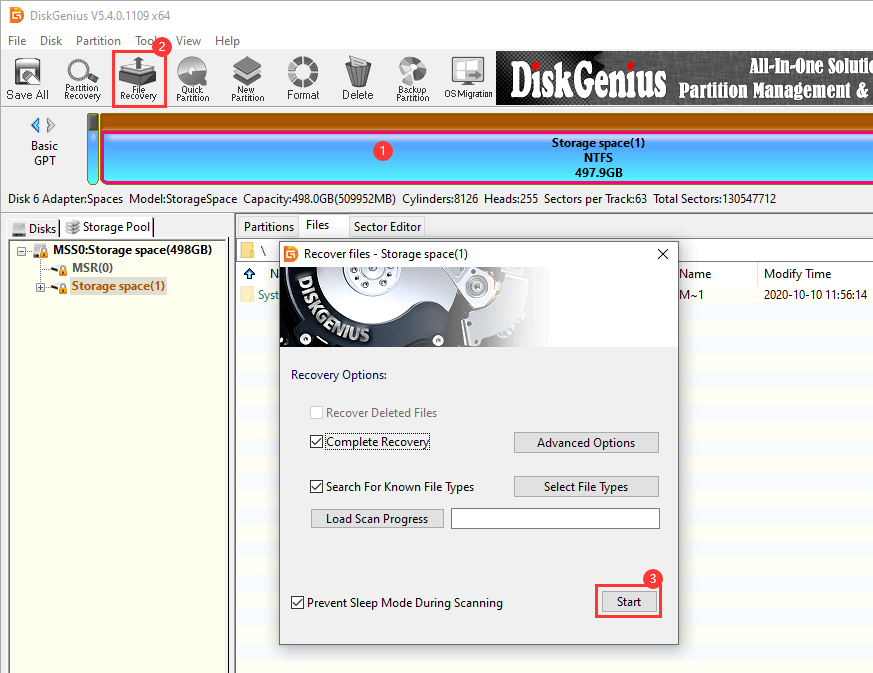
Step 3: Let It Run. DiskGenius displays found files in real time as the scan progresses. You can browse results while it's still going, or wait until it finishes.
How long does it take? Depends on the drive. A 500GB USB flash drive might take 15-20 minutes. A 4TB HDD could take several hours. There's no shortcut here, let it work. If you need to stop, DiskGenius saves scan progress so you can resume later without starting over.
One caveat: if the drive is clicking, throwing errors, or showing signs of hardware failure, don't keep scanning it. Repeated reads on a failing drive can make things worse. In that situation, consider professional data recovery services.
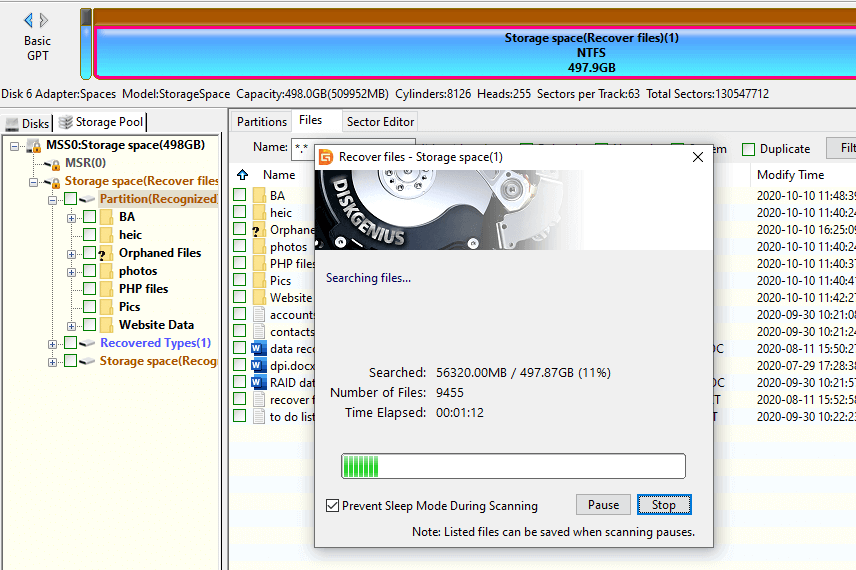
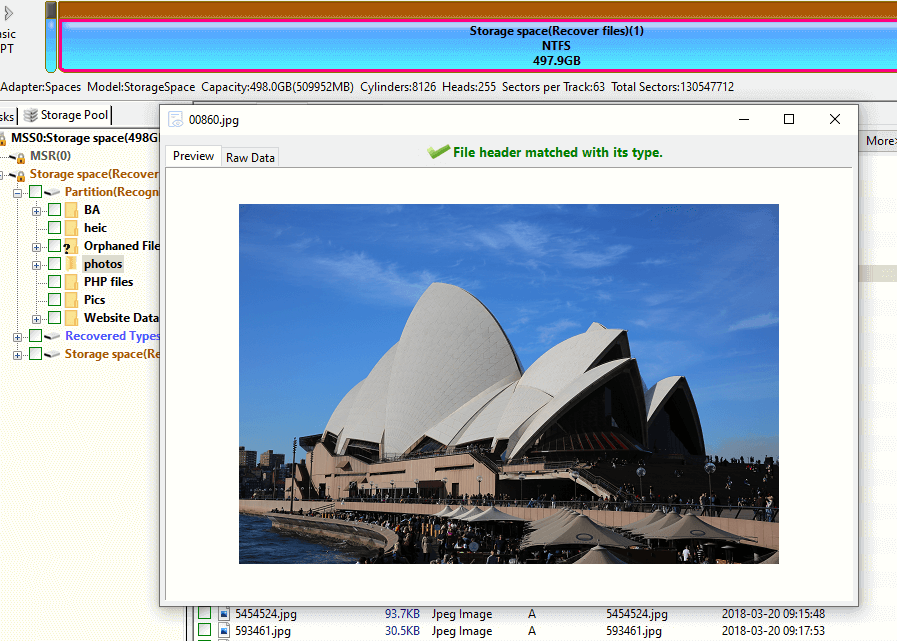
Step 4: Preview Before You Recover.
This step saves you a lot of wasted time. When files appear in the scan results, double-click to open the preview window. Check that the contents actually look right.
A file can have the correct name, the right file size, and still be partially corrupted underneath. Photos should display the image. Documents should show readable text. Videos should play (at least partially). Archives should open.
If the preview shows garbage or the file won't open, that particular file has likely been partially overwritten. Move on and check the others.
What about "Orphaned Files"? After formatting, DiskGenius tries to rebuild the original folder structure. Sometimes it succeeds. Sometimes it finds the files but can't figure out which folder they belonged to, those end up under "Orphaned Files" or "Orphaned Folders."
Don't skip this section. "Orphaned" just means the directory link is broken, the file itself might be perfectly fine. Open the folder, preview the files, and check.
Step 5: Select the files you want back. Right-click, choose "Copy To", and pick a destination on a different drive.
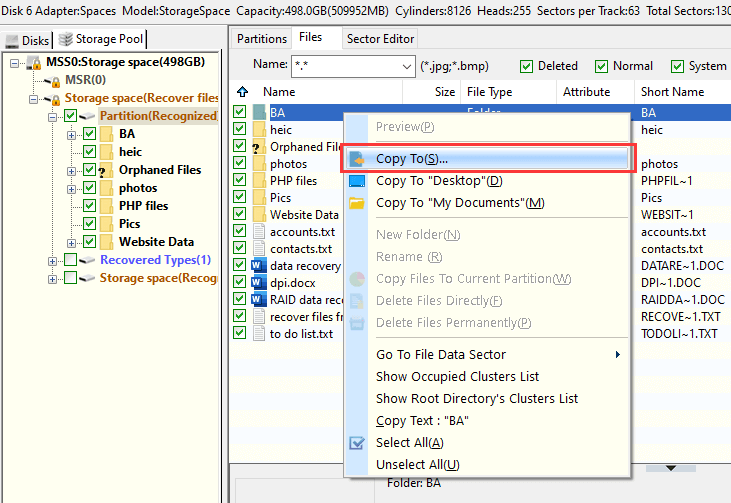
Formatted (D:)? Recover to (C:), (E:), an external drive, anything but (D:). Saving recovered files back to the same partition you're recovering from is like cleaning up a spill by dumping more water on it. You'll overwrite the very data you're trying to save.
Not all file systems are equal when it comes to post-format recovery.
NTFS
The most common Windows file system. After a quick format, fragments of the MFT and file metadata often survive. This means recovery tools can frequently restore not just the file data but also the original file names and folder hierarchy. NTFS is generally the friendliest file system for formatted partition recovery.
FAT32 and exFAT
Standard on USB drives, SD cards, and most removable storage. These systems store less redundant metadata than NTFS, so after formatting, original file names and paths are harder to reconstruct. The raw file data is still there (assuming no overwriting), and a signature-based scan can find it, but expect files to show up with generic names like "File0001.jpg."
EXT4
The go-to Linux file system. Formatting resets critical metadata structures, and EXT4's behavior around delayed allocation adds complexity. Recovery is possible but tends to be less clean than NTFS. Results vary depending on how the format was performed and what happened afterward.
APFS and HFS+
Used by macOS. APFS is based on copy-on-write and works differently than previous file systems. Recovery depends on the format type, the condition of the drive and whether new data has been written. Use a tool that natively understands these structures, generic scanners often miss things.
Recovery works sometimes. Prevention works every time.
Back up what matters. If a file only exists in one place, it's one accident away from gone. DiskGenius includes a partition backup feature that creates a full image of a partition — store that image on a different drive. A backup takes minutes; a recovery attempt takes hours and there's no guarantee.
Double-check before you format. Before clicking that button, verify the drive letter, volume label, capacity, and partition layout. Takes ten seconds. Saves hours of regret. DiskGenius shows detailed partition info that makes identification easier.
Monitor drive health. Drives don't always fail gracefully. S.M.A.R.T. data and bad-sector checks can reveal problems before they become catastrophic. DiskGenius has both of these tools built in.
Eject USB drives properly. Pulling a drive mid-write can corrupt the file system. Use Windows' "Safely Remove" function. It's there for a reason.
Multiple copies, multiple locations. Family photos, financial records, work documents, keep at least two copies on different physical devices. A cloud backup adds a third layer. If your house floods and both drives are destroyed, that cloud copy is the one that matters.
1. I formatted the drive but haven't written anything to it since. Can I get the files back?
Chances are solid, especially if it was a quick format and the drive is healthy. Stop using it immediately and run a scan.
2. How do I recover a formatted USB flash drive?
Same process as a hard drive. Plug it into a working computer, open DiskGenius, select the formatted partition, run a complete recovery scan, preview the results, and save everything to the computer's internal drive, not back to the USB drive.
Here's the detailed guide: How To Recover Files from a Formatted USB Flash Drive?
3. What about a formatted external hard drive?
Same principle. Connect it, scan it, recover files to a different drive. As long as the original data hasn't been overwritten, recovery is realistic.
4. I formatted the drive during a Windows reinstall. Now what?
This is trickier because the Windows installation writes a significant amount of new data to the drive, sometimes tens of GB. Stop using the drive immediately. Pull it and connect it as a secondary drive to another PC, or boot into a WinPE environment and run DiskGenius from there. The less data written since the format, the better your odds.
5. What if I formatted the same drive multiple times?
Repeated quick formats without substantial data writes between them mostly just rebuild the file system structures each time. A deep scan can still find old data underneath. But if you wrote large amounts of new data between formats, those intermediate writes are what kill recovery chances, not the formatting itself.
6. Some files recovered won't open. Why?
Some common reasons:
This is exactly why previewing matters. Don't recover blindly and hope for the best.
7. I formatted the drive and then used it for a while. Is it too late?
Not necessarily. If you only wrote a small amount of data, many of the original files might be untouched. If you installed an operating system or copied a large media library onto it, a significant portion of the old data is probably gone. The only way to know is to scan it, so stop using the drive and find out.
Formatting doesn't destroy your datal, it destroys your data's map. The files themselves are still there, at least until something overwrites them. Don't install anything on the formatted partition. Don't save recovered files back to it. Don't run disk repair utilities until you've extracted what you need.
DiskGenius handles formatted partition recovery, file previewing, disk health monitoring, partition management, disk cloning, and system migration. If you've just formatted the wrong drive and you're panicking, start with the free edition, run a scan, check the preview, and see what's salvageable. You might be surprised.

DiskGenius is a one-stop solution to recover lost data, manage partitions, and back up data in Windows.
Download

 Facebook
 YouTube
 X
X