
Updated on Jul. 27, 2026
Position: Resource - Disk Utilities - What Is TRIM on SSD? How TRIM Improves Performance and Extends SSD Lifespan
You bought an SSD because it was fast. Blazing fast. Boot times in seconds, applications snapping open, file transfers that actually felt smooth. Then, months later, something changed. Not dramatically. Not overnight. But enough that you noticed. A slight lag here. A transfer that takes a beat longer than it used to. You start wondering if the drive is failing, or if you imagined the speed in the first place.
You probably didn't imagine it. And the drive is probably fine. What likely happened is that your SSD lost track of which storage space it can actually use freely. This is where TRIM comes in, and it is one of those technologies that quietly does enormous work in the background without most users ever knowing it exists.
TRIM is a command. That is all it is, really. A simple instruction that your operating system sends to your SSD to say, "Hey, these blocks of data? The user deleted the files. You can clean them up whenever you have a moment." Without that instruction, your SSD has no idea that those blocks are available. It just keeps treating old, deleted data as real data, which creates a cascading set of problems that slow the drive down and wear it out faster than necessary.
TRIM is technically an ATA command (or an NVMe equivalent called "Deallocate" for NVMe drives, though the principle is identical). When your operating system deletes a file, it does not actually erase the data from the disk. What it does is mark the logical block addresses, the LBAs, as free in the file system. On a traditional hard drive, this works fine because the drive can simply overwrite those sectors later with zero friction. But an SSD is a completely different animal.
An SSD stores data on NAND flash memory. You cannot overwrite NAND flash the way you overwrite a magnetic platter. The flash cells must be erased first, and erasure happens not at the individual byte level but in large blocks, sometimes hundreds of pages at a time. So when new data arrives and the SSD thinks the old data is still valid, it has to perform this awkward read-modify-erase-write dance just to fit the new data in. TRIM eliminates the guesswork. It tells the SSD controller exactly which pages are no longer needed so the controller can erase them during idle time, long before new writes arrive.
Think of it this way. Imagine you are moving apartments, and your landlord says "just leave your old furniture in the rooms, the next tenant will deal with it." The next tenant arrives and has to spend hours hauling out your old couch before they can bring in their own. That is an SSD without TRIM. Now imagine instead the landlord calls ahead to a cleaning crew. By the time the new tenant shows up, the apartment is empty and ready. That is what TRIM does.
Let's be direct about what TRIM actually delivers, without overselling it.
It maintains write performance. This is the big one. An SSD without TRIM will see its write speeds degrade as the drive fills with a mix of valid and stale data. With TRIM actively informing the controller about deleted data, the SSD can keep a healthy supply of pre-erased blocks ready. Write speeds stay closer to their original levels even after months or years of use.
It reduces write amplification. We covered this above, but it is worth emphasizing. Lower write amplification means the SSD does less work to accomplish the same task. Fewer bytes hit the NAND per user write operation. This directly translates into less cell degradation over time.
It prolongs SSD lifespan. NAND flash cells have a finite number of program/erase (P/E) cycles. Consumer drives typically range from a few hundred to a few thousand cycles depending on the NAND type (TLC, QLC, MLC). By reducing unnecessary writes, TRIM helps the drive stay within its endurance budget for longer. It does not magically add cycles to the NAND, but it makes sure you are not wasting the ones you have.
It improves long-term stability. When an SSD is constantly struggling with high write amplification, the controller is under more stress. Thermal output increases. Latency becomes less predictable. TRIM helps keep the whole system running in a calmer, more efficient state.
Without TRIM:
1. You delete a file, and the OS marks those LBAs as free in the file system table.
2. The SSD has no idea anything changed. As far as its controller is concerned, those pages are still occupied with valid data.
3. When you save a new file, the SSD needs to write to blocks that contain stale data.
4. The controller reads the block, erases it, writes the new data plus any still-valid pages from the same block.
5. This takes longer. It burns more NAND write cycles. And it gets worse as the drive fills up.
With TRIM:
1. When you delete a file, the OS marks the LBAs as free, and immediately sends a TRIM command to the SSD for those addresses.
2. The TRIM command is received by the SSD controller and it updates its internal Flash Translation Layer (FTL). It makes those pages invalid.
3. When the SSD is not in use, the SSD garbage collection process deletes blocks that contain invalid pages to provide clean blocks for future use.
4. When new data are stored, the SSD writes to pre-erased blocks at full speed. No read-modify-write cycle needed.
The key insight is timing. TRIM does not erase data immediately. It is a notification, not an erasure command. The actual erasing happens later, when the SSD controller decides it is a good time, usually during idle moments. This asynchronous design means TRIM has essentially zero impact on your system's active performance. The cleanup happens in the background while you are reading a webpage or thinking about what to type next.
This is the part most articles gloss over, but it is essential to understanding why TRIM exists at all.
How a Hard Drive Handles Deleted Data
A hard disk drive writes data to spinning magnetic platters using a read/write head that floats over the surface. When you delete a file, the drive simply updates its index to say "this space is available." When new data needs to go there, the head moves to that exact spot and overwrites the magnetic signal. Done. The old data gets replaced in a single pass. There is no penalty, no extra steps. The drive does not care what was there before.
Why an SSD Cannot Do the Same Thing
NAND flash memory cells are organized into pages (the smallest unit for reading and writing) and blocks (the smallest unit for erasing). A typical block might contain 128 or 256 pages. You can write data to an empty page, no problem. But if you want to write to a page that already contains data, you cannot just overwrite it. The SSD first has to read the entire block, then erase the entire block, and finally write back the modified and new data. This is referred to as a read-modify-write cycle, and it is expensive in terms of both time and NAND wear.
Without TRIM the SSD has no way to know that some pages in a block are stale. So every time new data comes in it might end up doing this costly cycle over and over, shuffling around data that the user deleted but the SSD still thinks is valid. This problem is called write amplification in technical language. The ratio of actual data written to the NAND versus the data the host requested can balloon from an ideal 1:1 to 2:1, 3:1, or even worse. Every extra write eats into the SSD's finite endurance.
This is one of the most commonly confused topics in SSD technology, and a lot of online content treats TRIM and garbage collection as if they are the same thing. They are not. They work together, but they are fundamentally different mechanisms operating at different levels.
Garbage Collection (GC) is an internal SSD process. It is handled internally by the SSD controller, with no OS involvement. Its task is to consolidate data at the physical level. It locates blocks with a mixture of valid and invalid pages, copies the valid pages to a new location, and then erases the old blocks to free space. Imagine GC as the housekeeper of the SSD.
TRIM is a communication protocol between the OS and the SSD. It is an external signal. The operating system uses TRIM to inform the SSD controller which logical addresses are no longer in use. TRIM does not touch any data. It just passes along information.
Here is why the distinction matters. Without TRIM, garbage collection still runs, but it is flying blind. It cannot distinguish between pages that hold important data and pages that hold deleted files. So it ends up copying a lot of stale data around needlessly, which is pure waste. TRIM gives the garbage collector the map it needs to work efficiently. Valid data gets moved. Invalid data gets left behind for erasure. Write amplification drops. Performance stays consistent. NAND endurance improves.
TRIM is the intelligence. GC is the muscle. You need both.
Should You Defrag an SSD? No. You should not defragment an SSD. Ever.
Defragmentation is an optimization technique designed for hard drives. On an HDD, file fragmentation matters because the read/write head has to physically jump between distant locations on the spinning platter. Consolidating those fragments into contiguous regions reduces seek time and improves performance. It makes a real, measurable difference.
An SSD has no moving parts. There is no seek time. Whether a file's data is stored in one contiguous region or scattered across a hundred different locations, the access speed is virtually identical. Defragmenting an SSD achieves nothing useful for performance, but it does consume a significant number of write cycles. You are burning through your SSD's endurance for zero benefit.
Modern versions of Windows understand this. When you open the Optimize Drives utility, Windows will not perform a traditional defrag on an SSD. Instead, it sends a TRIM command to retrim the drive, which is exactly what the SSD needs. Some people see this process labeled as "optimization" and worry that Windows is secretly defragmenting their SSD. It is not. It is running TRIM. You can leave the scheduled optimization enabled with confidence.
Short answer: no, not in the way most people think.
TRIM will not increase your SSD's peak sequential read speed. If your drive is rated at 3,500 MB/s, TRIM will not push it to 4,000. What TRIM does is prevent the gradual performance erosion that happens when the SSD runs out of clean blocks and has to resort to constant read-modify-write operations.
So the real story is this. Without TRIM, your SSD's performance has a slow downward trajectory. With TRIM, it holds steady. If you benchmark a brand-new SSD and then benchmark the same drive after a year of heavy use with TRIM enabled, you might see a small difference. Without TRIM, that difference could be dramatic, sometimes dropping write speeds by 50% or more on a nearly full drive.
TRIM is not a speed boost. It is a speed preserver. That distinction matters.
This question comes up a lot, and the answer is more nuanced than you might expect.
TRIM tells the SSD controller that it can erase the blocks, and that they're invalid. But real erasure doesn't occur that quickly. It depends on the SSD firmware, garbage collection schedule and the load on the drive. In practice, there is usually a window between when TRIM is issued and when the data is physically erased from the NAND cells.
This has a direct implication for data recovery. If you accidentally delete an important file from an SSD, TRIM is working against you. The longer you continue to use the drive, the higher the chance that garbage collection will erase the blocks that once held your data. The recovery window can be anywhere from minutes to hours, sometimes longer on lightly used drives.
If you find yourself in this situation, stop using the SSD immediately. Every write operation increases the likelihood that the data will be overwritten or that TRIM-triggered garbage collection will erase it. In some cases, data recovery tools like DiskGenius can scan the drive and recover files before the SSD's controller has had a chance to physically clear the blocks. But it is important to understand that SSD data recovery is fundamentally harder than HDD recovery because of TRIM. Success depends on speed and a bit of luck.
One common follow-up question: does TRIM work like a secure erase? No. TRIM is a maintenance command, not a security feature. If you are selling or disposing of an SSD and need to guarantee that your data is unrecoverable, you should use a proper Secure Erase command, which forces the controller to wipe all cells. TRIM alone is not sufficient for that purpose.
Most modern operating systems enable TRIM automatically, but it never hurts to verify. Here is how to check on each major platform.
Open Command Prompt as Administrator and type:
fsutil behavior query DisableDeleteNotify
You will see one of two results:
DisableDeleteNotify = 0 means TRIM is enabled.
DisableDeleteNotify = 1 means TRIM is disabled.
 Recover
 Click the Apple menu, hold the Option key, and select "System Information."
Go to the Storage section and look for your SSD. You will see a line that says "TRIM Support" followed by either "Yes" or "No."
For Apple's own SSDs, TRIM is always enabled. For third-party SSDs, macOS may not enable TRIM by default. You can force it with: sudo trimforce enable
This requires a restart. Apple includes this tool because third-party SSDs may not always behave perfectly with TRIM on macOS, so proceed with awareness.
Most modern Linux distributions that use systemd enable automatic periodic TRIM by fstrim.timer service. You can check its status with :
systemctl status fstrim.timer
Another way to check if TRIM is supported on a drive is to do it manually:
lsblk --discard
The DISC-GRAN and DISC-MAX columns are non-zero, indicating TRIM support.
If the fsutil command showed that TRIM is disabled, enable it with:
fsutil behavior set DisableDeleteNotify 0
That is it. No restart needed. TRIM will be active immediately for all supported drives.
Windows has enabled TRIM by default since Windows 7, so most users will find it already on. The main reasons it might be disabled are outdated storage drivers, certain RAID configurations, or unusual controller setups. If you upgraded from an older Windows version or migrated a system image, it is worth checking.
As mentioned above:
sudo trimforce enable
The system will warn you about potential compatibility issues with non-Apple SSDs. Accept the prompt and restart. Most modern third-party SSDs work fine with TRIM on macOS, but drives with poorly implemented firmware could theoretically have issues. In practice, this is rare.
Enabling TRIM at the OS level is important, but there is a nuance worth understanding. Operating systems typically send TRIM commands only when files are deleted through normal file system operations. If you have just wiped a partition, cleared unallocated space, or migrated data from another drive, the OS may not retroactively send TRIM commands for all the now-unused blocks. In these situations, manually triggering TRIM can make a real difference.
DiskGenius includes a dedicated TRIM Optimization feature for exactly this kind of scenario. You can right-click any accessible partition and run the optimization on that partition alone, or right-click the disk to run it on the entire drive at once.
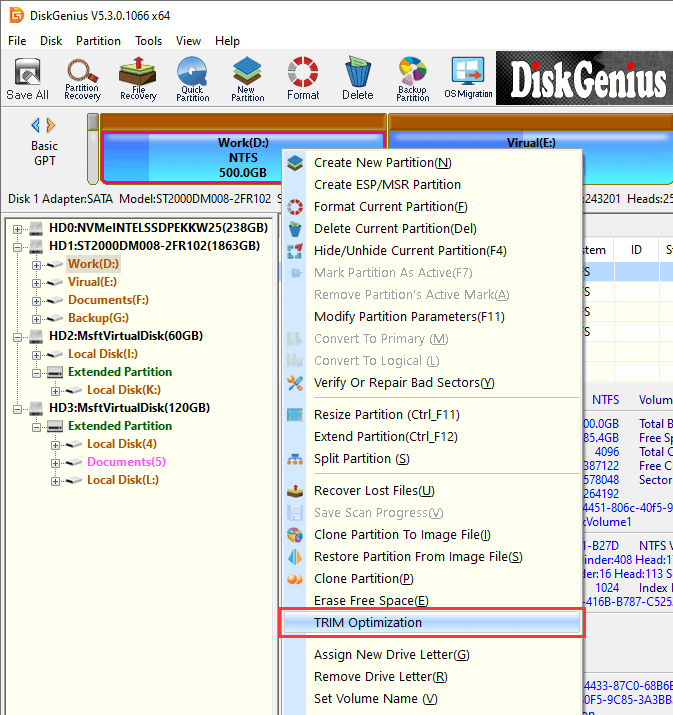
The process sends TRIM commands to the SSD for all eligible unused blocks, giving the controller a full picture of what can be erased. A confirmation prompt warns that deleted data will be immediately marked for wiping, so you should make sure you do not need to recover anything before proceeding. Once confirmed, the tool handles the rest automatically. The whole thing typically completes in a short time, depending on the size of the partition and the amount of data involved.
What makes this particularly useful is that it works not only on SSDs but also on SMR (Shingled Magnetic Recording) hard drives, which also support the TRIM command and benefit from it in a similar way. Most people do not realize that certain modern HDDs respond to TRIM as well, and DiskGenius handles both transparently.
A few common scenarios where manual TRIM optimization is worth running:
• After a fresh OS installation or disk clone, where large regions of the drive are no longer in use.
• After deleting a large volume of data at once, such as clearing out old backups or virtual machine images.
• When benchmarking your SSD and noticing write speeds that seem lower than expected for an otherwise healthy drive.
• After moving or resizing partitions, which can leave behind blocks that the OS does not automatically retrim.
Think of it as giving your SSD a deliberate nudge. The automatic TRIM that the OS runs in the background is good for day-to-day maintenance. A manual trigger through DiskGenius is useful when you want to make sure the drive has processed everything at once, especially after major changes to the disk's contents.
Here are practices to maintain your SSD beyond TRIM. TRIM is one piece of the puzzle. Keeping an SSD healthy over the long term involves a few other habits worth adopting.
Monitor SSD health regularly. Most SSDs will give you health status through S.M.A.R.T. data (Self-Monitoring, Analysis, and Reporting Technology). Metrics like wear leveling count, reallocated sector count, and total bytes written give you an idea of how hard the drive is working and how much life it has left. DiskGenius has the feature of S.M.A.R.T. monitoring and disk health checking, so you can watch these numbers without having to interpret raw hexadecimal values yourself.
DiskGenius also provides disk benchmarking, which lets you test whether your SSD's read and write speeds are still where they should be. If you suspect that unused blocks have not been trimmed, perhaps after a large data migration or partition resize, you can use its TRIM Optimization function to manually trigger a full retrim on any partition or disk. It is a small action that can have a noticeable impact on write performance, especially on drives that have been through a lot of churn.
Keep some free space. SSDs perform best when they have room to breathe. When a drive is 95% full, the controller has very little room to do garbage collection and wear leveling. A common recommendation is to have 10-20% free space of the drive. This is about over-provisioning, leaving some space intentionally unpartitioned so the SSD controller has some spare blocks to work with. Many enterprise SSDs come with built-in over-provisioning, but for consumer drives, you can achieve the same effect simply by not filling the partition to its maximum capacity.
Update your SSD firmware. Sometimes, the manufacturer will release firmware updates that improve garbage collection algorithms, fix bugs, or optimize TRIM handling. Check the manufacturer's support page from time to time. These updates may not always be urgent, but they are worth installing when they have to do with performance or reliability.
Plan ahead for SSD upgrades. If you are moving to a larger or faster SSD, DiskGenius can help with disk cloning or Windows migration, which saves you from a clean install. Cloning transfers your entire system, including partitions, boot records, and data, to the new drive. It is one of those features that you do not think about until the moment you need it, and then you really need it.
What TRIM cannot do? It is important to set realistic expectations. TRIM is powerful, but it has clear boundaries.
TRIM cannot fix a failing SSD. If your SSD drive is experiencing bad blocks, controller errors or firmware corruption, TRIM will not help. These are hardware or firmware problems and will require different fixes, maybe a warranty replacement.
TRIM cannot recover lost files. In fact, it makes recovery harder, as it speeds up the erasure of deleted data. TRIM is not the kind of thing that needs recovery tools to recover files.
TRIM cannot repair bad sectors. NAND flash does not have sectors in the traditional sense, but it does have blocks that can go bad. The SSD controller handles this through wear leveling and bad block management, which are separate from TRIM.
TRIM cannot increase your SSD's capacity. It frees up blocks for reuse, which helps with performance, but it does not change the total storage available. If your drive is full, deleting files and sending TRIM commands will eventually free space, but that is the file deletion doing the work, not TRIM itself.
1. How do I know if TRIM is enabled on my computer?
On Windows, run fsutil behavior query DisableDeleteNotify in an elevated Command Prompt. A result of 0 means TRIM is enabled. On macOS, check System Information under Storage. On Linux, check the fstrim.timer service.
2. Should I enable TRIM manually?
On modern systems, you should not need to. Windows, macOS, and most Linux distributions enable TRIM automatically for compatible drives. If you find it disabled, enabling it is a good idea, but first investigate why it might have been turned off in the first place.
3. Does TRIM reduce SSD lifespan?
No. It extends it. TRIM decreases the number of program/erase cycles the NAND cells undergo by reducing write amplification. The less you write, the more you get out of the same hardware.
4. Can TRIM delete my files permanently?
TRIM marks blocks as available for erasure, but the actual physical erasure is handled by the SSD's garbage collection. There is usually a delay, but over time, TRIM does make deleted data much harder to recover. For secure deletion, use a dedicated Secure Erase function.
5. Should I defragment my SSD?
No. Defragmentation provides no performance benefit for SSDs and only consumes write endurance. Modern operating systems recognize SSDs and run TRIM-based optimization instead of traditional defragmentation.
6. Does Windows 11 support SSD TRIM?
Yes. Windows 11 fully supports TRIM for both SATA and NVMe SSDs and enables it by default.
7. Does TRIM make my SSD faster?
Not in terms of peak speed. TRIM prevents the performance degradation that occurs over time without it. Think of it as maintaining the speed you already have rather than adding new speed on top.
TRIM is one of those background technologies that earns its keep quietly. It does not flash notifications. It does not appear in your taskbar. But without it, your SSD would slowly lose the very speed that made you choose it over a hard drive in the first place. With it, your SSD maintains its performance, writes data more efficiently, and lasts longer than it otherwise would.
The good news is that if you are running a modern operating system, TRIM is almost certainly already enabled. Checking takes thirty seconds using the commands outlined above, and if it happens to be off, enabling it takes even less.
Keeping an SSD healthy is not just about TRIM, though. Regular health monitoring, firmware updates, maintaining free space, and understanding the unique behavior of flash storage all play a role. Having a tool like DiskGenius on hand means you can check S.M.A.R.T. data, benchmark your drive, run manual TRIM optimization when the situation calls for it, manage partitions, and even clone to a new SSD when the time comes, all from one place. It is the kind of utility that earns its spot in your toolkit not through flashy features, but through being genuinely useful when the moment arrives.
Your SSD is doing a lot of work behind the scenes. TRIM is part of that work. Now you know what it does and why it matters.

DiskGenius is a one-stop solution to recover lost data, manage partitions, and back up data in Windows.
Download

 Facebook
 YouTube
 X
X