
Updated on Jul. 01, 2026
Position: Resource - Disk Utilities - Fixed: Your PC Device Needs to Be Repaired

DiskGenius - Free partition manager software to image hard drive, migrate Windows to HDD/SSD, create bootable USB drive, and check & repair bad sectors.
"I wanted to update my laptop with a new SSD. I just unplugged the hard drive and install the SSD. I failed to install Windows 10 on the new SSD, so I put the old hard drive back. When I tried to turn on the computer, it couldn't boot from the HDD, ending up with a blue screen saying recovery your PC needs to be repaired. Why does re-plugging hard disk cause the problem? How do I fix it?"
The error discussed in this post is one of the typical BSOD problems, which appears when computer is trying to boot Windows OS, letting you know that system is no longer bootable. In most cases, the error cannot be fixed on its own, and the same screen will show up even if you restart computer.
Your PC/Device needs to be repaired.
The boot configuration data for your PC is missing or contains errors.
File: \boot\bcd
Error code: 0xc000000f
You'll need to use the recovery tool on your installation media. If you don't have any installation media (like a disc or USB device), contact your system administrator or PC manufacturer."

But the exact text changes depending on what went wrong. You might see different files referenced, different error codes, or slightly different wording, for example:
● A required device isn't connected or can't be accessed. Error code: 0xc000000f
● An unexpected error has occurred. Error code: 0xc0000225
● The application or operating system couldn't be loaded because a required file is missing or contains errors. File: \Windows\system32\winload.efi Error code: 0xc0000001
● A component of the operating system has expired. File: \windows\system32\winload.efi Error code: 0xc0000605
● There isn't enough memory available to create a ramdisk device. Error code: 0xc0000017
● The boot configuration data file is missing some required information. File:\BCD Error code: 0xc000000d
● The boot configuration data file doesn't contain valid information for an operating system. File: \Boot\BCD Error code: 0xc0000098
More error codes you may encounter: 0xc0000225, 0x0000098, 0xc0000605, 0xc000014C, 0xc00000f, 0xc0000034, etc.
The exact error code coming with Recovery your PC device needs to be repaired may differ from one to another, but the trouble remains the same, i.e., a blue screen of death (Windows cannot boot at all). Possible reasons behind the error:
Don't be panic when you see the error and don't hurry to reinstall Windows at once, as you can do some stuff to fix it. Solutions presented in this article are really easy to follow. If you care more about data, then skip to the last section to perform data recovery from crashed internal hard drive.
Most of the fixes below require booting from an external device. You will need a bootable USB drive to get into a recovery environment.
If your files are not backed up and you are worried about losing data, skip ahead to the data recovery section before making any changes to the disk. Some fixes can overwrite or erase data.
Here is how to create a WinPE bootable USB drive with DiskGenius Free Edition. This process will not delete files already on the USB drive.
Step 1. Free download, install and launch DiskGenius Free Edition on a computer which is running Windows 11/10. Connect a USB drive to the computer and make sure it can be detected by the software.
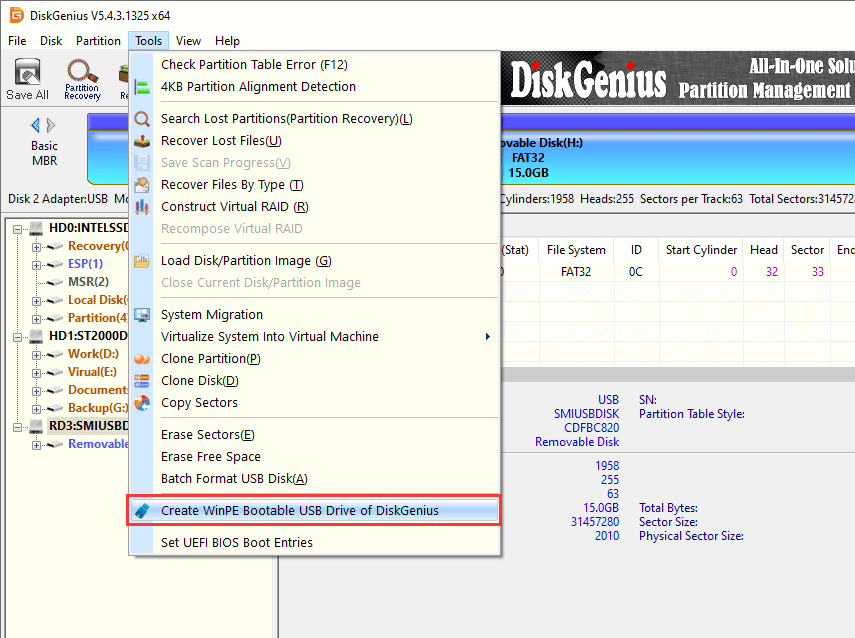
Step 2. Select the USB drive in DiskGenius and click "Tools" – "Create WinPE Bootable USB Drive of DiskGenius".
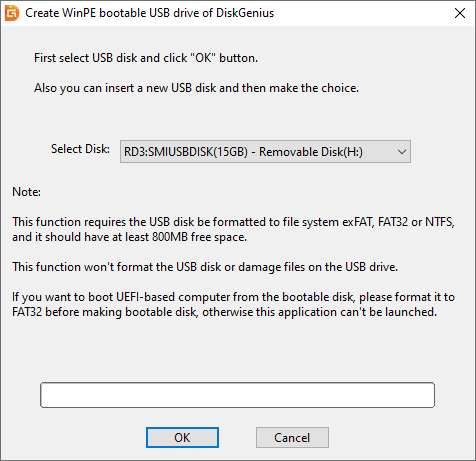
Step 3. Click "OK" button when you see the window below. Then wait for a couple of seconds, and the bootable disk will be created successfully.
Boot computer from the bootable media:
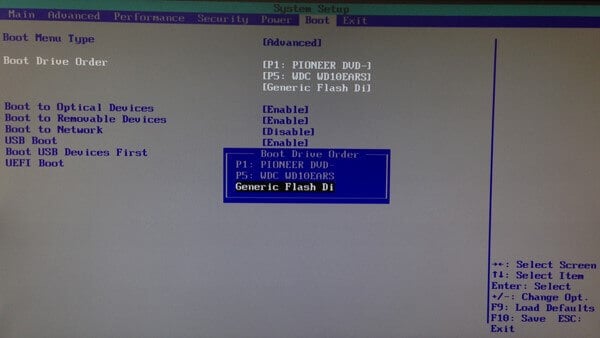
1. Connect the bootable media to the computer device that needs to be repaired and press the power button. Then press the key prompted on screen repeatedly to enter Boot Manager, and the key might be F12, F11, Del, ESC, etc.
2. Highlight the Boot Option menu and press arrow keys to select boot device. Make the bootable USB as the boot device. Save changes and exit. The computer will boot from it and DiskGenius will open on its own.
Disclaimer: Fixes discussed in this section aim to get rid of "Recovery your PC device needs to be repaired" error instead of data recovery, which means these solutions cannot rescue lost files and some may cause further damage to files. Hence, if you want to keep all files on the hard drive, skip to next section to execute hard drive data recovery in the first place.
Not all of these will apply to your situation. Start from the top and work your way down. Once the computer boots normally, you can stop.
This one is easy and takes two minutes, so always try it first.
Turn off the computer. Unplug everything that is not essential. USB drives, printers, external hard drives, SD cards, all of it. Sometimes the BIOS tries to boot from one of these devices instead of the internal drive, and that produces the blue screen.
While you are at it, open the case and check the SATA cable between the hard drive and the motherboard. Make sure it is seated firmly on both ends. A loose cable is more common than people think, especially if the computer was recently moved or opened.
Plug in only the keyboard and monitor, then turn the computer on. If it boots, reconnect your devices one at a time to find the troublemaker.
Windows has a built-in tool for this kind of situation. It does not always work, but it is fast and automatic, so worth a shot.
Step 1. Create bootable USB or DVD using Windows installation media. Then insert the USB drive or DVD to computer.
Step 2. Click Advanced options > Troubleshoot > Advanced options > Startup Repair.
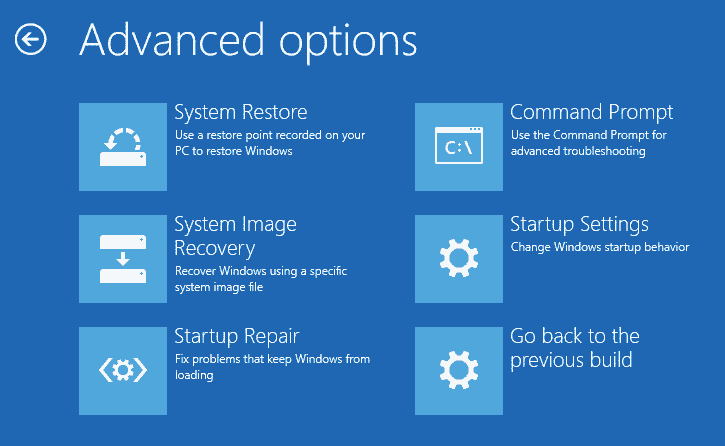
Windows will scan for problems and try to fix them. If it succeeds, the computer restarts and you are done. If it fails with a message like "Startup Repair couldn't repair your PC", move on to the next method. That is normal, and it does not mean your situation is hopeless.
SFC, or System File Checker, looks for damaged Windows system files and replaces them. If a corrupted file is preventing Windows from booting, this might catch it.
Step 1. Boot computer using the bootable USB disk created by DiskGenius Free Edition.
Step 2 Click "Start" menu and choose "Windows Command Processor". This will open Command Prompt.
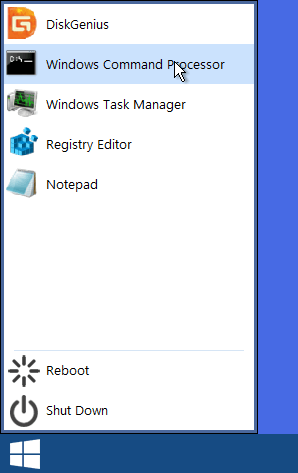
Step 3. Type sfc /scannow and press Enter key. Then let the command to scan system files and wait for the process to finish.
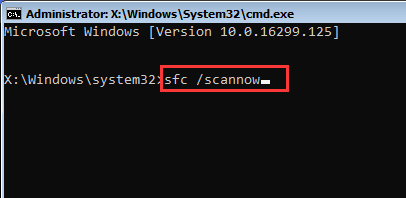
It will take a while. When it finishes, it will tell you whether it found anything and whether it managed to fix it. Restart and see if the error is gone.
Sometimes SFC will say "Windows Resource Protection found corrupt files but was unable to fix some of them". Running it again in Safe Mode can help, but if you cannot get into Safe Mode either, just move on to the next fix.
When the error code is 0xc000000f, 0xc0000034, or 0xc0000098, the BCD is almost certainly the problem. Rebuilding it is the most direct fix.
Step 1. Boot the computer device that needs to be repaired with the bootable disk created by DiskGenius.
Step 2. Click Start menu and select "Windows Command Processor" to launch Command Prompt.
Step 3. Type following command one by one, and press Enter key after each command.
bootrec /fixMbr
bootrec /fixBoot
bootrec /scanos
bootrec /rebuildBcd
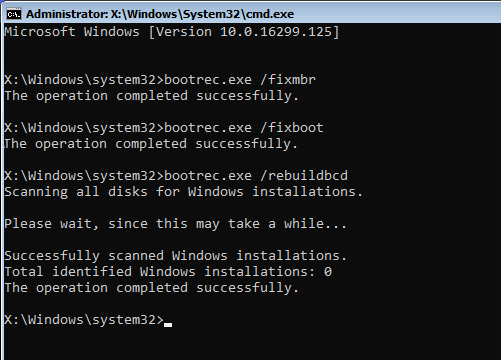
Here is what each one does. The first writes a fresh Master Boot Record to the disk. The second writes a new boot sector. The third scans for Windows installations that are not listed in the BCD. The last one rebuilds the BCD entirely based on what it finds.
After all four commands finish, restart the computer.
If the bootrec /fixboot command gives you an "Access is denied" error, try running bootsect /nt60 sys first, then go back and retry bootrec /fixboot.
Step 1. Launch Command Prompt.
Step 2. Type following commands one after another and press Enter key after each command:
bcdedit -set loadoptions ENABLE_INTEGRITY_CHECKS
bcdedit /set testsigning off
Step 3. Restart computer and check if the "Recovery your PC device needs to be repaired" error still appears.
Sometimes Windows marks the system disk as offline after hardware changes or errors. When this happens, nothing can read from the disk during boot.
Step 1. Boot the computer device that needs to be repaired with the bootable disk created by DiskGenius. The DiskGenius Free Edition will be launched automatically.
Step 2. Highlight and right-click the hard drive where Windows OS is installed and choose "Change Device State" – "Online".

On MBR disks, Windows needs one partition to be marked as active. If the wrong partition got marked, or if nothing is active at all, the BIOS cannot find the boot loader.
Step 1. Boot the computer device that needs to be repaired with the bootable disk created by DiskGenius. The DiskGenius Free Edition will be launched automatically.
Step 2. Look at the disk layout and find the partition where Windows is installed. Right-click it and choose "Mark Partition As Active".
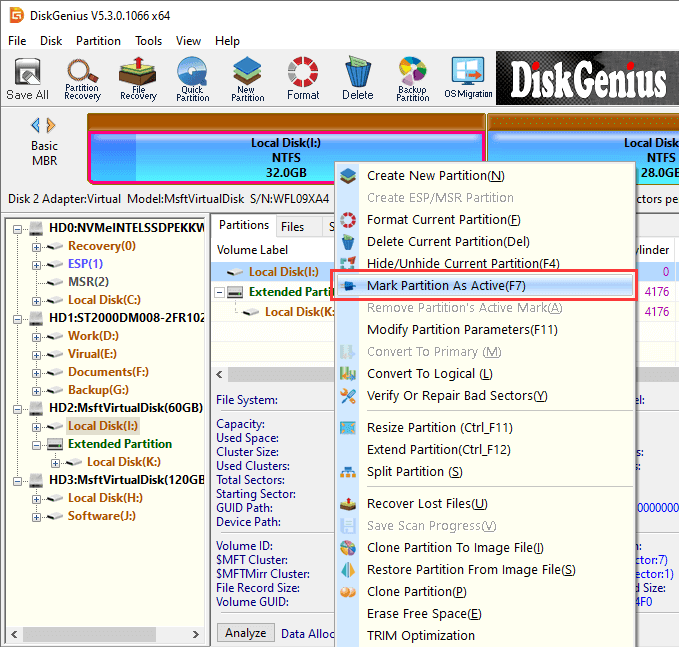
Restart and check.
Note: This method only applies to MBR disks. If your disk is GPT (which you can see in the partition table type column in DiskGenius), GPT does not use an active partition flag, so this step is not relevant. Skip it..
Bad sectors on the boot disk can corrupt boot files and BCD data. If the drive is physically deteriorating, no amount of software repair will fix the underlying problem. But before you write off the drive, it helps to know exactly what you are dealing with.
Step 1. Launch DiskGenius Free Edition by way of bootable USB drive.
Step 2. Select the hard drive you want to test and choose "Disk" - "Check Or Repair Bad Sectors/Blocks".
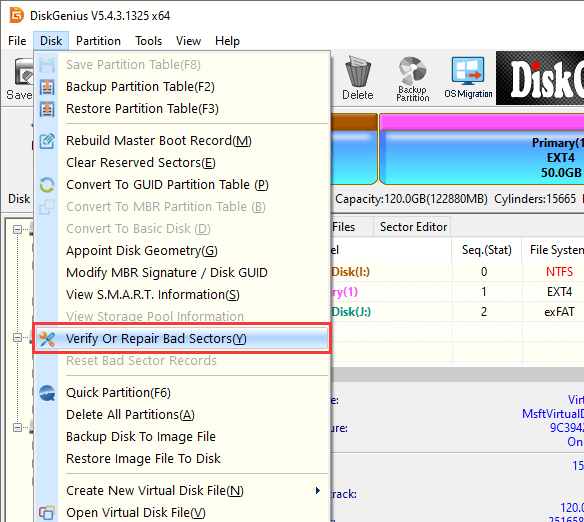
Step 3. Click "Start Verify" button, and the program starts to scan the hard drive.
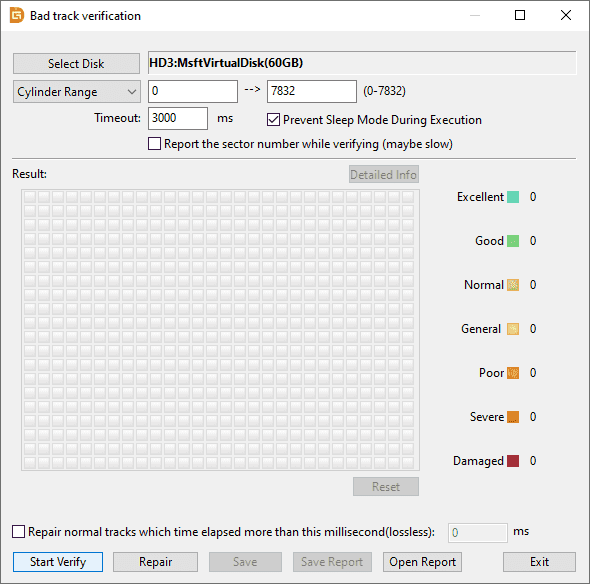
Step 4. Wait for the scanning to complete.
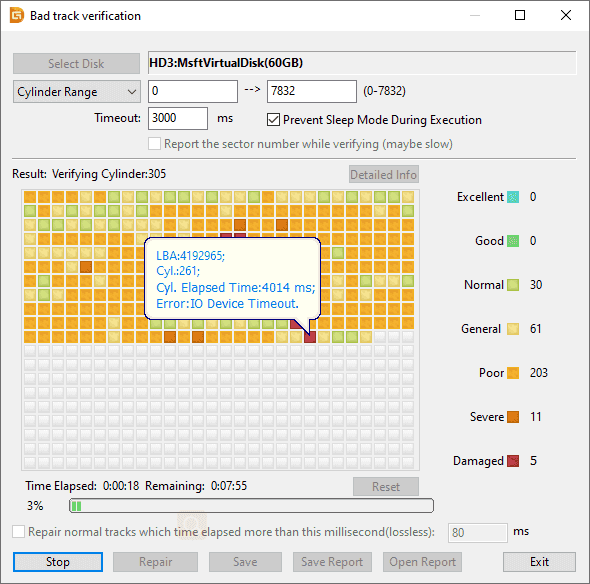
Step 5. Click "OK" when the scanning is done.
A small number of bad sectors on an older drive is not unusual. But if the count is high or growing, the drive is on its way out. Back up your data immediately and plan to replace the drive. After that, you can try clicking the "Repair" button, but honestly, once a drive starts developing bad sectors, it rarely gets better. A new drive is the only reliable fix.
If you have tried the methods above and the error persists, the problem might involve multiple boot components at once. Maybe the boot partition is gone and the BCD is also corrupt. Maybe you converted from MBR to GPT and the boot mode no longer matches.
DiskGenius has a feature called "Windows Boot Repair and Conversion" that handles all of this in one go. It can repair boot files, rebuild the boot partition, fix MBR and PBR, and even convert between GPT and MBR or switch between UEFI and Legacy boot modes. Instead of fixing one piece at a time, it looks at the whole boot environment and sets it right.
Here is how to use it.
Step 1. Boot from the WinPE USB drive. DiskGenius opens automatically.
Step 2. Click "Tools" and select "Windows Boot Repair and Conversion".

Step 3. The tool scans the disk and lists all detected Windows system partitions. Check the one you want to repair. If there are multiple entries, use the disk number and partition size to figure out which is the right one.
Step 4. Pick the boot mode. UEFI goes with GPT disks and is what most modern computers use. Legacy BIOS goes with MBR disks and is for older hardware. If you are not sure which one applies to your system, look at the partition table type shown in the list. GPT means UEFI. MBR means Legacy.
Choose a boot partition from the drop-down. If the list is empty and there is no boot partition to select, pick "Create Boot Partition" instead. DiskGenius will build one during the repair. For Legacy BIOS mode, also check the "Rebuild MBR / PBR Boot Record" option.

Step 5. Click "Execute". The repair starts. Do not shut down the computer or interrupt the process while it runs.
Step 6. When it finishes, remove the USB drive and restart. If you changed the boot mode during the repair (say, from Legacy to UEFI), go into the BIOS settings afterward and change the Boot Mode to match. A mismatch between the disk's boot mode and the BIOS setting will cause the same blue screen all over again.
This feature also comes in handy when Windows fails to boot after cloning the system to a new disk, converting the partition table from MBR to GPT, or accidentally deleting the EFI partition. It rebuilds the pieces that are missing without touching your personal files.
If nothing else works, a clean install will fix the problem. It creates a brand new boot environment from scratch.
The downside is obvious. Everything on the system partition gets erased. Back up your files first. If you cannot access the disk to back up, go to the data recovery section below.
Create a Windows installation USB drive using the Microsoft Media Creation Tool on another computer. Boot from it, follow the prompts, and install Windows to the partition where it was previously installed.
If you have a system image or restore point from before the error started, you can try System Restore instead. It is available under Advanced options in the Windows recovery environment. System Restore rolls back system files and settings without touching your personal files, though it only works if restore points exist.
For most people, when encountering the computer blue screen problem, they are more concerned about whether the data in the hard disk will be lost and how to recover the data from the unbootable computer. Here we are going to talk about how to retrieve lost data from unbootable computers. DiskGenius Professional Edition is suggested tool to perform data recovery from BSOD computers, and it can:
Go ahead with following steps to get back lost files from unbootable computers:
Step 1. Create a bootable USB drive
Both DiskGenius Free Edition and paid editions support to create bootable USB drive.
1. Install and launch the software on a computer which can boot into Windows 11/10/8/7 normally and insert a USB drive to that computer as well.
2. Select the USB drive and click "Tools" – "Create WinPE Bootable USB Drive of DiskGenius".
3. Click "OK" button and wait for several seconds. Then the bootable USB drive will be created successfully.
Step 2. Boot the crashed computer via the bootable USB drive.
1. Insert the USB drive back to the computer that has "Recovery your PC device needs to be repaired" error and press power key.
2. Repeatedly press the prompted on the screen to enter boot manager, the key might be F12, F11, Del, which varies from one computer to another.
3. Change boot device and make the USB drive as the boot disk. Save changed and exit. Then the computer will restart and boots from the USB drive, after that DiskGenius WinPE edition will be launched automatically.
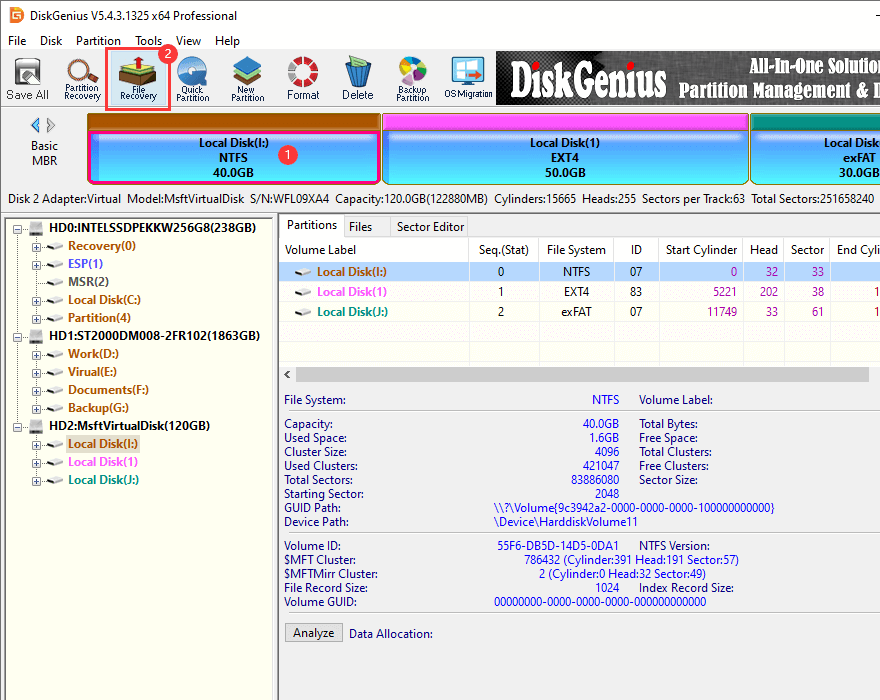
Step 3. Use "File Recovery" feature to recover deleted, lost or formatted files from hard drive.
1. Select the drive from which you want to retrieve files and click "File Recovery" button.
2. Click "Start" button on the pop-up window, and the program starts to scan the drive to look for recoverable files.
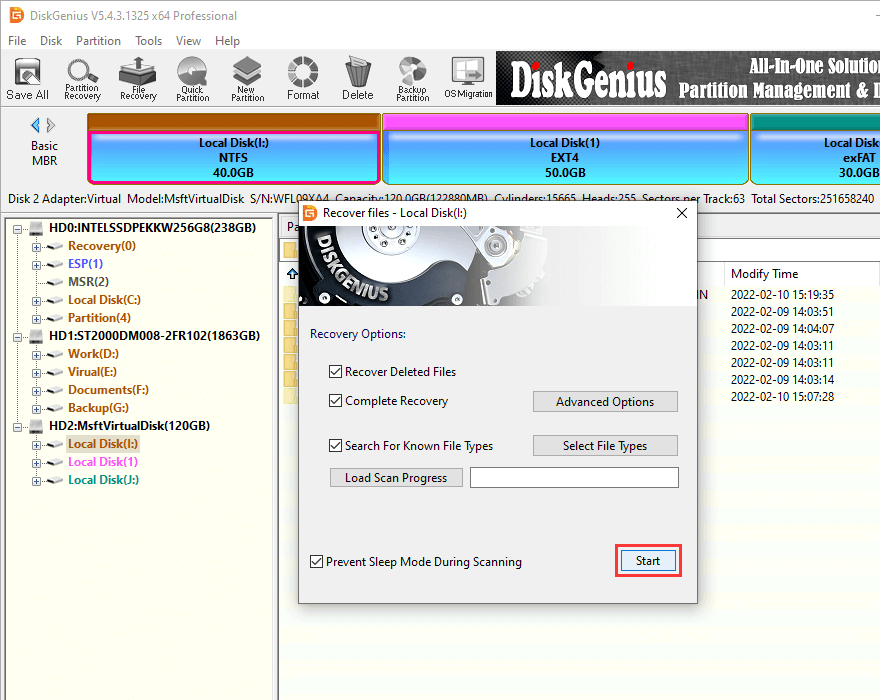
3. Wait for the scanning to finish.
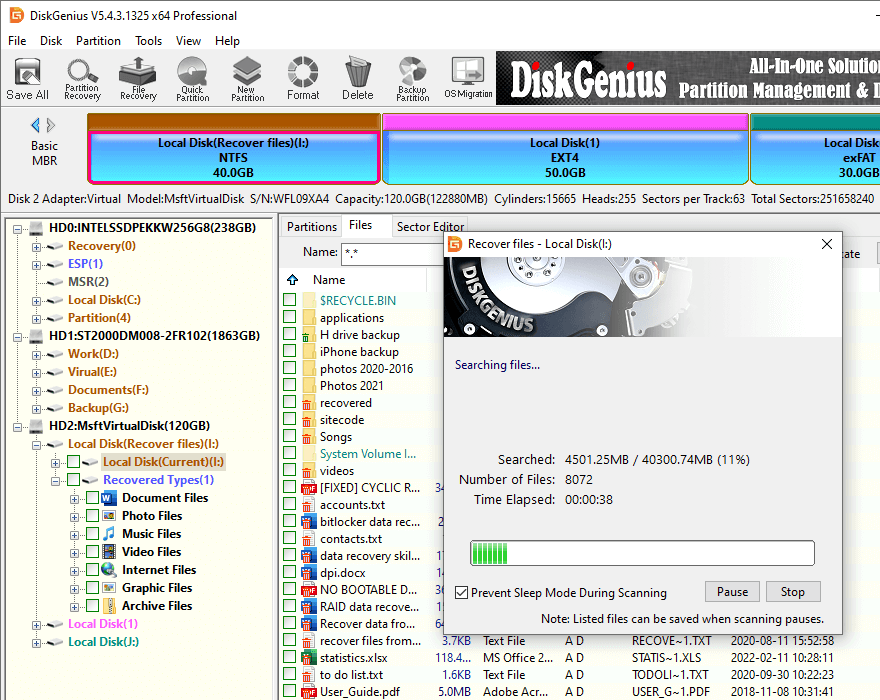
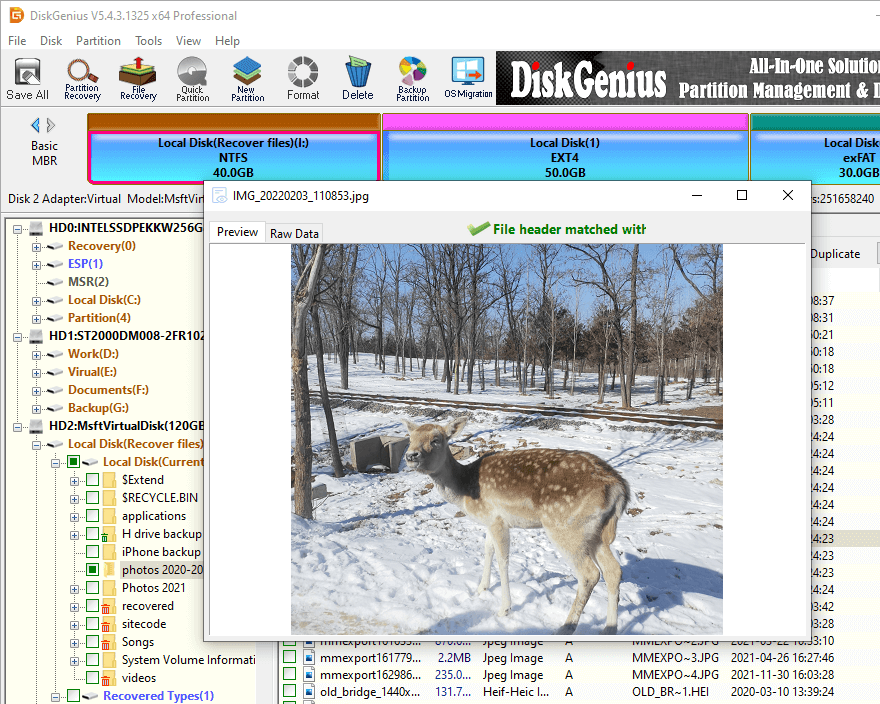
4. Preview lost files to make sure if wanted files are still recoverable.
Tip: if all files listed in scanning result cannot be previewed, please contact the technical support team who will analyze causes and solutions for you free of charge.
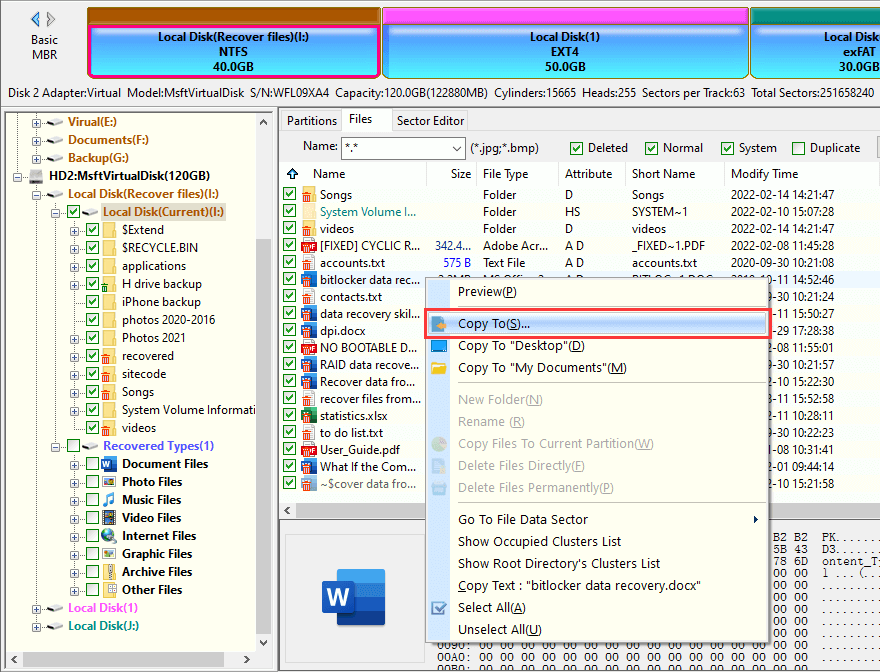
5. Choose files and folders you want to restore and copy them to another partition or hard drive.
1. What does error code 0xc000000e mean?
The error 0xc000000e, sometimes also referred to as STATUS_NO_SUCH_DEVICE, means that there is a hardware failure or an improper configuration. When the error occurred, Windows won't boot, and computer ends up with a blue screen.
2. How do you fix your PC device needs to be repaired 0xc000000e?
The following lists general fixes to error 0xc000000e:
3. How do I fix Windows error code 0xC000021a?
The "Your PC ran into a problem and needs to restart. We're just collecting some error info, and then we'll restart for you. If you'd like to know more, you can search online later for this error: 0xC000021a" is one of the typical BSOD problems, and it can be fixed by trying these tricks:
4. Is the Blue Screen of Death fixable?
Yes, many Blue Screen of Death problems are fixable based on the information provided on the BSOD screen. But in most cases, you have to try various solutions like disconnecting hardware, checking drivers, restore OS to a previous status, etc. When then BSOD cannot be fixed by solutions suggested by experts, you will need to try reinstalling Windows OS.
The "Your PC device needs to be repaired" error usually occurs randomly, which cannot be predicted. Whenever your computer is suffering from similar errors, you can follow troubleshoots above to get rid of the error. If you want to retrieve data from crashed internal hard drive or BSOD computers, use DiskGenius to create a bootable USB drive and recover either lost files or partitions with ease.
DiskGenius - Powerful hard drive recovery software that can retrieve lost files and partitions from crashed internal HDDs, RAW drives, formatted hard disks or unallocated disk space.

DiskGenius is a one-stop solution to recover lost data, manage partitions, and back up data in Windows.
Download

 Facebook
 YouTube
 X
X