
Updated on Jul. 30, 2026
Position: Resource - Disk Utilities - NTFS vs FAT32 vs exFAT: Complete Guide to Choosing the Right File System
When you plug in a USB flash drive, external hard drive, or SD card and try to format it, Windows presents you with a choice: NTFS, FAT32, or exFAT. Most people don't think much about it and just pick whatever is already selected. Others stare at the three options and wonder which one is actually right.
It's a fair question, because the file system you choose affects more than you might think. It determines the maximum size of files you can store, whether your drive will work on a Mac or a game console, and how well your data is protected against corruption. Pick the wrong one and you might find yourself unable to copy a large video file to your brand-new USB drive, or discover that your Mac can't write to the external hard drive you just formatted on your Windows PC.
Here's the short version before we get into the details. FAT32 is old but works practically everywhere. NTFS is the standard for Windows internal drives and offers the strongest security features. exFAT was created to bridge the gap between the two, it supports large files without the compatibility headaches of NTFS. There is no single best file system. The best option depends on your device, your operating system, and what you're actually trying to do.
If you're looking for a reliable tool to format your drives, DiskGenius can format partitions as NTFS, FAT32, exFAT, or even EXT4 (Learn how to read EXT4 in Windows 11/10). Unlike the built-in Windows formatting tool, it can also create FAT32 partitions larger than 32 GB, which is a limitation that catches many people off guard. We'll cover that in more detail later in the article
NTFS vs FAT32 vs exFAT. Before going deep into each file system, let's lay out the key differences in one place.
| Feature | FAT32 | exFAT | NTFS |
| Released | 1996 | 2006 | 1993 |
| Maximum File Size | 4 GB | 16 EB (practically unlimited) | 16 EB (practically unlimited) |
| Maximum Partition Size | 2 TB (Windows limit) / 8 TB (theoretical) | 128 PB | 256 TB (Windows implementation) |
| Windows Support | Full read/write | Full read/write | Full read/write |
| macOS Support | Full read/write | Full read/write (10.6.5+) | Read-only by default |
| Linux Support | Yes | Yes (may need exfat-utils) | Yes (via ntfs-3g) |
| PlayStation Support | Yes | Yes (PS4/PS5) | No |
| Xbox Support | Yes | Yes | No |
| Journaling | No | No | Yes |
| File Permissions | No | No | Yes |
| Encryption | No | No | Yes |
| Best For | Small USB drives, maximum compatibility | Flash storage, external drives, cross-platform use | Windows system drives, internal drives |
If you just need a quick recommendation: use FAT32 for small USB drives where compatibility with every device matters most, as long as your files are all under 4 GB. Use exFAT for USB drives and external SSDs that need to handle large files across Windows and Mac. Use NTFS for Windows internal drives where security and reliability are priorities.
FAT32 is part of the File Allocation Table family, which dates back to the late 1970s. The "32" version was introduced with Windows 95 OSR2 in 1996 as a replacement for FAT16, which had hit its own size limitations. For years, FAT32 was the default file system for consumer storage. If you bought a USB drive, an SD card, or an external hard drive any time in the 2000s, it almost certainly came formatted as FAT32.
Its longevity is impressive. Nearly three decades after its introduction, FAT32 remains the most universally compatible file system in existence. That staying power comes with tradeoffs, though.
Unmatched compatibility. This is FAT32's defining strength. Windows, macOS, Linux, Android, digital cameras, game consoles, smart TVs, car stereos, media players, printers with USB ports. If a device reads external storage at all, it almost certainly supports FAT32. No other file system comes close to this level of universal acceptance.
Simplicity. FAT32 has a straightforward structure with minimal overhead. It doesn't perform journaling, doesn't manage file permissions, and doesn't run background processes for encryption or compression. On small, low-power devices, that simplicity is an advantage. There's less that can go wrong.
Low resource usage. For embedded devices like cameras, routers, or older game consoles, FAT32's lightweight nature means it can run on hardware with limited processing power and memory.
The 4 GB file size limit. This is the big one, and it's the reason most people eventually move away from FAT32. A single file cannot exceed 4 GB on a FAT32 partition. That sounds like a lot until you try to copy a Blu-ray ISO, a long 4K video recording, a large game installation file, or a system backup image. The copy operation will fail partway through with an error message that often gives no clear indication of what went wrong.
Many users discover this limitation at the worst possible moment, like when they're trying to transfer a large file to a USB drive before a presentation or trip.
The 32 GB formatting limit in Windows. This one catches people by surprise too. Windows will not format a FAT32 partition larger than 32 GB through its built-in tools. This is an artificial restriction imposed by Microsoft, not a limitation of the FAT32 file system itself. FAT32 technically supports partitions up to 8 TB (with some tools claiming up to 2 TB under standard implementations). But if you open Disk Management in Windows and try to format a 64 GB or 128 GB USB drive as FAT32, the option simply won't be there. Tools like DiskGenius bypass this restriction entirely.
No file permissions. On a FAT32 drive, any user on any computer can read, modify, or delete any file. There's no concept of ownership or access control. For an internal Windows drive, this is a significant security gap. For a USB drive that you're passing between your own devices, it usually doesn't matter.
No journaling. FAT32 doesn't keep a transaction log of file system changes. If the drive is disconnected during a write operation (someone yanks out the USB stick, the power goes out), the file system can become corrupted more easily than NTFS, which uses journaling to recover from such events.
NTFS stands for New Technology File System, a name that was more meaningful when it debuted with Windows NT 3.1 in 1993. It has been the default file system for every version of Windows since Windows XP, and for good reason. NTFS was designed to address the shortcomings of FAT32.
When you install Windows on a computer, the system partition is formatted as NTFS. This isn't optional. Windows requires it.
Support for large files and large volumes. NTFS can support files of almost any size. Theoretically, a single file can be up to 16 exabytes, but the volume size in Windows implementation is limited to 256 TB. But those limits don't matter for any practical use case.
File permissions and security. NTFS supports Access Control Lists (ACLs), so you can set detailed permissions for individual files and folders. You can also specify who can read, write, modify or execute each file. This is important in multi-user systems and corporate networks, and it's also important for personal machines to protect sensitive data.
Encryption. NTFS can encrypt individual files and folders using the Encrypting File System (EFS), preventing them from being accessed by unauthorized users. The encryption is done at the file system level, transparent to the apps.
Compression. NTFS has built-in file and folder compression which helps save disk space without third party software. The tradeoff is a small performance hit on reading and writing but for files that are rarely accessed it is a good compromise.
Journaling. NTFS keeps a journal (or log) of changes to the file system. This journal enables Windows to quickly restore the file system to a consistent state if the system crashes or loses power unexpectedly. This dramatically reduces the risk of data corruption and is one of the strongest reasons to use NTFS for your Windows system drive.
Disk quotas, sparse files, hard links. NTFS includes a range of advanced features that most home users will never touch but that system administrators and power users rely on.
Cross-platform compatibility is poor. This is NTFS's biggest weakness outside of a Windows-only environment. macOS can read NTFS drives by default, but write support is disabled. You can enable it through third-party tools or Terminal commands, but it's not something Apple officially supports for production use. Most Linux distributions can read and write NTFS through the ntfs-3g driver, but performance isn't as good as native file systems.
If you format an external hard drive as NTFS and plug it into a Mac, you can copy files off it. You cannot add files to it. This is a common source of frustration for people who work across both platforms.
Not ideal for removable devices. Most cameras, media players, and game consoles do not support NTFS. If you format an SD card as NTFS, your camera probably won't recognize it. PlayStation and Xbox consoles do not support NTFS for external storage either. The file permission and journaling overhead also makes NTFS a poor fit for small, simple storage devices.
Write operations on USB flash drives can be slower. Because of journaling and other background processes, NTFS can feel slower than FAT32 or exFAT on basic USB flash drives, especially for many small file operations.
By the mid-2000s, it was clear that FAT32's 4 GB file size limit had become a real problem. Flash drives and SD cards were getting larger, video files were growing, and users needed a way to store big files on portable media. NTFS was technically capable, but its complexity, journaling overhead, and poor cross-platform support made it a poor fit for simple flash storage.
Microsoft's answer was exFAT (Extended File Allocation Table), introduced in 2006. It was made just for flash memory gadgets, like USB drives and SD cards. The goal was straightforward: take the simplicity and broad compatibility of FAT, get rid of the 4GB file size limit and make a file system that works well on devices where NTFS is overkill.
In 2019, Microsoft released the exFAT specification to the open-source community, which significantly improved its adoption across Linux and other platforms.
No practical file size limit. A single file on an exFAT partition can theoretically reach 16 exabytes. In everyday terms, that means you can copy a 50 GB video file, a 100 GB game backup, or a disk image of any size without issues. This alone solves the biggest problem with FAT32.
Designed for flash storage. exFAT was built with the characteristics of flash memory in mind. It employs a less complex allocation model than NTFS, with less write amplification and overhead". That means faster performance and perhaps longer device life on a USB flash drive or SD card.
Good cross-platform support. Windows has supported exFAT natively since Windows XP SP2 (with an update). macOS has supported it since version 10.6.5 (Snow Leopard). Linux support requires the exfat-utils and exfat-fuse packages on older distributions, but modern kernels (5.4 and later) include native exFAT support. Today, most mainstream operating systems handle exFAT without any additional setup.
Device support is broad and growing. PlayStation 4, PlayStation 5, Xbox One, and Xbox Series X/S all support exFAT for external storage. Most modern smart TVs, media players, and Android devices support it as well. Even some newer cameras now offer exFAT as a formatting option for SD cards.
No journaling. Like FAT32, exFAT does not maintain a transaction journal. If a drive is disconnected during a write operation, the risk of file system corruption is higher than with NTFS. For portable drives that get plugged and unplugged often, this is worth remembering. Always eject your drives correctly.
No file permissions or encryption. exFAT treats all users and all devices the same. No access control, no encryption and no compression. ExFAT isn't the best choice if security is important.
Older devices may not support it. Compatibility is usually good in 2024 and 2025, but some older electronics made before about 2010 might not recognize exFAT drives. If you're dealing with a device from that era, FAT32 is the safer bet.
Slightly more overhead than FAT32 for very small drives. On a tiny USB drive (say, 1 GB or 2 GB) used only for small documents, FAT32's simpler structure gives it a marginal edge. This rarely matters in practice, though.
Since both file systems are commonly used on USB drives and removable media, they get compared a lot. And on the surface, they seem similar. Neither supports journaling, file permissions, or encryption. The differences come down to scale and modern device support.
File Size Limit
This is the most significant difference. FAT32 caps individual files at 4 GB. exFAT has no practical limit.
| Scenario | FAT32 | exFAT |
| Copy a 3.5 GB movie | Works fine | Works fine |
| Copy a 7 GB video file | Fails | Works fine |
| Copy a 45 GB game backup | Fails | Works fine |
| Copy a 200 GB disk image | Fails | Works fine |
If you never deal with files larger than 4 GB, this limitation is invisible. But for anyone working with video, large backups, or modern game files, the 4 GB ceiling is a dealbreaker.
Compatibility
FAT32 wins on sheer device coverage. It works on virtually anything with a USB port, including very old hardware. exFAT has excellent modern device support but won't work on everything, particularly older electronics.
Choose FAT32 when you need a drive to work on the widest possible range of devices, including older ones. Choose exFAT when your devices are modern (roughly anything made in the last 10 to 12 years) and you need to store files larger than 4 GB.
Performance on Flash Devices
For USB flash drives and SD cards with larger capacities (32 GB and above), exFAT generally performs better than FAT32. Its allocation table structure is more efficient at managing large volumes, and it handles the way flash memory writes data more gracefully. The difference isn't dramatic in everyday use, but it becomes more noticeable as the drive fills up and the file system has to work harder to find free space.
FAT32 is the safe choice when compatibility is all that matters and your files are small. exFAT is the modern replacement for most removable storage use cases. If your USB drive is 32 GB or larger and you're using it on devices from the last decade, exFAT is almost always the better option.
These two file systems serve different purposes, but the comparison comes up frequently because users often have to choose between them when formatting an external hard drive or portable SSD.
Compatibility
NTFS is a Windows-first file system. It works perfectly within the Windows ecosystem. But step outside of that ecosystem and things get complicated. macOS reads NTFS but won't write to it without third-party tools. Linux handles NTFS through ntfs-3g, which works but adds overhead. Game consoles don't support NTFS at all.
exFAT works natively on Windows, macOS, and modern Linux. It's supported by PlayStation, Xbox, and most media devices. For any drive that needs to move between different operating systems or devices, exFAT is the clear winner.
Security Features
NTFS has exFAT completely beat here. File permissions, encryption through EFS, audit logging, disk quotas. If you need any form of access control or data protection at the file system level, NTFS is the only option of the three that provides it.
exFAT offers none of these features. Every file on an exFAT drive is accessible to anyone who plugs it in. For a personal USB drive that stays in your bag, this might not matter. For a drive containing sensitive work documents, it might matter a lot.
NTFS is the correct choice for:
• Internal drives and Windows system partitions
• Internal secondary drives only used in a Windows PC
• External drives that will only ever be used on Windows machines
• Any situation where file security and data integrity are priorities
exFAT is the best choice for:
• External hard drives and portable SSDs used between Windows and Mac
• USB drives used to move large files from one computer to another
• External storage for game consoles (Playstation, Xbox)
• Any removable drive that has to work across multiple platforms
A common question: if I have an external hard drive that I only use with my Windows PC, should I format it as NTFS or exFAT? In that specific case, NTFS is better. You get journaling for data protection, file permissions for security, and no loss in functionality since you're staying within Windows. exFAT would also work, but you'd be giving up those protections for no added benefit.
This comparison is more one-sided than the others, but it still comes up frequently because some users have older hardware or specific compatibility needs that make FAT32 necessary.
File Size and Volume Size
NTFS wins easily. It supports files and volumes far larger than anything FAT32 can handle. If your files are under 4 GB and your drive is under 2 TB, FAT32 technically works. But those constraints feel increasingly limiting as storage needs grow.
Security
NTFS is the only file system of the three that supports file permissions and encryption. On a shared computer or a machine connected to a network, this matters. On a USB drive that you're just using to move photos from one computer to another, it's less important.
Compatibility
FAT32 wins. NTFS is fine for Windows, but macOS won't write to it by default, and many non-computer devices (cameras, media players, car audio systems) don't support it. FAT32 works everywhere.
Reliability
NTFS has journaling. FAT32 does not. In practical terms, this means NTFS is better at handling unexpected disconnections and power loss. On a USB drive that gets plugged and unplugged many times a day, the journaling protection of NTFS could prevent data loss over time.
When FAT32 Still Makes Sense
Despite its age, FAT32 remains the right choice in certain situations:
• Creating a bootable USB drive for UEFI systems (UEFI firmware requires a FAT32 partition)
• Building a drive that has to run on very old hardware
• Small capacity drives (less than 32 GB) for documents, music or other small files
• Devices that specifically need FAT32 (some embedded systems, some car stereos)
This is the section that puts it all together. Rather than comparing file systems in the abstract, let's look at real scenarios and give a direct recommendation for each one.
If your files are all under 4 GB and you need maximum device compatibility: FAT32. This covers most everyday USB drive use: documents, photos, music, small video files. The drive will work on practically any device you plug it into.
If you need to store files larger than 4 GB: exFAT. No question. Trying to use FAT32 with large files will just lead to frustration. exFAT handles them without issues and still offers broad compatibility with modern devices.
If the USB drive is 32 GB or larger: exFAT in almost all cases. Windows won't let you format it as FAT32 through its built-in tools anyway, and exFAT's performance advantages on larger volumes make it the natural choice. If you specifically need FAT32 for a larger drive (for example, for a UEFI bootable drive), DiskGenius can create that FAT32 partition that Windows refuses to make.
If you use it only on Windows: NTFS. You get the full benefit of journaling, file permissions, and no file size limitations. There's no reason to use exFAT for a drive that stays within the Windows ecosystem.
If you use it on both Windows and Mac: exFAT. This is the most common recommendation you'll find online, and it's correct. exFAT is the only file system that provides full read/write support on both Windows and macOS without third-party drivers or workarounds.
If you also need to connect it to a game console: exFAT. PlayStation and Xbox both support exFAT but not NTFS.
Windows system drive: NTFS. This is not optional. Windows requires NTFS for its system partition. If you're installing Windows, the installer will format the drive as NTFS automatically.
Secondary internal drive (Windows only): NTFS. Same reasoning as above. You're within the Windows ecosystem, so there's no reason to sacrifice NTFS's features.
Portable SSD used across platforms: exFAT. The same logic as external hard drives. Cross-platform use calls for exFAT.
For cards 32 GB and smaller: FAT32 is often the default, and it works well for cameras, drones, and other devices that specifically expect it. Many devices will only accept FAT32.
For cards 64 GB and larger: exFAT is typically the default and the better choice. These larger cards are often used for 4K video recording, which produces files well over 4 GB. The SD Association officially designated exFAT as the standard file system for SDXC cards (64 GB and above).
Important note: Some older devices only support FAT32, even on larger cards. If your camera or drone won't recognize a card formatted as exFAT, try FAT32 instead. But be aware of the 4 GB file size limit, which could interrupt long video recordings.
For UEFI bootable drives (Windows installation media, Linux live USB): FAT32. UEFI firmware requires the boot partition to be FAT32. This is a hardware/firmware requirement, not a preference. If you're creating a bootable USB with the Windows Media Creation Tool, it handles this automatically. For manual setups, you need to ensure at least the boot partition is FAT32.
Recommended: exFAT. Both PlayStation (PS4, PS5) and Xbox (One, Series X/S) support exFAT for extended storage. Format the drive through the console's settings menu, or format it as exFAT on your PC before connecting it to the console. NTFS is not supported by either platform for game storage.
Ask yourself these questions in order:
1. Is this a Windows system drive? Use NTFS. No other option.
2. Does the drive need to work on a Mac too? Use exFAT.
3. Does it need to work on a game console? Use exFAT.
4. Are all your files under 4 GB, and do you need maximum compatibility with old devices? Use FAT32.
5. Is this an external drive used only on Windows? Use NTFS.
6. Is it a flash drive or SD card with files over 4 GB? Use exFAT.
Windows offers built-in formatting through File Explorer and Disk Management. These tools work fine for basic formatting, but they have limitations.
The 32 GB FAT32 problem. As mentioned earlier, Windows will not format a drive larger than 32 GB as FAT32 through its standard tools. If you plug in a 64 GB or 128 GB USB drive and try to format it as FAT32 in File Explorer, the FAT32 option won't appear. In Disk Management, the same restriction applies. This is a well-known limitation that has frustrated users for years.
How to Format a Drive Using DiskGenius? DiskGenius can format drives to NTFS, FAT32, exFAT, and EXT4, and it handles FAT32 partitions well beyond the 32 GB limit that Windows imposes.
Here's how to do it:
Step 1: Download and install DiskGenius Free Edition, then launch it.
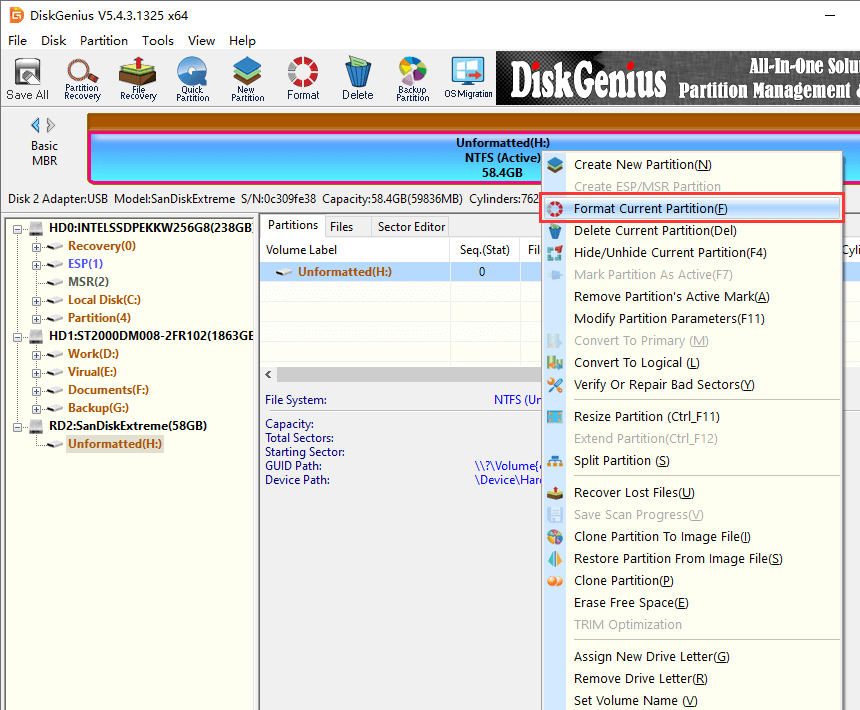
Step 2. Right-click on the partition you want to format and choose "Format Current Partition" from the context menu. You can also select "Format" from the toolbar.
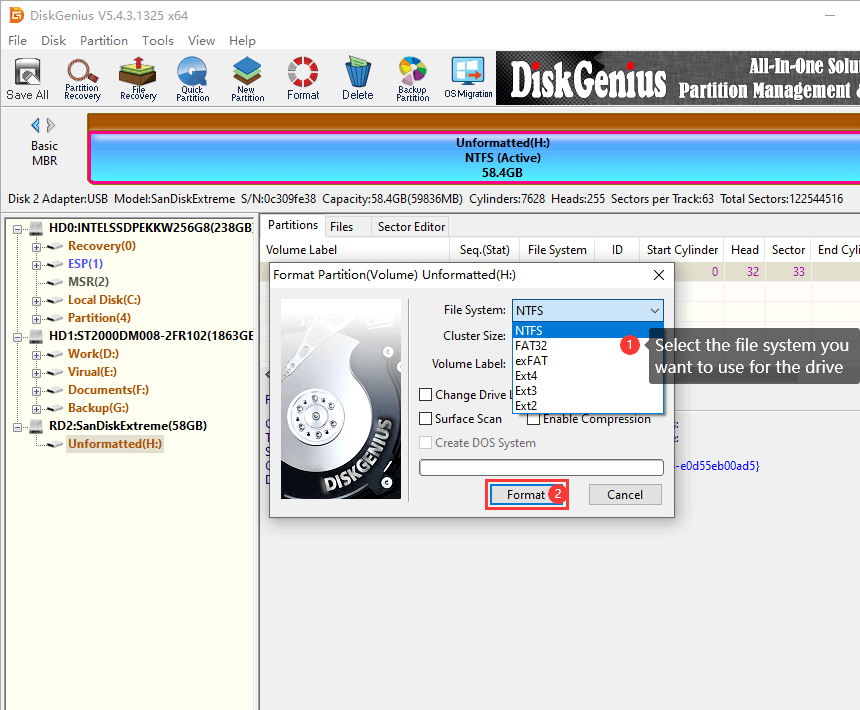
Step 3: In the format dialog, select the file system you want to use from the dropdown menu: NTFS, FAT32, exFAT, or EXT4. Then click on "Format".
You can also set the cluster size (allocation unit size) if you have specific needs, but the default is fine for most users.
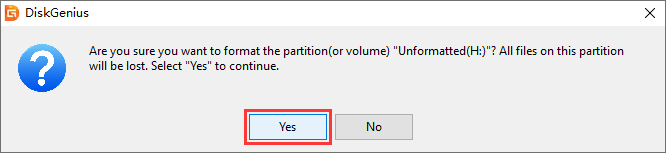
Step 4: Read the warning message and click "Yes" to begin formatting.
Formatting a partition will erase all data on it. If you want to keep files, back them up to another drive before you format. Once the format is complete, recovering the old data becomes much more difficult.
Can You Convert Between FAT32, exFAT, and NTFS Without Losing Data? This is one of the most frequently searched questions about file systems, and the answer depends on which conversion you're trying to do.
FAT32 to NTFS: Yes, Without Formatting
Windows includes a built-in command-line tool called Convert that can change a FAT32 partition to NTFS without erasing your data. Open Command Prompt as Administrator and type:
convert D: /fs:ntfs
Replace D: with the letter of the drive you want to convert. The process is generally safe and preserves your files, but back up anything important first, just in case. There's always some risk when modifying a file system in place.
A few things to know about this conversion:
• It only works in one direction: FAT32 to NTFS. You cannot use Convert to go from NTFS back to FAT32.
• It does not work for exFAT. There is no built-in tool to convert exFAT to NTFS or vice versa without formatting.
• After conversion, the drive will have NTFS file permissions applied. On a personal drive, this rarely causes issues, but be aware that the file system's behavior changes subtly.
NTFS to FAT32: Requires Formatting
There is no built-in Windows tool to convert NTFS back to FAT32 without losing data. The only options are to back up your data, format the partition as FAT32, and then copy the data back. Or use a third-party tool that can handle the conversion, though even these tools carry risk and a backup is strongly recommended.
exFAT to NTFS or FAT32: Requires Formatting
There is no conversion path between exFAT and either FAT32 or NTFS that preserves data in place. You need to format the drive. This means copying everything off the drive, formatting it with the new file system, and copying everything back.
FAT32 to exFAT: Requires Formatting
Same story. No in-place conversion is available. Format and copy.
The only "free" conversion that Windows offers out of the box is FAT32 to NTFS. For everything else, you're looking at a backup, format, and restore cycle. DiskGenius can format partitions between all these file systems, but it does not offer a lossless conversion feature for switching between NTFS, FAT32, and exFAT. Always back up your data before formatting, regardless of which tool you use.
What If a Partition Becomes RAW or Cannot Be Opened? Sometimes a drive that was working fine suddenly shows up as "RAW" in Disk Management, or Windows tells you it needs to be formatted before you can use it. The files are still there (usually), but the file system structure has been damaged and Windows can't read it.
This can happen for several reasons:
• The drive was removed without being safely ejected, interrupting a write operation
• File system corruption caused by a power failure during disk activity
• Bad sectors developing on the drive
• Virus or malware damage to the file system metadata
• A failed format operation that left the partition in an inconsistent state
The most important thing to know: do not format the drive. Formatting will overwrite file system structures and make recovery significantly harder. Also avoid running chkdsk on a RAW partition. While chkdsk is useful for minor file system errors, it can cause further damage to a severely corrupted file system by attempting to "fix" structures it doesn't fully understand.
What to do instead: start RAW partition recovery as soon as possible.
DiskGenius can scan RAW partitions and recover lost files from damaged or inaccessible drives. The approach depends on how badly the file system is damaged.
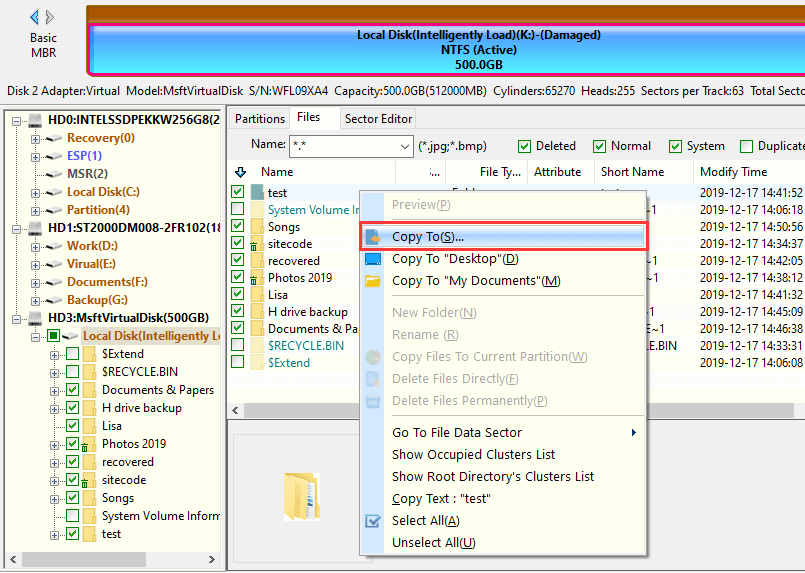
Scenario 1: You can view files in the partition when you open DiskGenius.
Sometimes DiskGenius can read the damaged partition and show your files right away, without scanning.
If this occurs, select the files you want, right click and choose "Copy To" and save them onto another healthy drive.
Scenario 2: You can not see the files, but original file system information of the partition is partially intact.
Then right-click the RAW partition and choose "Load Current Partition Intelligently".
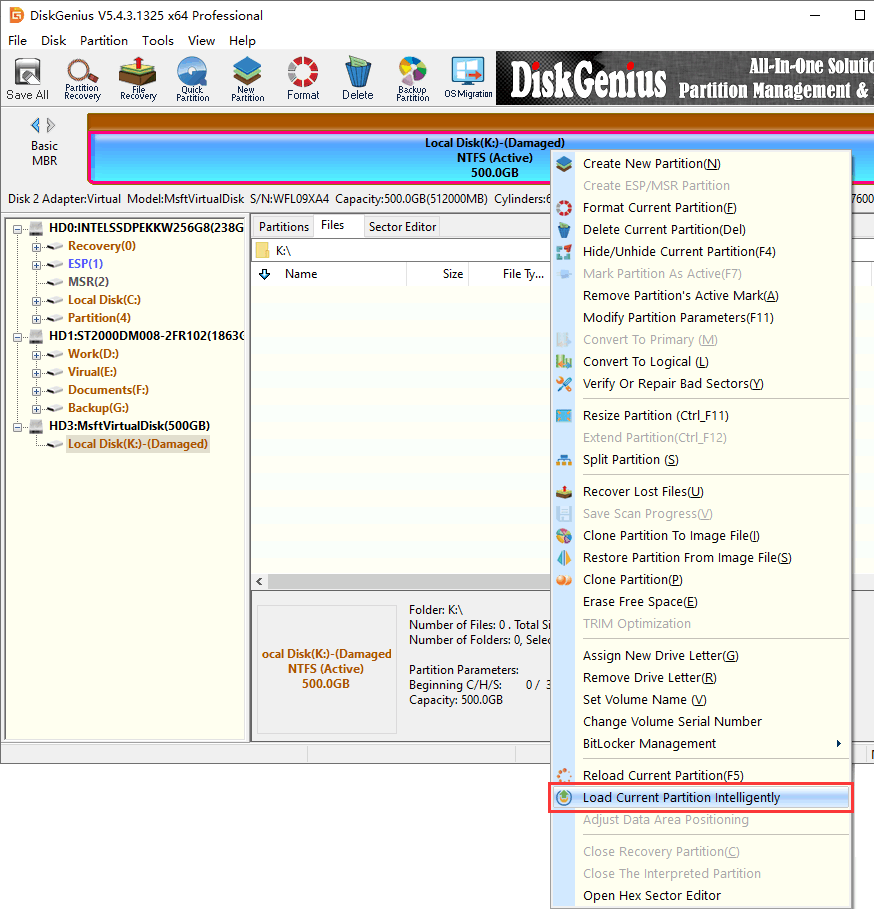
This function tries to rebuild the file listing from the other file system metadata, without needing a full disk scan.
It is quicker than a deep scan and can often retrieve the full folder structure and file names.
If it works, it will show you your files, with their original names and folder structure.
Check them out, make sure they're OK, then export everything to a safe place.
Scenario 3: The file system is too badly damaged for intelligent loading.
If "Load Current Partition Intelligently" can't find your files, don't panic. The data may still be recoverable.
Use the "Recover Lost Files" feature (labeled as "File Recovery" on the toolbar).
This performs a full scan of the partition, looking for file signatures and data fragments. It takes longer than the intelligent loading method, but it can find files even when the file system structure is completely gone.
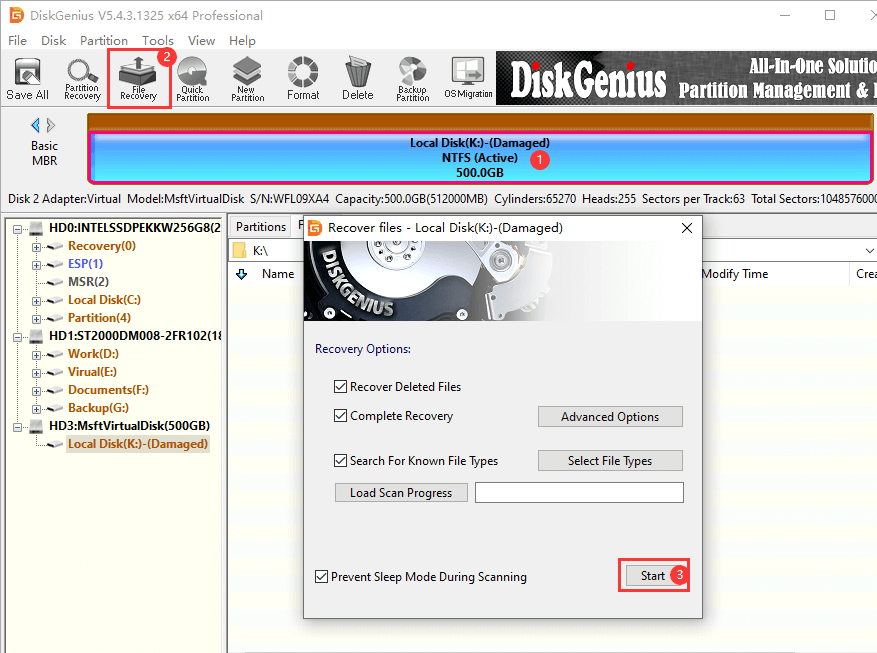
After the scan completes, DiskGenius will present a list of recoverable files. You can preview many file types (photos, documents, videos) before recovering them, which helps you confirm that the data is intact before spending time on the export process.
Select the files you need and save them to a different drive.
Once your data is safely recovered, you can then format the damaged partition and copy your files back.
A few beliefs about file systems get repeated so often that people accept them as fact. Some are outdated, some are oversimplified, and some are just wrong.
"NTFS is always faster than FAT32."
Not necessarily. On modern hardware, NTFS tends to be good for large file operations, since it handles large volumes well. But FAT32 has less overhead, so it can be a bit faster for many small file operations on a simple USB flash drive. The journaling and security features of NTFS add processing steps that, on low-power flash controllers, can slow things down. The real-world performance difference between the two on a USB drive is usually small, but the idea that NTFS is universally faster is an oversimplification.
"exFAT is just an upgraded version of FAT32."
Despite sharing the "FAT" in its name, exFAT is a fundamentally different file system. The on-disk data structures, allocation methods and metadata handling are new designs. exFAT uses a bitmap free space allocation instead of FAT32's chain based approach. This is one of the reasons it handles large volumes and large files more efficiently. It's more of a new file system that just happened to borrow a familiar name than just an update to the old one.
"Formatting a drive as NTFS makes it last longer."
There is some truth here, but it is often exaggerated. NTFS journaling can lessen the chances of the file system getting corrupted from unexpected disconnections, which in theory means less forced reformats over the life of the drive. But the physical lifespan of a flash drive or SSD is determined by the NAND flash cells and the drive's controller, not the file system. For the actual hardware endurance, the file system choice makes a negligible difference.
"You should always format USB drives as NTFS for better protection."
For a USB drive that stays connected to one Windows PC, NTFS is fine. But for a drive that gets plugged into different devices, different operating systems, or game consoles, NTFS creates more problems than it solves. The journaling and permission metadata also add write overhead to the flash memory. For a portable drive, exFAT is usually the better balance of features and compatibility.

DiskGenius is a one-stop solution to recover lost data, manage partitions, and back up data in Windows.
Download

 Facebook
 YouTube
 X
X